


 Видео конвертер Ultimate
 Устройство записи экрана
 Видео ремонт
 Безопасная загрузка
Как легко конвертировать F4V в MP4 с помощью автономных и онлайн-инструментов
Формат файла FLV является одним из стандартных форматов, используемых Adobe Flash, но если вы хотите просматривать видео более высокого качества, вам необходимо конвертировать файл F4V в другие форматы, например MP4. Формат MP4 можно воспроизводить практически на всех устройствах, таких как iPhone, iPad, смартфоны Android и компьютеры. Поэтому, если вы предпочитаете видео высокого качества, мы предложим вам самые эффективные способы конвертации F4V в MP4 с помощью офлайн- и онлайн-инструментов.

Часть 1. Базовый метод преобразования F4V в MP4 на Mac и Windows
Если вы пользователь Mac и вам нравится конвертировать видеофайлы, вы можете использовать Video Converter Ultimate. Этот офлайн-конвертер отлично подходит для преобразования F4V в MP4 на Mac и Windows, что делает его удобным для всех пользователей. Кроме того, он может конвертировать практически любые видеофайлы, поскольку поддерживает AVI, MP4, MOV, FLV, VOB, MTS, SWF, MKV, WMV и другие форматы. Кроме того, конвертировать F4V-файлы в этом приложении легко, потому что у него понятный интерфейс и базовые методы конвертации. Таким образом, вы можете быть уверены, что им удобно пользоваться, особенно новичкам. Более того, с точки зрения скорости конвертации вы останетесь довольны. Video Converter Ultimate предлагает ультрабыструю конвертацию, которая в 30 раз быстрее, чем у других конвертеров. Вы также можете конвертировать несколько видеофайлов одновременно, так как он поддерживает пакетную обработку. Кроме того, в этом приложении вы можете делать больше, чем просто конвертировать видео. При желании вы можете создавать музыкальные клипы с помощью этого инструмента. В приложении есть функция создания музыкального видео и предлагаются различные темы, такие как simple, happy, snowy night, neat и другие. Также в этом видеоконвертере есть функция Collage maker, с помощью которой вы можете создавать коллажи, используя разные шаблоны и фильтры. Вы сможете оценить ещё больше замечательных возможностей, используя FVC Video Converter Ultimate.
Функции
◆ Преобразование более 100 форматов видеофайлов, таких как MP4, F4V, MOV, AVI, MKV, WMV, VOB и т. д.
◆ Создайте коллаж с помощью бесплатных шаблонов и фильтров.
◆ Сделайте фантастическое музыкальное видео на различные темы.
◆ Сжать видео до нужного размера файла.
◆ Отрегулируйте скорость видео от 0,125x до 8x выше средней скорости видео.
◆ Добавляйте и удаляйте водяные знаки из видео.
◆ Преобразование форматов файлов изображений, таких как BMP, PNG, JPG, TIF и т. д.
Следуйте приведенным ниже простым методам, чтобы быстро преобразовать F4V в MP4 с помощью FVC Video Converter Ultimate.
Шаг 1: Скачайте Video Converter Ultimate на ваш компьютер, нажав кнопку Download ниже. Затем перейдите к установке и запустите приложение.
Бесплатная загрузкаДля Windows 7 или более поздних версийБезопасная загрузка
Бесплатная загрузкаДля MacOS 10.7 или более поздних версийБезопасная загрузка
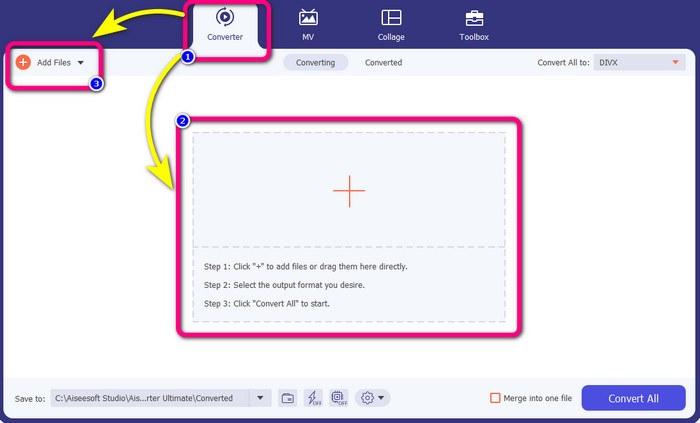
Шаг 2: Чтобы конвертировать ваше F4V-видео, перейдите во вкладку Converter и нажмите значок Plus или кнопку Add File, чтобы добавить видео в формате F4V.
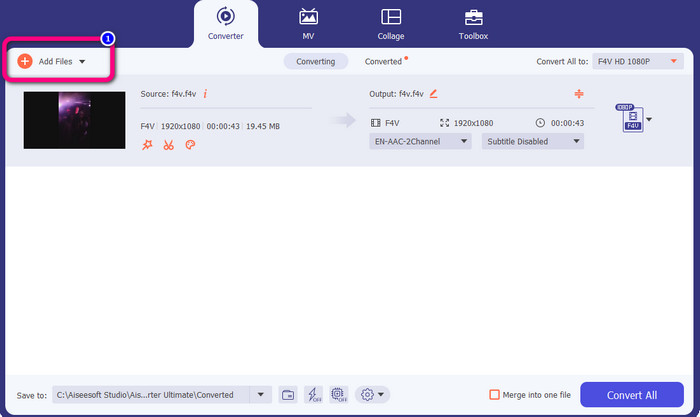
Шаг 3: Если вы хотите конвертировать сразу несколько файлов F4V, нажмите кнопку Add Files и добавьте ещё один F4V-файл.
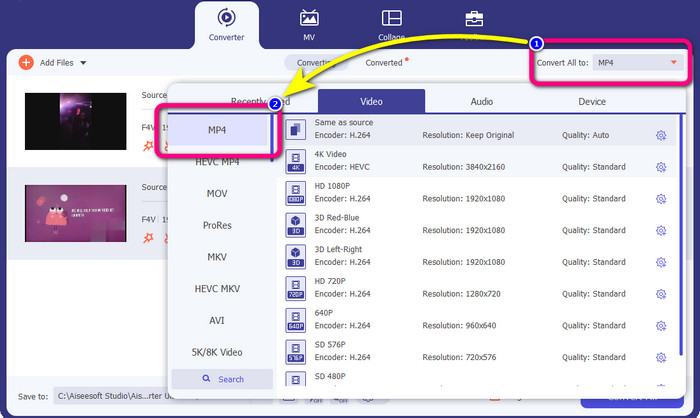
Шаг 4: Нажмите кнопку Convert All to, чтобы изменить выходной формат. Откроется список форматов, из которого выберите MP4. Также можно задать предпочтительное качество видео.
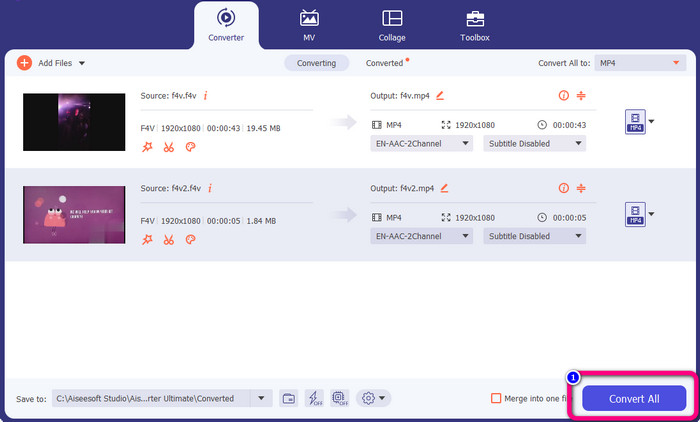
Шаг 5: Закончив выбор выходного формата, вы можете конвертировать файлы, нажав кнопку Convert All. Процесс конвертации начнётся, и ваш F4V-файл будет преобразован в MP4 всего за несколько секунд.
Часть 2: Простые шаги для преобразования F4V в MP4 с помощью VLC
В этой части вы узнаете, как конвертировать F4V в MP4 с помощью VLC Media Player. Да! Вы правильно прочитали! Помимо воспроизведения видео, VLC — это еще один инструмент, который вы можете использовать для преобразования файлов. Кроме того, он поддерживает различные форматы файлов, такие как MP4, WEBM, OGG, TS, ASF и другие. Однако вам нужно достаточно знать об этом инструменте, потому что у него запутанный интерфейс. Посмотрите учебные пособия или попросите опытных пользователей понять, как конвертировать файлы с помощью VLC. Кроме того, загрузка этого конвертера занимает много времени. Следуйте приведенным ниже процедурам, чтобы преобразовать F4V в MP4 с помощью VLC Media Player.
Шаг 1: Скачайте VLC Media Player на ваш компьютер. Запустите приложение после завершения установки.
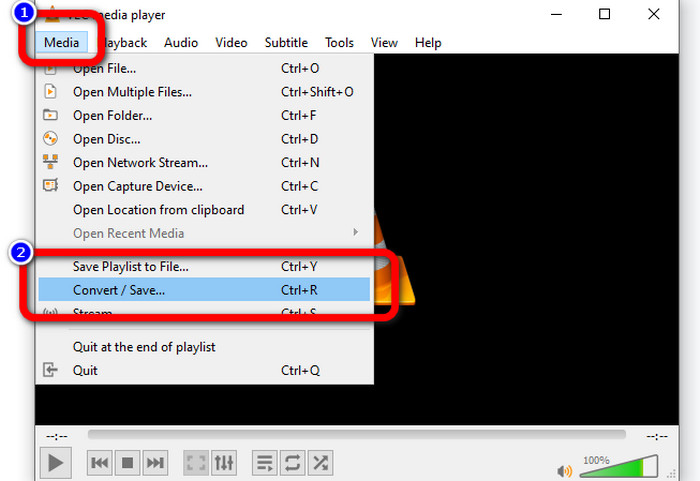
Шаг 2: Перейдите в меню Media > Convert/Save. Затем нажмите кнопку Add, чтобы добавить ваше F4V-видео.
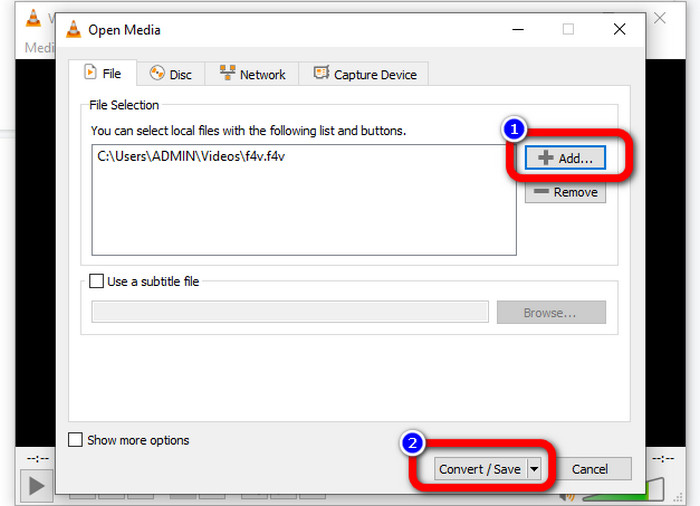
Шаг 3: После добавления видео F4V снова нажмите кнопку Convert/Save в нижней части интерфейса.
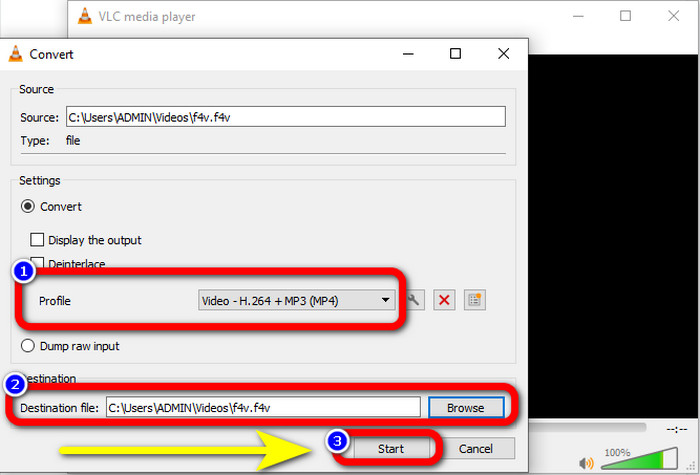
Шаг 4: Перейдите к разделу профилей и выберите формат MP4. Затем нажмите Browse, чтобы указать папку, в которой вы хотите сохранить видео. Нажмите кнопку Start, чтобы запустить процесс конвертации.
Часть 3: Простой способ конвертировать F4V в MP4 с помощью ручного тормоза
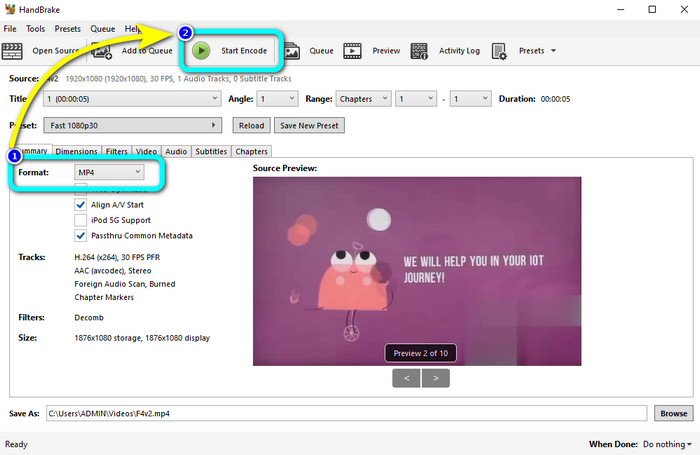
Если вы до сих пор ищете другой конвертер F4V в MP4 для Windows, вы можете использовать Handbrake. Это офлайн-инструмент, поддерживающий несколько видеоформатов, таких как MP4, MKV, WEBM и др. Однако этот инструмент сложен в использовании, поскольку содержит множество запутанных настроек. Используйте шаги ниже, чтобы преобразовать ваш файл F4V в формат MP4.
Шаг 1: Скачайте Handbrake на компьютер под управлением Windows. Затем запустите приложение после установки.
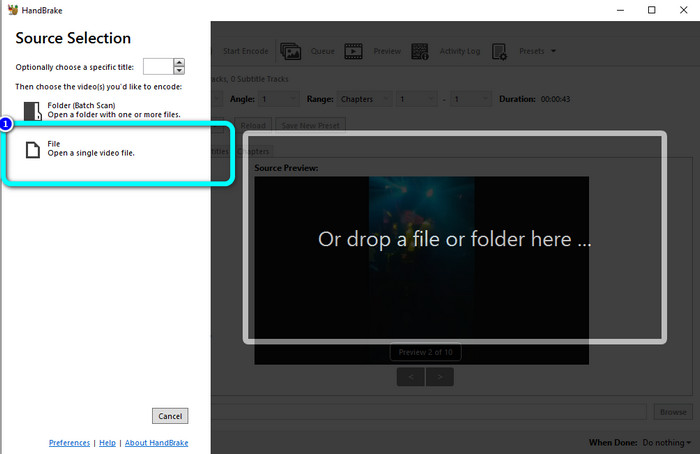
Шаг 2: Нажмите кнопку File, чтобы добавить ваш F4V-файл.
Шаг 3: Перейдите к параметрам формата и выберите формат MP4. Затем нажмите кнопку Start Encode. Дождитесь завершения конвертации и сохраните получившееся видео.
Часть 4: подробные шаги по конвертации F4V в MP4 бесплатно онлайн
Хотите использовать онлайн-приложение, чтобы бесплатно конвертировать F4V в MP4? Воспользуйтесь FVC Free Video Converter Online. Вы можете конвертировать файл F4V, не потратив ни копейки. Кроме того, у этого конвертера простой и понятный интерфейс, который подойдёт непрофессиональным пользователям. Он поддерживает различные видеоформаты, такие как FLV, WMA, MOV, AVI, WMV и другие. Самое лучшее то, что вы можете конвертировать видеофайлы без потери качества. Следуйте подробным шагам ниже, чтобы легко конвертировать F4V в MP4.
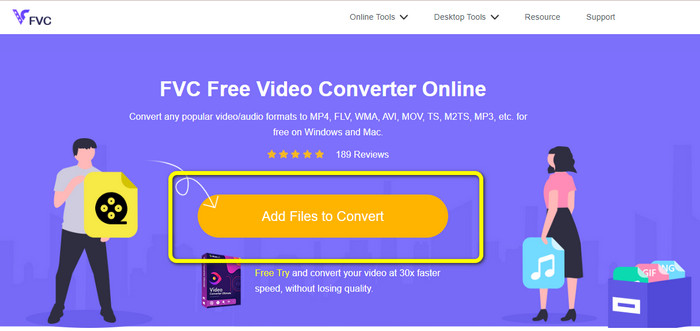
Шаг 1: Перейдите на сайт FVC Free Video Converter Online. Нажмите кнопку Add Files to Convert, чтобы загрузить ваш видеофайл F4V.
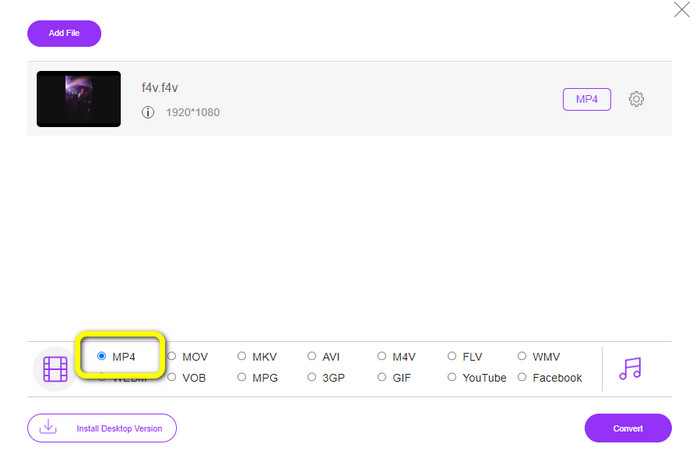
Шаг 2: После загрузки видео перейдите в нижнюю часть интерфейса и выберите формат файла MP4.
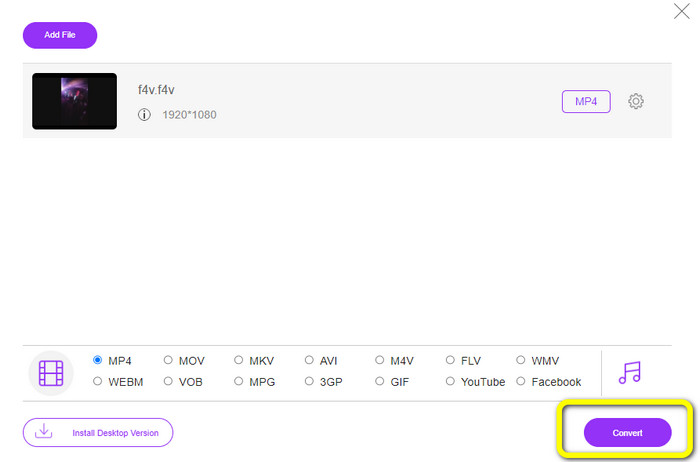
Шаг 3: Наконец, нажмите кнопку Convert. Дождитесь завершения процесса конвертации и сохраните файл в нужное вам место.
Часть 5: F4V против MP4
См. дополнительную информацию об этих двух форматах файлов ниже.
| F4V | MP4 | |
| Расширение файла | .f4v | .mp4 |
| Разработано | яблоко | Группа экспертов по киноискусству |
| Описание | Это оригинальный формат флэш-файла. Он также основан на базовом формате медиафайлов ISO, который поддерживает флэш-плеер 9. Кроме того, файлы F4V нельзя воспроизводить на устройствах iOS, но в браузерах, поддерживающих флэш, их можно воспроизводить. | Это мультимедийный файл. Контейнер может хранить данные субтитров, аудио и видео. Кроме того, как и другие форматы контейнеров, MP4 позволяет выполнять потоковую передачу в Интернете. |
| Ассоциированные программы | Медиаплеер XVLC Видео ЛВС Проигрыватель Windows Media FFDShow Майкрософт Виндоус Просмотр фотогалереи | Плеер Apple QuickTime Видео ЛВС VLC Media Player Apple iTunes Проигрыватель Microsoft Windows Media |
Дальнейшее чтение:
2 популярных варианта конвертеров для преобразования F4V в WMV [2023]
2 самых быстрых способа конвертировать F4V в FLV [онлайн и офлайн]
Часть 6: Часто задаваемые вопросы о преобразовании F4V в MP4
1. Могу ли я конвертировать MP4 в F4V?
Да, ты можешь! Вы можете использовать Video Converter Ultimate. Это приложение может мгновенно преобразовать файл MP4 в формат F4V.
2. В чем разница между F4V и FLV?
Основное различие между этими двумя форматами заключается в том, что F4V поддерживает высококачественные видео, закодированные с помощью H.264, а формат FLV обычно использует H.263.
3. Как использовать FFmpeg для преобразования F4V в MP4?
Загрузите FFmpeg на свой компьютер. Откройте командную строку. Введите Рабочий стол, чтобы переключить командную строку. Команда преобразования начинается с FFmpeg-i, затем введите имя видео и формат его файла. Кроме того, тип выходного файла. Нажмите Enter и дождитесь процесса конвертации. После этого вы сможете увидеть свой файл на рабочем столе
Заключение
В этом руководстве представлены подробные инструкции по конвертации F4V в MP4 онлайн и офлайн. Пользователи предпочитают более простой и быстрый способ преобразования видео. Поэтому вы можете использовать Video Converter Ultimate, чтобы мгновенно конвертировать ваши видеофайлы, поскольку он обеспечивает скорость конвертации в 30 раз выше, чем другие конвертеры. Вы также можете воспользоваться FVC Free Video Converter Online, чтобы конвертировать видео максимально просто — вам понадобится всего несколько кликов.
-
 4 новейших онлайн- и офлайн-конвертера для преобразования F4V в формат AVI
 Разве вы не знаете, какой конвертер следует использовать для преобразования F4V в AVI или любой другой видеоформат? Затем прочитайте эту статью, чтобы узнать, как конвертировать с помощью доступного инструмента.
-
 Как конвертировать F4V в MOV без потери качества [решено]
 Если вы изо всех сил пытаетесь распознать некоторые видеоформаты, такие как F4V. Прочтите эту статью, чтобы узнать больше о видеоформатах F4V и MOV и узнать, как преобразовать F4V в MOV с помощью различных методов.
-
 Успешные методы немедленного преобразования DIVX в MP4
 Как преобразовать DIVX в MP4? Если вы ищете лучшее решение, вы попали в нужную статью. Мы покажем вам, как легко конвертировать DIVX в MP4.
