


 Видео конвертер Ultimate
 Устройство записи экрана
 Видео ремонт
 Безопасная загрузка
Распространенные методы преобразования Xvid в MP4 онлайн и офлайн
Столкнулись с проблемами при воспроизведении Xvid‑видео? Мы предлагаем для этого лучшие решения. Наиболее эффективный способ — конвертировать Xvid в другие удобные форматы, например MP4. Так вы избежите сложностей при потоковом воспроизведении роликов. В этой статье мы представим бесплатный конвертер Xvid в MP4, которым вы можете воспользоваться. Этот инструмент поможет легко и мгновенно конвертировать ваши видеофайлы. Если вам интересна эта тема, переходите к следующим разделам и с пользой проведите время, узнавая новое!

Часть 1: Самый простой способ конвертировать Xvid в MP4 на Mac и Windows
Используйте Video Converter Ultimate, чтобы конвертировать Xvid в MP4. Этот конвертер можно использовать как на Mac, так и на компьютерах с Windows. Он конвертирует данные в 30 раз быстрее по сравнению с другими конвертерами. Кроме того, благодаря поддержке пакетной конвертации вы можете преобразовать множество Xvid‑файлов в один формат MP4. С этой функцией вы сможете легко и быстро конвертировать файлы. Дополнительно утилита поддерживает такие форматы видеофайлов, как AVI, FLV, MKV, MOV, VOB, WMV, M4V и более 100 других. Она подходит как для пользователей Xvid, так и MP4. Кроме того, благодаря удобному интерфейсу и простым методам конвертации этот конвертер подойдёт как начинающим, так и опытным пользователям. Чтобы узнать, чего ещё ожидать при использовании Video Converter Ultimate, ознакомьтесь с дополнительными возможностями ниже.
Функции
◆ Преобразование различных форматов видеофайлов, таких как Xvid, MP4, DIVX, M4V, FLV, AVI, MKV, WMV, SWF и другие.
◆ Преобразование нескольких видеофайлов одновременно.
◆ Он предлагает сверхскоростной процесс преобразования, который в 30 раз быстрее, чем у других конвертеров.
◆ Предлагает инструменты для редактирования видео, включая видеоулучшитель, компрессор, триммер, обрезку, реверс и т. д.
Следуйте подробным инструкциям ниже, чтобы преобразовать Xvid в MP4 на вашем Mac или Windows с помощью FVC Video Converter Ultimate.
Шаг 1: Скачайте Video Converter Ultimate на свой Mac или Windows, нажав кнопку Download ниже. После завершения установки запустите приложение.
Бесплатная загрузкаДля Windows 7 или более поздних версийБезопасная загрузка
Бесплатная загрузкаДля MacOS 10.7 или более поздних версийБезопасная загрузка
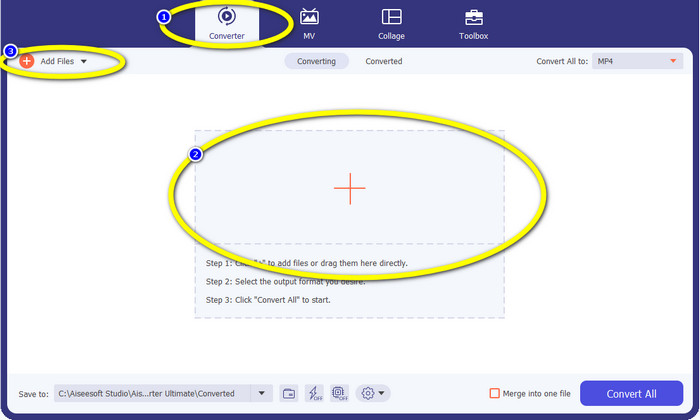
Шаг 2: Когда интерфейс появится на экране, выберите вкладку Converter и нажмите значок «+», чтобы добавить Xvid‑файл. Ещё один способ добавить видеофайл — нажать кнопку Add Files.
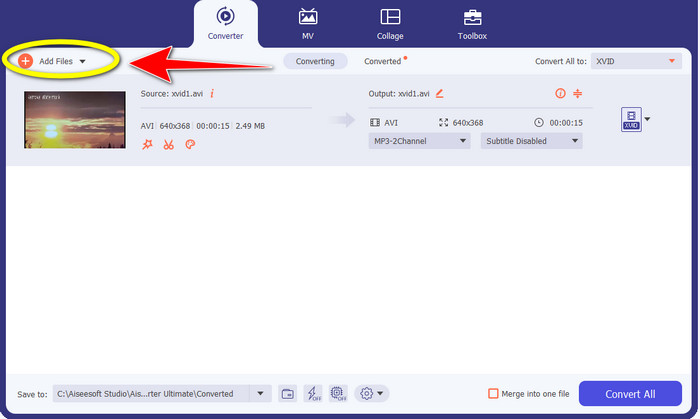
Шаг 3: Это приложение позволяет конвертировать несколько файлов. Поэтому, чтобы добавить ещё одно Xvid‑видео для конвертации, нажмите кнопку Add Files в левом верхнем углу интерфейса.
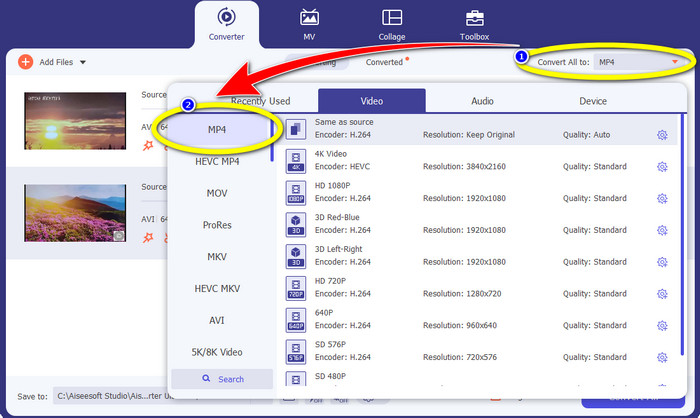
Шаг 4: Затем, чтобы преобразовать их в один MP4‑файл, нажмите кнопку Convert All to. Выберите формат MP4 из списка форматов и укажите желаемое качество видео.
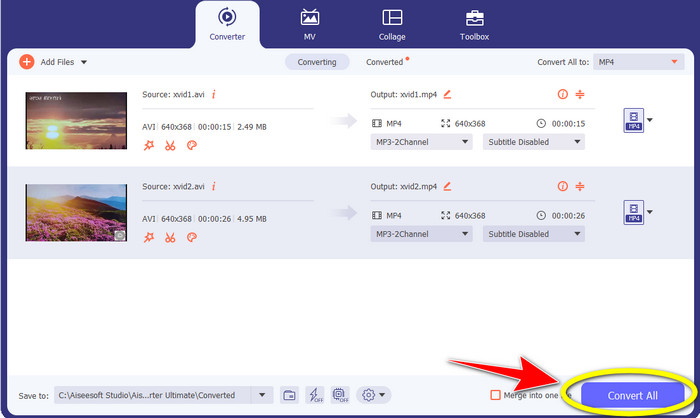
Шаг 5: После выбора желаемого выходного формата переходите к процессу конвертации, нажав кнопку Convert All. Затем сохраните MP4‑видео на своём устройстве.
Часть 2: Как конвертировать Xvid в MP4 на VLC
В этой части вы узнаете, как конвертировать Xvid в MP4 в VLC. Дополнительно отметим, что VLC Media Player может не только воспроизводить видео, но и конвертировать несколько видеофайлов. Он поддерживает такие форматы видео, как MP4, TS, WEM, OGG и другие. Более того, он умеет конвертировать аудиофайлы, например MP3, FLAC и т. д. Таким образом, VLC — тоже надёжное приложение для преобразования различных файлов. Однако эта программа не слишком удобна для новичков: у неё сложный для понимания интерфейс, из‑за чего ею труднее пользоваться. Кроме того, скачивание и установка на компьютер занимают довольно много времени.
Шаг 1: Скачайте и установите VLC Media Player на свой компьютер. Затем запустите приложение.
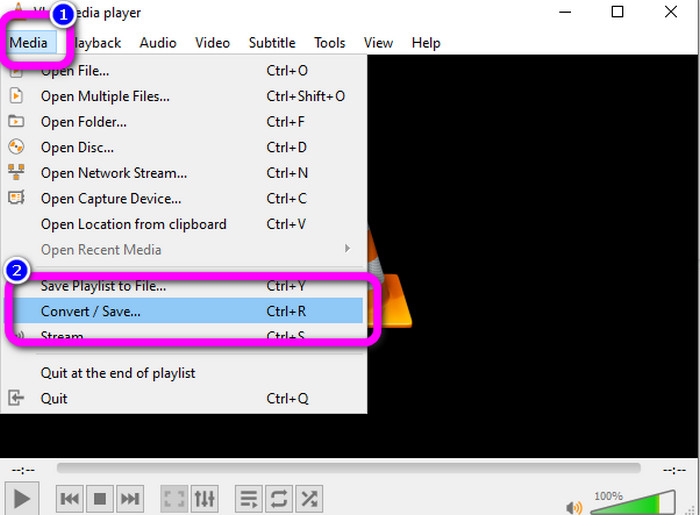
Шаг 2: Перейдите в верхнюю часть интерфейса и выберите пункт Media. Затем нажмите кнопку Convert/Save.
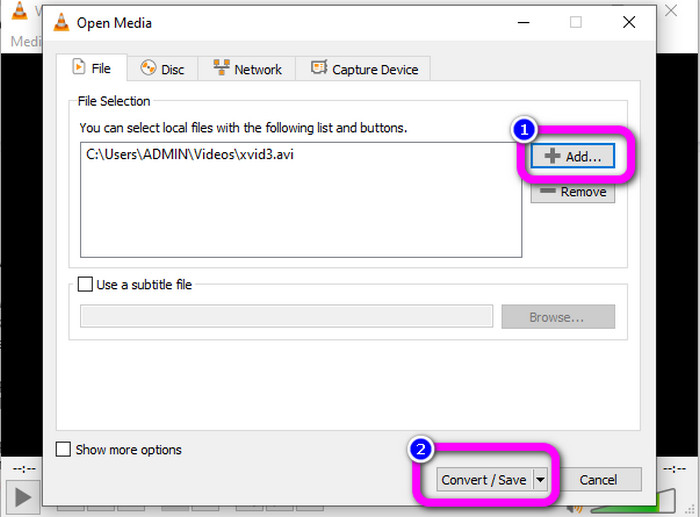
Шаг 3: Нажмите кнопку Add, чтобы добавить Xvid‑видеофайл. Когда файл будет добавлен, нажмите кнопку Convert / Save.
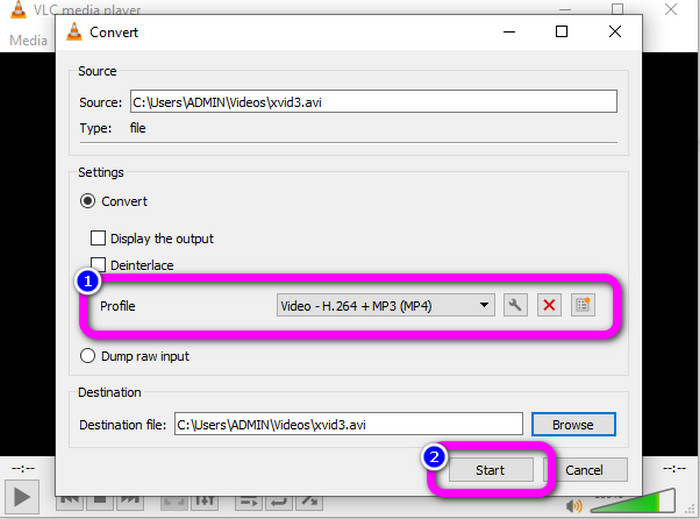
Шаг 4: На заключительном этапе нажмите Profile, чтобы открыть список форматов, и выберите формат MP4. Укажите файл назначения и начните процесс конвертации, нажав кнопку Start.
Часть 3: Простые шаги для преобразования Xvid в MP4 на ручном тормозе
Handbrake — еще один автономный инструмент, которому вы можете доверять при преобразовании файла Xvid в формат MP4. Кроме того, этот инструмент предлагает процесс пакетного преобразования, при котором вам нужно всего лишь вставить папку, состоящую из нескольких видео, и конвертировать их одновременно. Однако пользоваться им непросто. Многие варианты сбивают с толку новичков. Следуйте простому руководству ниже, чтобы преобразовать Xvid в MP4 с помощью ручного тормоза.
Шаг 1: Скачайте Handbrake на свой компьютер. После завершения установки запустите программу.
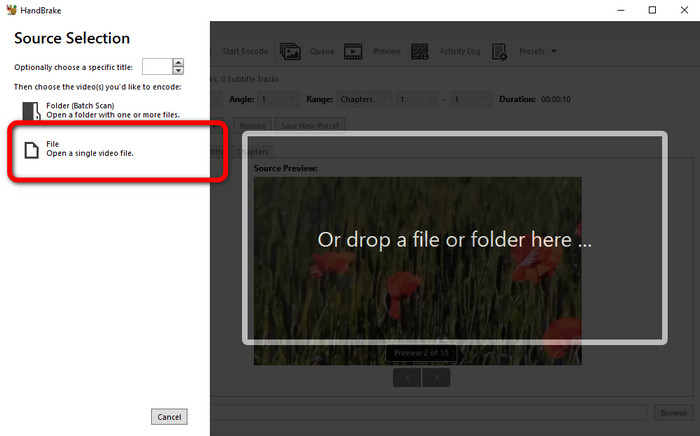
Шаг 2: Откройте пункт File, чтобы добавить Xvid‑видеофайл.
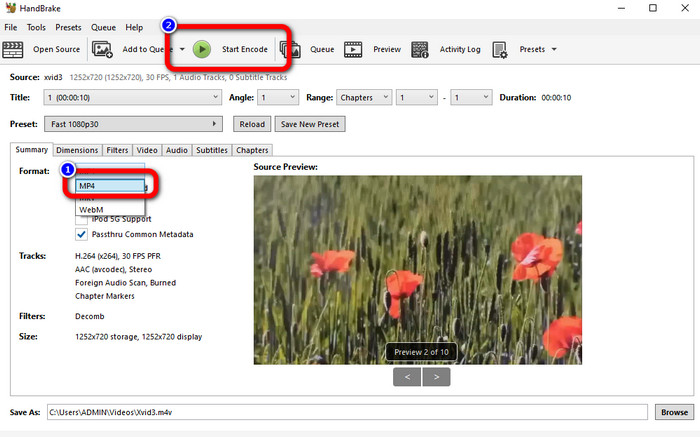
Шаг 3: Перейдите к параметру Format и выберите формат MP4. Затем нажмите кнопку Start Encode, чтобы конвертировать Xvid‑файл в формат MP4.
Часть 4: Процесс преобразования Xvid в MP4 онлайн
FVC Free Video Converter Online — отличный инструмент для онлайн‑конвертации Xvid в MP4. Он предлагает удобный интерфейс, что идеально для начинающих. Вы можете конвертировать файлы всего в три простых шага. Кроме того, можно одновременно конвертировать несколько файлов, поскольку поддерживается пакетная конвертация. Этот инструмент поддерживает различные видеоформаты, такие как FLV, AVI, MKV, WMA, MOV, VOB и другие. Если вы хотите использовать FVC Free Video Converter Online, следуйте простым инструкциям ниже.
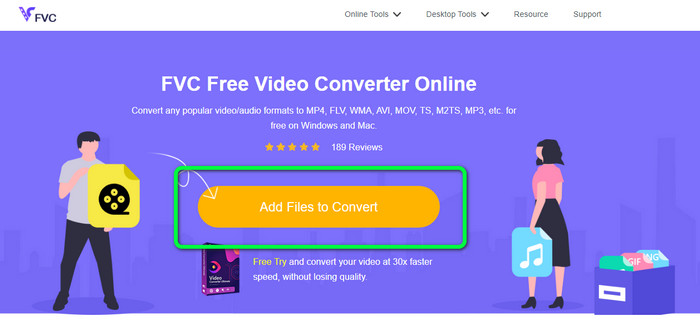
Шаг 1: Перейдите на сайт FVC Free Video Converter Online. На главной странице нажмите кнопку Add Files to Convert, чтобы загрузить Xvid‑видеофайл, который вы хотите конвертировать.
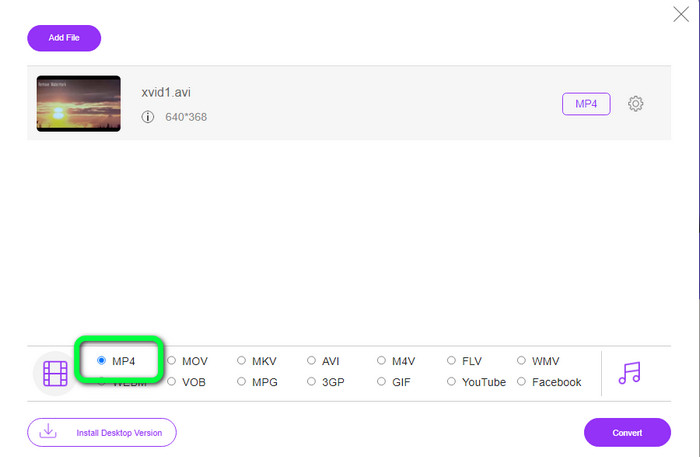
Шаг 2: В нижней части интерфейса вы увидите список форматов. Выберите MP4 в качестве выходного формата.
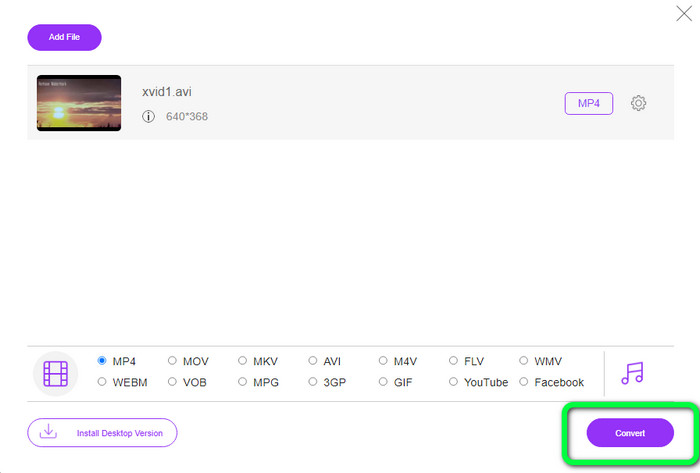
Шаг 3: Нажмите кнопку Convert, чтобы конвертировать ваш Xvid‑файл в формат MP4. Дождитесь завершения процесса конвертации и сохраните итоговое видео.
Часть 5: отличный способ конвертировать Xvid в MP4 с помощью Android
Если вам нужен конвертер Xvid в MP4 для Android, вы можете использовать приложение Video Format Factory. С его помощью вы легко измените формат видеофайла на другой. Однако процесс конвертации занимает много времени, поскольку скорость преобразования низкая. Ознакомьтесь со следующими шагами, чтобы конвертировать Xvid в MP4.
Шаг 1: Скачайте и установите Video Format Factory на свой Android‑устройстве.
Шаг 2: После запуска приложения выберите пункт Video, чтобы добавить Xvid‑файл.
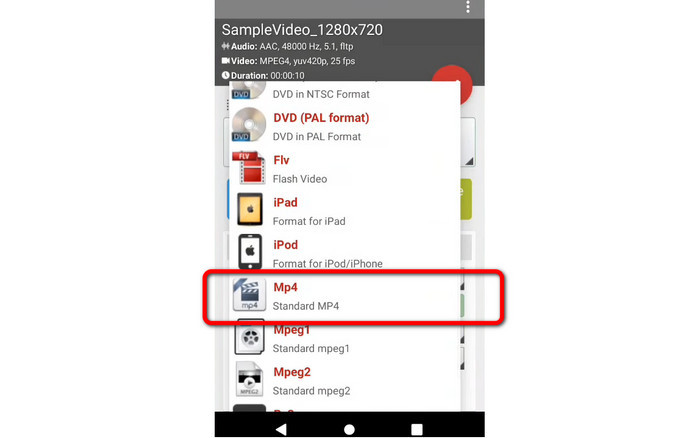
Шаг 3: Выберите опцию Convert и укажите формат MP4 в списке форматов. Затем запустите процесс конвертации, нажав значок Checkmark.
Дальнейшее чтение:
Простые способы конвертации Xvid в DivX
Отличные способы быстро конвертировать XviD в 3GP
Часть 6: Часто задаваемые вопросы о преобразовании Xvid в MP4
1. Что такое формат файла Xvid?
Формат файла Xvid — это видеокодек, соответствующий стандарту кодирования MPEG-4. Этот кодек сжимает видеофайлы с использованием формата MPEG-4 Part 2 A SP.
2. Xvid хорошего качества?
Да. Этот файл является продолжением Project Mayo. Его целью является разработка высококачественного кодека MPEG-4 с открытым исходным кодом.
3. Сжат ли MP4?
Да, это так. Существует сжатый файл MP4. В файл MP4 могут быть включены различные кодеки видео. Среди наиболее популярных видеокодеков для MP4 — H.264, H.265 и MPEG-4. При сжатии H.264 часовое видео может быть сжато примерно до 1 ГБ с использованием видеокодека MP4.
Заключение
Опираясь на всю приведённую выше информацию, вы уже знаете, как конвертировать Xvid в MP4 онлайн, офлайн и на устройствах Android. Но лучшими конвертерами, которыми вы можете воспользоваться, являются Video Converter Ultimate и FVC Free Video Converter Online. Эти два конвертера предлагают интуитивно понятный интерфейс, подходящий для всех пользователей.
-
 Как конвертировать MPG в M4V на Mac и с помощью онлайн-инструмента
 Вы новый пользователь Mac и не знаете, как конвертировать MPG в M4V? Затем вы можете прочитать эту статью, чтобы узнать больше и узнать, как конвертировать файлы с помощью вашего Mac.
-
 Успешные методы немедленного преобразования DIVX в MP4
 Как преобразовать DIVX в MP4? Если вы ищете лучшее решение, вы попали в нужную статью. Мы покажем вам, как легко конвертировать DIVX в MP4.
-
 Как конвертировать F4V в MP4 наиболее эффективными методами
 Ваши видео F4V не очень хорошего качества? Затем превратите его в файл MP4. Этот пост предложит лучший способ конвертировать F4V в MP4 онлайн и офлайн.
