


 Видео конвертер Ultimate
 Устройство записи экрана
 Видео ремонт
 Безопасная загрузка
От 50 МБ до 5 МБ - как сжать файл MP4 за секунды
После того, как вы сняли несколько видеороликов, вы можете загрузить их в Instagram Story или поделиться ими с друзьями. Однако большинство платформ социальных сетей имеют ограничение на размер загружаемых файлов. Итак, когда вы отправляете видео MP4 через WhatsApp или добавляете вложение MP4 в свою электронную почту, вы можете иногда обнаружить их слишком большими для загрузки.
Таким образом, чтобы решить эту проблему, вам нужно сжать файлы MP4, или, другими словами, «облегчить» ваши видео.
В следующей статье мы расскажем, как уменьшить размер MP4‑видео, не ухудшая качество изображения.

Часть 1. Как сжимать видео MP4 онлайн и бесплатно
Если вы ищете бесплатный онлайн‑компрессор MP4 без регистрации и скрытых платежей, можете попробовать FVC Free Video Compressor. Он позволяет уменьшить любой 4K, HD или SD‑файл до меньшего размера без водяного знака. И в отличие от других бесплатных компрессоров, вы можете сжимать неограниченное количество MP4‑видео бесплатно, без ограничений по размеру файла или длительности ролика.
Более того, поскольку этот компрессор представляет собой веб-продукт, он отлично работает в Windows, Mac и Linux. Вы можете легко использовать его в Интернете с помощью браузера, если вы подключены к Интернету.
Чтобы быстро освоить этот инструмент сжатия, выполните следующие действия.
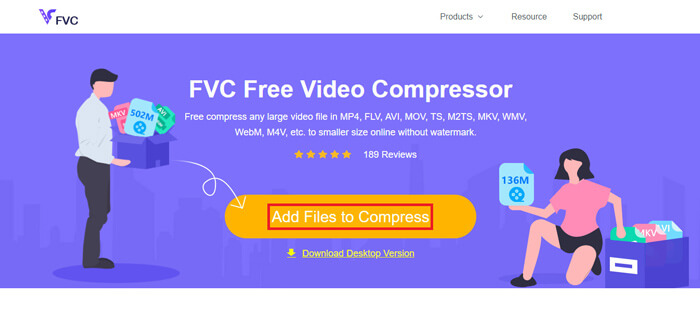
Шаг 1. Откройте в браузере FVC Free Video Compressor и нажмите Add Files to Compress, чтобы запустить лаунчер. Если вы пользуетесь инструментом впервые, заранее скачайте лаунчер.
Шаг 2. После установки выберите MP4‑файл(ы), который вы хотите сжать. Отрегулируйте размер видео, формат, разрешение и битрейт в соответствии с вашими потребностями.
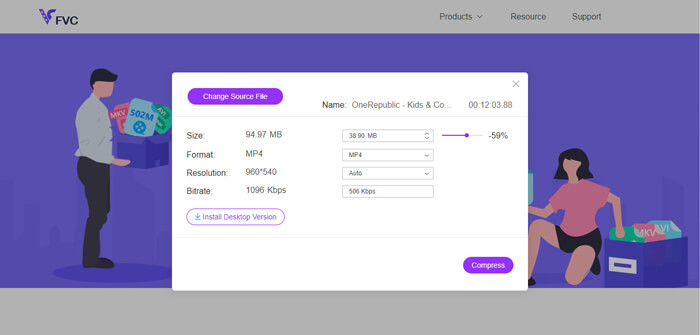
Шаг 3. Нажмите Compress, чтобы запустить сжатие.
Часть 2. Как сжать MP4 с помощью бесплатного автономного ПО
Если ваша сеть не так стабильна, вам лучше выбрать сжатие видео в автономном режиме на рабочем столе, чтобы избежать влияния статуса сети.
Video Converter Ultimate — это многофункциональная бесплатная программа для сжатия, конвертации и редактирования видео‑ и аудиофайлов на ПК. Она поддерживает более 1000 форматов и предлагает 10 вариантов выходного разрешения на выбор. Перед сжатием вы можете переименовать видео, чтобы потом легко отличить его от других MP4‑файлов. Обновлённая версия Video Converter Ultimate содержит множество полезных функций редактирования и другие отличные инструменты, такие как редактор метаданных, создатель GIF, 3D‑конструктор, улучшение видео и т.д.
Бесплатная загрузкаДля Windows 7 или более поздних версийБезопасная загрузка
Бесплатная загрузкаДля MacOS 10.7 или более поздних версийБезопасная загрузка
Шаг 1. Запустите Video Converter Ultimate на компьютере.
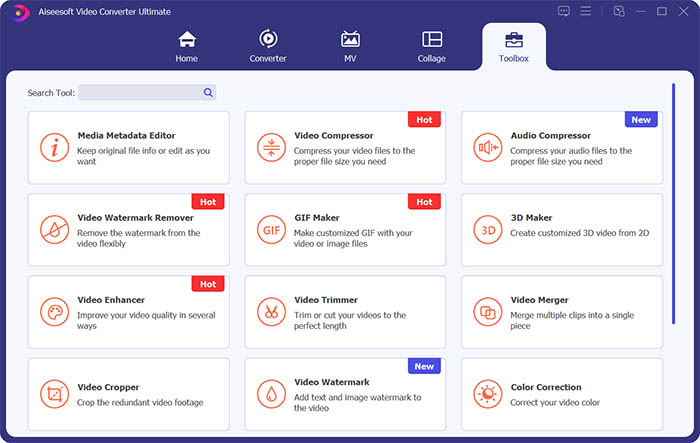
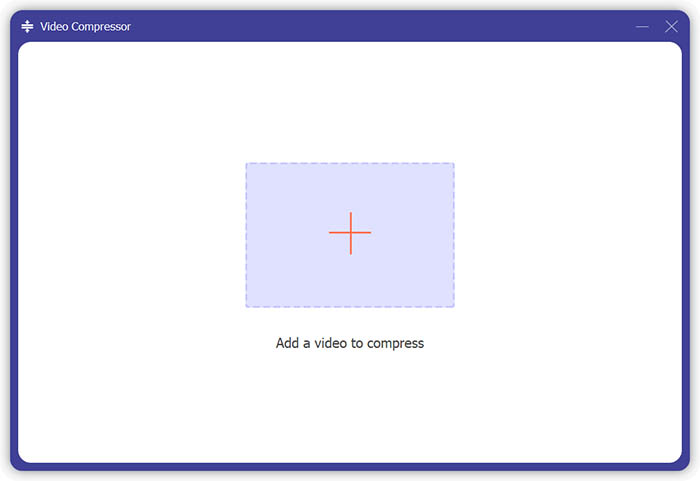
Шаг 2. Нажмите Toolbox. Найдите Video Compressor в разделе Toolbox. Нажмите значок «+», чтобы добавить видео для сжатия.
Шаг 3. Вы можете отрегулировать размер, имя, формат, разрешение и битрейт выходного файла.
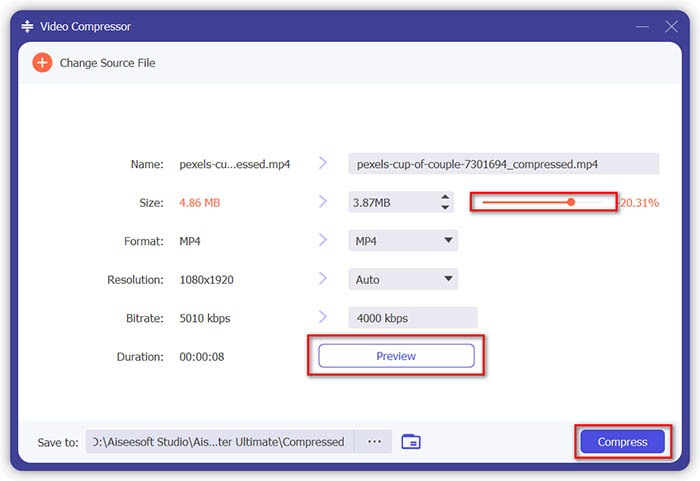
Шаг 4. Нажмите кнопку Compress и дождитесь результата — сжатого MP4‑видео.
Часть 3. Как сжимать файлы MP4 с помощью HandBrake
HandBrake - это также бесплатный инструмент для сжатия видео, который может помочь вам минимизировать размер файла MP4.
Шаг 1. Скачайте и установите HandBrake на компьютер. Затем откройте программу и нажмите File слева. Выберите файл, который хотите сжать.
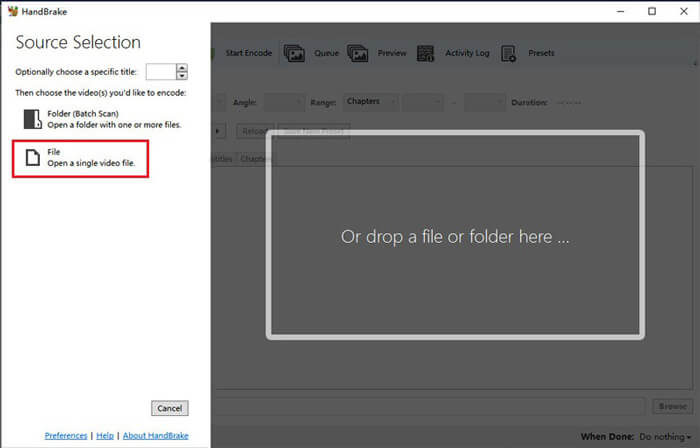
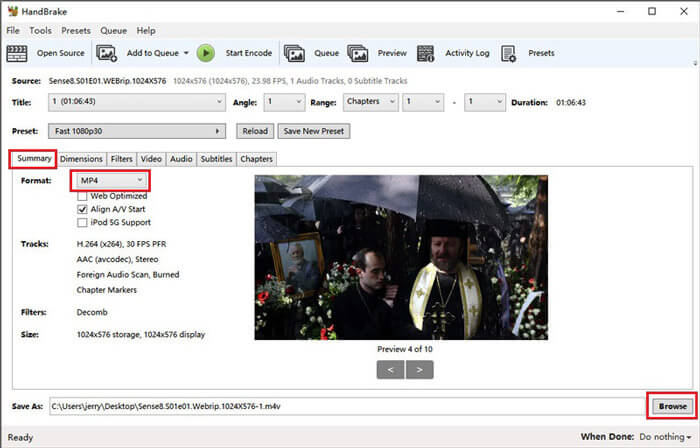
Шаг 2. Измените место сохранения сжатого видео, нажав Browse. Вы также можете переименовать видео. Затем выберите MP4 как выходной формат.
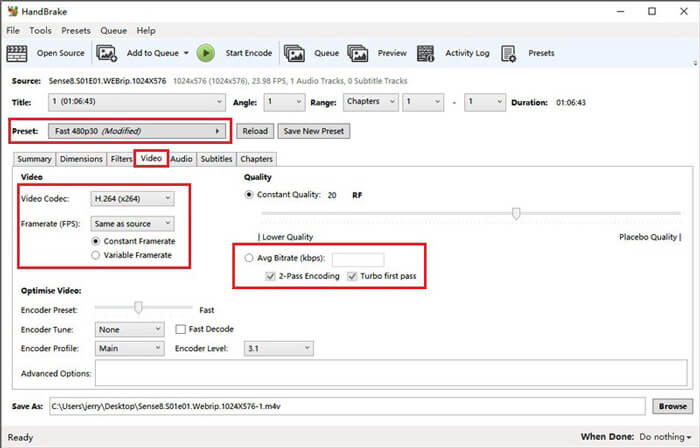
Шаг 3. В разделе Preset сверху подойдёт вариант Fast 480p30. Перейдите на вкладку Video и убедитесь, что видеокодек — H.264 (x264). Выберите частоту кадров в зависимости от исходного видео. Если вы не знаете, что выбрать, просто установите Same as source. Отметьте Constant Framerate для лучшей совместимости. Введите Average Bitrate (кбит/с) для видео (между 5000 и 10000).
Шаг 4. Нажмите Dimensions и измените размер кадра или разрешение видео. Установите Anamorphic в значение None, а Modulus — в 2. Затем поставьте галочку Keep Aspect Ratio. При необходимости вы можете использовать стрелку вниз в поле Width, чтобы уменьшить ширину и тем самым размер.
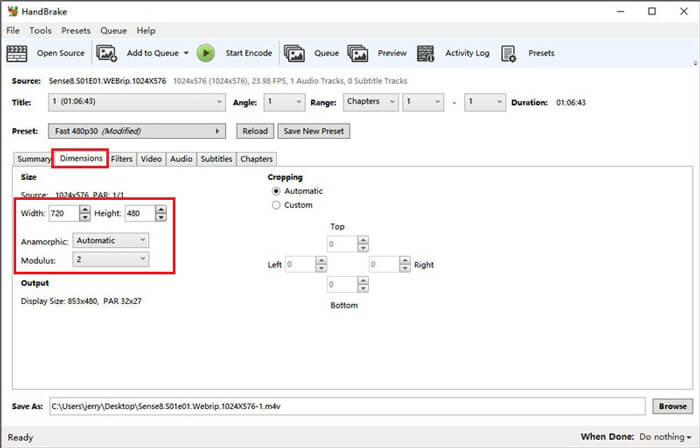
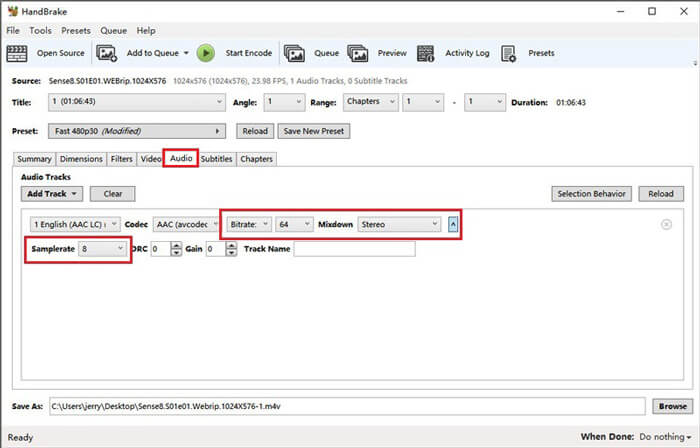
Шаг 5. Перейдите на вкладку Audio и откройте скрытое меню настроек. Выберите 8 для Samplerate и Stereo для Mixdown.
Шаг 6. Нажмите кнопку Start Encode, чтобы начать сжатие.
Новичкам мы вообще не рекомендуем использовать HandBrake, потому что его сложно понять и настроить параметры. И получение сжатого файла действительно занимает много времени.
Часть 4. Часто задаваемые вопросы о сжатии MP4
1. Может ли ffmpeg сжимать MP4?
Да, вы можете использовать следующую последовательность символов (команду), чтобы сжать файл MP4:
$ ffmpeg -i input.mp4 -vcodec h264 -acodec mp2 output.mp4
Но некоторые пользователи замечают, что при достаточно маленьком исходном видео размер файла может, наоборот, увеличиться, а не уменьшиться.
2. Может ли HandBrake экспортировать WMV, MOV и FLV?
HandBrake позволяет сжимать видео только в форматы MP4(.M4V) и MKV, то есть он не может экспортировать файлы в другие форматы, такие как WMV, MOV, FLV, AVI и т.д. Если вы используете HandBrake для сжатия видео, то затем вам придётся самостоятельно конвертировать MP4 в WMV или другие форматы.
3. Теряет ли качество сжатие видео MP4?
При сжатии MP4 с полного размера до меньшего качество в любом случае немного теряется. Однако с профессиональными видеокомпрессорами, такими как FVC Free Video Compressor и Video Converter Ultimate, вы можете максимально сохранить исходное качество изображения. Кроме того, использование хорошего проигрывателя MP4 для воспроизведения файлов MP4 также поможет получить более качественную картинку.
Заключение
На данный момент мы рассказали о 3 способах сжать MP4 до меньшего размера. Если вы не хотите устанавливать слишком много программ на компьютер, попробуйте FVC Free Video Compressor — это онлайн‑сервис, и он бесплатен. Но если вам нужен мощный видеоредактор и конвертер, Video Converter Ultimate — лучший выбор. Надеемся, этот материал был полезен, и будем рады, если вы оставите нам сообщение со своим мнением.
-
 Как конвертировать MP4 в WMV для Mac / Windows
 В этом посте рассказывается, как конвертировать видео MP4 в формат WMV на Mac или Windows. Мы также предложим вам несколько вариантов, включая как настольное программное обеспечение, так и веб-конвертеры онлайн. Готовы узнать о лучших инструментах для преобразования MP4 в WMV?
-
 Как конвертировать видеофайлы MP4 в анимированные изображения GIF без потери качества
 Ищете лучший способ конвертировать видео MP4 в анимированные GIF-файлы? Вот подробное руководство, как сделать это в Photoshop, Windows Movie Maker, онлайн-конвертере видео и многом другом.
-
 MOV VS MP4 - что лучше
 MOV VS MP4, что лучше? В этом сообщении рассказывается о разнице между MP4 и MOV, чтобы вы могли лучше выбрать для своих видеофайлов.
