


 Видео конвертер Ultimate
 Устройство записи экрана
 Видео ремонт
 Безопасная загрузка
Замечательные способы, как вырезать видео на Snapchat [включая автономный способ]
The Snapchat app is a different one that has gained popularity recently. The main focus of Snapchat was exchanging private, personalized photos. But you may now use it for various tasks, such as sending films and participating in live video conferences. On the other hand, you can also use this application to cut your videos. As we all know, Snapchat only accepts up to 60 seconds videos. Trimming the video is the best solution if you plan to upload or post a video on this mobile application. In that case, read this post to see the detailed methods you can try on how to trim a video on Snapchat and cut videos for Snapchat.

Часть 1. Как обрезать видео для Snapchat с помощью ПК
Snapchat has a limit when posting a video. One of the best solutions to this kind of problem is to shorten a video. This way, when you trim or cut a video, you can already add the video on Snapchat. If you want the best video editing software to cut a long video for snapchat, use Video Converter Ultimate. This program has an excellent splitting feature to split your video into parts. Also, the procedure of splitting videos is perfect for non-professional users. You can split videos in just a few clicks. Its layout is also user-friendly, wherein you can easily understand each option. Moreover, it has more great features besides splitting videos. Video Converters Ultimate lets you crop, rotate, and enhance your videos based on your preference. Also, it supports various video formats. It includes MP4, MOV, MKV, AVI, and more. Furthermore, both Windows and Mac users can access the program since it is available on both Mac and Windows computers.
Step 1. Click the Download button below to download Video Converter Ultimate. Since the program is available on Mac and Windows computers, there are two buttons below. Click the button based on the device you use. After that, launch the program.
Бесплатная загрузкаДля Windows 7 или более поздних версийБезопасная загрузка
Бесплатная загрузкаДля MacOS 10.7 или более поздних версийБезопасная загрузка
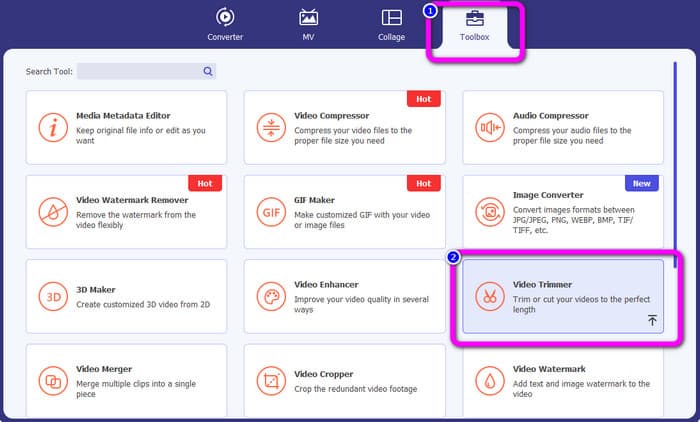
Step 2. Click the Toolbox panel on the upper interface. When the tools appear under Toolbox, select the Video Trimmer tool.
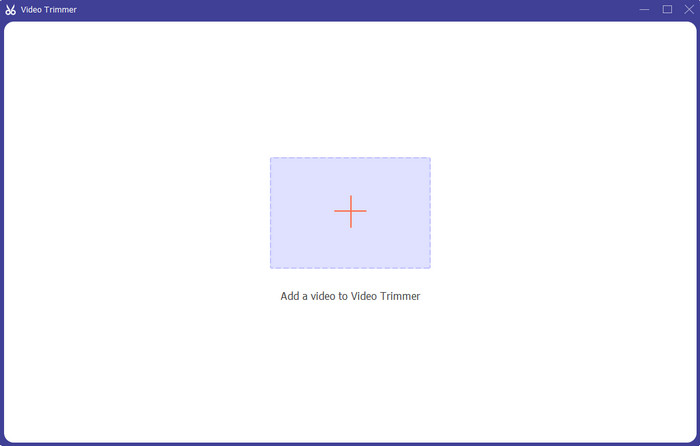
Step 3. Click the Plus symbol on the center part of the interface. Afterward, select the video you want to cut from the file folder.
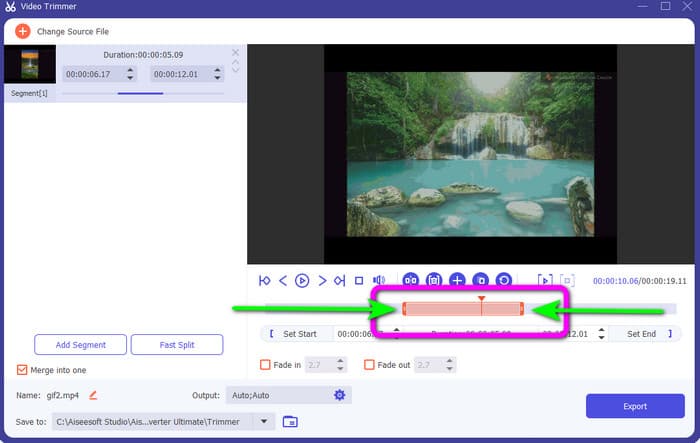
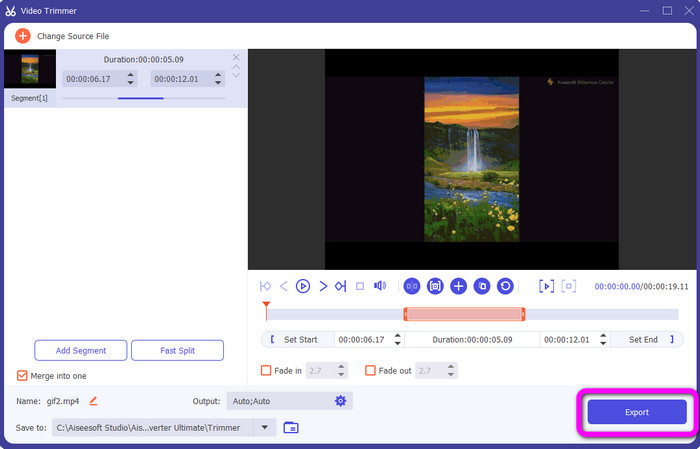
Step 4. You can cut the video by adjusting the orange bar you see on the lower part of the video. This bar has an edge to both sides. Adjust the bar's edge to trim the video you want to edit.
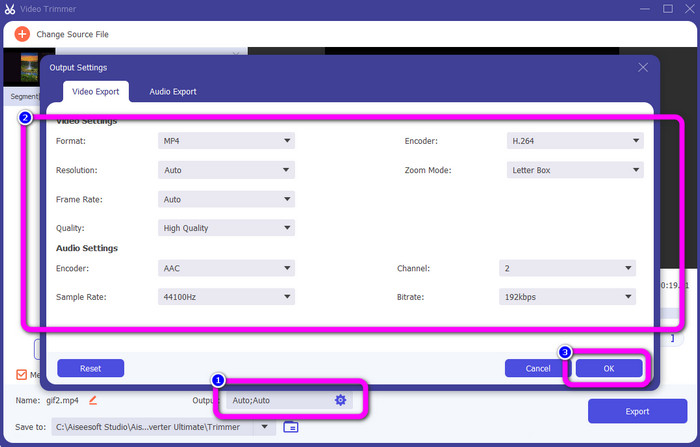
Step 5. By clicking the Output Settings option, you can modify the video’s frame rate, quality, resolution, and zoom mode for additional changes. Also, you can change the audio’s sample rate and bitrate. Then click OK.
Step 6. For the final step, click the Export button. Wait for the final process, and after a few seconds, you can save the final and edited video on your computer.
Часть 2. Как вырезать видео на Snapchat
В этой части вы узнаете, как обрезать видео в Snapchat. Это мобильное приложение отлично подходит для съемки фотографий и видео. Это дает вам множество эффектов, чтобы улучшить их и удовлетворить пользователей. Он также считается коммуникационной платформой для других людей. Более того, Snapchat способен не только на такие вещи. Мобильное приложение также позволяет легко вырезать или обрезать видео. Кроме того, Snapchat позволяет редактировать видео, меняя фильтры, добавляя эффекты, обрезая и т. д. Однако, как и другие приложения, Snapchat фокусируется на съемке фотографий и видео. Таким образом, вы не можете использовать расширенные инструменты редактирования из приложения. Кроме того, он принимает только короткие видео, что не устраивает пользователей, которые хотят загружать длинные видео. См. инструкции ниже о том, как сократить видео в Snapchat.
Вырезать видео после записи
Step 1. Download Snapchat from your App Store or Google Play Store. After installing the mobile application, open it on your phone.
Step 2. After that, record a video using your Snapchat. When you are done recording, a mini clip will appear on the lower part of the screen. Click it to start the trimming process.
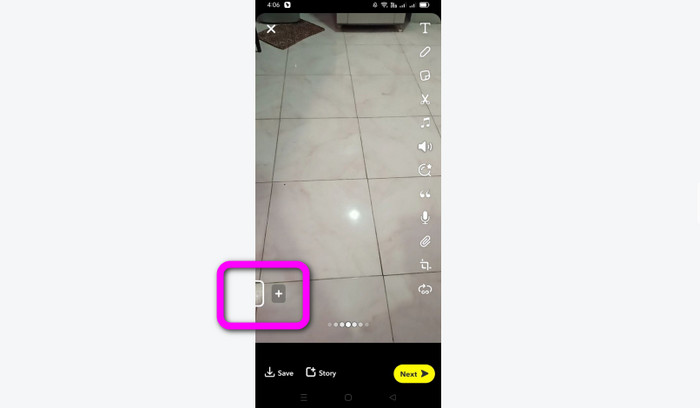
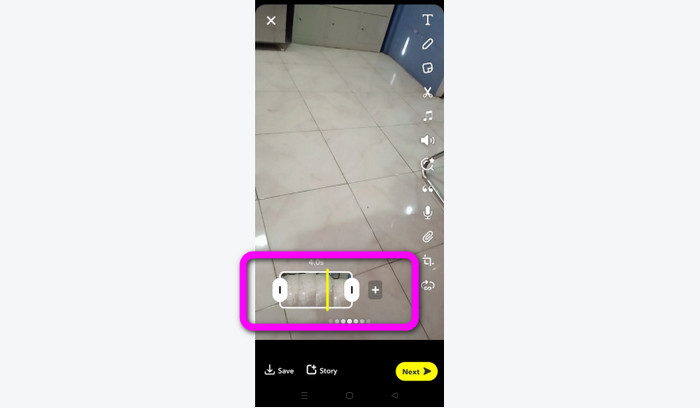
Step 3. You can proceed with the process when the clip appears on the screen. Drag the edges of the clip and trim the video based on your preferences.
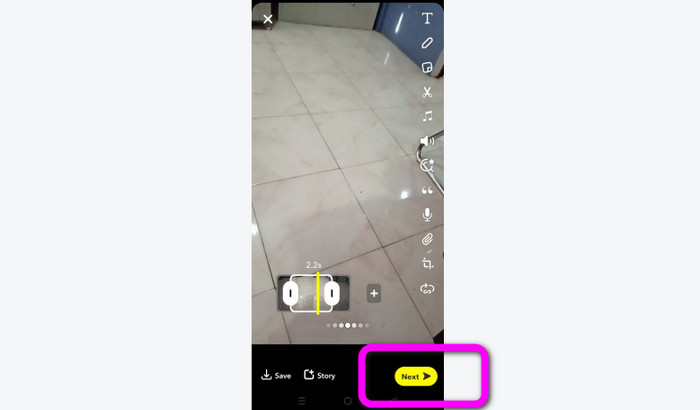
Step 4. Then, when you are satisfied with the final result, press the Next button on the lower left corner of the interface. This way, you can save your trimmed video.
Вырезать видео из воспоминаний
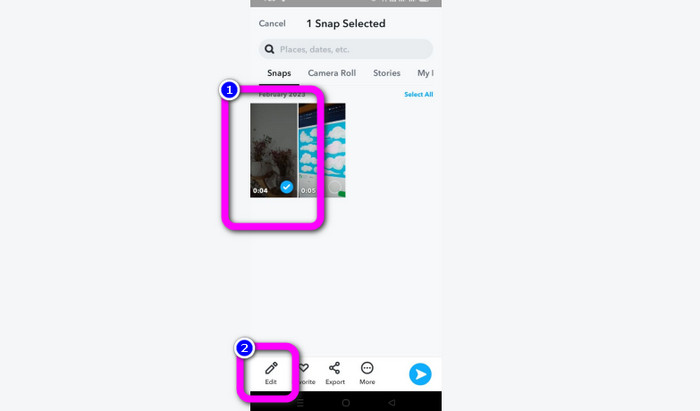
Step 1. Open your Snapchat application from your phone. After that, proceed to the Memories. In that part, you can see your videos. Hold the video for just a few seconds and click the Edit option.
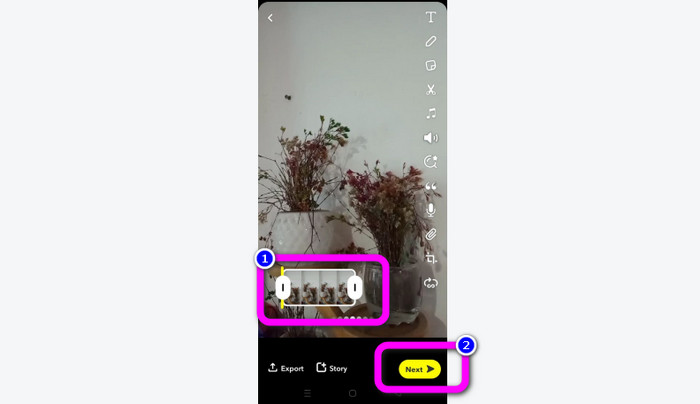
Step 2. Then, you will see the video on the lower part of the screen. This video lets you adjust the edge part of the video to start trimming. After that, when you are done trimming, click the Next button to save your final video.
11 Remarkable Video Trimmers to Use [Free and Paid]
Отличные способы, как удобно обрезать видео онлайн
Часть 3. Часто задаваемые вопросы о том, как вырезать видео на Snapchat
1. Что значит обрезать видео в Snapchat?
Чтобы обрезать видео, нужно сделать вырез, который устанавливает указанный раздел в качестве начала и определенный раздел в качестве конца видеоклипа. Эта опция позволяет вам выбрать начальную и конечную позиции видео в Snapchat. Этот вариант идеален, если вы хотите загрузить части видео, которые изначально длились более 10 секунд.
2. Можете ли вы использовать функцию разделения в Snapchat?
Вы не сможете использовать эту функцию, если загрузите видео из Фотопленки. Если вы использовали камеру Snapchat для захвата, вы можете. Вы можете использовать инструмент «Разделить», чтобы разделить фильм на редактируемые фрагменты и удалить любые фрагменты, которые вы не хотите сохранять.
3. Каков максимальный размер видео для одного видео Snapchat?
Если вы передаете фотографии или видео из фотопленки в Snapchat, вы можете отправить только одно видео размером до 2,5 МБ. Ваши файлы сжимаются перед доставкой.
Заключение
If you use Snapchat to trim a video, this article is for you. This article provided you with the best way on how to trim a video on Snapchat. Also, if you prefer trimming your video for Snapchat on a computer, there is a program you can use. Video Converter Ultimate is an excellent program for trimming videos using a computer. It has an intuitive interface and is absolutely free.
-
 6 любимых анимированных фильтров Snapchat на Snapchat
 Хотите узнать, как лучше всего добавлять фильтры к видео Snapchat? Что ж, вы можете щелкнуть здесь и изучить различные фильтры, которые вы можете использовать для применения к видео Snapchat.
-
 Как легко замедлить видео в Snapchat на любых устройствах
 Лучший способ замедлить видео в Snapchat уже здесь. Чтобы узнать, каковы эти методы замедления видео, внимательно следуйте им.
-
 Самые простые способы удаления текста Snapchat со снимка экрана
 Давайте удалим текст Snapchat с фотографий и видео, используя надежные инструменты онлайн и офлайн. Мы предложим вам простые способы. Попробуйте сейчас, и давайте попробуем!
