


 Video Converter Ultimate
 Skärminspelare
 Video reparation
Hur man gör en GIF från dina foton som sparats på din iPhone
Vi använde GIF-filer för att göra vår vanliga text mer engagerande och blev ett bättre alternativ än stillbilder. Det beror på att de är rörliga, animerade statiska bilder. Dessutom, tack vare formatets popularitet försöker många användare redan skapa egna GIF-filer, både på datorer och telefoner. Så nu ska vi prata om hur man gör en GIF på en iPhone av foton som du har sparat i lagringen. Fortsätt läsa den här artikeln när vi förklarar hur man skapar GIF-filer och vilka olika program du kan använda.

Del 1. Hur man sparar Live Photo som GIF i Photos App
Visste du att du kan skapa enkla GIF-filer med hjälp av dina foton på iPhone? Genom att använda Bilder. Den här förinstallerade appen lagrar många bilder och videor på din telefon. I princip är den ett bildlager för foton du tar, ungefär som Galleri på Android. Men det här verktyget erbjuder också redigeringsfunktioner som du kanske inte känner till. Även om det har en GIF-funktion saknas fortfarande några viktiga redigeringsmöjligheter för att göra dina GIF-filer riktigt snygga och fräscha för ögat. Om du ändå vill prova verktyget, följ stegen nedan och lär dig hur man gör en GIF på iPhone från Bilder.
Steg 1. Öppna den förinstallerade Kamera på din iPhone.
Steg 2. Tryck sedan på Live Photo högst upp i mitten och tryck på Ta bild-knappen.
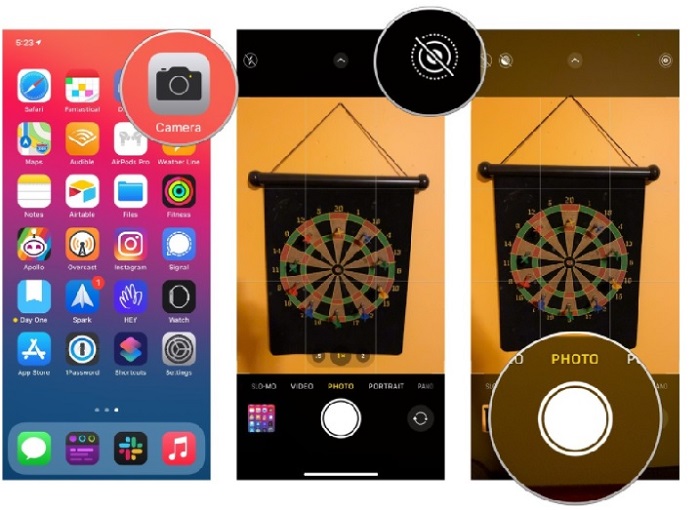
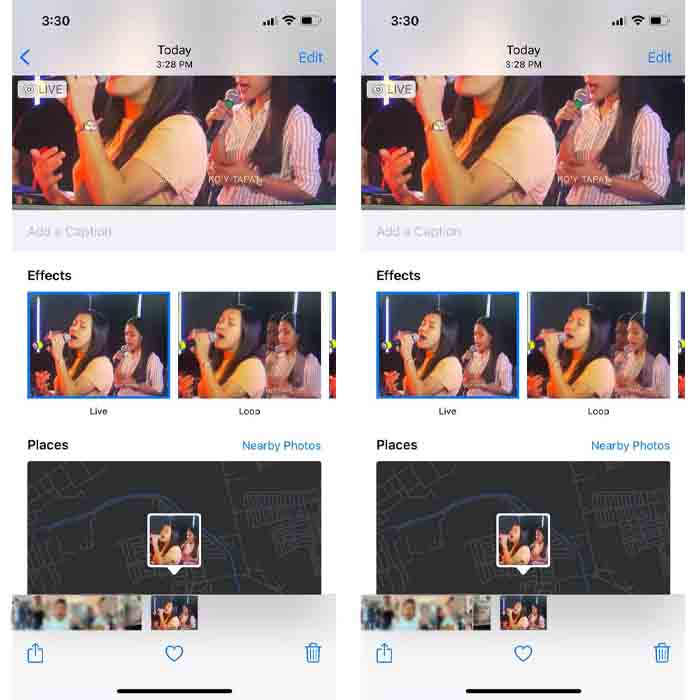
Steg 3. Klicka sedan på den lilla fyrkantiga bilden längst ned till vänster i kamerans gränssnitt. Svep sedan upp på fotot och välj GIF-effekterna där. När du har valt kommer det automatiskt att sparas och vara redo att delas med andra eller på sociala medier.
Fördelar
- Du behöver inte ladda ner eftersom den redan är förinstallerad på din iPhone.
- Enkel att använda som redigeringsverktyg.
Nackdelar
- Du kan inte förvandla bilder till GIF om det inte är ett livefoto.
- Det ger inte många redigeringsfunktioner för att göra din GIF fantastisk.
Del 2. Hur man gör en GIF på iPhone med GIPHY
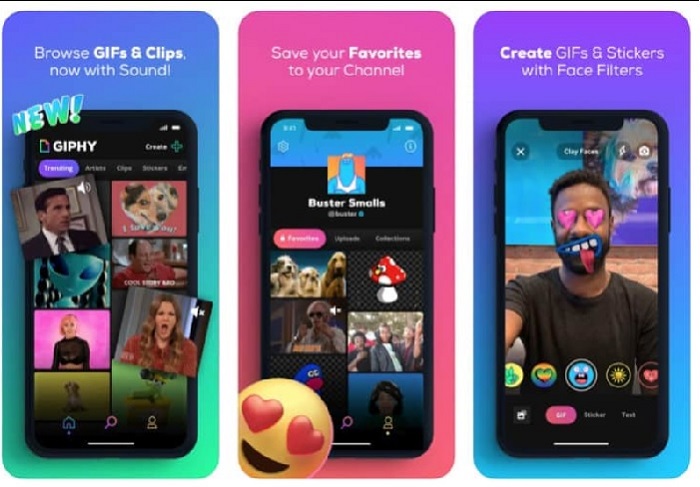
GIPHY är ett enormt GIF-bibliotek som du kan komma åt gratis, men ännu bättre om du registrerar dig. Du kan också dela dina egna GIF-filer här för att hjälpa andra genom att använda dina egengjorda GIF:ar. Däremot stöder verktyget inte att man gör en GIF av flera bilder samtidigt. Filtren här är dock bra och enkla att använda. Så om du vill använda GIPHY och skapa GIF-filer, följ stegen nedan.
Steg 1. Ladda först ned GIPHY på din iPhone och öppna appen efteråt.
Steg 2. Tryck på Create och uppe till vänster på album-knappen och ge appen åtkomst till dina bilder.
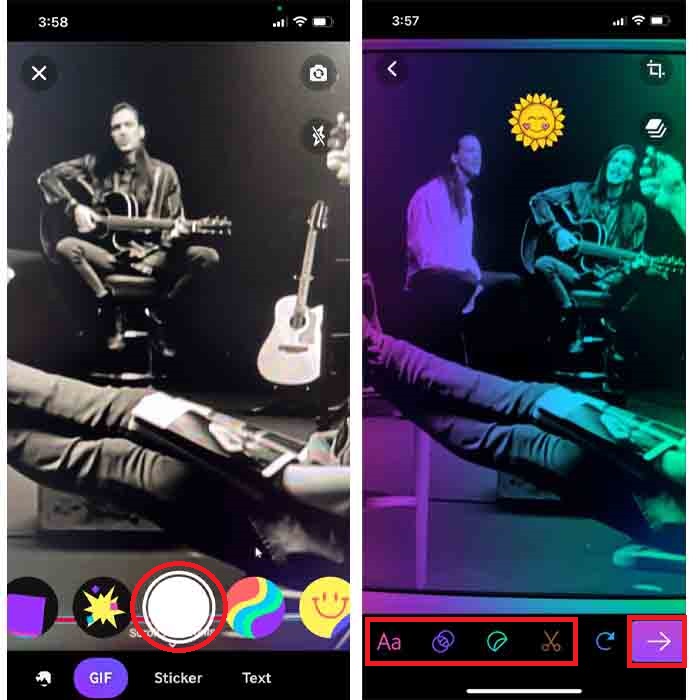
Välj sedan din bild som du vill ska förvandlas till GIF och gör redigeringen i gränssnittet.
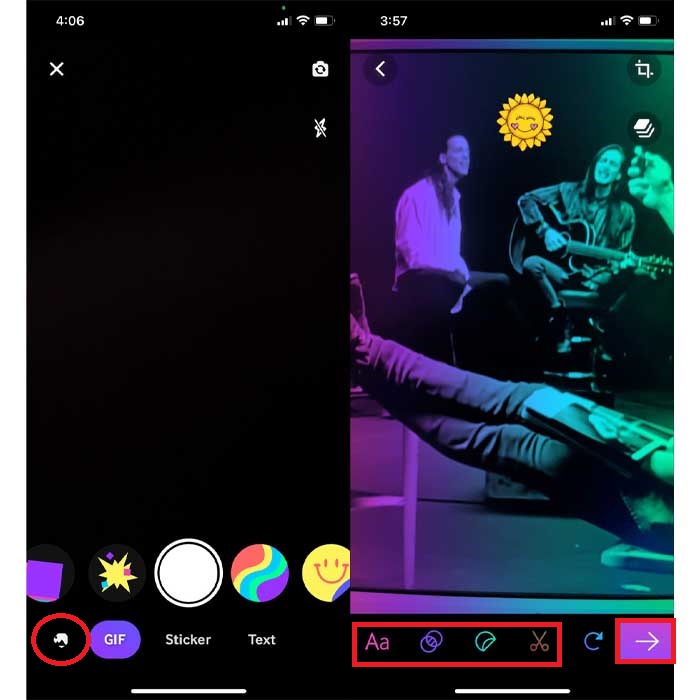
Steg 3. Du kan inte spara GIF-filen direkt till din iPhone, så du har två alternativ. Det första är att ladda upp den till GIPHYS molnlagring och göra den offentlig eller privat, eller dela den direkt.
Fördelar
- Det är ett enormt bibliotek med GIF-filer.
- Det har en bättre effekt än vad Foton kan erbjuda.
Nackdelar
- Du kan inte spara den färdiga GIF-filen direkt till din lagring. Det är antingen du sparar det på kontot du har skapat på GIPHY eller delar det.
- Det går inte att kompilera bilder för att göra GIF-filer.
Del 3. Det mest professionella verktyget för att göra GIF från flera foton
Om verktyget som presenterades först inte ger dig de GIF-filer du vill skapa kan du prova Video Converter Ultimate. Det här verktyget kan skapa GIF:ar av dina foton bättre än de två andra inbyggda apparna och nedladdningsbara alternativen. Programmet finns dock endast till dator, så du måste först överföra dina flera bilder till datorn innan du kan göra GIF-filer. Dessutom är filtren du kan använda här fenomenala och kommer att imponera på dig. För att lära dig hur man gör en GIF på iPhone av flera bilder följer du stegen nedan.
Steg 1. Ladda först ned Video Converter Ultimate och installera det.
Gratis nedladdningFör Windows 7 eller senareSäker nedladdning
Gratis nedladdningFör MacOS 10.7 eller senareSäker nedladdning
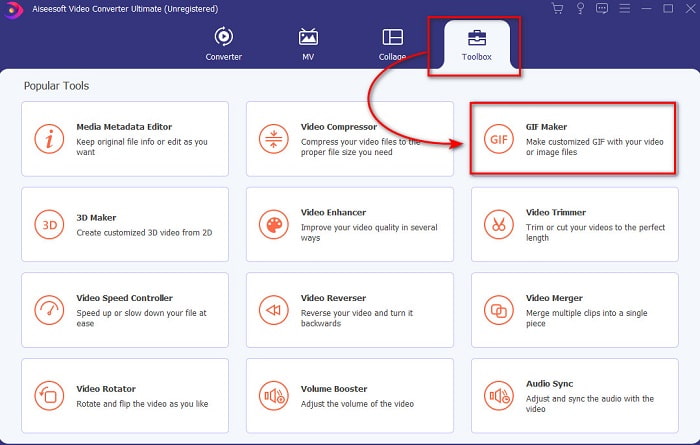
Steg 2. Gå till sektionen Toolbox och klicka på GIF Maker.
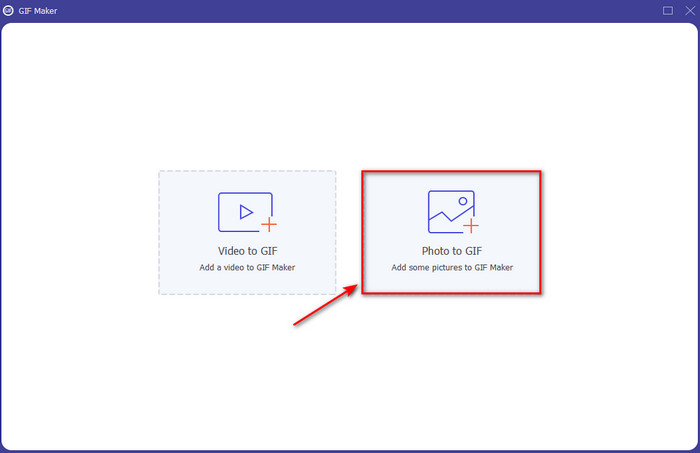
Steg 3. Klicka på Photos to GIF och välj fotot du vill göra om till en GIF och klicka på Open. Du kan inte lägga till flera bilder direkt, men du kan lägga till fler senare. Ändra sedan Output Settings för GIF-filen och klicka på OK.
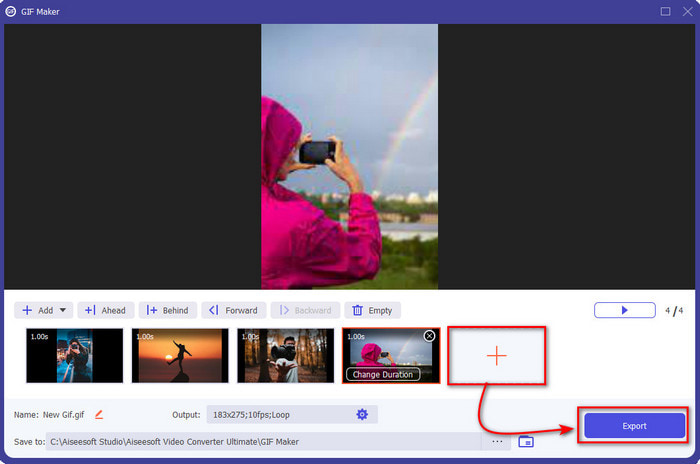
Steg 4. För att lägga till fler bilder klickar du på +-knappen och väljer dem. När alla bilder har lagts in klickar du på Export.
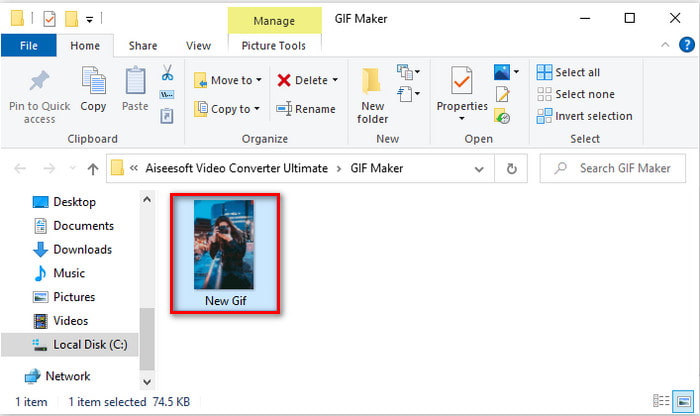
Steg 5. Vänta några sekunder, så öppnas en mapp på skärmen med GIF-filen du nyss skapade.
Fördelar
- Den fenomenala redigeraren som du kan lita på för att göra din GIF enastående.
- Den har många avancerade funktioner som du kan använda.
- Att lära sig hur man använder det här verktyget är lättare på grund av dess on-point.
Nackdelar
- Du måste överföra bilderna på din iPhone till skrivbordet.
- Måste laddas ner på skrivbordet först innan du kan komma åt.
Del 4. Vanliga frågor om Gör GIF från foton på iPhone
Hur gör man en GIF på Android från foton?
Du kan upprepa stegen i del 3 och bara göra samma sak. I grund och botten måste du överföra all video du vill ska förvandlas till GIF-filer till din enhet. Följ sedan stegen nedan.
Vad är en GIF?
GIF-filer är mycket populära nuförtiden eftersom de kan göra våra enkla meddelanden mer uttrycksfulla än någonsin. För att läsa mer om vad en GIF är, klicka på den här länken och ta reda på mer.
Varför blir mina bilder suddiga när jag förvandlar dem till GIF?
Eftersom GIF-filer stöder maximalt 256 olika färger. Till skillnad från JPEG och PNG stöder detta bildformat över 16 miljoner färgkombinationer. Så JPEG och PNG producerar den högsta bildkvaliteten jämfört med GIF-filer. Men JPEG och PNG kan inte innehålla rörlig animering som GIF-filer gör.
Slutsats
Nu när vi börjar närma oss slutet har det blivit mycket enklare för oss att hantera och skapa GIF-filer, även på våra iPhones. Även om alla verktyg som nämns i den här artikeln kan hjälpa dig att skapa enkla GIF-filer, är Video Converter Ultimate fortfarande det bästa valet. Det erbjuder många olika funktioner som du kan använda för att göra din GIF ännu mer imponerande, så att du knappt tror att du själv gjort den. Nöj dig inte med ett enkelt program när du kan använda det bästa verktyget. Ladda ned programmet nu och förvandla din samling av bilder till GIF-filer.
-
 Välj den bästa GIF Cropper online och offline för att beskära GIFs [2021]
 Att välja det bästa beskärningsverktyget är ett måste och några av GIF-tillverkarna tillhandahöll inte denna funktion. Men vilket är det bästa GIF-beskärningsverktyget att använda och hur använder man det?
-
 5 bästa alternativen för att spela in GIF -format med GIF -inspelare för PC och Mac
 Vilken är den bästa GIF -inspelaren du ska använda för att spela in GIF? Listan nedan ger bevis på vilken som är den bästa skärminspelaren.
-
 Hur man konverterar MPG till GIF-format [Online & Offline]
 Vill du uttrycka en mycket bättre känsla? Då måste du använda GIF istället. Denna text kommer att lära dig hur du konverterar en MPG-fil till GIF för att uttrycka din känsla mycket bättre.
