


 Video Converter Ultimate
 Skärminspelare
 Video reparation
 Säker nedladdning
En genomgångsguide om hur du gör hastighetsramp på din dator
Letar du efter ett sätt att göra speed ramping? Många letar efter verktyg som kan hjälpa dem att gradvis ändra hastigheten på sina videor eller filmer. Att speedrampa en video är populärt bland många videoredigerare eftersom det ger en dramatisk effekt. Men det är inte många program som har en inbyggd speed ramping‑funktion du kan använda. Men oroa dig inte, det finns ett välkänt videoredigeringsprogram som du kan använda för att göra speed ramping. Läs vidare i den här guiden för att lära dig hur du gör speed ramping.

Del 1. Vad är hastighetsrampning
Video Speed Ramping är populärt bland många videoredigerare, särskilt när du skapar filmer. Men vad är hastighetsramp egentligen?
Hastighetsramp justerar din videos hastighet gradvis för att få en fantastisk filmisk effekt på din video. Du kan också sätta det som acceleration och retardation av din video. Föreställ dig ett scenario där en skurk försöker skjuta hjälten i en film. Du kan göra hastighetsramp när kulan har skjutits så att det kommer att skapa en betydande filmisk effekt.
Kort sagt, hastighetsramp ändrar din videos hastighet med bättre kontroll över nyckelbildrutorna för att skapa kraftfulla effekter. Dessutom är det en standard videoredigeringsfunktion som du kan göra med din video. Så läs nästa del utförligt om du vill lära dig hur du gör hastighetsramper på din video.
Del 2. Hur man gör hastighetsramp i premiären
Adobe Premiere är en av de mest utmärkta videoredigeringsprogram som du kan använda om du vill öka hastigheten på din video. Adobe Premiere har många redigeringsfunktioner som du kan använda för att redigera eller förbättra din videofil. Dessutom kan den producera kraftfulla utgångar med hög upplösning och kvalitet. Dessutom erbjuder den obegränsade Multicam-vinklar som är fördelaktiga om du hastighetsrampar din video. Och sedan den senaste uppdateringen är import och export av videor till din enhet mer hanterbar.
Adobe Premiere är också ett bra program om du vill ha ett program med responshastighet. Många proffs föredrar att använda Adobe Premiere för att redigera videor eller filmer eftersom det har många organisatoriska verktyg som behövs för videoredigering. Dessutom kan detta program laddas ner på alla cross-media-plattformar, inklusive Windows och Mac.
Så här gör du en hastighetsramp i Adobe Premiere:
Steg 1. Ladda ner och installera Adobe Premiere på din dator. När programmet är installerat öppnar du det på din enhet. Det första du måste göra är att importera videofilen som du vill speedrampa. Du kan klicka och dra din video från dina filer till projektfönstret för att importera den.
Steg 2. Dra sedan klippet till Tidslinjen för att skapa en sekvens på plats. Då skapar Adobe Premiere automatiskt en sekvens med de inställningar du behöver för speed ramping.
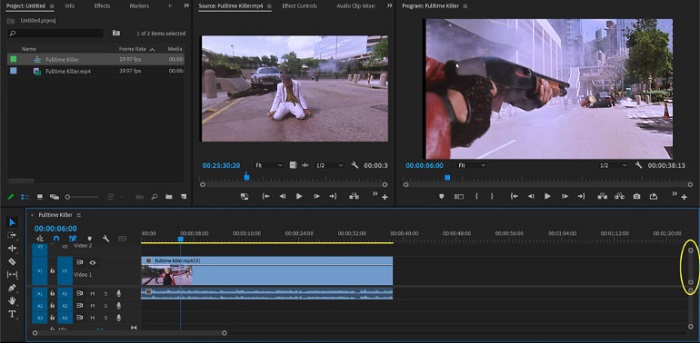
Steg 3. Välj sedan den del där du vill göra speed ramping. Ett sätt att isolera den del du vill speedrampa är att sätta in- och utpunkter. Tryck på Command + K för att klippa i det ögonblicket. En annan metod är att använda rakbladverktyget för att dela upp klippet i delar.
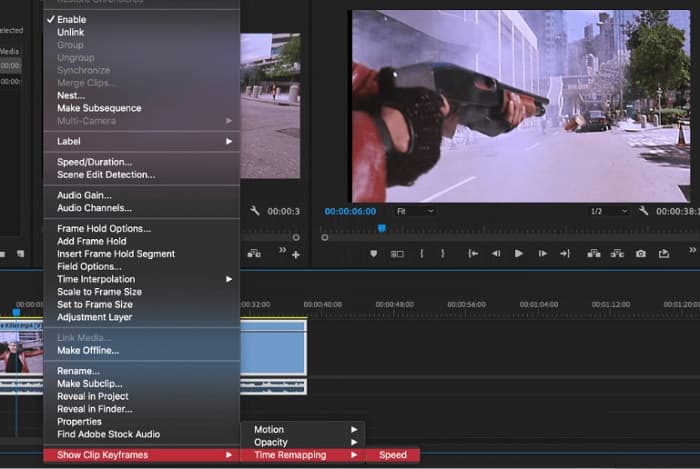
Steg 4. I nästa steg ska vi skapa nyckelbilder (keyframes). Men innan vi ställer in nyckelbilderna måste vi se till att de är synliga. Högerklicka på ditt videoklipp och välj Show Clip Keyframes,> Time Remapping > Speed.
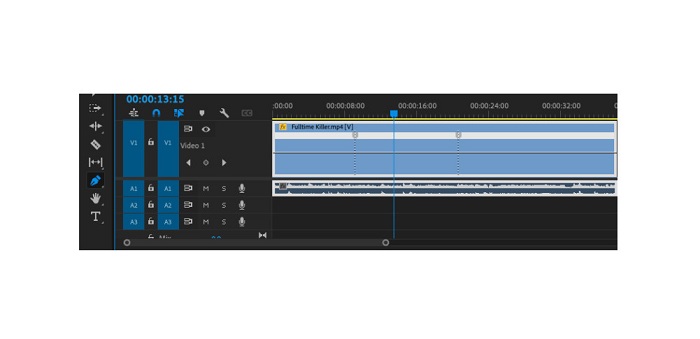
Steg 5. Välj sedan Pen-verktyget i Verktygsfältet. Klicka sedan på den vita linjen över ditt videoklipp för att skapa en nyckelbild. Du behöver två nyckelbilder för att kunna göra speed ramping på din video. Placera den första nyckelbilden där du vill börja speed rampen och den andra där du vill avsluta rampen.
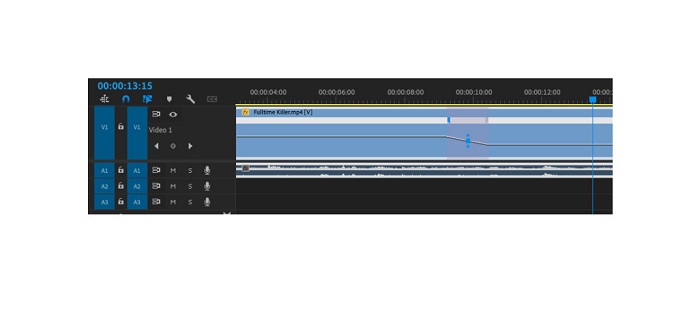
Steg 6. Nu ska vi justera hastigheten på den del du vill speedrampa. Klicka på den vita linjen mellan nyckelbilderna du har satt ut och dra den vita linjen uppåt eller nedåt. Dra uppåt för att snabba upp och dra nedåt för att sakta ner din video.
Och det är handledningen du behöver veta om du vill snabba upp en video i Adobe Premiere.
Del 3. Enklare sätt att göra hastighetsramper
Även om Adobe Premiere kan producera fantastiska utdata med hög kvalitet, är det inte ett nybörjarvänligt verktyg. Så om du är ny på hastighetsramp är det bättre att leta efter ett alternativt sätt. Lyckligtvis hittade vi denna fantastiska applikation som du kan använda för att snabbrampa en video. För att lära dig mer om denna applikation, läs beskrivningarna nedan.
Video Converter Ultimate är en utmärkt programvara med många avancerade redigeringsfunktioner. Du kan använda det här programmet om du vill göra speed ramping på en video. Dessutom har det ett användarvänligt gränssnitt, vilket gör det enkelt för nybörjare. Det stöder också alla videoformat, som MP4, AVI, MOV, MKV, VOB, WMV, M4V, WebM och över 1000 andra. Det innehåller många redigeringsfunktioner, såsom videohastighetskontroll, videomers, verktyg för att ta bort vattenstämplar i video, färgkorrigering och mer i Verktygslådan.
Dessutom, när du använder dess videohastighetskontroll för att hastighetsrampa en video, kan du välja bland dess förinställda hastighet. Det som till och med är bra med Video Converter Ultimate är dess snabba bearbetningsgränssnitt, vilket gör det bekvämt för många användare. Du kan ladda ner den här appen på alla plattformar, inklusive Windows, Mac och Linux. Och om du vill använda Video Converter Ultimates videohastighetskontroller, följ den enkla guiden nedan.
Hur man snabbrampar en video med Video Converter Ultimate:
Steg 1. Ladda först ner appen till din dator genom att klicka på knappen Download nedan. När du har laddat ner och installerat appen startar du den på din enhet.
Gratis nedladdningFör Windows 7 eller senareSäker nedladdning
Gratis nedladdningFör MacOS 10.7 eller senareSäker nedladdning
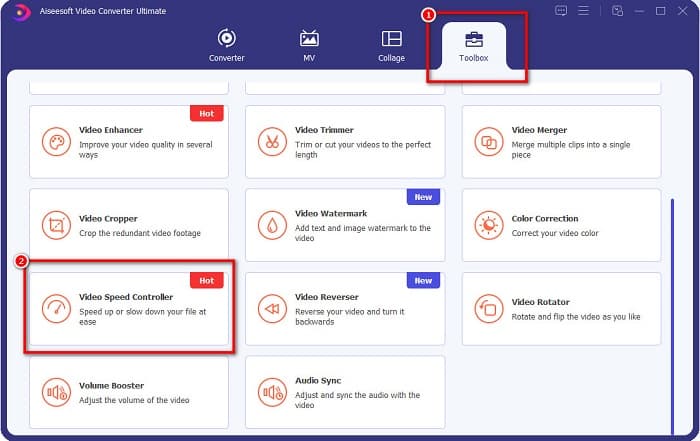
Steg 2. Gå sedan till panelen Toolbox i appens huvudgränssnitt och välj funktionen Video Speed Controller.
Steg 3. För att ladda upp videon du vill speedrampa klickar du på knappen med plustecknet (+) eller drar och släpper din fil i rutan med plustecknet.

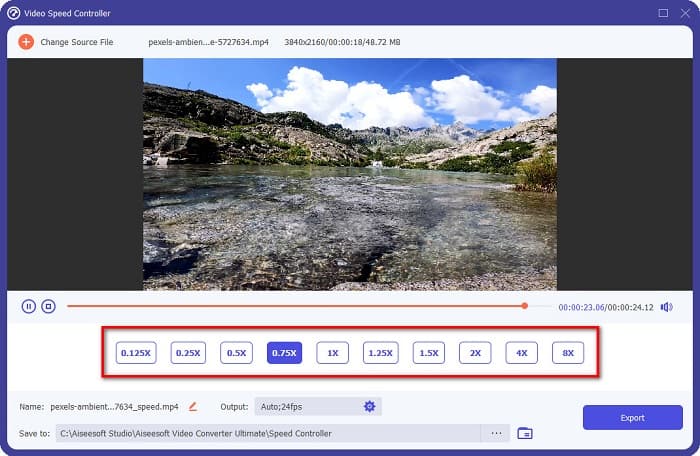
Steg 4. Välj sedan på nästa skärm den videohastighet du vill ha för din video. Du kan välja mellan 0,125x, 0,25x, 0,5x, 0,75x, 1x, 1,25x, 1,5x, 2x, 4x och 8x.
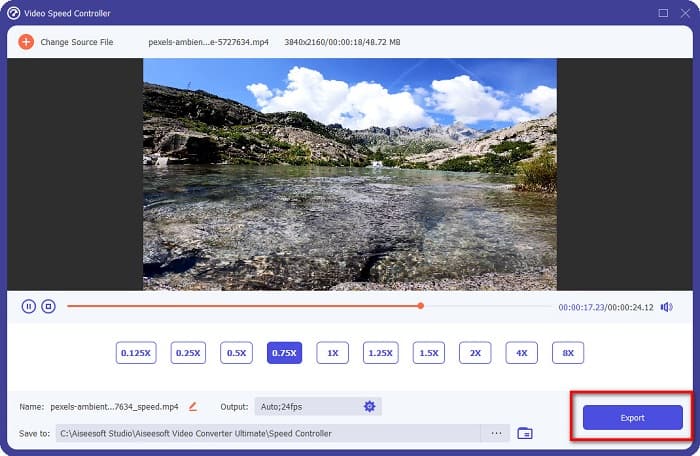
Steg 5. När du är klar med att justera hastigheten på din video klickar du slutligen på knappen Export för att spara ditt resultat på din enhet.
Relaterat till:
Hur man snabbar upp video i After Effects [Bästa verktyget för att öka hastigheten]
Hur man snabbar upp video i Sony Vegas [Enkla steg]
Del 4. Vanliga frågor om hastighetsrampning
Kan du snabba upp inspelningen på din iPhone?
Ja. Om du vill köra hastighetsramp på en iPhone kan du använda iMovie-appen. iMovie är en känd videoredigeringsapp för iPhone som låter dig snabba upp eller sakta ner en video med dess flera intervall.
Är Adobe Premiere gratis?
Nej. Adobe Premiere är inte en gratisapp. Du måste köpa appen för US$20.99 per månad om du vill använda den. Men du kan ladda ner det gratis med en 7-dagars gratis provperiod.
Kan jag fartrampa i CapCut?
CapCut är en videoredigeringsapp där du kan hastighetsrampa din video. Med hjälp av dess verktyg för hastighetskurva kan du redigera hastigheten på din video genom att snabba upp eller sakta ner den.
Slutsats
Speed ramping är ett utmärkt sätt att skapa en unik filmisk effekt i din video. Om du dessutom är professionell inom videoredigering är Adobe Premiere det bästa verktyget för speed ramping. Men om du vill ladda ner en gratis app för att göra speed ramping på video är Video Converter Ultimate appen för dig.
-
 Hur man snabbar upp video i Premiere Pro och med dess alternativ
 Vill du veta hur man använder Premiere Pro för att snabba upp en video? Då är du i rätt artikel då vi tillhandahåller steg och andra prisvärda alternativ.
-
 Enkelt sätt att göra en slowmotion-video i Windows Movie Maker
 Vill du ge en dramatisk effekt på din video för att framhäva eller åtminstone få ett klipp att sticka ut från resten med slow motion, och du vet inte hur? Fortsätt läsa den här artikeln för att veta mer.
-
 2 enkla sätt att snabba upp en video på TikTok
 Vill du veta hemligheten om hur man snabbar upp video på TikTok? Läs sedan den här artikeln för att få idén om hur du gör det och veta vilka de andra 2 verktygen som kan hjälpa dig.
