


 Video Converter Ultimate
 Skärminspelare
 Video reparation
 Säker nedladdning
Hur man ändrar storlek på bilder i Illustrator på din dator
Många avancerade redigeringar har blivit vanliga, särskilt i och med framväxten av professionella fotoredigeringsprogram som Adobe Illustrator. Men det är fortfarande möjligt att göra enkel redigering med dessa kraftfulla appar. Du kan till exempel fortfarande använda Adobe Photoshop om du vill ändra bildens dimensioner. Och visste du? Du kan ändra storlek på din bild i Illustrator med två metoder. Den ena är att skala bilden manuellt, och den andra är att skriva in de numeriska värden du föredrar för ditt foto. I den här guiden visar vi dig dessa två metoder för hur du ändrar storlek på bilder i Illustrator.

Del 1. Hur man ändrar storlek på bilder i Illustrator
Adobe Illustrator är det mest använda fotoredigeringsprogrammet av proffs. Denna app låter dig skapa exceptionella utgångar med hjälp av dess sofistikerade digitala ritverktyg. Det är perfekt för att skapa vektorbaserade illustrationer, ikoner, typografi, logotyper och mer. Dessutom har den avancerade färgalternativ för att skapa färgpaletter, gradientfärgscheman och blanda olika färger för fantastisk bildutdata.
Du kan göra många saker med Adobe Illustrator. De nämnda funktionerna är bara några av de många funktioner som Illustrator erbjuder. Och om du frågar om Adobe Illustrator kan ändra storlek på din bild, då är svaret ja. Läs kontinuerligt den här delen för att lära dig stegen för hur du ändrar storlek på bilder i Illustrator.
Hur man ändrar storlek på en bild i Illustrator med hjälp av bildskalaren
Steg 1. Det första du måste göra är att ladda ner Adobe Illustrator till din dator. När du har laddat ner och installerat programmet kör du det på din enhet. Öppna sedan din bild i Illustrator genom att gå till Arkiv > Öppna. Du kan också kopiera och klistra in din bild på en arbetsyta (artboard) som du redan har öppnat.
Steg 2. Klicka sedan på Markeringsverktyget (Selection Tool) (Cmd V på tangentbordet) och klicka på din bild för att markera den. När du har markerat bilden visas handtag i hörnen. Dessa handtag ser ut som små vita fyrkanter med blå kontur. Med dessa handtag kan du skala/ändra storlek på bilden, rotera den och skeva den.
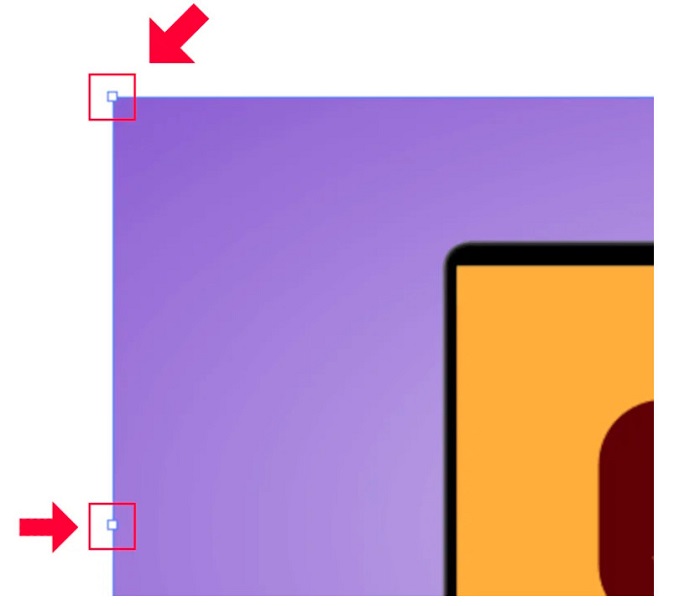
Steg 3. För att ändra storlek på din bild genom skalning, håll och dra något av handtagen till önskad storlek. Du kan även låsa bildens proportioner genom att hålla ned Skift på tangentbordet samtidigt som du flyttar markören.
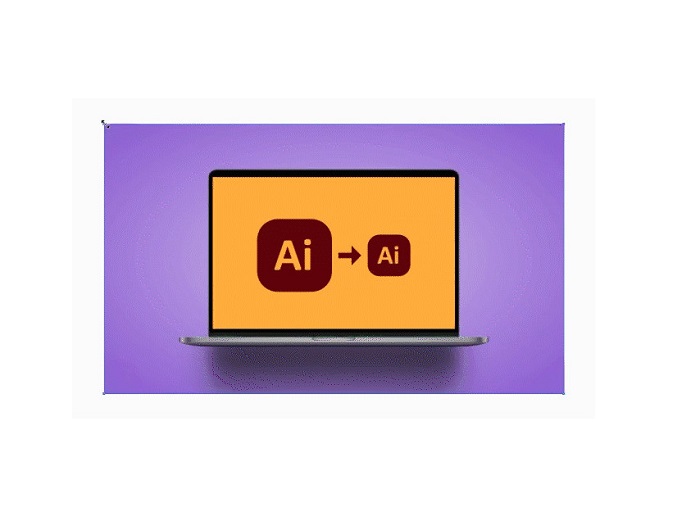
Efter att ha ändrat storleken på din bild baserat på dina önskemål kan du nu släppa klicka på handtagen.
Hur man använder Adobe Illustrator för att ändra storlek på en bild genom att justera de numeriska värdena
Nu kommer vi att lära dig hur du ändrar storlek på ditt foto genom att mata in numeriska värden med hjälp av Transform-menyn istället för att manuellt skala din bild med markeringsverktyget.
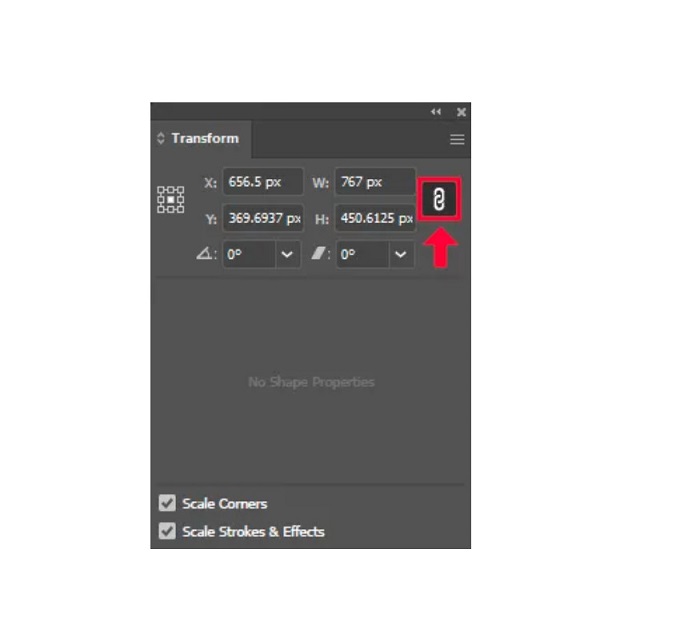
Steg 1. När Adobe Illustrator är öppet på din enhet, öppna Transformera-menyn genom att klicka på Fönster > Transformera. Du kan också visa den här menyn genom att trycka Skift + F8 på tangentbordet. Så här ser Transformera-menyn ut.
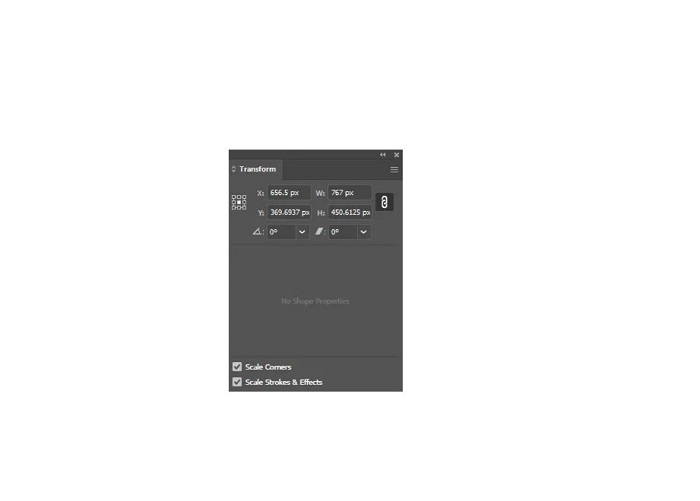
Transformera-menyn gör att du kan ändra objektets position i förhållande till X- och Y-axeln. Du kan också använda den här menyn för att rotera, skeva och ändra storlek på bilden genom att skriva in ett numeriskt värde.
Steg 2. Markera sedan bilden vars storlek du vill ändra med Markeringsverktyget. Justera därefter bredd och höjd i Transformera-menyn genom att ändra siffrorna efter vilken storlek du vill ha på ditt foto. Bokstaven W anger bredd (width) och H anger höjd (height) på din bild.
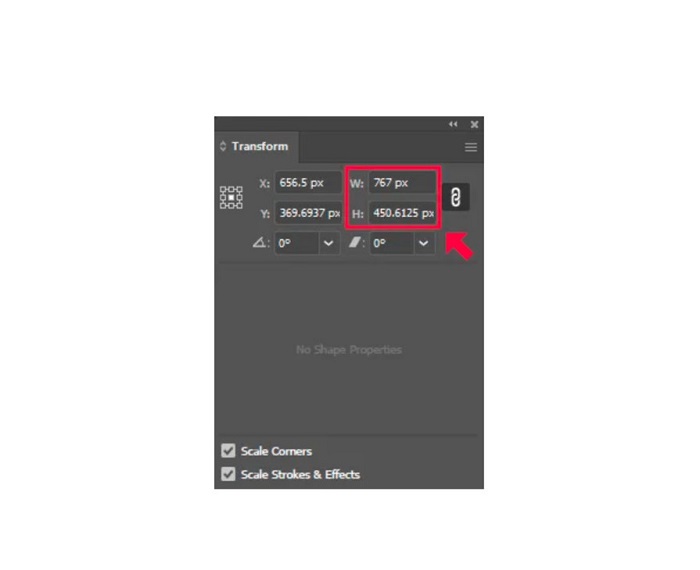
Steg 3. Det är också bra om du låser proportionerna på ditt foto genom att klicka på Kedje-ikonen bredvid höjd och bredd. När du väljer kedjealternativet och ändrar bildens höjd, följer bredden automatiskt med.
Tips. Du kan även ändra bildens standardenhet för mått. Illustrator använder pixlar (px) som standardenhet. Du kan ändra enheten genom att:
◆ Centimeter (cm)
◆ Millimeter (mm)
◆ tum (tum)
◆ Procentandelar (%)
För att ändra måttenheten för din bild skriver du in den direkt efter själva måtttalet. När du har ändrat det numeriska värdet och enheten för bilden trycker du på Enter på tangentbordet.
Nu ska vi exportera din bild. Markera din bild med Markeringsverktyget, högerklicka på den och välj Exportera markering (Export Selection).
När du har valt alternativet Exportera markering (Export Selection) visas menyn Exportera för skärm (Export for Screens). Med den här menyn kan du spara din ändrade bild i ett användbart format.
Under miniatyren kan du förhandsgranska ditt resultat och ändra filnamnet till något du föredrar. Klicka sedan på mappikonen i panelen Exportera till för att bläddra fram platsen där du vill spara filen. Se också till att fältet Skala (Scale) är inställt på 1x. Välj sedan ditt utdataformat. Det rekommenderas att du använder PNG- eller JPG-format.
Och slutligen, klicka på knappen Exportera resurs (Export Asset) för att spara ditt resultat.
Underbart, eller hur? Adobe Illustrator låter dig redigera dina bilder till ditt hjärta. Den här delen är också svaret om du söker efter hur man ändrar storlek på bilder i illustrator utan förvrängning. Den här appen är dock inte ett användarvänligt verktyg eftersom den inte har ett lättanvänt gränssnitt. Därför, om du vill ändra storlek/uppskala din bild med ett lättanvänt program, läs nästa del noggrant.
Del 2. Onlinealternativ för Illustrator
Adobe Illustrator är ett offlineverktyg och det är inte gratis. Så om du vill använda en fantastisk bildförändring som är gratis och som hjälper dig att förbättra din bild, följ sedan handledningen som vi kommer att presentera nedan.
FVC Free Image Upscaler är en webbaserad bildförstorare som kan hjälpa dig att förbättra bilder med låg kvalitet. Det här onlineverktyget kan förbättra din bild med 2x, 4x, 6x och 8x förstoring. Dessutom använder det AI-teknik (Artificiell Intelligens) som automatiskt upptäcker de lågkvalitativa delarna av din bild och förbättrar dem. Det stöder alla bildformat, inklusive JPEG, JPG, PNG och BMP. Vidare är det säkert att använda och helt gratis. Och med sitt enkla användargränssnitt kan du enkelt ändra storlek/skala upp din bild.
Så här ändrar du storlek på en bild med FVC Free Image Upscaler:
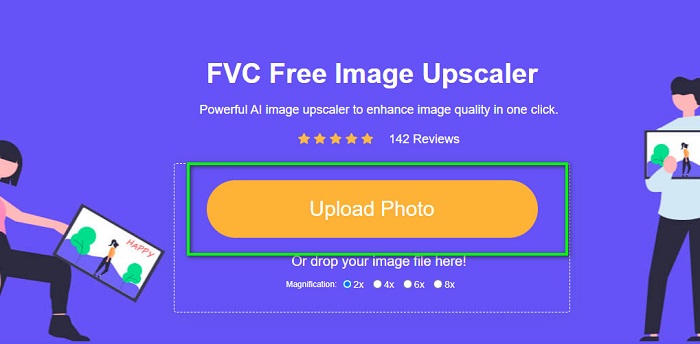
Steg 1. Sök efter FVC Free Image Upscaler i din webbläsare eller klicka på den här länken för att gå direkt till deras startsida. På programmets huvudgränssnitt klickar du på knappen Upload Photo för att starta appen på din enhet.
Steg 2. Klicka sedan på knappen Upload Photo igen för att importera bilden du vill skala upp.
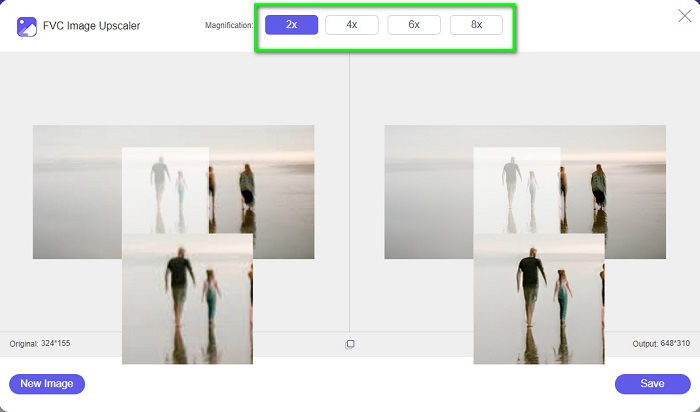
Steg 3. När ditt foto har laddats upp väljer du den förstoringsinställning du vill ha för bilden. Du kan välja mellan 2x, 4x, 6x och 8x.
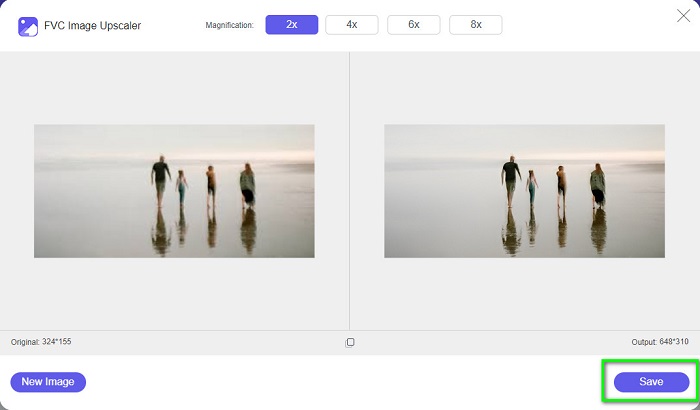
Steg 4. Till sist klickar du på knappen Save för att spara ditt resultat på din enhet.
Relaterat till:
Hur du använder GIMP för att ändra storlek på bilder: steg-för-steg-guide
Hur du ändrar storlek på foto för Facebook [snabba och enkla steg]
Del 3. Vanliga frågor om hur man ändrar storlek på bild i Illustrator
Varför ändrar inte Adobe Illustrator storlek på bilder?
Du kan inte ändra storlek på en bild i Illustrator eftersom begränsningsrutan förmodligen inte är aktiverad. För att aktivera begränsningsramen, gå till Visa > Visa begränsningsram. Genom att aktivera den kan du nu ändra storlek på din bild i Illustrator.
Kan jag ändra storlek på en bild i Illustrator utan att förlora kvalitet?
Ja. Det finns ett sätt att ändra storlek på din bild med Adobe Illustrator. Men för det mesta, när du ändrar storlek på en bild med skalaren, kommer kvaliteten på din bild att påverkas.
Är Adobe Illustrator gratis?
Nej. Adobe Illustrator är inte gratis. Innan du använder denna kraftfulla fotoredigeringsapp måste du köpa den för $20,99 per månad.
Slutsats
Du har lärt dig hur du ändrar storlek på bilder i Illustrator genom att följa de metoder vi visade. Det kan verka som många steg, men det är värt att använda och prova. Problemet med Adobe Illustrator är att det inte är gratis och har ett komplext gränssnitt. Så om du vill ha ett mer lättanvänt och gratis verktyg för att ändra bildstorlek kan du använda FVC Free Image Upscaler.
-
 Hur man ändrar storlek på bild – Adobe Ändra storlek på bild [Online och Offline]
 Om du letar efter Adobes storlek på bild så har vi lösningen för dig. Läs det här inlägget noggrant för att lära dig hur du ändrar storlek på bilder med Adobe på din PC.
-
 Bästa Photo Resizer-appen online, offline, Android och iPhone
 Vilka är de bästa apparna för fotoförändring? Klicka på sidan för att lära dig de fem mest kraftfulla apparna för fotoförändring som du kan använda för att förbättra eller ändra storlek på din fil
-
 Top 7 Pixels Enhancer för alla webbläsare du måste använda
 Om du vill veta de bästa pixelförstärkarna att använda, bör du kolla in det här inlägget. Den här artikeln listar de sju bästa fotopixelförstärkarna för alla webbläsare.
