


 Video Converter Ultimate
 Skärminspelare
 Video reparation
 Säker nedladdning
Enklaste metoderna för att ta bort ManyCam-logotypen på din enhet
Vill du lära dig hur du tar bort ManyCam-logotypen på din Windows- och Mac-dator? I så fall kommer det här inlägget att ge dig olika sätt att ta bort en logotyp från dina videor som du bör prova. Att spela upp dina favoritvideor med vattenstämplar eller logotyper är lite irriterande. Du kan inte njuta av videorna, och de blir en distraktion. Du kan inte ens se vissa delar av videorna på grund av vattenstämplar, bilder, text eller logotyper. Som tur är kan du använda utmärkta program med borttagning av vattenstämplar för att ta bort dessa onödiga objekt från dina videor.
Med hjälp av dessa applikationer kommer du aldrig att bli besviken igen. Om du är intresserad av att veta de bästa metoderna för att ta bort ManyCam-logotypen, är ditt bästa val att läsa den här artikeln.

Del 1: Hur man tar bort ManyCam-logotypen genom att aktivera prenumerationen
Om du vill lära dig hur man tar bort vattenstämplar från ManyCam är du på rätt plats. ManyCam är en programvara för livesändning som finns tillgänglig både på Windows och Mac. Med detta program kan du skapa unika sändningar på dina plattformar, göra handledningar, affärspresentationer, spelstreaming och mycket mer. Dessutom har det fler utmärkta funktioner du kan använda, som att lägga till musik, spela in skärmen, lägga till greenscreen, streama spel och mer. För innehållsskapare är ManyCam värdefullt och hjälpsamt. Det har viktiga verktyg de behöver, som screencasting och skärminspelning, vilket gör det bekvämt för dem.
Men varje gång du skapar eller redigerar din video finns det en Manycam-logotyp på den nedre delen av videon, vilket är störande. Som tur är kan du ta bort den här logotypen genom att aktivera prenumerationen på ManyCam. Följ dessa steg nedan för att lära dig hur du tar bort manycam-logotypen genom att aktivera prenumerationen.
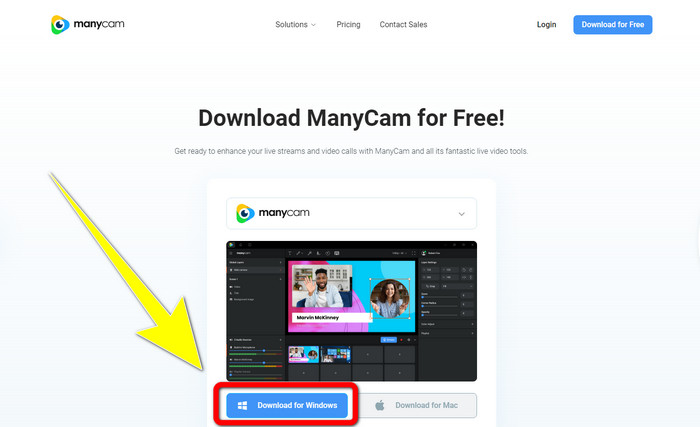
Steg 1: För att ladda ner ManyCam, klicka på knappen Download for Windows. Fortsätt sedan till installationsprocessen.
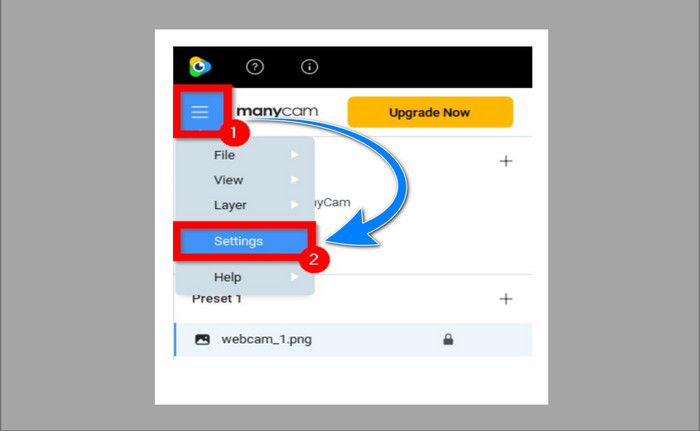
Steg 2: Starta programmet på datorn och klicka på hamburgermenyn i ManyCam, gå sedan till Settings > Account och logga in på kontot du skapade efter att du köpte prenumerationen.
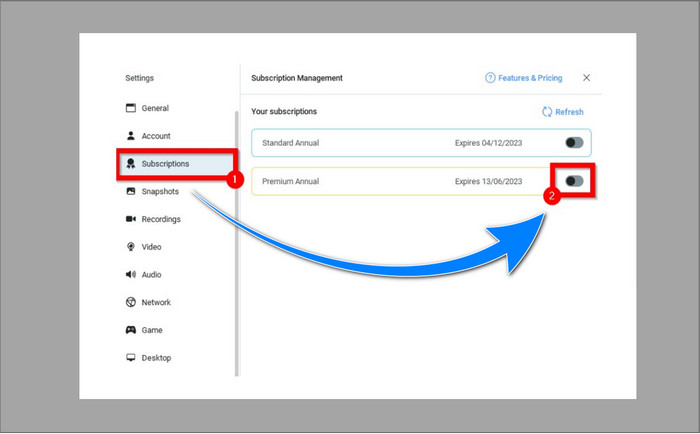
Steg 3: Gå till fliken Subscription för att försäkra dig om att prenumerationen är aktiverad.
Steg 4: Om prenumerationen redan är aktiverad visas ett Pop-up-meddelande, och då är du klar.
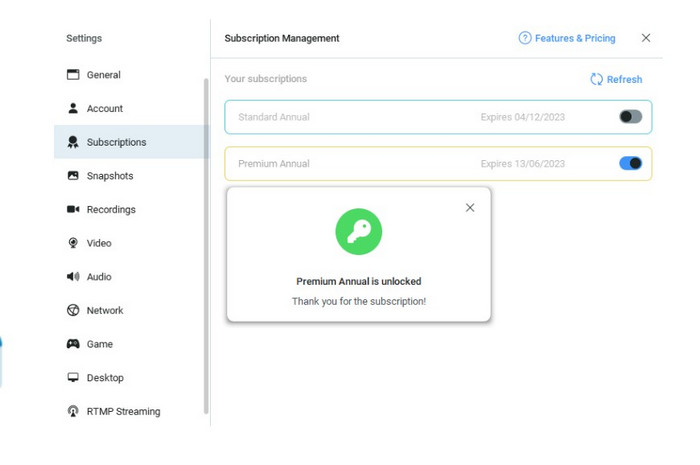
Om din ManyCam-applikation redan är aktiverad kommer vattenstämplarna eller logotypen på dina videor automatiskt att tas bort. Du kan njuta av att titta på dina favoritvideor utan att stöta på vattenstämplar på dem.
Del 2: Hur man tar bort ManyCam-logotypen utan prenumeration
Vill du ta bort vattenstämpeln från ManyCam gratis? Förutom ManyCam-programmet kan du också använda ett annat program för att ta bort logotypen från ManyCam. Det bästa programmet du kan använda är Video Converter Ultimate. Detta program kan ta bort onödiga objekt i dina videor, såsom text, vattenstämplar, logotyper osv. Dessutom har Video Converter Ultimate många redigeringsverktyg du kan använda, som videohastighetskontroll, förbättring av video, lägga till och ta bort vattenstämplar, färgkorrigering, volymförstärkare och mer. Det bästa verktyget du kan använda för att ta bort vattenstämplar med Video Converter Ultimate är Video Watermark Remover.
Det här verktyget hjälper dig att enkelt eliminera vattenstämplar. Dessutom är denna applikation tillgänglig på både Windows och Mac. Dessutom kommer du inte att ha svårt att använda den här applikationen. Den stöder också flera ljud- och videofilformat, som MP4, FLV, MOV, MKV, MP3, AAC och mer. Om du vill ta bort ManyCam-logotypen med Video Converter Ultimate kommer den här artikeln att visa dig två sätt. Dessa sätt är att använda video cropper och video vattenstämpel remover.
1. Använda Video Cropper
Steg 1. Ladda ner FVC Video Converter Ultimate och gå vidare till installationsprocessen.
Gratis nedladdningFör Windows 7 eller senareSäker nedladdning
Gratis nedladdningFör MacOS 10.7 eller senareSäker nedladdning
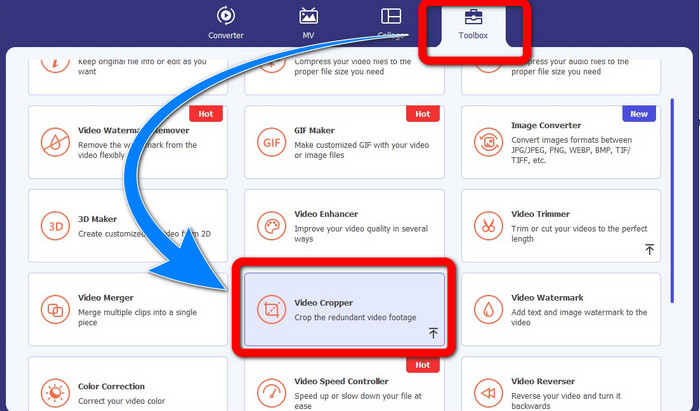
Steg 2: Efter installationen startar du programmet. Klicka på Toolbox > Video Cropper.
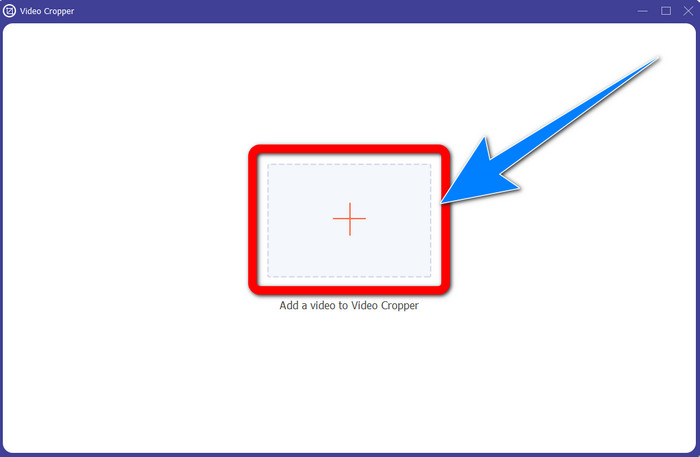
Steg 3: Efter att du har klickat på Video Cropper öppnas ett nytt fönster. Klicka på knappen med Plus-tecknet och lägg till dina videor med vattenstämpel från ManyCam.
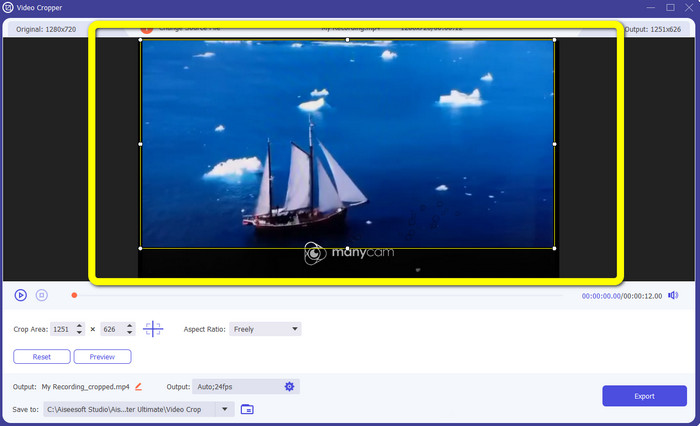
Steg 4: När din fil har lagts till kan du beskära videon och ta bort vattenstämpeln.
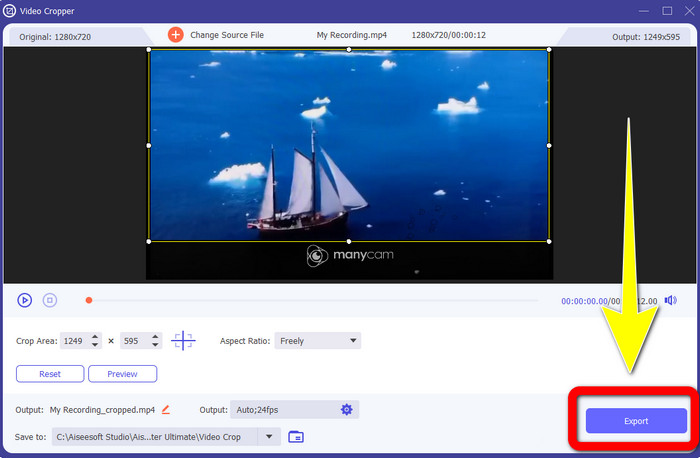
Steg 5: När vattenstämpeln är borttagen klickar du på knappen Export för att spara ditt slutliga resultat. Du kan nu spela upp din favoritvideo utan vattenstämpel.
2. Använda Video Watermark Remover
Steg 1: Öppna programmet. Gå till Toolbox > Video Watermark Remover.
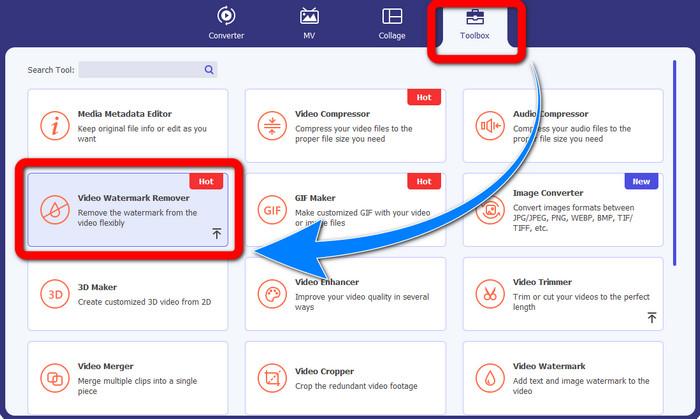
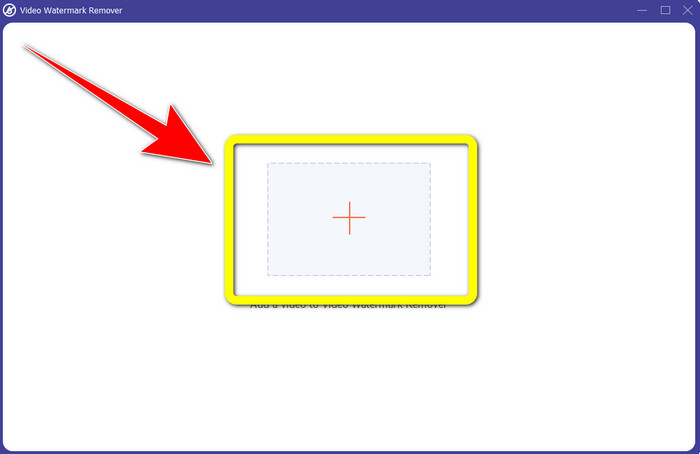
Steg 2: Ett nytt fönster visas efter att du har klickat på Video Watermark Remover. Klicka på knappen med Plus-tecknet för att lägga till din video med vattenstämpel från ManyCam.
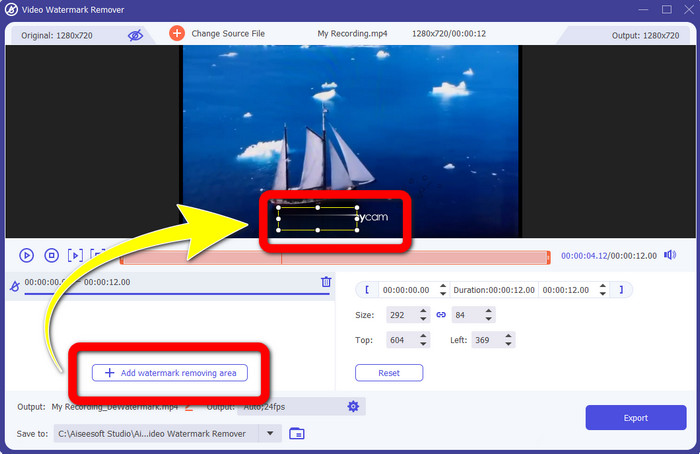
Steg 3: När du redan har lagt till din video klickar du på Add Watermark Removing Area, och då visas en ruta i din video. Dra rutan till vattenstämpeln för att täcka den.
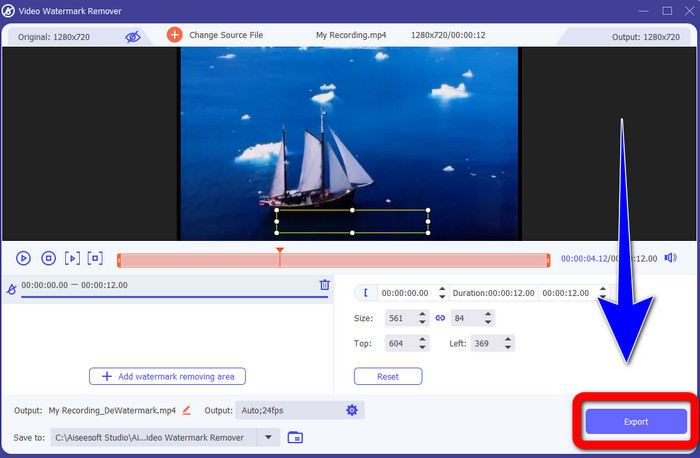
Steg 4: När du är klar med att ta bort vattenstämplar från dina videor klickar du på Export för att spara ditt resultat. Detta är det bästa sättet att ta bort ManyCam-logotypen gratis.
Del 3: Vanliga frågor om att ta bort ManyCam-logotypen
Hur lång tid tar det att ta bort logotypen?
Du behöver inte vänta längre eftersom borttagningsprocessen av logotypen eller eventuella onödiga föremål bara tar några sekunder.
Kan jag ta bort ManyCam-logotypen på min telefon?
ja! Du kan ta bort ManyCam-logotypen på din Android eller iPhone med hjälp av olika program med vattenstämpelborttagningsmedel. Leta efter applikationen i din play-butik eller appbutik och försök använda de applikationer som du kan se i de översta resultaten.
Finns det ett bästa sätt att ta bort vattenstämplar på min Mac?
Absolut, ja! Du kan använda ett utmärkt program med borttagning av vattenstämplar för att ta bort vattenstämplar på din Mac. Detta program är Video Converter Ultimate. Det fungerar perfekt både på Windows och Mac. Denna programvara kan hjälpa dig att ta bort onödiga objekt i dina videor, som logotyper, vattenstämplar, bilder och text.
Kan jag använda beskärningsverktyget från ManyCam-applikationen för att ta bort ManyCam-logotypen?
Tyvärr nej! Att använda beskärningsverktyget för att ta bort logotypen från ManyCam är ineffektivt. Även om du försöker beskära videon för att ta bort logotypen kommer den ändå att synas. Den enda lösningen för att ta bort logotypen är att aktivera prenumerationen i ManyCam.
Förutom ManyCam, finns det ett alternativt sätt att ta bort vattenstämplar på mina videor?
Ja, det finns! Bortsett från ManyCam finns det fler applikationer med vattenstämpelborttagare som du kan använda utan att köpa. En av de bästa applikationerna du kan använda för att ta bort vattenstämplar på dina videor är Video Converter Ultimate. Det är enkelt och lätt att använda, vilket är lämpligt för nybörjare.
Slutsats
Utifrån informationen ovan kan du lära dig hur du tar bort ManyCam-logotypen på din Windows- och Mac-dator. Du kan använda ManyCam-programmet för att enkelt ta bort logotypen efter att du har aktiverat din prenumeration. Dessutom, om du vill använda ett program med borttagning av vattenstämplar gratis, bör du använda Video Converter Ultimate. Det här programmet är till stor hjälp när det gäller att ta bort onödiga objekt i dina videor.
-
 Enklaste metoderna för hur man tar bort vattenstämpel från foton
 Är du irriterad över vattenstämplarna på dina bilder? Oroa dig inte! Den här artikeln ger enkla och enkla metoder för att ta bort vattenstämplar från dina foton.
-
 Hur man tar bort Powtoon-vattenstämpeln med hjälp av 4 effektiva metoder
 Läs den här artikeln för att lära dig hur du tar bort vattenstämpeln Powtoon med de bästa verktygen vi inkluderade här och en handledning.
-
 Apowersoft Watermark Remover Review – Funktioner, för- och nackdelar och priser
 Apowersoft Watermark Remover är en av de bästa vattenstämplarnas borttagning som stöder online och offline, klicka här för att veta mer!
