


 Video Converter Ultimate
 Skärminspelare
 Video reparation
 Säker nedladdning
Bästa MP3 till M4A-omvandlare: snabb och enkel ljudkonvertering
Är du missnöjd när du lyssnar på lågkvalitativt ljud som inte gör dina favoritlåtar rättvisa? Då är det dags att uppgradera din ljudupplevelse med kraften i MP3 till M4A-konvertering! Genom att konvertera dina ljudfiler till M4A kan du låsa upp din musiksamlings verkliga potential och själv höra skillnaden. I den här guiden går vi igenom fördelarna med MP3 till M4A-konvertering och presenterar den bästa programvaran för att säkerställa en smidig konverteringsprocess. Förbered dig på att förändra din ljudupplevelse och njuta av din musik som aldrig förr.

Del 1. Bästa sätten att konvertera MP3 till M4A
Här är några av de bästa ljudomvandlarna från MP3 till M4a. Det finns ett offline sätt, som är en stationär app, och ett annat onlineverktyg, som är ett webbaserat program. Kolla in dem för att lära dig mer.
1. Video Converter Ultimate
Video Converter Ultimate är ett flexibelt program som erbjuder en rad funktioner för ljud- och videokonvertering. När det gäller att konvertera MP3 till M4A är Video Converter Ultimate ett utmärkt val som ger användarna en enkel och okomplicerad process för att konvertera sina ljudfiler. Verktyget stödjer ett brett utbud av ljudformat, och dess avancerade ljudkodningsteknik säkerställer högkvalitativ utdata. Oavsett om du behöver konvertera ljudfiler för personligt eller professionellt bruk gör Video Converter Ultimate processen snabb, så att du kan fokusera på det som är viktigast – att njuta av dina högkvalitativa ljudfiler.
Steg 1. Skaffa programmet och installera det
För att börja väljer du en av knapparna för Gratis nedladdning och följer sedan instruktionerna på skärmen för att spara filen på din dator. Nästa steg är att starta appen och bekanta dig med de intuitiva kontrollerna.
Gratis nedladdningFör Windows 7 eller senareSäker nedladdning
Gratis nedladdningFör MacOS 10.7 eller senareSäker nedladdning
Steg 2. Lägg till ljudfiler
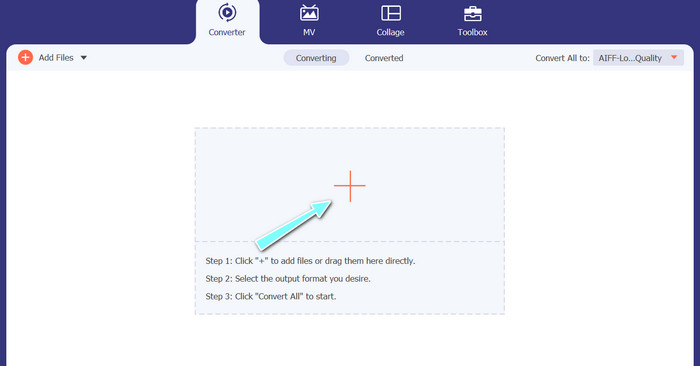
Välj sedan plus-ikonen i huvudgränssnittet och gå till platsen för ljudfilen du vill konvertera. När en fil har laddats upp visas en förhandsgranskning av den i användargränssnittet. Om du vill batchkonvertera MP3 till M4A kan du ladda upp en hel mapp med filer.
Steg 3. Välj ett utdataformat
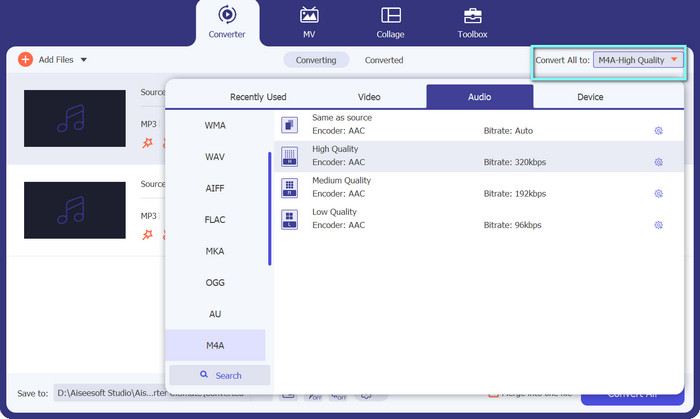
Välj sedan utdataformat genom att klicka på fliken Audio i menyn Profile (placerad uppe till höger i verktyget). Du kan konvertera till eller från MP3 med hjälp av formaten MP3 eller M4A.
Steg 4. Spara utdatafilen
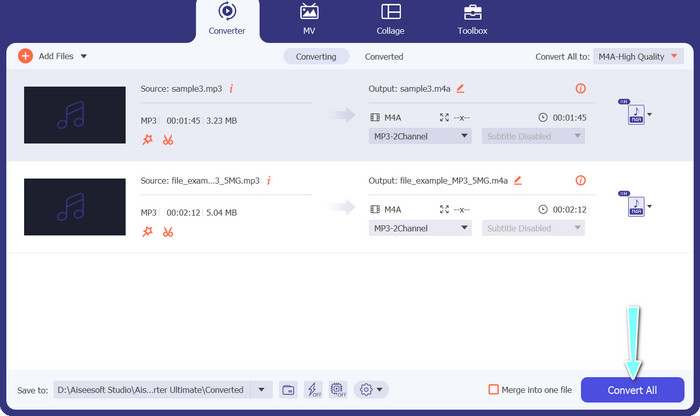
Välj målmapp längst ned på skärmen. När du är redo att starta konverteringen klickar du på knappen Convert All.
2. Gratis Video Converter Online
Har du inget utrymme för ytterligare ett program? Ingen fara – du kan välja ett onlinetool för att hjälpa dig konvertera filer utan att ladda ner något program. Den webbaserade appen Free Video Converter Online gör det möjligt att konvertera direkt i webbläsaren. Dessutom stöder den många format för både video- och ljudfiler. Inte nog med det – du kan utföra bulkkonvertering med detta onlinetool. Dessutom är möjligheten att anpassa utdata för ljudfilen en annan utmärkt funktion i verktyget. Ta en titt på hur denna MP3 till M4A-omvandlare online fungerar.
Steg 1. För att börja använda Free Video Converter Online ska du först öppna din favoritwebbläsare och gå direkt till webbplatsen.
Steg 2. Välj sedan den MP3-fil du vill konvertera till M4A genom att klicka på knappen Add Files to Convert.
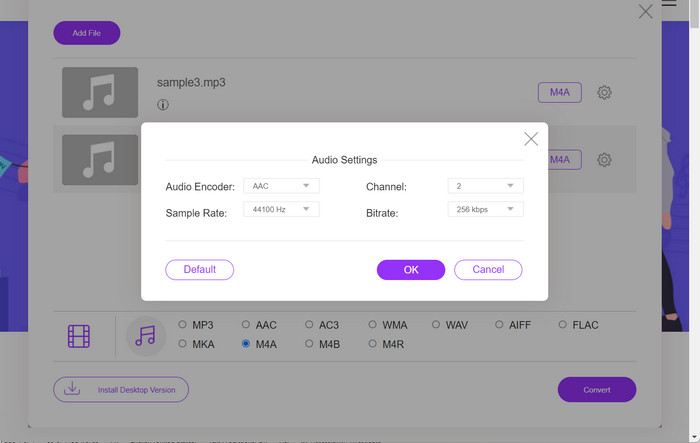
Steg 3. Välj M4A som önskat utdataformat i alternativet för Audio-format. Du kan också ändra M4A-filens utdatakvalitet, eller bitrate.
Steg 4. Klicka på knappen Convert för att starta konverteringsprocessen. Så här konverterar du MP3 till M4A online.
Del 2. Konvertera MP3 till M4A på Windows
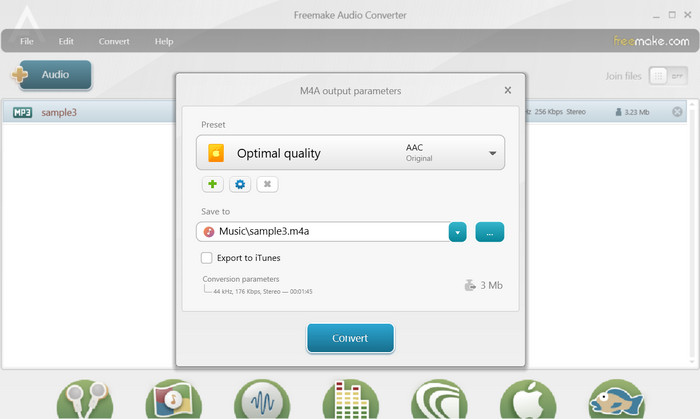
Freemake Audio Converter är ett gratis och lättanvänt program som låter användare konvertera ljudfiler till olika format, inklusive M4A, MP3, WAV och mer. Med sitt enkla dra-och-släpp-gränssnitt kan användare enkelt lägga till sina MP3-filer och konvertera dem till M4A utan några komplicerade inställningar eller konfigurationer. Verktyget har också en rad anpassningsalternativ, så att användare kan justera parametrar som bithastighet och samplingshastighet för att få önskad utskriftskvalitet. Allt som allt är det en av de bästa MP3 till M4A-omvandlarna du kan använda.
Steg 1. Ladda ner och installera Freemake Audio Converter på din Windows-dator.
Steg 2. Starta programmet och klicka på knappen +Audio för att lägga till dina MP3-filer i programmet.
Steg 3. Välj M4A från listan över tillgängliga format längst ned i programfönstret. Använd rullgardinsmenyn för att välja önskade kvalitetsinställningar för din utdatafil.
Steg 4. Välj den utdatamapp där du vill att din konverterade fil ska sparas. Klicka till sist på knappen Convert för att starta konverteringsprocessen.
Del 3. Konvertera MP3 till M4A på Mac
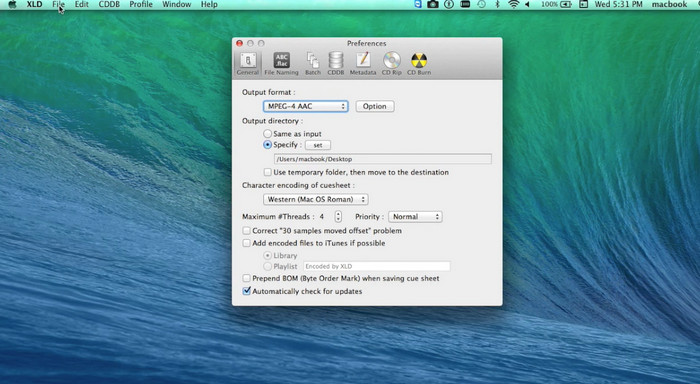
XLD är ett gratis och lättanvänt program som låter Mac-användare konvertera ljudfiler till olika format, inklusive M4A, MP3, FLAC och mer. Med sitt enkla dra-och-släpp-gränssnitt kan användare enkelt lägga till sina MP3-filer och konvertera dem till M4A utan några komplicerade inställningar eller konfigurationer. XLD erbjuder också en rad anpassningsalternativ, som låter användare justera parametrar som bithastighet och samplingshastighet för att uppnå önskad utdatakvalitet.
Steg 1. Ladda ner och installera XLD på din Mac-dator.
Steg 2. Starta programmet och klicka på knappen Open för att lägga till dina MP3-filer i programmet.
Steg 3. Välj M4A från listan över tillgängliga format i programmets inställningar. Du kan använda rullgardinsmenyn för att välja önskade kvalitetsinställningar för din utdatafil.
Steg 4. Välj sedan den utdatamapp där du vill att din konverterade fil ska sparas. Slutligen klickar du på knappen Convert för att starta konverteringsprocessen. Så här konverterar du MP3 till M4A gratis på Mac.
Del 4. Konvertera MP3 till M4A på Android
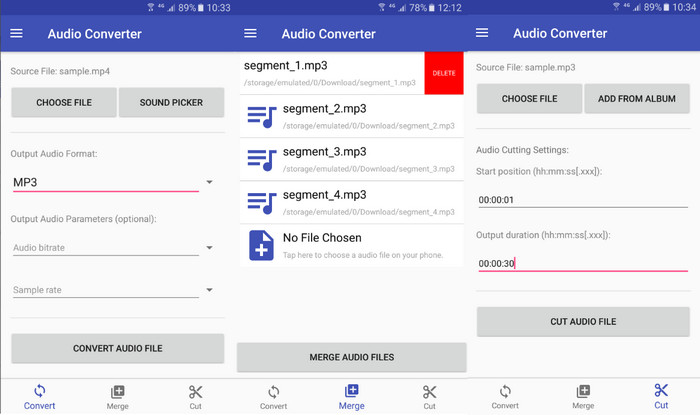
När det gäller att konvertera ljudfiler är den kostnadsfria och enkla Android-mjukvaran Audio Converter från Online-Convert.com svår att slå. Användare kan helt enkelt dra och släppa sina MP3-filer i programmets gränssnitt för att påbörja konverteringsprocessen till M4A. Utdatakvaliteten för en ljudfil kan justeras genom att ändra inställningar som bithastighet och samplingshastighet i Audio Converter. Här är stegen för att ändra MP3 till M4A på Android:
Steg 1. Ladda ner och installera Audio Converter från Online-Convert.com via Google Play Store på din Android-enhet. Starta appen och tryck på knappen Convert Audio.
Steg 2. Välj sedan MP3 som indataformat och M4A som utdataformat.
Steg 3. Tryck nu på knappen Select Files för att lägga till dina MP3-filer i appen. Till sist trycker du på knappen Start Conversion för att starta konverteringsprocessen. Så enkelt är det! Nu har du lärt dig hur du konverterar MP3 till M4A på Android.
Del 5. Konvertera MP3 till M4A på iOS
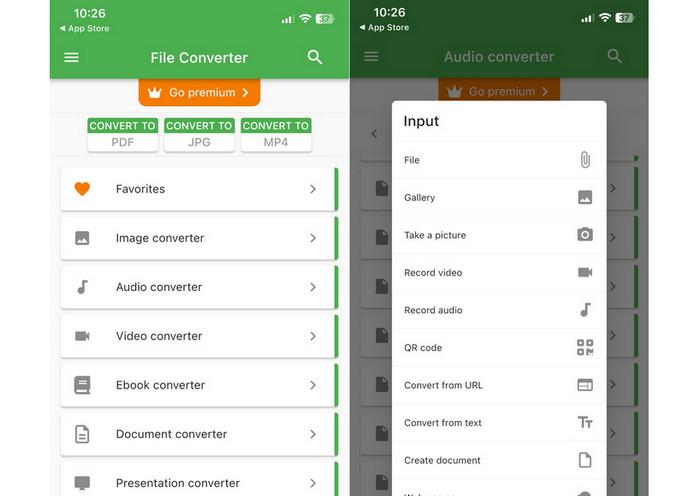
Ljudfiler, som MP3, kan konverteras till det mer bärbara och förlustfria M4A-formatet med hjälp av File Converter Free, en gratis och enkel iOS-mjukvara. Dess enkla design gör det enkelt för vem som helst att ladda MP3-filer och konvertera dem till M4A utan att behöva pilla med några inställningar eller inställningar.
Steg 1. File Converter Free finns i App Store och är gratis att ladda ner och använda. Starta programmet och tryck på fliken Audio.
Steg 2. Välj MP3 som både indata- och utdataformat och M4A för Apples AAC-format. Välj önskad utdatakvalitet via rullgardinsmenyn. För att importera en MP3-fil till programmet klickar du på knappen Add File.
Steg 3. Klicka på knappen Convert för att starta konverteringsprocessen.
Del 6. Vanliga frågor om att konvertera MP3 till M4A
Kan jag konvertera MP3 till M4A med Windows Media Player?
Ja, du kan konvertera MP3 till M4A med Windows Media Player, men det kräver några extra steg eftersom M4A inte stöds som standardformat i Windows Media Player. Alternativt kan du helt enkelt använda ett alternativ till Windows Media Player.
Kommer konvertering av MP3 till M4A att leda till förlust av ljudkvalitet?
Konvertering av MP3 till M4A kan resultera i en liten förlust av ljudkvalitet på grund av skillnaderna i komprimeringsalgoritmer som används av de två formaten.
Kan jag konvertera M4A tillbaka till MP3?
Ja, många ljudkonverteringsprogram och -verktyg låter dig konvertera M4A till MP3 vid behov. Var dock medveten om att upprepad konvertering mellan format kan leda till kvalitetsförlust.
Slutsats
MP3 till M4A-konvertering är en värdefull process för alla som vill förbättra kvaliteten och kompatibiliteten hos sina ljudfiler. Genom att följa stegen och tipsen som beskrivs här kan du enkelt konvertera dina MP3-filer till M4A och njuta av högkvalitativt ljud på vilken enhet som helst.
-
 Gratis & online | Hur man konverterar MP4 till M4A på Windows / Mac
 Hur konverterar jag MP4 till M4A online? Kan jag extrahera ljudet från MP4-filer? Läs det här inlägget så får du alla svar om konverteringen från MP4 till M4A.
-
 Bästa verktyg som du kan använda för att batchkonvertera MP3 till M4R-filer
 Letar du efter en omvandlare som kan omvandla din MP3-fil till en M4R-ringsignal för din iPhone eller iPad batch? Läs igenom artikeln för att upptäcka några av de bästa som finns.
-
 5 MP3-klippare för att enkelt klippa av vilket ljud som helst [2023 uppdaterad]
 Behöver du en MP3-skärare för att trimma ljudet? Läs i så fall den här artikeln eftersom vi tillhandahåller de verktyg du kan lita på som ger enkel skärning av ljudet.
