


 Video Converter Ultimate
 Skärminspelare
 Video reparation
 Säker nedladdning
Hur man färgkorrigerar med de bästa 5 måste-ha-verktygen
Färgkorrigering är en grundläggande process inom videoredigering som förbättrar och jämnar ut färgerna i en video, vilket ger ett visuellt tilltalande och iögonfallande resultat. Den innebär att man justerar en videos kontrast, mättnad, ljusstyrka och nyanser för att uppnå den perfekta visuella känslan. Oavsett om du är en professionell videograf eller en blivande innehållsskapare är det en riktig game changer för dina helhetsintryck att förstå hur man genomför färgkorrigering. Processen börjar med att identifiera och analysera den befintliga färgbalansen, högdagrar, skuggor och mellantoner i videomaterialet. Därefter görs justeringar med hjälp av specialiserad programvara som ger exakt kontroll över dessa färgelement. Låt oss nu gå på djupet i den här artikeln och lära oss hur man åtgärdar problem med videofärger med de bästa verktygen du kan lita på.

Del 1. Fem sätt på hur man färgrättar video
Att hitta olika gratis färgkorrigeringar för videoredigerare online för att höja din videos visuella dragningskraft kan vara så enkelt som du tror. Men att leta efter mer avancerade och pålitliga sådana är lite svårt att skapa rätt stämning för dina videor. Upptäck fem effektiva sätt att perfektionera din videos färger med hjälp av olika mångsidiga program, förbättra ditt berättande och engagera din publik.
1. Video Converter Ultimate
Video Converter Ultimate är en komplett videolösning som låter dig förbättra din videokvalitet genom att justera viktiga parametrar som ljusstyrka, kontrast och mättnad. Detta praktiska verktyg för färgkorrigering låter dig också redigera videor med funktioner som trimning, beskärning och sammanslagning. Utöver detta erbjuder det mängder av alternativ för videokonvertering, så att du kan omvandla videor till tusentals format och anpassa dem för olika enheter som MP4, MKV, MOV, MP3, AAC, GIF, iPhone, Samsung och Apple TV, så att de kan avnjutas på olika plattformar. Dessutom kan användare lägga till undertexter och vattenstämplar för att göra sina videor mer personliga. Med ett lättöverskådligt gränssnitt är detta verktyg perfekt oavsett om du är nybörjare eller erfaren användare. Följ stegen nedan för att lära dig hur du färgkorrigerar din video med hjälp av Video Converter Ultimate.
Steg 1: Ladda ner och installera verktyget för färgkorrigering
Hämta först verktyget genom att klicka på en av knapparna för Gratis nedladdning nedan. Beroende på datorns operativsystem ska du se till att ladda ner den version av Video Converter Ultimate som passar din dator. Följ anvisningarna för att installera programmet.
Gratis nedladdningFör Windows 7 eller senareSäker nedladdning
Gratis nedladdningFör MacOS 10.7 eller senareSäker nedladdning
Steg 2: Starta Video Converter Ultimate
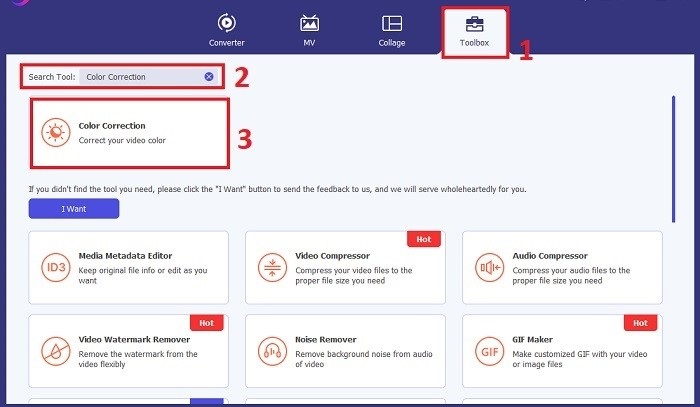
När installationen är klar öppnar du Video Converter Ultimate. Gå till Verktygslåda i huvudmenyn och leta efter funktionen Color Correction. Klicka på den för att fortsätta.
Steg 3: Importera videon för färgkorrigering
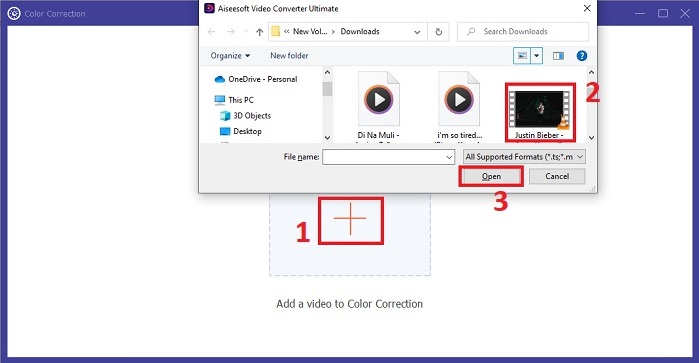
Klicka nu på Plus-knappen för att importera videon du vill färgkorrigera. Leta upp videofilen på datorn. Välj sedan Öppna för att ta in den i programmet.
Steg 4: Justera videons färginställningar och spara
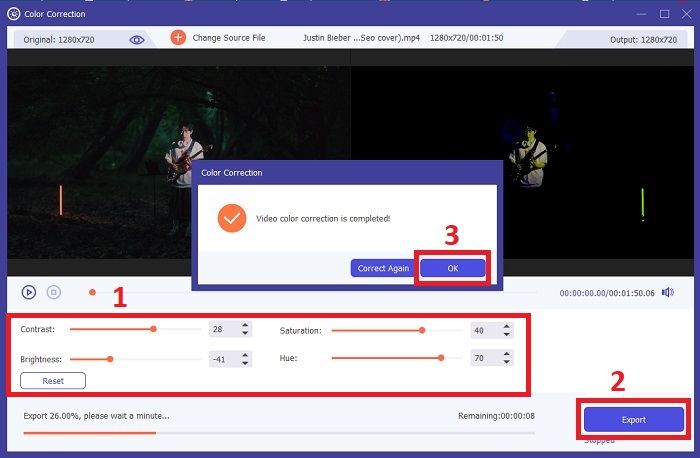
Efter att du har importerat videon finjusterar du färgparametrar som ljusstyrka, kontrast, mättnad och nyans för att uppnå den färgkorrigering du vill ha. När du är nöjd med färgjusteringarna klickar du på Exportera. Låt verktyget bearbeta videon och spara den korrigerade versionen på den plats du valt.
2. Färgkorrigering Premiere Pro
Premiere Pro är känt för sin högkvalitativa videoredigeringsprogram och omfattande färgkorrigeringsförmåga. Den erbjuder olika färggraderingsverktyg och effekter för att göra exakta justeringar. Color Correction Premiere Pro låter dig justera färgbalans och exponering eller använda kreativa utseenden för att uppnå önskad visuell stil. Du kan också välja bland hundratals inbyggda videoeffekter och övergångar eller börja med professionellt designade mallar och modifiera dem för att skapa din önskade utdata. Dessutom har den samarbetsfunktioner och integreras smidigt med annan Adobe-programvara, vilket gör den till ett toppval bland proffs.
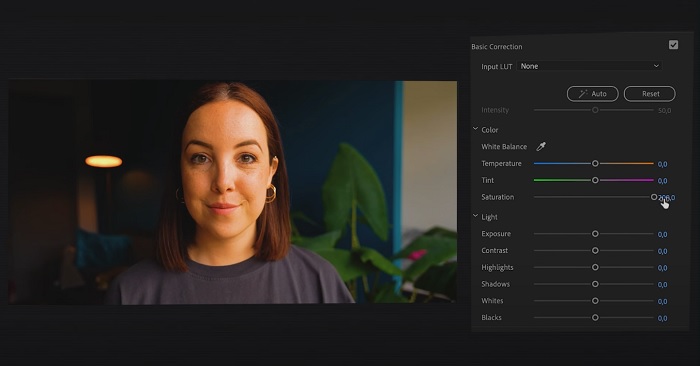
Steg 1. Börja med att öppna Premiere Pro och importera din video. Gå sedan till Color workspace.
Steg 2. I Color workspace använder du panelen Lumetri Color för att justera exponering, färgbalans och kreativa stilar.
Steg 3. Använd scopes för att säkerställa att färgjusteringarna stämmer överens med det resultat du vill uppnå. Förhandsgranska slutligen och exportera den korrigerade videon.
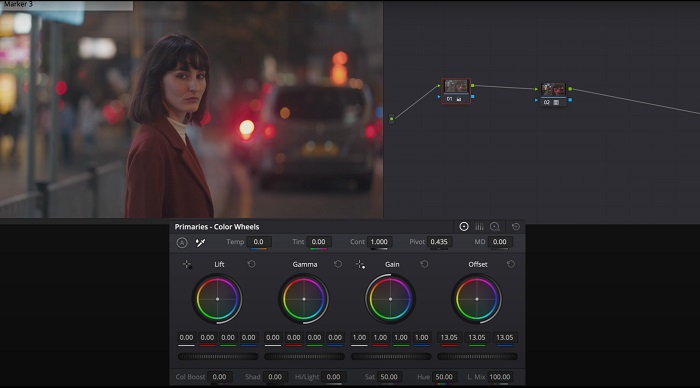
3. Davinci Resolve Color Correction
Utforska de exceptionella färggraderingskapaciteterna. Denna allt-i-ett-programvara kombinerar professionell redigering, färgkorrigering, visuella effekter och ljudpostproduktion. Med verktygets användarvänliga gränssnitt och omfattande funktionsuppsättning kan du ge din kreativa vision liv med precision och stil. Davinci Resolve Color Corrections avancerade färggraderingsverktyg gör att du kan få dina videor att sticka ut. Oavsett om du arbetar med banbrytande Hollywood-filmer eller personliga projekt, ger detta verktyg proffs och entusiaster möjlighet att skapa övertygande berättelser med oöverträffad kvalitet.
Steg 1. Öppna Davinci Resolve och importera din video. När den har importerats går du till fliken Color.
Steg 2. I fliken Color använder du färghjul, kurvor och noder för att korrigera färgen i din video. Du kan använda tillgängliga scopes för precisa justeringar.
Steg 3. När du har gjort de nödvändiga färgjusteringarna förhandsgranskar du den korrigerade videon för att försäkra dig om att den motsvarar dina förväntningar. När du är nöjd exporterar du den korrigerade videon så att den är klar att användas.
4. Final Cut Pro Color Correction
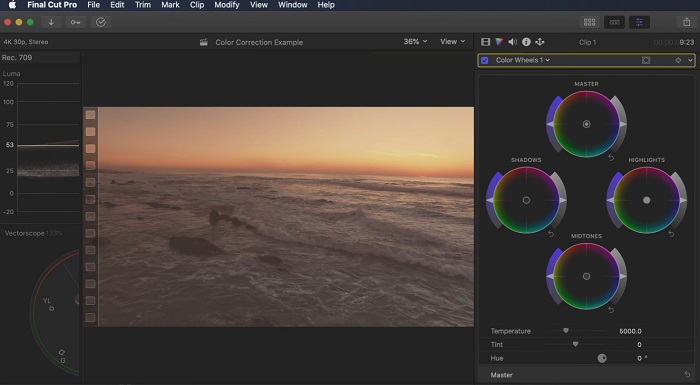
Om du är en Mac-användare som letar efter ett förstklassigt videoredigeringsprogram är Final Cut Pro ett utmärkt alternativ. Den har ett användarvänligt gränssnitt och kraftfulla funktioner som gör redigering enkelt. När det kommer till färgkorrigering erbjuder Final Cut Pro en färgtavla och färghjul för att justera exponering, mättnad och nyans. Du kan använda färgeffekter i realtid och använda avancerade graderingsverktyg för att förbättra dina bilder. Dessutom exporterar den smidigt till Apple-enheter och populära onlineplattformar. Om du är ett proffs som söker effektivitet och kreativitet är Final Cut Pro en enkel sak. Se till att du har macOS 13.4 eller senare och en Mac-dator med Apple silicon för optimal prestanda.
Steg 1. Du kan börja med att importera din video till Final Cut Pro och sedan gå till Color workspace.
Steg 2. Använd Color Board eller Color Wheels för att göra viktiga justeringar av exponering, mättnad och nyans.
Steg 3. Förfina sedan videons färg ytterligare med hjälp av fler verktyg för färggrading för att säkerställa bästa möjliga resultat. När du är klar förhandsgranskar du och exporterar den korrigerade videon.
5. Färgkorrigering efter effekter
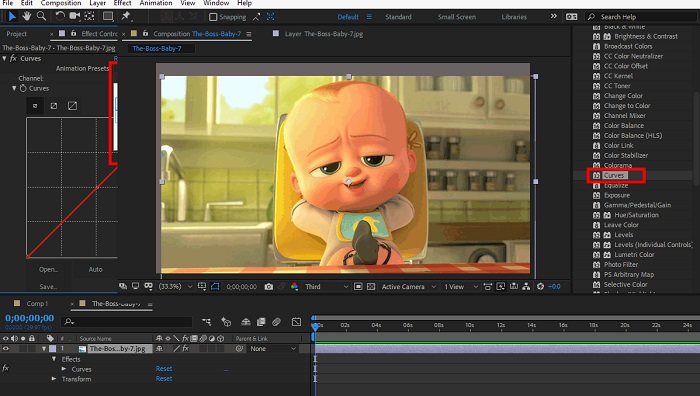
After Effects är en berömd mjukvara för rörlig grafik och visuella effekter med robusta färgkorrigeringsmöjligheter. Förutom dess grundläggande färgkorrigeringseffekter tillhandahåller den olika justeringslager och effekter för att förbättra och modifiera färger. Du kan snabbt animera text och grafik och ge dem liv med fängslande rörelser. Color Correction After Effects gör att du kan utnyttja nivåer, kurvor och blandningslägen för att uppnå önskad färggradering. Det är ett mångsidigt färgkorrigeringsalternativ tack vare dess integration med olika Adobe-produkter och en stor community som tillhandahåller handledningar och plugins. Dessutom utvecklas mjukvaran kontinuerligt och introducerar funktioner som en intuitiv egenskapspanel, transparent lagerkontroll och effektiv multi-frame-rendering som effektiviserar arbetsflöden och håller skapelser i framkant av kreativiteten.
Steg 1. Importera ditt videoklipp i projektet i verktyget. Applicera effekter för färgkorrigering genom att gå till panelen Effects & Presets och välja lämpliga verktyg för färgkorrigering, som Curves, Levels eller Color Balance.
Steg 2. Klicka på den färgkorrigeringseffekt du har lagt till för att komma åt dess parametrar. Justera sedan inställningar som exponering, kontrast, mättnad och nyans för att korrigera och förbättra färgerna i din video.
Steg 3. Förhandsgranska videon i panelen Composition för att se hur färgkorrigeringarna påverkar materialet. Finjustera justeringarna utifrån din förhandsgranskning tills du uppnår önskad färgkorrigering, och fortsätt sedan med att rendera eller exportera den korrigerade videon.
Vidare läsning:
De bästa apparna för förbättring av fotofärger på Android och iOS – gratis
4 fantastiska sätt att lägga till ett filter på en video i Windows och macOS
Del 2. Vanliga frågor om Video Color Correctors
Hur utför jag färgkorrigering på en iMovie?
För att korrigera färger i iMovie importerar du ditt videoklipp, markerar det och klickar på knappen Color Correction (ikonen med trollspö). Justera reglagen för exponering, mättnad och färg för att uppnå det utseende du föredrar.
Hur får jag åtkomst till färgkorrigeringsverktyg i OpenShot?
För färgkorrigering i OpenShot Video Editor markerar du ett klipp, går till fliken Effects och klickar på Color Correction. Justera reglagen för ljusstyrka, kontrast, nyans och mättnad för att uppnå önskad färgkorrigering.
Hur kommer jag åt färgkorrigeringsverktygen i Sony Vegas?
För färgkorrigering i Sony Vegas markerar du klippet du vill färgkorrigera, går till fliken Video FX och söker efter Color Corrector. Dra och släpp den på klippet och justera färgegenskaperna i fönstret Effect Controls.
Slutsats
Att behärska färgkorrigering är avgörande för att förbättra dina videors visuella attraktionskraft och skapa en fängslande tittarupplevelse. I den här guiden har vi gått igenom fem kraftfulla verktyg för färgkorrigering för att uppnå felfri färgkorrigering. Om du letar efter videoredigeringsverktyg av hög kvalitet kan du använda Video Converter Ultimate, Premiere Pro, Final Cut Pro, DaVinci Resolve eller After Effects. Dessa program erbjuder ett brett utbud av funktioner och möjligheter som hjälper dig att skapa professionellt utseende videor. Varje program har sin egen uppsättning funktioner och egenskaper som tilltalar olika preferenser och erfarenhetsnivåer.
-
 Hur man lägger till och gör ett Instagram-filter innan du lägger upp bild och video
 Vilka är filtren på Instagram? Hur applicerar man det? Hur gör man en? Dessa frågor kommer att ha enkla svar i det här inlägget, så läs dem.
-
 Problemfria metoder för att konvertera bilder till svartvitt
 Vill du få dina bilder att se nostalgiska ut? Vi har ett svar till dig. Det här inlägget kommer att erbjuda anmärkningsvärda sätt att konvertera en färgbild till svartvitt.
-
 6 favoritval Snapchat Animerade Snapchat-filter på Snapchat
 Vill du veta de bästa sätten att lägga till filter på Snapchat-videor? Tja, du kan klicka på det här och lära dig de olika filtren du kan använda för att applicera på Snapchat-videor.
