


 Video Converter Ultimate
 Skärminspelare
 Video reparation
 Säker nedladdning
En omfattande guide om hur du skapar en ringsignal från ett röstmemo
However, many developers have created ringtone-maker software. This means that you are free to take snippets of your favorite songs or record your voice as a ringtone. In this article, we will explain how to make a voice memo a ringtone. We hope you will get the answer you are looking for.

Del 1. Bästa sättet att göra ett röstmemo till en ringsignal
If you are also looking for a full-featured ringtone maker, choose FVC-picked Video Converter Ultimate, the leader even in the highly competitive market of multimedia editing software. Different models of smartphones may support different ringtone formats, but this is not a problem with Video Converter Ultimate. As you can tell from its name, its core function is to convert the format of the files. So, no matter what format you record or download voice memos in, you can convert them to match your phone's format. You can even use it to extract audio directly from videos, which opens up a wide range of ringtone possibilities. You can also change the volume, track, length, etc., of the target audio. With Video Converter Ultimate, making a voice memo a ringtone at will will no longer be a dream.
Gratis nedladdningFör Windows 7 eller senareSäker nedladdning
Gratis nedladdningFör MacOS 10.7 eller senareSäker nedladdning
Här kommer vi att berätta hur du redigerar dina inspelade eller nedladdade röstmemon så att du kan använda dem som din ringsignal.
Step 1. Download and install Video Converter Ultimate on your computer. After that, launch it on your desktop.
Step 2. lick Add Files to upload the audio you want to edit.
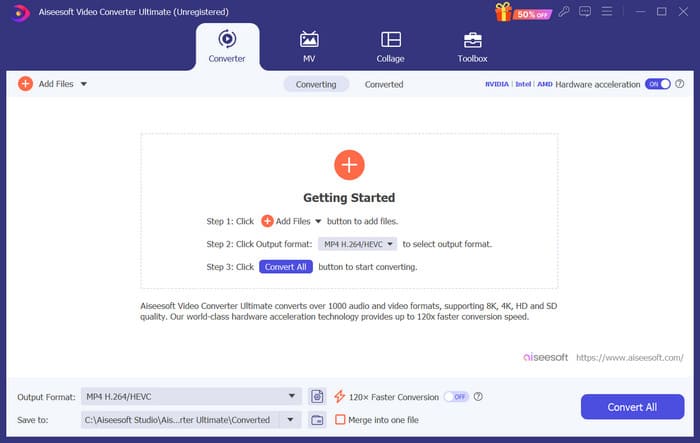
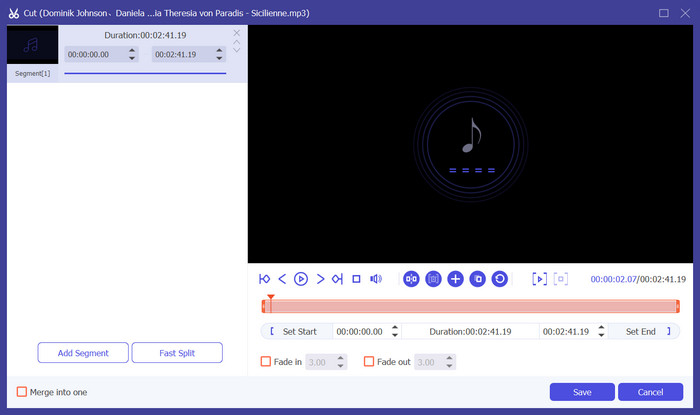
Step 3. To trim the audio, click Cut. You can adjust the file's length. Once you've finished trimming, click Save.
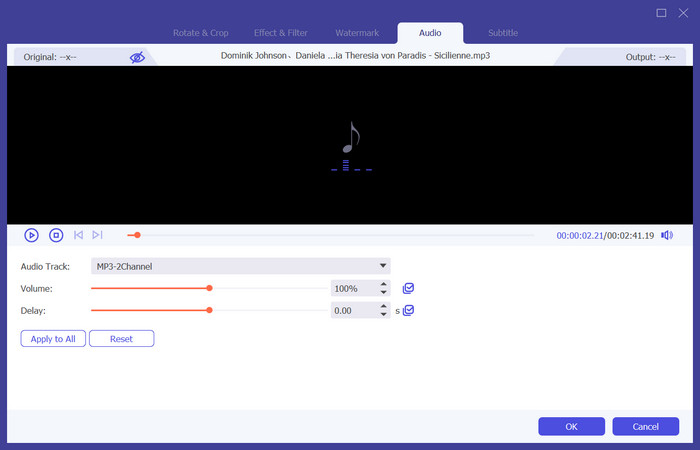
Step 4. To edit the volume and audio track of your voice memos, click Edit. In the pop-out window, you can make the adjustments you wish. When you finish editing, click OK.
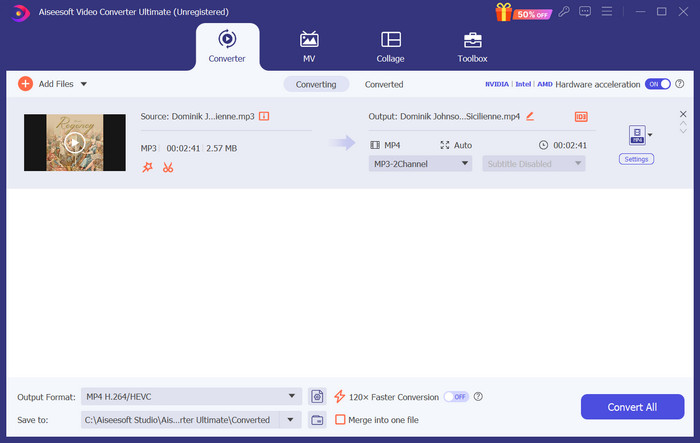
Step 5. If you need to change the format of your file, drop down the menu next to Output Format. Here, you can choose the output format for your audio.
Step 6. When you want to export the edited ringtone, click Convert All.
Del 2. Hur man gör ett röstmemo till en ringsignal på iPhone
Vi rekommenderar GarageBand om du vill skapa en röstmemo-ringsignal på din iPhone. Detta är en applikation utvecklad av Apple. Användare kan använda den för att skapa musik på sina iOS-enheter. Den har många verktyg för musikproduktion, inspelning, redigering och mixning. GarageBand kan också integreras med annan Apple-programvara. Det betyder att vi enkelt kan överföra projekt mellan GarageBand och annan programvara för vidare redigering. Denna app är populär bland både professionella användare och nybörjare på grund av dess användarvänliga gränssnitt, omfattande funktioner och tillgänglighet. Alla inställningar kan göras på telefonen utan hjälp av någon annan enhet.
Här är vad du behöver göra för att förvandla ett röstmemo till en ringsignal.
Step 1. Before setting your ringtones, you need to go to the Voice Memo app on your iPhone to select a voice memo.
Step 2. After choosing your target voice memo, press the three dots icon. Choose Save to Files, and tap Save again to confirm your operation.
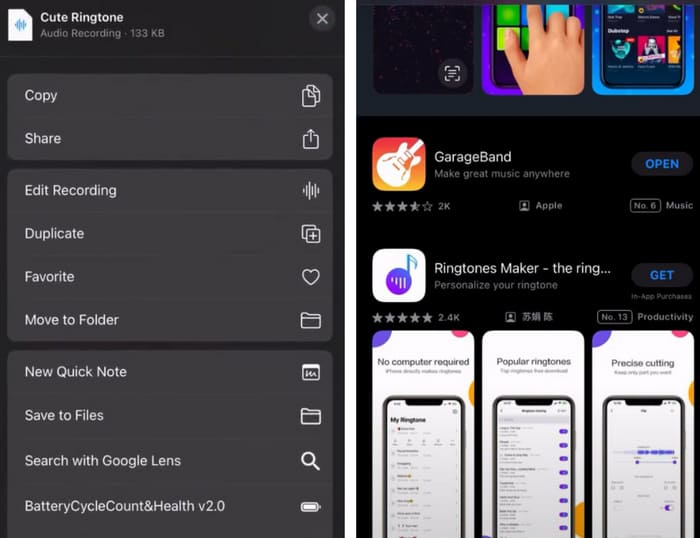
Step 3. Open GarageBand on your iPhone, and tap on Project.
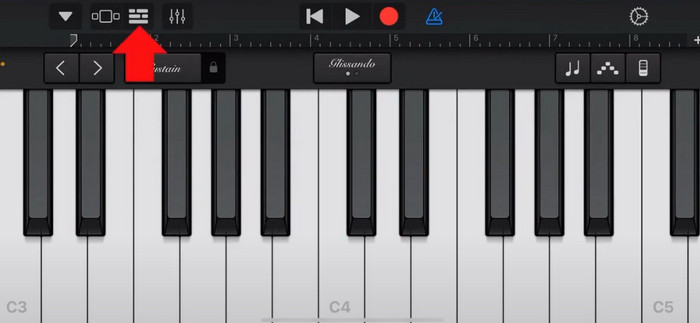
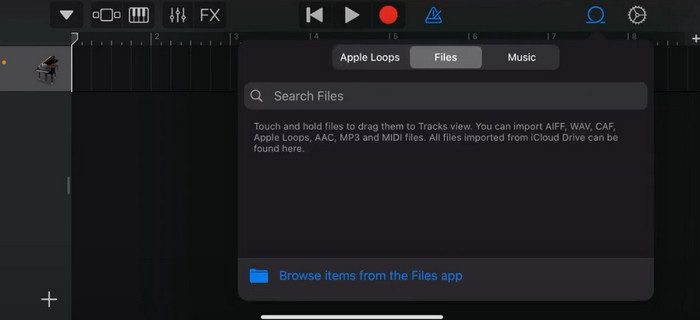
Step 4. Choose Loop > Files. After that, tap Browse items from the Files app to select your target voice memo.
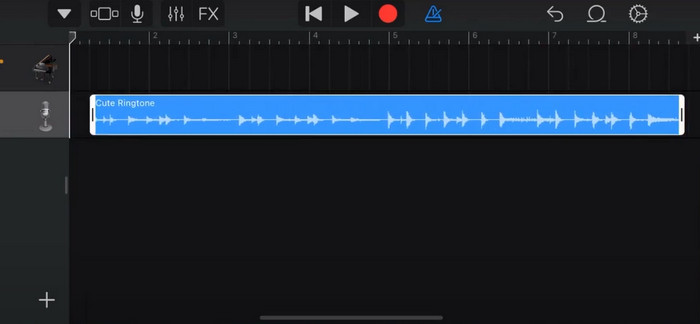
Step 5. Drag and drop the file on the timeline.
Step 6. Disable Metronome, and tap the arrow down icon > My Songs.
Step 7. Tap and hold the clip, then choose Share.
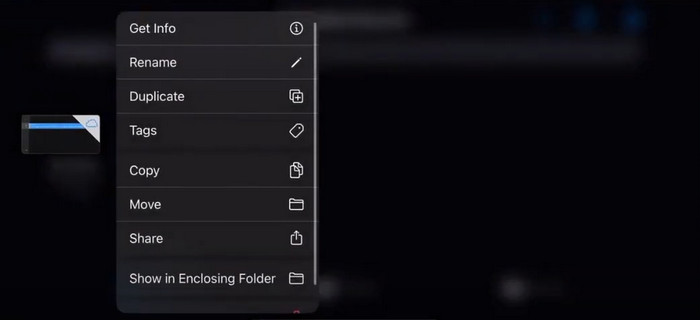
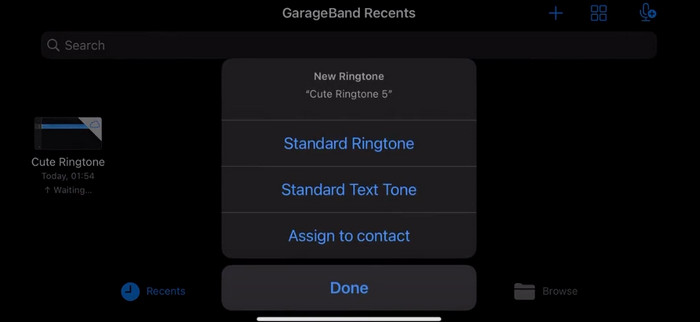
Step 8. Choose Ringtone from all the options, and press Export. Finally, tap Use sound as > Standard Ringtone. Thus, you have successfully made a ringtone from a voice memo.
Del 3. Hur man gör en röstinspelning en ringsignal på Android
Om du använder en Android-telefon och vill förvandla den inspelade musiken till en ringsignal kan du göra det direkt i appen Inställningar på din telefon. Proceduren är mycket enkel, och det finns inget behov av att ladda ner någon programvara för denna process. Men om du vill modifiera ditt inspelade ljud kan du välja ett professionellt ljud- och videoredigeringsprogram som FVC-valda Video Converter Ultimate.
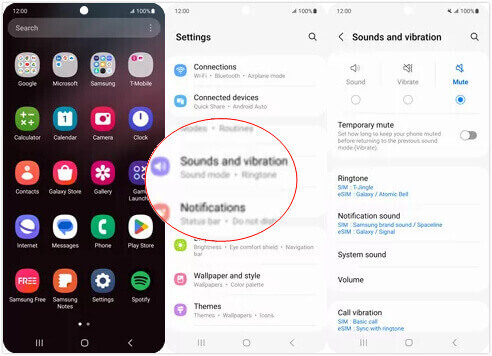
Next, we will teach you how to make a voice recording ringtone on Android. In this part, we will use a Samsung smartphone as an example. Before you start, you should make sure you have saved the recording file in the voice recorder app.
Step 1. Open Settings on your phone, and choose Sounds and vibration.
Step 2. Make sure that the Sound is selected under the Sound mode. Then, choose the Notification sound.
Step 3. Select the music file you have recorded. Finally, return to the Home screen to apply the settings.
Del 4. Vanliga frågor om att göra ett röstmemo till en ringsignal
Vilket format är ringsignaler för Android?
Ringsignaler för Android-enheter kan komma i olika ljudfilformat, men de vanligaste formaten som stöds är MP3, AAC, M4A, OGG och WAV.
Hur sparar jag ett röstmemo som en låt på min iPhone?
Öppna Voice Memos-appen på din iPhone och leta reda på röstmemo som du vill spara som en låt. Vänligen tryck på röstmemot för att öppna det och tryck sedan på delningsikonen för att se de tillgängliga delningsalternativen. Du kan välja att spara röstmemot i appen Filer. Efter det kan du öppna en musikapp på din iPhone som stöder import av ljudfiler. Appar som GarageBand eller Music Memos är lämpliga.
Hur spelar man in ljud på Android Samsung?
To record audio on an Android Samsung device, use the built-in Voice Recorder. Open it and tap Record to start recording. Once you've finished recording, you can save the audio file and give it a name for easy access.
Slutsats
In this article, we answer the question of how to make a voice memo into a ringtone. We offer you one of the best ringtone editing tools, FVC Video Converter Ultimate. Methods for turning a voice memo into a ringtone on iPhone and Android phones are listed. We also have complete step-by-step instructions for each section in case you run into any problems.
-
 Topp 3 lösningar för att komprimera WAV-filer till en mindre storlek
 Om du också letar efter sätt att komprimera storleken på WAV-ljudfiler, läs vårt innehåll. Vi kommer att introducera dig till olika verktyg från tre aspekter.
-
 Fördjupad ljudkomprimeringshandledning 2024 (steg-för-steg)
 Behöver du komprimera ljud men behöver hjälp med att lista ut var du ska börja? I det här inlägget kommer vi att presentera de bästa valen för att minska filstorleken på dina spår.
-
 Effektiva ljudkompressorer för offline- och onlineanvändare
 Har du problem med stora ljudfiler? Det finns många ljudfilkompressorer tillgängliga för offline- och onlineanvändare. Kolla in dem här.
