


 Video Converter Ultimate
 Skärminspelare
 Video reparation
 Säker nedladdning
Detaljerad guide om hur man vänder ljud i Audacity [2024]
Omvända ljudspår kan lägga till en unik dimension och färg till dina musikproduktioner och generera fängslande ljudeffekter för kreativt berättande. Denna stil används ofta och blir populär när det gäller att berika ljudprojekt med djup och originalitet. Så om du redigerar ljud i Audacity och vill lägga till en twist genom att vända på det, är du på rätt plats!
I den här artikeln kommer vi att gå igenom detaljerade steg om hur du vänder ljud i Audacity och delar med oss av värdefulla tips för att hjälpa dig att få ut det mesta av den här funktionen. I slutet av den här guiden är du redo att vända dina ljudspår och enkelt utforska nya kreativa horisonter. Så gör dig redo att förvandla dina ljudprojekt och upptäck den spännande potentialen med omvänt ljud!

Del 1. Hur man vänder ljud i Audacity
Audacity är ett program utformat för att ge användare möjlighet att redigera ljudfiler utan behov av dyra premiumverktyg, vilket säkerställer högkvalitativa utdata utan kostnad. Som ett verktyg med öppen källkod är det fritt tillgängligt för alla och erbjuder en lång lista med funktioner som vanligtvis finns i betald programvara. Bland dess utbud av funktioner utmärker sig Audacity med sin förmåga att vända ljudspår. Den här funktionen låter användare bara vara kreativa med hur de vill att deras ljud ska låta. Vanligtvis vänder redaktörer sitt ljud eftersom det ger en unik effekt till deras projekt.
Så här kan du spela upp ljud baklänges i Audacity.
Steg 1. Ladda ner och installera Audacity på din dator.
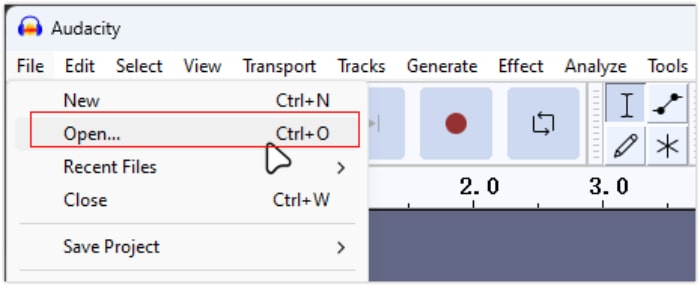
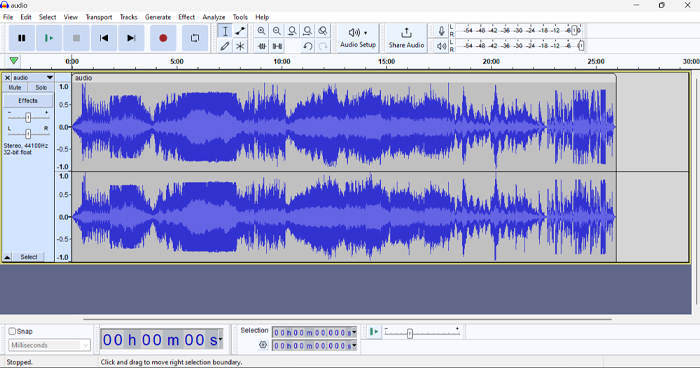
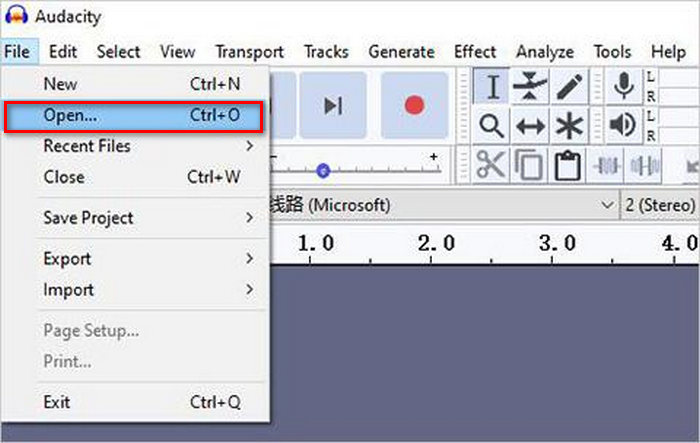
Steg 2. Starta verktyget, gå till menyn File i det övre vänstra hörnet och välj Open. Därifrån bläddrar du på datorn för att hitta och välja ljudfilen, eller så kan du dra och släppa den ljudfil du vill spela upp baklänges in i programmet.
Steg 3. Klicka nu på ljudspåret, gå till fliken Select och välj All för att markera hela ljudfilen.
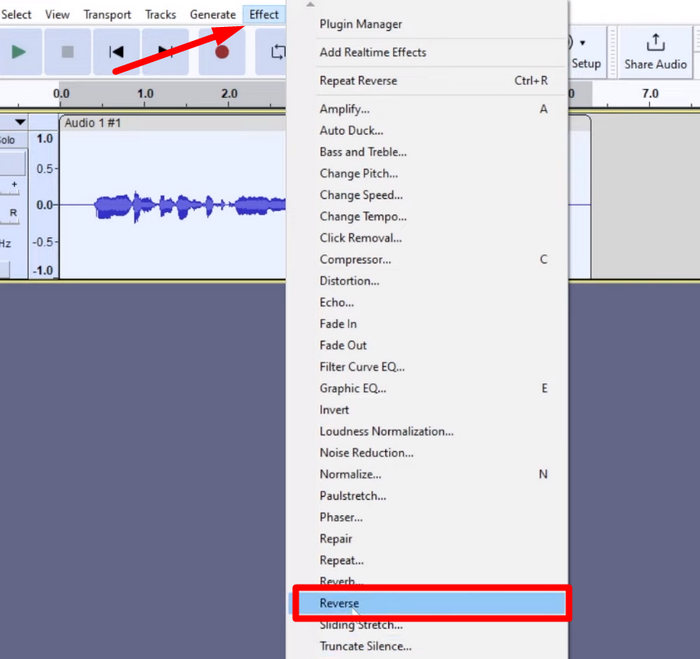
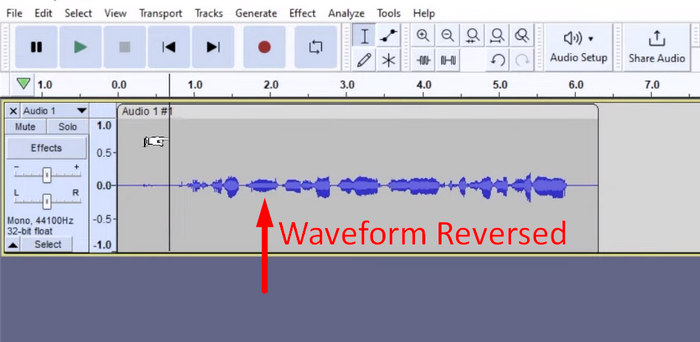
Steg 4. För att vända ljudet baklänges går du till fliken Effect och väljer Reverse i rullgardinsmenyn. Audacity bearbetar och vänder sedan det markerade ljudklippet baklänges.
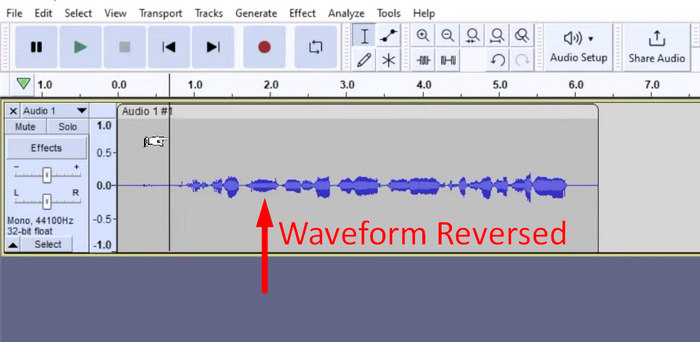
Steg 5. Du kan förhandslyssna på det omvända ljudet genom att trycka på mellanslagstangenten på tangentbordet. Alternativt kan du använda uppspelningskontrollerna längst upp till vänster i Audacity‑fönstret och klicka på knappen Play.
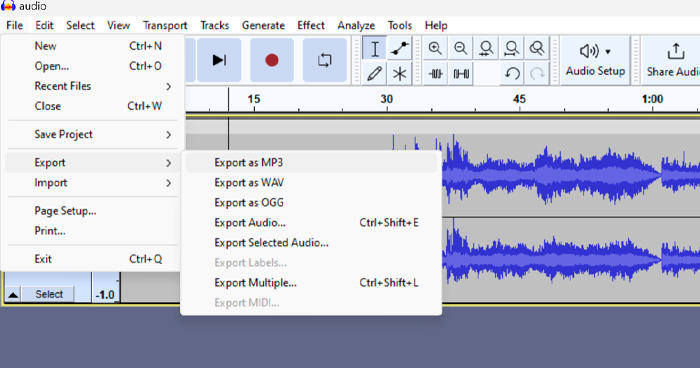
Steg 6. För att slutligen exportera den omvända ljudfilen går du tillbaka till menyn File och väljer Export under den. På så sätt sparas ditt ljud som en ny fil. Glöm inte att välja önskat filformat för ljudet innan du exporterar det.
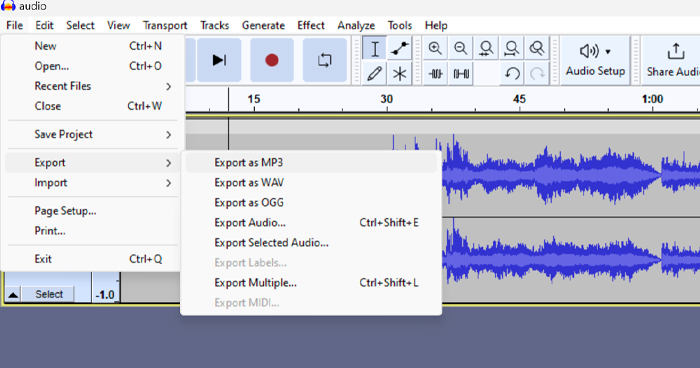
På grund av vissa problem med att förlora arbete oväntat, spara regelbundet ditt projekt medan du redigerar för att förhindra förlust av framsteg. Du kan snabbt spara ditt arbete genom att använda Ctrl + S på Windows eller Cmd + S på Mac. Dessutom kan du överväga att använda beskrivande filnamn och organisera dina filer i en dedikerad mapp för att hålla dina projekt välorganiserade och lättillgängliga.
Del 2. Hur man vänder en del av ljudet i Audacity
Det finns tillfällen där användare bara ville vända en del av ljudet i Audacity, kanske för att det bara finns specifika avsnitt de vill betona eller skapa en distinkt effekt. Stegen nedan är nästan samma som hur man backar ett helt spår. Men att välja en del av ett ljud är lite knepigt och behöver betonas i stegen för att undvika förvirring, särskilt för nybörjare.
Så här vänder du en del av ett ljud baklänges i Audacity.
Steg 1. När du är i verktygets huvudgränssnitt går du till menyn File i det övre vänstra hörnet och väljer Open. Därifrån bläddrar du på datorn för att hitta och välja ljudfilen, eller så kan du dra och släppa den ljudfil du vill vända baklänges in i programmet.
Steg 2. För att nu välja den del av ljudet som du vill vända baklänges använder du funktionen Zoom för att zooma in på vågformen och drar med musen för att markera det avsnitt eller den del av ljudet som du bara vill vända baklänges.
Steg 3. För att vända ljudet går du till fliken Effect och väljer Reverse i rullgardinsmenyn. Audacity bearbetar och vänder sedan det markerade ljudklippet baklänges.
Steg 4. Du kan förhandslyssna på det omvända ljudet genom att trycka på mellanslagstangenten på tangentbordet. Alternativt kan du använda uppspelningskontrollerna längst upp till vänster i Audacity‑fönstret och klicka på knappen Play.
Steg 5. För att slutligen exportera den omvända ljudfilen väljer du Export under menyn File. Välj Export as och sedan det ljudfilformat du föredrar innan du exporterar filen.
När du markerar en specifik del av ljudet som ska vändas baklänges i Audacity ska du se till att du zoomar in vågformen tillräckligt noggrant för tydligt se var avsnittet börjar och slutar. Detta hjälper dig att göra precisa markeringar och undvika att få med oavsiktliga delar av ljudet. Använd dessutom vid behov verktyget Clip Split innan du vänder ljudet, för att dela upp ljudet i mindre segment, till exempel vid klippning av en MP3‑fil. Då blir det enklare att bearbeta och redigera specifika delar var för sig. Detta arbetssätt ger dig bättre kontroll över redigeringen och säkerställer att det baklänges uppspelade ljudet ger önskad effekt utan avbrott.
Del 3. Omvänd ljud/video med Audacity Alternative
Om du föredrar ett enklare och smidigare sätt att vända ljud eller video baklänges kan du under tiden använda detta alternativ till Audacity, nämligen den av FVC utvalda Video Converter Ultimate. Detta kompletta video‑ och ljudverktyg är kanske mest känt för sina kraftfulla konverteringsfunktioner, men utöver det är det också utmärkt för användare som behöver ett bekvämt sätt att spela upp ljud eller video baklänges.
Steg 1. Ladda ner och installera den av FVC utvalda Video Converter Ultimate på din dator.
Gratis nedladdningFör Windows 7 eller senareSäker nedladdning
Gratis nedladdningFör MacOS 10.7 eller senareSäker nedladdning
Steg 2. Starta verktyget och gå till fliken Moretools. Välj sedan Video Reverser.
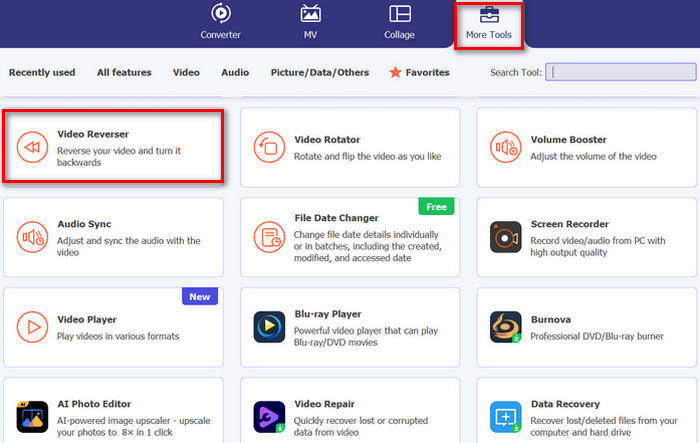
Steg 3. Importera nu det ljud eller den video som du vill spela upp baklänges genom att klicka på knappen Add a Video to Video Reverser.
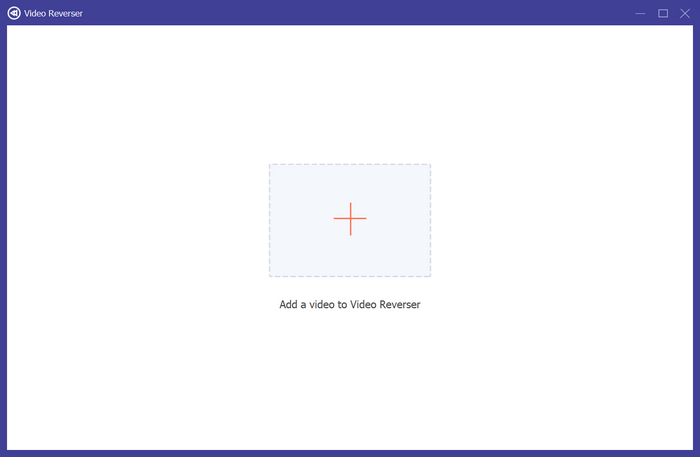
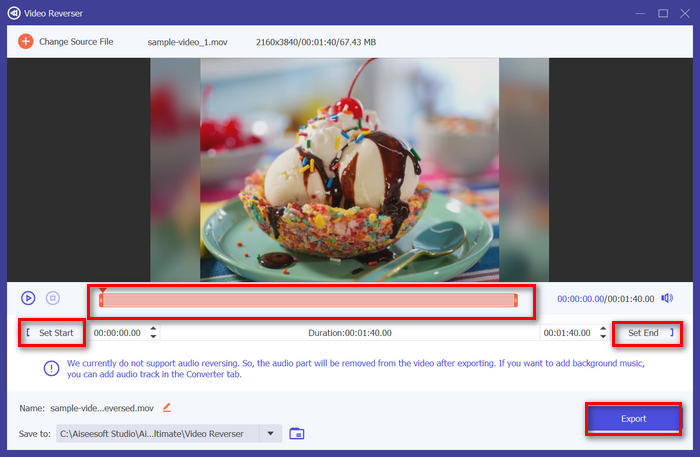
Steg 4. När du är i gränssnittet Video Reverser kan du, om du vill vända hela spåret baklänges, helt enkelt gå till knappen Export för att automatiskt vända din fil. Men om du bara vill vända en del baklänges kan du dra i reglaget och noggrant välja den del av ljudet eller videon som du vill vända. Alternativt kan du helt enkelt skriva in starttid och sluttid för den del av filen som du vill spela upp baklänges. När du är klar klickar du bara på knappen Export.
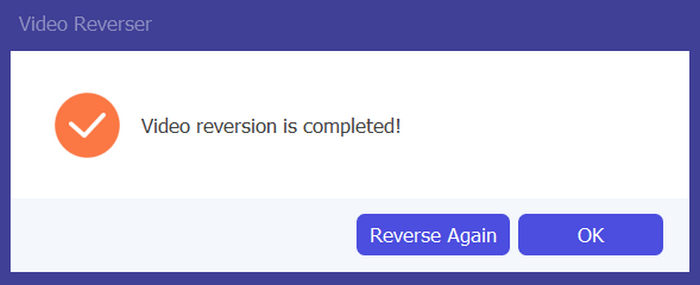
Steg 5. När exporten är klar får du ett meddelande, och du kan komma åt din omvända video i mappen på din dator.
Där har du det! Easy peasy, eller hur? Du behöver inte bli förvirrad med ett komplext gränssnitt. Med FVC-vald Video Converter Ultimate har du allt du behöver till hands.
Del 4. Vanliga frågor om reversering av ljud i Audacity
Hur ångrar man den omvända ljudeffekten i Audacity?
Om du har omvänt en i Audacity och vill ångra det, kan du enkelt återgå till originalljudet. Gå helt enkelt till menyn Redigera i det övre vänstra hörnet av Audacity-gränssnittet och välj Ångra omvänd. Dessutom kan du använda kortkommandot Ctrl + Z för Windows eller Cmd + Z för Mac för att ångra den senaste åtgärden. Detta kommer att återställa ljudet till sitt ursprungliga tillstånd innan den omvända effekten tillämpas.
Vilka ljudformat stöder Audacity för att vända ljud?
Audacity stöder olika populära ljudformat, såsom WAV, MP3, FLAC, AIFF och OGG.
Kan du förvränga ljudet i Audacity?
Ja. Du kan förvränga ljudet i Audacity. Audacity erbjuder flera effekter och verktyg som låter dig applicera distorsion på dina ljudspår. För att lägga till detta, gå till Effekt, klicka på Distortion och Modulation och välj Distortion.
Kan du konvertera ljud i Audacity?
Ja, det kan du. Audacity har stöd för många olika ljudformat. Om du upptäcker att någon av dina ljudfiler inte är kompatibel med din enhet kan du till exempel använda Audacity för att enkelt konvertera AIFF till MP3.
Slutsats
Sammanfattningsvis är det enkelt att lära sig hur man vänder ljud baklänges i Audacity, och det lägger till unika effekter i dina ljud‑ eller videoprojekt. Följ de detaljerade stegen för att börja vända dina ljudspår redan i dag. För ett enklare alternativ kan du prova den av FVC utvalda Video Converter Ultimate. Redo att vara kreativ? Prova något av dessa sätt nu!
-
 Gå med i MOV gratis - Hur man slår samman två MOV-filer till en
 Det kan vara svårt för nybörjare att gå med i flera MOV-videoklipp. Så finns det ett enkelt och snabbt sätt att kombinera MOV-filer? Om det finns, hur ska man använda det? Det här inlägget hjälper dig att få dessa svar.
-
 4 sätt att slå samman videor gratis på Windows / Mac / Online
 Här är fyra snabba sätt att slå samman videor till en ny video. Ingen videofilstorlek eller formatgräns. Du kan gå med i 2, 3, 4 och ännu fler videoklipp i olika format och upplösningar med framgång.
-
 Konkret guide för att gå med M4V-filer på Windows och Mac gratis
 Om du letar efter en lösning för att kombinera M4V-videofiler till en, missa aldrig detta avsnitt. Här kommer vi att prata om de två bästa metoderna för att kombinera M4V-videofiler.
