


 Video Converter Ultimate
 Skärminspelare
 Video reparation
 Säker nedladdning
Bästa lösningar för videor som inte spelas upp i Chrome: 4 lösningar
När du har öppnat webbläsaren som vanligt, redo att titta på en film eller en kort video från en webbplats, upptäcker du att videor inte spelas upp i Chrome. I det här läget blir du sannolikt stressad och fortsätter att uppdatera sidan eller byta webbplats för att se vad som är fel. Oroa dig inte, den här typen av problem är mycket vanliga och många användare har upplevt fel vid videouppspelning av olika orsaker. Det vi behöver göra är att ta reda på vad som orsakar problemet och sedan hitta rätt lösning. I den här artikeln ger vi dig fyra sätt att åtgärda felet och rekommenderar de bästa verktygen för videoreparation. Förhoppningsvis påverkar inte det här lilla problemet ditt videotittande alltför mycket.
Del 1. Vilka videor kan iPhone spela
iPhone kan spela upp en rad videor från olika videoformat, särskilt de filer som är kodade i H.264 och MPEG-4 med AAC-ljud i MP4-, M4V- och MOV-format, samt M-JPEG med stereoljud i AVI-format. Förutom det stöder iPhones följande videoformat:
FVC Video Reparation
Upptäcker att videor inte spelas upp i Chrome, och din webbläsares sida säger att videon är skadad. Oavsett hur mycket du uppdaterar webben eller byter videospelare, hjälper det inte. Allt du behöver göra nu är att hitta ett sätt att reparera den skadade videon.
Den här åtgärden kräver egentligen inte att du är ett proffs eller har djupa kunskaper i kod; du behöver bara hitta pålitlig programvara för videoreparation och överlåta alla problemen till den. Vi rekommenderar FVC Video Repair, ett allroundverktyg som kan reparera videor som skadats av korrupta enheter, virusattacker, systemkrascher och så vidare.
Den stöder nu videoformat, inklusive MP4, MOV och 3GP. Allt du behöver göra är att ladda upp den skadade videon tillsammans med en exempelvideo, så återställer FVC Video Repair alla parametrar för den skadade videon enligt standarderna för exempelvideon, inklusive upplösning, bitrate, kodare och bildhastighet. Det finns inget behov av några specialkunskaper, klicka bara på tre små för att få hela videon.
Gratis nedladdningFör Windows 7 eller senareSäker nedladdning
Gratis nedladdningFör MacOS 10.7 eller senareSäker nedladdning
Vi tar en trasig nedladdad YouTube-video som exempel och visar dig hur du fixar YouTube-videor som inte spelas upp i Chrome med hjälp av FVC Video Repair.
Steg 1. Ladda ner och installera FVC Video Repair på din dator. Öppna programmet och gå in på huvudgränssnittet. Förbered din trasiga video och en exempelvideo.
Det är bäst att se till att exempelvideon och den korrupta videon kommer från samma källa och ligger nära varandra vad gäller format, skärpa, bildhastighet, bithastighet och andra parametrar. Om du inte vet hur du hittar en exempelvideo kan du klicka på hjälptipsen i gränssnittet.
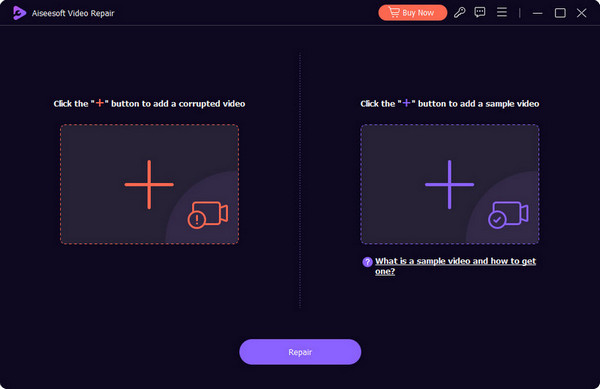
Steg 2. Klicka på den röda +-knappen för att ladda upp din trasiga video, och klicka på den lila +-knappen för att ladda upp exempelvideon.
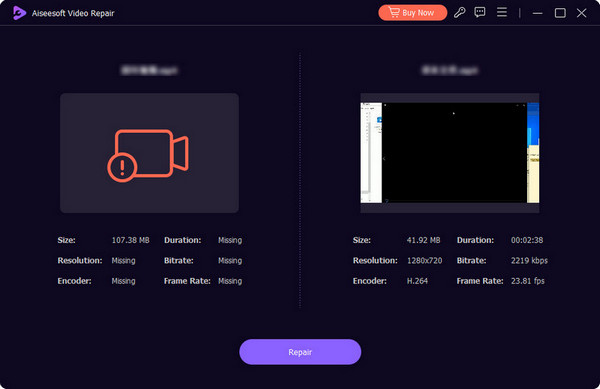
Steg 3. Efter att du har laddat upp dina videor visas alla deras parametrar i gränssnittet. Klicka sedan på Repair för att börja reparera videon.
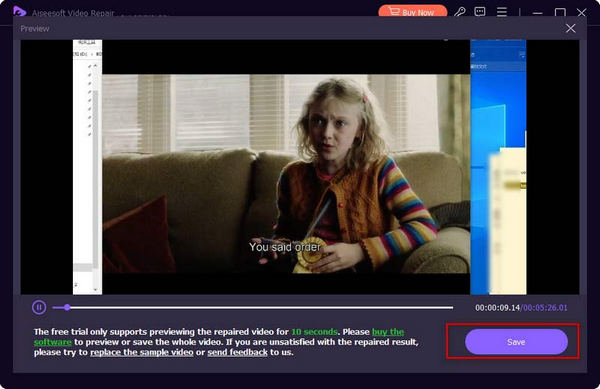
När reparationsprocessen är klar klickar du på Preview för att kontrollera resultatet.
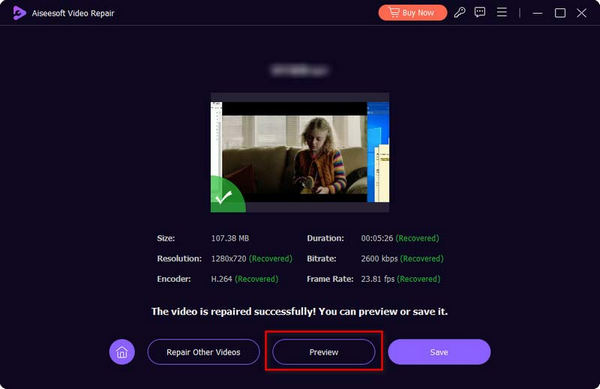
Om allt ser bra ut klickar du på Save för att ladda ner den reparerade videon till din dator.
Del 2. Åtgärdat: Videor spelas inte upp i Chrome
Anta att problemet inte ligger i videon. I så fall måste du fundera på om det är något fel med själva webbläsaren, eller om den saknar ett av de nödvändiga plugin-programmet för att läsa videon. Nedan går vi igenom vart och ett av de tre alternativen för att hjälpa dig åtgärda varför videor inte spelas upp i Chrome.
Lösning 1: Aktivera Flash Player
När du vill spela upp en Flash-video, men inte har Adobe Flash Player installerat i din webbläsare, visas en fråga i videouppspelningsfönstret. I frågan visas att du måste klicka på Aktivera Adobe Flash Player. Om du inte ser den här frågan kan du manuellt kontrollera om Flash Player är aktiverat.
Så här aktiverar du Flash Player i din Chrome-webbläsare.
Steg 1. Öppna webbläsaren Google Chrome på din dator. Gå till sidan där din målvideo finns.
Steg 2. Leta upp Lås-ikonen till vänster om video-URL:en. Klicka på den.

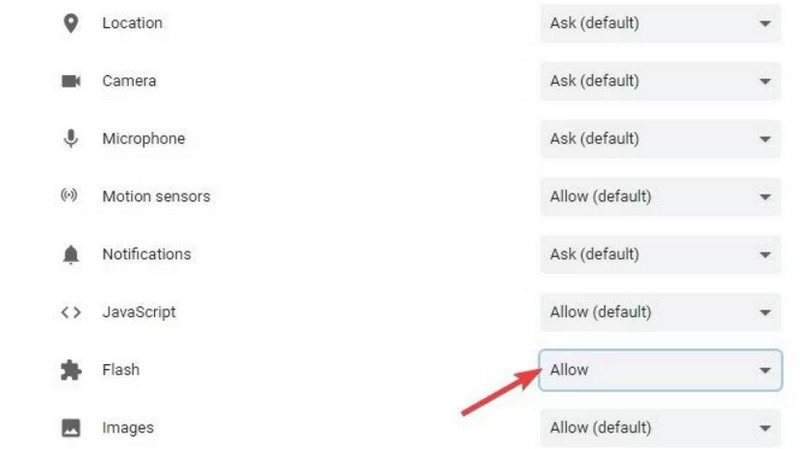
Steg 3. En lista öppnas. Välj Flash och välj Tillåt i rutan bredvid.
Steg 4. Öppna videouppspelningssidan igen och kontrollera om problemet är löst.
Lösning 2: Rensa cookies och cache
Varje gång du öppnar en fil, till exempel en video, ett ljud eller en bild, i din webbläsare genereras cachad data, vilket används för att minska laddningstiden nästa gång du öppnar gränssnittet. Men när för mycket cachad data samlas på dig blir det svårt att spela upp videon normalt. Du måste regelbundet rensa cachen för att frigöra mer utrymme så att din webbläsare fortfarande kan ladda och spela upp nya videor effektivt.
Om cookies och cache gör att din YouTube-upplevelse inte spelar upp videor i Chrome, använd guiden nedan för att rensa dem.
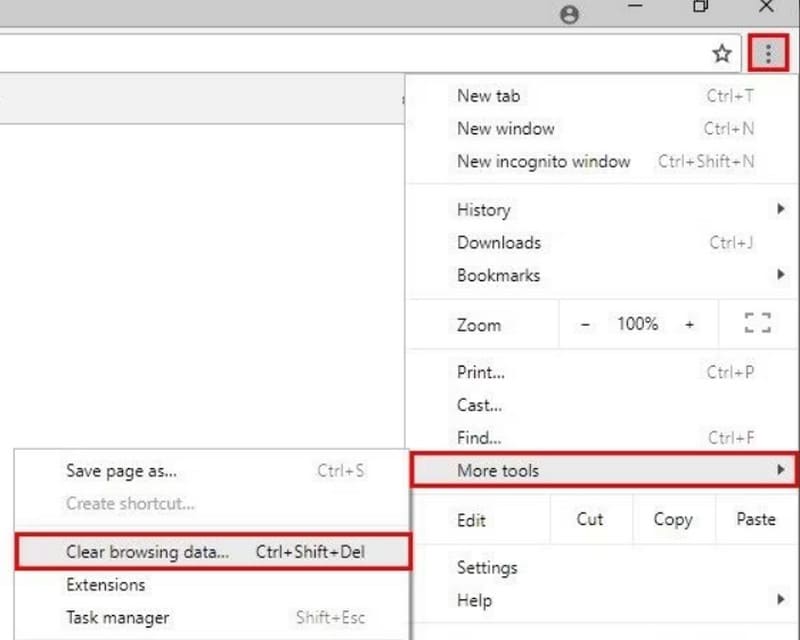
Steg 1. Öppna din Chrome-webbläsare. Gå till det övre högra hörnet på webbsidan och klicka på ikonen med tre punkter, som står för Mer.
Steg 2. Välj Fler verktyg i rullgardinslistan och klicka på Rensa webbinformation.
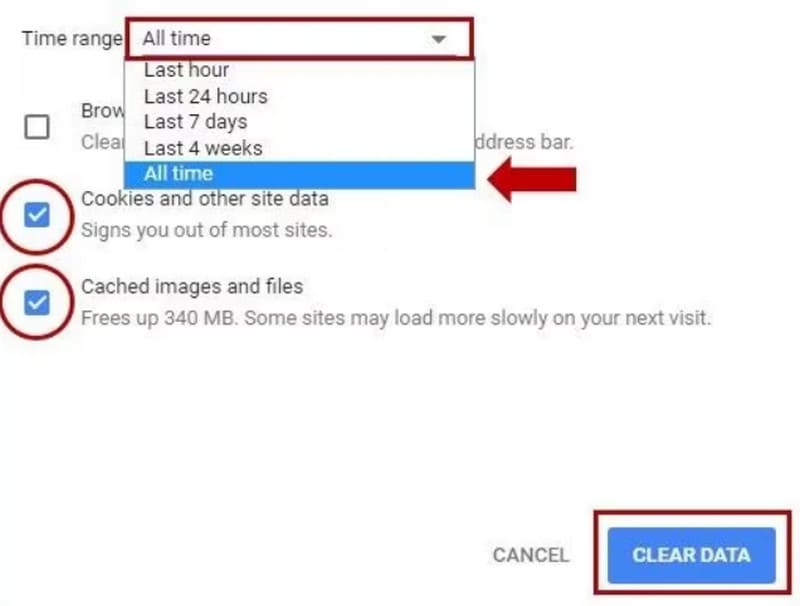
Steg 3. Ett nytt popup-fönster visas. Välj Tidsintervall > Alla tider. Markera sedan rutorna bredvid Cookies och annan webbplatsdata och Cachade bilder och filer.
Steg 4. Klicka slutligen på RADERA DATA.
Lösning 3: Starta om Chrome-webbläsarappen
Ibland kan din webbläsare plötsligt fastna eller visa oförklarliga fel, precis som din dator eller mobiltelefon. Den enklaste lösningen i det här fallet är att starta om den. Om du upptäcker att YouTube-, HBO Max-, TikTok- eller Amazon-videor inte spelas upp i Chrome kan du försöka stänga webbläsaren och starta om den. Gå sedan till webbsidan som innehåller videon du riktar in dig på igen.
Steg 1. Gå till adressfältet på den översta raden av webbsidan.
Steg 2. Skriv chrome://restart i det och tryck på Enter på tangentbordet. Du kan bokmärka den här adressen när du än behöver den.

Del 3. Vanliga frågor om videor som inte spelas upp i Chrome
Varför spelas inte videor upp i Chrome?
Det finns många orsaker till detta. Det kan vara att nätverket du är ansluten till är instabilt, att den aktuella videon är skadad, att filformatet är inkompatibelt med videospelaren eller att webbläsaren har för mycket cache. Du kan utesluta dessa möjligheter en efter en för att ringa in vad som faktiskt hindrar dig från att titta på videon på rätt sätt.
Varför fungerar inte livestreaming på min laptop?
Anta att du fortsätter att uppleva lagg när du tittar på livesändningar. I så fall är den troligaste orsaken att WiFi-hastigheten som din enhet är ansluten till är för låg eller väldigt instabil. Försök att ändra nätverksanslutningen.
Vilken är den bästa videospelaren för en Chromebook?
Det bästa valet är förstås VLC Media Player. Men du kan också prova fler alternativ till VLC Media Player, såsom QuickTime Player, Windows Media Player osv.
Slutsats
I det här inlägget får du se 4 alternativ som hjälper dig att lösa problemet med videor som inte spelas upp i Chrome. Dessa inkluderar att aktivera Adobe Flash Player, rensa webbläsarens cache och starta om webbläsaren. Om du upptäcker att problemet ligger i själva videofilen, se till att låta FVC Video Repair fixa allt åt dig. Det är lätt att använda och reparationsresultaten är omedelbara.
-
 3 effektiva sätt att skärmdumpa på Google Chrome [Guide]
 Upptäck hur du snabbt tar skärmdumpar av webbplatser på Google Chrome med dessa enkla steg. Spara tid och öka produktiviteten med vår användarvänliga guide.
-
 Bästa 10 HD-spelare att titta på HD-filmer på Windows / Mac / iOS / Android
 Detta är din senaste HD-videospelarrecension. Du kan få opartiska fördelar och nackdelar med de 10 bästa HD-spelarna på marknaden. Läs bara och välj din bästa HD-spelare med stöd för alla format.
-
 Remo Video Repair: Omfattande recension uppdaterad 2025
 Letar du efter videoreparationsverktyg online? Vi har dig! Få en djupgående genomgång av Remo Video Repair och lär dig hur den kan fixa dina skadade videofiler effektivt.
