


 Video Converter Ultimate
 Skärminspelare
 Video reparation
 Säker nedladdning
DVD till H.264-konverterare: 3 metoder för snabb DVD-konvertering
Idag minskar efterfrågan och användningen av DVD-skivor långsamt på streamingplattformar online. Även om det fortfarande finns de som föredrar att använda det, kan man inte förneka det faktum att de flesta föredrar flexibilitet och bekvämlighet när de tittar på videor eller filmer.
Om du inte vill känna dig på efterkälken och vill bevara dina DVD‑samlingar är det bästa du kan göra att konvertera dem till digitala format. DVD-skivor stöds i dag inte fullt ut av de flesta enheter och mediaspelare, men när de rippas till populära digitala format kan du dra nytta av deras flexibilitet och bekvämlighet. I den här artikeln får du lära dig tre sätt att enkelt konvertera DVD till H.264. Missa inte heller chansen att förstå varför du bör konvertera dina DVD-skivor till just det här formatet. Är du redo att konvertera dina DVD-skivor? Scrolla vidare för att läsa mer.

Del 1. Varför konvertera DVD till H.264
Det finns olika anledningar till varför du behöver konvertera din DVD till H.264, och den mest uppenbara är att bevara innehållet på skivan och spara det i ett digitaliserat format. Det finns dock fler saker som folk ofta förbiser, eller inte har insett än. Följande är anledningarna till varför du behöver konvertera dina DVD-skivor till H.264:
Kompatibilitet mellan enheter
H.264 är en av de mest stödda videokodekarna idag; därför, när du har konverterat din DVD till det här formatet, kanske du inte längre upplever eller känner dig begränsad till olika enheter och mediaspelare när du tittar på medieinnehållet på din DVD.
Mindre filstorlek med hög kvalitet
Jämfört med det ursprungliga DVD-formatet erbjuder H.264 en bättre komprimeringsgrad. Detta minskar filstorleken på DVD-skivor utan att avsevärt kompromissa med videokvaliteten. Detta gör att du kan lagra fler filmer eller videor utan att förbruka onödigt lagringsutrymme.
Streaming och molnlagring
H.264-kodade videor är idealiska för molnlagring och streaming. Detta gör att du kan komma åt din mediesamling när som helst och var som helst.
Redigering och anpassning
När dina videor är i H.264-format kan de enkelt redigeras med videoredigeringsprogram, vilket gör det möjligt att klippa ut oönskade avsnitt, lägga till undertexter eller förbättra videokvaliteten. Denna flexibilitet är inte möjlig med det ursprungliga DVD-formatet.
Inget behov av en DVD-enhet
Moderna bärbara datorer och vissa stationära datorer har inte längre inbyggda DVD-enheter. Att konvertera DVD-skivor till H.264 eliminerar behovet av externa DVD-spelare, vilket gör det enklare att titta på dina favoritfilmer eller -program på vilken enhet som helst.
Del 2. Bästa metoden för att konvertera DVD till H.264
Den bästa metoden för att konvertera DVD till H.264 är att använda den FVC-valda AnyMP4 DVD Ripper. Detta verktyg är känt för sin omfattande uppsättning funktioner som gör det möjligt för användare att effektivt och enkelt rippa alla DVD-filmer, inklusive DVD-skivor, ISO-filer, mappar och konvertera dem till deras önskade utdataformat. Denna DVD-ripper stöder nästan alla utdataformat, inklusive H.264, MP4, MKV, MOV, AVI, FLV, WMV, WEBM, M4V, TS, MXF, MPG, 3GP, VOB med mera. Utöver det har detta verktyg ett mycket enkelt men intuitivt användargränssnitt som gör det enklare att använda. Alla användare, även nybörjare, kan enkelt navigera i verktyget för att tillgodose sina DVD-konverteringsbehov.
Så här konverterar du DVD till H.264 med den noggrant utvalda AnyMP4 DVD Ripper:
Steg 1. Först behöver du ladda ner och installera verktyget på din enhet, oavsett om din dator kör Windows eller macOS.
Gratis nedladdningFör Windows 7 eller senareSäker nedladdning
Gratis nedladdningFör MacOS 10.7 eller senareSäker nedladdning
Obs! Innan nästa steg måste du sätta in dvd-skivan i dvd‑enheten på datorn och vänta i några minuter tills den hittas.
Steg 2. Starta nu verktyget och klicka på kom‑igång‑ikonen, formad som ett + i mitten, för att ladda skivan.
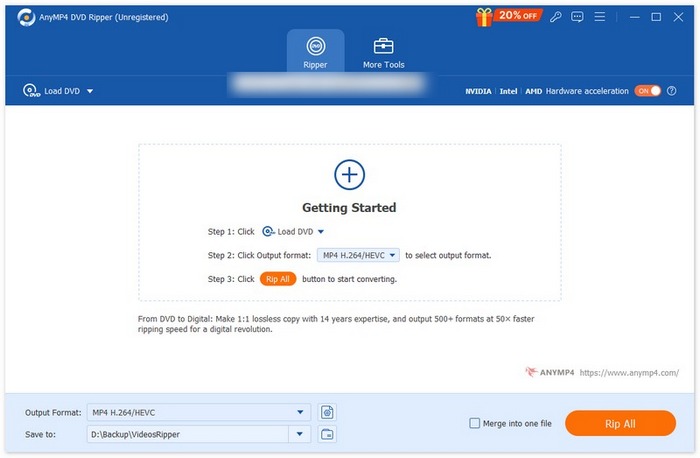
Steg 3. Klicka sedan på Output Format nedan och välj H.264‑formatet under fliken Video. När du är klar klickar du bara på knappen Rip All för att börja rippa din DVD.
Det bästa med den av 1TP och 1T utvalda AnyMP4 DVD Ripper är att konverteringen från DVD till H.264 är direkt och inte kräver några ytterligare steg. Dessutom är kodningstekniken som används förstklassig, eftersom den kan säkerställa att alla DVD-skivor rippas i samma eller till och med förbättrad kvalitet.
Del 3. Konvertera DVD till H.264 [Gratis]
Om du undrar om det finns gratis DVD-skivor för H.264-konverterare, har du rätt! Dessa gratis konverteringsverktyg kanske inte är ett dedikerat videokonverteringsverktyg, till skillnad från den FVC-valda Video Converter Ultimate. Men dessa verktyg kan också konvertera DVD-skivor till H.264.
VLC Media Player
VLC är känt som en mediaspelare och används oftast just för det. Men de flesta användare vet inte att denna mediaspelare kan konvertera DVD till H.264. Faktum är att VLC stöder videoformat som MP4, MKV, AVI med flera, vilket gör det till ett mångsidigt verktyg för DVD‑rippning.
Så här konverterar du DVD till H.264 med VLC Media Player:
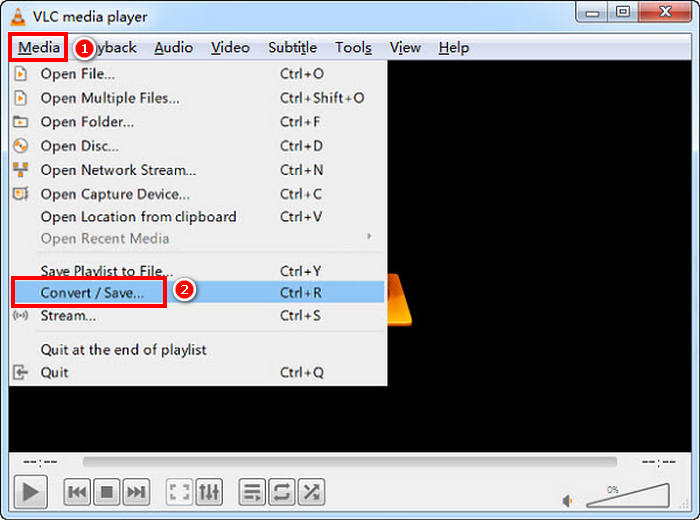
Steg 1. Sätt in DVD‑skivan i datorns skivenhet. Öppna sedan VLC och välj Convert/Save under fliken Media.
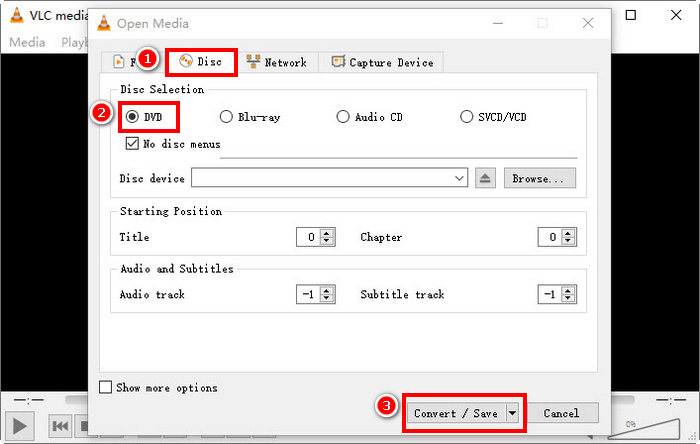
Steg 2. Gå nu till panelen Open Media, välj fliken Disc, klicka på DVD för att ladda den och klicka sedan på knappen Convert/Save.
Steg 3. I fönstret Convert går du till avsnittet Profile och väljer H.264 + MP4 som utdataformat.
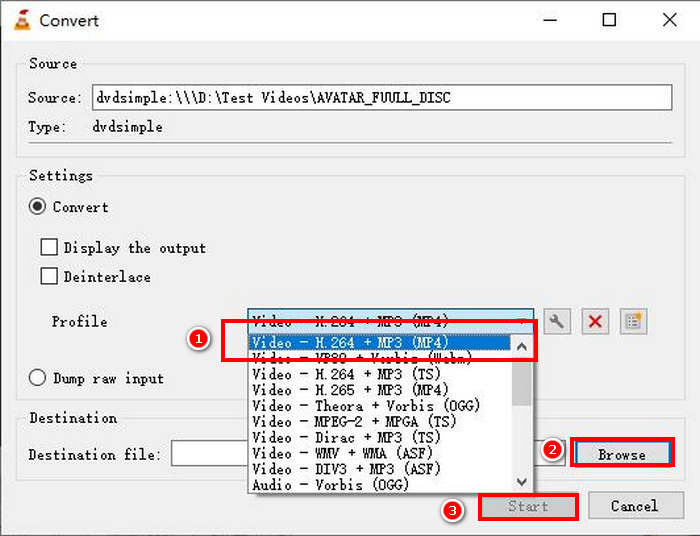
Steg 4. Klicka på Browse för att välja en målmapp och namnge filen.
Steg 5. Klicka slutligen på knappen Start för att starta rippningsprocessen.
Obs: VLC kan som standard inte rippa kopieringsskyddade DVD‑skivor. Om du får problem med krypterade DVD:er kan du behöva installera libdvdcss.
Handbroms
Ett annat videokonverteringsverktyg du kan använda för att konvertera DVD till H.264 är HandBrake. Det här verktyget är känt för att vara gratis och open source. Förutom H.264 kan användare rippa sina DVD‑skivor till format som MP4 och MKV.
Så här konverterar du DVD till H.264 med HandBrake:
Steg 1. Börja med att ladda ner och installera HandBrake på din datorenhet.
Steg 2. Sätt sedan in din DVD i DVD-ROM-enheten och välj din DVD under Source Selection. Verktyget börjar då skanna DVD-filmtitlarna.
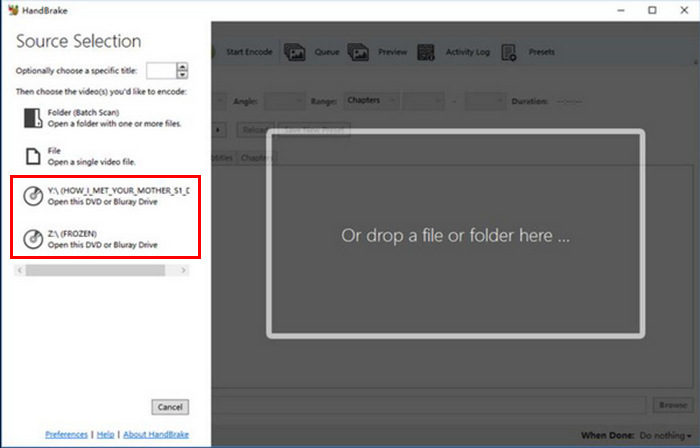
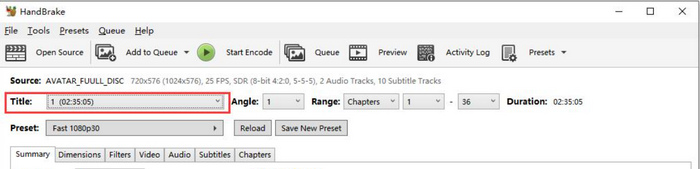
Steg 3. När du har öppnat DVD:n väljer du den titel du vill rippa genom att gå till rullgardinsmenyn Title.
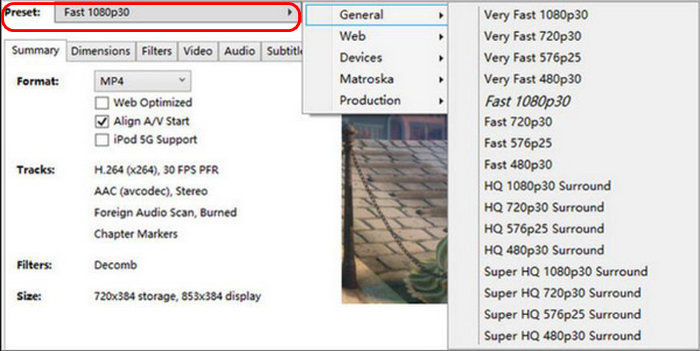
Steg 4. Därefter behöver du bestämma kvaliteten på din utdatafil. Klicka bara på knappen Preset och anpassa dina inställningar. Under detta ser du Format. Klicka på den och välj MP4 som utdataformat.
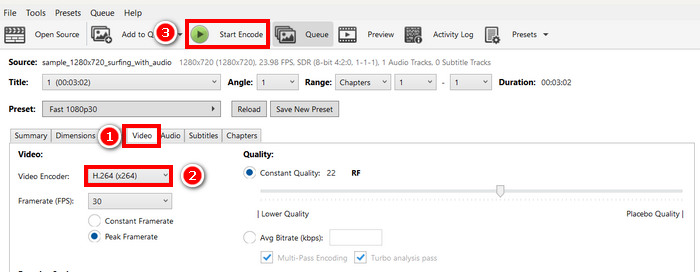
Steg 5. Gå sedan till Video-fliken och klicka på Video Encoder, välj H.264. Klicka slutligen på knappen Start Encode högst upp i fönstret för att börja rippa din DVD till H.264.
Del 4. Vanliga frågor om att konvertera DVD till H.264
Stöder DVD H.264-format?
Nej. DVD-skivor stöder inte H.264-format. Om du däremot vill lagra videor i H.264-format måste du rippa och konvertera DVD-skivan till H.264 med hjälp av ett videokonverteringsverktyg som de av FVC utvalda Video Converter Ultimate, HandBrake och VLC.
Varför ska jag konvertera en DVD till H.264?
H.264 erbjuder bättre komprimering och kvalitet än MPEG-2. Det minskar filstorleken samtidigt som det bibehåller videoskärpan, vilket gör det idealiskt för digital lagring och streaming.
Vad är skillnaden mellan H.264 och H.265?
H.265 eller HEVC är nyare och effektivare och ger bättre komprimering än H.264. H.265 kräver dock mer processorkraft och stöds eventuellt inte på alla enheter.
Slutsats
Att konvertera DVD till H.264 är inte besvärligt när du använder rätt videokonverteringsverktyg. Välj bara den metod som bäst passar dina behov och resurser och följ sedan stegen noggrant. Om du inte kan vänta med att bevara och konvertera dina DVD‑skivor, börja konverteringen nu!
-
 4 metoder för att kopiera DVD till MacBook [Nybörjarguide]
 Om du undrar hur man kopierar en DVD till en MacBook, fortsätt läsa den här artikeln och låt dig vägledas av fyra enkla metoder som du enkelt kan prova på egen hand.
-
 Gör-det-själv DVD-förvaring: 6 idéer om hur man skapar en förvaringsplats för DVD
 Letar du efter idéer om hur du kan skapa DVD-förvaring för hemmafixare? Läs den här artikeln för att se till att dina DVD-skivor är på ett säkert ställe och lätt kan nås vid behov.
-
 Topp 5 bästa VHS till DVD-konverterare för Windows och macOS
 Har du en hög med VHS-kassetter hemma och letar efter sätt att bevara dem? I den här artikeln lär du dig 5 verktyg som kan hjälpa dig att enkelt konvertera VHS till DVD.
