


 Video Converter Ultimate
 Skärminspelare
 Video reparation
 Säker nedladdning
Hur man komprimerar WAV-ljudfiler utan att förlora någon kvalitet
När man vill spara sina musikfiler i ett högkvalitativt format väljer man ofta WAV som ljudformat. Som en allmän regel gäller dock att ju högre kvalitet, desto mer lagringsutrymme tar filen upp. Jämfört med MP3 kan WAV ge ljud av hög kvalitet, men filstorleken blir större. Därför är det bättre att först minska storleken om du vill dela en WAV-fil med vänner eller ladda upp den till sociala plattformar. Vi kommer att presentera tre olika verktyg för att komprimera WAV-filer. Deras fördelar, nackdelar och detaljerade användning kommer också att visas. Läs vidare för att få veta mer.

Del 1. Bästa sättet att komprimera WAV-fil
Vi börjar med att rekommendera ett ganska fullfjädrat verktyg för redigering av ljud och video, det noggrant utvalda Video Converter Ultimate. Det är utrustat med avancerade analysverktyg som kan börja bearbeta dina filer så snart du har laddat upp dem. Om du letar efter ett verktyg som låter dig fritt justera kompressionsnivån för WAV-ljudet blir detta din bästa hjälpreda. Du kan till och med redigera längden på ljudfilen, justera ljudkanalen och ändra volymen innan du exporterar filen. När du öppnar det inbyggda ljudkomprimeringsverktyget visas ett helt nytt fönster. Där kan du se många olika inställningar att välja mellan. Det erbjuder en hög grad av anpassning och låter dig ha exakt kontroll över ljudparametrarna. Om du tycker att storleken på en WAV-fil fortfarande är för stor kan du använda konverteraren som medföljer Video Converter Ultimate för att konvertera ljudet till ett mer lättdelat format, till exempel MP3.
Gratis nedladdningFör Windows 7 eller senareSäker nedladdning
Gratis nedladdningFör MacOS 10.7 eller senareSäker nedladdning
Här kommer vi att lära dig hur du komprimerar WAV-filer med FVC Video Converter Ultimate.
Steg 1. Ladda ner och installera FVC Video Converter Ultimate på din dator.
Steg 2. Gå in i programmets huvudgränssnitt och välj Verktygslåda > Ljudkompressor.
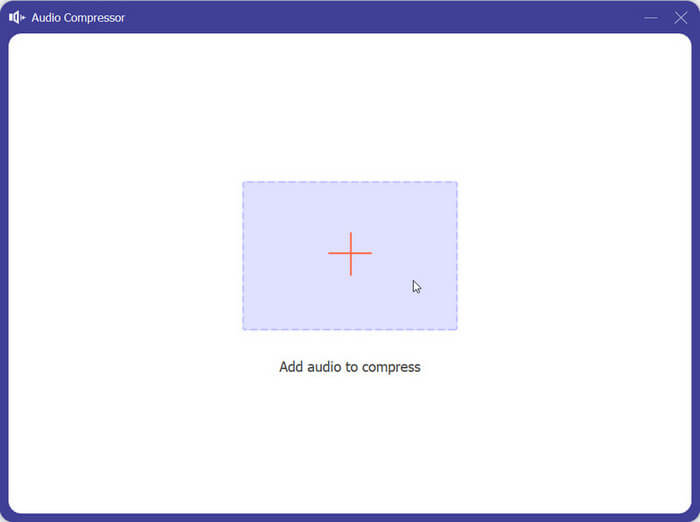
Steg 3. När du har gått in i fönstret för Ljudkompressor klickar du på den stora plusknappen för att ladda upp den WAV-fil du vill bearbeta.
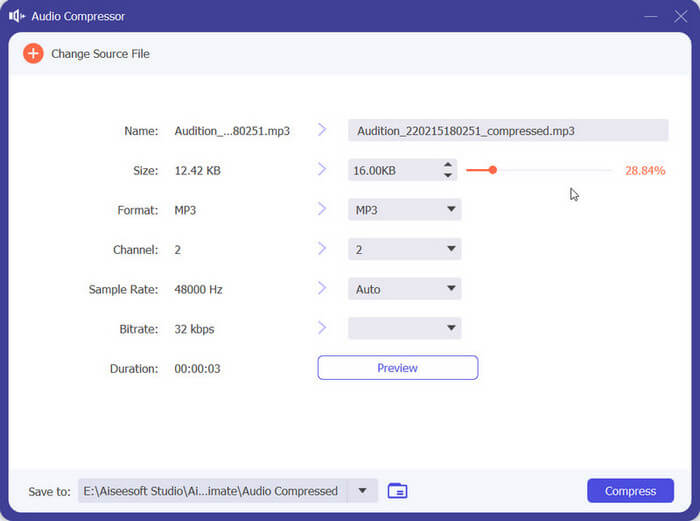
Steg 4. Du kan ange filens storlek efter komprimering genom att ändra värdet för Storlek. Efter justeringen kan du se hur stor procentandel av filen som har komprimerats.
Du får också ställa in filnamn, format, ljudkanal, samplingshastighet och bithastighet för ditt ljud här.
Steg 5. För att kontrollera det komprimerade ljudet klickar du på Förhandsgranska. Om du är nöjd med resultatet klickar du på Komprimera.
För närvarande kan den komprimera WAV-ljud upp till 50% av storleken på källfilen. Dess komprimeringshastighet är så snabb att vi knappt behöver vänta med att exportera den komprimerade filen. Det är knappast någon kvalitetsförlust. Vi har dock bara 5 gratis chanser, och vill vi ha fler måste vi betala.
Del 2. Komprimera WAV-fil online
Desktopprogramvara erbjuder fler redigeringsfunktioner men kräver att du laddar ner och installerar dem på din dator. Detta tar också upp en del av datorns minne och tar lite tid att starta programvaran. Om du vill uppleva snabbare WAV-ljudfilkomprimering, prova onlineverktyg. Bland de många tillgängliga produkterna rekommenderar vi att du provar FreeConvert WAV Compressor, en kompressor i fri storlek med ett mycket användarvänligt gränssnitt. Allt du behöver göra är att gå till dess officiella hemsida, så hittar du omedelbart målknappen. Även om du aldrig har använt det förut, kommer du att kunna komma igång på nolltid.
Här kommer vi att lära dig hur du minskar WAV-filstorleken med FreeConvert WAV Compressor.
Steg 1. Öppna FreeConvert WAV Compressor i din webbläsare.
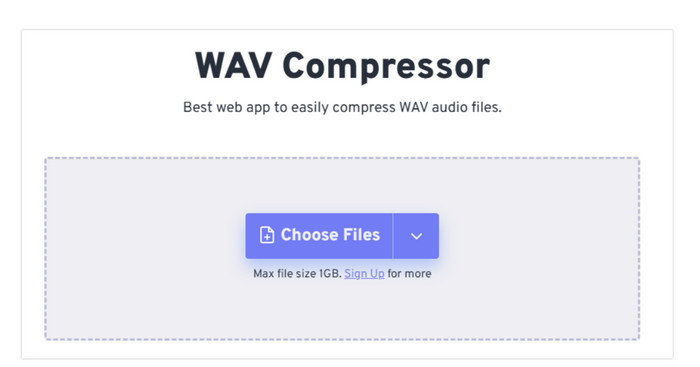
Steg 2. Klicka på Välj filer för att ladda upp ljudfilen du vill komprimera.
.
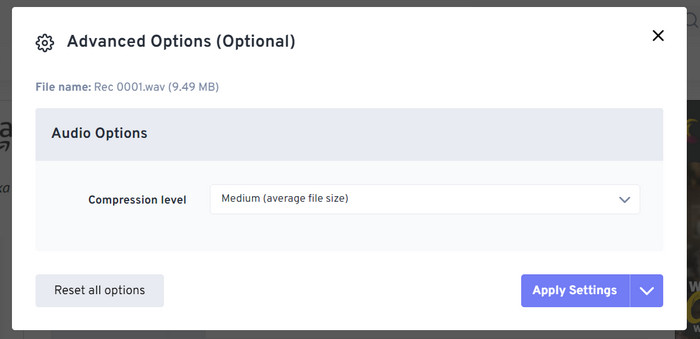
Steg 3. För att justera kompressionsnivån klickar du på Avancerade inställningar (valfritt). Du kan välja mellan Låg, Medel och Stark. Välj sedan Verkställ inställningar.
Steg 4. Klicka till sist på Komprimera nu. Programmet körs och komprimerar din WAV-fil online.
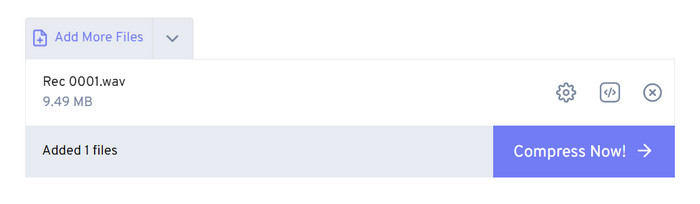
Efter våra försök fann vi att det fungerar ganska effektivt, och ljudkvaliteten på utdatafilen skiljer sig inte mycket från källfilen. Det finns dock bara tre komprimeringsgrader du kan välja, och du kan inte visualisera komprimeringsprocenten och storleken på den komprimerade filen. För närvarande kan användare bara använda den för att komprimera filer upp till 1 GB.
Del 3. Komprimera WAV-fil i Audacity
Förutom allt-i-ett-program för multimediebearbetning finns det många verktyg som är särskilt framtagna för ljud. De uppvisar större professionalitet och finess när det gäller att redigera musik. Om du använder ett professionellt verktyg för att krympa en WAV-fil kan ljudkvaliteten skyddas maximalt. Som ett av de bästa står Audacity sig starkt året runt. Användare kan använda det för att genomföra en komplett process för ljudinspelning och redigering. De redigeringsåtgärder det klarar av inkluderar att justera musikens längd, komprimera filstorleken, konvertera ljudformatet och lägga till speciella ljudeffekter. Allt detta är mycket enkelt att göra i programmet.
Därefter kommer vi att guida dig i att komprimera WAV-filer med Audacity.
Steg 1. Ladda ner och installera Audacity på din enhet.
Steg 2. Öppna programmet och klicka på Arkiv > Öppna.
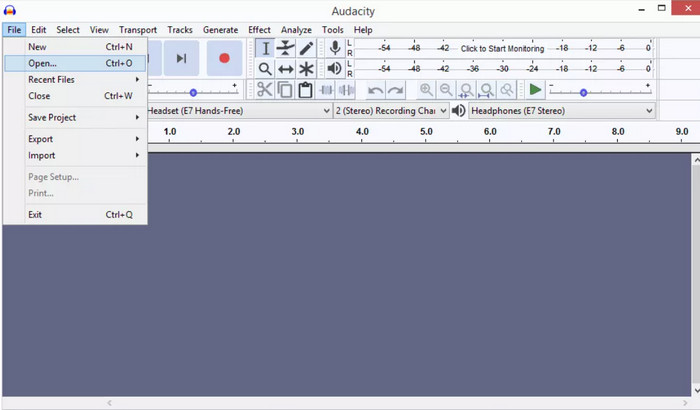
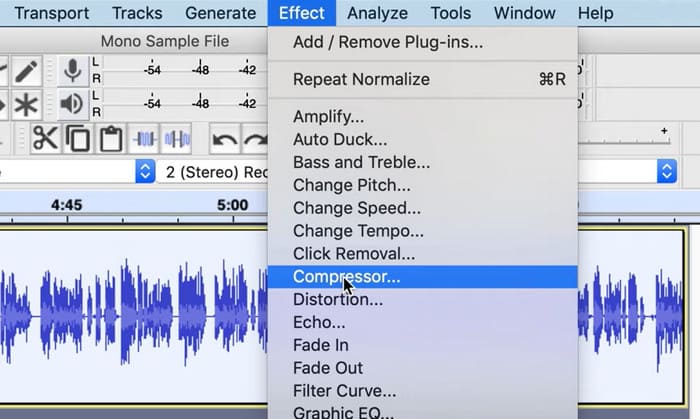
Steg 3. Ladda upp filen du vill komprimera och tryck på Ctrl + A på tangentbordet för att markera ljudspåret. Klicka sedan på Effekt > Kompressor.
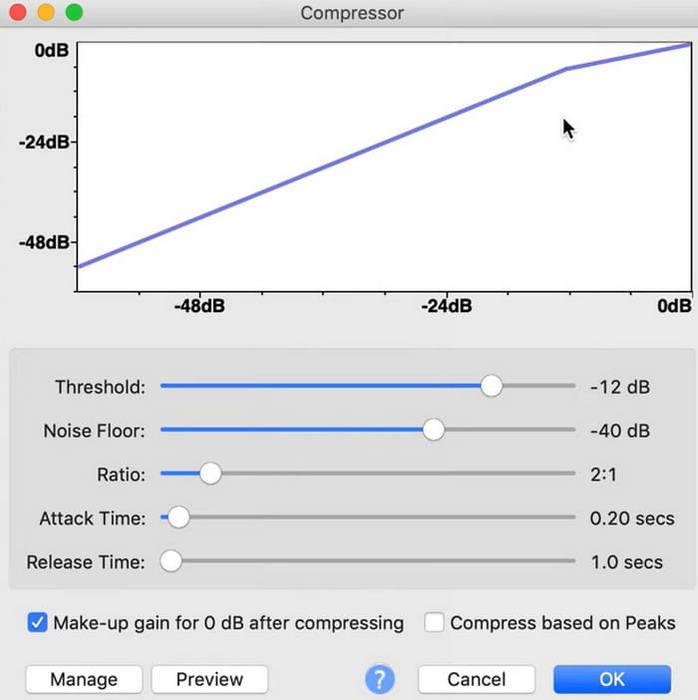
Steg 4. Nu kan du ändra parametrarna för din WAV-fil, inklusive tröskelvärde, brusnivå, förhållande, attack och släpp-tid.
Steg 5. Klicka till sist på Arkiv igen och välj Exportera.
Det låter dig komprimera WAV-filer gratis och utan filstorleksbegränsningar. Du kan exakt kontrollera komprimeringshastigheten och exportera den färdiga produkten så snart du tillämpar inställningarna. Dess gränssnitt är ganska komplext, och oerfarna användare kommer att ha svårt att hitta de funktioner de behöver. Det kommer att ta lite tid att lära sig att använda det skickligt.
Del 4. Vanliga frågor om komprimering av WAV-filer
Varför är min WAV-fil så stor?
WAV-filer är vanligtvis okomprimerade ljudfiler som lagrar ljuddata i ett råformat utan kvalitetsförlust. Dessutom har WAV-filer ofta högre bitdjup och samplingsfrekvens än komprimerade ljudformat. Om du behöver minska storleken på din WAV-fil kan du överväga att komprimera den eller konvertera WAV till MP3.
Försämrar komprimering av en WAV-fil kvaliteten?
När du komprimerar en WAV-fil till ett ljudformat med förlust som MP3, AAC eller OGG, resulterar det vanligtvis i en försämring av ljudkvaliteten. Att välja ett bra komprimeringsverktyg kan dock till viss del kompensera för detta problem. Det är viktigt att överväga balansen mellan filstorlek och ljudkvalitet.
Kan du trimma en WAV-fil i Windows Media Player?
Windows Media Player har inte inbyggda möjligheter för direktredigering eller trimning av ljudfiler som WAV-filer. För att trimma en WAV-fil i Windows kan du använda andra program som erbjuder ljudredigeringsfunktioner, som FVC Video Converter Ultimate och Audacity.
Slutsats
Den här artikeln är avsedd att hjälpa dig lösa problemet med att komprimera WAV-filer. Vi har tillhandahållit tre verktyg att välja mellan. Om du vill ha en mer heltäckande tjänst för ljudredigering använder du Video Converter Ultimate. Om du inte vill ladda ner extra programvara till datorn kan du överväga FreeConvert WAV Compressor. Om du vill ha den mest professionella ljudbearbetningsprogramvaran för att komprimera dina filer kommer Audacity att motsvara dina behov.
-
 WAV Player - Topp 5 WAV Player-appar för Android, iPhone, PC och Mac
 Hur spelar jag WAV-filer på en Android-telefon? Vilken spelare kan spela WAV? Det här inlägget delar 5 bästa gratis WAV-spelare för Android, iPhone, Mac och PC.
-
 Fördjupad ljudkomprimeringshandledning 2024 (steg-för-steg)
 Behöver du komprimera ljud men behöver hjälp med att lista ut var du ska börja? I det här inlägget kommer vi att presentera de bästa valen för att minska filstorleken på dina spår.
-
 Effektiva ljudkompressorer för offline- och onlineanvändare
 Har du problem med stora ljudfiler? Det finns många ljudfilkompressorer tillgängliga för offline- och onlineanvändare. Kolla in dem här.
