


 Video Converter Ultimate
 Skärminspelare
 Video reparation
 Säker nedladdning
Cut WMA Files: Ultimate Guide för Windows- och Mac-användare
Att redigera ljudfiler är roligt – fram tills du måste hantera långa WMA-spår som verkar omöjliga att klippa. Oavsett om du är poddare, musiker eller bara någon som gillar att experimentera med ljud kan att klippa WMA-filer kännas som en svår uppgift utan rätt verktyg och kunskap. Den här artikeln syftar till att förenkla processen för både Windows- och Mac‑användare genom att ge dig steg‑för‑steg‑instruktioner och de bästa tillgängliga verktygen för att göra din ljudredigering smidigare och mer effektiv. Läs den här artikeln för att få veta mer.

Del 1: Bästa sättet att klippa WMA-fil på Windows/Mac
Det bästa och ultimata sättet att klippa WMA‑filer på både Windows och Mac är med den FVC‑utvalda Video Converter Ultimate. Det här allt‑i‑ett‑verktyget för video- och ljudkonvertering fungerar särskilt bra med WMA‑format, framför allt när det gäller att klippa dem. Verktyget har en specialfunktion som enkelt trimmar ner ljudfiler. Detta är särskilt hjälpsamt för den som behöver klippa WMA‑filer som är onödigt långa eller innehåller oönskade delar eller segment. Dessutom kan du med det här verktyget manuellt välja den del av WMA‑filen som du vill klippa, eller låta den trimmas automatiskt med hjälp av dess snabba delningsfunktion.
Steg 1. Ladda först ner och installera Video Converter Ultimate på din Mac- eller Windows‑dator.
Gratis nedladdningFör Windows 7 eller senareSäker nedladdning
Gratis nedladdningFör MacOS 10.7 eller senareSäker nedladdning
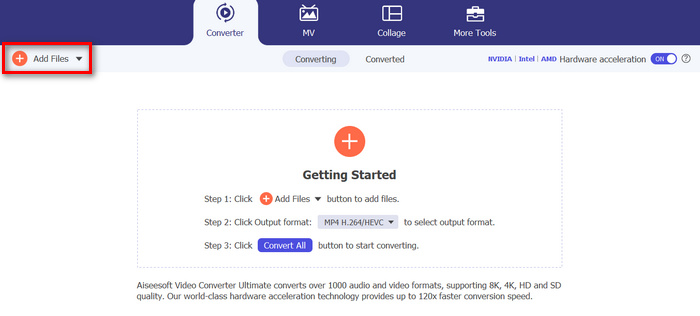
Steg 2. För att importera de WMA‑filer som du vill klippa klickar du på knappen Add Files.
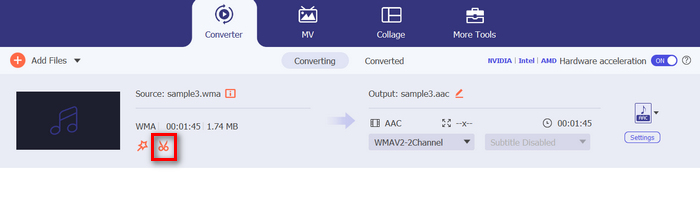
Steg 3. Klicka sedan på knappen Cut.
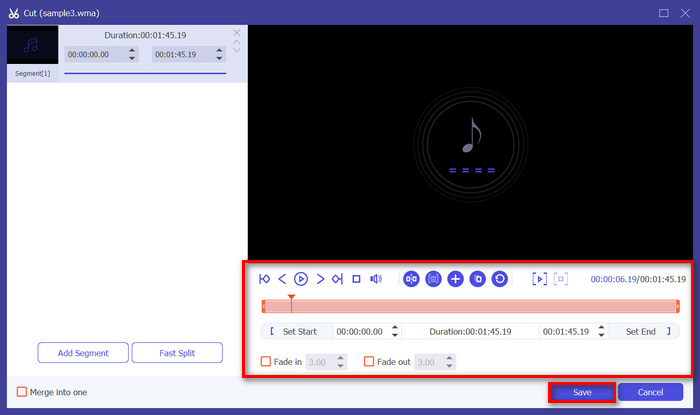
Steg 4. För att trimma dina WMA‑filer kan du göra det manuellt genom att enkelt justera eller flytta start- och slutmarkören på klippet genom att dra, flytta den från vänster till höger eller genom att skriva in start- och sluttiderna för den del av WMA‑filen som du vill trimma.
Den processen skär automatiskt delen av ljudet baserat på den tidpunkt då du vill starta och avsluta trimningen.
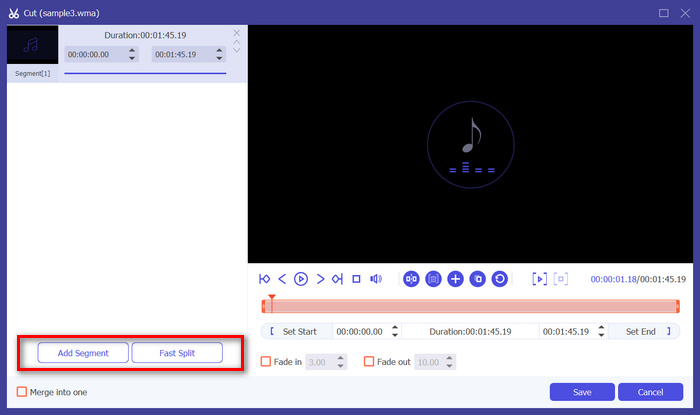
Steg 5. Om du i stället vill klippa filen med funktionen Fast Slip trimmer klickar du bara på knappen Fast Slip bredvid knappen Add Segment. Välj sedan vilket läge du vill använda för att dela segmentet. Om du väljer att dela efter genomsnitt anger du bara antalet, men om du vill dela efter tid anger du tiden. Klicka sedan på knappen Save.
Steg 6. För att exportera den trimmade WMA‑filen klickar du slutligen på knappen Convert All.
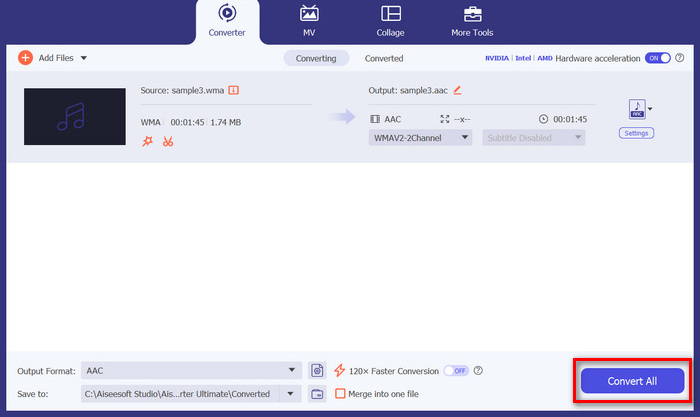
När det gäller att klippa WMA-filer är denna FVC-valda Video Converter Ultimate verkligen en måste-ha-lösning. Det är enkla och användarvänliga gränssnittet säkerställer att du enkelt och exakt kan trimma dina WMA-filer, och dess olika trimningsalternativ ger dig flexibilitet om hur du enkelt vill klippa dina ljudfiler.
Del 2: Klipp ut WMA-fil online gratis
Audio Trimmer är ett gratis verktyg som låter användare trimma ljudfiler i farten. Detta stöder ett brett utbud av populära ljudformat, inklusive WMA, vilket gör det här verktyget till ett av de bästa alternativen om du föredrar att klippa WMA-filer online.
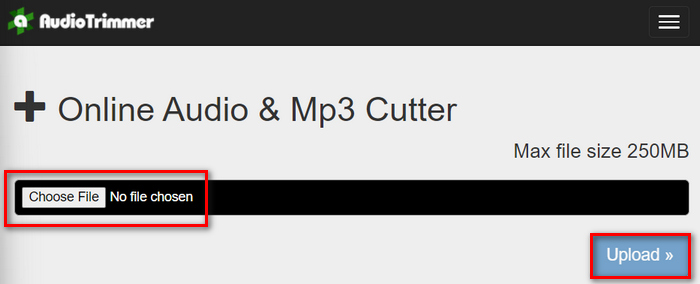
Steg 1. För att importera de WMA‑filer som du vill klippa klickar du på knappen Choose File och sedan på knappen Upload.
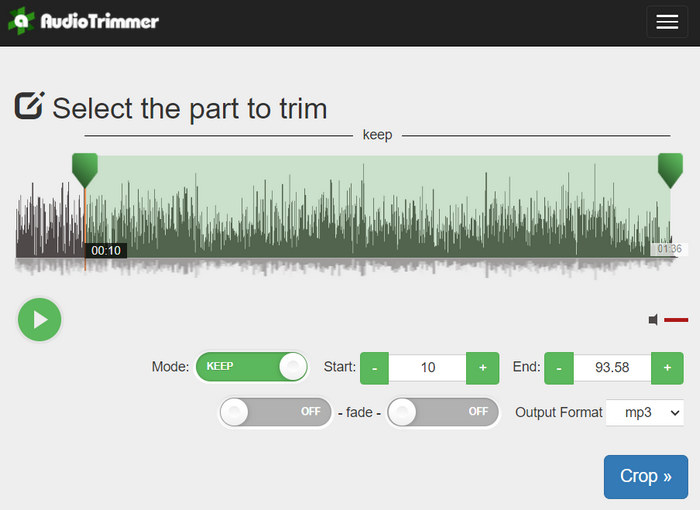
Steg 2. Dra nu bara ner reglaget och välj den del av ljudspåret som du vill trimma. När du är klar klickar du på knappen Crop.
Steg 3. För att spara din trimmade WMA‑fil klickar du till sist bara på knappen Download.
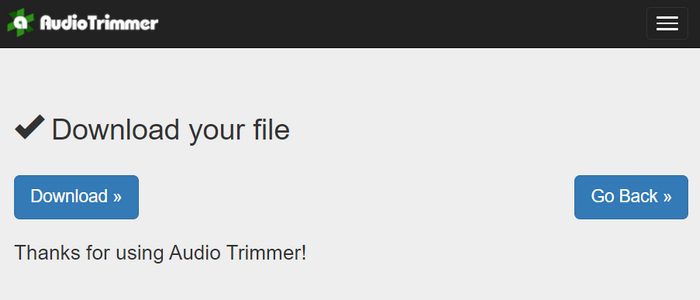
Där har du det – och du kan titta på dina klipp med WMA‑spelaren för att se om du har klippt dem rätt. Med sitt enkla och mycket intuitiva gränssnitt tar det bara tre steg att klippa WMA‑filer. Även om det är enkelt att trimma ljudfiler med detta verktyg kan inte alla användare dra nytta av det kostnadsfritt online, eftersom det är begränsat till filer på under 250 MB.
Del 3: Klipp ut WMA med VLC Media Player
VLC Media Player är en allmänt använd mediaspelare med öppen källkod på grund av dess mångsidighet. Det här verktyget stöder en mängd olika ljud- och videoformat, inklusive WMA-filer. Förutom dess funktioner för att spela upp, strömma och spela in media, kan detta verktyg också användas för att klippa WMA-filer. Med detta kan användare enkelt trimma sektioner genom att spela in i realtid utan att behöva ändra uppspelningstiden manuellt.
Steg 1. Öppna VLC Media Player. Dra och släpp helt enkelt den WMA‑fil som du vill trimma.
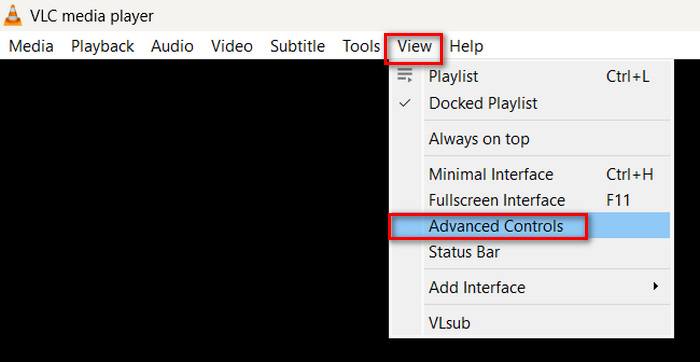
Steg 2. Ljudet börjar spelas upp automatiskt. Pausa det en stund och klicka sedan på knappen View och markera alternativet Advanced Controls. Nu ser du fyra nya knappar ovanför uppspelningsikonen.
Steg 3. Dra tidslinjen till den punkt där du vill starta ditt klipp. Justera nu tidslinjen till där du vill börja trimma din WMA‑fil. När du är klar spelar du upp filen och klickar på knappen Record.
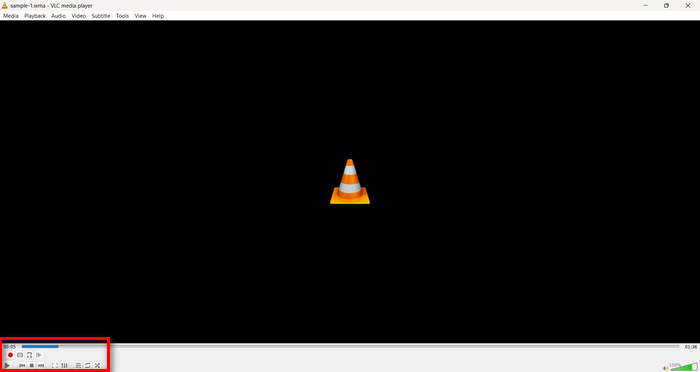
Steg 4. När du når slutet av det avsnitt du vill spara klickar du på knappen Record igen för att stoppa inspelningen.
Undvik att dra tidslinjen för att ändra uppspelningstiden medan du spelar in, eftersom VLC måste spela in segmentet i realtid. Om du gillar detta verktyg ska du inte missa VLC‑alternativen här.
Del 4: Vanliga frågor om att skära WMA
Hur klipper jag en del från en ljudfil?
För att klippa en del från en ljudfil kan du använda verktyg som Video Converter Ultimate. För att göra det behöver du bara importera din WMA-fil, klicka på knappen Klipp ut och justera start- och sluttiderna.
Är WMA bättre än MP3?
WMA har ofta bättre ljudkvalitet vid lägre bithastigheter jämfört med MP3, vilket ger mindre filstorlek men ändå god ljudkvalitet. MP3 stöds dock mer allmänt på olika enheter och plattformar. Valet mellan WMA och MP3 beror på dina behov av kvalitet och kompatibilitet. Du kan också ändra WMA till MP3 med hjälp av WMA‑till‑MP3‑omvandlarverktyg för att göra det snabbt.
Hur trimma ljudfiler i Windows Media Player?
För att trimma ljudfiler i Windows Media Player måste du använda en plugin som heter SolveigMM WMP Trimmer Plugin Home Edition. Denna plugin gör det möjligt för användare att enkelt trimma ljudfiler direkt i Windows Media Players gränssnitt, vilket ger en bekväm lösning för ljudredigeringsuppgifter.
Slutsats
Att klippa WMA‑filer behöver inte vara stressande. Oavsett om du föredrar att använda programvara som Video Converter Ultimate, ett onlinverktyg som Audio Trimmer eller den mångsidiga VLC Media Player finns det effektiva metoder för både Windows- och Mac‑användare. Välj den metod som passar dig bäst och börja redigera dina ljudfiler utan krångel. Redo att göra din ljudredigering enklare? Prova någon av dessa metoder redan idag!
-
 2 metoder för att konvertera FLV till WMA-ljud [gratis och online]
 Vill du extrahera WMA-ljud från FLV-video? Här är två gratis WMA-ljuduttag för att konvertera FLV (Flash Video) till WMA (Windows Media Audio) med snabb omvandlingshastighet på Mac OS X och Windows 10/8/7.
-
 Toppval WMA-metadataredigerare du inte bör missa [2024]
 Varför kan jag'inte redigera WMA-taggar? Det här problemet är vanligt hos användare' frågor. Men idag kommer vi att ge dig WMA-metaredigerarna du kan använda 2024.
-
 8 sätt att konvertera MP4 till MP3-ljud (batchkonvertering och stor storlek)
 Om du vill extrahera MP3-ljud från MP4-video kan du läsa den här artikeln och få 8 lösningar. Det finns online- och offline-sätt att enkelt konvertera MP4 till MP3 på din telefon eller dator.
