


 Video Converter Ultimate
 Skärminspelare
 Video reparation
 Säker nedladdning
Redigera M4A-filer för Windows, macOS, online och mobiltelefoner
Eftersom M4A-filen inte är framtagen för alla enheter har många ljudredigerare svårt att hantera detta ljudfilformat, vilket gör det krångligt för användare att ändra dem. M4A stöds i grunden av alla enheter, det belastar dessutom enheterna mindre eftersom det är komprimerat, vilket ger mindre filstorlek och ändå en god ljudkvalitet. Oroa dig inte – det går fortfarande att redigera M4A-filer med våra noggrant utvalda programvaruverktyg för Windows och macOS, onlinetjänster för webbläsare och mobilappar.

Del 1. Redigera M4A-filer på Windows 11/10/8/7 och macOS
1. Allt-i-ett M4A Editor
Denna FVC-utvalda Video Converter Ultimate är en mångsidig och lättanvänd M4A-redigerare. Det är ett programbaserat verktyg och betraktas som en allt-i-ett M4A-redigerare eftersom det rymmer funktioner som M4A-klippare, sammanfogning, kompressor, brusreducerare, volymförstärkare osv. Eftersom det fungerar både som ljud- och videoredigerare med ett enkelt gränssnitt är detta en enastående programvara för både Windows- och Mac-enheter. För att hjälpa dig komma igång med den allt-i-ett M4A-redigeraren följer här en snabbguide som hjälper dig att navigera i programmet effektivt.
Steg 1. Ladda ner och installera FVC-utvalda Video Converter Ultimate på din dator.
Gratis nedladdningFör Windows 7 eller senareSäker nedladdning
Gratis nedladdningFör MacOS 10.7 eller senareSäker nedladdning
Steg 2. Klicka på knappen Add Files i verktygets gränssnitt för att lägga till din M4A-fil i programvaran.
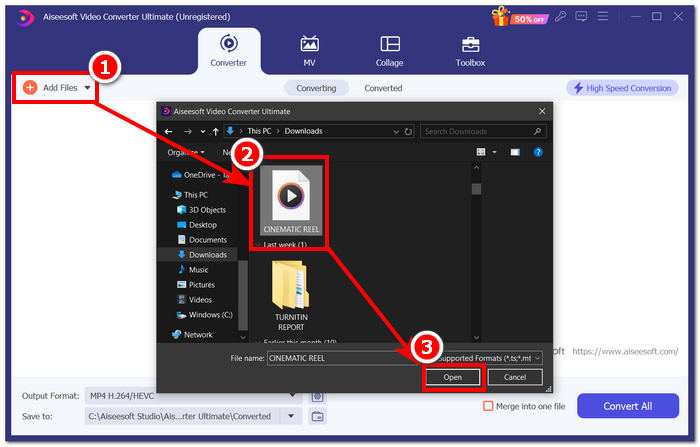
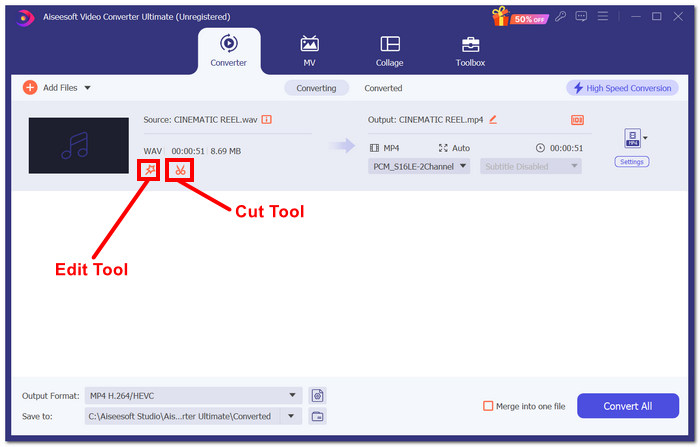
Steg 3. Du kan nu redigera din M4A-fil genom att välja verktygen Edit och Cut, som finns precis bredvid din uppladdade M4A-fil efter att den har lagts in i verktyget.
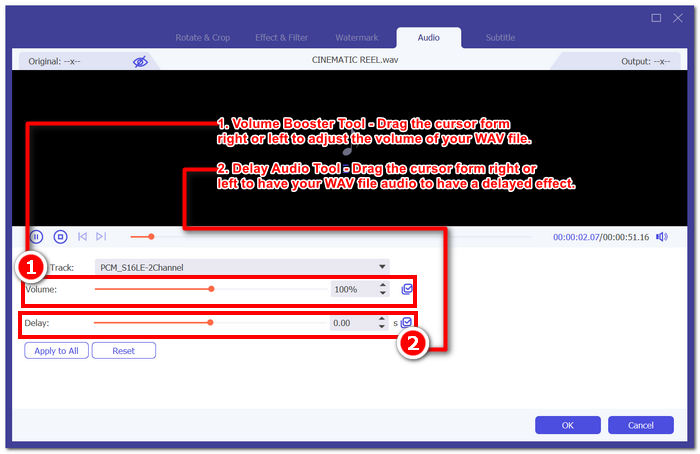
Obs: Klicka på ikonen Magic Wand om du vill använda funktionerna Volume Booster och Audio Delay på din M4A-fil.
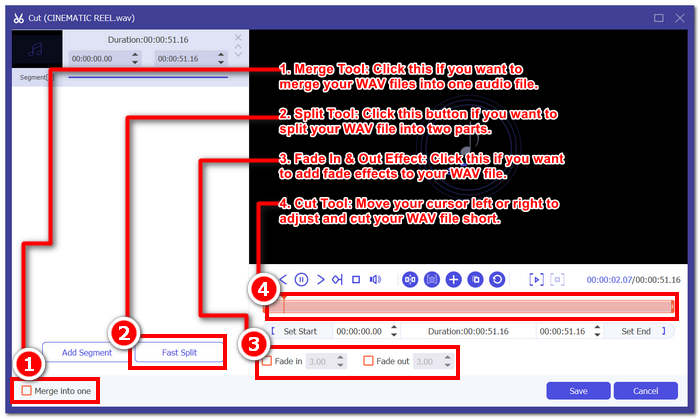
Annars klickar du på saxikonen för att använda funktioner som Lägg till tona, klippa, dela och slå samman effekter till din M4A-fil.
Steg 4. När du har redigerat och klippt din M4A-fil så som du vill ha den, klicka på knappen Convert All för att börja ladda ner den till den mapp du har angett på skrivbordet.

Den FVC-utvalda programvaran lever verkligen upp till sitt rykte som ett allt-i-ett M4A-redigeringsverktyg. Verktyget stöder överraskande nog ett brett utbud av ljud- och videoformat, såsom MP3, M4A, MP4, AAC, WMA, WAV och mer. Dessutom garanteras användarna att alltid få en export av hög kvalitet eftersom verktyget erbjuder obegränsad filstorleksuppladdning med en höghastighetsexportteknik för snabbare bearbetning och export av din WAV-fil samtidigt som filens kvalitet bibehålls.
2. Öppen källkod och kraftfull M4A Editor
En M4A-redigerare med öppen källkod, Audacity, som också kan användas för inspelning är ingen annan än den populära Audacity. Med år av expertis inom ljudproduktion är detta program det mest omtyckta och använda verktyget på listan. Det är välkänt för sin förmåga att spela in musik, redigera, mixa och kombinera låtar. Den kan också användas för att redigera och producera en M4A-fil för användning i podcasts. Dess kompatibilitet med andra filformat, WAV, MP3, MP2, och så vidare; gör det också till ett flexibelt verktyg för enkel M4A-redigering och inspelning.
Steg 1. Ladda ner och installera Audacity på din dator.
Steg 2. När Audacity är installerat, öppna programmet. I gränssnittet öppnar du M4A-filen du vill redigera genom att klicka på avsnittet File högst upp till vänster på skärmen och sedan klicka på Open.
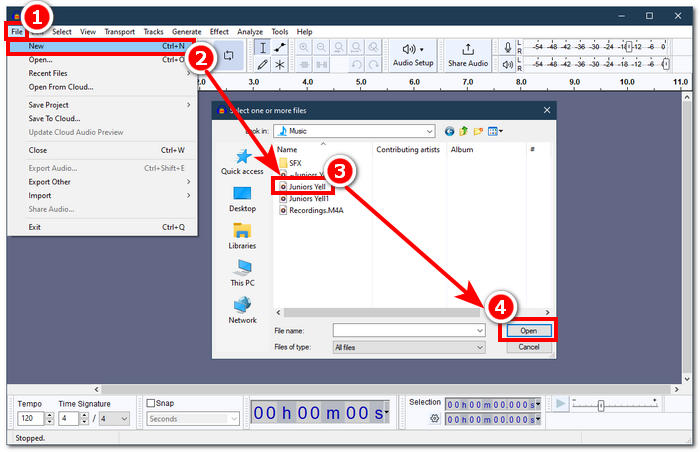
FFmpeg-pluginen behövs för att använda M4A-filer med Audacity. Se till att du installerar plugin-programmet innan du fortsätter till M4A-redigering.
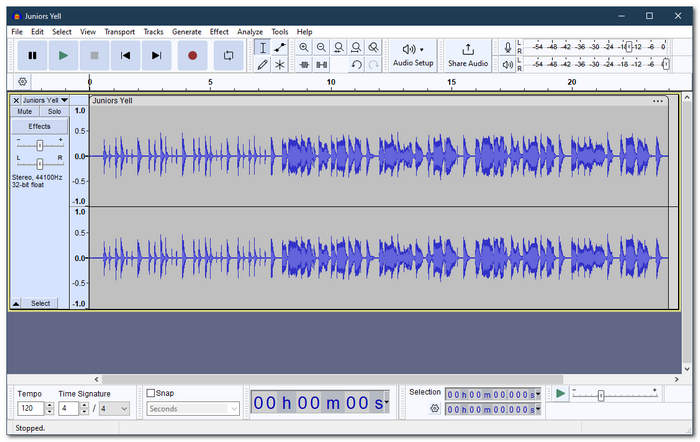
Steg 3. När M4A-filen har laddats upp i verktyget kan du redigera den med hjälp av de inbyggda funktionerna.
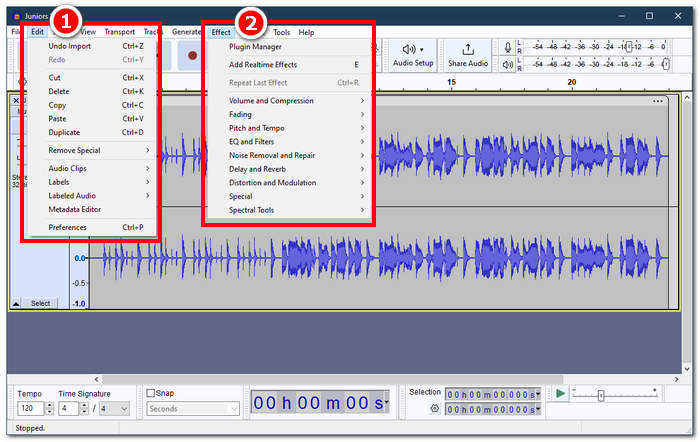
Obs: För att skapa klipp, ta bort delar, lägga på effekter, kopiera, klistra in, duplicera eller slå ihop ljudspår i Audacity, klicka på avsnittet Edit i menyn längst upp till vänster i verktyget. För att justera volym, lägga till fade-effekter, ändra tonhöjd och tempo med mera, ska du klicka på avsnittet Effect på samma ställe.
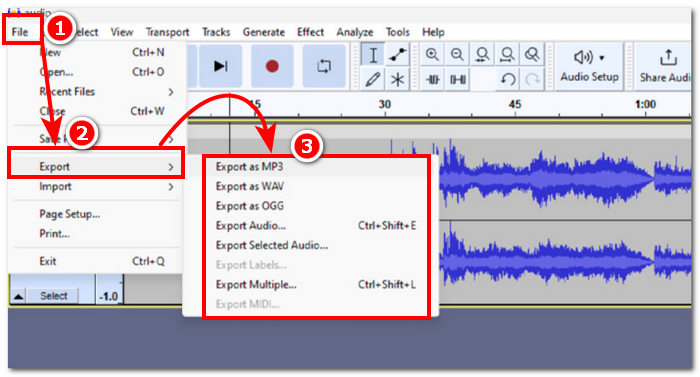
Steg 4. När du är nöjd med alla ändringar du gjort i dina M4A-filer går du vidare till att exportera ditt ljud via File > Export Audio.
För enkel M4A-redigering är Audacity ett utmärkt program eftersom det är kostnadsfritt och underlättar effektivt arbete. Dessutom är färgspårningsegenskaperna användbara eftersom de möjliggör flerspårning av etikettdelarna. Nackdelen med att arbeta på flera spår samtidigt är att programmet bara kan hantera ett visst antal spår samtidigt.
Del 2. Redigera M4A-filer online
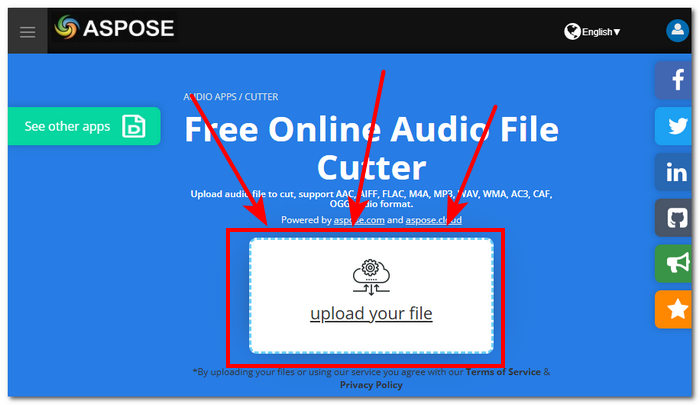
För att redigera M4A-filer med ett online- eller webbaserat verktyg är Aspose Audio Cutter en idealisk lösning för omedelbar och snabb M4A-redigering. Detta webbaserade verktyg används särskilt för att skapa precisa klipp i en M4A-fil och stöder format som AAC, AIFF, FLAC, M4A, MP3, WAV med flera. Verktyget fungerar helt enkelt genom att du laddar upp din M4A-fil och anger en specifik tid/längd för den del av M4A-filen du vill klippa ut och spara.
Steg 1. Gå till Aspose Audio Cutters officiella webbplats.
Steg 2. Ladda upp eller dra och släpp M4A-filen du vill redigera i det fält som finns på webbplatsen.
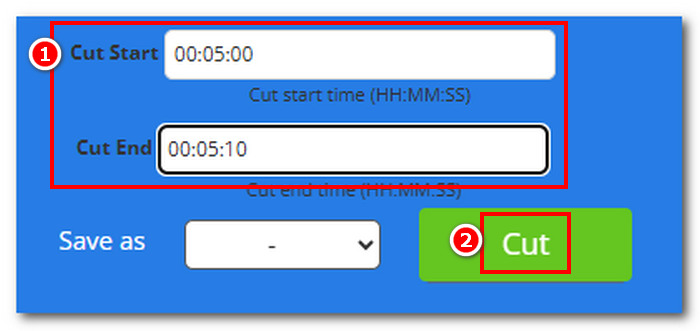
Steg 3. Ange önskad Cut Start och Cut End för att exakt ta bort de delar i din M4A som du vill ta bort, och klicka sedan på knappen Cut för att starta processen.
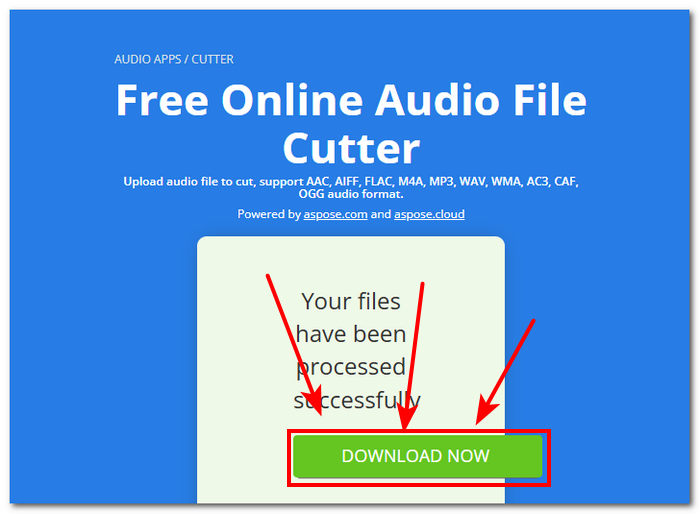
Steg 4. När du har klippt din M4A-fil klickar du på knappen Download Now för att spara den på din dator.
Du kan öppna den i din M4A-spelare för att kontrollera resultatet.
Aspose Audi Cutter är verkligen ett användarvänligt verktyg med ett enkelt gränssnitt speciellt framtaget för att skapa ett exakt snitt till M4A-filer. Tjänsten är snabb och ingen applikationsinstallation krävs för att använda den. Därför är dess funktioner bara begränsade till skärfunktioner och kan inte utföra andra M4A-redigeringsuppgifter som att lägga till toningseffekter, trimma, dela och mer.
Del 3. Redigera M4A-filer på mobiltelefoner
Inspirerad av sin datorversion har WavePad mobil samma gränssnitt, vilket gör det lättare att bekanta sig med appen. Den här mobilappen är gratis att ladda ner på Android- och iOS-enheter, med brett stöd för ljudformat för att säkerställa verktygets mångsidighet vid redigering av ljudfiler. Dessutom erbjuder dess M4A-redigeringsmöjligheter ett brett utbud av funktioner och effekter, som att klippa, trimma, kopiera, klistra in, infoga, tysta och automatiskt trimma din M4A-fil utan ansträngning.
Steg 1. Gå till din mobilappbutik och ladda ner WavePad mobile där.
Steg 2. När appen är installerad laddar du in din M4A-fil i appen genom att klicka på ikonen Open högst upp i appens gränssnitt och väntar.
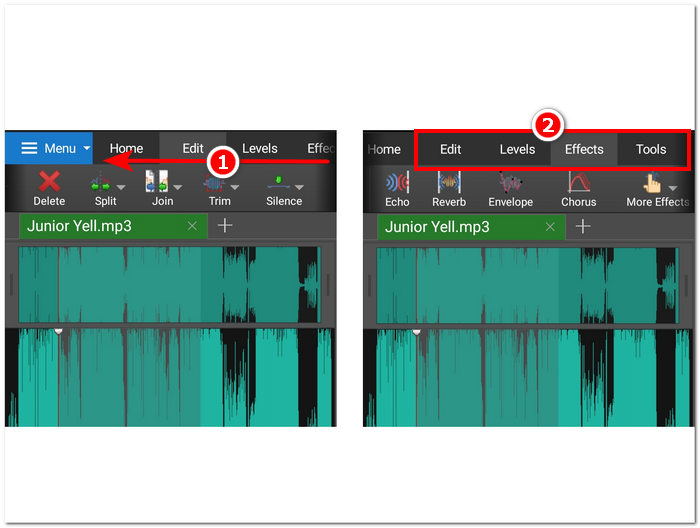
Steg 3. När din M4A-fil är inläst i appen kan du utforska appens funktioner för att redigera din M4A-fil. Du kan göra detta genom att placera fingret högst upp i verktyget och svepa från höger till vänster för att se funktioner som cut, copy, join, paste med flera. När du hittar de verktyg du behöver för din M4A-fil klickar du bara på dem för att använda dem på din M4A-fil.
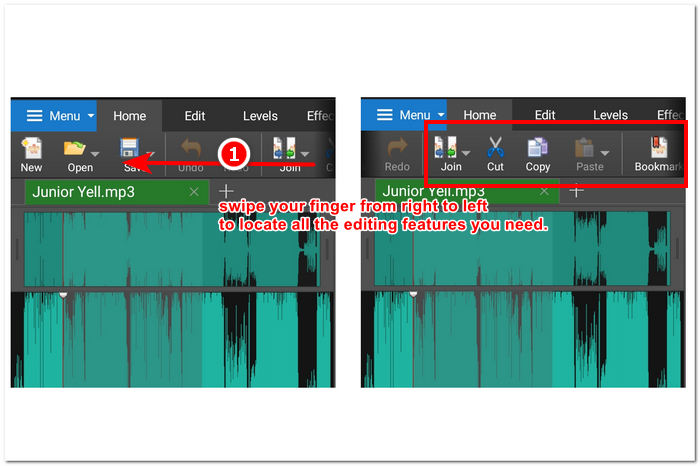
Du kan också utforska och se andra effekter och funktioner som är tillgängliga för att redigera din M4A-fil genom att svepa fingret från höger till vänster i fältet där avsnittet Redigera finns. Där kan du applicera effekter på din M4A-fil och mer.
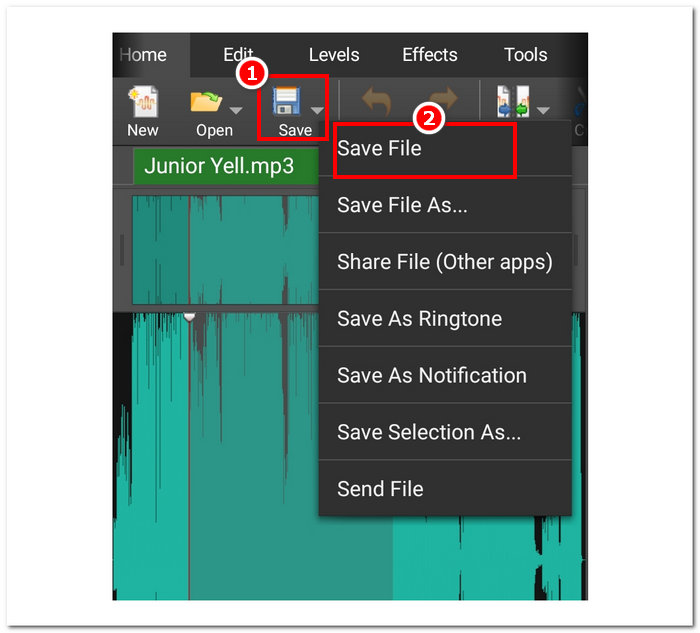
Steg 4. När du är klar med att redigera din M4A-fil går du tillbaka till Home-avsnittet, klickar på knappen Save och sedan på Save File för att ladda ner din redigerade M4A-fil till din mobila enhet.
Som sagt, WavePad mobile är verkligen en kraftfull mobil M4A-redigeringsapp som låter användare göra nästan allt möjligt med sina M4A-filer. Denna app är idealisk för användare som bara har mobila enheter och alltid är på språng.
Del 4. Vanliga frågor om hur man redigerar M4A-filer
Är M4A sämre än MP3?
Det anses inte sämre än MP3, men beroende på syfte erbjuder M4A vanligtvis bättre kvalitet och samtidigt bättre bithastighet tack vare sina avancerade komprimeringsalgoritmer. För fler skillnader mellan M4A och MP3 kan du läsa mer här.
Vilka är nackdelarna med M4A?
M4A-filer stöds inte allmänt av enheter och plattformar, så du måste använda ett konverteringsverktyg innan du kan använda dem. Dessutom stöter användare ofta på kompatibilitetsproblem när de använder M4A som en ljudfil, vilket gör den inte till en idealisk fil att arbeta med, särskilt när de delar.
Finns det gratis programvara för att konvertera M4A till text?
Ja, det finns massor av gratis programvara för att konvertera M4A, som Google Docs Voice Typing och Otter.ai. Dessa verktyg är tillförlitliga eftersom de integrerar en taligenkänningsteknik för att transkribera ljudfiler i dessa M4A-filer till text.
Kan jag konvertera M4A-filer till andra format efter redigering?
Ja, många M4A-redigerare, som den FVC-valda Video Converter Ultimate, har ett inbyggt konverteringsverktyg som låter användare spara eller exportera de redigerade M4A-filerna med olika ljudformat.
Hur säkerställer jag att kvaliteten på min redigerade M4A-fil bibehålls?
För att säkerställa att du alltid har export av högsta kvalitet när du sparar dina redigerade M4A-filer, var noga med att undvika överdriven komprimering och se till att använda pålitliga verktyg som stöder en förlustfri exportkvalitet,
Slutsats
På grund av kompatibilitetsproblem och begränsat stöd från vissa ljudredigerare kan det vara svårt att redigera M4A-filer på flera plattformar, inklusive Windows, macOS, internetverktyg och mobiltelefoner. M4A-filer ger en bra kompromiss mellan kvalitet och komprimering, vilket gör dem effektiva för lagring samtidigt som de behåller respektabel ljudtrohet, i motsats till allmänt accepterade format som WAV. Du kan dock enkelt redigera dina M4A-filer, vilket garanterar högkvalitativ utdata och en mängd olika redigeringsalternativ, med rätt verktyg och program, som skrivbordsversionen av FVC Video Converter Ultimate, webbversionen av Aspose Audio Cutter och mobilversion av WavePad.
-
 Topp 5 bästa mus- och tangentbordsinspelare för Windows och Mac
 Här är de fem bästa mus- och tangentbordsprogrammeringsprogrammen som kan spara musrörelser och tangentbordsklick och upprepa händelserna.
-
 Topp 4 gratis AVI-skärminspelare för att fånga skärmvideo som AVI-filer
 För att spela in skärm i högkvalitativa AVI-filer identifierar och delade artikeln de fyra bästa AVI-skärminspelarna i det här inlägget. Lär dig mer information för att hitta önskad i enlighet med detta.
-
 Handling! Screen Recorder Review - Nackdelar, fördelar och dess bästa alternativ
 Är Action Screen Recorder önskad programvara för inspelning av spel för att fånga spelvideor? Lär dig bara mer information från recensionen och dess alternativ från artikeln.
