


 Video Converter Ultimate
 Skärminspelare
 Video reparation
 Säker nedladdning
Kan du göra en ringsignal från en video och hur du använder den
Att ställa in sina favoritringsignaler har alltid varit en populär åtgärd för många smarttelefonanvändare. När du hör din favoritmusik blir det roligare att använda telefonen. I takt med teknikens utveckling har utbudet av ringsignaler som man kan välja mellan breddats avsevärt. Nu kan vi inte bara spela in vårt eget ljud och ladda ner våra favoritlåtar, utan vi kan till och med extrahera ljudet från videor och använda det som ringsignaler för inkommande samtal. Den här processen är enkel, och det finns många verktyg som kan hjälpa dig. Hur väljer man mellan dem? Nedan ger vi dig en detaljerad guide till att göra en video till en ringsignal. Oavsett om du är Android‑ eller Apple‑användare kommer du att kunna hitta det du behöver.

Del 1. Kan du ställa in en video som ringsignal
Innan vi börjar, låt oss först överväga möjligheten att ställa in en video som ringsignal. Svaret är förstås ja. Generellt sett måste du extrahera ljudet från videon och konvertera det till ett ringsignalformat som stöds av din telefon för att komma igång. Du kan också betrakta kärnan i denna handling som att konvertera en fil från videoformat till ljudformat. Professionell ljud- och videoredigeringsprogram och formatomvandlare kan hjälpa dig att konvertera video till ringsignal gratis. Det är viktigt att notera att mobiltelefoner som kör olika system stöder olika ringsignalformat, och du måste se till att du har letat upp informationen om ljudformaten som stöds av din enhet innan du startar operationen.
Del 2. Gör en ringsignal från en video
När vi väl vet att vi kan göra en ringsignal från en video behöver vi välja rätt verktyg för jobbet. Vi rekommenderar starkt att du provar det av FVC utvalda Video Converter Ultimate. Det är en utmärkt ljud- och videokonverterare som låter dig redigera ljudet i videon separat och justera musikvolym, ljudeffekter, ljudspår osv. Du kan också låta programmet hjälpa dig att justera ljudet om det finns en fördröjning. För närvarande stöder det över hundra format, vilket innebär att det kan konvertera din video till ett format som passar alla smarttelefoner, så du slipper kompatibilitetsproblem. Med hårdvaruaccelereringsteknik kan det konvertera alla filer upp till 30 gånger snabbare. Under processen förloras ingen ljudkvalitet i dina filer, och din integritet kränks inte.
Gratis nedladdningFör Windows 7 eller senareSäker nedladdning
Gratis nedladdningFör MacOS 10.7 eller senareSäker nedladdning
Efter att ha fått en allmän uppfattning om FVC Video Converter Ultimate måste vi förstå hur man faktiskt tillämpar den för att förvandla en video till en ringsignal. Därefter kommer vi att dissekera de detaljerade stegen för dig från perspektiven av både iPhone och Android-telefoner.
Gör en video som en ringsignal för iPhone
Låt oss först titta på hur man gör en ringsignal till din iPhone. Det första vi behöver veta är att iPhone för närvarande stöder ringsignaler i M4R‑format. Sedan kan vi börja med själva processen.
Steg 1. Ladda ner videon du vill konvertera till din dator. Du behöver också installera FVC Video Converter Ultimate på enheten.
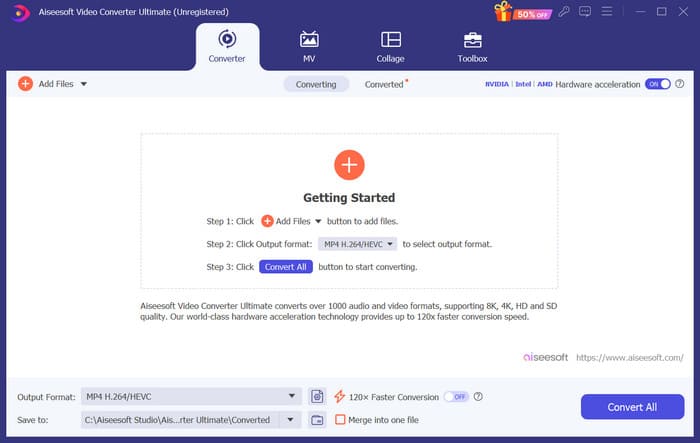
Steg 2. Konvertera videon till M4R‑format. För att göra detta klickar du först på Lägg till filer för att ladda upp din video.
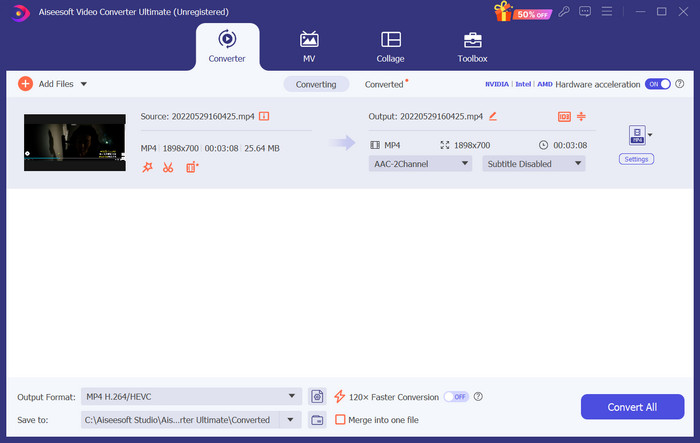
Steg 3. Fäll ut menyn bredvid Utdataformat. Här kan du hitta det format du behöver.
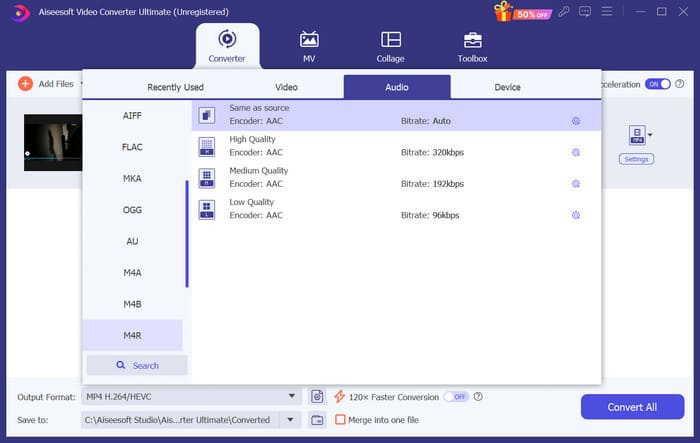
Steg 4. Klicka på Ljud och välj M4R bland alla alternativ.
Steg 5. Klicka sedan på Konvertera alla för att exportera M4R‑ljudet.
Steg 6. Ladda därefter upp den konverterade videon till programmet. Om du vill trimma ljudfilen klickar du på Klipp i gränssnittet. Om du vill justera ljudspåret eller volymen klickar du på Redigera.
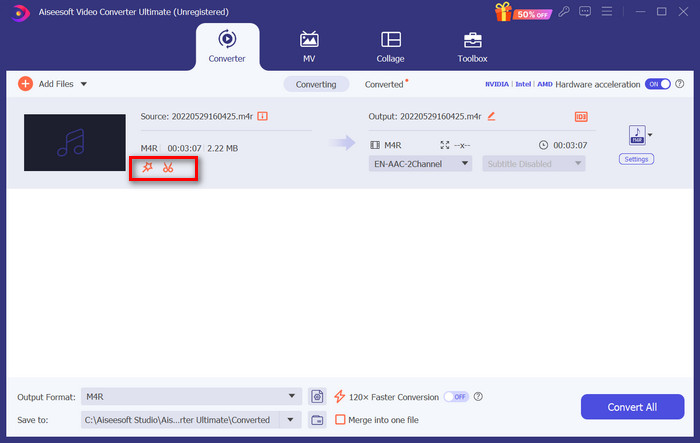
Steg 7. Klicka slutligen på Konvertera alla igen för att få din redigerade M4R‑ringsignal.
Gör en video som ringsignal för Android
Om du vill förvandla en video till en ringsignal för en Android-mobil, överväg att konvertera dina videofiler till MP3, M4A, WAV eller OGG.
Här är vad du behöver göra för att konvertera en video till en ringsignal.
Steg 1. Ladda ner och installera FVC Converter Ultimate på din dator. Förbered din video för konvertering.
Steg 2. Klicka på Lägg till filer för att ladda upp din valda video till plattformen.
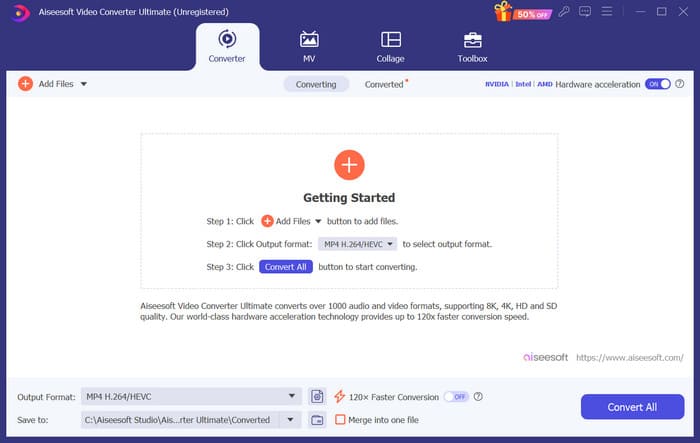
Steg 3. Fäll ner formatlistan bredvid Utdataformat.
Steg 4. Klicka på Ljud. Beroende på dina behov kan du konvertera din video till MP3, M4A, WAV eller OGG.
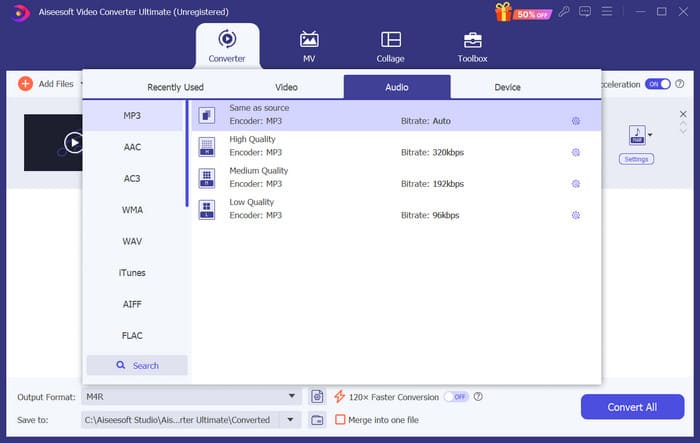
Steg 5. Välj Konvertera alla för att först ladda ner ditt konverterade ljud.
Steg 6. Lägg till ditt ljud i programmet igen. Klicka sedan på Klipp för att välja den del du vill använda som ringsignal. Funktionerna under Redigera kan också hjälpa dig att justera vissa element i din fil.
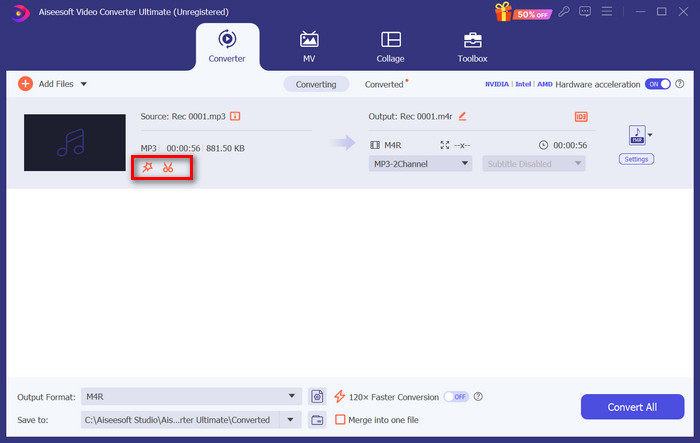
Steg 7. När du har avslutat redigeringen klickar du på Konvertera alla.
Del 3. Ställ in det konverterade ljudet som en ringsignal
Nu när vi har redigerat ljudfilen måste vi gå vidare till våra telefoninställningar för att ställa in den här konverterade videon som en ringsignal.
Ställ in ringsignal på iPhone
Om du använder en iPhone kan du behöva vissa verktyg för att ställa in ditt valda M4R‑ljud som ringsignal. GarageBand är ett bra alternativ.
Här kommer vi att lära dig hur du skapar en ringsignal med GarageBand med ljud från en video.
Steg 1. Se till att du har din redigerade ljudfil på din iPhone. Öppna sedan GarageBand.
Steg 2. När GarageBand har startat går du till Loop och väljer Filer. Tryck sedan på Bläddra bland objekt från Filer‑appen för att hitta det ljud du vill använda.
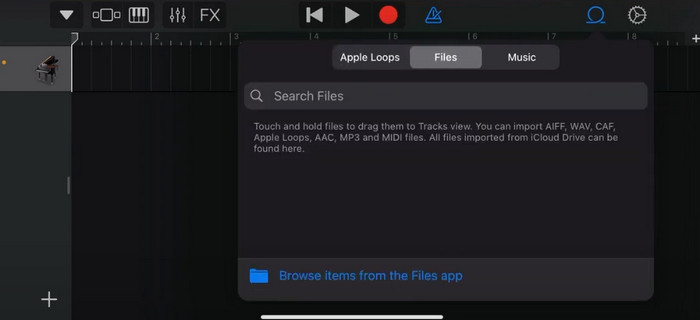
Steg 3. Lägg ditt valda M4R‑ljudklipp på GarageBands tidslinje.
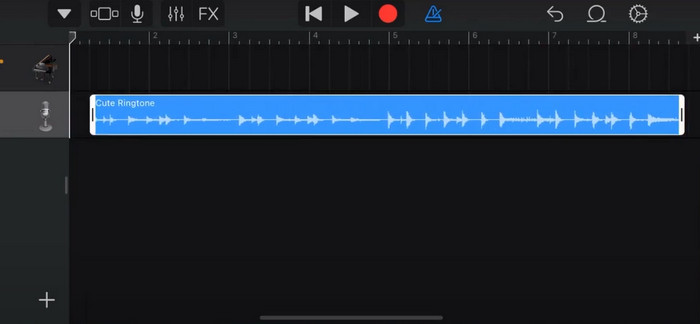
Steg 4. Tryck på Metronom för att stänga av den. Tryck på pil‑ned‑ikonen > Mina låtar.
Steg 5. Håll ned ljudklippet och välj Dela.
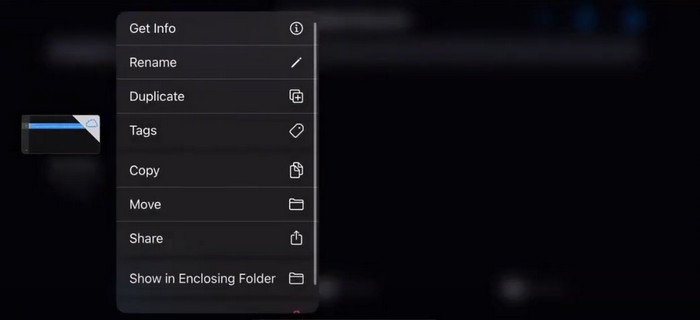
Steg 6. Välj Ringsignal > Exportera. När fönstret Använd ljud som visas, tryck på Standardringsignal.
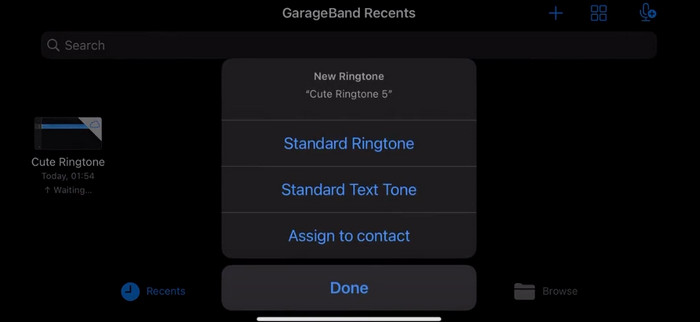
Ställ in ringsignal på Android
Om du vill göra ditt ljud extraherat från videor som ringsignaler på din Android-enhet, gör det direkt i appen Inställningar. De exakta stegen är lite enklare.
Vi tar Samsung-telefonen som ett exempel och berättar hur du applicerar den i detalj.
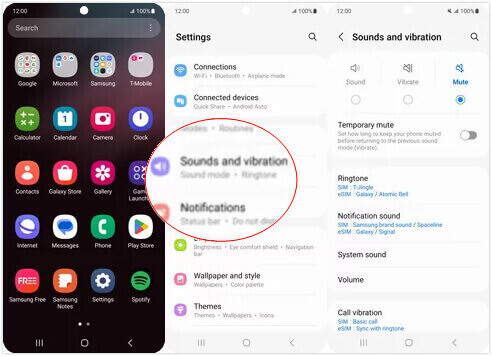
Steg 1. Gå till Inställningar på din Android‑enhet och tryck på Ljud och vibration.
Steg 2. Välj Ljud under avsnittet Ljudläge. Tryck sedan på Notifieringsljud.
Steg 3. Välj den ljudfil du har konverterat och redigerat. Den här inställningen aktiveras när du återgår till föregående sida.
Del 4. Vanliga frågor om att göra en video som ringsignal
Hur lägger jag till ringsignaler till min Android-telefon?
På din Android-telefon, gå till Inställningar och leta efter alternativet Ljud eller Ljud & Vibration. Välj Telefonringsignal eller Ringsignal för att välja en anpassad ringsignal. Din anpassade ringsignal bör nu visas i listan över tillgängliga ringsignaler. Välj den för att ställa in den som din ringsignal.
Kan jag ladda ner iPhone-ringsignalen för Android?
Ja, du kan ladda ner iPhone‑ringsignaler och använda dem på en Android‑enhet. iPhone‑ringsignaler är dock vanligtvis i M4R‑format, vilket inte är direkt kompatibelt med Android‑systemet. Du måste konvertera iPhone‑ringsignalen till ett format som stöds på Android, till exempel MP3 eller AAC. Till exempel kan den konverterare som valts av FVC hjälpa dig att konvertera M4R till MP3.
Varför ringer inte min telefon vid inkommande samtal?
Om din telefon inte ringer vid inkommande samtal kan det finnas flera orsaker till det här problemet. Se till att volymen på din telefon är uppskruvad och inte avstängd. Kontrollera också om din telefon är i Stör ej-läge. Detta läge tystar alla samtal och aviseringar. Om problemet fortfarande inte är löst, försök att starta om telefonen för att uppdatera systemet.
Slutsats
Detta är en komplett guide till att göra en video till din ringsignal. Vi rekommenderar ett av de bästa verktygen, FVC Video Converter Ultimate, för att hjälpa dig att justera dina videofiler så att de blir precis som du vill ha dem. Det här verktyget finns både för iPhone och Android‑telefoner, så oavsett vilket system din enhet kör kan du skapa din favorit med dess hjälp.
-
 Topp 3 lösningar för att komprimera WAV-filer till en mindre storlek
 Om du också letar efter sätt att komprimera storleken på WAV-ljudfiler, läs vårt innehåll. Vi kommer att introducera dig till olika verktyg från tre aspekter.
-
 Fördjupad ljudkomprimeringshandledning 2024 (steg-för-steg)
 Behöver du komprimera ljud men behöver hjälp med att lista ut var du ska börja? I det här inlägget kommer vi att presentera de bästa valen för att minska filstorleken på dina spår.
-
 Effektiva ljudkompressorer för offline- och onlineanvändare
 Har du problem med stora ljudfiler? Det finns många ljudfilkompressorer tillgängliga för offline- och onlineanvändare. Kolla in dem här.
