


 Video Converter Ultimate
 Skärminspelare
 Video reparation
Hur man beskär en GIF med hjälp av de bästa GIF -cropparna
Att välja rätt GIF för meddelandet är ett måste för att förmedla rätt ton i det du syftar på. Men vissa GIF:ar behöver beskäras för att visa den verkliga avsikten med GIF:en. Om du dessutom försöker beskära dina GIF:ar får kvaliteten inte försämras och samma bildfrekvens (fps) ska behållas. Ibland kan det vara lite svårt att välja rätt verktyg för att beskära din GIF, eftersom inte alla verktyg erbjuder beskärningsfunktion. Och några av de verktyg som faktiskt kan beskära försämrar kvaliteten och bildfrekvensen på GIF:en. I den här artikeln kan du välja den bästa GIF-beskäraren; alla verktyg som listas har redan testats av oss för att ge dig tillförlitliga underlag. Vi presenterar också den bästa GIF-beskäraren som finns tillgänglig på alla plattformar och hur du använder den. Fortsätt läsa denna text för att ta reda på mer.

Del 1. Den bästa GIF Cropper som stöder Windows och Mac -operativsystem
1. FVC gratis video till GIF Maker
Det här verktyget finns på alla plattformar, som Windows och Mac. Det är den bästa beskäraren för animerade GIF:ar utvecklad av FVC – det är FVC Free Video to GIF Maker. Programmet låter användarna utforska och förbättra sina redan skapade GIF:ar eller skapa nya GIF:ar om de vill. Så om du vill beskära din GIF hjälper det här verktyget dig att göra det även utan internetanslutning. Beskär alltså din GIF så att den blir mer framträdande, enkelt och effektivt. Följ stegen nedan för att lära dig hur du beskär din GIF.
Steg 1. Installera verktyget på din hårddisk och justera inställningarna efter dina behov.
Gratis nedladdningFör Windows 7 eller senareSäker nedladdning
Gratis nedladdningFör macOS 10.7 eller senareSäker nedladdning
Steg 2. Ett litet gränssnitt som detta visas på skärmen efter att du har startat programmet.
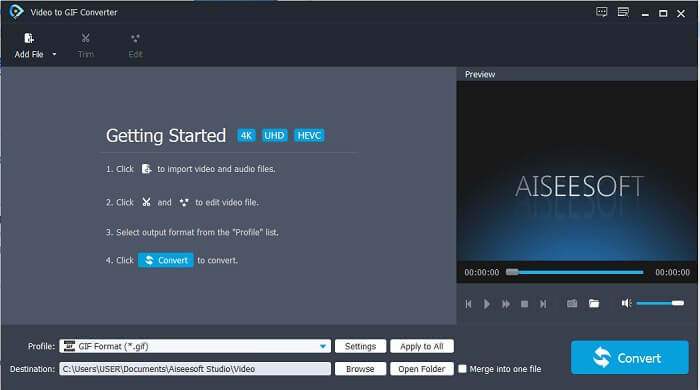
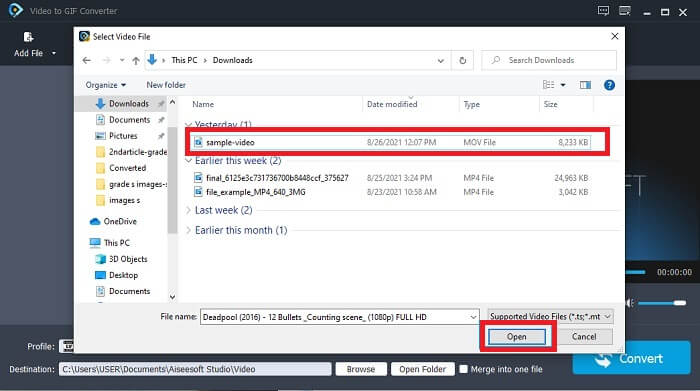
Steg 3. Klicka på Add File eller så kan du också dra och släppa videofilen i programmets gränssnitt.
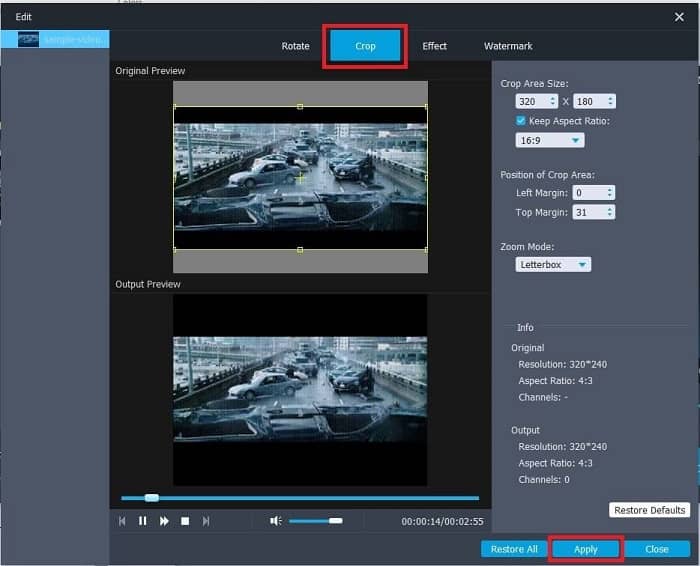
Steg 4. Klicka på Edit för att förbättra din GIF. Gå till Crop och justera storleken på din GIF. Du kan även ändra Aspect Ratio och Zoom Mode. Klicka på Apply för att spara de justeringar du har gjort.
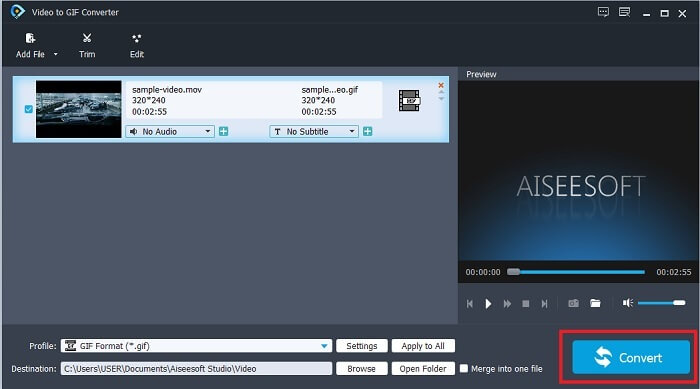
Steg 5. Klicka på Convert för att starta konverteringen av din video till GIF. När konverteringen är klar kan du kontrollera slutresultatet i filutforskaren genom att skriva in videons namn.
Fördelar
- Alla mindre funktioner finns tillgängliga här.
- Det är mycket bättre än onlineverktyget och några av de nedladdningsbara verktygen också.
- Skapa din GIF enkelt med det här verktyget.
Nackdelar
- Du kan inte använda viktiga funktioner som Ultimate -versionen tillhandahåller.
- Den stöder mindre formatvideo än premiumversionen.
2. Video Converter Ultimate
Den fria versionen av detta verktyg kan göra det enkla arbetet men dess premiumversion är det bästa GIF -beskäraren. Video Converter Ultimate är inte bara i namn utan också att det här verktyget är det ultimata när det gäller att konvertera video till en GIF -fil. Till skillnad från dess gratisversion och verktyget nedan kan det här verktyget göra din enkla GIF till en mer fantastisk. Förvandla din GIF till en enastående genom att lägga till effekter som det här verktyget bara kan ge. Det ger också konvertering av en video till GIF, som MP4 till GIF, sammanfogning av videor till en, 3D -maker och många fler. Så använd det här verktyget som din personliga beskärare och det kommer aldrig att svika dig. Fortsätt vidare med att läsa stegen nedan för att veta hur du beskär din GIF för att leverera ett mer specifikt meddelande till din mottagare.
Steg 1. Innan du kan använda det här verktyget måste du ladda ner det. Installera verktyget på din hårddisk, ändra inställningarna efter dina behov och klicka på finish för att starta programmet på din skärm.
Gratis nedladdningFör Windows 7 eller senareSäker nedladdning
Gratis nedladdningFör MacOS 10.7 eller senareSäker nedladdning
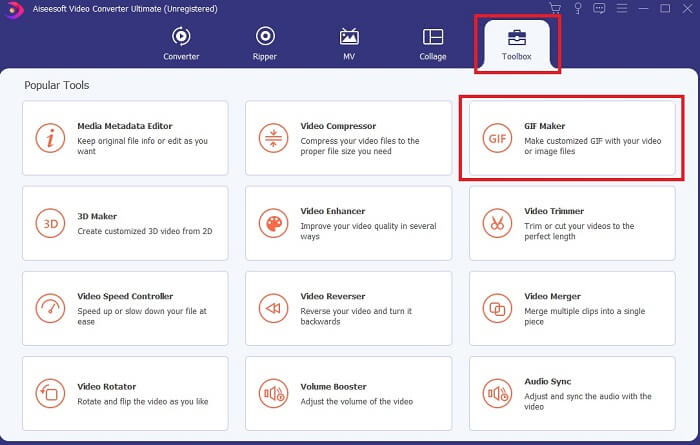
Steg 2. När verktyget är helt nedladdat till din hårddisk visas ett lättöverskådligt gränssnitt som detta på skärmen. Klicka på menyraden och klicka sedan på GIF Maker i toolbar.
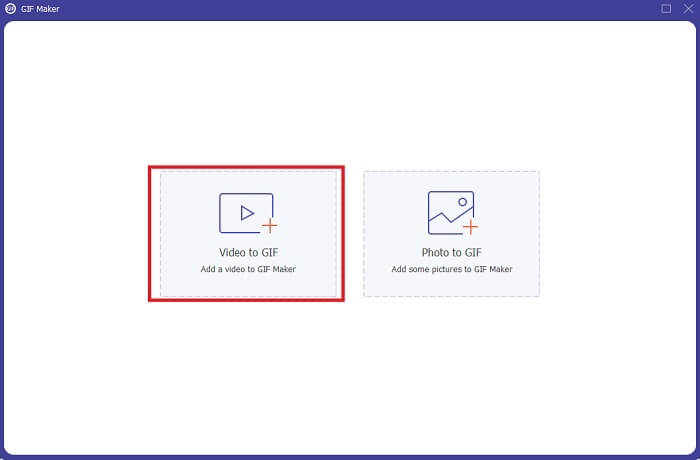
Steg 3. För att lägga till videon klickar du på Video to GIF och letar upp den GIF eller video du vill beskära eller redigera. När du har valt videon klickar du på Open för att starta GIF Maker.
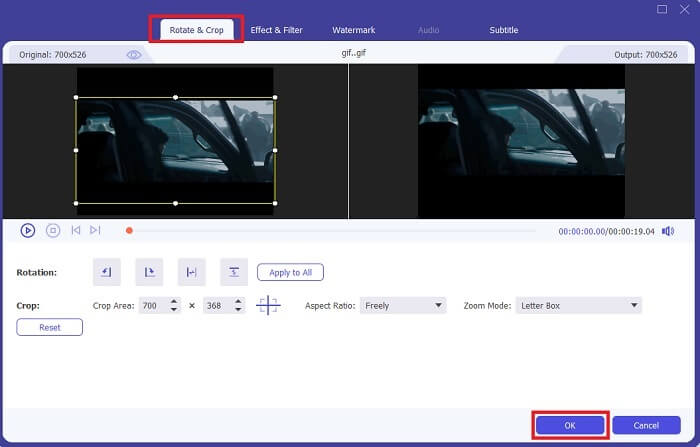
Steg 4. Klicka på knappen med en stjärnikon för att börja redigera. Klicka på Rotate & Crop för att börja beskära GIF:en. Du kan också lägga till effekter och filter, vattenstämpel och undertexter. När du är klar med alla justeringar, klicka på OK för att spara ändringarna.
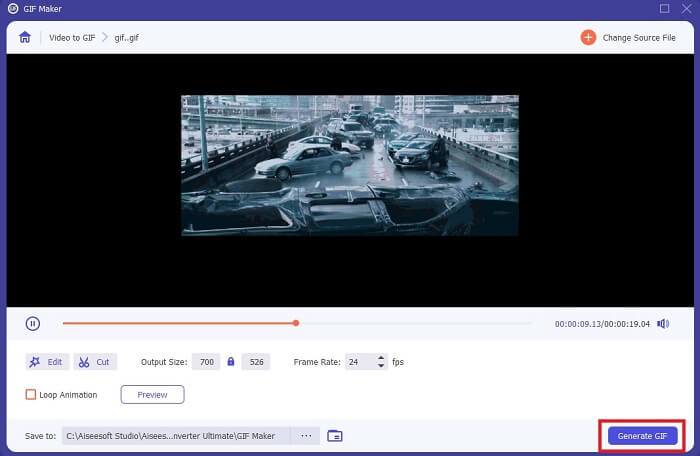
Steg 5. Ändra platsen där du vill spara slutresultatet för att lättare hitta det. Klicka på Generate GIF för att starta konverteringen. När konverteringen är helt klar, leta upp slutresultatet på den plats där du valde att spara det, eller i filhanteraren.
Fördelar
- Ditt verktyg för att använda om du vill förbättra din GIF till en mycket mer interaktiv. Använd din fantasi för att krydda sakerna i dina GIF -filer.
- Det kan göra din GIF till en imponerande produktion med hjälp av de viktigaste funktionerna som den tillhandahåller som den andra premiumversionen inte kan tillhandahålla.
- Mer än en miljon användare väljer det här verktyget som sitt förstahandsval i premiumversionen.
Nackdelar
- För att använda verktyget måste du först betala men det är inte så dyrt. Så du måste förvänta dig inget mindre om du köpte det här verktyget.
- Ladda ner verktyget innan du startar det. Även om du inte har internet kan du fortfarande använda det här verktyget eftersom det inte är internetberoende.
Del 2. Topp 5 bästa GIF Cropper du kan komma åt över Internet
1. iLoveIMG
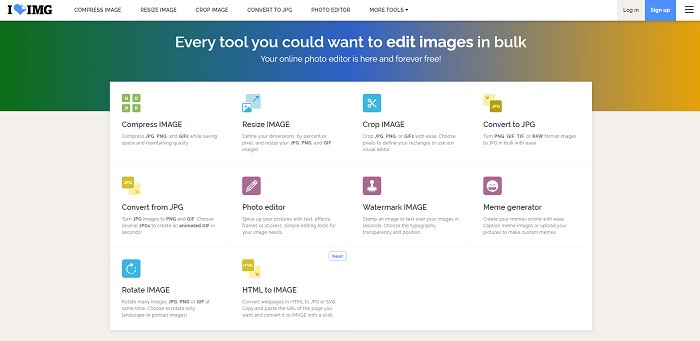
Beskär din GIF med hjälp av denna GIF-beskärare online. iLoveIMG är känd som den bästa online-beskäraren för GIF, JPG och PNG. Verktyget kan dock inte konvertera videor till GIF-format eftersom det bara fokuserar på att förbättra GIF-, JPG- och PNG-filer. Webbsidans gränssnitt är dessutom bättre än förväntat, då det inte bara är enkelt utan också mer interaktivt. Du kan alltså räkna med att inte bli uttråkad när du använder sidan. I betyg får den 7 av 10, vilket är bra för ett webbaserat onlineverktyg.
Fördelar
- Bäst att förbättra din GIF, JPG och PNG.
- Webbplatsens gränssnitt är fantastiskt vackert.
- Du behöver inte ladda ner.
Nackdelar
- Det finns en risk för dataförlust om anslutningen har avbrutits.
- Du kan inte konvertera videoformat till ett GIF -format.
2. RedKetchup
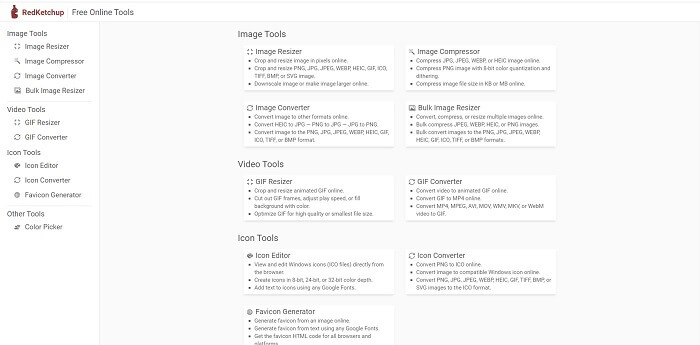
Om iLoveIMG inte passar dig bör du prova den här GIF-beskäraren online. RedKetchup är mycket informativ tack vare de beskrivningar som ges för varje redigeringsverktyg. Därför blir det enklare att förstå hur varje funktion fungerar, även om du inte har någon tidigare kunskap. Du kan också konvertera dina bilder till GIF, PNG, JPG, WEBP och mer. Den stöder fler format än iLoveIMG, men nackdelen med det här verktyget är att webbsidans gränssnitt är ganska tråkigt. Hela bakgrunden på webbplatsen är bara vit, och det enda som har färg är namnet och ikonen RedKetchup.
Fördelar
- Den stöder fler bildformat än iLoveIMG.
- Varje verktygsfunktion har en kort beskrivning så att användaren kan förstå dess funktioner.
- Det är ett gratis onlineverktyg.
Nackdelar
- Webbsidan för det här verktyget är så tråkig att titta på på grund av den monotona färgen på den.
- Det finns en risk att filen inte sparas ordentligt om ditt internet är instabilt.
3. Kapwing
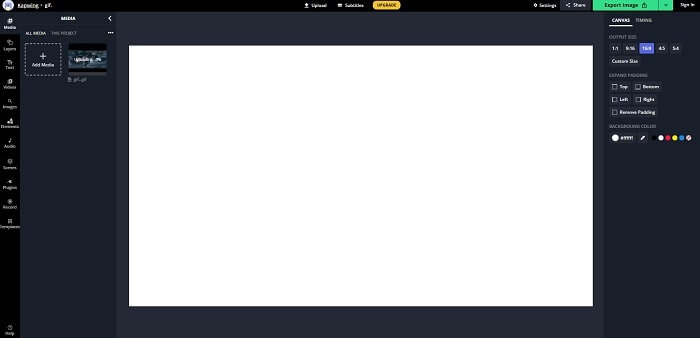
Det här verktyget har nästan samma funktioner som Photoshop, men är webbaserat. Det är den bästa GIF frame cropper online. Kapwing är känt för att skapa de bästa GIF:arna du vill dela med dina vänner. Till skillnad från de två första verktygen ovan stöder detta verktyg vissa videoformat som kan konverteras till GIF-format. Även om det tar lite tid att lära sig använda verktyget är det värt det. Om du vill skapa en enkel GIF är det här dock ett av de bästa verktygen. Det här verktyget har nästan samma funktioner som Photoshop, men är online. Det är den bästa GIF frame cropper online. Kapwing är känt för att skapa de bästa GIF:arna du vill dela med dina vänner. Till skillnad från de två första verktygen ovan stöder detta verktyg vissa videoformat som kan konverteras till GIF-format. Även om det tar lite tid att lära sig använda verktyget är det värt det. Men om du vill skapa en enkel GIF är det här verktyget bäst på just det.
Fördelar
- Gränssnittet på verktygets webbplats ger dig nästan samma atmosfär med Photoshop.
- Konvertera din video till ett GIF -format.
- Grundläggande redigeringsfunktioner tillhandahålls.
Nackdelar
- Bearbetningen av videon slutliga utdata beror alltid på hur snabbt ditt internet är. Så det krävs mycket tålamod för att få fram slutresultatet.
- Du måste registrera dig för att ta bort vattenstämpeln från din produktion. Så förvänta dig ett mail på varje uppdatering som står och några irriterande meddelanden. Eftersom du låter dem komma åt ditt konto.
4. GIFGIF
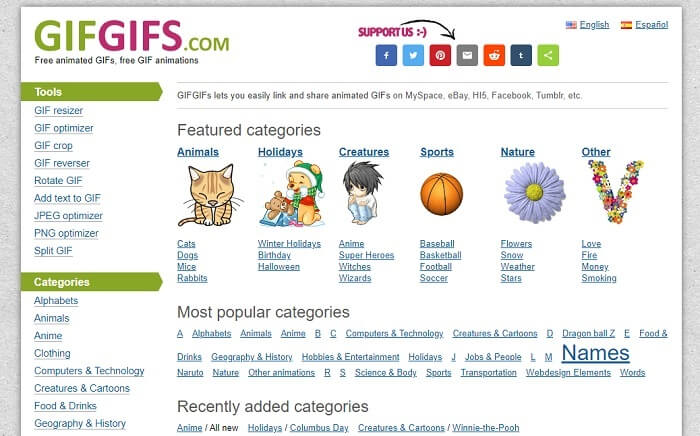
Du kan beskära dina GIF:ar med denna GIF-beskärare utan kvalitetsförlust. GIFGIFs ger dig de bästa redan färdiga GIF:arna online. Du kan välja mellan kategorier som alfabet, sport, anime, kläder osv. Dessutom erbjuder verktyget inte bara de bästa funktionerna för att förbättra dina GIF:ar, utan du kan också optimera JPG- och PNG-filer.
Fördelar
- Det är ett bra val att förbättra din GIF till en bättre.
- Den stöder optimering av JPEG, PNG och GIF.
- Välj redan gjorda GIF -filer i dess kategorisektioner.
Nackdelar
- Det ger ingen sökfält så det är svårt att hitta den perfekta GIF som du vill använda.
- Gränssnittet är okej. Det är inget speciellt eller ska vi säga att det inte är bra men inte dåligt.
5. VEED.IO
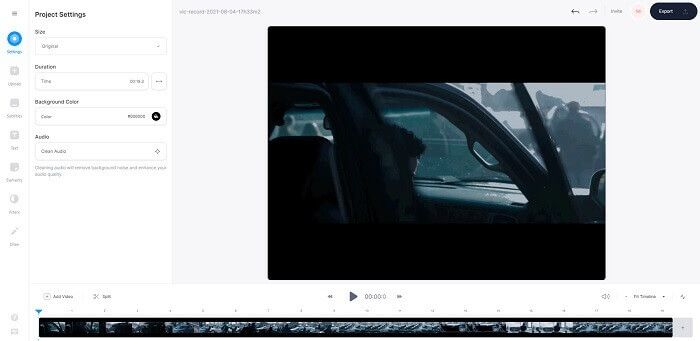
Välj detta som ditt förstahandsval gratis GIF cropper online men det kan också uppgraderas till en premiumversion om du vill. VEED.IO är ett av de bästa onlineverktygen för att förbättra dina GIF -filer till ett bättre. Men den fria versionen av verktyget stöder bara 50 MB GIF -filstorlek och för att lägga till mer filstorlek måste du köpa premiumversionen av verktyget.
Fördelar
- Det ger en bra redigeringsfunktion för att göra din GIF bättre.
- Enkelt användargränssnitt.
- Du kan lägga till undertexter om du vill också.
Nackdelar
- Det ger ingen 3D -tillverkare för att förbättra dina 2D -bilder.
- Vid vissa tillfällen kraschar programvaran när du försöker zooma in på tidslinjen.
Del 3. Vanliga frågor om GIF Cropper
Finns det något bättre format än GIF -formatet?
Även om det är mycket välkänt att GIF är det bästa rörliga bildformatet på webben. Men visste du att det finns ett bättre format än GIF? Detta är APNG. Detta format ger en mer färgpall än GIF och det är också bättre i komprimering. Men du kan också använda WEBP, MNG, FLIF och AVIF.
Vad är anledningen till att GIF -filer skapas?
I slutet av 1987 frågade en man vid namn Steve Wilhite sig själv om det fanns en möjlighet att skapa en bildfil för datorskärm med liten filstorlek – och då föddes GIF-formatet. För att veta mer om GIF kan du klicka här.
Vilken är bättre? JPG eller GIF?
JPG -format ger dig en mer detaljerad bild eftersom den stöder ett brett spektrum av färger så det är bäst på att ta fotografier. GIF ger en liten mängd färgpalett men det är bra på att göra en statisk bild.
Slutsats
För att avrunda diskussionen måste du välja den bästa GIF-beskäraren som ger dig den beskärning du behöver utan att påverka GIF:ens kvalitet, även när du beskär den mycket. Det står dock klart att du bör välja det ultimata verktyget utvecklat av FVC. Det erbjuder de bästa GIF-funktionerna du vill lägga till i din GIF för att den ska se mer iögonfallande ut än andra GIF:ar. Så att beskära din GIF är enklare än någonsin om du använder Video Converter Ultimate.
-
 Handledning för att komprimera GIF och minska filstorleken med hög kvalitet
 Här är två enkla sätt att komprimera GIF på din dator eller mobiltelefon. Du kan använda FVC Free Online Video Compressor och Photoshop minska GIF-filstorleken i olika aspekter.
-
 GIF Player - 5 bästa GIF-spelare för Windows PC, Mac, Android och iPhone
 Vilket program öppnar GIF-filer? Hur ser jag GIF på Android? Har iPhone en GIF-spelare för att öppna GIF? Det här inlägget delar 5 bästa GIF-spelare åt dig.
-
 Hur man konverterar AVI-videor till animerade GIF-filer på Windows / Mac
 Vill du välja de intressanta AVI-segmenten för att skapa GIF-memes? Den här artikeln berättar de 2 bästa metoderna för att klippa AVI-videor och konvertera AVI till animerade GIF-filer gratis.
