


 Video Converter Ultimate
 Skärminspelare
 Video reparation
 Säker nedladdning
Hur man ändrar storlek på GIF:er med hjälp av tillförlitliga och uppdaterade program
GIF:er är en populär typ av bild, men ibland finns det inslag som inte är lämpliga för mediekonsumtion, som svarta ramar, liten skärmstorlek och mycket mer. Därför vill många användare hitta ett program där de enkelt kan ändra storlek på sina GIF:er. Det är här program för ändring av GIF-storlek kommer till nytta. Ta en titt på våra sammanställningar av appar och tips om hur du använder dessa appar för ändring av GIF-storlek. Det hjälper användare som du att förstå bättre och ger dig en bakgrund till dessa program.

Del 1: Varför ändra storlek på en GIF
Ändra storlek på en GIF är en rolig och fruktansvärd uppgift på samma gång. Utan tillgången på applikationer eller program att använda är det en omöjlig uppgift att helt enkelt optimera GIF-filer. Så varför ändra storlek på din GIF? En GIF har ett fast storleksförhållande när det skapas, av den anledningen, när någon skickar en GIF till dig, kanske den inte ens passar in på din skärm eller har en låg kvalitet. Det är därför många användare ändrar storlek på sina GIF-bilder online.
Tips för att ändra storlek på GIF:er:
◆ Använd betrodda applikationer och programvara
◆ Känna till önskat resultat
◆ Producera aldrig ett lägre pixelantal än 720×1280p
Del 2. Hur man ändrar storlek på en GIF på skrivbordet med hjälp av effektiva applikationer
1. Video Converter Ultimate
Video Converter Ultimate är det ultimata verktyget för alla uppgifter du kan tänka dig. Den här appen gör det enkelt och smidigt att ändra storlek på valfri GIF utan att förlora bildens pixelkvalitet och ger dessutom bra rekommendationer för pixelförhållande. Den ger de bäst optimerade animerade GIF:erna som du vill ändra storlek på. Därför är det ett pålitligt och bekvämt program som du kan använda för att redigera dina GIF:er.
Steg 1. Hämta och installera appen
Ladda först ner programmet genom att klicka på knappen Free Download nedan. När nedladdningen är klar installerar du det på din dator. Klicka bara på länken som motsvarar din enhet. Bekanta dig med programmet efter installationen så att du lättare kan navigera i verktyget.
Gratis nedladdningFör Windows 7 eller senareSäker nedladdning
Gratis nedladdningFör MacOS 10.7 eller senareSäker nedladdning
Steg 2. Starta verktyget
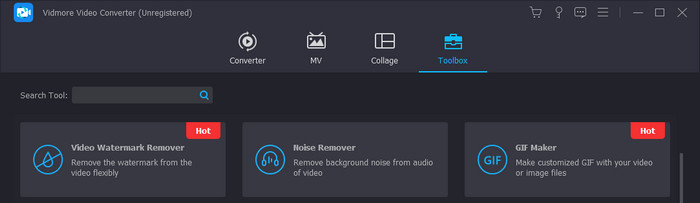
Öppna din Video Converter Ultimate-app på datorn och klicka sedan på alternativet Toolbox. Välj sedan GIF Maker eller sök helt enkelt efter det. Genom att välja detta alternativ kan användare ändra storlek på en GIF utan ansträngning.
Steg 3. Välj process
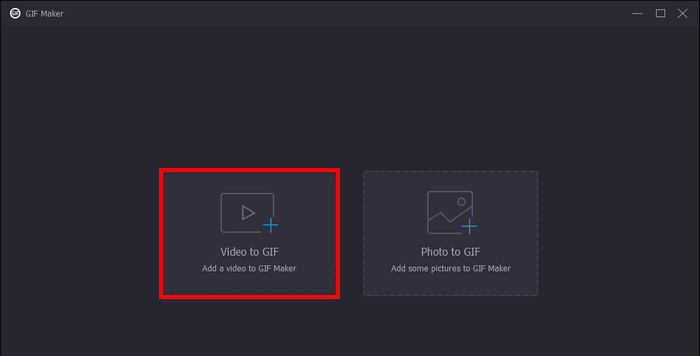
Efter att du har klickat på GIF Maker kan du nu välja vilken process du vill utföra. Välj Video to GIF. Detta gör att du kan importera din GIF-fil för ändring av storlek. Importera dina filer genom att välja dem i din mappkatalog.
Steg 4. Ändra storlek och generera GIF
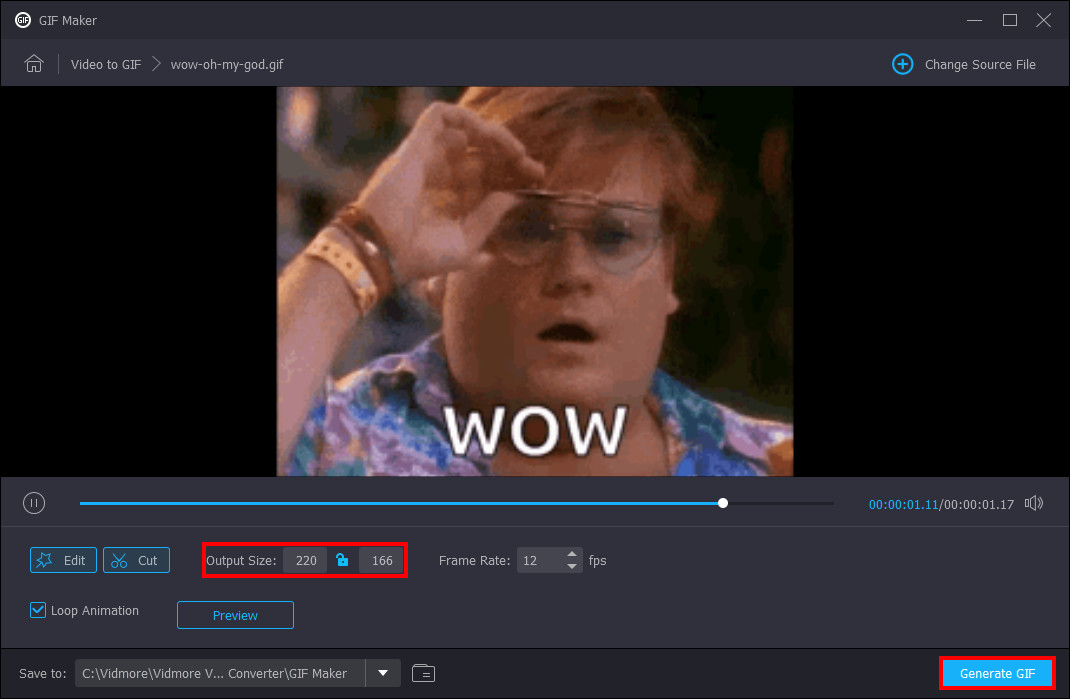
Nu kan du slutligen justera storleken på din GIF. Ändra storlek genom att ange din önskade storlek i storlekspanelen under din GIF. Efter att du har ändrat storlek på din GIF kan du spara och generera din GIF. Klicka bara på knappen Generate GIF i det nedre högra hörnet av programmet.
2. Photoshop
Photoshop är ett program gjord för att redigera och designa bilder. Och nu använder användare också Photoshop för att ändra storlek och beskära bilder. Den här appen kan också göra GIF-filer mindre filstorlekar för bättre diskhantering.
Steg 1. När du har startat datorn högerklickar du på din GIF-fil, väljer open with och klickar på Photoshop.
Steg 2. Markera sedan dina bilder. Tryck slutligen på Ctrl + T på tangentbordet. Använd dra i bilden för att ange den storlek du vill att din GIF ska ha.
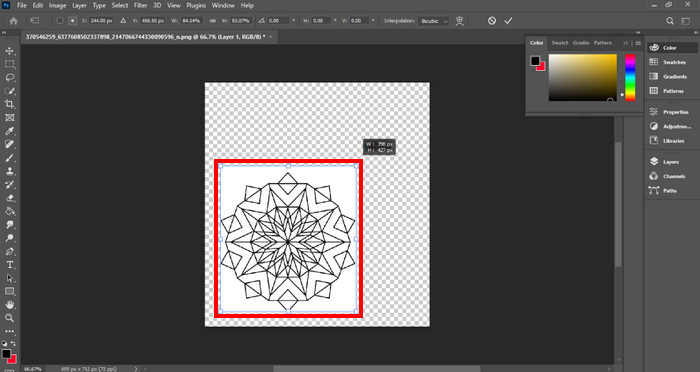
Steg 3. När du har ändrat storlek på din GIF klickar du bara på OK för att tillämpa alla ändringar.
3. Förhandsgranska
Preview är en förinstallerad app i Mac-operativsystemet. Gjord för redigering och visning. Preview har till och med verktygen för att göra GIF-filer till en mindre filstorlek. Det är endast exklusivt på bärbara och stationära Mac-datorer.
Steg 1. När du startat din Mac öppnar du filen genom att högerklicka på den. Klicka sedan på Open With och välj din Preview-app.
Steg 2. När du har importerat din GIF väljer du Tools i menyraden högst upp och väljer Adjust Size för att ändra storlek på din animerade GIF. Här kan du justera Width och Height för din GIF. Redigera efter dina önskemål.
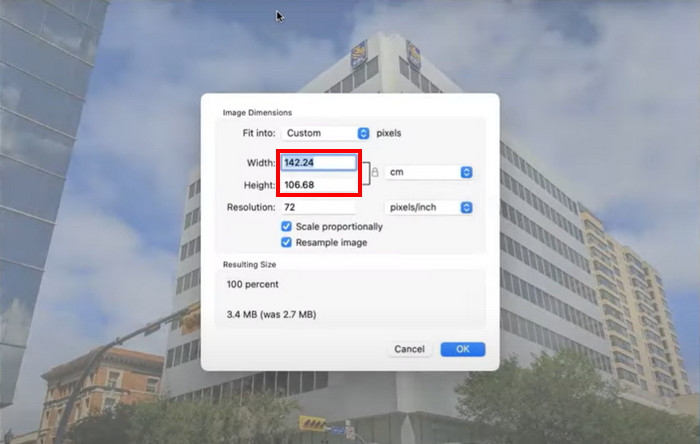
Steg 3. Klicka på OK för att tillämpa alla önskade ändringar. Klicka sedan på cmd + S för att spara din redigerade GIF.
Del 3. Hur man gör en GIF mindre med de 5 bästa gratis onlineverktygen
1. EZGIF
Det här programmet är ett onlinebaserat program som är fördelaktigt för dem som inte har tillräckligt med utrymme på sina enheter. Men det kan vara ett problem för användare som inte har internet hemma. EZGIF kommer med verktyg för att ändra storlek och effekt som kan ändra och ändra storlek på GIF-filer med några få klick. Utrustad med avancerade beskärningsverktyg som kommer att göra din redigeringsprocess mycket effektivare.
Steg 1. När du öppnar länken ser du alternativ som rör GIF:er. Klicka på Resize, detta gör att du kan ladda upp din bild. Klicka på knappen Upload efter att du valt dina filer.
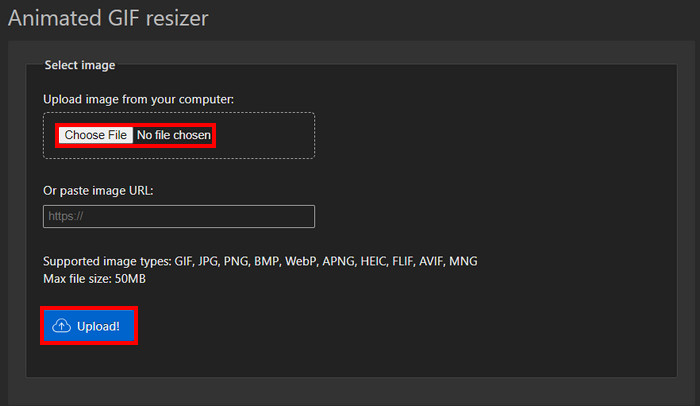
Steg 2. När du har laddat upp dina GIF:er kan du nu redigera och justera storleken på din GIF. Ange bara din önskade storlek i panelen för Width och Height.
Steg 3. När du är färdig med att redigera din GIF kan du ladda ner den. Klicka bara på Convert, så laddas din GIF ned automatiskt.
2. Veed.io
Veed.io är ett webbaserat program som kan skala ner storlekarna på GIF-filer med bara några få knapptryckningar. Ger exklusiva effekter som användare kan applicera på sina GIF-filer. Användare kommer att ha en rolig tid att redigera i detta webbaserade program.
Steg 1. När du går in på webbplatsen ser du en stor knapp med texten Try It, klicka på den. Du kommer då till en sida där du kan ladda upp din GIF.
Steg 2. Ladda upp din fil genom att klicka på den stora knappen Upload. Du kommer då till din mappkatalog där du kan välja din GIF.
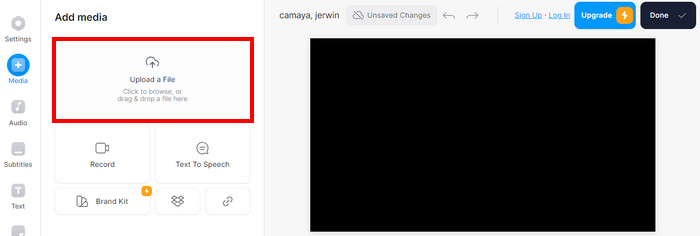
Steg 3. För att ändra storlek på din GIF använder du slider-reglaget nära din bild. När du har ställt in önskad storlek på din GIF kan du ladda ned din GIF genom att klicka på Done och Download.
3. Canva
Canva är ett onlineverktyg som är packat med massor av mallar för GIF:er och presentationer. Ändra storlek på GIF-filer har gjorts enkelt med programvaran som den medföljer. Komprimerad med massor av mallar som ändrar storlek på GIF-filer.
Steg 1. Öppna Canva i din webbläsare och klicka sedan på Create Design för att skapa en ny design. Importera därefter den GIF du vill ändra storlek på genom att klicka på Upload File.
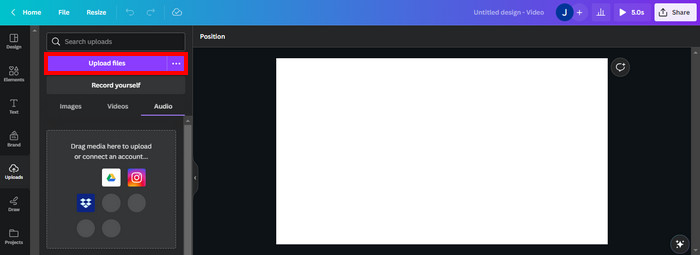
Steg 2. Här visar Canva de inställningar du kan justera för att redigera din GIF. Klicka på Resize för att se och välja vilka storleksalternativ som finns tillgängliga för din GIF.
Steg 3. När du valt storlek på din GIF kan du nu tillämpa storleken genom att klicka på Done. Du kommer då till en annan flik där du kan ladda ned GIF:en genom att klicka på knappen Download uppe till höger.
4. RedKetchup - GIF Resizer
RedKetchup är skapat som ett webbaserat verktyg som kan ändra storlek på och ändra GIF-storlekar för att skapa innehåll. Fullpackad med användbara verktyg för att ändra storlek på GIF-filer, är det ett pålitligt och bekvämt verktyg att använda för att ändra storlek på GIF.
Steg 1. När du går in på webbplatsen möts du av de verktyg som finns där. Klicka på Image Resizer, detta verktyg gör att du fritt kan ändra storlek på din GIF.
Steg 2. Efter att du valt Image Resizer klickar du på Upload för att ladda upp din GIF. Du kommer då till en annan mapp där du kan se dina GIF-filer.
Steg 3. När du har laddat upp din GIF bläddrar du neråt och ser en panel där du kan ange önskad storlek. Ange din önskade storlek.
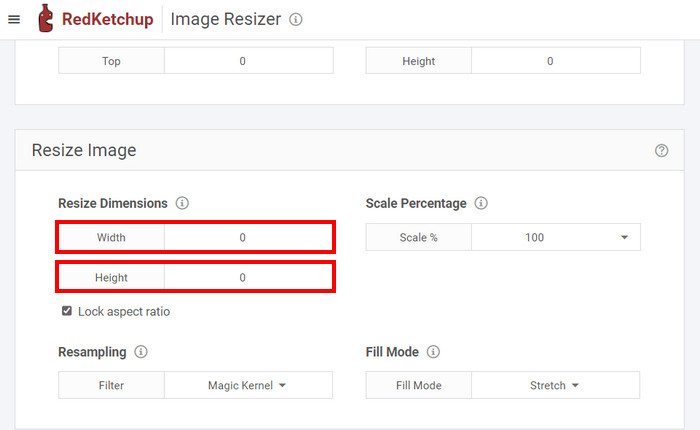
Steg 4. Efter att du har ändrat storlek på din GIF kan du nu ladda ner den genom att bläddra längst ner. Klicka nu på Download för att ladda ner din GIF.
5. Iloveimg.com - Ändra storlek på GIF
Iloveimg.com har ett verktyg som hjälper dig att lära dig hur du optimerar GIF-filstorlek. Det är ett internetexklusivt program som du kan använda för att ändra dina GIF-bildstorlekar.
Steg 1. När du öppnar onlinetjänsten visas de verktyg som finns på sidan. Klicka på Resize Image för att ändra storlek på din GIF.
Steg 2. Här kan du ladda upp din GIF-fil genom att klicka på Select Image. Då öppnas ett nytt mappfönster där du får välja vilken GIF-fil du vill ladda upp.
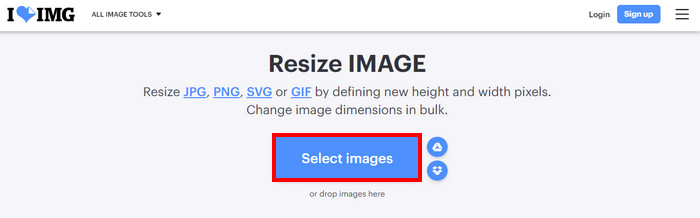
Steg 3. När du har laddat upp filen ändrar du storlek på din GIF genom att ange önskad storlek i panelen Width och Height på höger sida. För att ladda ner din fil klickar du på Resize Images.
Del 4. Hur man ändrar storlek på GIF-filer på iPhone och Android
1. GIF Mini: GIF Editor
GIF Mini: GIF Editor är ett pålitligt program för att ändra storlek och komprimera GIF-filer. Den här appen är tillgänglig på Android och består av många pålitliga verktyg för att skapa och manipulera GIF:er som kan användas för att ändra storlek på en GIF för discord emoji.
Steg 1. När du öppnar appen visas dina filer från ditt galleri. Välj den GIF du vill ändra storlek på.
Steg 2. Efter att du valt din fil klickar du på pennikonen i det övre högra hörnet av appen. Då visas bildens storlek och du kan ändra den. Klicka på storleken för din GIF och ange din önskade storlek.
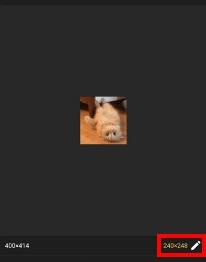
Steg 3. När du har ändrat storlek kan du nu spara. Klicka på knappen Save.
2. Snabb GIF Editor - Beskär, Ändra storlek
Quick GIF Editor är en exklusiv applikation på IOS-enheter. Sammanställt med snabbredigeringsalternativ där en AI kan ta bort bakgrunden på din GIF med en exklusiv uppsättning verktyg. Användare behöver inte söka efter en onlinehandledning om hur man gör en GIF mindre.
Steg 1. Öppna din app och Click Select Image. Detta importerar den bild du valt.
Steg 2. Ändra storlek på din bild genom att klicka på Width and Height Panel under din bild. Justera storleken tills du är nöjd.
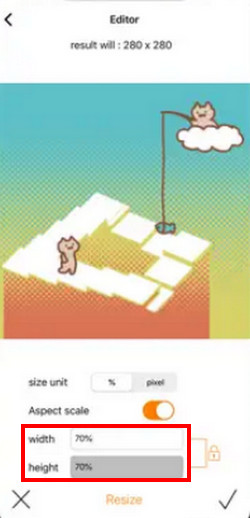
Steg 3. Nu är du redo att spara din GIF. Klicka på knappen Save/Upload uppe till höger i appen.
Vidare läsning:
Välj den bästa GIF-beskäraren online och offline för att beskära GIF:er [2023]
[Gratis & Betald] GIF Speed Changer: hetaste valen 2023
Del 5. Vanliga frågor angående hur man ändrar storlek på en GIF
Har iPhone genvägar för att ändra storlek på GIF-filer?
Nej, men du kan ladda ner en app för att ändra storlek på dina GIF-filer.
Vilken är den bästa GIF-storleken för Discord?
128×128 pixlar är den bästa GIF-storleken för Discord. Att överskrida detta är inte möjligt eftersom det också är den maximala storleken för GIF:er i Discord.
Hur påverkar storleksändring filstorleken på en GIF?
Ändra storlek på din GIF kan ha olika resultat när det gäller filstorleken. Om du skalar upp en GIF kan den öka i filstorlek men sänka kvaliteten. När du skalar ner den kan filstorleken minska.
Vad händer om jag ändrar storlek på en GIF som har genomskinlighet?
Det skulle ha samma transparens men skulle ha en mindre transparens täckning om du skalar ner den. Samma sak skulle hända om du skalar upp det.
Vilken är den idealiska GIF-storleken för webbanvändare?
Bästa GIF-storlek är 720p och den lägsta rekommenderade storleken är 480p.
Slutsats
Att ändra storlek på en GIF har blivit en viktig del för människor som använder internet. Det kan vara krångligt när du precis börjar försöka redigera din första GIF. Det är därför den här artikeln skapades. För att människor som vill redigera sina GIF:er ska veta att det är möjligt att ändra storlek på en GIF i Photoshop eller Video Converter Ultimate.
-
 Handledning för att komprimera GIF och minska filstorleken med hög kvalitet
 Här'är 2 enkla sätt att komprimera GIF. Du kan använda FVC Free Online Video Compressor och Photoshop för att minska GIF-filstorleken i olika aspekter.
-
 Topp 3 sätt att lägga till filter på GIF med de bästa GIF-redigerarna [Favorit]
 Vill du veta hur man lägger till ett filter i GIF för att göra det bättre? I den här bloggen lär du dig enkelt de olika teknikerna för att lägga till filter till dina GIF:er.
-
 Topp 4 offline- och online GIF-förstorare du inte får missa
 Det här inlägget är för dig om du letar efter de bästa GIF-förstoringarna. Vi listade de bästa GIF-förstoringarna online och offline för din dator.
