


 Video Converter Ultimate
 Skärminspelare
 Video reparation
 Säker nedladdning
Adobe Ändra storlek på bilder – enklaste sätten att ändra storlek på en bild online och offline
Om du vill ändra storlek på bilder i Adobe har vi lösningen du letar efter. Adobe är ett känt namn när det gäller applikationer för bild- och videoredigering. Adobe har många program där du kan förbättra, trimma, redigera och mycket mer – you name it! Adobe har nästan alla appar för video- och fotoredigering. Men visste du att Adobe också har ett program där du kan ändra storlek på en bild? Du läste rätt! Adobe Express är ett onlineverktyg för att ändra bildstorlek. Och om du vill ändra storlek offline kan du använda Adobe Photoshop. Nedan går vi igenom verktygen och visar hur du ändrar storlek på bilder med Adobe Express och Adobe Photoshop.
Del 1. Hur man ändrar storlek på bild i Adobe Express Online
Om du gillar att använda en bildstorlek på nätet finns det många verktyg du kan söka på internet. Men att söka på internet är ibland inte det bästa valet eftersom det finns verktyg som inte ger bra kvalitet. Många människor söker också på Adobe Photoshop online för att ändra storlek på bilder. Problemet är att Adobe Photoshop inte har en onlineversion. Så vi kommer att presentera ett annat Adobe-verktyg för att ändra storlek på en bild.
Adobe Express är förmodligen det bästa onlineverktyget för att ändra bildstorlek som du kan hitta på internet. Den här webbaserade applikationen låter dig ändra storlek på en bild genom att välja en skalningsförinställning från alternativen. Du kan välja mellan 9:16 (Story), 1:1 (Square), 4:5 (Portrait) och 1,91:1 (Landscape). Dessutom har den ett enkelt gränssnitt, vilket gör den användarvänlig. Du kan också skala din bild manuellt genom att hålla och dra i reglaget. Vidare, om du vill ändra storlek på en bild för Instagram, Facebook, Twitter eller Pinterest hjälper Adobe Express dig med det. Till skillnad från andra redigeringsappar från Adobe har det här verktyget dock inga andra redigeringsfunktioner.
Så här ändrar du storlek på en bild med Adobe Express:
Steg 1. Öppna din webbläsare och sök efter Adobe Express image resizer i sökrutan. Klicka sedan på knappen Upload your Photo i huvudgränssnittet för att ladda upp bilden du vill ändra storlek på.
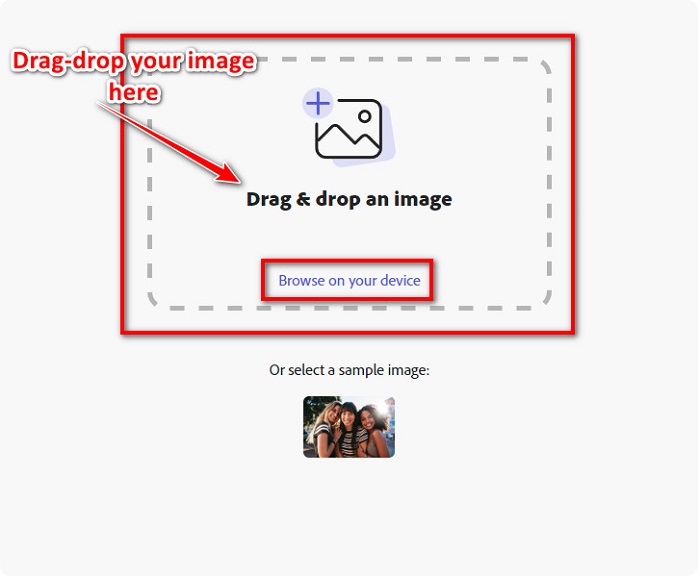
Steg 2. Dra och släpp sedan din bild från mapparna på datorn. Du kan också bara klicka på knappen Browse on your device för att ladda upp en bild.
Steg 3. Välj slutligen var du vill ändra storlek genom att klicka på rullgardinspilen bredvid Resize for. Välj sedan din önskade storlek på vänster sida av gränssnittet. Du kan också ändra storlek på bilden manuellt genom att hålla och dra i reglaget under storleksförinställningarna.
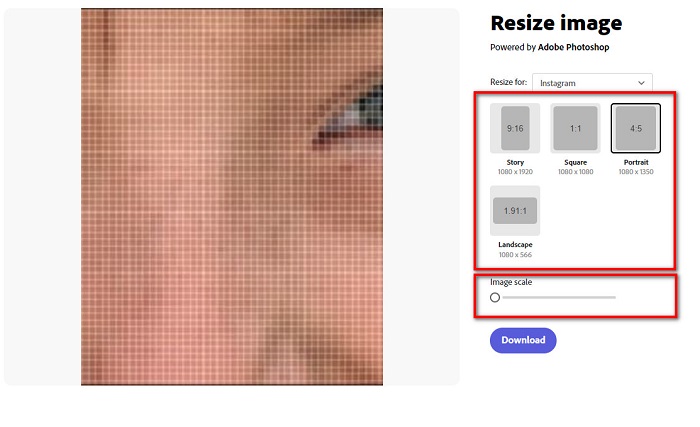
Steg 4. Klicka på knappen Download för att ladda ner din bild med ändrad storlek.
Del 2. Hur man ändrar storlek på bild med Adobe Photoshop Offline
Trots det är det bra att använda ett onlineverktyg eftersom det låter dig spara utrymme på din enhet, men det är fortfarande det bästa valet att använda ett offlineverktyg. De flesta offlinebildomvandlare innehåller många redigeringsfunktioner. Fördelen med att använda offlineverktyg är också att du inte behöver ha tillgång till internet för att ändra storlek på din bild. I den här delen kommer vi att presentera den mest enastående offline video resizer.
Adobe Photoshop är den bästa fotoredigeringsappen du kan ha på din dator. Den här fotoredigeringsappen har många verktyg och funktioner som du kan använda för att redigera dina bilder. Dessutom kan du använda det här verktyget för att ändra storlek på vilken bild som helst. Appen låter dig förbättra digitala bilder, teckningar, målningar och animationer som du kan använda i affärssyfte. Många professionella användare använder dessutom detta bildredigeringsprogram på grund av dess funktioner och den kvalitet det ger.
Vad mer är att du kan använda den här appen för att lägga till text, skapa 3D och lägga till skärpa till din bild. Men nackdelen med Adobe Photoshop är att du måste köpa appen innan du använder den. Och det är också svårt att använda, särskilt för nybörjare. Ändå är den här appen värd sitt pris, och du kommer säkert att njuta av att använda den här appen.
Så här ändrar du storlek på bilder med Adobe Photoshop offline:
Steg 1. Ladda ner Adobe Photoshop på din enhet. Följ sedan appens installationsprocess och kör den på din enhet.
Steg 2. Öppna din bild i Photoshop, gå sedan till Image uppe till vänster i gränssnittet. Välj sedan Image Size.
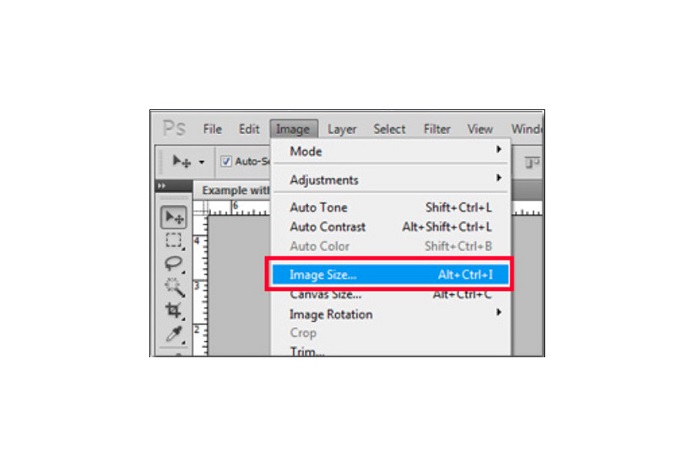
Steg 3. Därefter visas ett nytt fönster där du klickar i rutan bredvid Constrain Proportions.
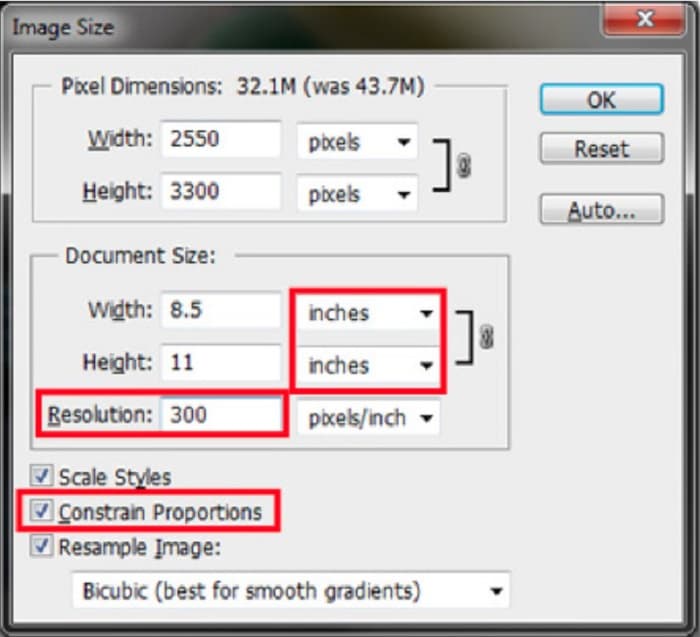
Steg 4. Under Document Size väljer du tum som måttenhet. Se till att upplösningen inte är lägre än 200 pixlar per tum.
Steg 5. Skriv in den bredd och höjd du föredrar för din bild. Markera sedan knappen OK för att spara ändringarna.
Steg 6. Spara till sist din fil på datorn.
Nu när du har lärt dig hur du ändrar storlek på en bild med de bästa Adobe-verktygen för ändring av fotostorlek visar vi dig ett alternativt verktyg för att ändra bildstorlek.
Del 3. Alternativ till Adobe Photoshop om storleksändring av bilder
Eftersom Adobe Photoshop inte är ett användarvänligt verktyg sökte vi efter ett alternativ som du kan använda för att ändra storlek på din bild. Så vi kommer att presentera ett program som du kan ladda ner på din Windows- eller Mac-enhet. Vi kommer också att lära dig hur du ändrar storlek på en bild med denna ultimata app.
FVC Free Image Resizer är ett annat kraftfullt webbaserat verktyg för att ändra bildstorlek som du kan använda om du vill ändra storlek på din bild. Du kan också använda appar för att ändra bildstorlek för att förbättra kvaliteten på ditt foto, och det är precis vad FVC Free Image Resizer gör. Detta onlineverktyg kan förstora din bild upp till 2x, 4x, 6x och 8x. Dessutom stöder det alla bildformat, såsom JPG, JPEG, PNG och BMP. Det som är ännu bättre med denna applikation är dess lättanvända gränssnitt. Dessutom använder den AI-teknik som automatiskt upptäcker suddiga delar av en bild och förbättrar dem.
Så här ändrar du storlek på en bild med FVC Free Image Upscaler:
Steg 1. Sök efter FVC Free Image Upscaler i din webbläsare och gå sedan till appens huvudsida. Tryck på knappen Upload Photo i huvudgränssnittet för att ladda upp bilden du vill ändra storlek på.

Steg 2. När du har laddat upp bilden väljer du den förstoring du vill ha för ditt foto. Du kan välja mellan 2x, 4x, 6x och 8x. Ju högre tal, desto bättre kvalitet.
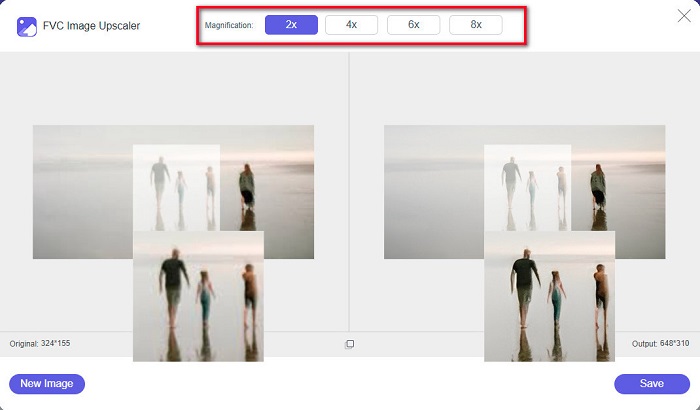
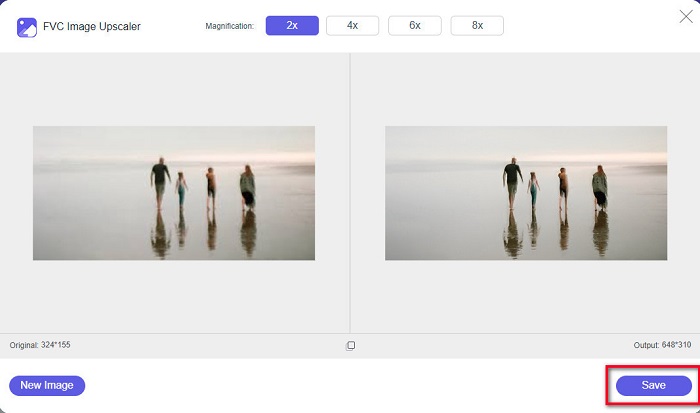
Steg 3. Klicka sedan på knappen Save för att spara ditt resultat på din enhet.
Del 4. Vanliga frågor om hur man ändrar storlek på bild i Adobe Photoshop
Ändrar Adobe storlek på bilder utan förlust?
Med Adobe Photoshop kan du ändra storlek på dina bilder utan att förlora kvalitet. Dessutom producerar den högkvalitativa utgångar.
Vilka filformat stöder Adobe Photoshop?
Adobe Photoshop accepterar nästan alla kända bildformat, som JPG, JPEG, PNG, BMP, TIFF, EPS, PDF och mer.
Vad är priset för Adobe Photoshop?
Du kan köpa Adobe Photoshop för $19,99 per månad. Du kan använda dess 30-dagars gratis provperiod för att testa applikationen först.
Slutsats
Nu när din fråga om Adobe resize images har blivit besvarad kan du ändra storlek på en bild med Adobe Express eller Adobe Photoshop. Oavsett vilket av ovan nämnda program du väljer kan du framgångsrikt ändra storlek på din bild. Men om du vill ha ett enklare och effektivare sätt att både ändra storlek och förbättra en bild, använd då FVC Free Image Upscaler.
-
 Hur man skärper bilden online och offline med 4 enkla sätt
 Det finns många metoder som du kan göra om du vill skärpa en bild. Nedan kommer vi att diskutera de bästa och enklaste sätten att skärpa bilder online och offline.
-
 Restaurering av gamla foton online och offline [enkla steg]
 Vill du återställa ett gammalt foto? Med dessa verktyg kommer du att känna till den gamla fotorestaureringsprocessen. Läs det här inlägget för att lära dig de mest enkla metoderna.
-
 Hur man ändrar storlek på foto för Facebook [snabba och enkla steg]
 Om du har problem med att ladda upp en stor bild på Facebook har vi en lösning för dig. Avsluta den här artikeln för att lära dig hur du ändrar storlek på foton för Facebook.
