


 Video Converter Ultimate
 Skärminspelare
 Video reparation
 Säker nedladdning
Förbättra iPhone-fotoupplösning med de bästa sätten du måste veta [nyast]
Om du behöver en mobil enhet som kan ta bilder i hög upplösning är det ett smart drag att välja en iPhone tack vare dess innovativa, avancerade fram- och bakkamera. Förlåt Android‑användare, men vi måste inse sanningen: kameran i den senaste iPhone‑modellen är mycket bättre. De flesta tar vanligtvis sina bilder med iPhone, men alla bilder blir inte perfekta; vissa behöver justering, redigering, förbättring eller uppskalning. Om du vill förbättra din iPhone-fotoupplösning, följ den här artikeln där vi går igenom allt du behöver veta!

Del 1. Rekommenderat sätt: Hur man ökar fotoupplösningen online med den bästa bilduppskalaren
Hur ändrar man fotoupplösning på iPhone 13? Om det är ditt problem behöver du använda FVC Free Image Upscaler. Allt du laddar upp här skalas omedelbart upp med hjälp av dess avancerade AI‑teknik. Du kan luta dig tillbaka och slappna av när du har laddat upp bilden, eftersom verktyget automatiskt höjer upplösningen på bilden du lägger in. Till skillnad från annan programvara behöver du inte ladda ner något installationsprogram för att använda det. Dessutom kräver FVC inte att du loggar in på något konto, så du riskerar inte att dina uppgifter läcker ut, och det använder inte heller cookies. Om det här verktyget fångar ditt intresse kan du direkt följa stegen nedan för att lösa problemet.
Steg 1. Öppna onlinetjänsten genom att klicka på namnet ovan, så öppnas automatiskt en ny flik som leder dig till den officiella webbplatsen.
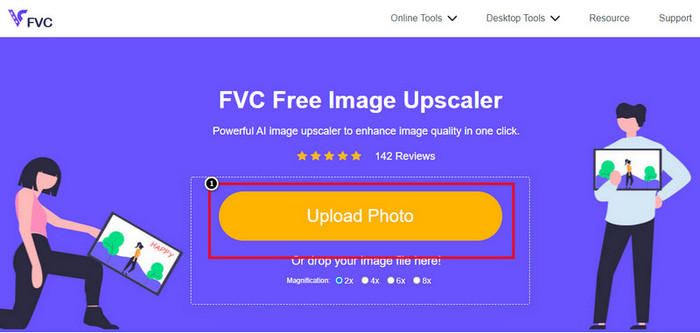
Steg 2. Klicka på Upload Photo för att lägga in bilden du vill skala upp i det här verktyget. När du klickat visas en mapp på skärmen, välj bilden och tryck på Open.
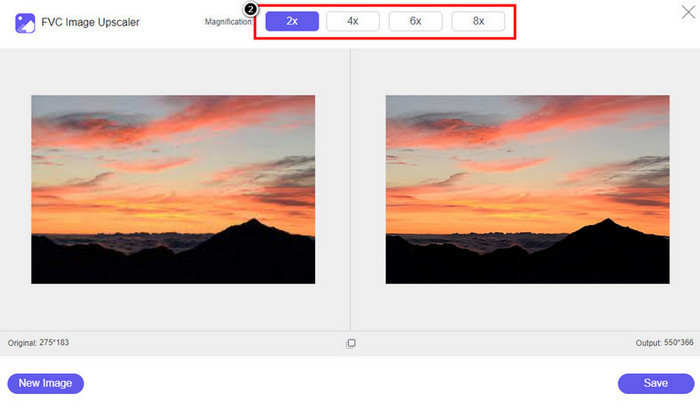
Steg 3. Välj vilken typ av förstoring du vill använda på den förbättrade versionen av bilden; du kan prova alla för att se vilket alternativ som får din bild att se bäst ut.
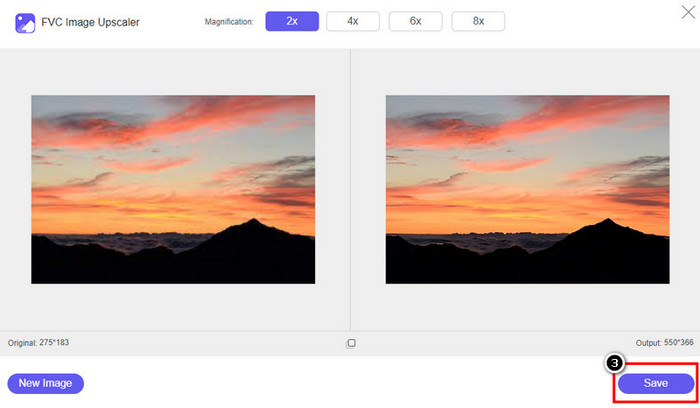
Steg 4. Klicka på Save-knappen för att ladda ner bilden du har förbättrat här; verktyget sparar den direkt i din lokala mapp. Kontrollera den uppskalade versionen av bilden du redigerade här.
Del 2. Hur man ändrar fotoupplösning på iPhone [Förbättra din bildspara enkelt]
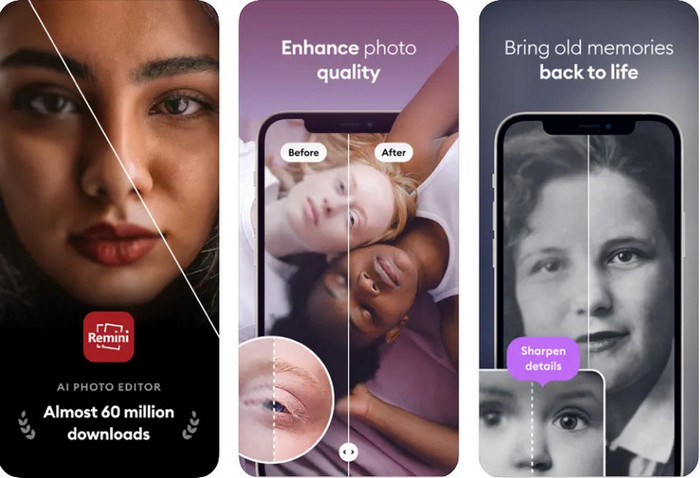
Remini App låter dig ändra upplösningen på bilder på iPhone så att de ser ännu bättre ut. Du kan ladda ner appen från App Store när du besöker den. Den här appen är en komplett bildredigerare som kan hjälpa dig att förbättra bilder och förvandla svartvita foton till färgbilder med ett enda drag. Med appen kan du skala upp valfri bild upp till 4x med hjälp av dess AI‑teknik. Om du vill använda appen kan du följa steg‑för‑steg‑guiden vi ger härnäst.
Steg 1. Ladda ner appen till din iPhone så att du kan börja använda den.
Steg 2. Öppna appen och tryck på Enhance. Välj bilden du vill förbättra från dina Bilder.
Steg 3. Vänta medan bilden du laddade upp bearbetas och förbättras; du kan dra reglaget för att se före‑ och efterläget på bilden.
Steg 4. När den bearbetade bilden är klar trycker du på Save-knappen för att ladda ner bilden du har förbättrat.
Del 3. Hur man ändrar fotoupplösning på Android [Förbättra bilder effektivt]
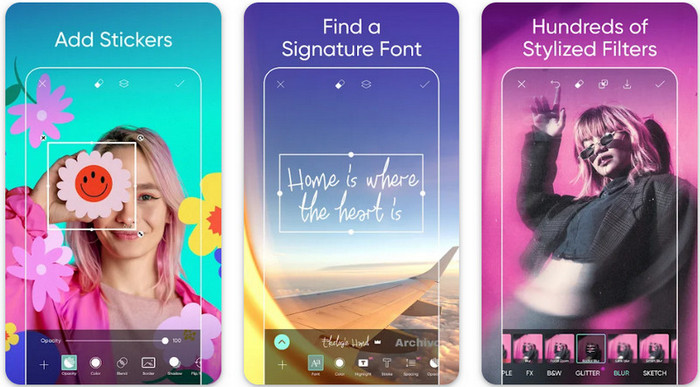
Hur ändrar man bildupplösning på Android? Om du vill höja upplösningen på bilder du tar med din Android kan du prova att använda Picsart. Det är en välkänd app du kan ladda ner till din Android för att redigera bilder och få dem att se bättre ut. Appen är full av funktioner som du kan dra nytta av. Förbättringen vi visar här är inte den typiska metod du kanske tänker på, men den kan höja bildernas kvalitet. Följ den detaljerade informationen nedan för att få veta mer!
Steg 1. Ladda ner appen via Play Store och starta den. Välj bilden du vill förbättra och ladda upp den.
Steg 2. Gå till Effects, klicka på Blur, dra oskärpereglaget till 5 till 10 och tryck på check-ikonen för att spara.
Steg 3. Öppna Tools och gå till Curve.
Steg 4. Justera kurvan genom att dra den uppåt och nedåt för att få bildens upplösning att se bättre ut.
Steg 5. Tryck på check-ikonen för att spara ändringarna du gjort i bilden genom att böja kurvan, och Exportera den sedan.
Del 4. Hur man justerar kamerainställningarna för att ta bättre bilder! [Tips och tricks]
Hur ökar man upplösningen på ett foto på en iPhone för att få ett bättre bildporträtt? Inte alla funktioner presenteras i kameraappen på din iPhone. Några av de för att göra din bildkvalitet bättre är inställningar. Är du intresserad av hur man hanterar detta problem? Fortsätt sedan med att läsa informationen vi lägger till nedan.
Steg 1. Gå till Inställningar och öppna Kamera‑appen.
Steg 2. Klicka på Format.
Steg 3. Ställ in slutformatet på Most Compatible, alltså JPEG. Varje gång du tar en bild sparas den då i JPEG‑format, som vi alla vet använder en förlustkomprimering men ändå ger hög bildkvalitet.
Relaterat:
Hur man fixar HEIC‑foton med de bästa verktygen
Bästa apparna för att ta bort skavanker i foton och få silkeslen hy på bilder
Del 5. Vanliga frågor om hur man ändrar fotoupplösning på iPhone
Vad gör att bildkvaliteten på iPhone blir dålig?
Det finns många faktorer du behöver tänka på vad som kan vara problemet. Innan du tar en bild, se till att du rengör linsen på din iPhone och har en stabil hand, eller så kan du använda ett kamerastativ och använda hög ISO för rörliga föremål. Om du har gjort det och fortfarande har dålig kvalitet kan du använda verktygen som vi tar in i den här artikeln.
Blir filstorleken stor om du ändrar bildkvalitet?
Faktum är att bildkvaliteten blir högre efter att du förbättrat den. När du lägger till pixlar till bilden, efter att du har förbättrat den, blir filstorleken för den förbättrade versionen också större.
Är det lätt att ändra fotoupplösning på iPhone?
Ja, du behöver inte ha många års erfarenhet för att förbättra fotoupplösningen på din iPhone, så om du vill veta hur du gör det kan du kopiera stegen vi lägger till ovan och de verktyg vi introducerar som du kan använda.
Slutsats
Nu har vi en tydlig bild av hur man gör iPhone-fotoupplösning ännu bättre än tidigare med hjälp av dessa specialiserade appar! Vi hoppas att den här artikeln har hjälpt dig att lösa problemet med olika lösningar för både iPhone och Android. Alla ogillar dålig bildkvalitet, så vi är här för att åtgärda det. Följ stegen ovan för att bli klar på nolltid!
-
 Hur man konverterar lågupplöst bild till högupplöst online
 Om du vill lära dig hur du konverterar lågupplösta bilder till högupplösta bilder online, då är den här artikeln för dig. Läs hela för att lära dig hur.
-
 Topp 6 fläckfotoborttagare du måste ha nu [2022]
 Behöver du en fotofläcksborttagare för att få en slät hud? Oroa dig inte mer! Här kommer vi att introducera olika verktyg som kan hjälpa din enhet.
-
 Ta bort StarUML-vattenmärket med den gratis och betalda versionen du kan använda
 Vill du ta bort StarUML-vattenstämpeln på den slutliga utgången? Tja, det finns två sätt att göra det, och låt oss diskutera dem här.
