


 Video Converter Ultimate
 Skärminspelare
 Video reparation
 Säker nedladdning
Hur man redigerar bildens klarhet på mindre än en minut med tips och tricks
Varje fotoentusiast vill att bilden de tar ska se bäst ut bland alla andra foton som andra fotografer har tagit. Med olika tekniker kan du enkelt göra det, skärpa bilden och lägga till intensiva färger för att göra den mer detaljerad. Men vad händer om du vill lägga till lite krispighet i bilden? Eller vill du jämna ut allting? Det är där klarhet kommer in. Med den kan du justera mellantoner och kontrast i din bild för att ge den där extra skjutsen som gör att den ser fantastisk ut. Är du intresserad av att lära dig hur man gör? I så fall kan du läsa informationen vi har här och lära dig hur man redigerar klarheten i foton.

Del 1. Hur man förbättrar bildens klarhet gratis online genom att skala upp bilder
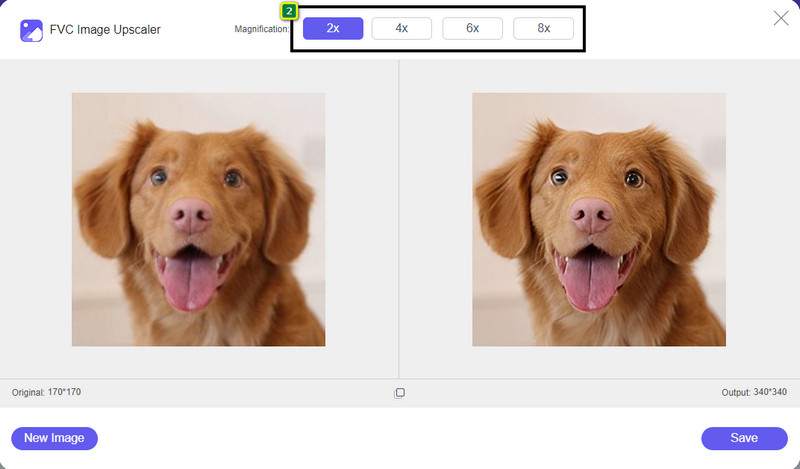
FVC Free Image Upscaler är den bästa appen för fotoklarhet som du kan använda direkt i webbläsaren utan att ladda ner några filer till din dator. Den här appen kan förbättra bildkvaliteten och förhöjer fotots kvalitet på ett sätt du aldrig har sett tidigare. Även om du inte är tekniskt kunnig kan du snabbt lära dig hur du använder programmet på mindre än en minut. Om du vill prova det här programmet kan du följa handledningen vi har lagt till nedan.
Steg 1. Gå till den officiella webbplatsen för denna upscaler genom att klicka på den här länken.
Steg 2. Importera bilden du vill göra tydligare genom att klicka på Upload Image. En mapp öppnas där du kan leta upp filen och trycka på Open.

Steg 3. När bilden har laddats upp väljer du det alternativ du vill använda för att förbättra bildens klarhet.
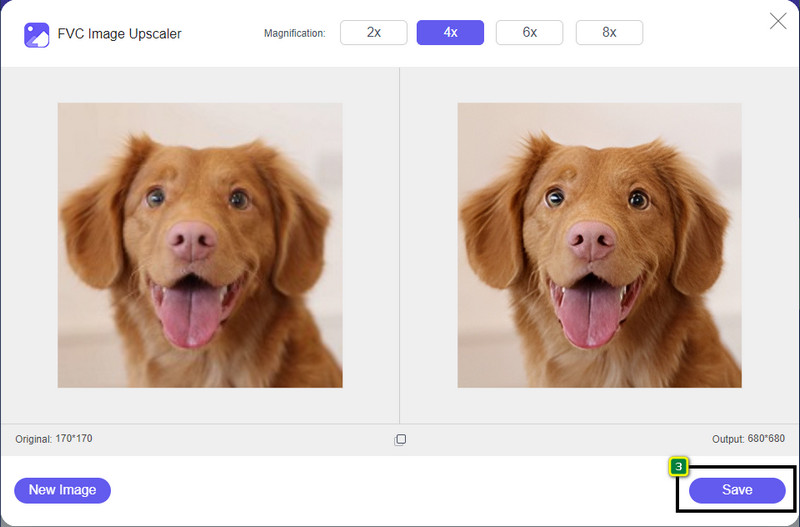
Steg 4. När du har förbättrat klarheten klickar du på knappen Save för att ladda ner den bild du har förbättrat här.
Del 2. Hur man snabbt ökar bildens klarhet i Photoshop
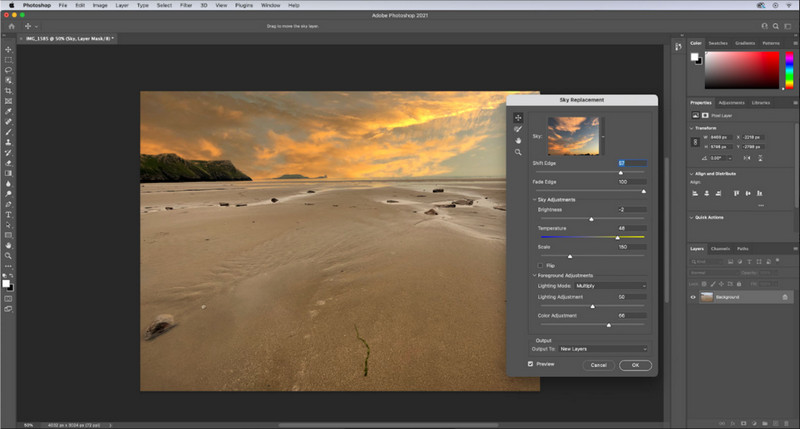
Adobe Photoshop är appen för fotoklarhet du bör ladda ner om du vill ha ett professionellt verktyg på din enhet. Det här verktyget erbjuder heltäckande bildredigeringsfunktioner så att du kan få din bild att se bättre ut genom att justera inställningarna och imponera på dem som ska se den. Det finns inte många program som kan ge dig samma prestanda som detta. För att förbättra klarheten i din bild behöver du justera kontrast och mellantoner. Vill du veta hur man gör? Följ handledningen nedan.
Steg 1. Ladda ner Adobe Photoshop och öppna programmet. Börja med att ladda upp bilden genom att klicka på File och sedan Open.
Steg 2. Högst upp klickar du på Image, under det väljer du Adjustment och därefter Brightness/Contrast.
Steg 3. En dialogruta visas på skärmen; ändra bildens kontrast genom att dra i reglaget. Du kan fritt flytta det för att öka eller minska kontrasten, vilket påverkar klarheten.
Steg 4. Tryck på OK för att spara ändringarna i din bild; de tillämpas automatiskt.
Del 3. Hur man förbättrar skärpan i ett foto på Adobe Lightroom på mindre än en minut
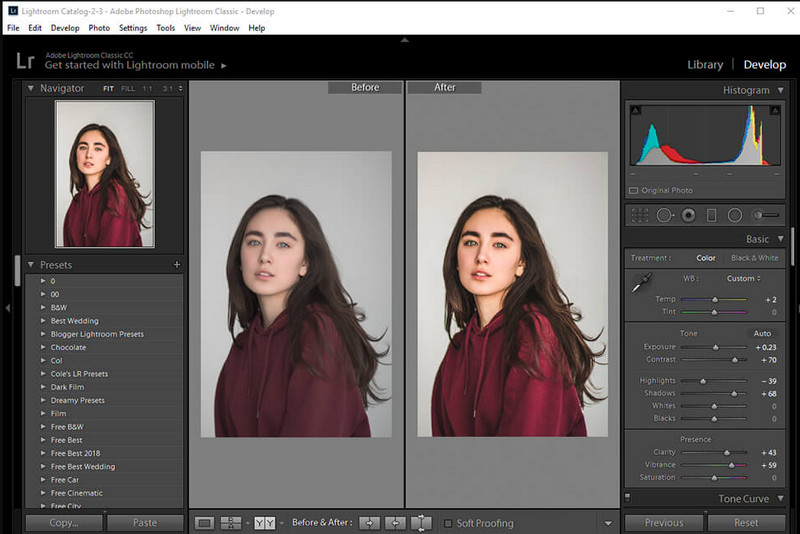
Till skillnad från Photoshop har Adobe Lightroom ett pålitligt klarhetsreglage som du kan använda för att öka bildkvaliteten och göra bilden mer detaljrik med tydligare färger när du ökar värdet, eller mjukare när du sänker det. Både Photoshop och Lightroom utvecklas av Adobe, så du kan vara helt säker på ett professionellt resultat. Du kan följa stegen nedan för att lägga till klarhet i foton och förbättra färgerna i dina råbilder.
Steg 1. Ladda ner och installera den officiella programvaran från Adobe, starta programmet och ladda upp bilden du vill arbeta med.
Steg 2. Öppna modulen Develop för att visa alternativen där du kan börja lägga till klarhet i din bild.
Steg 3. Under avsnittet Presence drar du reglaget för Clarity till den procentsats du vill använda. Du kan också justera andra inställningar för att få bilden att se mer detaljrik ut och bättre än originalet.
Del 4. Tips om att redigera bilder Tydlighet du måste känna till
Nu när du har den bästa appen för fotoklarhet som du kan använda på webben, och offline, kommer följande information att ge dig tips om hur du justerar skärpan i en bild.
Tips 1. GÅ INTE ÖVERTRÄCKAD PÅ TYDLIGHET!
Vad menar vi med detta? Dessa medel ger inte för mycket klarhet till din bild, för den kommer att förvandlas till en kornig. Alla gillar inte att ha en kornig bild, så öka den inte för mycket. Minska inte heller skärpan till maximal potential för att undvika att bilden ser suddig ut.
Tips 2. Kontrast och klarhet är inte samma sak
Kontrast och klarhet är ofta kända på samma sätt, men det är de inte. Om du justerar en bilds klarhet justerar du mellantonen i den och sedan ett visst område. Om du använder kontrast ändrar, framhäver och skuggar du hela bilden.
Tips 3. Känn till syftet med klarhet på bilder innan du lägger till det
Många bildredigerare studerade dessa alternativ som de kan justera för att förbättra bilden, såsom klarhet, exponering, gamma och många fler. Så om du är en ny användare är det bättre att veta syftet med klarheten innan du applicerar den på bilden. Dessutom, om du läser information om klarhet, kommer du att veta om det är rätt alternativ att justera för att få bilden att se bättre ut. Om inte, lägg inte till klarhet.
Tips 4. Använd Clarity i stor skala
Om du har att göra med en bild i liten skala är det bättre att skärpa dem istället för att ändra dess klarhet. Det hjälper dig att skärpa kanterna på ditt foto enkelt och bättre. Men om bilden du har betraktar du som en stor skala, då är det bättre att använda klarheten.
Del 5. Vanliga frågor om hur man redigerar foton
Varför blir min bild kornig efter att ha lagt till klarhet?
Om du har ställt in klarheten till 100%, så kommer möjligheten att ha en kornig bild utan tvekan att hända. Vi föreslår att du ställer in procenten till 40% till 70%; du kan gå högre beroende på dina önskemål.
Behöver jag en redigerare för att göra foton tydligare?
Du måste faktiskt ladda ner eller använda programvara för att göra din bild klarare. Många program säger att den kan justera klarheten, men låt dig inte luras av dem. Du kan använda programvaran som vi lägger till i den här artikeln eftersom vi bevisar att de kan ändra klarheten i din bild för att göra den mer detaljerad än tidigare.
Kan jag lägga till kontrast till bilden för att göra den tydlig?
Ja, du kan lägga till kontrast till bilden för att göra den tydligare och mer presentabel. Men om du vill vara mer exakt i stället för att påverka hela bilden är det bättre att justera klarheten i den.
Slutsats
Vi hoppas att den här artikeln lärde dig hur du redigerar klarhet på foton med olika verktyg och steg som lagts till. Om du tycker att vi gjorde ett bra jobb skulle vi älska det om du gav oss 5-stjärnor nedan. Tack för att du läser den här artikeln!
-
 Hur man ökar upplösningen på bilden [5 sätt att förbättra]
 Har du problem eftersom upplösningen på din bild är låg? Oroa dig inte mer! Här kommer vi att lära dig hur du ökar upplösningen på bilden.
-
 Gör iPhone-fotoupplösning bättre med de bästa förbättrarna
 Vill du behöva förbättra iPhone-fotoupplösningen? Tja, i den här artikeln tar vi upp de bästa verktygen du kan använda och andra knep du måste känna till!
-
 Restaurering av gamla foton online och offline [enkla steg]
 Vill du återställa ett gammalt foto? Med dessa verktyg kommer du att känna till den gamla fotorestaureringsprocessen. Läs det här inlägget för att lära dig de mest enkla metoderna.
