


 Video Converter Ultimate
 Skärminspelare
 Video reparation
 Säker nedladdning
Ultimata instruktioner för att ta bort Canva Watermark [Löst]
Online- och professionella användare som ofta behöver skapa högkvalitativa fotografier, presentationer och videor använder ofta Canva. Det här programmet har många fördelar, bland annat ett stort utbud av verktyg, mallar, designer, teman och mycket mer. Tyvärr har Pro‑elementen nu vattenstämplar. Pro‑elementen kräver betalning för att kunna användas utan vattenstämpel. Som tur är visar det här inlägget dig de bästa metoderna du kan prova för att ta bort Canva‑vattenstämplar utan att köpa Pro‑elementen. Läs därför igenom artikeln för att få en uppfattning om hur man tar bort Canva‑vattenstämplar.

Del 1: Bästa onlineverktyget för att ta bort Canva vattenstämplar
Om du vill lära dig hur man tar bort Canva‑vattenstämplar gratis kan du använda FVC Free Watermark Remover. Det här webbaserade verktyget kan ta bort vilket objekt som helst från ditt foto utan att du behöver spendera en enda krona. Det kan också radera dina Canva‑vattenstämplar enkelt med hjälp av vattenstämpelborttagningsverktyg som Brush, Polygonal och Lasso. Dessutom kan du också ta bort vattenstämplar med beskärningsverktyget, särskilt när vattenstämpeln sitter i kanten på fotot. Du behöver inte heller oroa dig för vilka bildformat som stöds, eftersom det nästan stöder alla format, såsom JPG, PNG, BMP och fler. Med sitt intuitiva gränssnitt och grundläggande metoder kan vi säga att FVC Free Watermark Remover är perfekt för alla användare, även nybörjare. Den här delen hjälper dig att ta bort Canva‑vattenstämplar från ditt foto med alla vattenstämpelborttagare, såsom Brush-, Lasso- och Polygonal‑verktygen.
Du kan använda borstverktyget om du vill ta bort vattenstämplar som om du bara borstar dem. Du kan till och med ändra storlek på borststorleken baserat på dina önskemål. Du kan använda lassoverktyget för att välja inneslutna delar av bilder eller former. Slutligen kan du använda verktyget Polygonal om du vill markera vattenstämplarna som en rektangelform för att enkelt ta bort dem utan att följa vattenstämpelns mönster.
Använder Brush Tool
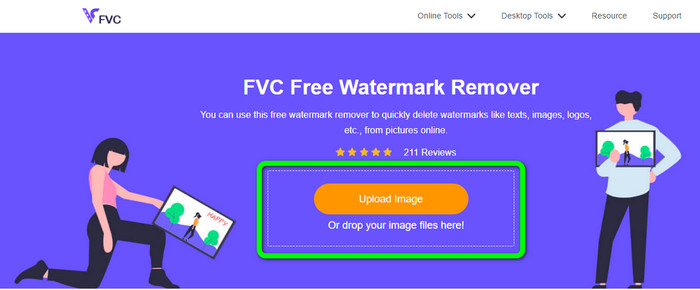
Steg 1: Det första du måste göra är att gå till webbplatsen för FVC Free Watermark Remover. Klicka sedan på knappen Upload Image för att ladda upp din bild med en Canva‑vattenstämpel. Ett annat sätt att ladda upp ett foto är att dra din bildfil till rutan.
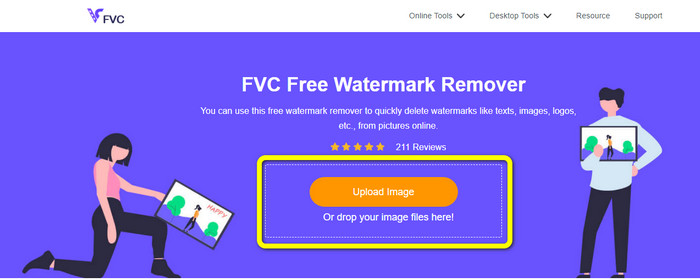
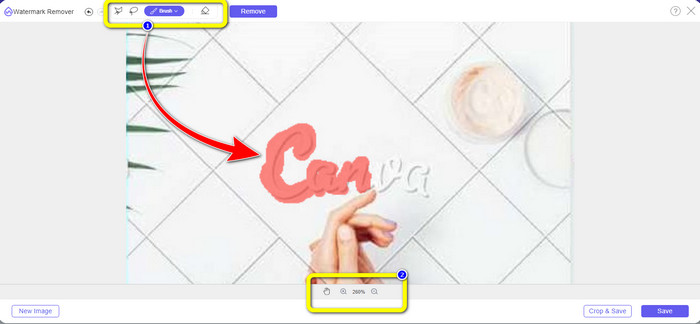
Steg 2: I den första rutan ovan väljer du verktyget Brush. Använd sedan det här verktyget för att markera Canva‑vattenstämplarna på ditt foto. Under Brush‑verktyget kan du ändra storleken på din pensel. Du kan zooma ut och in i den andra rutan nedan för att se små vattenstämplar.
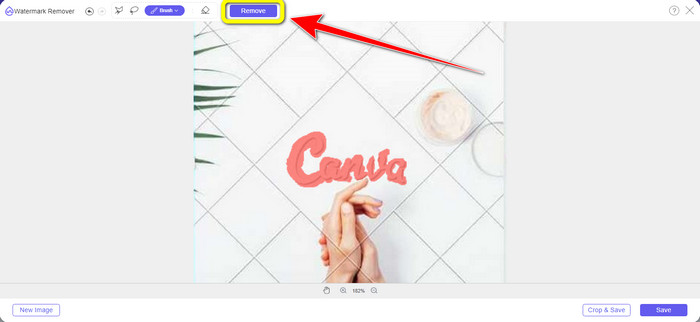
Steg 3: När du är klar med att markera Canva‑vattenstämplarna på ditt foto klickar du på knappen Remove så att programmet kan börja ta bort dem. Vänta sedan några sekunder.
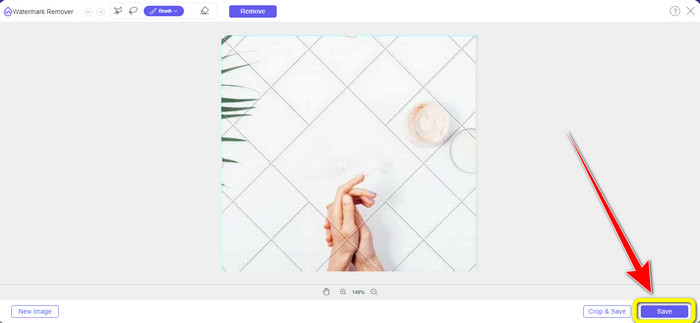
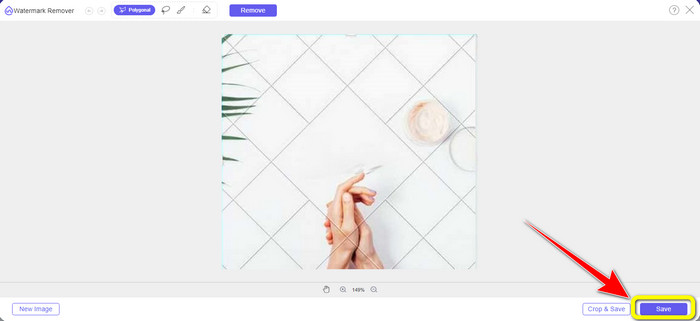
Steg 4: Efter borttagningsprocessen kan du se att Canva‑vattenstämpeln redan är borta. Klicka på knappen Save för att spara ditt foto.
Använder Lasso Tool
Steg 1: När du har laddat upp din bild med en Canva‑vattenstämpel väljer du verktyget Lasso från verktygen för att ta bort vattenstämplar. Använd sedan musen för att markera Canva‑vattenstämpeln.
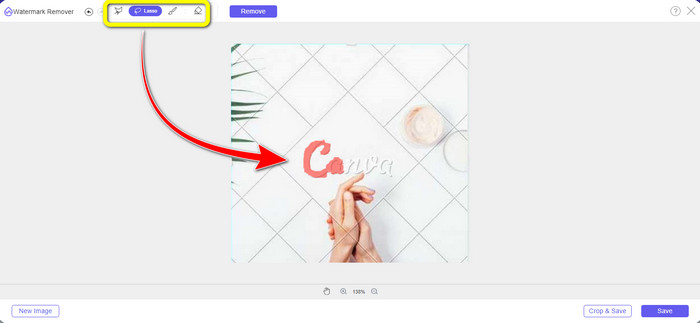
Steg 2: I den gula rutan under fotot kan du klicka på ikonen + eller - för att förstora bilden så att du ser den tydligt. Klicka sedan på knappen Remove när du är klar med att markera Canva‑vattenstämpeln med Lasso‑verktyget.
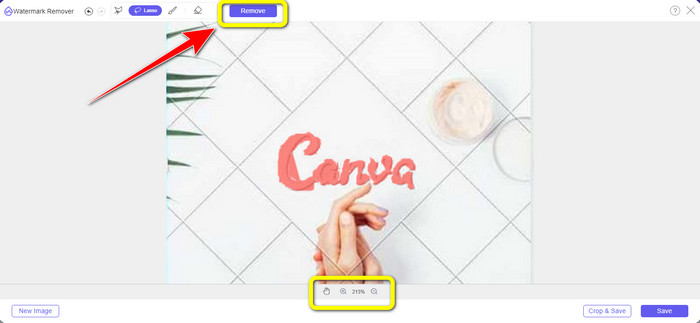
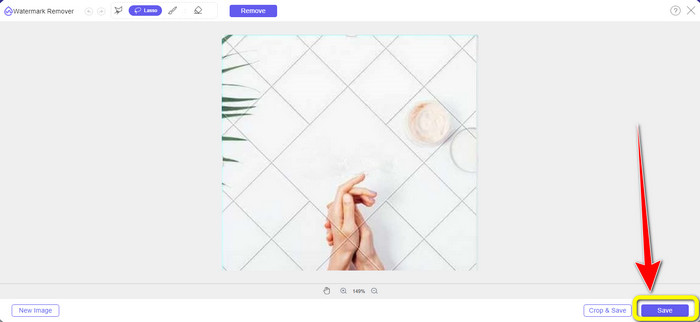
Steg 3: Efter borttagningsprocessen och när Canva‑vattenstämpeln är borttagen klickar du på knappen Save för att spara ditt slutliga foto.
Använda Polygonal Tool
Steg 1: När du har lagt till ditt foto i FVC Free Watermark Remover väljer du verktyget Polygonal bland verktygen för att ta bort vattenstämplar.
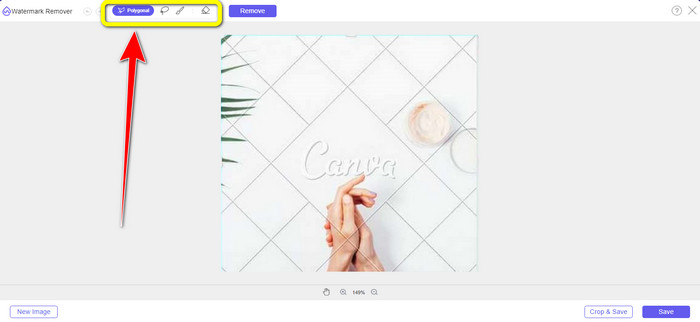
Steg 2: Använd i det här steget Polygonal‑verktyget för att markera Canva‑vattenstämpeln i din bild.
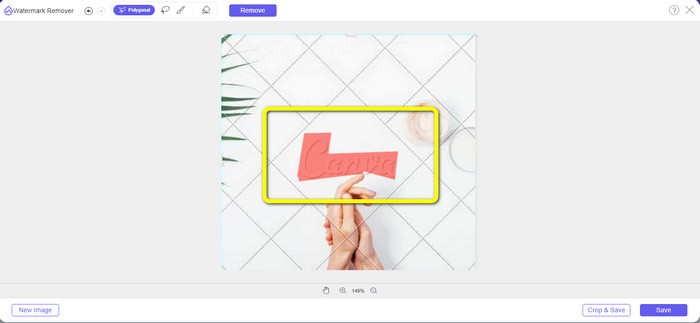
Steg 3: Efter markeringsprocessen kan du redan ta bort Canva‑vattenstämpeln genom att klicka på knappen Remove.
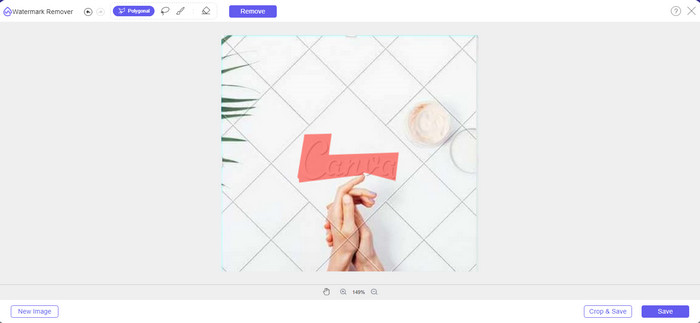
Steg 4: Efter borttagningsprocessen kan du gå vidare till nästa och sista steg: spara ditt foto genom att klicka på knappen Save.
Med dessa tre verktyg för borttagning av vattenstämplar kan du snabbt ta bort Canva-vattenstämplarna från ditt foto. Låt oss använda beskärningsverktyget den här gången för att ta bort Canva vattenstämpel från din bild.
Använda beskärningsverktyget
Verktyget Cropping är det bästa sättet att skära bort vattenstämplar, särskilt om vattenstämpeln sitter vid kanten eller hörnet av fotot. Följ guiden nedan för att lära dig hur man tar bort Canva‑vattenstämplar med hjälp av Cropping‑verktyget.
Steg 1: Klicka på knappen Upload Image. Då visas din mapp på skärmen. Välj bilden med Canva‑vattenstämpeln som du vill ta bort.
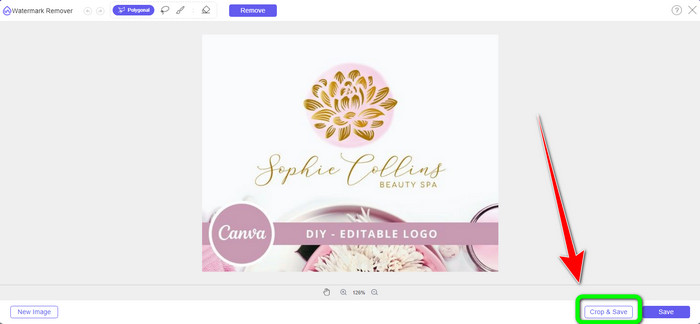
Steg 2: När du har valt din bildfil klickar du på knappen Crop&Save. Gå sedan vidare till nästa steg.
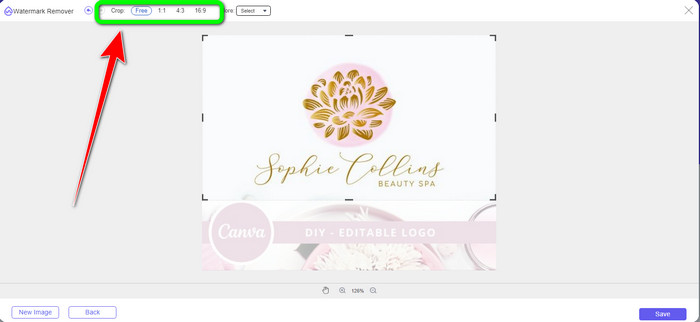
Steg 3: I den här rutan kan du välja hur du vill beskära fotot. Om du väljer alternativet Free kan du dessutom beskära din bild manuellt precis som du vill.
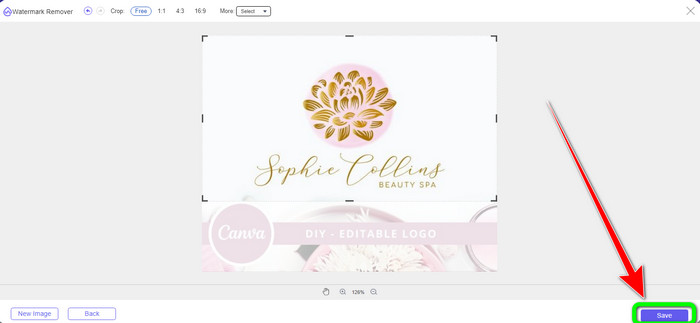
Steg 4: När du har beskurit fotot för att skära bort Canva‑vattenstämpeln kan du klicka på knappen Save för att spara din slutliga bild.
Del 2: Ta bort Canva Watermarks med Photoshop
Ett annat sätt att ta bort Canva vattenstämpel från bilder är att använda Adobe Photoshop. Det kan också radera alla störande föremål från ditt foto, inklusive vattenstämplar, logotyper, text, klistermärken och mer. Dessutom har det här verktyget en snabb borttagningsprocess, så du behöver inte spendera mer tid på att eliminera oönskade föremål från ditt foto. Dessutom används programvara som Adobe Photoshop flitigt för grafisk design, rasterbildsredigering och digital konst. Skiktläggning ger djup och mångsidighet till utvecklings- och redigeringsprocesserna och tillhandahåller viktiga redigeringsverktyg som, när de kombineras, kan ge enastående resultat. Adobe Photoshop är dock inte lätt att använda, speciellt om du är en ny användare. Photoshop är ett avancerat redigeringsprogram lämpligt för avancerade användare. Det betyder att icke-professionella användare kommer att tycka att det är komplicerat när de använder verktyget. Dessutom är Adobe Photoshop inte gratis. Det kan bara erbjuda en sju dagars gratis provperiod. Sedan måste du köpa applikationen för att kunna använda den kontinuerligt.
Följ stegen nedan för att ta bort Canva vattenstämpel med Adobe Photoshop.
Steg 1: Ladda ner Adobe Photoshop på din dator och installera det. Starta sedan programmet.
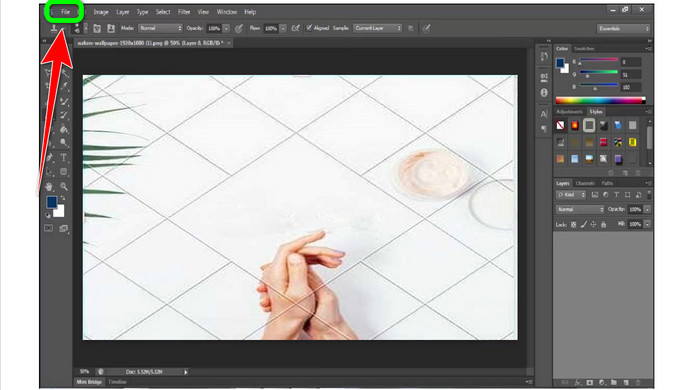
Steg 2: Gå till File > Open för att infoga fotot med Canva‑vattenstämpeln.
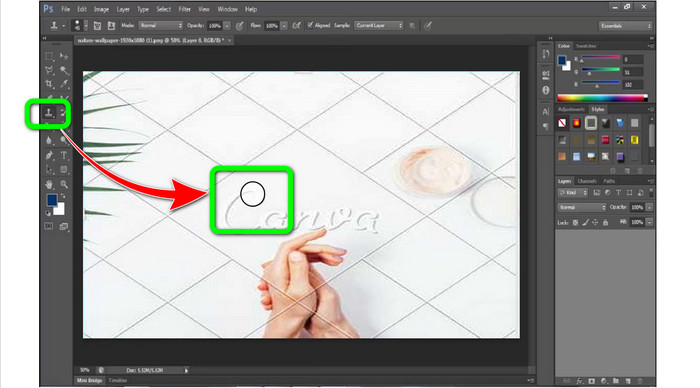
Steg 3: Välj Clone Stamp Tool på vänster sida av gränssnittet.
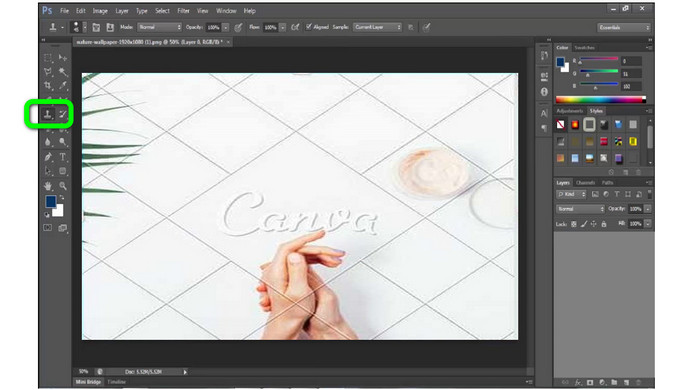
Steg 4: När du har valt Clone Stamp Tool använder du musen för att klicka på Canva‑vattenstämpeln tills du har raderat alla vattenstämplar.
Steg 5: När Canva‑vattenstämpeln är borta går du till File > Save.
Relaterat till:
Enkla steg för hur du tar bort WOW Slider‑vattenstämpeln [Löst]
Enkla metoder för hur du tar bort Shootproof‑vattenstämpel
Del 3: Vanliga frågor om att ta bort Canva Watermarks
1. Hur tar jag bort den kostnadsfria vattenstämpeln Canva?
För att ta bort vattenstämpeln från alla dina mönster måste du köpa Canva Pro. Ett annat alternativ är att använda en gratis testversion av Canva Pro, som kommer att radera vattenstämpeln. Du kan också ta bort vattenstämpeln genom att spara din design som en PDF- eller PNG-fil.
2. Vad är skillnaden mellan Canva och Canva Pro?
I Canva är planen helt gratis. Du kan få gratis mallar, layouter, grafiska element, foton och mer. Men i gratisversionen finns det begränsningar, som bristen på varumärkesverktyg, inga filter och begränsade utdataalternativ. I Canva Pro finns det fler fantastiska funktioner du kan njuta av. Den erbjuder fler mallar, stockfoton, grafik och videor. Att använda Canva Pro är bättre än gratisversionen.
3. Vilket är det bästa sättet att ta bort Canva vattenstämpel?
Använd FVC Free Watermark Remover. Det här verktyget kan snabbt hjälpa dig att ta bort Canva‑vattenstämplar från ditt foto. Det kan också radera andra oönskade element, som logotyper, text, emojis osv.
Slutsats
Canva är ett fantastiskt grafiskt designverktyg. Det lämnar dock vattenstämplar i nästan alla foton. Men om du vill ta bort Canva‑vattenstämplar kan du använda FVC Free Watermark Remover. Det är gratis och enklare att använda än Photoshop.
-
 Enklaste metoderna för hur man tar bort vattenstämpel från foton
 Är du irriterad över vattenstämplarna på dina bilder? Oroa dig inte! Den här artikeln ger enkla och enkla metoder för att ta bort vattenstämplar från dina foton
-
 Sätt på hur man enkelt tar bort Reddit-vattenstämplar från bilder
 Om du är här kanske du letar efter en utmärkt Reddit-vattenstämpelborttagare. I så fall kommer vi att visa dig den enklaste metoden för att ta bort Reddit-vattenstämplar
-
 Hur man tar bort vattenstämpel i Lightroom Mobile [Löst]
 Vill du lära dig hur man tar bort vattenstämplar från foton i Lightroom? Här är de enklaste metoderna du kan prova med dina mobiltelefoner och datorer
