


 Video Converter Ultimate
 Skärminspelare
 Video reparation
 Säker nedladdning
Förbättra bildkvaliteten med dessa snabba och enkla metoder
Har du en bild som är suddig eller av låg kvalitet? Den bästa lösningen är att höja kvaliteten på bilden. Som tur är finns det många verktyg som kan hjälpa dig förbättra bildkvaliteten. Men alla program eller verktyg på datorn har inte de bästa funktionerna. Därför letade vi upp de mest populära bildförbättrarna online, offline och på iPhone. Läs det här inlägget för att lära dig hur du kan förbättra bildkvaliteten.

Del 1. Hur man förbättrar bildkvaliteten online
Att använda en bildförstärkare online är bekvämare än att ladda ner ett program på din dator. Fördelen med att använda ett onlineverktyg är att du fritt kan komma åt det på din webb. Den här delen kommer att visa dig hur du kan öka din bilds kvalitet med den mest fantastiska fotoförstärkaren online.
FVC Free Image Upscaler är en kostnadsfri bildförbättrare online som är populär bland många. Det här webbaserade verktyget kan ställa in förstoring till 2x, 4x, 6x och 8x. Dessutom stöder det de vanligaste bildformaten, inklusive PNG, JPG, JPEG och BMP. Du kan även använda det i alla webbläsare, som Google, Firefox och Safari. Du behöver inte heller oroa dig för datasäkerheten, eftersom detta verktyg är säkert att använda.
Dessutom har den en kraftfull AI-teknik som automatiskt känner igen de suddiga delarna av din bild. Dessutom kan FVC Free Image Upscaler fixa förlorade pixlar, färgtexturer och fler detaljer. Om du vill använda denna utmärkta bilduppskalare, följ den enkla guiden nedan.
Hur man förbättrar bildkvaliteten online med FVC Free Image Upscaler:
Steg 1. Öppna din webbläsare och sök efter FVC Free Image Upscaler i sökrutan. Du kan gå direkt till huvudsidan genom att klicka på länken som anges.
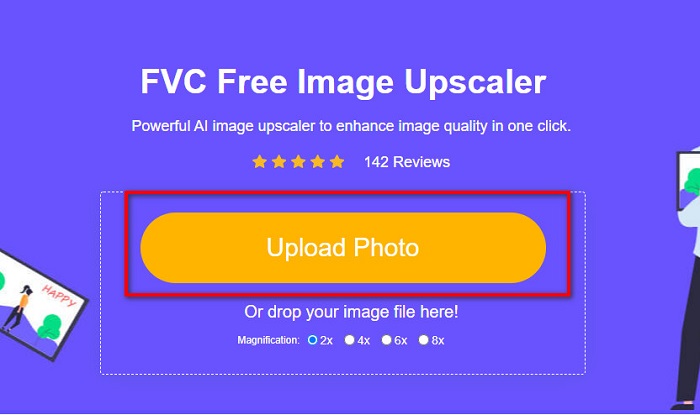
Steg 2. Klicka sedan på knappen Upload Photo i huvudgränssnittet för att ladda upp bilden du vill förstora. Vänta tills bilden har laddats upp och gå sedan vidare till nästa steg.
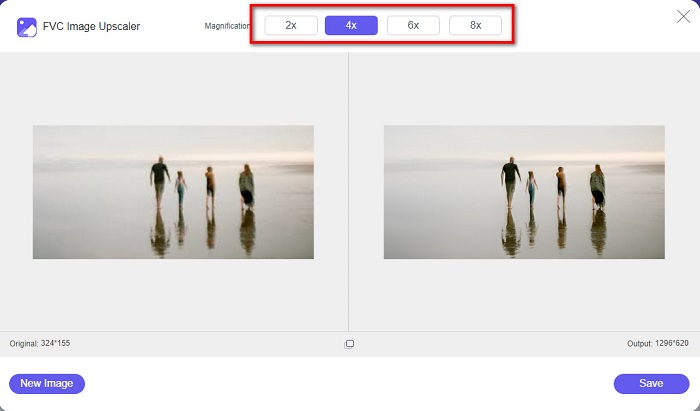
Steg 3. Välj sedan den Magnification du vill ha för din bild. Du kan välja mellan 2x, 4x, 6x och 8x.
Steg 4. Du kan se en förhandsvisning av din bild och om du är nöjd klickar du på knappen Save för att spara den uppskalade bilden på din enhet.
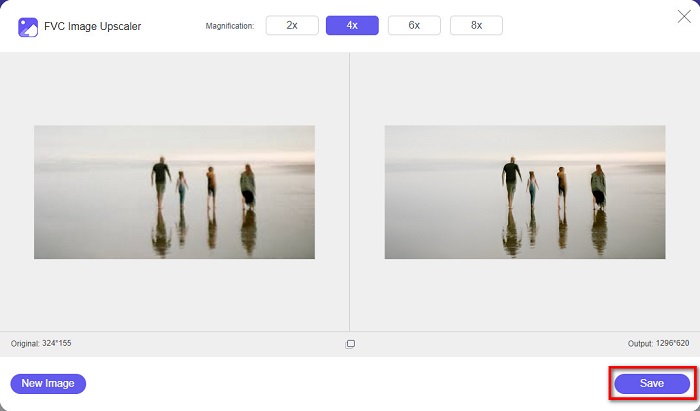
Och det är allt! Du kan nu visa din bild på din dator med en högkvalitativ vy.
Del 2. Hur man förbättrar bildkvaliteten i Photoshop
Vi har det du vill ha om du gillar att använda ett professionellt verktyg för att öka kvaliteten på din bild. Den här delen kommer att lära dig hur du förbättrar fotokvaliteten med Adobe Photoshop.
Adobe Photoshop är en professionell redigeringsapp som du kan använda för att förbättra kvaliteten på din bild. Adobe Photoshop har många redigeringsverktyg som du kan använda för att bearbeta bilder. Dessutom använder många professionella detta verktyg eftersom det har så många funktioner. Programmet ger också utskrifter i hög kvalitet som du kan dela på sociala medier eller webbplatser. Adobe Photoshop är dessutom en av Adobes bästa produkter, och du kan ladda ner det på nästan alla plattformar. Med denna redigeringsapplikation kan du designa logotyper, banderoller, broschyrer med mera. Men många användare vet inte att det också kan förbättra en bild. Samtidigt har många användare svårt att använda verktyget eftersom programgränssnittet är komplicerat och det är ganska dyrt att skaffa.
Steg för hur du förbättrar bildkvaliteten i Photoshop:
Steg 1. Ladda först ner Adobe Photoshop på din dator. Följ installationsprocessen och öppna sedan programmet.
Steg 2. Gå till File > Open i huvudgränssnittet och välj den bild du vill förbättra.
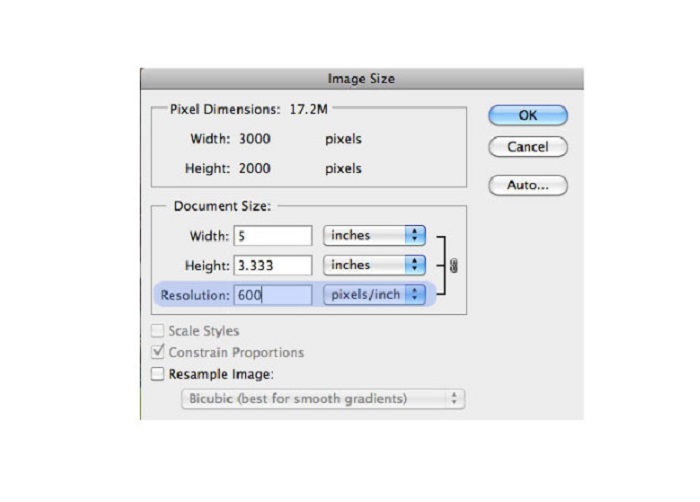
Steg 3. Gå sedan till Image > Image Size. Ett dialogfönster visas där du avmarkerar rutan Resample Image så att endast upplösningen på bilden ändras. Skriv därefter in den upplösning du vill ha för din bild i alternativet för upplösning.
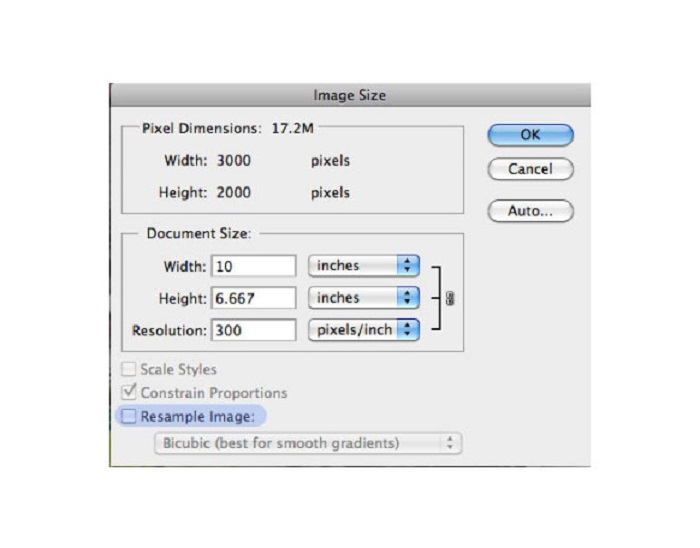
Steg 4. När du ändrar Resolution kommer även bildens Width and Height att ändras. Klicka sedan på knappen OK för att spara ändringarna du gjort i bilden. På det här sättet kan du konvertera bilder med låg upplösning till hög.
Del 3. Hur man förbättrar kvaliteten på ett foto på iPhone
Vissa appar kan förbättra din bild av låg kvalitet om du är en iPhone-användare. Även om många appar för fotoförbättring finns tillgängliga på AppStore, valde vi de mest kända bland dem. Läs den här delen för att lära dig hur du förbättrar kvaliteten på ett foto på en iPhone.
Remini är en av de bästa apparna du kan använda för att förbättra en bild med låg kvalitet. Den här imponerande appen har ett enkelt gränssnitt, vilket gör den lätt att använda. Dessutom använder den AI-teknik som automatiskt upptäcker de suddiga delarna av bilden. Det är också en säker app att använda, så dina filer är trygga när du använder den. Nackdelen är att du måste titta på en annons för att se och ladda ner resultatet, eller så kan du köpa fullversionen för att ladda ner resultaten utan att se annonser.
Så här förbättrar du bildkvaliteten på iPhone med Remini-appen:
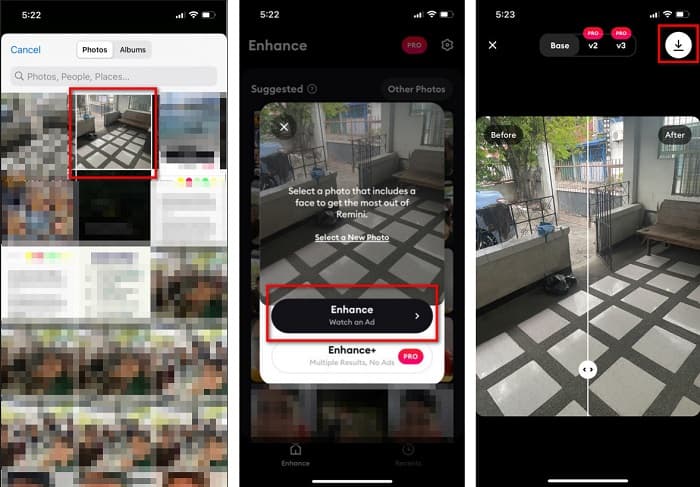
Steg 1. Ladda ner appen Remini i App Store. När nedladdningen är klar öppnar du appen på din telefon.
Steg 2. Välj sedan den bild du vill förstora i appens huvudgränssnitt.
Steg 3. Tryck sedan på knappen Enhance för att förbättra kvaliteten på bilden. Om du har pro-versionen av appen behöver du inte se någon annons. Om inte kommer du att behöva titta på en annons för att kunna se och spara resultatet.
Steg 4. Nu kan du visa din förbättrade bild. Tryck sedan på Download-ikonen uppe i högra hörnet på skärmen. Klart! Med dessa enkla steg kan du förbättra kvaliteten på din bild.
Del 4. Vanliga frågor om hur man förbättrar fotokvaliteten
Finns det en app som kan förbättra bildkvaliteten på Android?
Verktyget Förbättra fotokvalitet är en av de bästa apparna för att förbättra bildkvaliteten för att förbättra din bildkvalitet. Genom att använda bilden Försköna effekter ger din bild ett professionellt utseende.
Hur förbättrar man fotokvaliteten i Lightroom?
Adobe Lightroom är en annan produkt från Adobe som du kan använda för att förbättra bildens upplösning. Läs de enkla stegen nedan för att lära dig hur du förbättrar bildkvaliteten i Lightroom. 1. Ladda ner Adobe Lightroom på din dator. 2. Öppna sedan din bild i Lightroom. 3. Klicka på Choose Photo > Enhance. 4. Välj därefter Super Resolution och klicka på Enhance. 5. Du kommer sedan att se att Lightroom höjer bildens upplösning och sparar den som en DNG-fil.
Kommer det att påverka filstorleken om du skalar upp din bild?
Om du ändrar utskriftsupplösningen ändras inte antalet bildpunkter och påverkar inte storleken på din bild.
Slutsats
Det är enkelt att förbättra bildkvaliteten, särskilt nu när du har en guide att följa. Det finns också många appar till dator och iPhone som kan hjälpa dig att förstora din bild. Men om du vill använda en gratis bildförstorare som automatiskt skalar upp din suddiga bild, använd FVC Free Image Upscaler nu.
-
 5 sätt att ta bort B612 vattenstämpel med de bästa verktygen
 Vill du veta hur man tar bort B612 vattenstämplar från dina foton? Du kan enkelt ta bort vattenstämpeln B612 från dina bilder med dessa enastående verktyg.
-
 Enkla steg för hur man tar bort WOW Slider Watermark [Löst]
 WOW Slider är en app för att skapa ett fantastiskt bildspel. Däremot bäddar den in vattenstämplar på sin produktion. Läs nedan för att lära dig hur du tar bort vattenstämpeln WOW Slider.
-
 Enkla metoder för hur man tar bort skottsäker vattenstämpel
 Ta bort Shootproof vattenstämpel genom att följa dessa enkla metoder. Använd dessa fantastiska vattenstämpelborttagare för att enkelt ta bort Shootproof-vattenstämpeln från din bild.
