


 Video Converter Ultimate
 Skärminspelare
 Video reparation
 Säker nedladdning
Ta bort objektet från foton med den 6 effektiva programvaran [gratis]
Miljontals fotografer, även de som bara är aspirerande, tar flera bilder av solnedgångar, stränder, turistmål, månen och mycket mer. Med bilder kan vi uttrycka vilka vi verkligen är. Med en enkel bild kan du väcka allas kreativitet och deras konstnärliga sida inom sig. Det blir inte alltid en perfekt bild varje gång vi fotograferar; ibland måste vi ta bort ett visst objekt som inte borde vara med på fotot du tog. Behöver du ett verktyg för att ta bort objekt från foton? Här presenterar vi olika sätt och verktyg som du kan använda för att omedelbart ta bort onödiga objekt på bilden du tog.

Del 1. Ta bort objekt från fotot med hjälp av Best Object Remover [Web Service]
FVC Free Watermark Remover är vårt förstahandsval för att ta bort objekt från foton online gratis. Med det kan du radera allt som stör din perfekta bild direkt utan att ladda ner någon programvara till din dator, även om du inte har någon erfarenhet av den här typen av redigering. Du kan lita på detta verktyg eftersom du bara behöver markera objektet, så tar det bort objektet på bilden utan att lämna rester. Vi tycker att det här verktyget är både roligt och effektivt för att ta bort onödiga saker på bilden; om du vill använda det här verktyget kan du följa stegen vi lagt till nedan.
Steg 1. För att öppna objektet och ta bort det med FVC-utvecklingen kan du klicka på den här länken till den officiella webbplatsen.
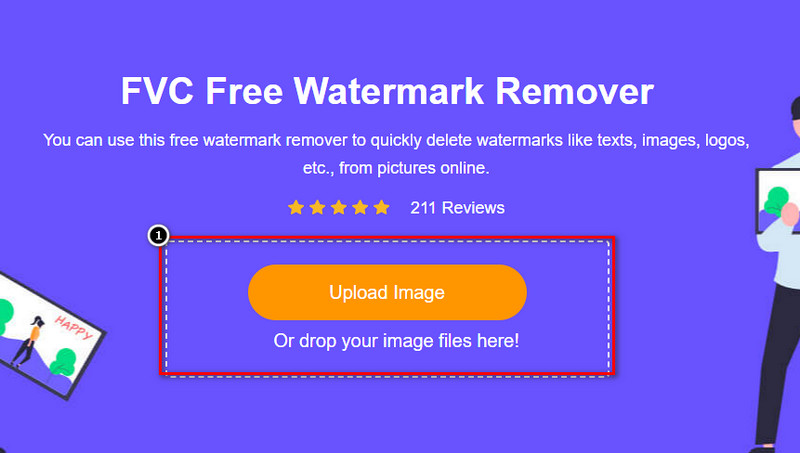
Steg 2. Klicka på Upload Image för att importera fotot du tog som har ett onödigt objekt på sig.
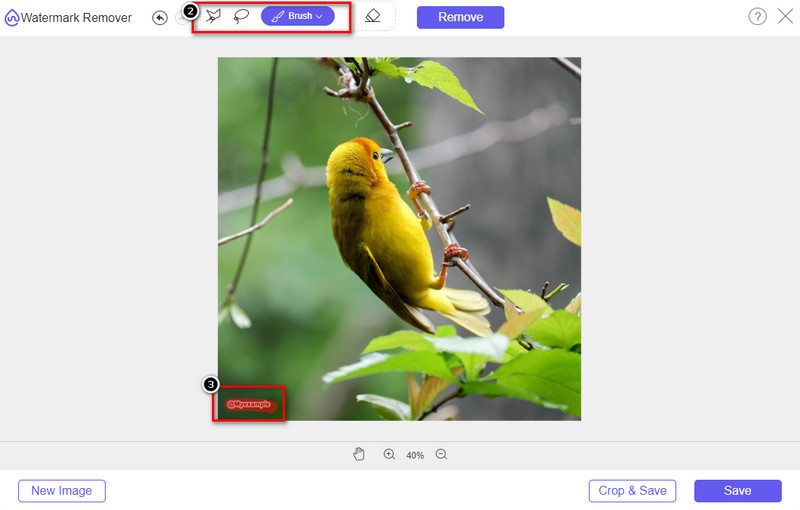
Steg 3. Med hjälp av verktygen som finns här behöver du sedan markera objektet.
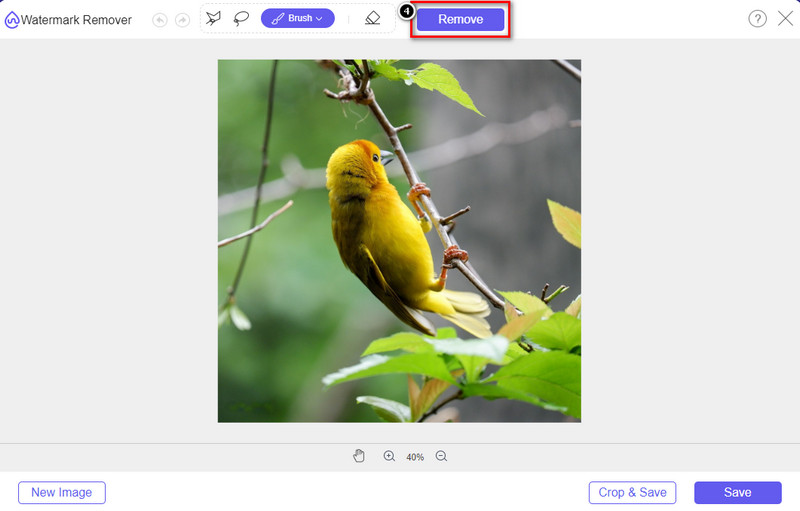
Steg 4. Tryck på knappen Remove för att ta bort objektet med hjälp av AI-tekniken som det här verktyget stöder.
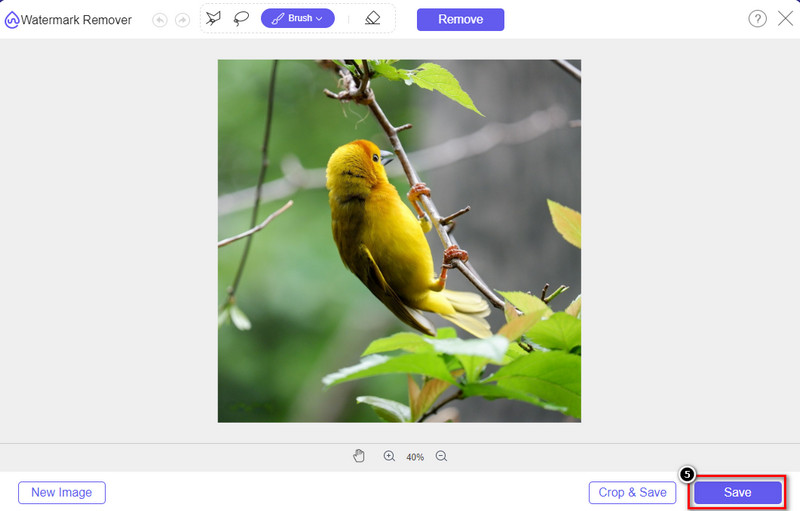
Steg 5. För att ladda ner den perfekta bilden du har redigerat här, klicka på Save.
Del 2. Ta bort objekt från foto professionellt med skrivbordsprogram [Windows och Mac]
Photoshop
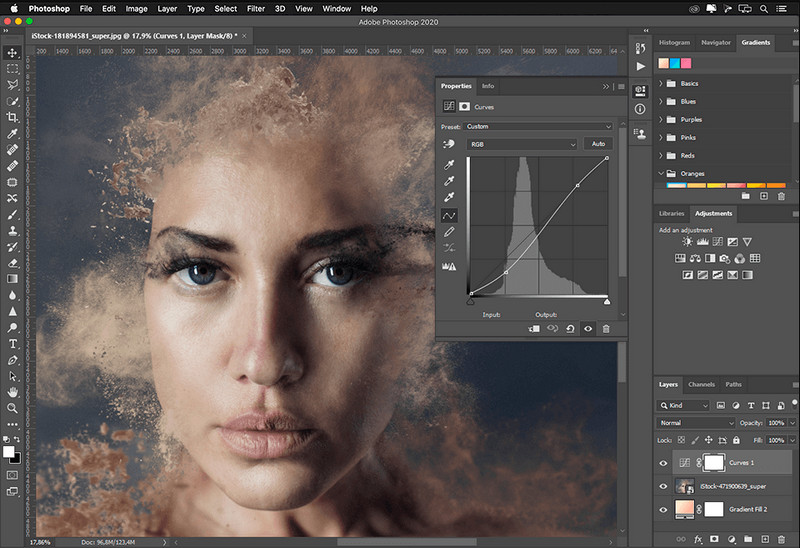
Om du behöver ett professionellt verktyg för att ta bort objekt från foton, då är Photoshop svaret! Det här verktyget är en komplett bildredigerare som Adobe stolt presenterar för oss. Ingenting hindrar dig från att få bilden att se otrolig ut med dess funktion och funktion. På grund av dess popularitet bland proffs försöker många nybörjare använda denna programvara för att redigera och skapa sina bilder. Så om du vill veta hur du använder det här professionella verktyget kan du följa handledningen vi lägger till nedan.
Steg 1. Öppna Adobes officiella webbplats och ladda sedan ner Photoshop till din dator.
Steg 2. Klicka på File och sedan på Open för att ladda upp bilden du behöver redigera här.
Steg 3. På vänster sida väljer du Magic Wand Tool för att automatiskt markera objektet på bilden du har laddat upp.
Steg 4. Gå till menyn Edit och välj Content-Aware Fill.
Steg 5. När du har öppnat den tas vattenstämpeln automatiskt bort, klicka sedan på OK.
GIMP
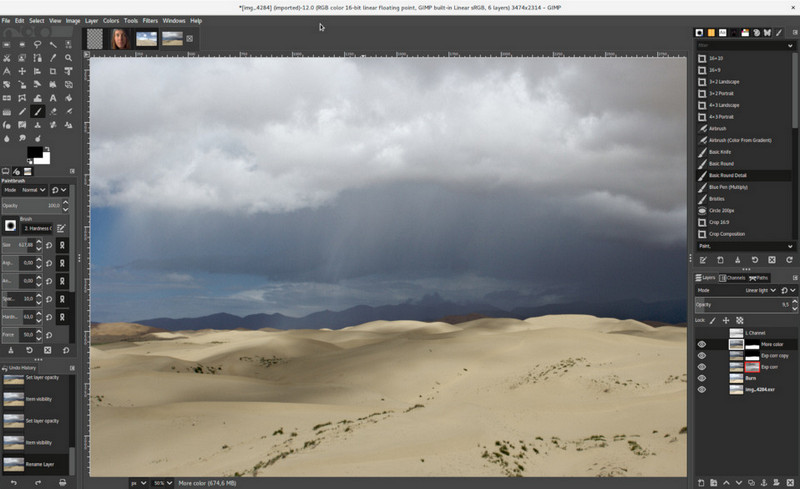
GIMP är ett komplett bildredigeringsprogram som du kan använda för att ta bort objekt från foton på Mac, Linux och Windows gratis. Det är ett pålitligt verktyg precis som Photoshop. Även om verktyget ofta hamnar i topp när man pratar om alternativ till Adobe Photoshop är det fortfarande under aktiv utveckling. Med det här verktyget kan du redigera dina bilder mycket omfattande för att göra dem mer tilltalande för publiken. Du kan också anpassa dess gränssnitt om du vill göra arbetet enklare. Om du funderar på att ladda ner detta verktyg för professionell redigering kan vi försäkra dig om att du kan uppnå det. Även om det är en open source-redigerare behöver verktyget fortfarande finslipas eftersom dess GUI fortfarande utvecklas. Så om du vill använda det här kommer stegen nedan att vägleda dig och lära dig hur du tar bort ett objekt från ett foto i GIMP. Stegen nedan vägleder dig.
Steg 1. Ladda ner och starta sedan programvaran så att du kan ladda upp bilden du behöver redigera. Ladda också ner dess tillägg, Resynthesizer-pluginet.
Steg 2. På verktygen på vänster sida väljer du Free Select och ändrar läget till Add Current Selection.
Steg 3. Rita nu runt objektet du vill ta bort; när du har markerat objektet korrekt trycker du på Enter på tangentbordet.
Steg 4. För att använda pluginet du har laddat ner går du till Filter, sedan Enhance och klickar på Heal Selection.
Steg 5. En dialogruta dyker då upp, ändra sampling width vid behov, ställ in sample på all-around och Filling the Order på random. Tryck på OK för att börja syntetisera området inne i bilden.
Foto-app på Mac
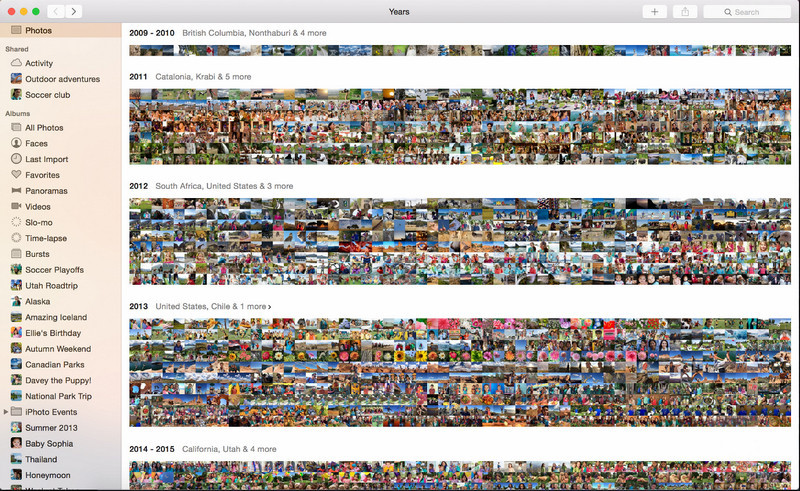
Photo App är en inbyggd funktion på uppdaterade Apple-produkter som Mac. Den här appen är förinstallerad, så du kan hoppa över nedladdningssteget och använda verktyget direkt. Programvaran är inte ett renodlat bildredigeringsprogram eftersom dess syfte är att fungera som bibliotek och bildvisare på Mac- eller iOS-enheter. Även om du inte har ett professionellt bildredigeringsprogram på Mac kan du utnyttja dessa funktioner för att få ett professionellt resultat med ett enda klick. Om du vill ta bort objekt i Photo App kan du gå till stegen vi lagt till och följa dem.
Steg 1. Öppna Bilder-appen på din Mac och välj bilden som har ett onödigt objekt.
Steg 2. Uppe till höger klickar du på knappen Edit för att börja redigera bilden.
Steg 3. På höger sida ser du alternativet Retouch; klicka på det för att använda funktionen.
Steg 4. Klicka och dra med musen över området du vill ta bort.
Steg 5. Tryck på knappen Done för att spara ändringarna du gjort i bilden.
Del 3. Ta bort objekt från foto med applikation på Android och iOS
Photoshop FIX
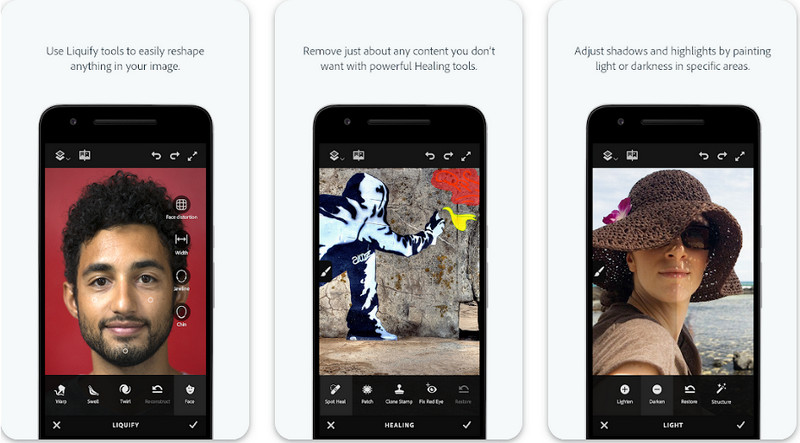
Photoshop FIX är en effektiv Android-app för att ta bort objekt från foton som arbetar på ett professionellt sätt men ändå är lätt att använda. Det är en app med öppen källkod som du kan ladda ner till din enhet via Play Store. Även om verktyget är open source är funktionen för att ta bort objekt utan tvekan mycket bra. Det är en av de mest nedladdade apparna du kan hitta på Android-enheter för just den här uppgiften. Om du vill veta hur du använder den här appen kan du läsa vidare nedan.
Steg 1. Ladda ner appen till din Android-enhet.
Steg 2. Tryck på On My Phone för att visa alla bilder i ditt bibliotek. Välj bilden du vill redigera.
Steg 3. För att använda appens funktion för att ta bort objekt, klicka på Healing.
Steg 4. Här kan du använda två alternativ för att ta bort objektet. För att pensla bort objektet väljer du Spot Heal. Men om du vill klona en pixel måste du välja Clone Stamp. Markera vattenstämpeln med det alternativ du valt.
Steg 5. Spara bilden till din kamerarulle, och det var allt!
Fotoretusch
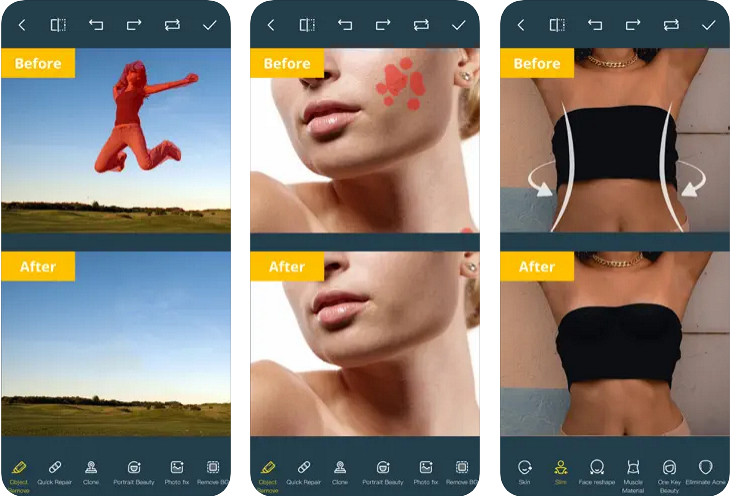
Photo Retouch är en pålitlig app för att ta bort objekt från foton på iPhone utan krångel. Även om du inte är van vid att ta bort objekt på dina bilder kan du ändå göra det effektivt. Du kan ladda ner den här appen gratis i App Store om du vill prova den. Du kan också ta bort bakgrund och vattenstämpel på fotot om du behöver det. Om du är redo att använda den här appen för att ta bort objektet på din bild kan du följa stegen vi lagt till.
Steg 1. Ladda ner den officiella appen och starta den.
Steg 2. Klicka på Photo Eraser och sedan Photo. Välj bilden med den onödiga bakgrunden du vill ta bort, och se till att bilden finns bland Foton på din iPhone.
Steg 3. Längst ned väljer du alternativet Object Removal.
Steg 4. Använd penseln som den här appen stöder för att markera objektet du vill ta bort och klicka på GO för att ta bort objektet.
Relaterat:
Ta bort Dreamstime-vattenstämpeln
Ta bort Picsart-filtervattenstämpeln
Del 4. Vanliga frågor om hur man tar bort objekt från foton
Varför måste jag ta bort objekt från foton?
Det finns många gånger som vi fångar något, och det finns Photobombers. Detta objekt är ett problem för de flesta proffs på andra människor eftersom det inte framhäver bilden du tar. Så istället för att ta om bilden kan du läsa följande idealiska sätt att ta bort objektet på ditt foto.
Kan jag beskära bilden för att ta bort objekt?
Jo det kan du. Om objektet du vill ta bort på sidan av fotot, kan du försöka beskära bilden med din inbyggda redigerare. Det här valet är dock inte ett alternativ, särskilt om objektet är i mitten eller nära bilden du tar. Att beskära bilden kommer att skära ut fotot, så det är bättre att tänka två gånger om du vill prova det här alternativet.
Varför kan jag inte ladda upp en bild för att ta bort objektet?
Du kan inte ladda upp bilden; antingen är bilden skadad eller så stöds inte bildtillägget. Om din bild är skadad finns det sätt att fixa det. Du kan hitta dem på webben om du söker den. Vanligtvis kan det vara bildens filtillägg; för att lösa det här problemet måste du konvertera det.
Slutsats
Att ta bort föremål från fotot är enkelt på grund av verktyget och appen som vi använder i den här artikeln. Så vilket verktyg föredrar du mest? Vi hoppas att den här guiden vi lägger till hjälper dig att enkelt lösa problemet.
-
 Hur man konverterar lågupplöst bild till högupplöst online
 Om du vill lära dig hur du konverterar lågupplösta bilder till högupplösta bilder online, då är den här artikeln för dig. Läs hela för att lära dig hur.
-
 Enkla metoder för hur man tar bort skottsäker vattenstämpel
 Ta bort Shootproof vattenstämpel genom att följa dessa enkla metoder. Använd dessa fantastiska vattenstämpelborttagare för att enkelt ta bort Shootproof-vattenstämpeln från din bild.
-
 Hur man enkelt tar bort Bandicam-vattenstämpeln [3 effektiva sätt]
 Hur tar man bort Bandicam-vattenstämpeln? Med verktygen lägger vi till här att du vet hur du hanterar det effektivt!
