


 Video Converter Ultimate
 Skärminspelare
 Video reparation
 Säker nedladdning
Hur man ändrar storlek på en bild i Powerpoint utan att försämra kvaliteten
Lately, many people present everything digitally rather than in the traditional way, even before the pandemic. As we strive for the future, everything can become easier with the help of technology and software for presenting the business, visual aids, ideas, sales, etc., and you can all do them on Powerpoint. You can have this presenter on your device for its purpose—furthermore, many users are looking for a way to resize the image in this presenter. Are you willing to learn how to resize a picture in PowerPoint? Keep reading this article as we cover the information you need to know about this topic.

Del 1. Hur man ändrar storlek på en bild i PowerPoint med hjälp av 2 effektiva sätt du kan använda [enskilt och flera]
När du justerar bildens längd och höjd på varje bild kan du antingen ställa in en exakt dimension eller ändra bildförhållandet genom att dra ramen. Även om du kan göra det här naturligt, uppstår viss förvrängning när bildens storlek ändras. Så om du vill veta hur du ändrar storlek på bilder på flera bilder i PowerPoint eller individuellt kan du följa stegen vi lägger till nedan. Följ den i enlighet med det, och du kommer att ändra storlek på den på mindre än en minut.
3 sätt att ändra storlek på bilden i PowerPoint [individuellt och batch]
1. Resize Image by Dragging the Frame
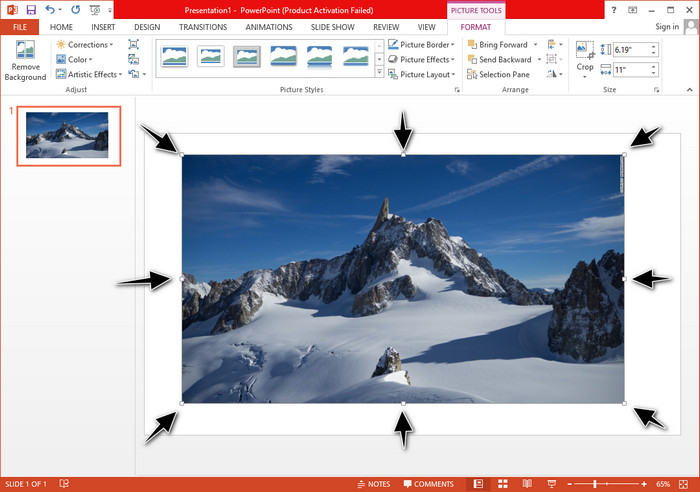
När du har laddat upp bilden på PowerPoint kommer du att se små prickar på den. Dessa prickar på bilden är justerbara, vilket innebär att du fritt kan ändra storlek på fotot enligt din specifikation. När du ändrar längden kommer höjden inte att följa samma sak som att justera storleken.
2. Resize Image by Changing the Height and Length
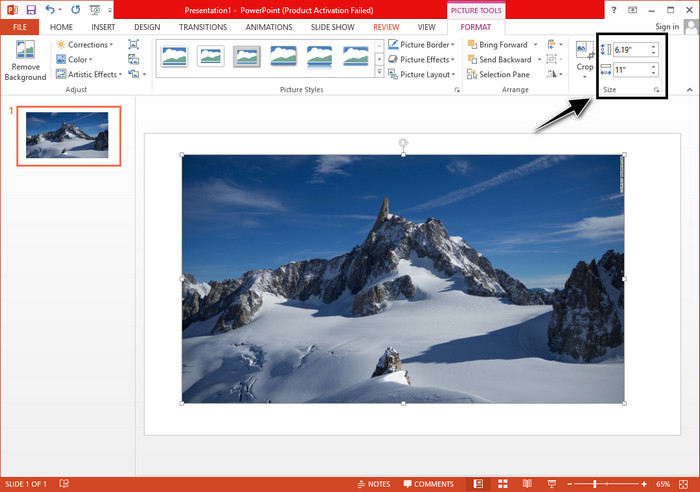
När du laddar upp bilden till PowerPoint klickar du på fliken Format för att ändra bilden till en viss storlek. På den övre delen kan du lägga till dess exakta höjd och längd. Men när du har ändrat en mätning kommer den andra automatiskt att justeras eftersom huvudbildförhållandet är aktivt.
3. Resize Image as a Batch on Powerpoint
What should you do to change multiple images on a single PowerPoint slide? To do it, you will need to upload the photos on the slide. Once you’ve uploaded various images on the slide, you must press and hold Control, then tick every picture you want to resize. Follow what resizing option you want to use that we introduce above; drag the frame or change the numerical value.
Del 2. Hur man ändrar storlek på en bild i PowerPoint utan att förvränga gratis [Web Service]
How to resize a picture in PowerPoint without distorting it? You can use the FVC Free Image Upscaler to automatically resize the photo you upload that you want to use on a PowerPoint presentation. Despite being an online tool, its performance is better than the PowerPoint resizer because it creates PPI to prevent the blurriness of the image even though you have to resize it. Are you wondering, or do you want to use this tool and start resizing your image? In that case, follow the succeeding steps we include as we teach you how to use this tool as easy as possible.
Advantages of Resizing a Photo Using the FVC Free Image Upscaler:
◆ You can use this photo resizer for free without quality loss.
◆ Den stöder ett brett utbud av format som du kan ladda upp.
◆ Den har kraftfull AI-teknik som kan hjälpa dig att ändra storlek på alla foton.
◆ Du kan komma åt den här webblösningen på vilken sökmotor du har på skrivbordet.
◆ Det behövs ingen installation eller nedladdning innan du använder den.
Steg för hur man ändrar storlek utan att förvränga med FVC Free Image Upscaler:
Step 1. Open the website of this resizer by clicking this link.
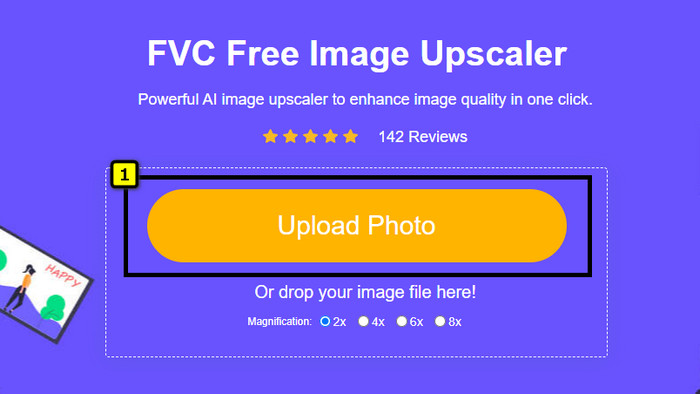
Step 2. When the website is opened, click the Upload Photo to add the photo you want to resize and use it on your PowerPoint presentation.
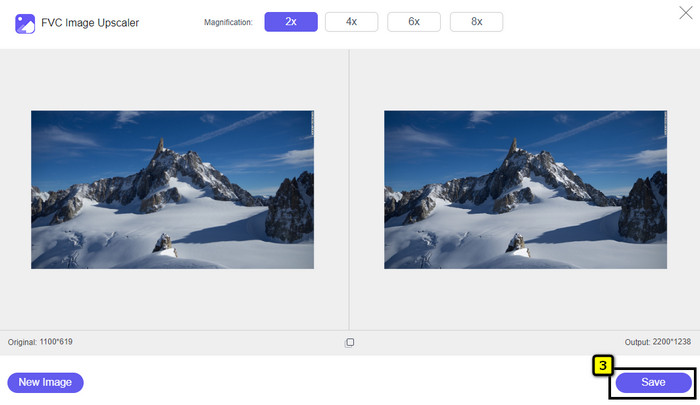
Step 3. After uploading the image, wait for it to load up. Select the Magnification you want to apply to your image by choosing the options such as 2x, 4x, 6x, or 8x.
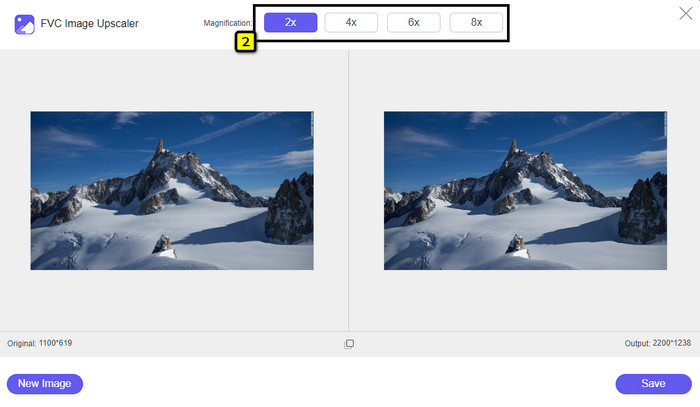
Step 4. Click Save to export the resized image you change here. As easy as that, the resized image on your local drive without any distortion or blurriness added.
Del 3. Vanliga frågor om hur man ändrar storlek på en bild i PowerPoint
Vad är den maximala längden och höjden på ett foto för Powerpoint?
När du ändrar storlek på bilden till den maximala dimensionen för Powerpoint som en bredbildsskärm kan du ställa in pixeln till 1280 x 720 px. Men när du visar det på skärmen måste du följa bildförhållandet 16:9, vilket är 1920 x 1080 px.
Finns det någon genväg för att ändra storlek på fotot på PowerPoint?
För att ändra höjden på bilden måste du hålla ned Skift-tangenten, klicka sedan på uppåtpilen för att öka och nedåtpilen för att minska höjden på den. För den som vill ändra bildens bredd kan du hålla nere Shift-tangenten igen, tryck sedan på högerpilen för att öka bredden och vänsterpilen för att minska bredden enligt dina önskemål.
Varför blev min bild suddig efter att ha ändrat storlek på den i PowerPoint?
När du ska ändra storlek på bilden i PowerPoint har bilden sträckts ut och det finns en chans att bilden blir suddig. Men om du vill ha en bildredigerare som kan skapa pixlar samtidigt som den ändrar dimensionen, kan du undvika att ha en pixlad bild i PowerPoint.
Kan jag använda GIF-filer för Powerpoint?
Ja, du kan använda GIF-filer på varje bild på PowerPoint. Men när GIF-dimensionen inte gynnas i din önskade storlek, måste du ändra storlek på den. Och resultatet av den ändrade storleken på GIF blev suddigt eller pixlat.
Slutsats
To wrap it up, you can learn the three techniques for resizing the image on PowerPoint by following the tutorial we add in this post. Though you can easily do it on the presenter, there are times that it produces distortion when the image dimension is changed. You can solve this problem using the online tool we added because it doesn’t distort any resized images here. With the steps we add, you can learn how to resize the image on FVC Free Image Upscaler.
-
 Bästa Photo Resizer-appen online, offline, Android och iPhone
 Vilka är de bästa apparna för fotoförändring? Klicka på sidan för att lära dig de fem mest kraftfulla apparna för fotoförändring som du kan använda för att förbättra eller ändra storlek på din fil.
-
 Hur man ändrar storlek på bild – Adobe Ändra storlek på bild [Online och Offline]
 Om du letar efter Adobes storlek på bild så har vi lösningen för dig. Läs det här inlägget noggrant för att lära dig hur du ändrar storlek på bilder med Adobe på din PC.
-
 Hur man ändrar storlek på foto för Facebook [snabba och enkla steg]
 Om du har problem med att ladda upp en stor bild på Facebook har vi en lösning för dig. Avsluta den här artikeln för att lära dig hur du ändrar storlek på foton för Facebook.
