


 Video Converter Ultimate
 Skärminspelare
 Video reparation
 Säker nedladdning
6 mest effektiva sättet att ändra storlek på en bild på webben och skrivbordet
Med miljarder prestigefyllda fotografier vi kan ladda ner, de flesta av oss tar vackra bilder, men det finns tillfällen då deras storlek inte är den vi föredrar mest. Användare försökte ändra storlek på bilden de hade genom att justera bildens höjd, bredd och bildförhållande med hjälp av redigeraren, vilket ändrade bildens PPI. Resultatet är inte vad alla förväntade sig; högupplösta bilder blir pixlade.
Varför? Därför att redigeringsprogrammet de använde för att ändra storlek inte kan skapa nya pixlar eller fylla ut glappet i den ändrade versionen. Därför blev frågor om detta ämne vanliga, och vi är här för att hjälpa dig lösa problemet. I det här blogginlägget får du själv testa hur du ändrar storlek på en bild utan att lämna någon förvrängning i slutresultatet.

Del 1. Bästa fotoresizers du kan komma åt på webben för att ändra storlek på bild online [3 gratis verktyg]
Dessa onlineverktyg som vi lägger till här är tillgängliga på olika webbläsare som du har på din enhet. Dessa är också gratis, men det finns ett verktyg du behöver köpa för att använda utan några begränsningar. Ändå är dessa kapabla onlineverktyg som du kan komma åt för att börja ändra storlek på bilden du har. Läs stegen för att veta hur du använder dem.
1. FVC Free Image Upscaler - Bästa Image Resizer på webben [Förmånligt alternativ]
Med FVC Free Image Upscaler Online får du ett webbaserat verktyg med artificiell intelligens som snabbt kan ändra bildstorlek utan att förlora kvalitet. Webbverktyget ändrar automatiskt storleken på varje bildfil du laddar upp här. Trots att det är ett onlineredskap är det snabbt och effektivt på att ändra storlek. Varje bild du laddar upp här raderas automatiskt från servern när du har ändrat storlek. Dessutom har det det renaste och mest mångsidiga verktyget för storleksändring du kan behöva; även om du använder olika enheter kan du komma åt webbverktyget så länge du har internetuppkoppling. Vill du se hur den här programvaran presterar i just den här uppgiften? Läs då stegen nedan och följ dem för att ändra bildstorlek snabbt och effektivt.
Så här ändrar du bildstorlek med FVC Free Image Upscaler:
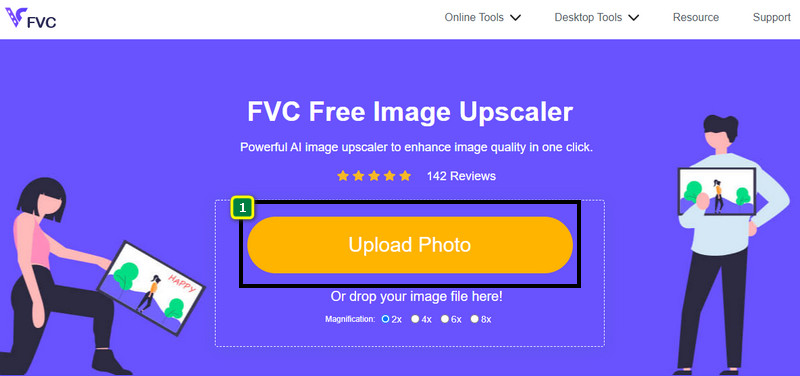
Steg 1. För att komma åt webbverktyget kan du klicka på den här länken, som automatiskt leder dig till resizerns officiella webbplats.
Steg 2. Klicka på Add Image så att en mapp visas på skärmen, välj bildfilen du vill ladda upp och tryck på Open.
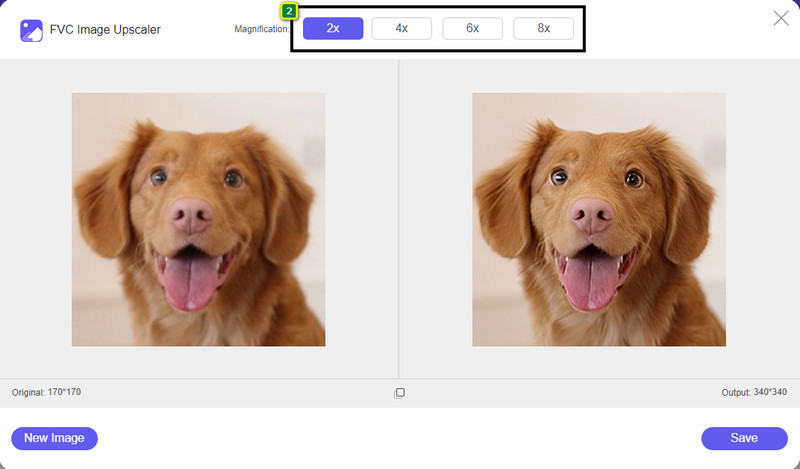
Steg 3. För att ändra bildstorlek måste du välja vilken typ av förstoring du vill använda på din bild. Du kan se att bildens totala dimensioner ändras när du provar att klicka på 2x, 4x, 6x och 8x.
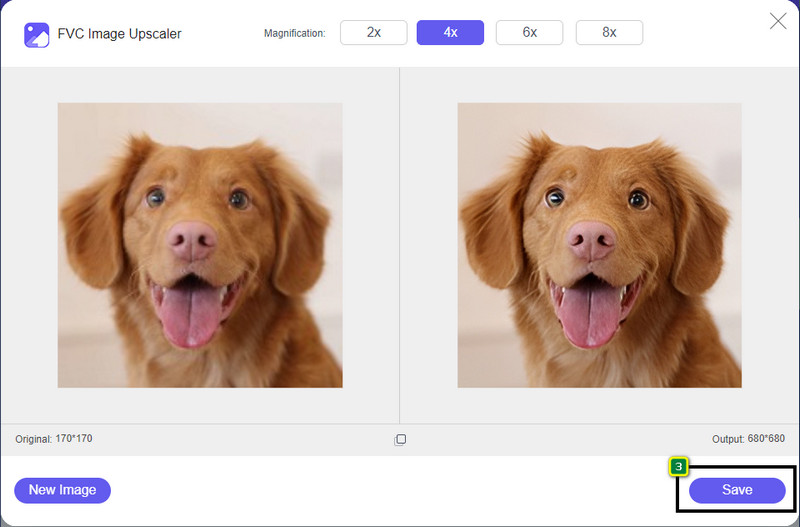
Steg 4. När du har valt förstoring är det bara att trycka på Save för att ladda ned den ändrade versionen till din dator.
2. Be Funky - Fotoredigerare [Gratis och betald]
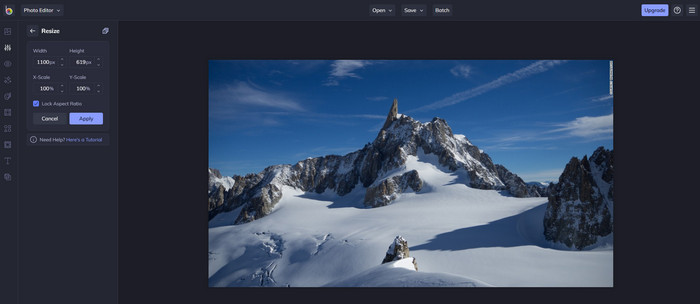
Be Funky - Photo Editor är en kreativ plattform som du kan använda för att skapa något extra av dina bilder. Den kan ändra storlek på BMP-bilder utan att tappa kvalitet. Det här verktyget räknas som en av de bästa bildredigerarna du kan använda online. Även om det har ett liknande gränssnitt som Photoshop är funktionerna enklare och lättare att förstå, så vi kan säga att det också är användarvänligt. Om du vill prova det här onlineverktyget för att enkelt ändra storlek på din bild följer du stegen vi anger här.
Så här ändrar du bildstorlek med Be Funky:
Steg 1. Sök på namnet i din webbläsare och klicka sedan på Get Started and Edit Photo.
Steg 2. Tryck på Open för att ladda upp BMP-filen eller andra bilder du vill ändra storlek på här.
Steg 3. Gå till Edit och klicka på alternativet Resize.
Steg 4. Här kan du fritt ändra bredd och höjd eller x- och y-skalan på bilden. Tryck sedan på Apply för att se hur den ändrade versionen ser ut.
3. Enkel bildförändring [gratis]
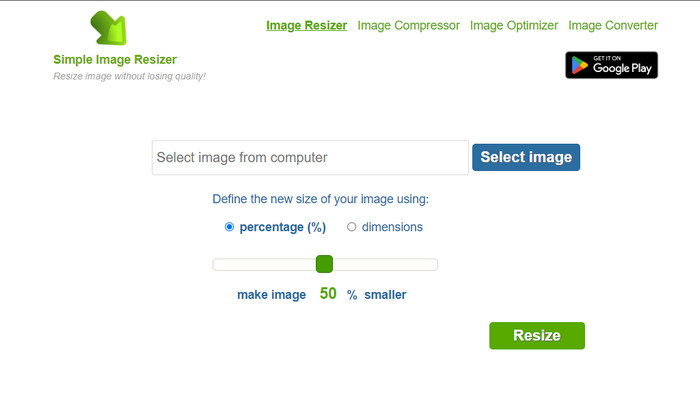
Simple Image Resizer låter dig ändra storlek på en bild genom att ange den nya storleken i procent eller genom mått. Det är den sista bildresizern vi tar upp i den här artikeln. Dess enkla gränssnitt och lätta användning är huvudskälen till att vi tog med det. Förutom funktionen för storleksändring kan du optimera, komprimera och konvertera din bild här gratis, men med störande annonser på webben. Om du vill testa den här resizern online följer du stegen nedan.
Så här ändrar du bildstorlek med Simple Image Resizer:
Steg 1. Använd din webbläsare och sök på namnet för att börja använda denna webbaserade resizer.
Steg 2. Tryck på Select Image för att lägga till fotot du vill ändra storlek på här.
Steg 3. Välj vilket sätt du föredrar för att ändra storlek och ändra sedan procent eller mått. Båda sätten ger samma resultat.
Steg 4. Klicka på Resize för att spara slutresultatet på din dator.
Del 2. Hur man ändrar storlek på en bild på Windows och Mac [Betalt och gratis offline]
Till skillnad från det första 3 nämnda onlineverktyget är nästa verktyg vi introducerade inte internetberoende, vilket innebär att även om du inte har internet kan du använda dem utan att ha några problem. För de är nedladdningsbara eller redan förinstallerade på ditt skrivbord. Lär dig hur du använder dem idag genom att läsa informationen vi lägger till var och en av dem.
1. Adobe Photoshop [Windows och Mac]
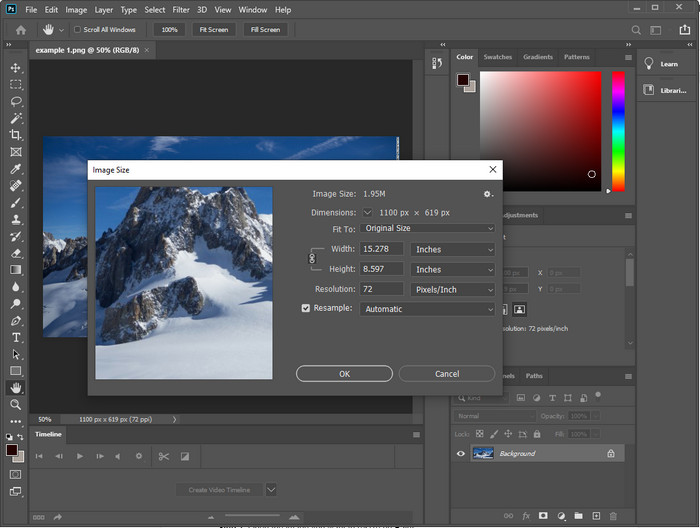
Vårt första val av offline-bildresizer som du kan ladda ner till din enhet är Adobe Photoshop. Varför? Därför att det skapar ny pixeldata när du ändrar storlek och undviker att du får ett lågkvalitativt resultat i slutet av processen. Dessutom är den här programvaran känd för att vara en professionell bildredigerare som enkelt kan bearbeta både raster- och vektorbilder. Trots att programmet är ett professionellt verktyg kan det vara i dyraste laget om du bara ska använda det för att ändra storlek. Men om du är intresserad av hur du ändrar storlek på en bild i Photoshop, läs vidare.
Så här ändrar du bildstorlek med Adobe Photoshop:
Steg 1. Ladda ner och installera programmet på din dator genom att besöka dess officiella webbplats.
Steg 2. Klicka på File och leta upp bilden i mappen efter att du klickat på Open.
Steg 3. Tryck på menyn Image högst upp och välj sedan Image Size.
Steg 4. Ändra måtten på bredd och höjd enligt dina önskemål och klicka sedan på OK för att tillämpa ändringarna.
Steg 5. Gå tillbaka till File och spara bilden på din dator.
2. Måla [Standardapp på Windows]
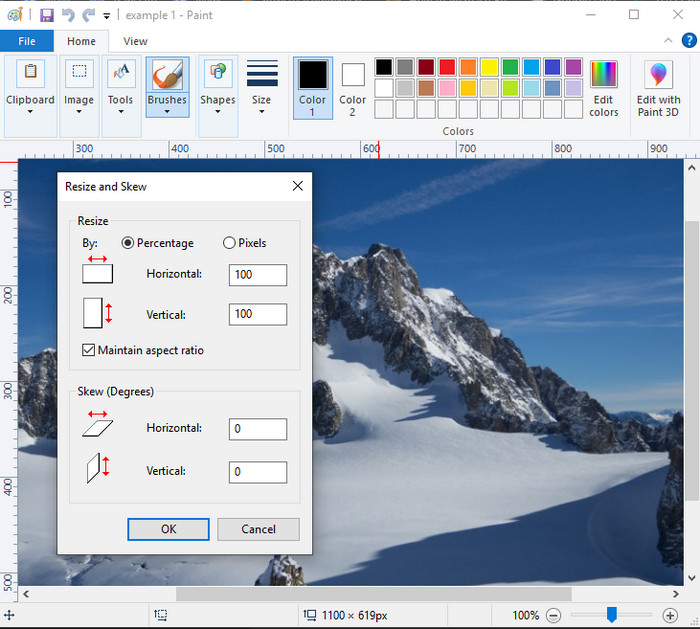
Paint är känt som ett program där du kan rita på en tom duk. Olika Windows-användare brukar använda det för att skapa något på en tom sida, lägga till detaljer på bilder och ändra storlek på dem. Även om det inte är en dedikerad bildredigerare kan det ändå ändra storlek på alla rasterbilder du har på din lokala enhet. Fördelen med att använda det är att du inte behöver ladda ner programmet till Windows eftersom det är förinstallerat. Om du vill veta hur du förstorar bilder med låg upplösning med den här appen läser du genomgången vi lagt in nedan.
Så här ändrar du bildstorlek med Paint:
Steg 1. Öppna bilden du vill ändra storlek på i Paint.
Steg 2. När du har öppnat bilden klickar du på ikonen med två rutor för att börja ändra storlek på bilden du har öppnat här.
Steg 3. För att ändra bildstorlek kan du justera i procent eller pixlar. När du har ändrat siffrorna trycker du på OK för att tillämpa ändringarna.
Steg 4. Klicka på ikonen save för att exportera bilden du har ändrat storlek på.
3. Förhandsgranska [Standardapp på Mac]
Preview är en inbyggd app du kan lita på när du vill veta hur du ändrar storlek på en bild på Mac. Om du inte vill ladda ner något program på din macOS är det här appen du ska använda. Det är en underskattad lösning, men den kan ändra storlek på ditt foto direkt på skrivbordet. Att lära sig hur man använder den kan vara en stor fördel för att utnyttja programmets fulla potential. Om du är intresserad av hur det här verktyget fungerar kan du gå vidare till informationen vi lägger till härnäst.
Så här ändrar du bildstorlek med Preview:
Steg 1. Högerklicka på bilden på din Mac, klicka på Open with och välj Preview.
Steg 2. Klicka på Tools högst upp och välj sedan Adjust Size.
Steg 3. Ändra bildens mått efter dina behov och tryck sedan på OK för att spara de ändringar du gjort.
Del 3. Ytterligare: Top Image Resizer Du kan ladda ner på Android och iPhone
1. Foto- och bildförändring [Android]
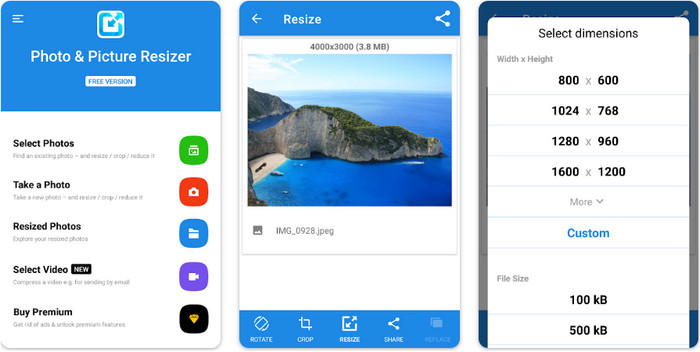
Photo & Picture Resizer är ett av de snabbaste och enklaste sätten att ändra storlek på bilder du har på din Android-enhet. Även oerfarna användare som vill ändra storlek kan ladda ner och använda detta som sin bildresizer. Appen är gratis, men om du vill använda dess extra funktioner måste du köpa dem. Sammantaget är funktionerna för storleksändring utmärkta och du kan bemästra dem redan vid första försöket.
2. Image Resizer gratis [iPhone]
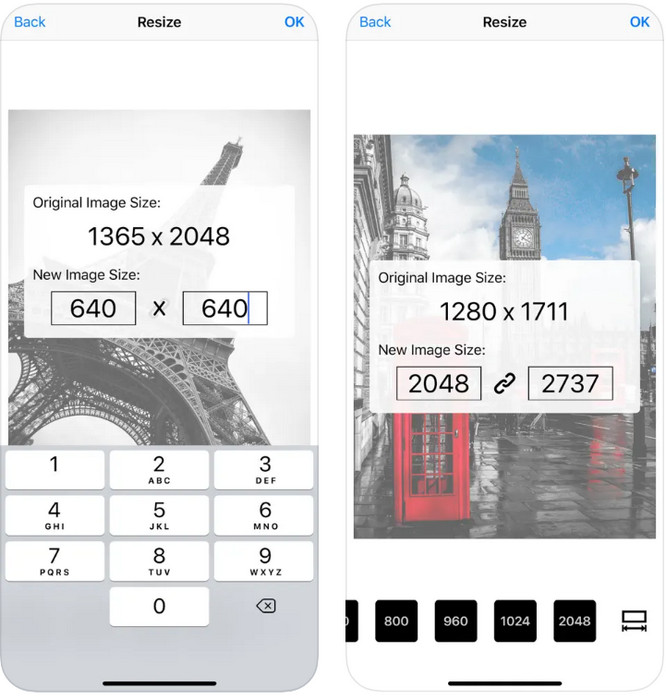
Image Resizer Free är en iOS-baserad app som du kan ladda ner på iOS 7.0 eller senare. Den här appen är en renodlad bildresizer som många iOS-användare använder. Den har inga extrafunktioner utöver sin huvudfunktion, att ändra storlek. Trots att verktyget är användarvänligt klagar många användare på att det inte kan skriva över originalbilden med den ändrade versionen.
Del 4. Vanliga frågor om hur man ändrar storlek på bild
Vilket format är bättre att ändra storlek, raster eller vektor?
Rasterformat består av små pixlar för att skapa bildens utseende, och när du ändrar dess storlek eller dimension blir dessa pixlar utsträckta och blir synliga. Till skillnad från om du ändrar storlek på vektorbilden, är den speciellt gjord för att ändra storlek och skala upp bilden utan att skapa en röra på den.
Kan jag ändra storlek på BMP online?
Ja, du kan ändra storlek på BMP med hjälp av onlinelösningen som vi lägger till här. Men när du förstorar bilden tenderar BMP att bli pixlade eftersom de är rasterbilder. Så om du vill undvika problemet med att ändra storlek på BMP-filen, är det bättre att välja FVC Free Image Upscaler Online, för den lämnar inte pixelering på den slutliga utmatningen av den ändrade storleken på BMP.
Ökar filstorleken efter att bilden har ändrats?
Ja det gör det. Främst för att bilden du ändrat storlek på lägger till ytterligare pixeldata på den faktiska utmatningen. Ändå skiljer sig inte dess filstorlek mycket från dess ursprungliga filstorlek.
Slutsats
Vilken metod för att ändra bildstorlek tror du passar dig bäst? Välj bland de resizern vi har tagit upp här. Om du har problem med att välja och har en fungerande internetanslutning rekommenderar vi varmt att du använder FVC Free Image Upscaler Online tack vare dess prestanda vid storleksändring. Det är inte svårt att ändra storlek om du använder den här resizern på webben.
-
 1440p-bild – all inkluderande information du behöver [2022 uppdaterad]
 Vill du veta mer om 1440p-bilder? Eller var kan man få tag i det? Vrid din bild till 1440p? Läs detta för att lära känna dem alla.
-
 Handledning för att ta upp en bild med hjälp av 3 Best Photo Unpixelator
 Har du problem med att hantera pixlade bilder? Idag har vi löst problemet och du kan använda verktygen vi lägger till här.
-
 Hur man skärper bilden i fotot på tre sätt [Snabbguide]
 Problem med den oskärpa bilden? Här kommer vi att presentera hur man skärper bilder i Photoshop med de tre sätten vi lägger till.
