


 Video Converter Ultimate
 Skärminspelare
 Video reparation
 Säker nedladdning
Enkla steg om hur man ändrar storlek på foto för Facebook
Många millennials och vuxna använder Facebook som den mest populära plattformen för sociala medier. Facebook är en app där du kan ladda upp bilder och dela eller skicka dem till dina vänner. Och många vill ha en bild med riktigt bra kvalitet att ladda upp på Facebook. Om du också vill ladda upp högupplösta och högkvalitativa foton har vi verktyget som kan hjälpa dig. Som tur är har vi hittat appar till iPhone, Android och online som snabbt och effektivt kan ändra storlek på bilder. Så spänn fast dig, för i det här inlägget lär du dig snabbt hur du kan ändra storlek på foton för Facebook.

Del 1. Hur man ändrar storlek på foto på iPhone för Facebook
Om du använder en iPhone-enhet kan appar laddas ner i din AppStore som hjälper dig att ändra storlek på ditt foto. Dessutom finns det gratisappar som du kan använda på din iPhone-enhet. Men alla appar ger inte utdata av hög kvalitet. Det är därför vi letade efter den bästa appen för att ändra storlek på bilder direkt.
Remini är den populäraste appen för att ändra storlek på foton som du kan ladda ner till din iPhone. Den här appen har ett användarvänligt gränssnitt med intuitiva funktioner. Dessutom kan Remini förbättra din bild med hjälp av sin AI‑förbättring (artificiell intelligens), som automatiskt ändrar storlek på din bild och förbättrar den till högsta möjliga kvalitet. Och inte nog med det – med den här appen kan du också förbättra dina videor med sin videoförstärkningsfunktion. Vidare stöder den alla vanliga bildformat, som JPEG, JPG och PNG. Det som också är fantastiskt med appen är att du kan ladda ner den gratis i App Store. Så om du vill använda den här appen för att ändra storlek på ett foto till din Facebook‑omslagsbild, följ stegen nedan.
Så här ändrar du storlek på en bild med Remini-appen:
Steg 1. Öppna App Store, sök efter appen Remini och ladda ner den till din enhet. När appen är installerad öppnar du den.
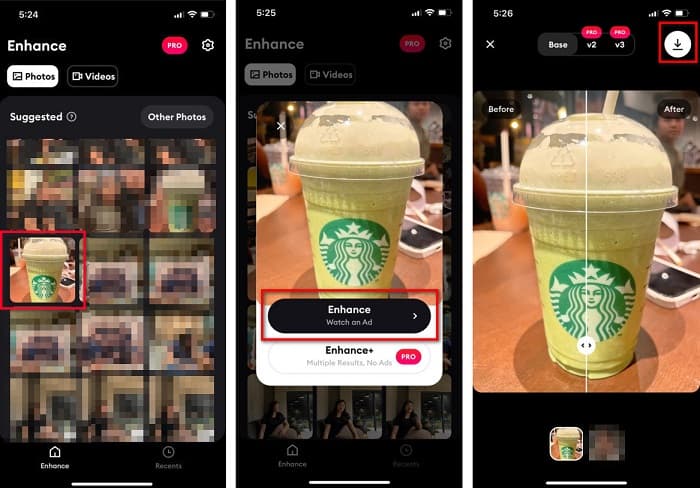
Steg 2. När du har öppnat appen ser du dina foton och väljer den bild du vill förbättra. Tryck sedan på knappen Enhance för att gå vidare till nästa vy.
Steg 3. Innan du går vidare till nästa vy måste du först titta på en annons. Därefter får du se före‑ och efterversionen av din bild. Tryck på hämtningsikonen uppe till höger på skärmen.
Del 2. Hur man ändrar storlek på foto på Android för Facebook
Är du en Android-användare? Oroa dig inte; vi kommer också att presentera ett program som du kan använda för att ändra storlek på en bild. Även om det finns många appar du kan ladda ner från PlayStore, valde vi de bästa bland dem att presentera för dig. Läs nedan för att lära dig hur du ändrar storlek på bilder för Facebook på Android.
AI Photo Enhancer & PixelLeap är en annan utmärkt app som hjälper dig att ändra storlek på din bild för bättre kvalitet. Den här fotoresizern är gratis att ladda ner från Play Store och säker att använda. Dessutom, om du vill förbättra eller återställa en gammal bild kan du använda AI Photo Enhancer & PixelLeap. Med sin AI‑teknik räcker det att du laddar upp bilden du vill ändra storlek på, så förbättrar appen den automatiskt. Vidare har den ett enkelt användargränssnitt, vilket gör den mycket lämplig om du är nybörjare. Den har också andra redigeringsfunktioner du kan använda, såsom att rätta till, färglägga, animera, lägga till uttryck och ljusa upp bilden. Problemet med appen är dock att den innehåller många annonser som tar tid att se klart och att den lägger en vattenstämpel på ditt resultat. Trots detta är appen en bra lösning om du vill ändra storlek på ett foto för Facebook utan beskärning.
Så här ändrar du storleken på en bild med AI Photo Enhancer & PixelLeap:
Steg 1. Installera AI Photo Enhancer & PixelLeap på din Android‑enhet.
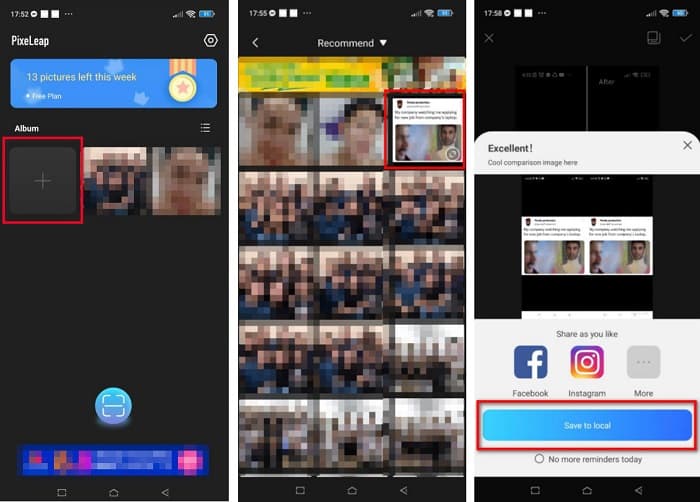
Steg 2. Tryck sedan på +‑rutan i appens huvudsakliga gränssnitt för att ladda upp bilden du vill ändra storlek på. Därefter låter appen dig titta på en annons innan du går vidare till nästa vy.
Steg 3. Bläddra fram bilden du vill ändra storlek på och tryck på den. När du har valt bilden trycker du på alternativet Enhance. Appen förbättrar då din bild automatiskt. Tryck på Save to local för att ladda ner ditt resultat.
Del 3. Hur man ändrar storlek på foto online för Facebook
Fördelen med att använda en onlineapplikation är att den låter dig spara utrymme på din enhet. Utöver det finns det många gratis tillgängliga webbappar som du kan använda i din webbläsare. Så om du vill använda en onlineapplikation för att ändra storlek på en bild för att ladda upp på Facebook kommer vi att visa dig hur du ändrar storlek på ett foto för Facebook.
FVC Free Image Upscaler är den bästa online‑tjänsten för att ändra storlek på foton och låter dig skala upp din bild upp till 2x, 4x, 6x och 8x förstoring. Tack vare det enkla användargränssnittet kan nybörjare lätt ändra storlek på en bild. Dessutom stöder den alla bildformat, inklusive JPEG, JPG, PNG och BMP. Det som är ännu mer imponerande med detta verktyg är att det använder AI‑teknik som automatiskt upptäcker de lågupplösta delarna av en bild och sedan förbättrar dem. Dessutom kan det helt och hållet återställa förlorade pixlar, färgstrukturer och fler detaljer på ett perfekt sätt. Det är också tillgängligt i alla webbläsare, inklusive Google, Firefox och Safari. Därför, om du vill använda FVC Free Image Upscaler för att ändra storlek eller förbättra din bild, följ de enkla stegen nedan.
Hur man ändrar storlek på en bild för Facebook med FVC Free Image Upscaler:
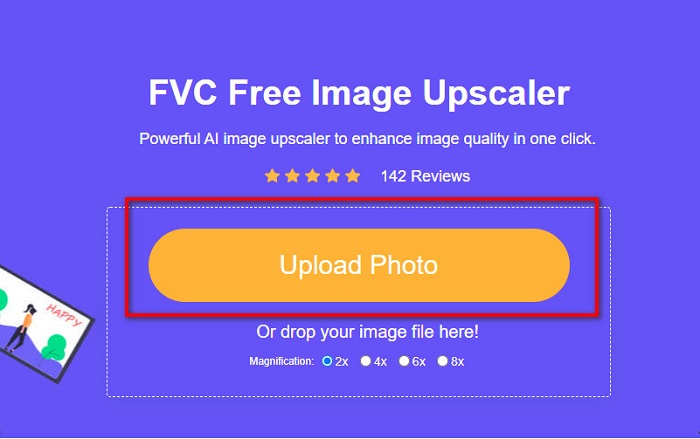
Steg 1. Öppna din webbläsare och skriv FVC Free Image Upscaler i sökfältet. Du kan klicka på den angivna länken för att gå direkt till webbplatsen. Klicka på Upload Photo för att starta verktyget.
Steg 2. I huvudvyn för programmet klickar du på Upload Photo för att importera bilden du vill ändra storlek på.
Steg 3. I nästa vy väljer du den förstoring du vill ha för din bild. Du kan välja mellan 2x, 4x, 6x och 8x förstoring. Gå sedan vidare till nästa steg.
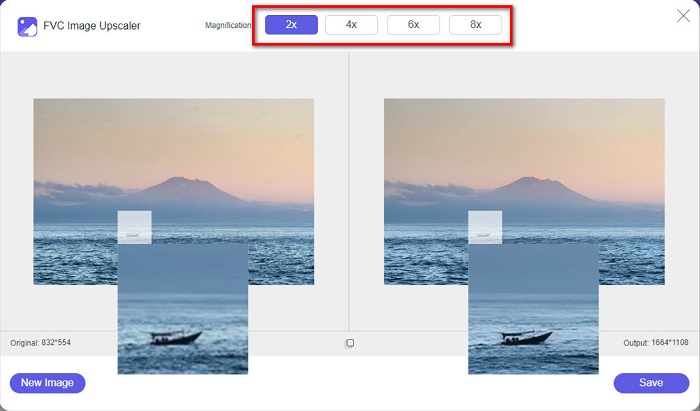
Steg 4. Klicka slutligen på knappen Save för att spara ditt resultat på datorn. Du kommer att se skillnaden mellan din ursprungliga fil och den ändrade bilden. På bara en sekund sparas din bild.
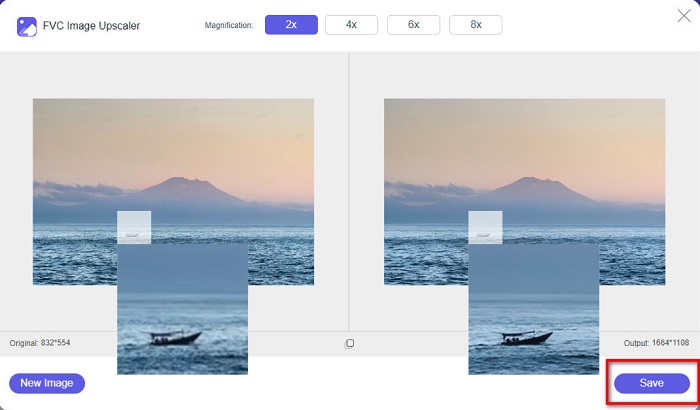
Och det är allt! Lika enkelt som ABC, din bild är nu förbättrad och storleksändrad.
Relaterat till:
Hur du skärper en bild online och offline på 4 enkla sätt
Hur du ändrar bildstorlek – Adobe Resize Image [online och offline]
Del 4. Vanliga frågor om hur man ändrar storlek på foto för Facebook
Vilket är det bästa fotoförhållandet för Facebook?
När det gäller fotoförhållande är det bäst att använda en vertikal bild med ett bildförhållande på 4:5 och 1200 x 1500 px. Och om du vill ha en kvadratisk bild måste upplösningen vara 1080 x 1080 px.
Vad är storleken på ett Facebook-inlägg?
Den rekommenderade bildstorleken för ett Facebook-inlägg är 1200 x 630 pixlar för att undvika pixelering och ha en snabbare laddningstid.
Vilket är det bästa bildformatet att ladda upp på Facebook?
Det bästa och rekommenderade bildformatet att ladda upp på Facebook är JPG-format. Det är bäst att ladda upp ett JPG-format med en RGB-färg på mindre än 15 MB.
Slutsats
Vi har lösningarna ovan om du vill ändra storlek på ett foto för Facebook. Genom att läsa den här artikeln noggrant hoppas vi att du har lärt dig allt du behöver göra. Du kan utan problem ändra storlek på alla bilder du vill med appar till iPhone, Android eller online. Men för bästa resultat, använd FVC Free Image Upscaler, som dessutom hjälper dig att spara utrymme på din enhet.
-
 Bästa Photo Resizer-appen online, offline, Android och iPhone
 Vilka är de bästa apparna för fotoförändring? Klicka på sidan för att lära dig de fem mest kraftfulla apparna för fotoförändring som du kan använda för att förbättra eller ändra storlek på din fil.
-
 Hur man ändrar storlek på bild - Adobe Ändra storlek på bild [Online och Offline]
 Om du letar efter Adobes storlek på bild så har vi lösningen för dig. Läs det här inlägget noggrant för att lära dig hur du ändrar storlek på bilder med Adobe på din PC.
-
 Topp 4 offline- och online GIF-förstorare du inte får missa
 Det här inlägget är för dig om du letar efter de bästa GIF-förstoringarna. Vi listade de bästa GIF-förstoringarna online och offline för din dator.
