


 Video Converter Ultimate
 Skärminspelare
 Video reparation
 Säker nedladdning
Hur man snabbt skärper bilden i Photoshop - en komplett guide du måste känna till
Med den bästa bildredigeraren som experter rekommenderar kan du ta varje bild du har till en ny nivå. Adobe Photoshop har länge varit den mest pålitliga programvaran du kan ladda ner på Windows, Mac, iOS och Android. Tack vare utvecklaren Adobe har den introducerat och fört bildredigering till sin fulla potential. På grund av sina avancerade funktioner har nya redigerare ibland blivit rädda för den, både för gränssnittet och den övergripande funktionaliteten. Den kan verka svår att använda, men det är den inte, särskilt inte när du ska skärpa bilder. Här går vi igenom en komplett handledning om hur du snabbt skärper en bild i Photoshop.

Del 1. En komplett handledning om hur man skärper bilden i Photoshop [3 effektiva sätt att skärpa]
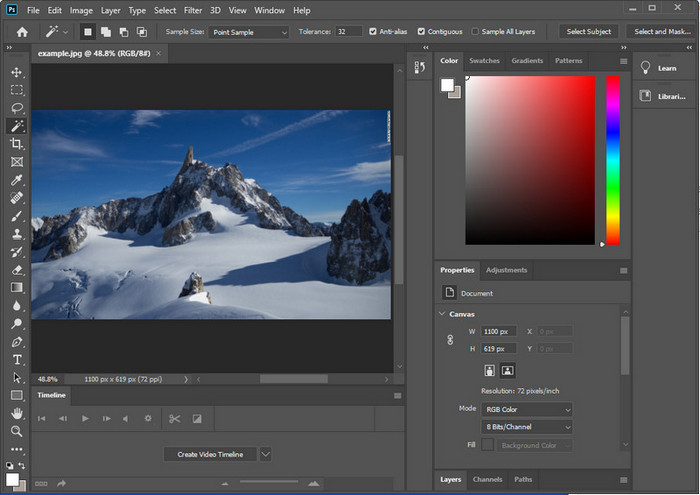
Att skärpa Photoshop-bilder kan överväldiga de som inte har använt det här programmet. Men innan vi går vidare till handledningen måste du ladda ner den officiella programvaran på Adobe. Välj rätt nedladdningsknapp för att ha den på skrivbordet. Om du inte har laddat ner det här programmet på din dator kan du använda dess kostnadsfria testversion, men om du har avslutat testversionen måste du köpa en månads- eller årsprenumeration. Efter att ha följt allt, fortsätt till stegen för ditt val som vi inkluderar nedan.
1:a vägen. Hur man gör bilden skarp i Photoshop med High Pass:
Med Highpass kan du markera bilden och använda ett filter på bilden som kan hjälpa dig att skärpa kanterna på bilden du laddar upp i Photoshop. Du kan följa handledningen vi lägger till nedan för att lära dig hur du applicerar och använder highpass på bilder du har.
Steg 1. Starta programvaran, klicka på File och sedan Open för att ladda upp bilden och börja lägga till skärpa.
Steg 2. Duplicera lagret med bilden du laddade upp i Photoshop.
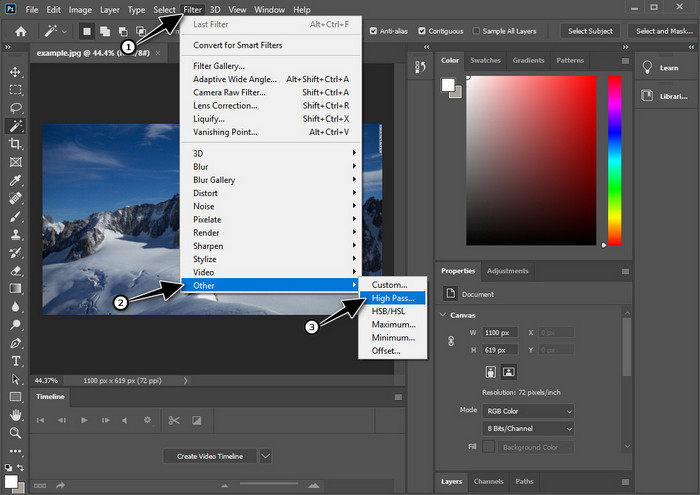
Steg 3. Klicka på menyn Filter högst upp, välj Other och sedan High Pass. Oroa dig inte om bilden blir grå, det är normalt när du lägger till ett high pass-filter.
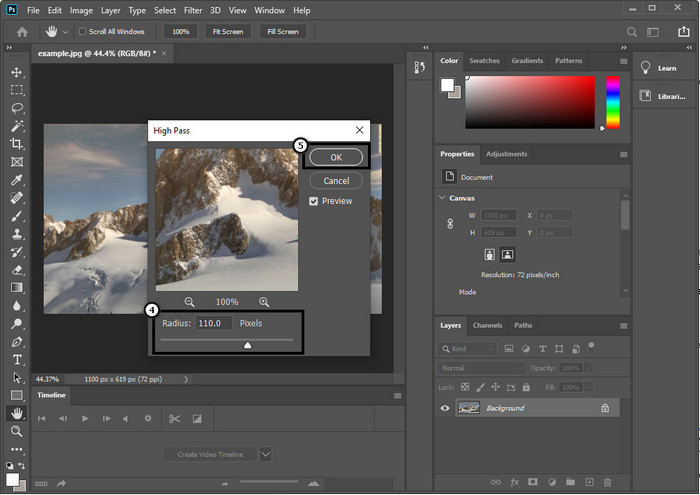
Steg 4. Ett popup-fönster visas på skärmen där du kan börja dra reglaget för att öka radien och få fina detaljer i bilden. Klicka sedan på OK för att spara.
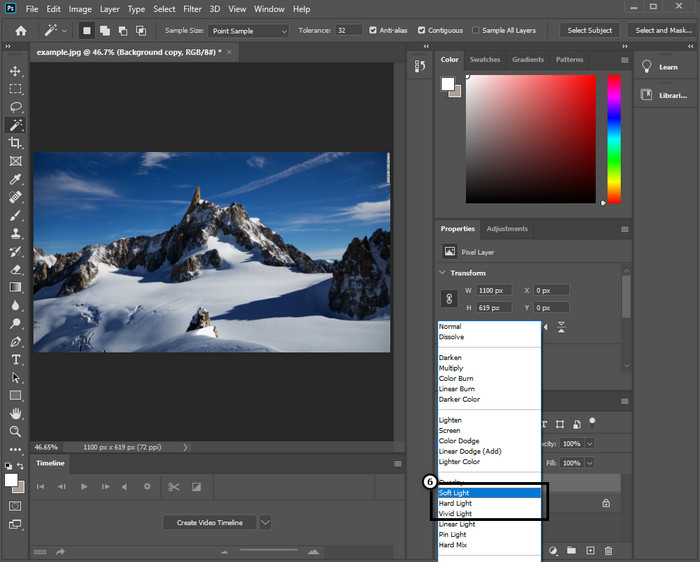
Steg 5. Gå tillbaka till lagret, klicka på rullgardinsmenyn och välj vilken typ av ljus du vill använda på bilden, från Soft Light, Hard Light och Vivid Light för att skärpa bilden. Upprepa steg 3 fram till det här steget för att skärpa bilden ytterligare.
2:a vägen. Hur man gör bilden skarpare i Photoshop med Smart Sharper:
Smart Sharpen är en effektiv funktion du kan använda i Adobe Photoshop för att skärpa allt i din bild. Den här funktionen är ingen automatisk lösning, utan du behöver justera vissa parametrar för att få allt att se skarpt ut. Om du vill använda funktionen i Adobe kan du följa stegen nedan som vi har tagit med.
Steg 1. När du har lagt till bilden du vill skärpa, klicka på menyn Filter.
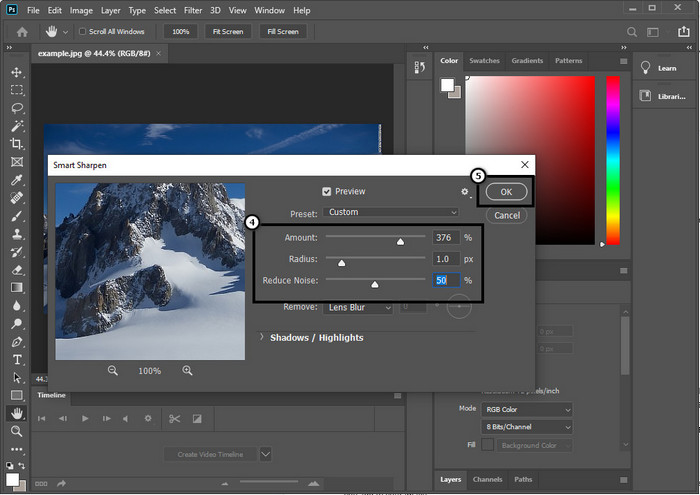
Steg 2. I listan som visas klickar du på Sharpen och sedan på Smart Sharpen.
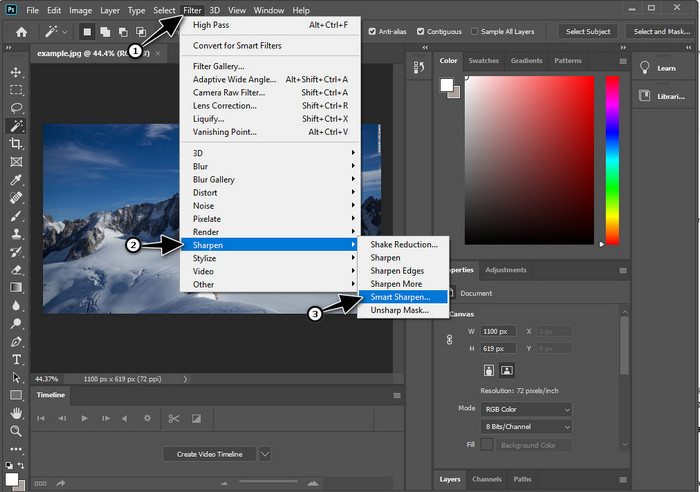
Steg 3. Justera mängd och radie för skärpan efter din egen smak och klicka på OK för att spara ändringarna. Så enkelt är det att skärpa fotot med den här programmets skärpeverktyg.
3:e vägen. Hur man skärper bild på foto genom att justera ljusstyrka och kontrast:
Till skillnad från de två sätten vi introducerade fokuserar ljusstyrka och kontrast på att markera bilden du laddar upp för att få den att se mer detaljerad ut, som vad skärpningsverktyg gör. Få användare känner till det här alternativet, så om du vill använda det här alternativet och börja skärpa bilden du har, följ stegen nedan.
Steg 1. Efter att du har laddat upp bilden i Photoshop fortsätter du med att klicka på menyn Image.
Steg 2. Flera alternativ visas; klicka på Adjustment och sedan på Brightness and Contrast.
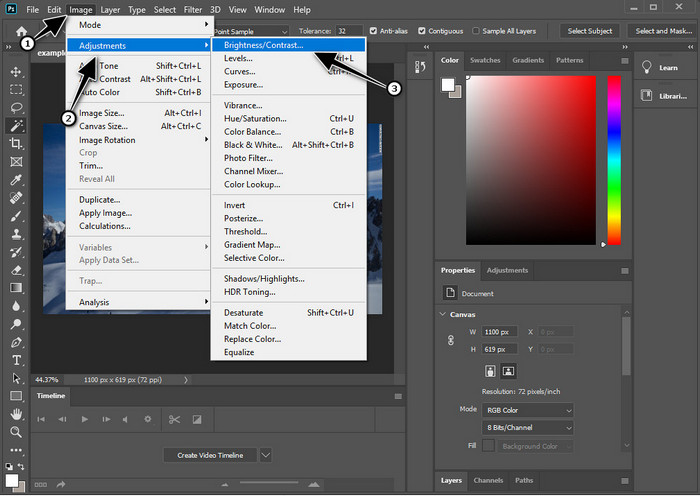
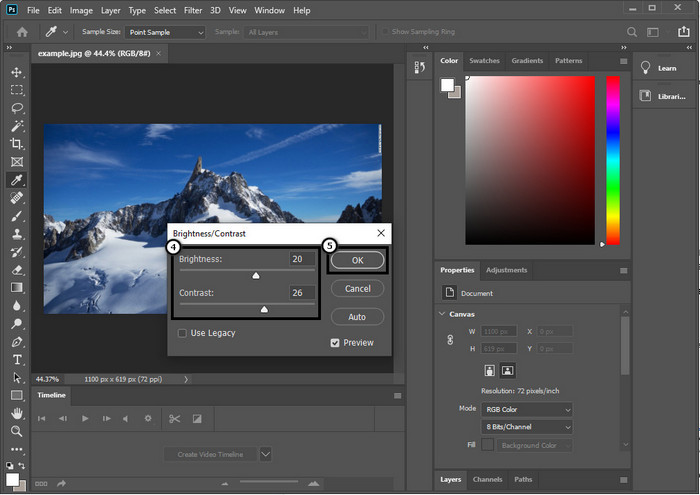
Steg 3. Justera ljusstyrka och kontrast genom att dra i reglaget och klicka på OK för att spara ändringarna du gör i bilden.
Relaterat:
Enkel guide: Så lägger du snabbt till en vattenstämpel i en video i Photoshop
Del 2. Bästa alternativet till Photoshop för att skärpa bilden online [gratis tjänst]
Hur skärper man en suddig bild i Photoshop utan själva appen? Du kan använda FVC Free Image Upscaler. Det här onlineverktyget gör att du slipper krångliga moment. Ladda upp bilden och låt AI-tekniken som verktyget använder göra jobbet åt dig. Du behöver inte heller köpa någon licensnyckel eller premiumversion, eftersom det är gratis för alla användare som snabbt behöver redigera sina bilder. Även om du inte är någon redigeringsexpert kan du ändå skärpa dina bilder genom att följa stegen nedan.
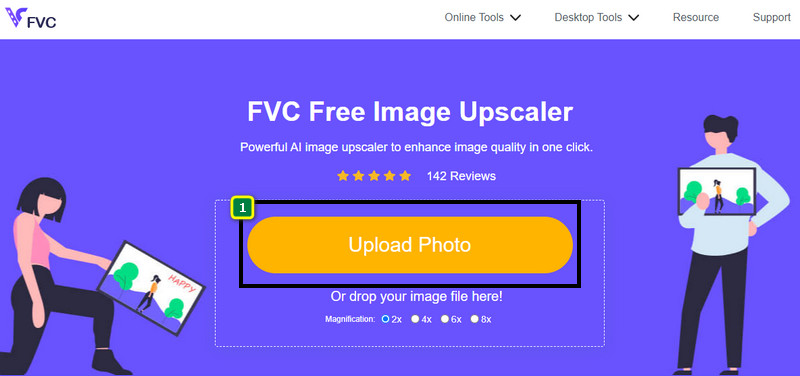
Steg 1. Klicka på den här länken för att öppna webbaserade verktyget och skärpa ditt foto.
Steg 2. På webbplatsen klickar du på Upload Image för att lägga in bilden du vill skärpa. En mappruta visas på skärmen, välj bilden och klicka sedan på Open för att ladda upp den.
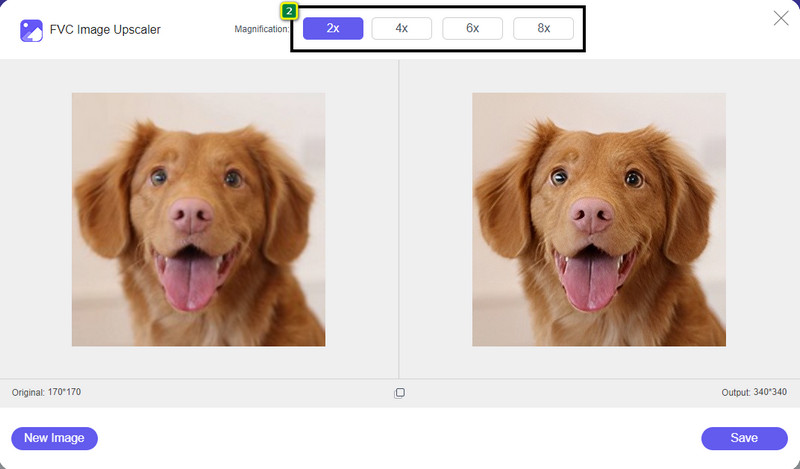
Steg 3. Det finns olika förstorningsalternativ för bilden, så att du enkelt kan skärpa den med hjälp av AI-tekniken.
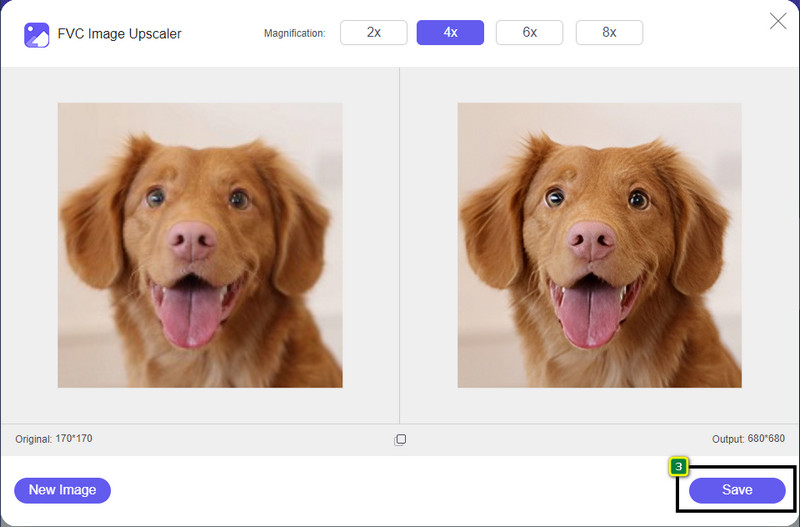
Steg 4. Längst ned klickar du på knappen Save för att ladda ner den skärpta bilden till din lokala enhet.
Del 3. Vanliga frågor om hur man skärper bilder i Photoshop
Vad ska jag göra om en gratis testversion av Photoshop avslutas?
Om du vill fortsätta använda den här professionella bildredigeraren som Adobe har utvecklat, måste du köpa en prenumerationsplan för att fortsätta använda programmet. Men om du vill få en liknande redigeringsupplevelse som i Photoshop kan du börja använda FVC Free Image Upscaler.
Vad kan jag göra med Photoshop?
Du kan göra en mängd bild- och videoredigering här, vilket den andra redigeraren inte erbjuder. Det är en komplett bildredigerare som du behöver för att skapa fantastiska saker som att förvandla 2D-bilden till en 3D och många fler. Den här programvaran är dock lite komplicerad, och du måste ta dig tid att bemästra hur du använder den överlag.
Var kan jag ladda ner Photoshop?
Adobe Photoshop stöder Windows 10 med 64-bitars eller senare och Mac 10.15 Catalina eller senare. Dessutom stöder den en mobilversion, Photoshop Express Photo Editor.
Slutsats
Med hjälp av handledningen vi har lagt till om hur du skärper en bild i Photoshop kan du nu enkelt skärpa bilder på olika sätt med denna avancerade redigerare. Men vad gör du om din gratis provperiod är slut och du fortfarande vill skärpa bilder? Du behöver inte oroa dig, för vi har lagt till ett webbaserat alternativ för att skärpa bilder enklare och gratis, så länge du har internet, nämligen FVC Free Image Upscaler.
-
 Gör Photo HD med de bästa sätten du kan hitta på marknaden
 Undrar du eller vill göra foto HD? Du kan följa handledningen vi lägger till nedan med olika lösningar som du kan använda.
-
 Topp 4 bildkvalitetsreducerare du kan använda online och offline
 Dessa bildkvalitetsreducerare kan hjälpa dig att minska kvaliteten på din bild av vissa anledningar. Om du behövde en, läs den här artikeln!
-
 Officiella sätt att uppskala bild till 4k med en praktisk handledning
 För att skala upp bilden till 4k behöver du en programvara på din enhet. Om du inte har ett måste du välja det verktyg vi inkluderar här.
