


 Video Converter Ultimate
 Skärminspelare
 Video reparation
 Säker nedladdning
Exceptionella sätt att konvertera MOV-fil till M4V på dina enheter
Om du vill lära dig hur man konverterar MOV till M4V-filformat är du i rätt artikel. Vi presenterar utmärkta och användbara konverterare för att konvertera olika filer, särskilt MOV till M4V. Du får också lära dig skillnaderna mellan dessa filtyper. Om du vill veta mer, ta dig tid att läsa den här artikeln noggrant.

Del 1: Skillnaden mellan MOV och M4V
| MOV | M4V | |
| Filnamn | Apple QuickTime-film | iTunes videofil |
| Filtillägg | .mov | .m4v |
| Beskrivning | MPEG-4-videobehållaren som kallas multimediaformatet.mov är ofta ansluten till Apples QuickTime-ramverk. Med den första lanseringen av QuickTime 1991, är filmfilformatet oftast krediterat med att introducera fullängdsfilmer i färg till Macintosh. Detta var innan persondatorn och Microsoft Windows operativsystem hade något jämförbart. Flera datasekvenser eller spår uppdelade i ljud, video, effekter och textliknande undertexter stöds av detta filmformat. En resursfil slutar på .mov. | M4V-filtillägget är mycket likt MP4-filtillägget och skapades av Apple specifikt för innehållet i iTunes Store. Apples produkter är de enda som stöder M4V. MP4 och MOV video codecs kan konverteras till M4V för att spelas på Apple-enheter. Den primära skillnaden mellan M4V och MP4 är att M4V tillhandahåller DRM-Copyright Protection, som förbjuder upphovsrätten till audiovisuellt innehåll. Datorn behöver tillstånd för att spela upp en DRM-skyddad M4V-fil, och den gör detta genom att logga in på iTunes-kontot som användes för att köpa videofilen. För att göra filerna kompatibla med icke-Apple-enheter behöver användaren bara byta namn på M4V-filtillägget till MP4 om filerna inte är DRM-skyddade. |
| Utvecklad av | Apple Inc. | Apple Inc. |
| Filkategori | Video | Video |
| Tillhörande program | Power DVD Apple QuickTime Player Roxio Creator VLC Media Player | Zoom spelare Klassisk mediaspelare KMPlayer VLC Media Player |
| MIME-typ | video/snabbtid | video/x-m4v |
Del 2: Bästa sättet att konvertera MOV till M4V med Mac
Hur konverterar man MOV till M4V på Mac? Det bästa svaret är Video Converter Ultimate. Det här programmet är en av de bästa konverterarna du kan använda. Du kan lägga till nästan alla videoformat här eftersom det stöder över 100 videoformat, inklusive MP4, FLV, AVI, M4V, MOV, VOB, MTS, SWF och fler. Dessutom har det en lättbegriplig procedur för att konvertera din MOV-fil, vilket passar den icke-professionella användaren. Utöver detta är konverteraren tillgänglig inte bara på Mac utan också på Windows. På så sätt märker du att denna konverterare är pålitlig. Vidare finns det annat du kan göra med din MOV-fil förutom att konvertera den. Du kan använda detta program om din MOV-video har en irriterande vattenstämpel. Med hjälp av verktygen för att ta bort vattenstämplar kan du snabbt eliminera vattenstämplar från dina MOV-videor. Om du dessutom planerar att lägga till några filter till dina videor för att göra dem behagliga för tittarnas ögon kan du fortfarande lita på det här programmet. Det innebär att du kan göra många saker med FVC Video Converter Ultimate.
Funktioner
◆ Konvertera olika videoformat, såsom MP4, AVI, FLV, WMV, MKV, VOB, M4V, MOV, etc.
◆ Skapa ett collage med tillgängliga filter och mallar.
◆ Skapa en musikvideo.
◆ Erbjuder redigeringsverktyg för att förbättra videor, såsom videohastighetskontroll, förstärkare, cropper, trimmer, rotator, etc.
◆ Konvertera många bildformat som BMP, JPG, PNG, etc.
◆ Erbjuder batchkonvertering.
Följ de grundläggande stegen nedan för att konvertera MOV till M4V gratis med Video Converter Ultimate Mac-versionen.
Steg 1: Klicka på knappen Ladda ner nedan för att ladda ner Video Converter Ultimate. Starta sedan programmet när installationsprocessen är klar.
Gratis nedladdningFör Windows 7 eller senareSäker nedladdning
Gratis nedladdningFör MacOS 10.7 eller senareSäker nedladdning
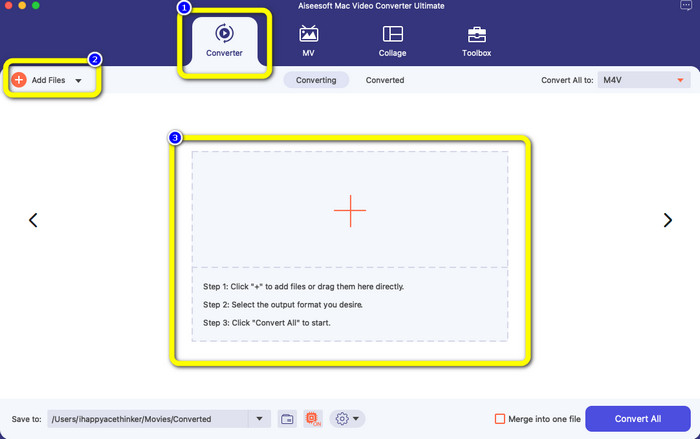
Steg 2: Välj alternativet Converter i det övre gränssnittet. Klicka sedan på knappen Add File eller +-symbolen för att lägga till din MOV-fil. Du kan också dra och släppa din MOV-videofil i rutan.
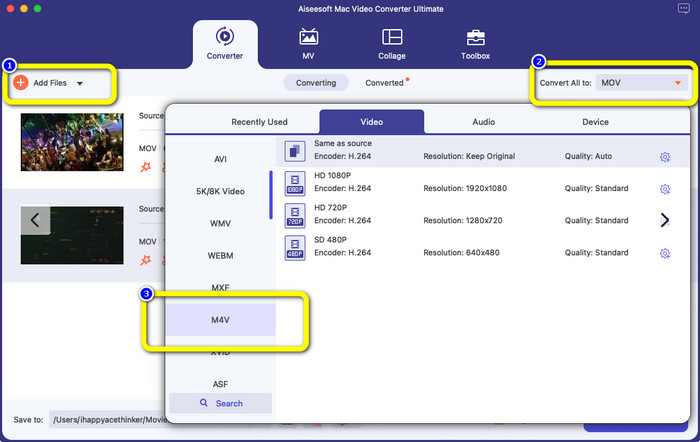
Steg 3: Du kan fortfarande lägga till fler filer, särskilt om du vill ha batchkonvertering. Klicka på knappen Add File. För att sedan konvertera dem till M4V-filformat går du till knappen Convert All to och väljer filformatet M4V. Du kan också välja önskad upplösning.
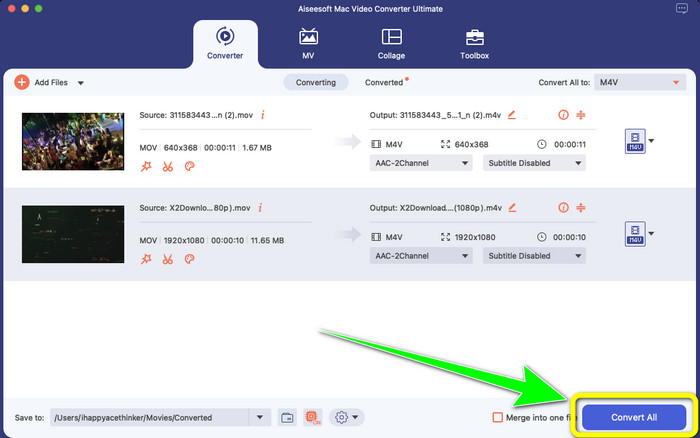
Steg 4: För att spara din video klickar du sedan på knappen Convert All. Vänta på konverteringsprocessen. Och det var allt! Din MOV-video är färdigkonverterad till en M4V-fil.
Del 3: 2 metoder för att konvertera MOV till M4V på Mac
Använder QuickTime
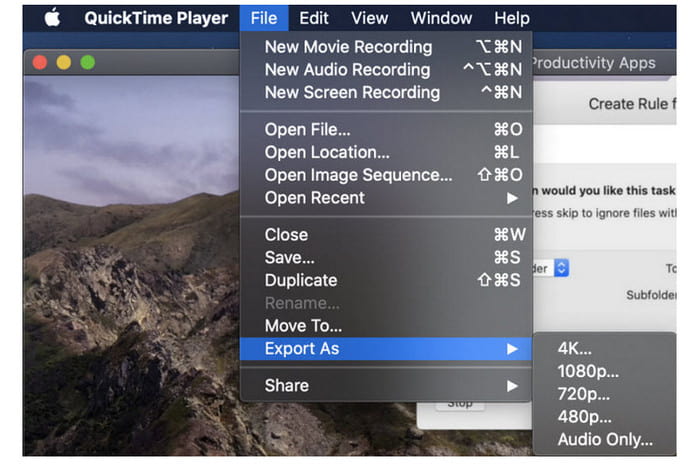
På tidigare Mac-datorer är det inbyggda programmet QuickTime. Exportalternativet i QuickTime är bra för att konvertera MOV-videofiler till M4V-filer på en Mac, vilket är ett användbart verktyg när du behöver göra det för att kunna spela upp dem på en iPhone, iPad eller Apple TV. .mov-videor kan komprimeras och konverteras till 480p, 720p eller 1080p med alternativet Exportera. På nyare versioner av macOS stöds inte QuickTime. För att en registreringskod ska aktivera konverteringsförmågan måste du betala Apple. Följ stegen för att konvertera MOV till M4V med QuickTime.
Steg 1: Öppna MOV-filen i QuickTime. Välj sedan menyn File högst upp och välj Export.
Steg 2: Det finns många alternativ under menyn Export, inklusive 480p, 720p, 1080p, iPad, iPhone, iPod touch, Apple TV, iTunes och Audio Only. Välj iPad, iPhone, iPod touch & Apple TV när du konverterar MOV till M4V för iPhone, Apple TV eller andra Apple-enheter, så öppnas ett nytt fönster där du kan välja storlek beroende på var du ska titta på videon.
Steg 3: Ge den konverterade videofilen ett namn. Videofilens filändelse ska vara .m4v. När allt är klart trycker du på knappen Save längst ned. Ange en plats där du vill spara filen.
Steg 4: Klicka slutligen på knappen Save en gång till för att exportera .m4v-filen. För att stoppa konverteringsprocessen när som helst klickar du på knappen X i förloppsindikatorn. Det gör det också möjligt att konvertera AVI till M4V.
Använder iTunes
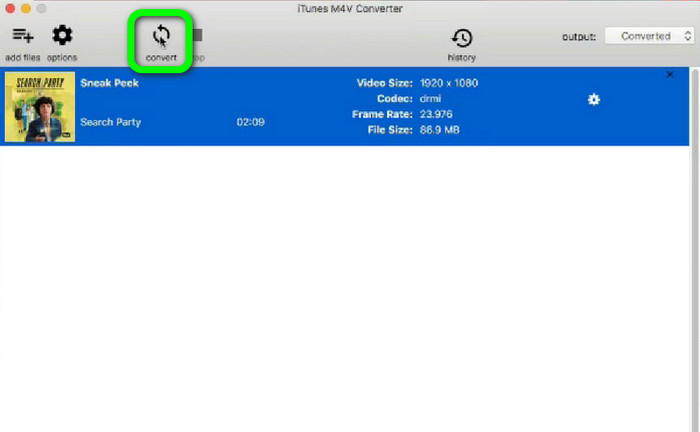
Vill du konvertera MOV till M4V med iTunes? Sedan kan du följa de detaljerade guiderna nedan. iTunes är en annan omvandlare du kan lita på. Det har dock en komplicerad process, och alternativen är för förvirrande.
Steg 1: Öppna iTunes. Välj Movies i biblioteket och lägg till MOV-filen.
Steg 2: Gå till menyn Advanced och välj Convert Selection for Mac.
Steg 3: Ändra sedan filändelsen på videon till M4V.
Steg 4: Gå sedan till File > Convert. Vänta på konverteringsprocessen och spara din video i biblioteket.
Del 4: Utmärkt sätt att konvertera MOV till M4V Online
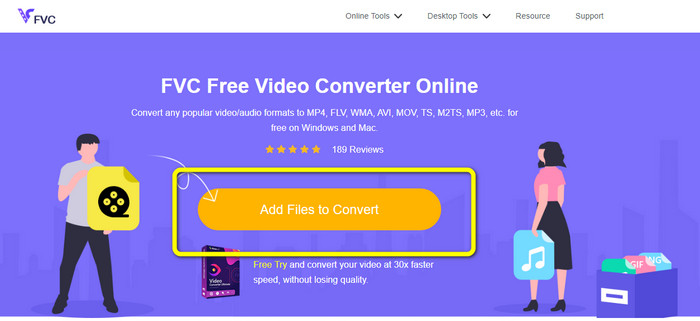
För att konvertera MOV till M4V online kan du använda FVC Free Video Converter Online. Den här konverteraren kan konvertera filer direkt. Dessutom låter programmet dig konvertera flera filer samtidigt. Utöver detta stöder det olika video- och ljudformat, såsom AVI, VOB, MP4, 3GP, AAC, AC3, MP3, FLAC och fler. Du kan använda de enkla stegen nedan för att enkelt konvertera MOV till M4V.
Steg 1: Gå till webbplatsen FVC Free Video Converter Online. Klicka sedan på Add Files to Convert för att lägga till din MOV-fil.
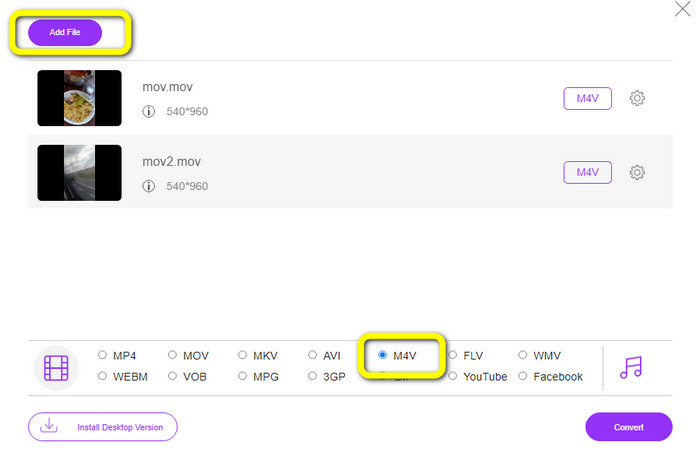
Steg 2: För att lägga till flera filer klickar du på knappen Add File. Gå sedan till formatalternativen och välj filformatet M4V.
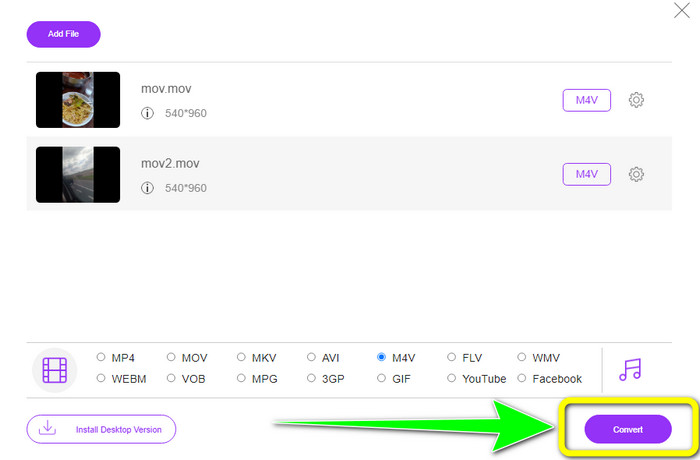
Steg 3: Klicka på knappen Convert för att konvertera MOV till M4V. Spara sedan filen på önskad plats. Du kan också använda det här verktyget för att konvertera MOV till MKV.
Del 5: Vanliga frågor om att konvertera MOV till M4V
Vilket är bättre i kvalitet, MOV eller M4V?
M4V är bättre i kvalitet. M4V-formatet är att föredra om du tittar på filmen på en mobil enhet som en iPhone, iPad eller iPod eftersom nästan alla mobila enheter kan spela detta format. M4V-filer bör inte ha några kompatibilitetssvårigheter jämfört med MOV-filer.
Vad är fördelen med en MOV-fil?
MOV är ett praktiskt filformat eftersom det kan lagra flera mediekomponenter på ett litet utrymme, inklusive ljud och video. Den behåller information, så att du snabbt kan ändra filen vid behov utan att behöva bry dig om att skriva om.
Varför är MOV så stor?
Videor du tar med din iPhone, iPad eller Mac sparas i .mov-format. MOV-filer är gjorda för att bevara de detaljer som kameran spelar in; de är större och mer lämpade för redigering.
Slutsats
Baserat på informationen ovan är detta de bästa sätten att ändra MOV till M4V-filformat. Vissa av dem är krångliga att använda och kräver att du aktiverar en kod. Om du vill ha ett enkelt sätt att konvertera dina filer använder du FVC Free Video Converter Online.
-
 Enkla sätt att konvertera MTS till M4V enkelt
 Har du önskat att konvertera din MTS-fil till M4V utan att stöta på några problem? Gå till den här artikeln. Vi har tillhandahållit detaljerade procedurer som du kan följa.
-
 Lär dig hur man konverterar VOB till M4V [Offline och gratis]
 Är det möjligt att konvertera VOB till M4V? Vet svaret genom att läsa den här guideposten, eftersom du kommer att lära dig de bästa metoderna du kan försöka konvertera VOB till M4V direkt.
-
 Lär dig hur du konverterar WMV till M4V på Windows och Mac
 Vi vet att du vill konvertera WMV till M4V helt enkelt med den bästa omvandlaren. I så fall kommer vi att visa dig de bästa metoderna du kan försöka konvertera dina filer.
