


 Video Converter Ultimate
 Skärminspelare
 Video reparation
WebM-fil till MOV-konverteringsprocess: problemfria metoder du bör känna till
När det kommer till produktion och streaming är inte alla videoformat kompatibla med alla digitala plattformar. När du försöker mata in, producera, ladda upp eller ladda ner relevanta filer kan detta orsaka stora problem. Apple, till exempel, använder inte de traditionella webbläsarna som vi har vuxit in i förr – det har en egen plattform som heter Safari. Det är därför videoformat som endast stöds av Google Chrome, Mozilla Firefox, Opera och Microsoft Edge inte alltid är tillgängliga för Mac-användare i webbläsarmässigt.
En sådan är en WebM‑video, ett format som erbjuder öppen videokomprimering för HTML5. Om du är Mac‑användare behöver du en extern mediaspelare för att titta på den. Däremot är ett MOV‑filformat det du är ute efter om du vill spela upp dina videor utan krångel, eftersom det är Apples egen utveckling för Apple QuickTime Player. Det du alltså vill göra är att konvertera WebM till MOV på din Mac, och i den här artikeln visar vi de bästa sätten att göra det.
Del 1. En översikt: WebM och MOV
Om du har varit utsatt för videokonsumtion och streaming ett bra tag nu måste du ha sett en hel del videor i olika format med olika plattformar. Du kanske en gång undrat vad dessa filtillägg representerar eller hur de skiljer sig från varandra. Förvisso har du försökt spela upp en viss video i din webbläsare men det kommer inte att göra det, säger att det inte stöds. WebM stöds till exempel endast av flera moderna webbläsare som Chrome, Firefox och edge eftersom det vanligtvis är inbäddat i webbsidor med en HTML5
Del 2. Bästa konverteraren som hjälper till att konvertera WebM till MOV
Att konvertera videofiler är inte så svårt som du kanske tror. Även om det finns många program och verktyg som kan hjälpa dig, finns det ändå ett som gör jobbet snabbt och enkelt. FVC Video Converter Ultimate är ett gratis nedladdningsbart program som sparar dig besväret med att leta runt på internet efter den bästa omvandlaren online. Vi vill helt enkelt ge dig det bästa. Du behöver inte oroa dig för vilket format videon du vill konvertera har, eftersom programmet stöder många olika format och dessutom erbjuder många alternativ för att redigera videon under själva konverteringen. Följ bara dessa steg för att använda programmet:
Steg 1: Innan du påbörjar konverteringen måste du först ladda ner programmet, vilket du kan göra genom att klicka på knappen Free Download. Du kan välja antingen Windows eller Mac. I det här fallet väljer du For Mac OS. Vänta tills .exe‑filen har laddats ner klart och öppna den sedan för att börja installationen.
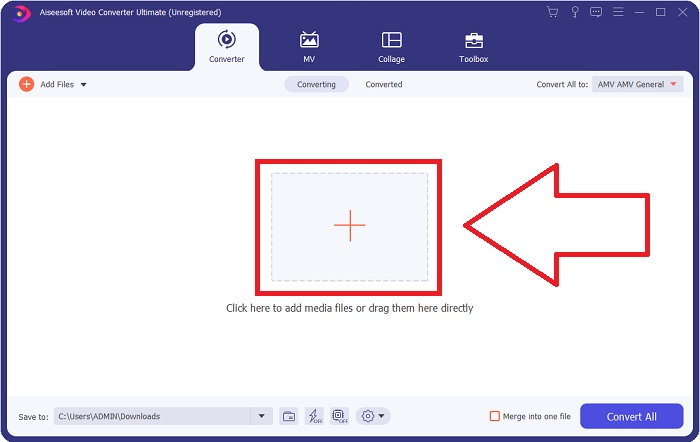
Steg 2: När programmet har installerats startar du det, och ett gränssnitt visas. När programmet öppnas hamnar du automatiskt på fliken Converter. Om inte, klicka på den.
Steg 3: Det finns en +-knapp i mitten av gränssnittet som du klickar på för att importera videofilen du vill konvertera. Du kan också enkelt dra och släppa dina videor.
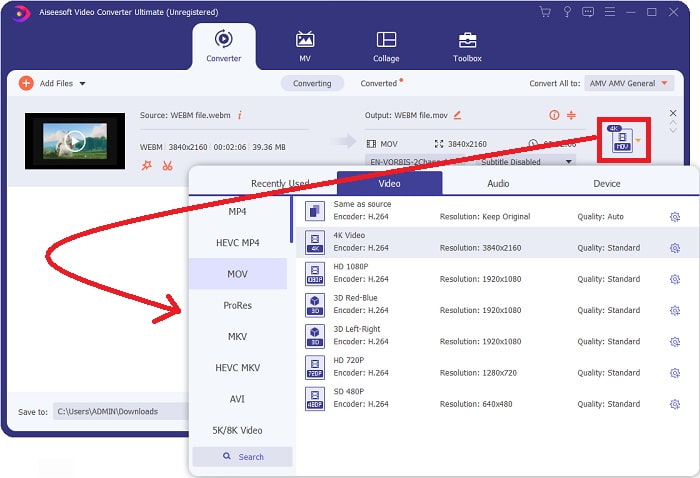
Steg 4: Ett nytt gränssnitt visas när din video har importerats. Där kan du längst till höger se vilket format din video för närvarande har. Bredvid finns en rullgardinspil; klicka på den så visas flera alternativ. Du kan välja vilket format du vill att videon ska konverteras till, men i det här fallet väljer du MOV. Det finns alternativ för bland annat upplösning och ljudkvalitet. För fler inställningar klickar du på kugghjulsikonen bredvid den kvalitet eller upplösning du valt, så kan du redigera videon ytterligare utifrån dina behov. För att spara ändringarna klickar du på Create New.
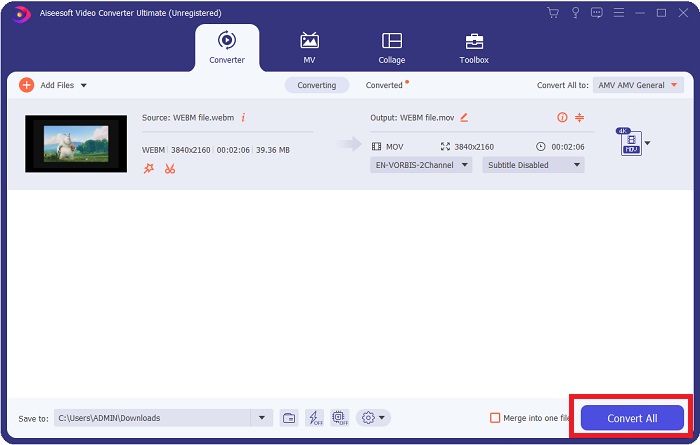
Steg 5: När du är klar och nöjd med ändringarna hittar du knappen Convert All nere i högra hörnet av gränssnittet. Klicka på den för att exportera din konverterade video.
Del 3. Bonustips: Andra onlinekonverterare som konverterar WebM till MOV
Metod 1: Använd Free Convert
Om du inte vill ladda ner programvara längre och bara fortsätta med konverteringsprocessen redan, kan vi visa dig alternativ för denna. Detta görs rent online samtidigt som det fortfarande erbjuder dig de funktioner du behöver för dina redigeringsbehov. Om du vill ha en problemfri metod är detta webbverktyg en väg att gå.
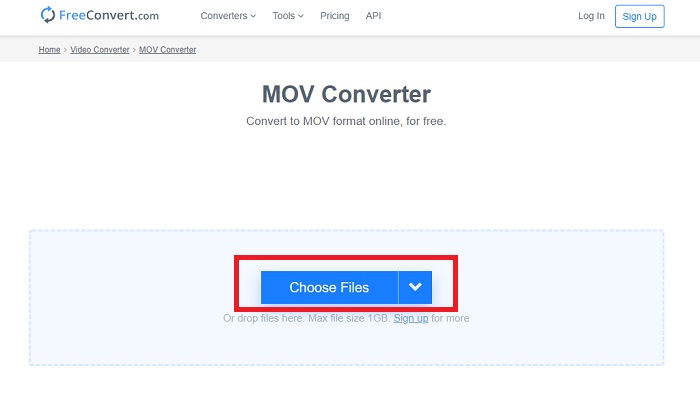
Steg 1: Gå till webbplatsen, där du möts av ett gränssnitt med en knapp Choose Files mitt på sidan. Klicka på den för att importera videofilen du vill konvertera.
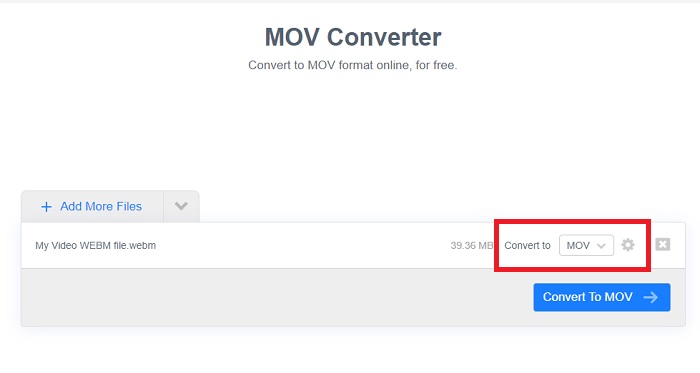
Steg 2: Precis som i programmet kan du se videons nuvarande format till höger, och bredvid finns en rullgardinspil. Klicka på den och välj vilket format du vill konvertera videon till. För fler alternativ klickar du på kugghjulsikonen för att redigera videon ytterligare. Klicka på knappen Apply Settings för att spara de ändringar du har gjort.
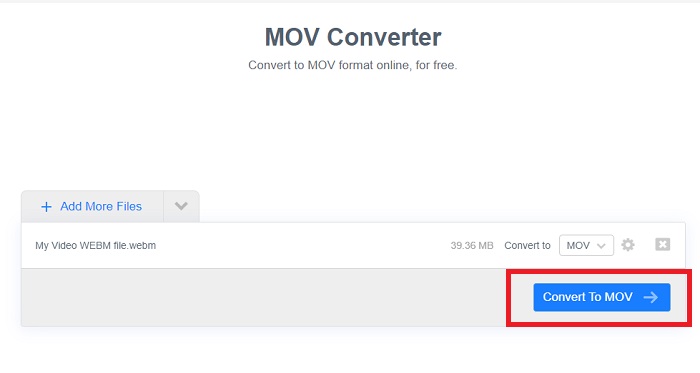
Steg 3: När du är klar med alla ändringar kan du starta konverteringen genom att klicka på knappen Convert to MOV strax nedanför och vänta tills processen är klar. Därefter kan du exportera din konverterade video genom att klicka på Download MOV.
Metod 2: Använd Cloud Convert
Detta webbverktyg erbjuder några fler alternativ för dig medan du konverterar din WebM-fil till MOV online. Du kan inte bara redigera upplösningen eller ljudkvaliteten utan även fps, undertexter och många fler. Följ dessa enkla steg för att använda denna onlinekonverterare:
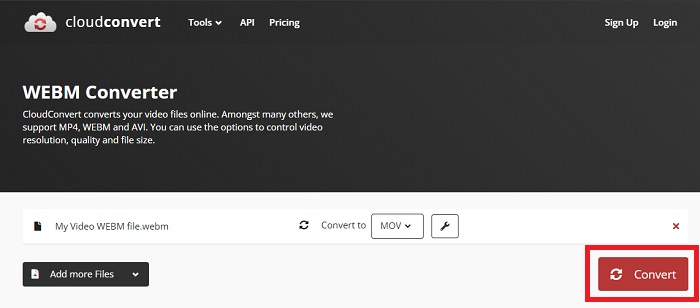
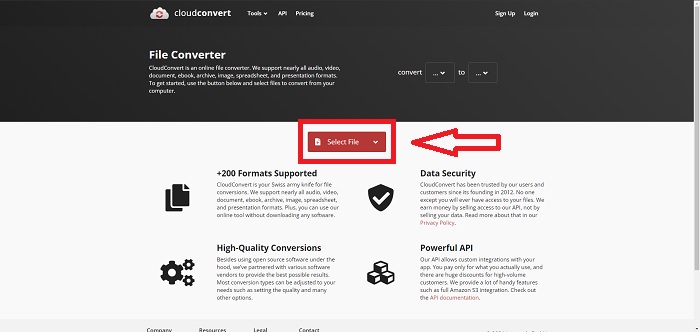
Steg 1: Först måste du importera videofilen du vill konvertera genom att klicka på knappen Select File mitt på sidan. Om du vill konvertera flera filer samtidigt klickar du på Add more Files.
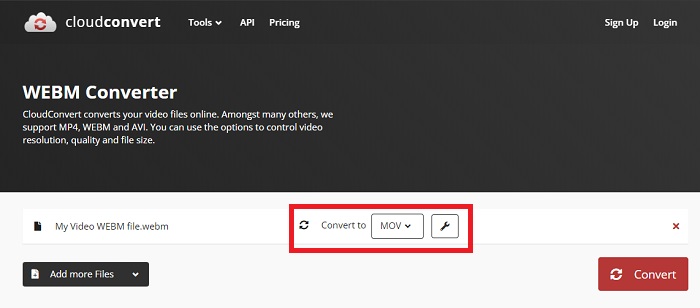
Steg 2: Bredvid filen kan du välja vilket videoformat du vill ha genom att klicka på rullgardinspilen. Klicka även på skiftnyckelikonen för fler alternativ. Där kan du redigera vissa delar av videon och ljudet. Klicka sedan på OK för att spara ändringarna.
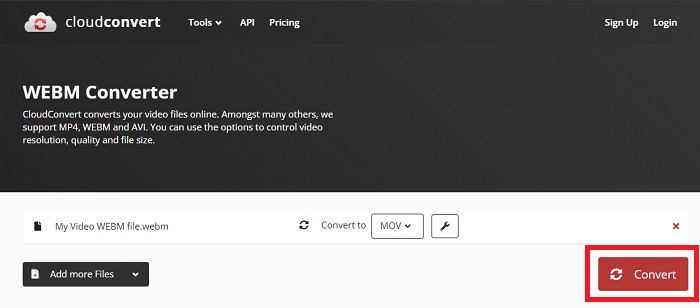
Steg 3: När du är färdig med alla justeringar klickar du på knappen Convert som är markerad i rött och väntar tills processen är klar. Klicka slutligen på Download som är markerad i grönt för att exportera din helt konverterade video.
Metod 3: Använd ZamZar Convert
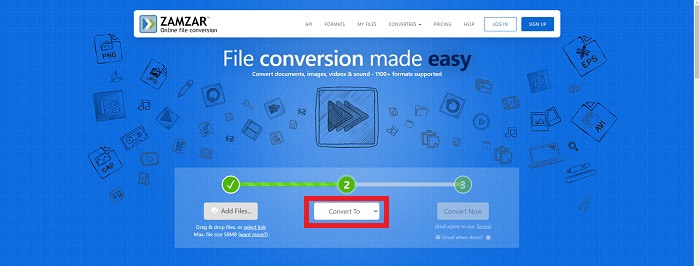
Detta webbverktyg erbjuder färre alternativ för din video eftersom det bara konverterar video- och ljudformatet. Det får dock jobbet gjort snabbare än de andra metoderna som nämns. Följ stegen för att använda denna onlinekonverterare:
Steg 1: I mitten av sidan finns bara tre knappar du behöver klicka på för att konvertera din video. Först klickar du på Add files för att importera din videofil.
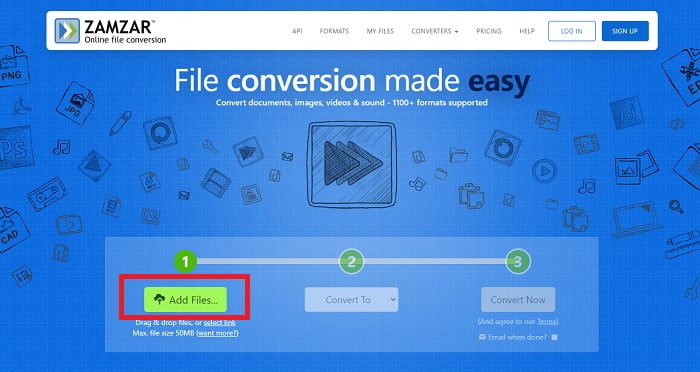
Steg 2: Med den andra knappen kan du välja vilket video- och ljudformat du vill ha för din video. I det här fallet väljer du MOV‑format.
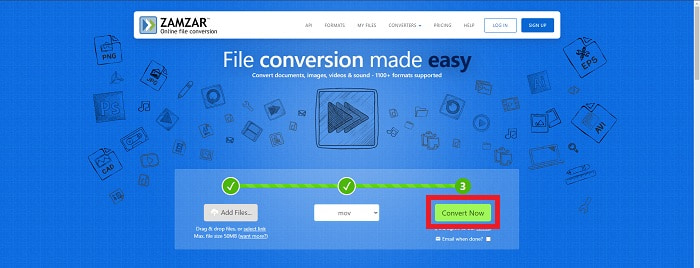
Steg 3: Till sist klickar du på den tredje och sista knappen, Convert Now, för att starta själva konverteringen och väntar tills den är klar. När den är färdig klickar du på Download för att slutligen exportera videon till datorn.
Del 4. Vanliga frågor om att konvertera WebM till MOV
Vad är egentligen WebM-format?
WebM är ett webbspecifikt öppet mediefilformat som inkluderar videoströmmar komprimerade med VP8- eller VP9-videokodekar, ljudströmmar komprimerade med Vorbis- eller Opus-ljudkodekar och WebVTT-texter. WebM-filstrukturen är baserad på Matroskas mediabehållare. De flesta webbläsare accepterar WebM-filer eftersom de ibland används på HTML5-webbplatser för att spela onlinefilmer. Till exempel använder YouTube filformatet WebM Video för alla videor på deras sida, allt från 360p till andra extremt höga kvaliteter. Wikimedia och Skype är samma sak.
Vilka mediaspelare behöver jag för att spela WebM-videor om jag inte vill konvertera den till MOV?
Det finns ett alternativ om du inte vill gå igenom hela konverteringsprocessen för att spela upp din WebM‑video. Du kan använda ett tredjepartsprogram, det vill säga en plattformsoberoende mediaspelare. Några exempel är VLC, KM Player, Media Player Classic, Winamp, jetAudio Basic, Moovidia, Persian och XBMC, som du kan ladda ner från respektive webbplats för att spela upp dina WebM-filer.
Är MOV hög eller låg kvalitet?
Videouppspelning är ganska hög kvalitet med MOV-filer. MOV är särskilt användbart eftersom det kan innehålla blandade media som bilder, videor och 360-gradersanimationer. Den innehåller också all video- och ljudinformation. Detta gör det mycket enklare att redigera filen.
Slutsats
Det finns verkligen många verktyg du kan använda för att konvertera din video från ett format till ett annat oavsett om det är genom att använda en programvara eller genom ett webbverktyg som du kan hitta online. Men de går fortfarande hand i hand när det gäller alternativen eller bekvämligheten de erbjuder. Vissa får bara jobbet gjort och vissa ger dig olika alternativ att välja mellan. Den här artikeln fokuserar på detta för att hjälpa dig att vara kunnig om vilken du bör använda beroende på dina behov. Det är därför vi rekommenderar Video Converter Ultimate mest eftersom den erbjuder alla ytterligare alternativ som du kanske aldrig vet när du kommer att behöva den. Det är bättre att ha denna programvara vid din sida hela tiden för att spara dig allt besvär att hitta en omvandlare online varje gång du behöver en.
-
 Hur man ändrar GIF till WebM -format utan att förlora filkvaliteten
 Konvertera dina Gif -filer till ett WebM -videoformat för att ha en HTML5 -videotagg. Lita på det här verktyget nedan för att veta vilken som är bäst för jobbet.
-
 3 sätt att konvertera WebM till MP3 utan att förlora ljudkvalitet
 Har du problem eftersom WebM-filerna inte kan användas för att spela upp ljudet du sparar? Läs sedan den här artikeln när vi tillhandahåller ett effektivt hjälpmedel genom att konvertera WebM till MP3.
-
 3 Fantastisk programvara som används för att konvertera WebM-fil till AVI-format
 Har du ingen aning om hur man konverterar WebM till AVI? Låt oss sedan börja läsa den här artikeln. Eftersom vi specificerar alla detaljer om WebM och de tre omvandlarna du kan använda för att konvertera.
