


 Video Converter Ultimate
 Skärminspelare
 Video reparation
 Säker nedladdning
Hur man enkelt konverterar MP3 till ringsignal på iPhone
Tycker du att standardringsignalerna på din iPhone inte riktigt är dina favoriter och önskar att någon av dina MP3‑filer kunde vara din iPhone‑ringsignal i stället? Vad sägs om att vi berättar att det är möjligt att konvertera MP3 till ringsignal på en iPhone?
I den här artikeln lär du dig 3 olika sätt att få dina MP3-musikfiler på din iPhone att bli en ringsignal. Att konvertera dem är lite knepigt, men med rätt verktyg och metod, låt oss göra detta så mycket som enkelt och bekvämt för dig. Vad väntar du på? Låt oss dyka in!

Del 1. Konvertera MP3 till ringsignal för iPhone på Mac/Windows
Ett av de enklaste och snabbaste sätten att konvertera MP3 till ringsignal på iPhone är att använda den av FVC rekommenderade Video Converter Ultimate på din Windows- eller macOS‑dator. Detta allt-i-ett‑konverteringsverktyg stöder upp till 300 olika format, inklusive M4R‑formatet, vilket gör det till ett pålitligt verktyg för att göra om MP3‑musikfiler till en iPhone‑ringsignal. Dessutom är denna konverterare upp till 120 gånger snabbare än andra konverteringsverktyg, vilket gör konverteringsprocessen snabb och problemfri.
Så här använder du den av FVC rekommenderade Video Converter Ultimate för att konvertera din MP3 till en ringsignal:
Steg 1. Ladda först ner och installera verktyget på din dator, antingen Windows eller Mac.
Steg 2. Starta verktyget och klicka på knappen Add Files när du är på huvudgränssnittet. Då kan du importera MP3‑filen som du vill konvertera till en iPhone‑ringsignal.
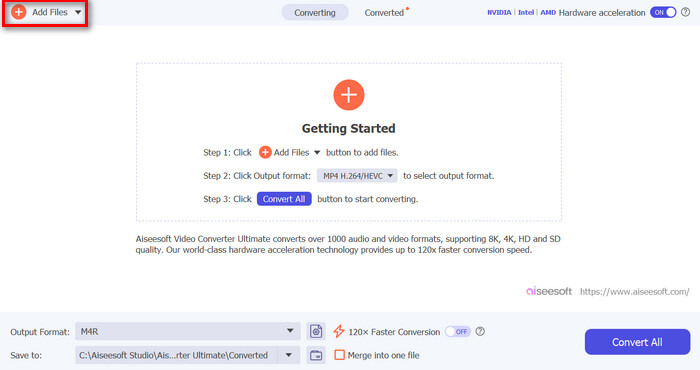
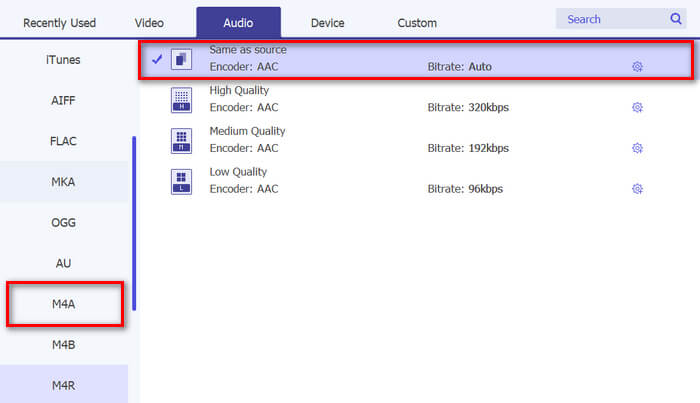
Steg 3. Gå nu till Output format och välj M4R i listan över olika ljudformat. M4R är filformatet för iPhone‑ringsignaler.
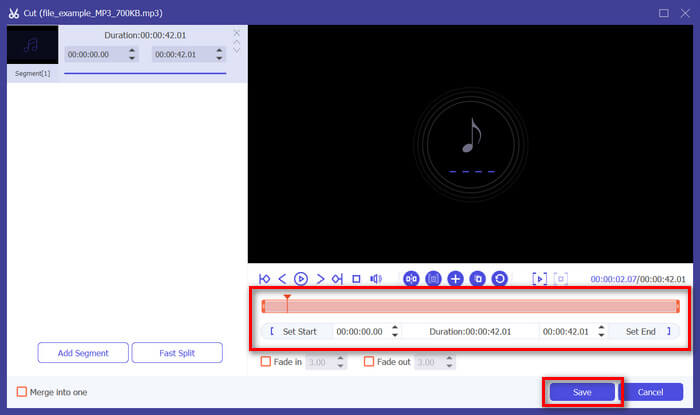
Steg 4. Se därefter till att din MP3‑fil bara är 30 sekunder lång. Om den överstiger den längden, gå till knappen Cut och justera filens längd genom att helt enkelt flytta reglaget på tidslinjen eller manuellt ställa in sluttiden för filen till 30 sekunder.
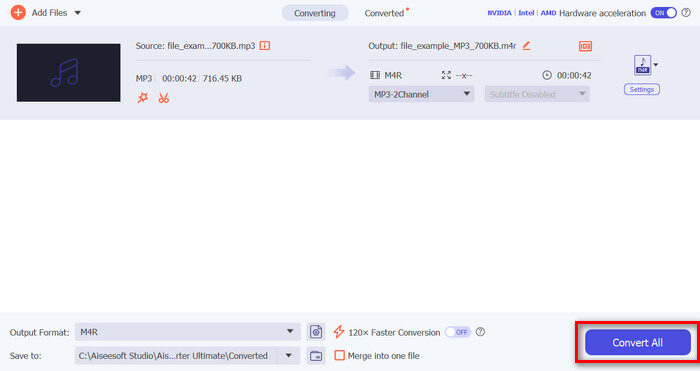
Steg 5. Klicka nu på knappen Convert All för att börja konvertera dina MP3‑filer till iPhone‑ringsignaler. De konverterade filerna sparas direkt i en mapp på din dator.
Det är snabbt, eller hur? Det är verkligen otroligt hur detta FVC-valda Video Converter Ultimate-verktyg gör konverteringen av MP3 till en iPhone-ringsignal enkel och snabb. Så om du letar efter ett konverteringsverktyg som kan spara tid, prova det här verktyget nu.
Del 2. Konvertera MP3 till ringsignal på iPhone
Om du föredrar en direkt metod utan att använda en dator, erbjuder GarageBand en bekväm lösning för att konvertera MP3 till ringsignaler direkt på din iPhone. Det här verktyget är en kraftfull app för att skapa musik som är förinstallerad på de flesta iPhones. Det här verktyget är inte bara användarvänligt utan ger också olika funktioner för att effektivt anpassa dina ljudfiler.
Så här använder du GarageBand för att konvertera din MP3 till en ringsignal:
Steg 1. Starta först GarageBand‑appen på din iPhone. Om du inte har appen installerad går du till App Store och installerar den.
Steg 2. Tryck på ikonen Project och sedan på ikonen Loop uppe till höger.
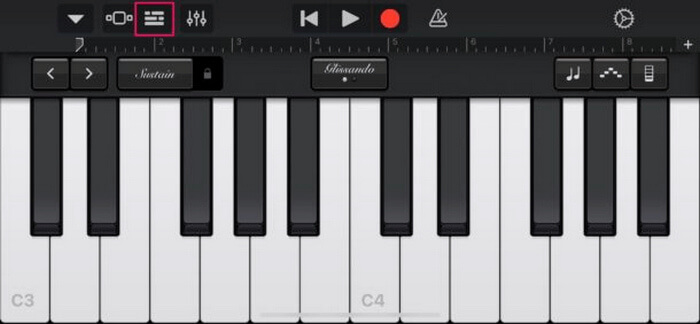
Steg 3. Tryck nu på Music eller Files för att välja MP3‑filen och håll den intryckt för att importera den till GarageBand.
Steg 4. Därefter trycker du på spåret och drar i båda ändarna för att trimma ljudet. Se till att ringsignalen är kortare än 30 sekunder.
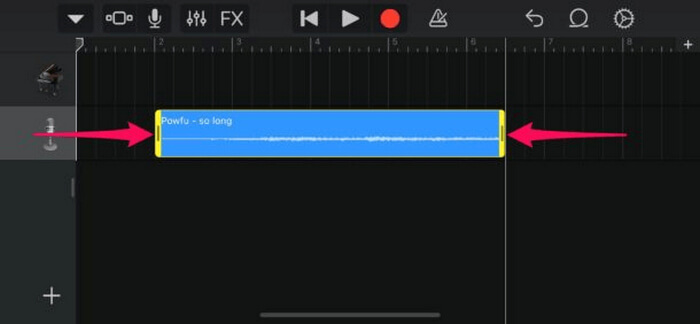
Steg 5. Du ser en nedåtpil längst upp till vänster. Tryck på den och välj sedan My Songs för att spara klippet.
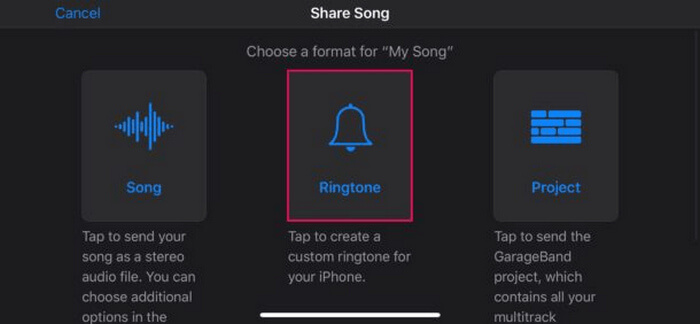
Steg 6. Hitta klippet du gjorde, håll det intryckt, tryck på Share och välj alternativet Ringtone. Glöm inte att namnge ringsignalen och trycka på Export.
Steg 7. För att använda den konverterade MP3‑filen som ringsignal på din iPhone trycker du på Use Sound As för att ställa in ringsignalen som standardtextsignal eller för en specifik kontakt. Alternativt kan du gå till Settings, Sounds & Haptics och Ringtone för att ändra ringsignal på din iPhone.
Om du föredrar att konvertera MP3-filer direkt till ringsignaler på din iPhone är den här metoden perfekt för dig. Nya användare kommer dock att behöva lite tid för att lära sig detta, eftersom det innehåller komplexa funktioner som kan överväldiga dem till en början.
Del 3. Konvertera MP3 till iPhone-ringsignal [online och gratis]
Om du i stället föredrar ett kostnadsfritt och webbaserat sätt att konvertera MP3 till iPhone‑ringsignal är FVC Free Audio Converter rätt val för dig. Med detta verktyg kan du enkelt konvertera valfritt format på din ljudfil, särskilt MP3 till M4R, eftersom det stöder ljudformaten MP3, AAC, AC3, WMA, WAV, AIFF, FLAC, MKA, M4A, M4B och M4R. Dessutom är detta verktyg perfekt för dig som behöver en ljudkonverterare i farten tack vare dess mycket intuitiva och enkla gränssnitt.
Så här använder du FVC Free Audio Converter för att konvertera din MP3 till en ringsignal:
Steg 1. Klicka på knappen Add Files för att importera de MP3‑filer du vill konvertera till ringsignal.
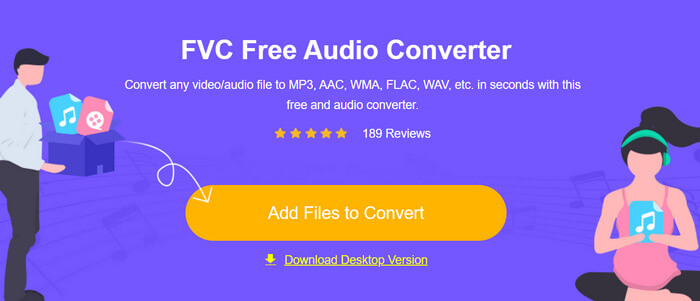
Steg 2. Välj M4R som ditt ljudutdataformat.
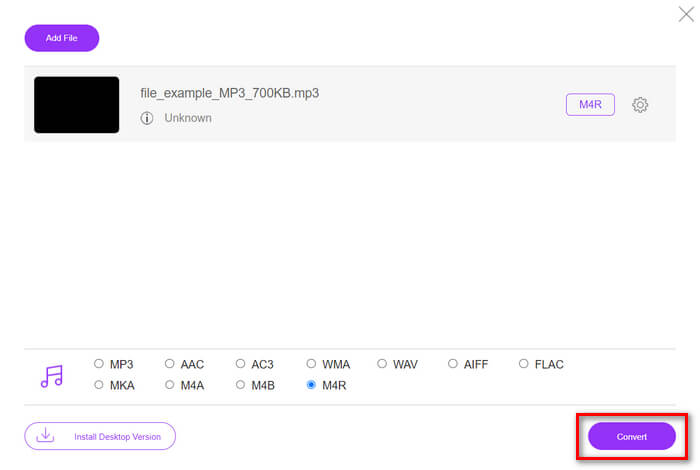
Steg 3. För att slutligen genomföra konverteringen av din MP3‑fil till ringsignal klickar du på knappen Convert. Den konverterade filen sparas direkt på din dator.
Om du letar efter en gratis och webbaserad alternativ metod för att konvertera MP3 till M4R-ringsignal på en iPhone är FVC Free Audio Converter en perfekt lösning. Dess intuitiva gränssnitt förenklar konverteringsprocessen och den stöder en rad olika ljudformat, vilket säkerställer kompatibilitet med olika filtyper.
Del 4. Hur man överför konverterade ringsignaler till iPhone från en dator
Nu när du äntligen har konverterat dina MP3-filer till ringsignaler på din dator, är det snabbaste sättet att överföra dem till din iPhone genom att använda iTunes.
Så här överför du konverterade ringsignaler till iPhone med iTunes:
Steg 1. Öppna iTunes på din dator och anslut din iPhone med en USB‑kabel.
Steg 2. Dra den konverterade ringsignalsfilen till iTunes‑biblioteket. Se till att den visas under avsnittet Tones.
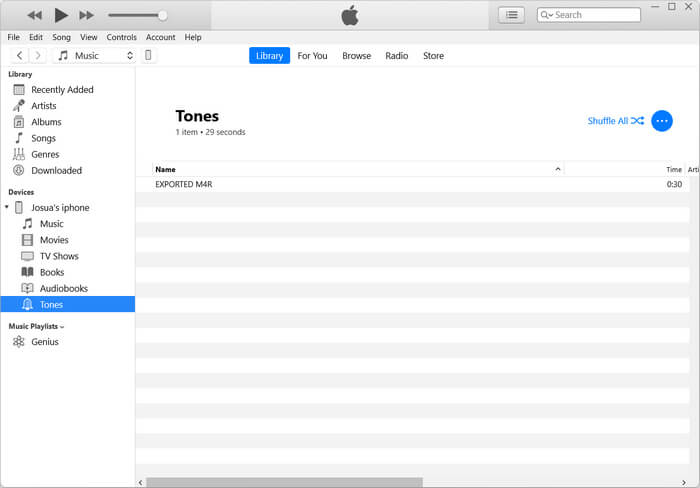
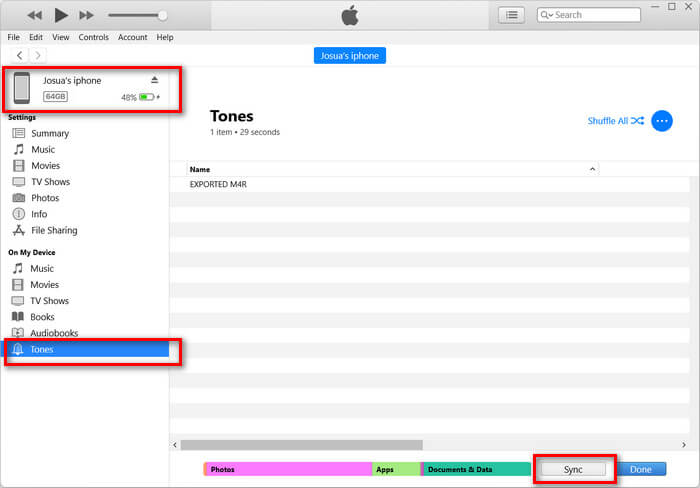
Steg 3. Välj din iPhone‑ikon i iTunes, gå till fliken Tones och markera Sync Tones. Välj sedan ringsignalsfilen du har importerat och klicka på Apply för att synkronisera.
Steg 4. Gå nu på din iPhone till Inställningar, välj Ljud och haptik, tryck på Ringsignal och välj din nya ringsignal.
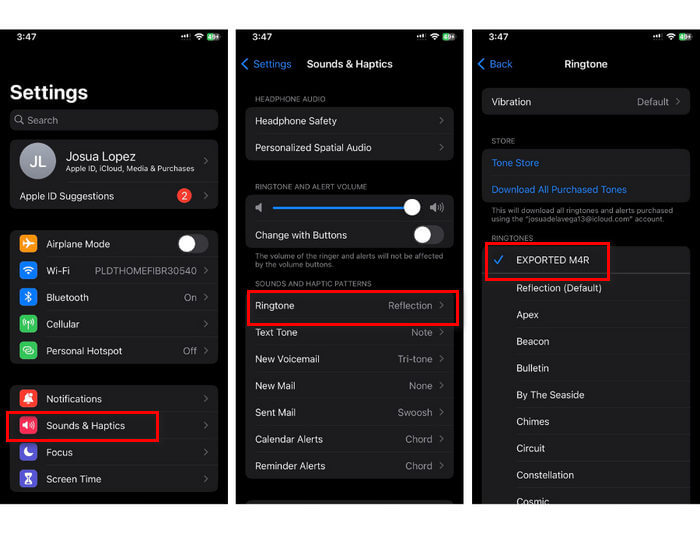
Där har du det. Du kan nu enkelt överföra och använda den konverterade MP3 till ringsignal på din iPhone, vilket ger din enhet en personlig touch med dina favoritljud.
Del 5. Vanliga frågor om att konvertera MP3 till ringsignal
Vilken är den bästa gratis ringsignalsajten?
Många webbplatser erbjuder gratis ringsignaler, men några populära och pålitliga inkluderar Zedge, Mobile9 och Tones7. Dessa webbplatser tillhandahåller ett brett utbud av ringsignaler som du kan ladda ner och använda på din telefon.
Vilket format är MP3 till iPhone ringsignal?
iPhone ringsignalsformat är M4R. När du konverterar en MP3-fil för att användas som ringsignal på en iPhone måste den sparas i M4R-format.
Hur lägger man till MP3 till iPhone ringsignal?
För att lägga till MP3 till din iPhone-ringsignal måste du först konvertera MP3-filen till M4R med ett omvandlingsverktyg som den FVC-valda Video Converter Ultimate. När du har konverterat MP3-filen, använd iTunes för att överföra den till din iPhone och använda den som din nya ringsignal.
Slutsats
Du kan nu använda dina favorit‑MP3‑filer och skapa en ringsignal för din iPhone. Välj bara det konverteringsverktyg som passar dina behov bäst. Var och en av dem erbjuder ett enkelt sätt att konvertera MP3 till en ringsignal på iPhones. Så vad väntar du på? Börja skapa din unika ringsignal nu och gör din iPhone riktigt personlig!
-
 MOV VS MP4 - Vilken väljer du?
 MOV VS MP4, vilken är bättre? Det här inlägget berättar skillnaden mellan MP4 och MOV, så att du kan få det bättre valet att använda för dina videofiler.
-
 FLAC vs. MP3: Vilket ljudfilformat är det högsta
 Det här inlägget kommer att jämföra de viktigaste skillnaderna mellan FLAC och MP3. Det inkluderar deras ljudkvalitet, filstorlek, kompatibilitet och mer.
-
 Hur man konverterar MP3 till M4A för förbättrad ljudkvalitet
 Förbättra kvaliteten på dina musikfiler genom att konvertera MP3 till M4A med våra experttips och tricks. Vår guide erbjuder steg-för-steg-instruktioner och rekommenderad programvara.
