


 Video Converter Ultimate
 Skärminspelare
 Video reparation
De mest bekväma sätten att konvertera MP3 till M4R för Apple-enheter
Har du någonsin tänkt på att göra din favoritmusik till ringsignal på din iPhone? Är det ens möjligt? Absolut. Du behöver bara konvertera filen för att göra det. Varför måste vi konvertera den först för att kunna ställa in den som ringsignal? Framför allt för att en specifik fil ska kunna användas som ringsignal måste den vara i M4R-format. Det innebär att du behöver hitta den bästa MP3 till M4R‑omvandlaren för iTunes som fungerar för dig. Den här artikeln presenterar olika metoder för hur du kan konvertera din MP3‑fil, och dessutom hur du kan batch‑konvertera MP3 till M4R genom att läsa innehållet nedan.

Del 1. Det mest möjliga sättet att konvertera MP3 till M4R
Video Converter Ultimate är det överlägset mest övertygande verktyget som du kan använda för att konvertera MP3 till M4R. Inte bara en enda fil utan den kan också göra batchkonvertering från MP3 till MP4. Det är en omvandlare som kan producera HD-videor och förlustfritt ljud. Faktum är att det är idealiskt och rekommenderas för den att konvertera filen utan att förlora sin ursprungliga kvalitet. Hastigheten är 30 gånger snabbare än den vanliga omvandlaren där ute. Plus, om du konverterar en spellista för att spara på din telefon kan detta verktyg definitivt göra jobbet åt dig. Ansträngning och ingen svett. Under tiden här är några av de andra funktionerna som du också kan njuta av förutom att konvertera ljud. Dessutom skrevs en steg-för-steg-guide nedan för din referens om du bestämmer dig för att använda den.
◆ Redigera metadata.
◆ Höghastighets GPU-acceleration.
◆ Teknisk support i realtid.
◆ Komprimering av video stöds.
Steg 1. För att använda den, hämta appen genom att klicka på nedladdningsknappen nedan. När appen har laddats ner till din Windows‑dator eller Mac, starta den.
Gratis nedladdningFör Windows 7 eller senareSäker nedladdning
Gratis nedladdningFör MacOS 10.7 eller senareSäker nedladdning
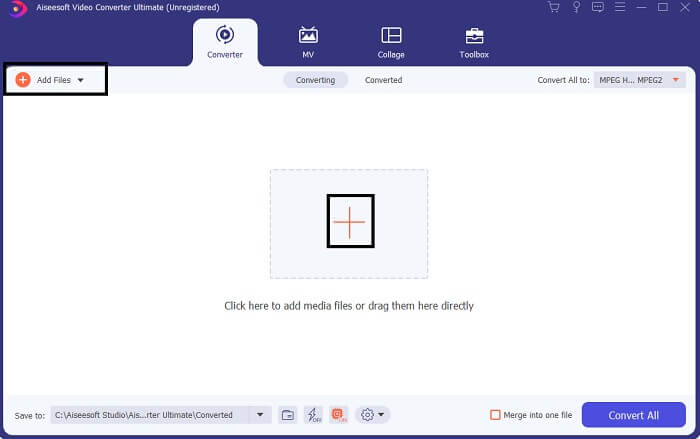
Steg 2. Från verktygets huvudgränssnitt ser du två alternativ för att ladda upp filer. Antingen klickar du på ikonen med plustecknet i mitten, eller så klickar du på knappen Add Files uppe till vänster. Välj målfilen och ladda upp den.
Steg 3. För att få önskat resultat ändrar du format genom att klicka på rullgardinsmenyn uppe till höger i gränssnittet.
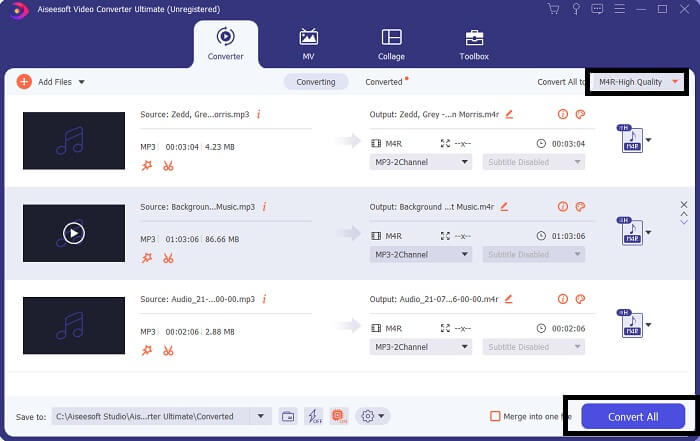
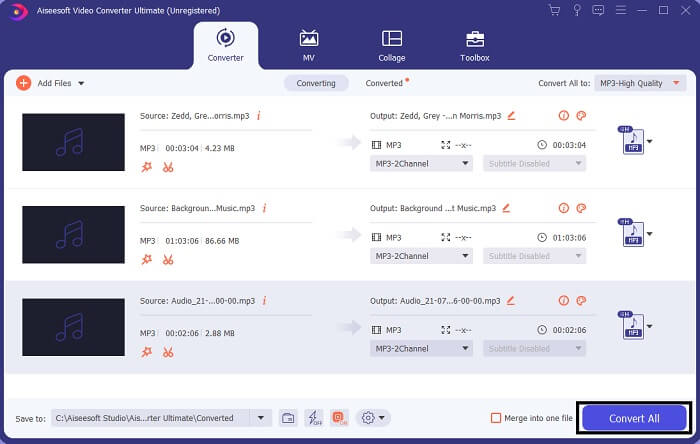
Steg 4. Klicka slutligen på knappen Convert All längst ned till höger i huvudgränssnittet. Vänta sedan tills filen har konverterats.
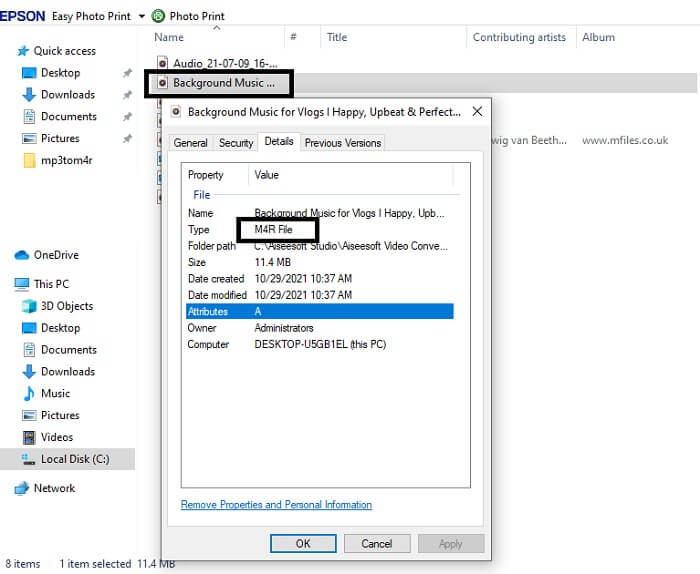
Steg 5. Öppna till sist mappen där ljudfilen har sparats och överför den till din iPhone. Du kan använda ett överföringsverktyg eller en app för detta. Du kan hitta rekommendationer på internet. Det är bara att söka, och sedan följa processen för att göra den till ringsignal på din iPhone.
Del 2. Några av de bästa verktygen för att konvertera MP3 till M4R Online
FVC Free Online Audio Converter
Ett premiumverktyg för konvertering är bra, men inget slår ett praktiskt verktyg. Med tanke på dina behov har FVC skapat en gratisversion av verktyget. FVC Free Audio Converter är ditt kostnadsfria verktyg, tillgängligt när som helst och var som helst. Allt du behöver är en fungerande internetanslutning och en webbläsare som stöds. Denna MP3 till M4R iPhone‑ringsignalsomvandlare kan producera högkvalitativt, förlustfritt ljud. Resultatet är tillfredsställande, utan att du behöver lägga pengar på det. Och det finns mer – visste du att den också klarar batchkonvertering? Ja, det kan du! Här är dessutom några andra anmärkningsvärda funktioner du får om du använder den. Å andra sidan finns även en guide skriven för din bekvämlighet.
◆ Den konverterade filen har en liknande kvalitet som originalet.
◆ 100% gratis och säker att använda.
◆ Ingen begränsning i storlek vid konvertering.
◆ Batchkonvertering stöds.
Steg 1. För att komma åt verktyget, besök den officiella webbplatsen för FVC Free Audio Converter.
Steg 2. Klicka där på Add Files to Convert. Som förstagångsanvändare måste du ge åtkomst genom att klicka på Open FVC Launcher. Därefter visas ett fönster på skärmen där du kan leta upp filen du vill konvertera.
Ladda ner Skrivbordsversionen för att konvertera filer i batch.
Steg 3. Efter att du laddat upp filen visas ett nytt fönster. Längst ner ändrar du utdatafilens format genom att markera M4R.
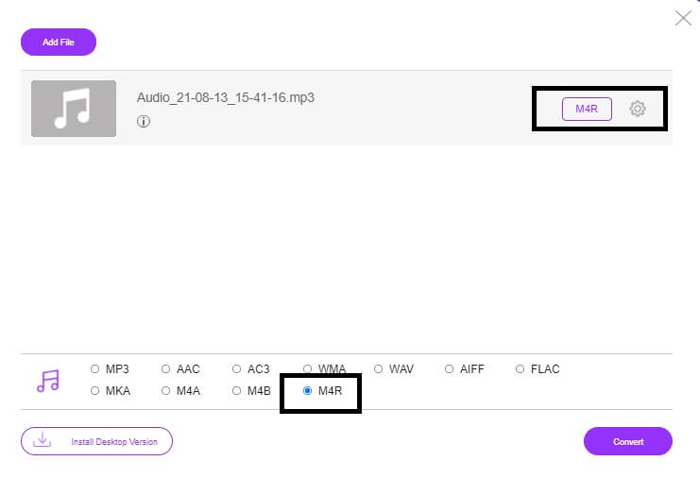
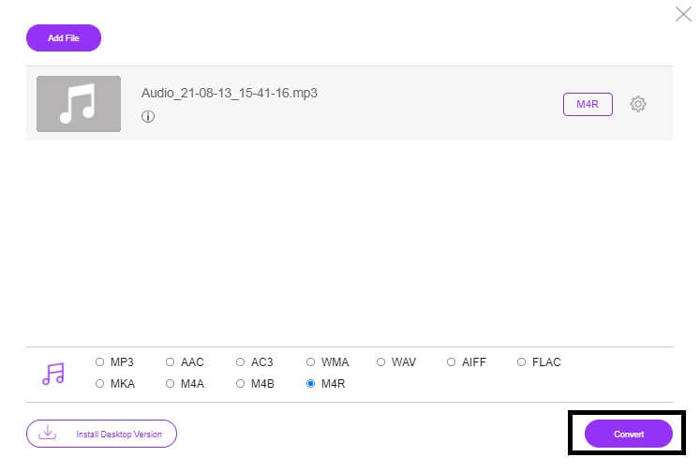
Steg 4. Klicka sedan på knappen Convert för att starta konverteringen.
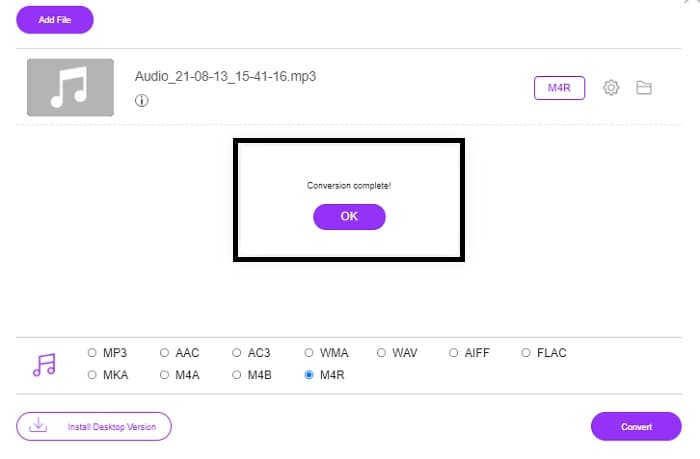
Steg 5. Välj slutligen en mapp där du vill spara filen, så sparas den automatiskt. Överför den sedan till din iPhone. Tänk på att du kan batchkonvertera, så begränsa dig inte.
Relaterat:
M4ROnline av File Converter
Enkelt men pålitligt – så beskriver användarna detta onlineverktyg. Som standard är det särskilt gjort för att konvertera Mp3 till M4R. Som namnet antyder är det precis vad verktyget är avsett för. Det fungerar i olika webbläsare, så du behöver inte ladda ner eller köpa något. Om du besöker webbplatsen kommer du att lägga märke till hur enkelt gränssnittet är. Det är mycket rakt på sak: du behöver bara klicka på knappen Browse för att starta uppladdnings‑ och konverteringsprocessen. Om du vill prova det rekommenderas att du besöker den officiella webbplatsen och upplever det själv. Därför är detta verktyg ett bra alternativ. Du kan också följa stegen nedan för att lära dig hur du använder verktyget.
Steg 1. Det första du ska göra är att gå till den officiella sidan för M4R Online och sedan klicka på Browse.
Steg 2. Välj filen från din mapp och klicka på knappen Upload File.
Steg 3. När du ser att processen är klar, klicka på filen för att ladda ner den.
Online-convert.com
Detta är ett verktyg som har erbjudit sina tjänster under ganska lång tid nu. Det är säkert att säga att många har funnit detta onlineverktyg mycket hjälpsamt för sina konverteringsbehov – annars skulle det inte finnas kvar än i dag om det inte hade visat sig användbart. När du besöker startsidan ser du alla verktyg som finns tillgängliga: ljudomvandlare, videoomvandlare, bildomvandlare, dokumentomvandlare, e‑bokomvandlare – allt samlat på startsidan. Genom att samla dem blir det enklare för användaren att hitta de verktyg han eller hon behöver. Därför förtjänar det att läggas till på den här listan över MP3 till M4R iTunes‑omvandlare. Här följer dessutom hur du kan använda verktyget som referens.
Steg 1. Besök verktygets officiella webbplats och välj Audio Converter.
Steg 2. Klicka på Drop down och välj önskat utdataformat och klicka sedan på GO.
Steg 3. Ett nytt fönster visas sedan. Klicka där på knappen Choose Files och ladda upp filen. För att starta konverteringen klickar du på Start Conversion. När filen är klar laddas den automatiskt ner till din dator.
MP3 kontra M4R
MP3-formatet släpptes 1993 av Moving Picture Experts Group (MPEG). Det var standarden för att lagra musik eftersom den kunde komprimera ljud till en mycket mindre storlek än andra okomprimerade format. Det används fortfarande i stor utsträckning nuförtiden, särskilt för att distribuera ljud online.
En M4R-fil används för att spara en anpassad iPhone-ringsignal skapad med Apple iTunes. Normalt kan du se detta format när du överför en ringsignal från datorn till en iOS-enhet. M4R-filer skapade med iTunes inkluderar vanligtvis upphovsrättsskydd.
Del 3. Vanliga frågor om att konvertera MP3 till M4R
Vad är M4R?
Det är ett filtillägg specifikt skapat av Apple och strikt används som ringsignal för iPhone och andra Apple-enheter. Detta är lika bra som M4A och MP4 när det kommer till kvalitet.
Finns det en MP3 till M4R-omvandlare förutom iTunes?
Definitivt finns det. Du kan välja bland verktygen ovan eller överväga att använda Windows Media Player genom att rippa. Om du inte vill gå igenom alla processer kan du bara använda de gratisverktyg som finns online. De konverterar ljudet direkt till önskat format istället för att gå igenom den långa processen att rippa.
Varför måste jag konvertera min fil från MP3 till M4R för att använda den som ringsignal?
Det är ett måste. För att betraktas som en fil som en ringsignal måste filen som standard vara i M4R-format för att spelas upp som din ringsignal.
Slutsats
Med allt detta kan du säkert lita på verktygen som anges ovan. Du behöver bara komma åt vilket verktyg som kan vara till hjälp för dig beroende på dina behov. Om du är student och vanlig medborgare som vill konvertera och vill konvertera MP3 till M4R på Mac gratis eller vilken enhet du än använder, kan du hänvisa till de kostnadsfria verktygen. För professionellt bruk rekommenderas det att använda Video Converter Ultimate. Du kan alltid gå tillbaka till den här sidan om du vill veta mer om fler verktyg för att konvertera.
-
 [Gratis och online] 3 metoder för att konvertera MP3 till MP4 med bild
 Hur konverterar man MP3 till MP4 i hög kvalitet? Det här inlägget visar 3 effektiva och kostnadsfria metoder för att ändra MP3 till MP4 med bilder på Windows och Mac.
-
 Ta reda på hur du konverterar MP3 till ett WAV -format
 Vill du veta hur man konverterar MP3 till WAV? Bestäm vilket av verktygen som ger den bästa konverteringskvaliteten du kan få.
-
 Riktlinjer för hur man konverterar M4A till WAV [PC och Mac]
 Lär dig mer om hur du konverterar M4A till WAV med detaljerade steg och olika verktyg du kan välja mellan.

