


 Video Converter Ultimate
 Skärminspelare
 Video reparation
 Säker nedladdning
Bästa Opus till MP3 Converter: En omfattande recension och jämförelse
Om du vill att din musik ska vara kompatibel med fler enheter kan du överväga att byta från Opus till MP3. MP3‑ljudformatet stöds i princip överallt, så du kan lyssna på MP3-filer på nästan vad som helst. För att säkerställa att din musik är tillgänglig på så många enheter som möjligt bör du konvertera dina Opus-filer till MP3.
Omvänt kan fördelarna med Opus-formatet utnyttjas om du konverterar MP3 till Opus. Opus anses ofta vara idealiskt för streaming, onlinespel och röstkommunikation på grund av dess högkvalitativa ljud, effektiva komprimering och minimala latens. Om du konverterar dina MP3-filer till Opus kan du minska storleken på dem utan att förlora någon av den utmärkta ljudkvaliteten. Som sagt, du kommer här att upptäcka verktygen du kan använda för att få din konvertering gjord. Kolla in dem nedan.

Del 1. Konvertera OPUS till MP3 eller MP3 till OPUS Online
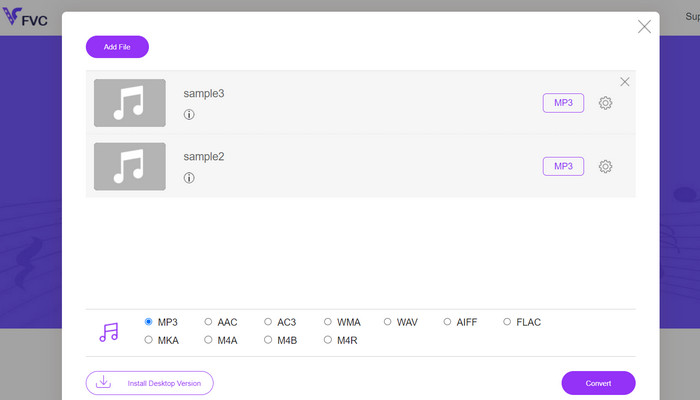
Nästan alla vanliga video- och ljudformat kan konverteras till det format du själv väljer med hjälp av Free Audio Converter Online, ett webbaserat program för multimediekonvertering. Det är webbaserat, men du kan ändå konvertera flera videor samtidigt. Det här onlineprogrammet är mer mångsidigt än det först verkar, eftersom det inte bara konverterar filer utan också låter användare justera många ljudparametrar. Detta webbverktyg har inte bara ett intuitivt gränssnitt, själva konverteringsprocessen kräver dessutom nästintill ingen teknisk kunskap. Du kan följa stegen nedan för att lära dig hur denna bästa Opus till MP3‑omvandlare online fungerar.
Nyckelfunktioner
◆ Filformatkonvertering: Den stöder olika populära format som MP3, WAV, AAC, FLAC, OGG och mer.
◆ Batchkonvertering: Med den här funktionen kan du konvertera hela mappar eller en grupp ljudfiler på en gång.
◆ Anpassningsalternativ: Det ger ytterligare anpassningsalternativ, som att justera ljudets bithastighet, samplingshastighet, kanalkonfiguration eller till och med trimma eller dela upp ljudfiler.
Steg 1. Gå först till sidan Free Audio Converter Online från FVC på https://www.freevideoconverter.online/audio-converter.
Steg 2. Välj den Opus-fil du vill ändra genom att klicka på knappen Add Files to Convert. Du kan alternativt dra och släppa filen var du vill på sidan.
Steg 3. När du har laddat upp filen väljer du bara MP3 i menyn under Audio-format för att välja önskat filformat. Du kan också batchkonvertera Opus till MP3 genom att ladda upp flera filer.
Steg 4. Du kan klicka på ikonen Settings för att justera bithastighet, samplingsfrekvens och kanalalternativ för utdata. Klicka sedan på knappen Convert för att starta processen.
Del 2. Konvertera OPUS till MP3 eller MP3 till OPUS Offline
1. Video Converter Ultimate
Om du vill konvertera dina videofiler till MP3 eller något annat ljudformat behöver du inte leta längre än till Video Converter Ultimate. Det är inte begränsat till enbart MP3‑konvertering; det fungerar med en mängd olika filtyper, inklusive WAV, WMA, AAC, FLAC, OGG och RA. Det är kostnadsfritt och enkelt att använda. Dessutom går konverteringen av en ljudfil så snabbt att du får den konverterade filen nästan omedelbart.
Video kan konverteras till olika andra videoformat och ljudformat. Du behöver inte vara en tekniker för att ställa in detta; dessutom tar det bara några minuter. Konvertera filer snabbt och njut av det intuitiva användargränssnittet.
Nyckelfunktioner
◆ Högkvalitativ konvertering: Programvaran säkerställer högkvalitativa utdata genom att bevara den ursprungliga video- och ljudkvaliteten under konverteringen. Det stöder förlustfri konvertering för vissa format, vilket säkerställer minimal kvalitetsförlust.
◆ Batchkonvertering: Video Converter Studio möjliggör batchkonvertering, så att du kan konvertera flera filer samtidigt.
◆ Enhetsspecifika förinställningar: Programvaran erbjuder en rad enhetsspecifika förinställningar, vilket gör det enkelt att konvertera videor för specifika enheter som smartphones, surfplattor, spelkonsoler och mer. Detta säkerställer optimal kompatibilitet och uppspelningskvalitet.
Steg 1. För att vara säker på att verktyget uppfyller dina behov kan du först prova testversionen gratis. Installera därefter programmet på din dator och utforska gränssnittet.
Gratis nedladdningFör Windows 7 eller senareSäker nedladdning
Gratis nedladdningFör MacOS 10.7 eller senareSäker nedladdning
Steg 2. Klicka på ikonen Add Files eller Plus och leta sedan upp ljudfilen på din dator för att ladda upp den. Genom att dubbelklicka på filen startar du importprocessen i programmet. Ett annat alternativ är att dra och släppa videon från datorns filhanterare in i programmet.
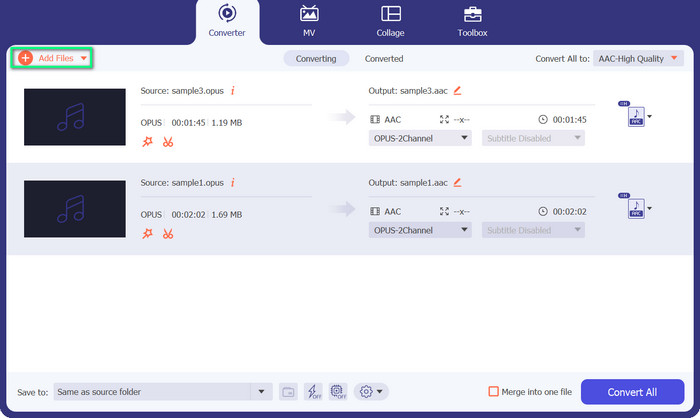
Steg 3. Det framgår direkt om filen är i MP3- eller Opus-format. Nu ska vi ändra Opus-filen till MP3. Knappen Convert All to finns uppe i högra hörnet i verktyget. Leta sedan efter Opus- eller MP3‑format i menyn Audio. Välj sedan Convert All för att starta konverteringen.
2. VLC
VLC är en mångfacetterad mediaspelare som innehåller integrerade ljud- och videokonverteringsfunktioner. Verktyget är tillförlitligt för att konvertera Opus till MP3 och andra format på grund av dess stöd för olika format, användarvänligt gränssnitt och anpassningsalternativ. VLC erbjuder en strömlinjeformad och effektiv konverteringsprocess med minimalt besvär, vilket möjliggör förbättrad kompatibilitet, fildelning och musiknjutning med flera enheter.
Nyckelfunktioner
◆ Cross-Platform-kompatibilitet: VLC är tillgängligt för olika operativsystem, inklusive Windows, macOS, Linux, Android, iOS och mer. Du kan njuta av dess funktioner på olika enheter och plattformar.
◆ Ljud- och videokonvertering: VLC har inbyggda konverteringsmöjligheter, så att du kan konvertera ljud- och videofiler från ett format till ett annat.
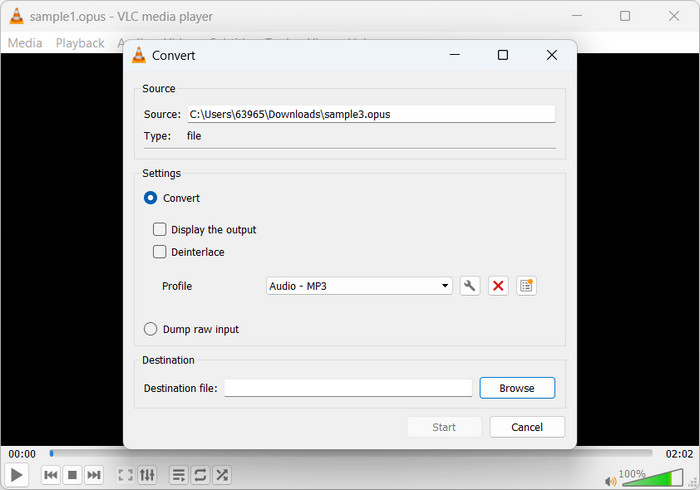
Steg 1. Starta din föredragna mediaspelare. För att konvertera eller spara media, gå till Media i huvudmenyn och klicka på Convert/Save.
Steg 2. Välj den Opus-fil du vill konvertera genom att klicka på knappen Add i fliken File och bläddra till filen. Klicka sedan bara på knappen Convert/Save.
Steg 3. Välj Audio - MP3 som utdataformat för profilen i fliken Profile. För att ändra bithastighet eller samplingsfrekvens, bland andra ljudparametrar, kan du välja en profil och sedan klicka på alternativet Edit selected profile.
Steg 4. Välj var du vill spara MP3-filen efter konverteringen. För att starta omvandlingen, klicka på knappen Start. Så konverterar du Opus till MP3 i VLC.
3. FFmpeg
FFmpeg är en öppen källkodssvit och kommandoradsverktyg som används för multimediadatahantering. Programvaran erbjuder ett omfattande utbud av bibliotek och program för att hantera olika ljud-, video- och streamingformat. FFmpeg underlättar konvertering av Opus till MP3 på Linux-system.
Nyckelfunktioner
◆ Stöd för multimediaformat: FFmpeg stöder ett stort antal multimediaformat, inklusive ljud-, video- och streamingprotokoll.
◆ Anpassning och automatisering: FFmpeg erbjuder omfattande anpassningsalternativ genom kommandoradsparametrar, så att du kan finjustera konverteringsprocessen enligt dina specifika krav.
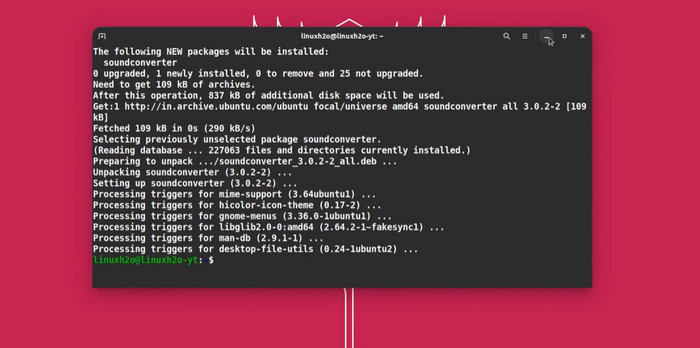
Steg 1. Installera det på Linux. Din Linux-distributions pakethanterare kan installera FFmpeg. På Ubuntu fungerar kommandot sudo apt-get install ffmpeg.
Steg 2. Öppna Terminal – Linux Terminal. Använd kommandot cd för att gå till katalogen där din Opus-fil finns. Om Opus-filen ligger i mappen Music i din hemkatalog, använd cd ~/Music. Konvertera Opus till MP3: FFmpeg konverterar Opus till MP3 med följande kommando: input.opus ffmpeg -c: a libmp3lame output.mp3
Ersätt input.opus med din Opus-fil och output.mp3 med ditt MP3-filnamn.
Steg 3. Kör FFmpeg. FFmpeg läser Opus-filen, använder libmp3lame och sparar MP3-filen. Konverteringstiden beror på Opus-filens storlek och komplexitet. I Terminalen visas förloppet för konverteringen. Så konverterar FFmpeg Opus till MP3.
Vidare läsning:
Praktisk guide om hur du konverterar videor till MP3-format
De bästa verktygen för att batchkonvertera MP3 till M4R-filer
Del 3. OPUS vs. MP3
Nu, här är en detaljerad jämförelse av de två ljudformaten när det gäller komprimeringsförhållande, ljudkvalitet, komplexitet och licens.
| Opus | MP3 | |
| Kompressionsförhållande | Högt komprimeringsförhållande, erbjuder mindre filstorlekar | Måttligt komprimeringsförhållande, vilket resulterar i större filstorlekar |
| Ljudkvalité | Utmärkt ljudkvalitet, även vid låga bithastigheter | Bra ljudkvalitet, men kan uppvisa märkbara artefakter vid låga bithastigheter |
| Komplexitet | Relativt komplex codec jämfört med MP3 | Enklare codec, allmänt förstådd och implementerad |
| Licens | Opus är en öppen och royaltyfri ljudcodec | MP3 har patentlicenskrav för sin användning |
Del 4. Vanliga frågor om OPUS och MP3-konverterare
I vilka scenarier föredras Opus framför MP3?
Opus föredras i scenarier som kräver låg latens, högkvalitativt ljud vid låga bithastigheter, såsom röstkommunikation, videokonferenser, streaming och realtidsapplikationer där det är avgörande att bevara tydlighet och minimera fördröjningar.
Kan Opus och MP3 uppnå transparens?
Opus har potential att uppnå transparens, vilket innebär att det komprimerade ljudet inte går att skilja från originalet. MP3 når dock vanligtvis inte genomskinlighet, och artefakter kan märkas, särskilt vid lägre bithastigheter.
När används MP3 vanligtvis?
MP3 används ofta för allmän musikuppspelning, podcasts, ljuddistribution och olika andra applikationer där en balans mellan bra ljudkvalitet och rimliga filstorlekar önskas. Den har en lång historia av kompatibilitet och brett stöd.
Slutsats
Att konvertera Opus till MP3 är fördelaktigt när MP3-kompatibilitet och bred support krävs. Opus ger hög ljudkvalitet och effektiv komprimering vid låga bithastigheter, men MP3 är ett välkänt och allmänt stött ljudformat på en rad olika enheter och i många program. Genom att konvertera Opus till MP3 förbättras kompatibiliteten och uppspelning underlättas på många olika enheter och plattformar.
-
 5 MP3-klippare för att enkelt klippa av vilket ljud som helst [2023 uppdaterad]
 Behöver du en MP3-skärare för att trimma ljudet? Läs i så fall den här artikeln eftersom vi tillhandahåller de verktyg du kan lita på som ger enkel skärning av ljudet.
-
 Konvertera MP3 till OGG och njut av överlägsen ljudkvalitet
 Vill du förbättra ljudkvaliteten på dina musikfiler och samtidigt minska deras storlek? En MP3 till OGG-omvandlare är den perfekta lösningen. Kolla in dem i det här inlägget.
-
 FLAC vs. MP3: Vilket ljudfilformat är det högsta
 Det här inlägget kommer att jämföra de viktigaste skillnaderna mellan FLAC och MP3. Det inkluderar deras ljudkvalitet, filstorlek, kompatibilitet och mer.
