


 Video Converter Ultimate
 Skärminspelare
 Video reparation
 Säker nedladdning
Konvertera din PPT till MP4 med 3 effektiva metoder
PPT är ett utmärkt verktyg när det gäller att presentera presentationer, oavsett om det är i skolan, arbetet etc. Ibland, efter en presentation, kan vissa be om en kopia av PPT-materialet som referens.
Det är dock viktigt att erkänna att vissa personer inte kan komma åt filen eftersom de inte har applikationen eller mjukvaruverktyget installerat på sina enheter. Med detta har de flesta av presentatörerna en konverterad MP4-version av presentationen för att enkelt dela materialet för alla.
Så om du letar efter ett sätt att konvertera din PPT till MP4 för snabb delning och bättre åtkomst till filens innehåll, är du på rätt sida. Fortsätt därför att läsa den här artikeln och fördjupa dig i tre olika metoder för hur du kan göra om din PPT-fil till en video.

Del 1: Hur man konverterar PowerPoint till MP4 inom PPT
Med hjälp av PowerPoint-presentationen kan användare enkelt konvertera sin PPT till MP4. Det är en fantastisk inbyggd funktion för bekvämlighet och flexibilitet.
Steg 1. Öppna din presentation med PowerPoint-programmet på din enhet.
Steg 2. Gå till fliken Arkiv, leta upp knappen Exportera och klicka på den.
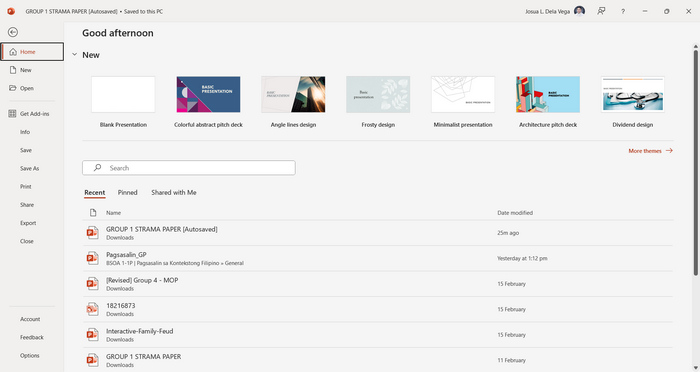
Steg 3. När du är på fliken Exportera, klicka på alternativet Skapa en video.
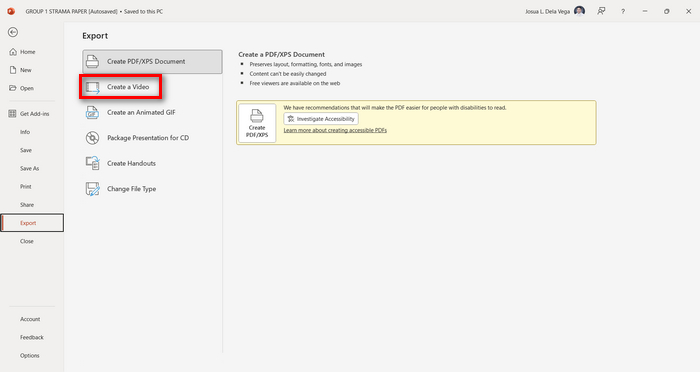
Steg 4. Ställ nu in din önskade videoupplösning. Du kan välja mellan 480p och 4K. Under alternativet Använd inspelade tidsinställningar och berättarröst kan du även ställa in bildspelstiderna manuellt. Klicka sedan på knappen Skapa video.
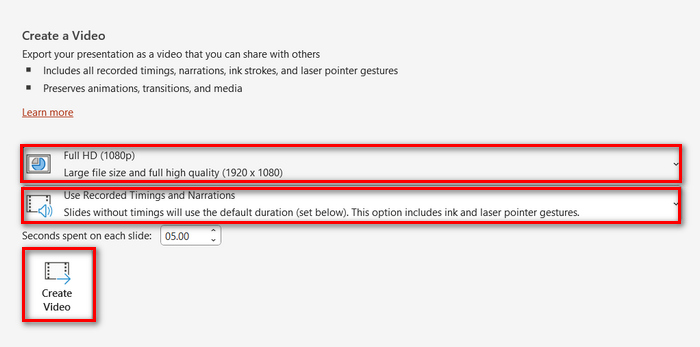
Steg 5. Efter att du har klickat på knappen Skapa en video öppnas ett nytt fönster där du kan kontrollera formatet på din utdatafil och var du vill spara den. När allt är inställt klickar du bara på knappen Exportera och väntar tills processen är klar.
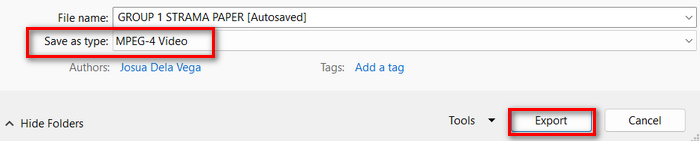
Det är verkligen smidigt att konvertera PowerPoint till MP4 med den inbyggda funktionen. Däremot saknas möjligheter till mer avancerad anpassning om du vill lägga till bakgrundsmusik. Om ditt mål däremot bara är att kunna dela presentationen är detta inget problem för dig.
Del 2: Konvertera PPT till MP4 med Audio Online Free
Om du har PPT-filen och om du vill konvertera den online eftersom du inte har en PowerPoint-presentationsprogram-app eller -verktyg på din enhet, kan du använda MagicSlides. Detta onlinekonverteringsverktyg låter dig enkelt konvertera PowerPoint till MP4 genom att helt enkelt importera filen till deras system.
Steg 1. Ladda upp PPT-filen som du vill konvertera till MP4 genom att klicka på knappen Ladda upp din källfil.
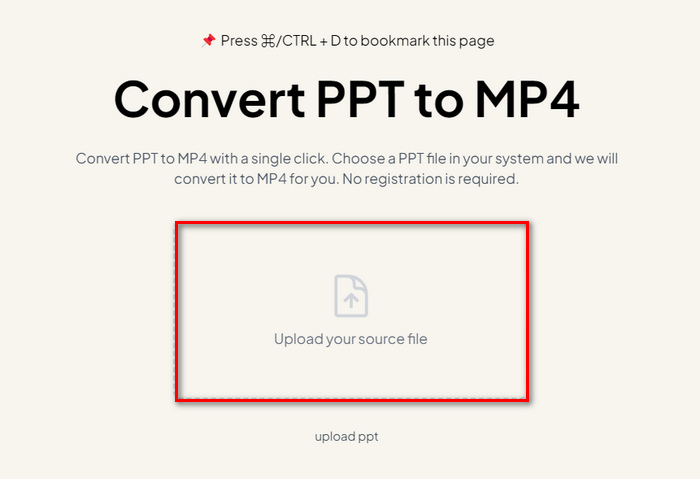
Steg 2. När filen har importerats klickar du på knappen Create MP4 för att starta konverteringsprocessen.
Steg 3. När det är klart kan du först förhandsgranska den konverterade PPT-filen, och när du är nöjd med resultatet klickar du bara på knappen Download för att spara den direkt på din enhet.
Även om det här verktyget erbjuder mycket enkla steg för att konvertera PPT till MP4, tar import av PPT-filer så mycket tid, vilket kan vara oroande, särskilt när du har bråttom. Dessutom har den inga anpassningsalternativ. Det förvandlade bokstavligen PPT-filer till en video.
Del 3: Hur man konverterar PPT till MP4 med effekter och ljud
Om du vill konvertera din PPT till MP4, men den här gången med effekter och ljud, är detta helt rätt för dig. Med FVC Screen Recorder kan du göra om din PowerPoint-presentation till en kreativ och interaktiv MP4-fil med hjälp av dess redigeringsfunktioner. Dessutom behöver du inte oroa dig för utdatakvaliteten, eftersom den stöder upp till 4K-videoupplösning. Följ guiden nedan för att använda programmet:
Steg 1. Ladda först ner programvaran och installera den på din dator.
Gratis nedladdningFör Windows 7 eller senareSäker nedladdning
Gratis nedladdningFör MacOS 10.7 eller senareSäker nedladdning
Steg 2. Öppna din PowerPoint-presentation och se till att den visas i helskärmsläge.
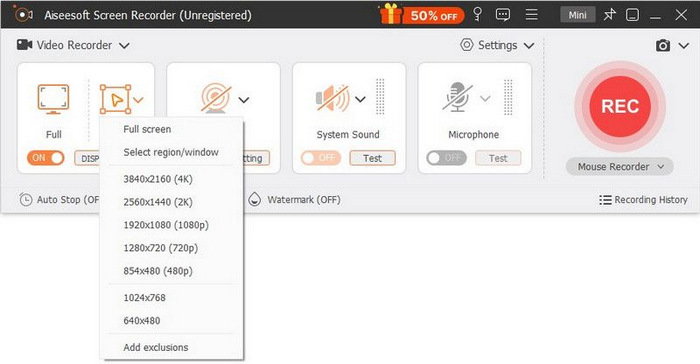
Steg 3. Välj nu funktionen Video Recorder i skärminspelningsverktyget och ställ in inspelningsområdet på Full.
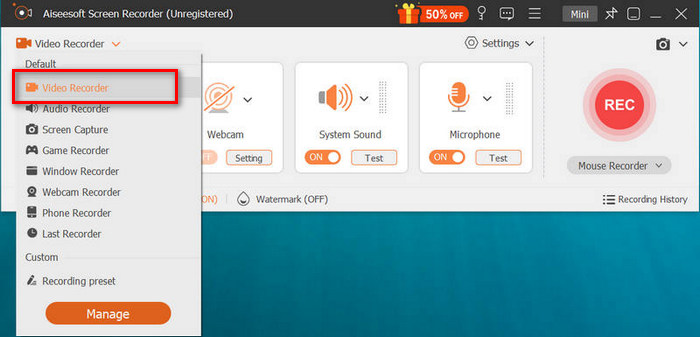
Steg 4. Starta sedan bildspelet i PowerPoint. Klicka samtidigt på knappen REC för att börja spela in PowerPoint-presentationen.
Steg 5. När du är klar klickar du bara på knappen Stop, så förs du till förhandsgranskningsfönstret. Där hittar du längst ned i hörnet redigeringsfunktionerna som du kan använda för att redigera ljud och effekter när du konverterar din PPT till MP4.

Steg 6. Till sist kan du komma åt din fil genom att klicka på knappen Öppna mapp.
Det som är bra med att använda FVC Screen Recorder för att förvandla PowerPoint till MP4 är att du kan ta kontroll över bildernas timing och tempo. Dessutom, till skillnad från andra verktyg som bara erbjuder en grundläggande konvertering, har detta verktyg redigeringsfunktioner som kan användas för att förbättra den konverterade MP4-filen ytterligare.
Del 4: Vanliga frågor om att konvertera PPT till MP4
Hur lång tid tar det att konvertera PPT till MP4?
Tiden för konverteringsprocessen beror på filstorleken som konverteras. Men vanligtvis tar enkla presentationer inte mycket tid under konverteringen.
Kan jag behålla animationer och övergångar när jag konverterar PPT till MP4 i PPT?
Ja. Den inbyggda funktionen tillåter användare att behålla animationer och övergångar under konverteringsprocessen. Detta för att säkerställa att de visuella elementen i presentationen, såsom övergångar och animationer, bibehålls samtidigt som de konverteras till MP4-format. Det är dock viktigt att notera att kompatibiliteten för animationer och övergångar kan variera beroende på vilken version av PowerPoint som används och hur komplexa effekterna är.
Kommer kvaliteten på min PowerPoint-presentation att bevaras vid konvertering till MP4?
Ja. PowerPoint-presentation stöder upp till 4K-videoupplösning. Därför kommer att välja en högre upplösning bidra till att upprätthålla kvaliteten på presentationen. Dessutom, när du väljer att konvertera din PPT till MP4 med hjälp av något avancerat omvandlingsverktyg som erbjuder alternativ för att justera bithastighet och komprimeringsinställningar för att optimera videokvaliteten ytterligare, kan du garantera en kvalitetsutdata.
Slutsats
Att konvertera PPT till MP4-format ger verkligen smidighet och bättre tillgänglighet när du vill dela filen på olika plattformar och enheter. Nu när du vet hur du kan konvertera dem är det dags att omsätta kunskapen i praktiken. Börja konvertera redan i dag och öka räckvidden och genomslaget för dina presentationer!
-
 Hur man ändrar storlek på en bild i PowerPoint [snabbaste sättet att ändra storlek]
 Att lära sig att ändra storlek på bilder i PowerPoint är viktigt, särskilt om du vill använda det i din presentation. Läs den här artikeln för att veta hur du gör.
-
 Apowersoft Watermark Remover Review – Funktion, för- och nackdelar och pris
 Apowersoft Watermark Remover är en av de bästa vattenstämplarnas borttagning som stöder online och offline, klicka här för att veta mer!
-
 Hur man fixar video som inte spelas i PowerPoint | Snabb guide
 Spelas inte din PowerPoint-video? Övervinn frustrationen av inbäddade videor som inte spelas nu med våra bästa fem lösningar för att lösa dem utan ansträngning.
