


 Video Converter Ultimate
 Skärminspelare
 Video reparation
 Säker nedladdning
Hur man spelar MP4 i Windows Media Player på Windows 10-dator
Ibland spelas inte en MP4-fil i Windows Media Player, men kan spelas på andra spelare som VLC Media Player eller KM Player. Eftersom MP4 är det mest populära videoformatet som är kompatibelt med alla mediaspelare och multimediaenheter. Du kan ha många videofiler sparade i MP4-format. Det är ganska irriterande om MP4-filen inte kunde spelas i Windows Media Player. Så hur spelar man MP4-filer i Windows 10? Det finns ingen anledning att behöva oroa sig för. Här är alla lösningar för att fixa Windows Media Player som inte spelar MP4-filer.

Del 1. Varför Windows Media Player inte spelar MP4
Enligt Microsoft stöder inte alla versioner av Windows Media Player MP4-filformatet. Windows Media Player 7, Windows Media Player för Windows XP, Windows Media Player 9-serien samt Windows Media Player 10/11 stöder inte MP4-filformatet.
Om Windows Media Player inte kan spela upp MP4-videoklippet kanske MP4-videon är skadad eller skadad. I det här fallet kan du försöka spela den ospelbara MP4-filen i en annan mediaspelare.
En annan anledning till att Windows Media Player inte spelar MP4 är att MP4-filen inte har rätt codec-paket för den.
Del 2. Spela MP4 med det bästa alternativet till Windows Media Player
Om MP4‑videor fortfarande inte spelas upp kan du byta till en mediaspelare som FVC Free Video Player. Det är en kostnadsfri webbaserad videospelare som spelar upp alla populära multimediainnehåll som MP4, MKV, FLV, MOV, AVI, 3GP, MP3, FLAC, AAC osv. på Windows och Mac. Baserad på HTML5‑teknik kan du spela upp alla videofiler, oavsett om de kommer från den lokala datorn eller är hämtade från nätet.
Steg 1. Besök den officiella webbplatsen för FVC Free Video Player (https://www.free-videoconverter.net/free-video-player/). Klicka på knappen Play Now för att ladda ner och installera startprogrammet.

Steg 2. Klicka på knappen Open File för att ladda MP4-filen du vill spela upp. Du kan också klicka på menyn File och välja Open File för att lägga till MP4-filen.

När MP4‑videon har laddats upp börjar den spelas upp automatiskt på din Windows‑dator. Om du vill redigera videoeffekter kan du klicka på Tools och välja alternativet Effects, där du kan justera nyans, ljusstyrka, kontrast, mättnad och gamma för att förbättra din video.

Del 3. Konvertera MP4 för uppspelning i Windows Media Player
Om Windows Media Player inte kan spela upp MP4‑filen är ett enkelt sätt att konvertera MP4‑filen till ett annat format som stöds av Windows Media Player. Du kan använda ett videokonverteringsverktyg som FVC Video Converter Ultimate för att konvertera MP4 till standardfilformaten för Windows Media Player, t.ex. WMV, ASF eller WMA.
Gratis nedladdningFör Windows 7 eller senareSäker nedladdning
Gratis nedladdningFör MacOS 10.7 eller senareSäker nedladdning
Steg 1. Ladda ner, installera och starta Video Converter Ultimate kostnadsfritt på din Windows‑dator. Klicka på knappen Add Files för att lägga till MP4‑filen du vill spela upp.

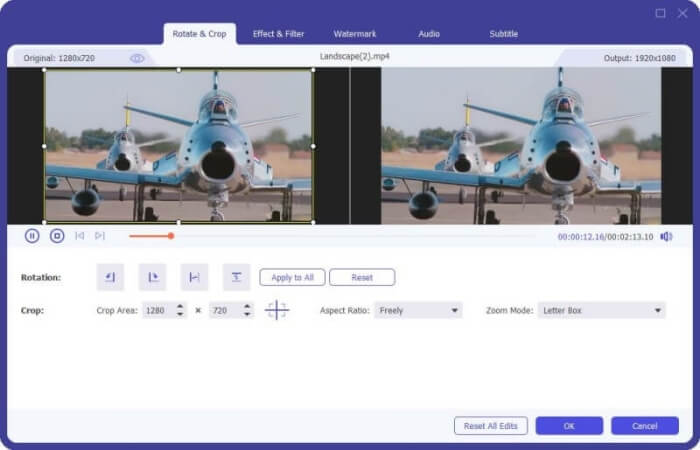
Steg 2. Om du vill lägga till effekter i din MP4‑fil kan du klicka på ikonen Edit för att gå in i redigeringsgränssnittet. Här kan du lägga till effekter, använda ett filter, rotera eller beskära MP4‑filen, lägga till vattenstämpel samt justera ljudspår och undertexter.
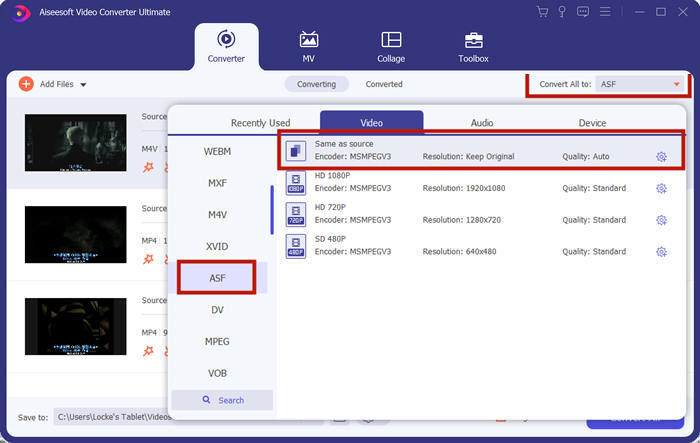
Steg 3. Klicka sedan på nedåtpilen bredvid Convert All to, gå till fliken Video och välj ASF eller WMV som utdataformat.
Steg 4. Ställ slutligen in den utdatakatalog där den konverterade MP4‑filen ska sparas. Klicka på knappen Convert All för att konvertera MP4‑filen. Efter konverteringen kan du spela upp den konverterade MP4‑filen i Windows Media Player.

Del 4. Vanliga tips för att spela MP4 i Windows Media Player
För att spela upp MP4 i Windows 10 kan du gå till mappen där MP4‑filerna finns lagrade. Högerklicka på den MP4‑fil du vill spela upp, välj Open with och välj Windows Media Player. Även om det är så enkelt kan det ibland misslyckas att öppna MP4‑filen i Windows Media Player. För att lösa problemet kan du prova följande tips.
1. Spela MP4 med andra mediaspelare
Om din MP4‑fil inte spelas upp i Windows Media Player kan du prova andra mediaspelare för att öppna MP4‑filen. Det finns många mediaspelare, till exempel FVC Free Video Player, VLC Media Player, KM Player, Real Player, GOM Player, BS Player, DivX Player och fler.
2. Installera rätt codec för Windows Media Player
Det finns codecs som saknas om Windows Media Player inte spelar MP4-fil. För att lösa problemet måste du installera rätt codec för Windows Media Player.
Steg 1. Öppna Windows Media Player. Klicka på menyn Organize och välj Options.
Steg 2. Gå till fliken Privacy och markera alternativet Download usage rights automatically when I play or sync a file.
Steg 3. För att spela upp MP4‑filen kan du klicka på knappen OK för att spara ändringarna.
3. Kör felsökaren på Windows
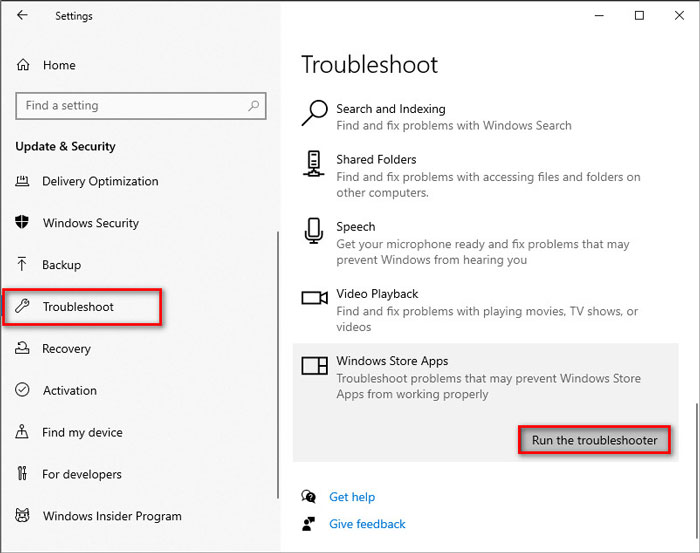
Om MP4 inte kunde spelas i Windows Media Player kan du använda felsökningsverktyget för att lösa problemet i Windows 10. Följ stegen för att felsöka problemet.
Steg 1. Öppna Settings på din Windows 10‑dator och välj Update & Security.
Steg 2. Gå till området Troubleshoot och klicka på Windows Store Apps.
Steg 3. Klicka på knappen Run the troubleshooter för att felsöka uppspelningsproblemet i Windows Media Player.
Del 5. Vanliga frågor om att spela MP4 i Windows Media Player
Vad är standardformatet för Windows Media Player?
Standardfilformatet för Windows Media Player är WMV (Windows Media Video) och WMA (Windows Media Audio). Den stöder också ASF (Advanced Systems Format) och dess eget XML-baserade spellistformat, Windows Playlist.
Vad är den bästa MP4-spelaren?
Det finns många populära MP4‑spelare på marknaden, bland annat FVC Free Video Player, VLC Media Player, KM Player, QuickTime Player, RealPlayer, Media Player Classic, GOM Player, PotPlayer och fler.
Kan jag spela MKV i Windows Media Player?
Den inbyggda Windows Media Player 12 i Windows 10 stöder inte MKV-uppspelning. Du måste installera rätt codec för uppspelning.
Slutsats
MP4 är det mest populära digitala multimediaformatet som ofta används för att lagra video och ljud. Det är frustrerande om MP4-filen inte kunde spelas i Windows Media Player. Hoppas att du kan spela dina MP4-filer flytande i Windows 10 med alla våra tips och lösningar. Du kan prova en annan videospelare som FVC Free Video Player för att spela dina MP4-filer.
-
 Hur man spelar MP4-filer på Google Drive
 MP4 spelas inte på min Google Drive? Hur spelar jag MP4-filer på Google Drive? Det här inlägget berättar om 3 sätt att spela MP4-videor i Google Drive.
-
 Spela MP4-filer på Chromebook 2021
 Kan du spela upp videor på Chromebook? Hur spelar jag MP4-filer från USB på Chromebook? Det här inlägget delar 3 sätt att spela MP4 på Chromebook.
-
 Hur man spelar DVD på Windows Media Player 2021
 Varför spelas inte min DVD på Windows Media Player? Hur spelar jag DVD på Windows 7 mediaspelare? Det här inlägget delar 3 sätt att spela DVD-skivor med eller utan WMP.
