


 Video Converter Ultimate
 Skärminspelare
 Video reparation
Ta reda på detaljer om hur du använder QuickTime för att spela upp slow motion-videor
Vissa mediaspelare stöder bara ett begränsat antal videoformat. Andra mediaspelare med öppen källkod använder ramverket QuickTime för att erbjuda funktioner som inte finns i QuickTime Players standardversion. WAV och AIFF är bara några av de ljudformat som iTunes kan exportera. Detta är några exempel på problem som vissa mediaspelare stöter på, och det är ett betydande problem för användare som vill spela upp sin video i slow motion i QuickTime. Läs den här artikeln för att få veta mer om fördelarna med att använda QuickTime för att göra slow motion‑videor.

Del 1. Hur spelar man slow motion med QuickTime?
Utvecklat av Apple Inc. är QuickTime ett utbyggbart multimedia‑ramverk som kan hantera ett brett spektrum av digitala mediaformat, inklusive video, ljud, panoramabilder och interaktiva element som text och grafik. Det finns tillgängligt både på Windows och Mac. Dessutom innehåller denna mediaspelare verktyg som kan åtgärda vissa felaktiga systeminställningar och anpassa inställningar som till exempel uppspelningshastigheten för videon. Det finns olika sätt att styra uppspelningshastigheten på din video i QuickTime‑spelaren, och vissa metoder innebär olika steg för att komma åt funktionen. I vissa fall behöver du bara snabbkommandon för att genomföra de justeringar du vill ha. Här är det enklaste och bästa sättet att skapa slow motion.
Steg 1. Öppna QuickTime Player och spela upp en video vars uppspelningshastighet du vill justera.
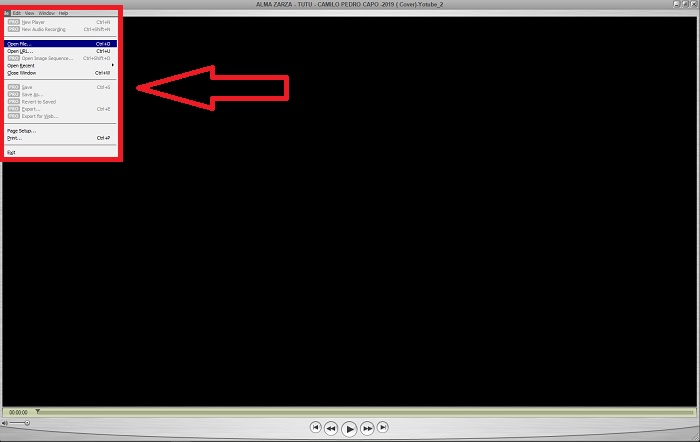
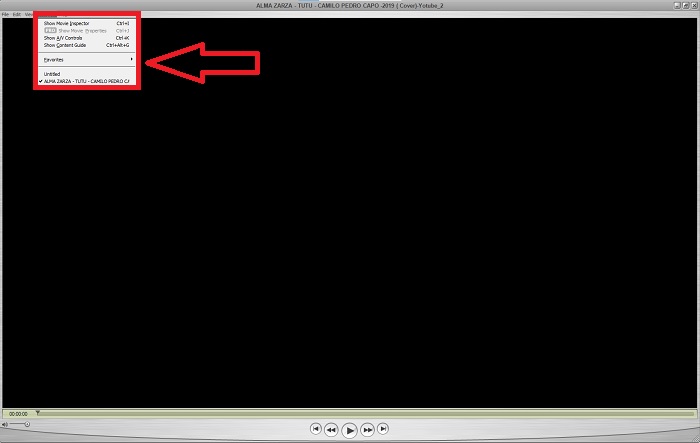
Steg 2. När videon spelas upp pausar du den först och väljer Windows från det övre hörnet av gränssnittet där du ser alla menyraderna. Fortsätt sedan genom att klicka på Show A/V Controls eller tryck helt enkelt på CTRL + K i Windows eller CMD + K på en Mac för att visa A/V‑kontrollerna.
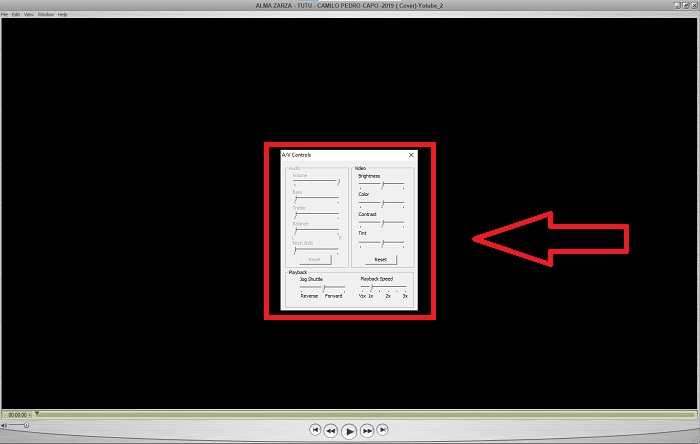
Steg 3. Därefter visas ett nytt fönster eller gränssnitt. I det här gränssnittet kan du nu justera uppspelningshastigheten för videon genom att dra i Slider. Stäng A/V‑kontrollerna när du är nöjd med den nya uppspelningshastigheten och säker på att videon nu spelas upp i slow motion.
Del 2. Ett annat effektivt sätt att spela upp videor i slow motion
Metod 1. Använd Video Converter Ultimate
De flesta mediaspelare har begränsat stöd för format när det gäller att konvertera videor; därför rekommenderar vi att du använder Video Converter Ultimate. Denna programvara kan lösa dina problem med videoredigering genom de olika verktyg den erbjuder. Den är också det bästa alternativet till QuickTime‑spelaren för att omvandla videor i normal hastighet till slow motion. Med Video Speed Controller, ett lättanvänt verktyg för att justera uppspelningshastigheten, kan du skapa en video med hög kvalitet även när du anpassar videons hastighet. Nu när du känner till programvaran hjälper stegen nedan dig att lära dig hur du använder den.
Steg 1. Ladda ner Video Converter Ultimate genom att klicka på Free Download. När nedladdningen är klar installerar du det på din dator och klickar på Finish när installationen är slutförd.
Gratis nedladdningFör Windows 7 eller senareSäker nedladdning
Gratis nedladdningFör MacOS 10.7 eller senareSäker nedladdning
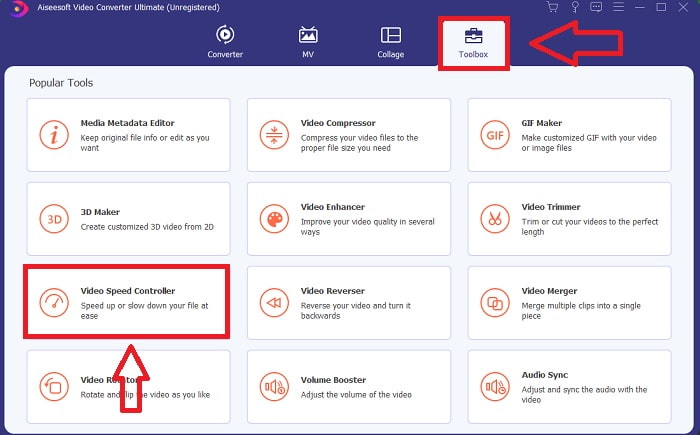
Steg 2. När du har installerat programvaran på datorn startar du den. När du öppnar programvaran visas dess gränssnitt. Klicka på fliken Toolbox och fortsätt genom att klicka på Video Speed Controller.
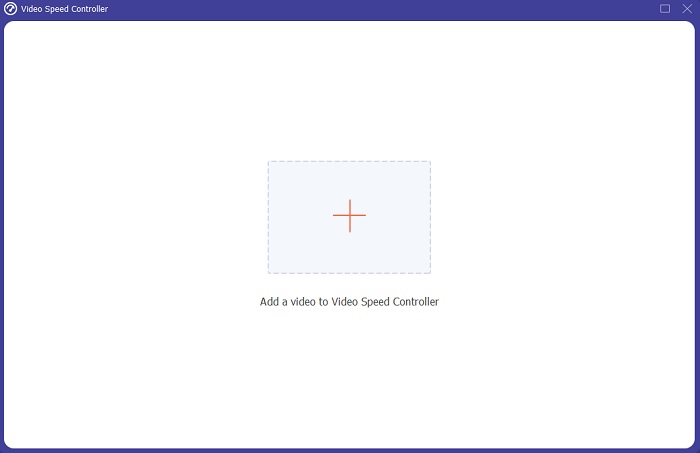
Steg 3. För att redigera uppspelningshastigheten för ditt videoklipp drar du helt enkelt in eller klickar på +-knappen för att importera filer från din dator.
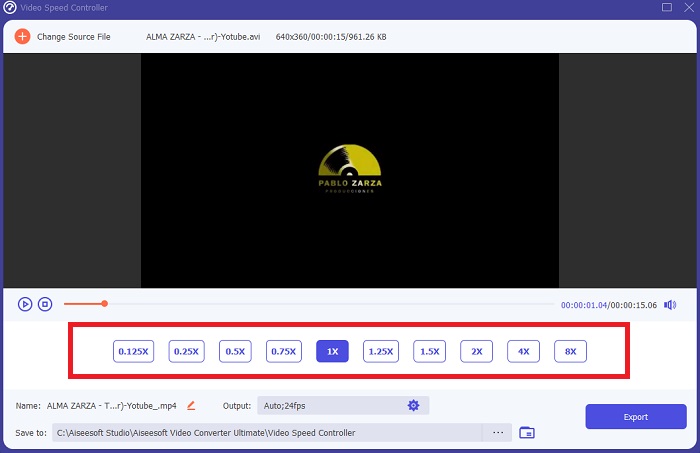
Steg 4. Börja redigera uppspelningshastigheten på ditt videoklipp eller skapa en slow motion‑video från din video i normal hastighet genom att välja vilka hastighetslägen du vill använda.
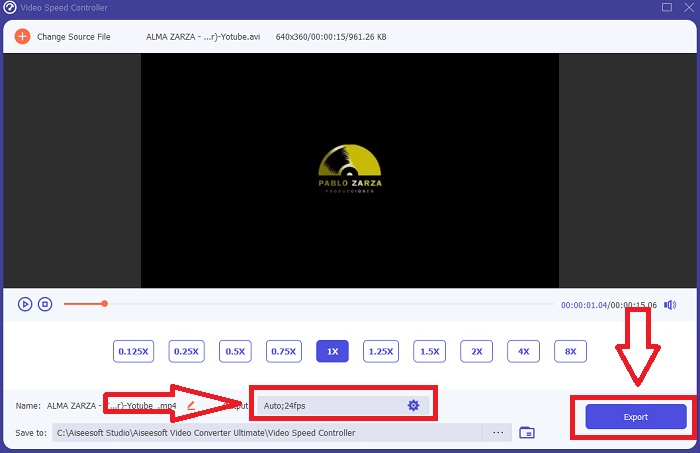
Steg 5. Därefter kan du justera kvaliteten på din videoexport genom att ändra upplösning, bildfrekvens, format osv. När allt är klart klickar du till sist på Export för att överföra den konverterade filen till din dator.
Metod 2. Använd Ezgif
Ezgif.com är en gratis, lättanvänd verktygssamling för att skapa och redigera animerade GIF:ar. Det här onlineverktyget stöder dessutom redigering och konvertering av många andra bildformat, inklusive animerad WebP, PNG, MNG och FLIF, samt viss grundläggande videoredigering. Populära onlinetjänster inkluderar GIF‑skapare, video‑till‑GIF‑konverterare och video speed. Video Speed är ett av dess bästa verktyg eftersom det enkelt kan justera videons uppspelningshastighet. Till skillnad från många andra onlineverktyg kan du med Ezgif anpassa videons hastighet tills du får exakt den hastighet du vill ha. Det ger också fördelar jämfört med vissa andra verktyg på nätet eftersom det stöder flera olika format. För att få veta mer om hur tjänsten fungerar följer du stegen nedan:
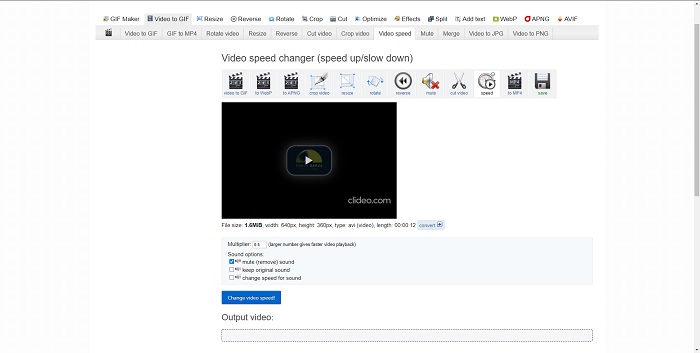
Steg 1. Öppna din webbläsare och sök efter ezgif. Välj sedan menyraden längst upp i gränssnittet och klicka på Video Speed för att börja. För att importera filer kan du välja en videofil från din dator eller klistra in en videolänk från sociala medier eller andra webbplatser vars hastighet du vill justera. Fortsätt genom att klicka på Upload Video för att börja redigeringen.
Steg 2. Nu kan du justera hastigheten genom att ange den hastighet som ska tillämpas på din video. Ju högre värde du anger, desto snabbare blir videon. Sedan får du välja om du vill stänga av eller ta bort ljudet i videon, behålla originalljudet eller ändra dess hastighet.
Steg 3. För att ladda upp videon klickar du på Change video speed!
Del 3. Vanliga frågor om Slow Motion i QuickTime
Vad är QuickTime Media Player?
QuickTime är ett utbyggbart multimediaramverk från Apple Inc. som kan hantera video, bild, ljud och panoramabilder. MacOS levereras med QuickTime förinstallerat. Före iTunes 10.5 ingick QuickTime i Apples iTunes som en gratis nedladdning. QuickTime för Windows stöds dock inte längre, och säkerhetshål kommer inte längre att åtgärdas som ett resultat.
Hur saktar jag ner en QuickTime-video på Mac?
QuickTime Player stöder slowmotion-videorendering. Tryck och håll ned play/paus-knappen i cirka 5 sekunder för att komma till menyn för att ändra samplingshastigheten. Således kan videouppspelningshastigheten sänkas utan att videokvaliteten påverkas.
Hur stänger jag av slow motion på QuickTime?
Under uppspelning kan du ångra slowmotion-effekten genom att dra utpunktsmarkören till början av videofilen. För att flytta markören i punkten till slutet av filen, markera den och dra den dit. Detta sparar dina modifierade spelarinställningar i en AAE-videofil för senare användning.
Slutsats
Sammanfattningsvis är QuickTime en av de mediaspelare som är pålitliga när det gäller att göra videor i normal hastighet till slow motion. Den har många verktyg att erbjuda, precis som Video Converter Ultimate. Ändå rekommenderas denna programvara mer, eftersom den kan hantera större filer och fler videoformat än QuickTime‑spelaren. När det gäller verktygen för att skapa slow motion har de båda samma typ av funktion, men Video Converter Ultimate är mycket enklare att använda och kan ge en videoutgång av hög kvalitet.
-
 Beprövade metoder för att göra slow motion-videor i Sony Vegas
 Sony Vegas Pro 10 är en av de populära videoredigerarna som kan producera utmärkta videor som slowmotion-videor, men som kan verka komplicerad för nybörjare. Läs den här artikeln för att få mer information.
-
 Solida bevis för att göra slowmotion-videor med After Effects
 Alla tankar eller känslor kan genereras eller förstärkas genom att titta på något i slow motion. Läs den här artikeln för att veta hur du skapar slow motion i After Effects.
-
 Beprövade metoder för att skapa slowmotion-videor i Adobe Premiere
 En av de bästa mjukvarorna från Adobe är Premiere; den fungerar mer för att förbättra videor till nästa nivå, som att göra slowmotion-videor. Läs den här artikeln för att veta mer om Adobe Premiere och dess användbara funktioner.
