


 Video Converter Ultimate
 Skärminspelare
 Video reparation
 Säker nedladdning
Topp 5 WebM -inspelare för att spela in WebM -video i hög kvalitet
WEBM file extension is usually used by web browsers. Most of them are modern browsers like Google Chrome, Opera, Firefox, Safari, and Edge. Commonly these browsers are HTML5 Websites that support video live streaming. One good example is YouTube, Twitch, and other media platforms. This supports video resolution from 360p to the highest resolution. If we are going to compare this format, this is a compressed format similar to MKV, MOV, and MP4. The difference lies in the file content of the format. Both Windows and Mac can play this specific file provided that the player has the right codecs and plug-ins. Meanwhile, if you are looking for a better way to record or gain WebM files, check out the list of best WebM recorders below.

Del 1. Bästa WebM -inspelare: FVC -skärminspelare
Få det enklaste sättet att ta ögonblicksbilder, spela in din skärm och spela in WebM -videofiler i tre enkla steg med FVC Screen Recorder. Denna .webm -skärminspelare för Windows och Mac kan spela in WebM -webbplatser som YouTube, Skype -samtal och livestreaming och andra webbplatser har stöd för WebM -format. Spela in din livestreaming utan att äventyra videokvaliteten. Plus att kunna spela in video, ljud och mikrofon. Garanterat inget bakgrundsbrus eftersom det registrerar systemljuden. Så upplev sömlös inspelning och utmärkta redigeringsfunktioner för din videohandledning med FVC -skärminspelning. Å andra sidan, så här använder du verktyget.
Step 1. Download FVC Screen Recorder using the download buttons below.
Gratis nedladdningFör Windows 7 eller senareSäker nedladdning
Gratis nedladdningFör MacOS 10.7 eller senareSäker nedladdning
Step 2. Install and Launch the app after following the set-up wizard.
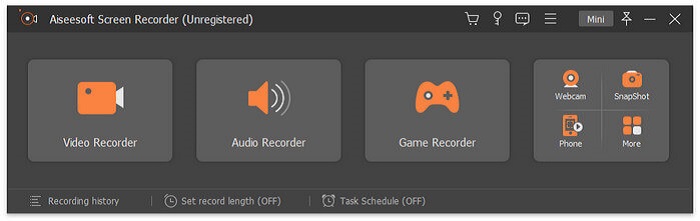
Step 3. Once the floating bar appears, click Video Recorder.
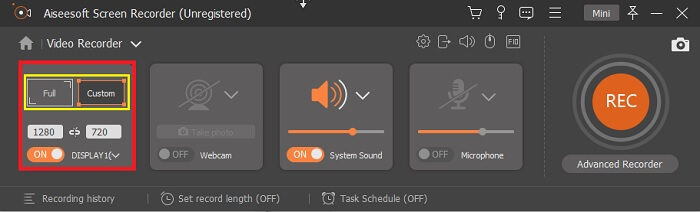
From there another window will appear. This time click the Custom or Full Screen. If you choose custom, adjust the frame size to your desired size.
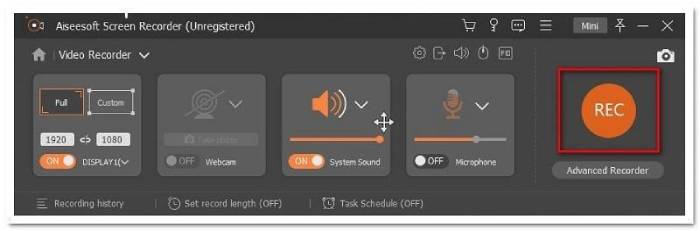
Step 4. To begin recording, click the REC button and just do the usual things you are doing.
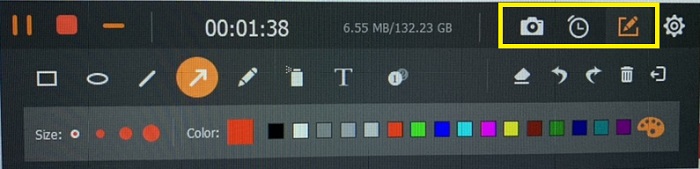
Du kan sedan kommentera, lägga till pilar och texta inspelningen.
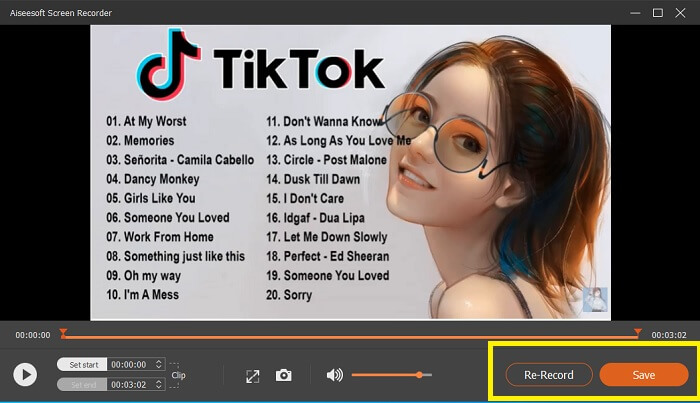
Step 5. Then, click the red square button to stop the recording. A new window will then show letting you choose between saving and re-record again. To check the recording, check the list at the bottom part of the floating bar.
Del 2. Andra populära WEBM -inspelare för din dator
1. FVC Free Screen Recorder
Distinctive Feature: Free from Malware. 100% safe
If the first tool did not satisfy you, you might be looking for a practical one. FVC Free Screen Recorder is your go-to tool if you want to maximize great features without spending a dime. Although free tools are known to produce lower quality compared to the premium ones, this toolset the bar a little higher. This can produce high-quality videos and satisfy crystal clear audio despite it being free. On top of that, it is easy to use. Follow through the steps below to learn more about it.
Step 1. Launch the app on your PC using the web Browser. It does not matter what browser you are using, this tool is flexible enough to be accessed anywhere. Click the link to land on the official webpage directly.
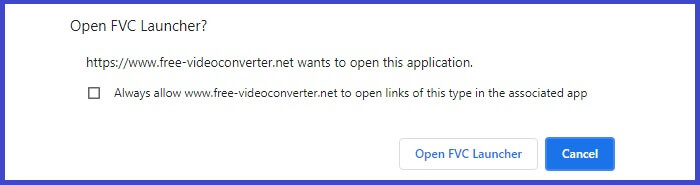
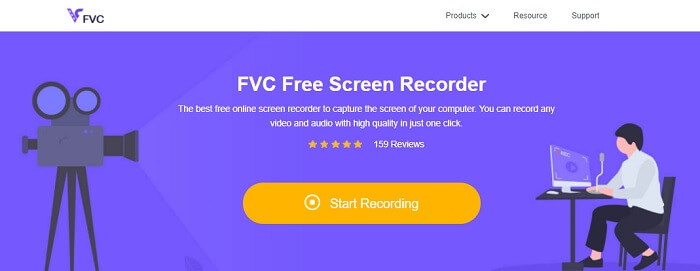
Step 2. Launch the tool by clicking the Start Recording button.
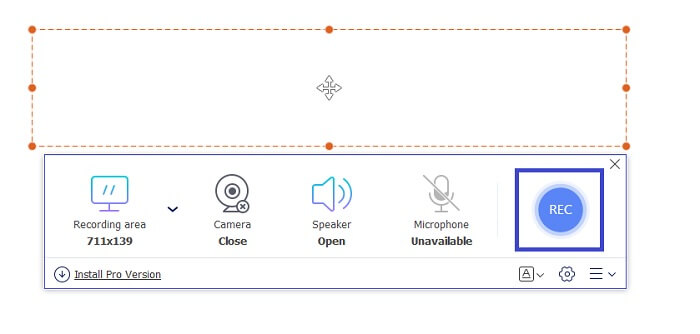
Step 3. After launching the tool, you will see the floating bar appear. Adjust the frame to resize the aspect ratio then start recording by clicking the REC button.
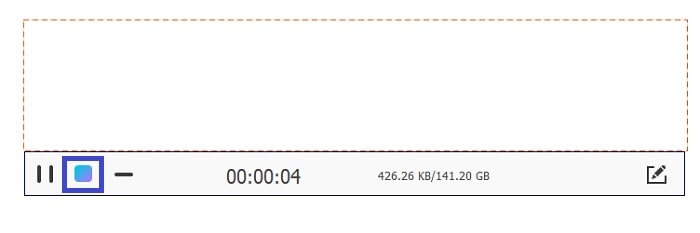
Step 4. Meanwhile, to stop recording click the square button shown in the picture below.
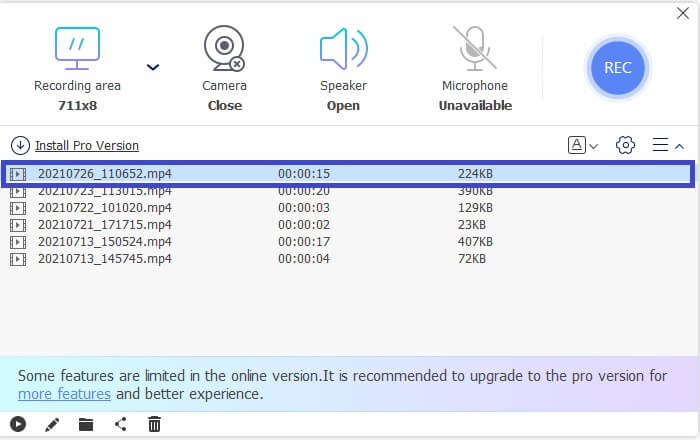
Step 5. To see the file that you recorded, check the list below the floating toolbar.
Fördelar
- 100% säkert från skadlig programvara.
- Det är flexibelt när det gäller att justera bildförhållandet, bithastigheten och bildhastigheten.
- Bild i bild stöds.
Nackdelar
- Det stöder inte hårdvaruacceleration.
2. Tiny Take
Distinctive Feature: Collaboration or remote work is supported.
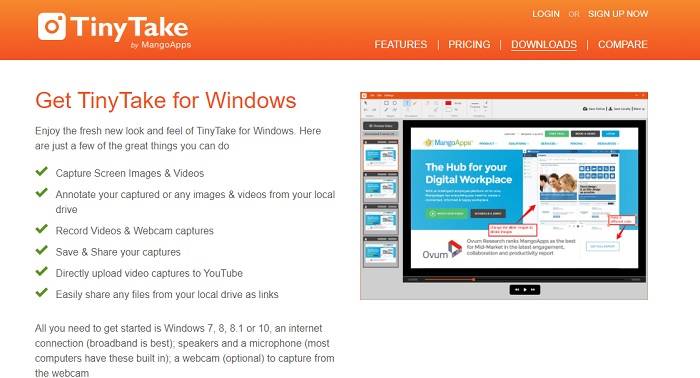
TinyTake är ett verktyg för videoinspelning och gratis skärmupptagning som utvecklats av Mango Apps. Tiny Take erbjuder fantastiska lösningar för enkel skärmbildtagning eller inspelning av professionella eller personliga möten. Det som gjorde det här verktyget populärt är samarbetsfunktionen där du kan arbeta på distans, göra massdelning av filer, använda anteckningsfunktioner och långtidslagring och Galleri (online).
Fördelar
- Det kan ta bilder och videor från din lokala enhet.
- Dela det direkt på YouTube.
- Kommentera medan du spelar in.
Nackdelar
- Ingen låsning i fönstret.
3. Screencast-O-Matic
Distinctive Feature: The tool has an easy-to-use and navigate interface. Very Straightforward.
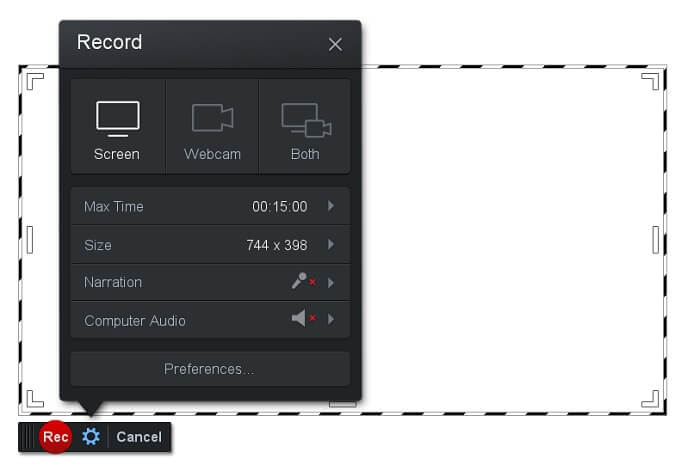
Screencast-O-Matic is one of the most commonly used software by many. What it can do is record the computer screen for free upon registration. It is recommended to create an account to use the free tool. Aside from that, the developer infused a feature where you can edit your video directly before exporting. You take refuge in the built-in stock library of the tool to gain inspiration and continue improving your videos. Also, take screenshots and share all contents with your social media account.
Fördelar
- Den har en Cloud Hosting -funktion.
- Ladda upp en video för redigering.
- Värdinnehåll.
Nackdelar
- Registrering behövs.
4. Screencastify
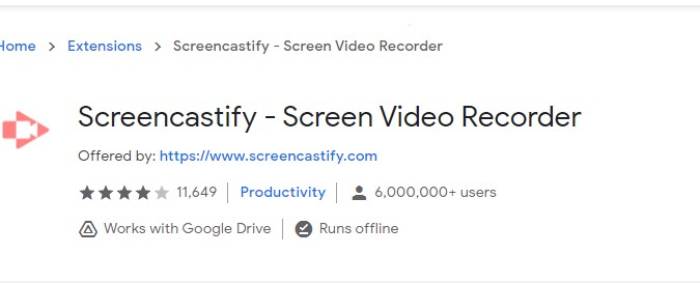
Distinctive Feature: Web browser Extension
Låt oss ge lite mångfald till listan. Screencastify är ett webbberoende verktyg, specifikt ett tillägg till webbläsaren Chrome. Detta används mest av lärare och studenter. Främst på grund av verktygets enkelhet och annotationsförmågan som håller läraren och eleven i fokus i klassen. De flesta som studerar via Udemy och sådana inlärningssidor använder den här skärminspelaren. Om du gör detsamma kan du överväga att använda det. Under tiden finns här mer detaljerad information om verktyget.
Fördelar
- Kompatibel med alla medieplattformar.
- Värdinnehåll.
- Ladda upp en video för redigering.
Nackdelar
- Även om det är lättåtkomligt eftersom det är beroende av webbläsare kan det också vara ofördelaktigt.
- Det behöver många behörigheter för att använda det.
Del 3. Vanliga frågor om WebM -inspelare
Varför öppnas inte min WebM -fil?
I understand the confusion, you might think that you are using a modern browser and still, it won't play. Have you tried checking if you are running the latest version of the browser? If not, please update. It is one of the most common reasons why a video won't play. But note, these are some of the supported versions by the WebM file. Chrome 6, Firefox 4, and Internet Explorer 9 and above. Or you can try using WebM players to help you open it.
Varför kan jag inte spela upp WebM -video på min Mac?
Jag rekommenderar starkt att du laddar ner VLC -spelare eller VLC för Mac OS X -plugin. Den måste ha en 64-bitars Intel-processor.
Del 4. Jämförelsestabell
| Funktion | FVC -skärminspelare (Premium) | FVC -skärminspelare gratis | TinyTake | ScreenCast-O-matic | ScreenCastify |
| Ljud och videoinspelning |  | | | | |
| Videoredigeringsfunktion | | |  | | |
| Lock-in-fönsterfunktion | | | | | |
| Kommenterande funktion | | | | | |
| WebM stöds | | | | | |
| Malware Safe | | | | | |
| Justerbar bithastighet och bildförhållande | | | | | |
Slutsats
Alla WebM -inspelningsverktyg som granskas i den här artikeln är pålitliga och effektiva. Du måste bara se vilket verktyg som passar kraven på din dator och ditt operativsystem. De flesta människor kommer att gå på säker mark genom att använda en webbaserad app. Men det är fortfarande din uppmaning att bestämma.
-
 The Unbiased Cinch Review Audio Recorder och det bästa alternativet
 Cinch Audio Recorder är det bästa sättet att ladda ner musik från strömmande webbplatser. Lär dig bara mer om den opartiska granskningen och det bästa alternativet från artikeln.
-
 Topp 5 bästa mus- och tangentbordsinspelare för Windows och Mac
 Här är de fem bästa mus- och tangentbordsprogrammeringsprogrammen som kan spara musrörelser och tangentbordsklick och upprepa händelserna.
-
 Topp 4 gratis AVI-skärminspelare för att fånga skärmvideo som AVI-filer
 För att spela in skärm i högkvalitativa AVI-filer identifierar och delade artikeln de fyra bästa AVI-skärminspelarna i det här inlägget. Lär dig mer information för att hitta önskad i enlighet med detta.
