


 Video Converter Ultimate
 Skärminspelare
 Video reparation
 Säker nedladdning
3 otroliga program för att konvertera WAV till ringsignal utan teknisk huvudvärk
När vi fördjupar oss i världen av ljudfilsformat erbjuder konvertering från WAV till ringsignal en fascinerande aspekt av digital ljudbearbetning. I takt med att tekniken utvecklas och våra ljudbehov förändras blir det allt mer värdefullt att behärska denna konverteringsprocess. I denna genomgång upptäcker vi smidiga metoder för att konvertera mellan formaten. Oavsett om du är en erfaren ljudentusiast eller bara nyfiken på hur dessa format fungerar, lovar den här resan att vara både informativ och engagerande. Låt oss alltså ge oss ut på denna ljudodyssé och utöka vår kunskap om konvertering från WAV till ringsignal.

Del 1. Bästa sättet att konvertera WAV till ringsignal
Letar du efter den ultimata lösningen för att konvertera WAV till ringsignal utan krångel? Möt Video Converter Ultimate – din pålitliga hjälpreda för ljudkonvertering. Det här verktyget har ett intuitivt och professionellt gränssnitt som även tekniknybörjare kan hantera utan problem. Du kan trimma, beskära och förbättra dina videor utan ansträngning. Dessutom sparar batchbearbetning både tid och arbete när du hanterar flera filer samtidigt.
Nyckelfunktioner
◆ Förinställda utdataprofiler: Välj från ett urval av fördefinierade utdataprofiler som är skräddarsydda för olika enheter och plattformar, vilket säkerställer optimal uppspelningskompatibilitet.
◆ Anpassningsbara inställningar: Finjustera din konverteringsprocess med justerbara inställningar för upplösning, bithastighet, bildhastighet med mera, tillgodose dina specifika preferenser.
◆ GPU-acceleration: Utnyttja kraften i din GPU för att accelerera konverteringsprocessen ytterligare, maximera effektiviteten samtidigt som du bevarar kvaliteten.
◆ Stöd för undertexter och ljudspår: Inkludera sömlöst undertexter och flera ljudspår i dina videor, vilket möjliggör flerspråkigt och mångsidigt innehåll.
Med Video Converter Ultimate kan du enkelt konvertera WAV till en ringsignal. Låt oss dela upp det i fyra enkla steg:
Steg 1. Ladda ner och installera Video Converter Ultimate
Hämta programmet genom att klicka på en av knapparna Free Download nedan. Du kan ladda ner programmet till både Windows och Mac. Därmed kan du konvertera WAV på både Windows och Mac. När nedladdningen är klar kör du installationsguiden och följer instruktionerna på skärmen för att installera verktyget på din dator.
Gratis nedladdningFör Windows 7 eller senareSäker nedladdning
Gratis nedladdningFör MacOS 10.7 eller senareSäker nedladdning
Steg 2. Lägg till ljudfiler som ska konverteras
När du har startat Video Converter Ultimate på datorn klickar du på knappen Add Files eller drar helt enkelt dina WAV-ljudfiler direkt in i programmets gränssnitt. Du ser omedelbart en lista över de tillagda filerna, och du kan enkelt ordna dem i önskad ordning vid behov.
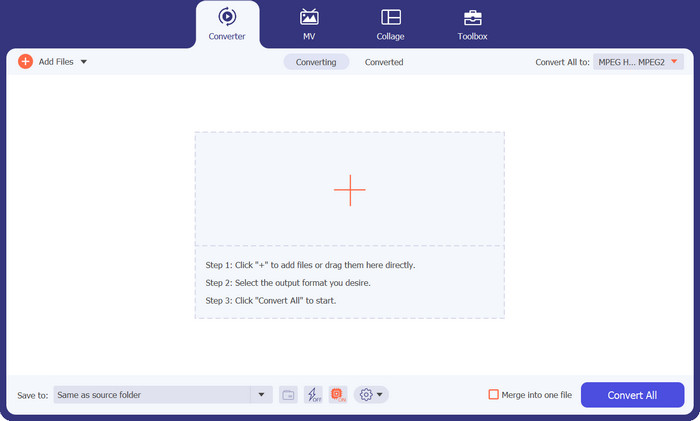
Steg 3. Välj utdataformat
Leta reda på avsnittet Convert All to högst upp i programmets gränssnitt. Klicka på rullgardinsmenyn för att visa en lista över alla format som stöds under fliken Audio. Bläddra igenom alternativen och välj M4R som önskat utdataformat för dina ljudfiler.
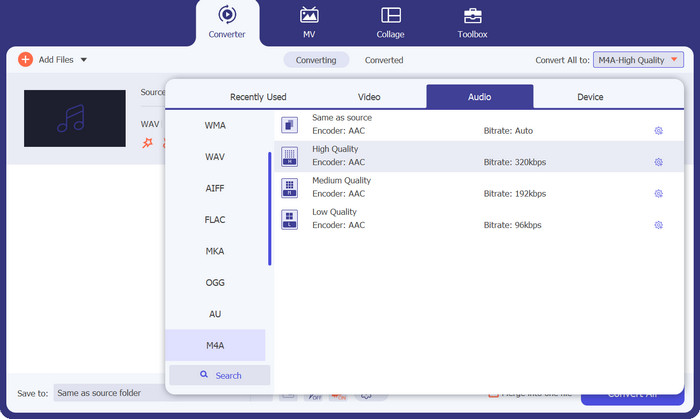
Steg 4. Konvertera filen
När alla inställningar är gjorda är du redo att starta konverteringsprocessen. Välj den målmapp där du vill spara de konverterade filerna. Klicka slutligen på knappen Convert All, så genomför verktyget konverteringen effektivt.
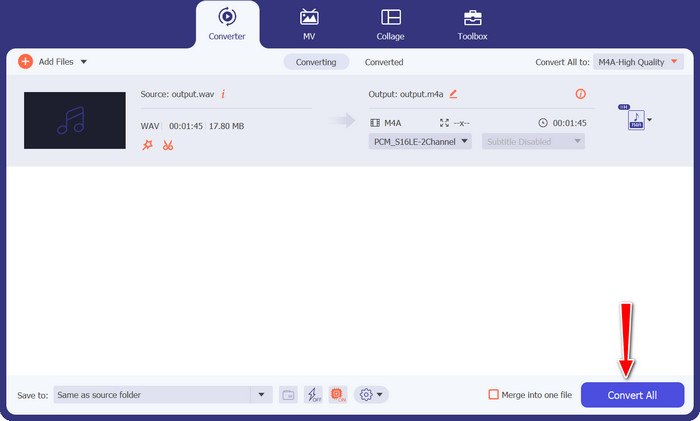
Del 2. Bästa sättet att konvertera WAV till ringsignal online
Free Audio Converter Online är en enkel men ändå kraftfull konverterare med ett lättanvänt gränssnitt som vem som helst kan hantera. Inga krångliga facktermer här – bara tydliga alternativ som gör jobbet utan strul. Och har vi nämnt det bästa? Den är helt webbaserad, så du behöver inte fylla datorn med extra programvara.
Den hanterar inte bara WAV till M4R som en mästare, utan den har också en uppsjö av andra coola funktioner i rockärmen. Du kan konvertera olika ljudformat som MP3, AAC, OGG och mer, för att tillgodose alla dina ljudkonverteringsbehov. Dessutom är processen blixtsnabb, så du kommer inte att vrida på tummarna i väntan på att magin ska hända.
Nyckelfunktioner
◆ Formatflexibilitet: Free Audio Converter Online stöder ett brett utbud av ljudformat, vilket möjliggör sömlös konvertering mellan populära format som MP3, WAV, AAC, FLAC och mer.
◆ Ingen installation krävs: Som ett onlineverktyg behöver du inte installera någon programvara på din dator. Gå bara till konverteraren via din webbläsare och börja konvertera direkt.
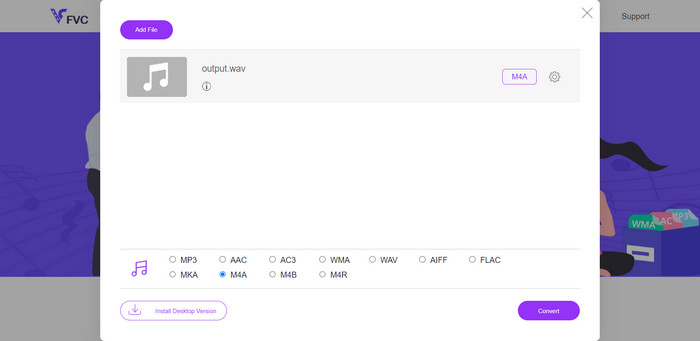
Steg 1. Börja med att öppna din webbläsare och gå till webbplatsen för Free Audio Converter Online. Håll utkik efter den användarvänliga knappen Add Files to Convert.
Steg 2. Nu när du har din WAV-ljudfil redo är det dags att välja önskat utdataformat. Leta upp M4R i listan över tillgängliga format och klicka på det med gott självförtroende.
Steg 3. När alla inställningar är klara är det dags för sista steget. Klicka bara på knappen Convert och låt den webbaserade konverteraren göra sitt. På nolltid har din fil omvandlats till M4R-format, helt utan ansträngning med hjälp av detta kostnadsfria verktyg.
Del 3. Konvertera WAV till ringsignal i Audacity
Audacity är ditt val för att omvandla ljudfiler från ett format till ett annat. Oavsett om du behöver konvertera MP3 till WAV eller FLAC till MP3, det har du täckt! Inget mer formathuvudvärk - bara smidig ljudkonvertering till hands. Den bästa delen? Audacity är helt gratis! Inga luriga prenumerationer eller dolda avgifter. Ladda bara ner och låt ljudäventyren börja. Följ nu instruktionerna nedan för att lära dig hur du konverterar WAV i Audacity.
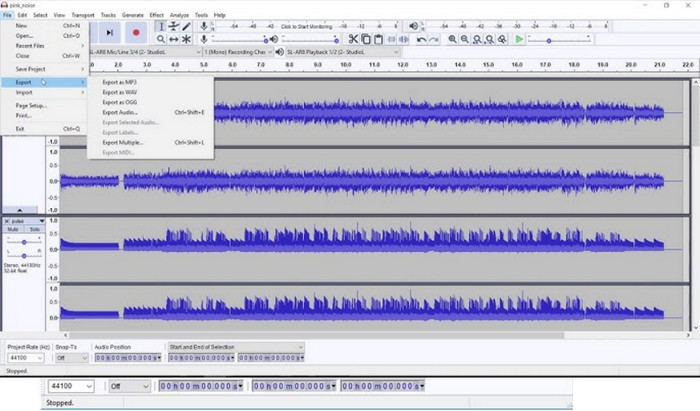
Steg 1. Starta Audacity på din dator. Om du inte har det ännu går du till deras webbplats (ange webbadressen) och laddar ner programmet gratis. Gå sedan till File i den övre menyraden och klicka på Open. Leta upp WAV-ljudfilen du vill konvertera och klicka på Open för att importera den till Audacity.
Steg 2. När din WAV-fil nu finns i Audacity går du tillbaka till menyn File och väljer Export > Export as M4A. Ett fönster visas där du kan namnge filen och välja var du vill spara den. Klicka på Save för att fortsätta.
Steg 3. Innan konverteringen startar visar Audacity alternativ för export till M4A. Du kan ställa in önskad kvalitet och andra inställningar efter dina behov. När du är klar med konfigurationen klickar du på OK, så konverterar Audacity din WAV-fil till M4A-format på ett smidigt sätt.
Vidare läsning:
Riktlinjer för hur du konverterar M4A till WAV [PC och Mac]
Hur du redigerar egenskaper hos WAV-filer i Windows 10/11 och på Mac [Löst]
Del 4. Jämförelse av de tre programmen
Nedan är en jämförelsetabell för Video Converter Ultimate, Free Audio Converter Online och Audacity i olika aspekter:
| Video Converter Ultimate | Gratis ljudkonverterare online | Djärvhet | |
| Konverteringsformat | Omfattande stöd för video- och ljudformat som MP4, AVI, MOV, MP3, WAV, etc. | Stöder ett brett utbud av ljudformat som MP3, WAV, AAC, FLAC, etc. | Bredformatskompatibilitet inklusive WAV, MP3, FLAC, AAC och mer. |
| Användargränssnitt | Användarvänligt gränssnitt med spartansk design för enkel navigering. | Enkelt och lättanvänt onlinegränssnitt, tillgängligt via webbläsare. | Intuitivt och enkelt användargränssnitt, lämpligt för både nybörjare och experter |
| Omvandlingshastighet | Höghastighetskonvertering för att snabbt bearbeta filer utan kvalitetsförlust. | Effektiv och snabb konvertering för en snabb vändning. | Bearbetningshastigheten varierar beroende på ljudredigeringskomplexiteten. |
| Redigeringsmöjligheter | Grundläggande video- och ljudredigeringsverktyg som tillåter trimning, beskärning och effekter. | Främst fokuserat på ljudkonvertering, utan avancerade redigeringsfunktioner. | Avancerade ljudredigeringsmöjligheter, inklusive stöd för flera spår. |
| Batchkonvertering | Stöder batchbearbetning för att konvertera flera filer samtidigt. | Ej specificerat om batchkonvertering är tillgänglig. | Ej specificerat om batchkonvertering är tillgänglig. |
| Plattformstillgänglighet | Tillgänglig för både Windows och Mac operativsystem. | Tillgänglig från alla enheter med internetanslutning. | Tillgänglig för Windows, macOS och Linux-plattformar. |
Del 5. Vanliga frågor om WAV till ringsignalkonvertering
Kan jag göra FFmpeg WAV till M4R-konvertering?
Ja, du kan använda FFmpeg för att konvertera WAV till M4R. FFmpeg är ett kraftfullt multimediaramverk med öppen källkod som stöder ett brett utbud av ljud- och videoformat, vilket gör det till ett mångsidigt verktyg för mediemanipulation och konvertering.
Kan jag konvertera WAV till WMA?
Ja, du kan konvertera WAV till WMA (Windows Media Audio) med olika metoder och tillgängliga mjukvaruverktyg. Du kan använda Windows Media Player för att få detta gjort.
Påverkar konvertering av ljudfiler filernas metadata?
I vissa fall kan konvertering av ljudfiler ändra eller ta bort metadata (t.ex. låttitel, artist, album). För att behålla metadata, använd format som stöder det, som MP3 eller M4A.
Är ljudkonvertering lagligt?
Konvertering av ljudfiler för personligt bruk anses allmänt vara lagligt. Det är dock olagligt att vidaredistribuera upphovsrättsskyddat material utan tillstånd.
Slutsats
Konvertering av ljudfiler spelar en avgörande roll för att säkerställa kompatibilitet och flexibilitet för vår digitala media. Oavsett om du behöver konvertera WAV till M4R, MP3, WMA eller något annat format finns det en rad olika verktyg och metoder som gör processen smidig.
-
 Topp WAV till MP3-omvandlare som är värda att prova 2023
 Letar du efter en pålitlig WAV till MP3-omvandlare? Läs vår djupgående recension och upptäck de bästa verktygen för att konvertera dina ljudfiler utan ansträngning.
-
 WAV Player - Topp 5 WAV Player-appar för Android, iPhone, PC och Mac
 Hur spelar jag WAV-filer på en Android-telefon? Vilken spelare kan spela WAV? Det här inlägget delar 5 bästa gratis WAV-spelare för Android, iPhone, Mac och PC.
-
 FLAC vs WAV: Vilket ljudformat är bättre för dig
 Lär dig mer om den djupgående jämförelsen av FLAC vs WAV-kvalitet. Vi tillhandahåller deras för- och nackdelar och även det effektiva sättet att konvertera mellan filer.
