


 Video Converter Ultimate
 Skärminspelare
 Video reparation
 Säker nedladdning
De 4 bästa programmen att använda för att konvertera Xvid till DivX
I denna moderna era exponeras videor överallt. Folk älskar att titta på filmer, klipp osv. Det finns dock oväntade tillfällen när videon är inkompatibel med en viss plattform. En av de främsta orsakerna är kanske att filformatet för videon inte stöds på plattformen. Då är den bästa lösningen att ändra videon till ett annat filformat. När du ändrar filformat måste du leta efter utmärkt programvara som du kan använda för att konvertera ett filformat till ett annat. Om du vill lära dig hur du konverterar Xvid till DivX, läs vidare.

Del 1: Bästa applikationen att konvertera på dator
Video Converter Ultimate är ett utmärkt och imponerande program du kan använda för att konvertera Xvid till DivX på din dator. Programmet finns tillgängligt för både Windows och Mac. Dessutom stöder det olika filformat, som GIF, FLV, AVI, MOC, MKV och fler. Denna konverterare kan omvandla filer som är inkompatibla med andra program eller enheter. Du kan också konvertera din fil utan att förlora kvalitet. Dessutom är Video Converter Ultimate enkelt och lätt att använda, vilket är perfekt för nybörjare som vill konvertera filer på ett smidigt sätt. Programmet är dessutom inte bara bra på att konvertera olika filer. Det har också olika redigeringsverktyg du kan använda, såsom collage-skapare, videohastighetskontroll, videokompressor, ljudkompressor, lägga till och ta bort vattenstämpel, videobeskärning, collage-skapare, lägga till vattenstämpel, färgkorrigering och mer. Om du vill konvertera Xvid till DivX följer du de enkla stegen nedan.
Steg 1: Ladda ner Video Converter Ultimate till din dator. Starta programmet efter installationsprocessen.
Gratis nedladdningFör Windows 7 eller senareSäker nedladdning
Gratis nedladdningFör MacOS 10.7 eller senareSäker nedladdning
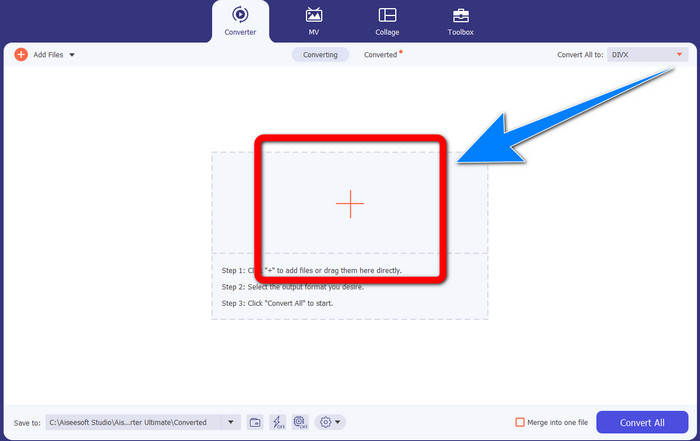
Steg 2: När du har startat Video Converter Ultimate, gå till Converter. Klicka sedan på knappen med Plus-symbolen för att lägga till din Xvid-videofil som du vill konvertera till DivX.
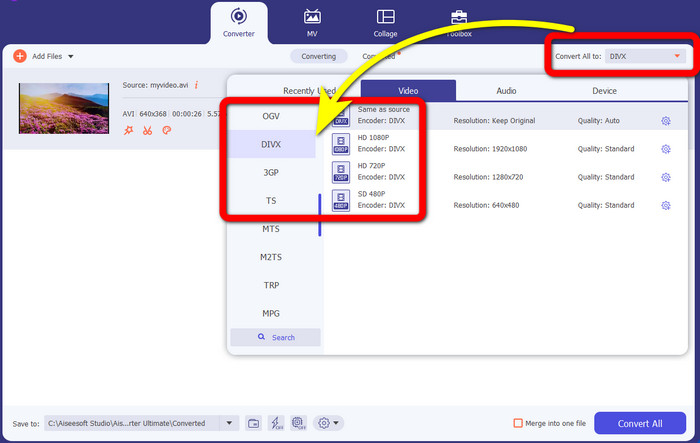
Steg 3: När du har lagt till din Xvid-videofil klickar du på knappen Convert All to. Välj sedan DivX-fil och välj önskad kvalitet, som 480p, 720p eller 1080p.
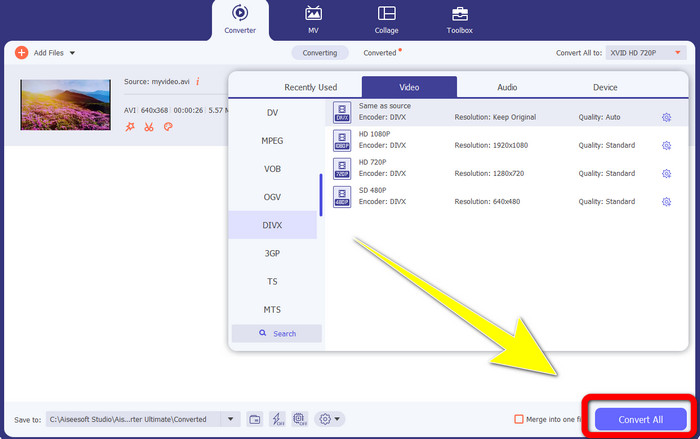
Steg 4: När du har ändrat din video från en Xvid-fil till en DivX-fil klickar du på knappen Convert All för att konvertera och spara ditt slutliga resultat. Sedan kan du prova din konverterade fil på din enhet för att se om den nu är kompatibel.
Del 2: Fri programvara för att konvertera Xvid till DivX
En annan videokonverterare du kan använda gratis är HitPaw Video Converter. Du kan ladda ner detta program för både Windows och Mac. Med detta program kan du konvertera Xvid till DivX. Dessutom kan det konvertera mer än 1000+ filformat, som MP4, M4V, MOV, MKV, WMV, MPEG, AVI, FLV och fler. HitPaw Video Converter är dessutom ett enkelt program som passar alla typer av användare. Med detta program kan du konvertera många filer enklare. Installationen tar dock lite tid och de avancerade funktionerna finns bara i betalversionerna. Om du vill konvertera Xvid till DivX följer du dessa steg.
Steg 1: Ladda ner HitPaw Video Converter till Windows och Mac. Starta programmet efter installationsprocessen.
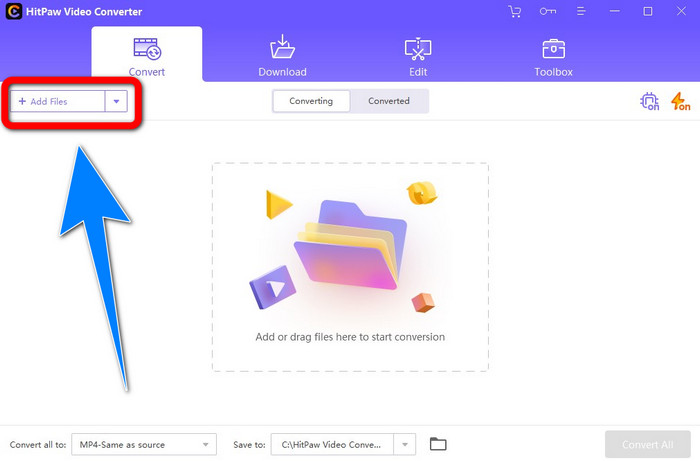
Steg 2: Klicka på knappen Add File för att lägga till din Xvid-fil.
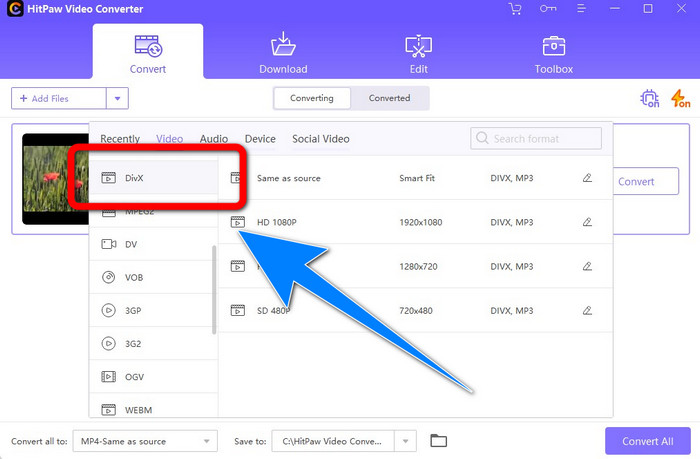
Steg 3: Gå till formatalternativen och klicka på DivX file.
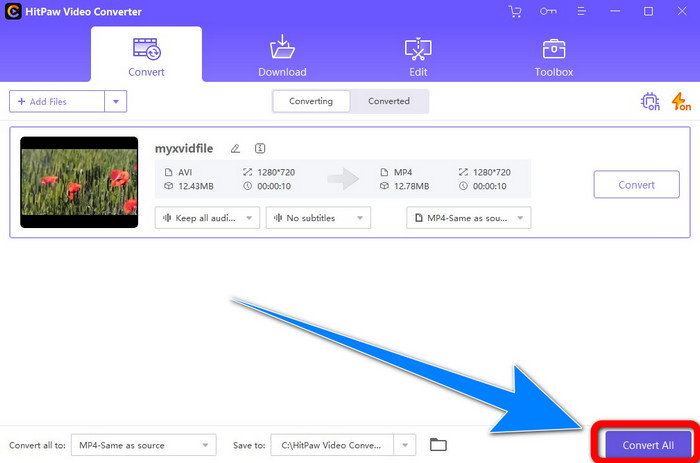
Steg 4: När du har valt DivX-filformatet klickar du på knappen Convert All för att konvertera och spara ditt slutliga resultat.
Del 3: Konvertera Xvid till DivX med hjälp av Online Tool
1. Använda Evano
Evano är en av de mest pålitliga och bästa programvarorna du kan använda för att konvertera din Xvid-fil till en DivX-fil. Dessutom är denna programvara gratis och har enkla metoder för konvertering, vilket är bra för nya användare. Den stöder dessutom olika ljud- och videoformat. För ljud stöder den MP3, WAV, FLAC, M4R, DTS, AAC, MP2 och fler ljudformat. För videoformat stöder den Divx, Xvid, AVI, MPEG, MKV, MOV, MJPEG, WEBM och fler. Denna programvara har dock begränsningar. Du kan bara konvertera högst tio filer per dag, vilket inte är bra, särskilt för personer som konverterar många filer. Den har också en långsam konverteringsprocess som tar några minuter. Om du vill konvertera Xvid till DivX med hjälp av Evano följer du stegen nedan.
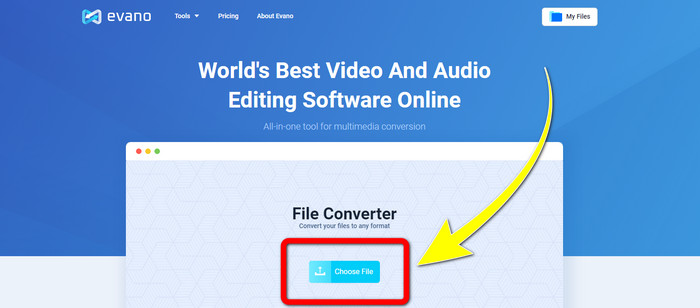
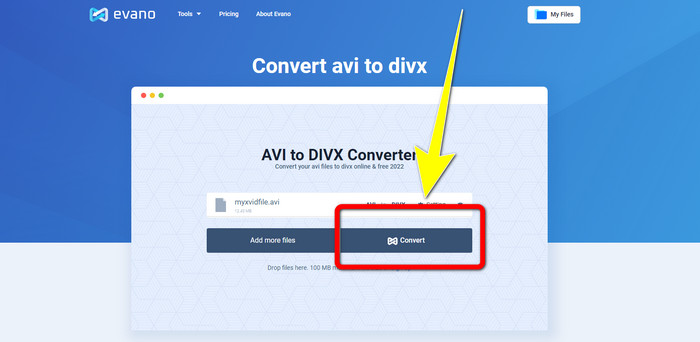
Steg 1: Gå till Evanos webbplats. Klicka sedan på Choose file och lägg till din Xvid-videofil.
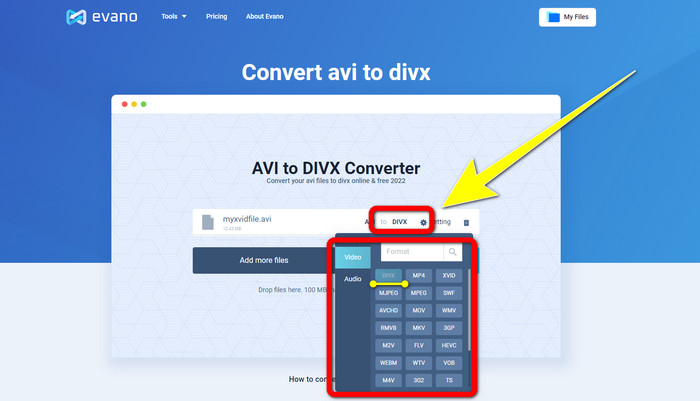
Steg 2: När du har lagt till din videofil går du till Format options och väljer sedan DivX file-formatet.
Steg 3: Efter att du har klickat på DivX-filen väljer du knappen Convert. Vänta på konverteringsprocessen och Download din konverterade fil.
2. Använda AnyConv
Om du letar efter ett annat användbart och värdefullt program online för att konvertera Xvid till DivX, är AnyConv den programvara du kan använda. Dessutom behöver du inte köpa någon prenumeration eftersom detta program är gratis. Det stöder dessutom många ljud-, video- och bildformat, såsom 3GP, DIVX, MOV, FLAC, FLV, H264, JPEG, JPG, MP3, MP3, MP4, MPEG och fler. Du kan också använda detta program enkelt eftersom det bara krävs tre enkla steg för att konvertera din Xvid-fil till DivX. Konverteringsprocessen i AnyConv är dock långsam och ibland fungerar programmet inte så bra. Men om du vill konvertera olika filer med detta onlineprogram följer du stegen nedan.
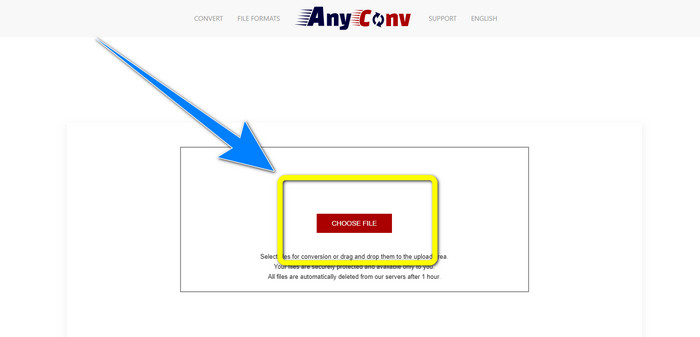
Steg 1: Besök webbplatsen för AnyConv. Klicka på knappen Choose File och lägg in videon du vill konvertera.
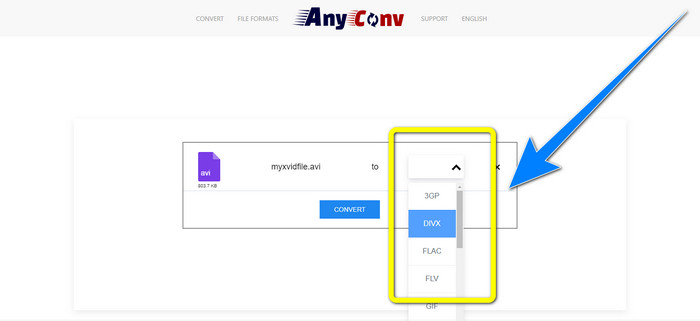
Steg 2: När du har lagt till din fil går du till format options och väljer DivX-formatet.
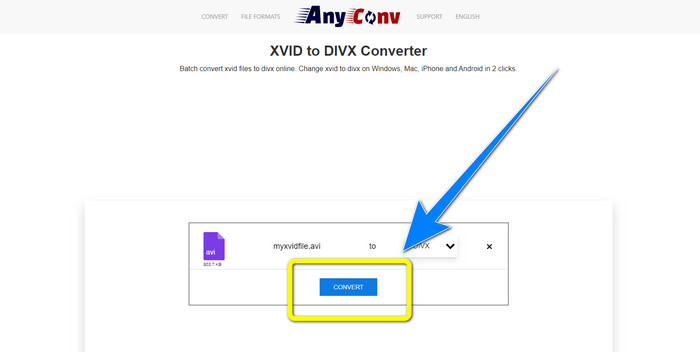
Steg 3: Klicka sedan på knappen Convert. Efter konverteringsprocessen laddar du ner filen du konverterade och sparar den på din enhet.
Relaterat till:
Hur man konverterar XviD till FLV utan kvalitetsförlust [Löst]
2 användbara sätt att transkoda XviD till WMV-format utan kvalitetsförlust
Del 4: Introduktion av Xvid och DivX
Xvid är en programvara som publiceras under GNU General Public License och är baserad på MPEG-4-formatet. Den erbjuder också tillräcklig komprimering för att en långfilm på DVD ska få plats på en enda CD. Dessutom härstammar den från DivX. Vidare är Xvid en direkt konkurrent till DivX. Dessutom är det det senaste och erbjuder bättre teknik än andra filformat. Å andra sidan är DivX en av de äldsta videokodekarna på marknaden. Det tillhör också MPEG-4-familjen. Filstorleken för en DivX-fil är dock mindre än för andra filformat. Det bästa är att DivX-filer är kompatibla med olika operativsystem och enheter.
Del 5: Vanliga frågor om att konvertera Xvid till DivX
Hur lång tid tar det att konvertera min Xvid till en DivX-fil?
Hur snabbt videokonverteringen kommer att bero på vilket program du använder. Vissa applikationer tar bara några sekunder att konvertera, och vissa tar ett tag. Dessutom beror det fortfarande på filstorleken på videon.
Kan jag konvertera Xvid till en DivX-fil med min Mac?
Ja, självklart! Du kan konvertera Xvid till en DivX-fil på din Mac. Programmet som passar din enhet är Video Converter Ultimate. Det är tillgängligt för både Windows och Mac. Dessutom kan det hjälpa dig att konvertera snabbare än andra program.
Kan jag också konvertera min MP4-fil till en annan fil med Video Converter Ultimate?
Jo det kan du! Video Converter Ultimate stöder många videofilformat, såsom MP4, WEBM, MXF, FLV, GIF, XVID, DIVX, AVI, 5K/8K Video och mer. På så sätt kan du konvertera olika filformat med denna applikation.
Varför måste jag konvertera mina filer till ett annat format?
Ibland måste du konvertera dina filer till andra format för att göra dem mer kompatibla med dina enheter.
Slutsats
Som du kan se är konvertering av Xvid till DivX mycket viktigt. Det handlar inte bara om att byta filformat. Det handlar om hur du kan spela upp videor på en viss enhet utan att uppleva problem. Konvertering är den bästa lösningen, särskilt om din video inte är lämplig eller är inkompatibel med dina enheter. Dessutom, om du vill konvertera fler filer och ändra dem till andra filformat, är den bästa och mest pålitliga konverteraren du kan använda Video Converter Ultimate.
-
 Topp 2 föreslagna omvandlare för att konvertera XviD till MOV [Online & Offline]
 Ta reda på vilka två föreslagna konverterare du kan använda för att konvertera XviD-filer till MOV-format Läs den här artikeln noggrant för att få idén om hur du konverterar Xvid-filen.
-
 Hur man konverterar XviD till AVI utan att förlora kvaliteten på videon [2021]
 Vill du konvertera din XviD-fil till AVI? Om så är fallet, läs den här artikeln när vi pratar mer om XviD och hur du konverterar din XviD-fil till ett AVI-format.
-
 Hur man konverterar MKV till DivX online och offline gratis
 Letar du efter de bästa sätten att konvertera MKV till DivX-format gratis. Fortsätt läsa för att veta de bästa MKV till DivX online och offline omvandlare.
