


 Video Converter Ultimate
 Skärminspelare
 Video reparation
 Säker nedladdning
4 enklaste sätten att ändra uppspelningshastighet för video på skrivbord, webb och telefoner
De flesta användare hittar ett effektivt sätt att titta på en timslång video på mindre än en timme. Den enda lösningen som kan lösa det här problemet är att ändra uppspelningshastigheten på videon du tittar på. De flesta videoredigerare du hittar på marknaden kan hjälpa dig att slutföra uppgiften, men frågan är: är de tillförlitliga? När vi undersökte var och en av dem upptäckte vi att du kan ändra videohastighet på dator, online, iOS och Android‑enheter. Om du vill veta hur du gör måste du fortsätta läsa den här bloggen eftersom vi tar med verktyg och appar som kan hjälpa dig.

Del 1. Bästa rekommenderade sättet att enkelt ändra videohastighet på Windows och Mac
För att enkelt ändra videohastighet måste du välja det bästa verktyget som ger utmärkta resultat med bara några få klick – låt oss presentera FVC Video Converter Ultimate. Det här verktyget justerar effektivt hastigheten på videon du har, när som helst och var som helst. Du kan dessutom ändra videohastigheten även om formaten är MP4, MOV, AVI, FLV, TS, RMVB och 1000+ andra format; att ladda upp din fil här går snabbt och enkelt. Även om du är Windows‑ eller Mac‑användare kan du ladda ner programvaran på det operativsystemet och slutföra uppgiften att ändra uppspelningshastighet med några få klick.
Förutom sin videohastighetskontrollfunktion har verktyget också en stolt multifunktionell verktygslåda som kan hjälpa andra uppgifter. Som att lägga till metadata, skapa en GIF, ta bort vattenstämplar och många fler. Även om verktyget är nedladdningsbart, skulle du märka när du använder det att du inte behöver mycket erfarenhet av redigering, eftersom det är användarvänligt. Det finns funktioner och funktioner som vi inte har skrivit ännu som kommer att framhäva denna produkt. Men om du vill lära dig hur du ändrar hastigheten på en video, läs detaljerna för att få kunskap.
Fördelar med att använda Ultimate Software som en videohastighetsväxlare:
◆ Intuitivt gränssnitt, så att de lär sig hur man använder det på några minuter.
◆ Ladda upp 1000+ videor för att snabba upp uppspelningen.
◆ Användarvänlig för att hjälpa användarna att uppleva det mesta av det.
◆ Andra funktioner finns på Toolbox, såsom grundläggande och avancerad videoredigering.
◆ Det är förstahandsvalet av nästan en miljon användare som laddar ner det.
◆ Tillgängligt på Windows och Mac för att ladda ner verktyget utan ansträngning.
Steg för hur du ändrar videohastighet med hjälp av Ultimate Software:
Steg 1. Du kan skaffa den här kompletta programvaran både på Windows‑ och Mac‑system genom att klicka på nedladdningsknappen. Slutför installationsprocessen efter att du klickat på filen du laddade ner och starta sedan programmet för att fortsätta.
Gratis nedladdningFör Windows 7 eller senareSäker nedladdning
Gratis nedladdningFör MacOS 10.7 eller senareSäker nedladdning
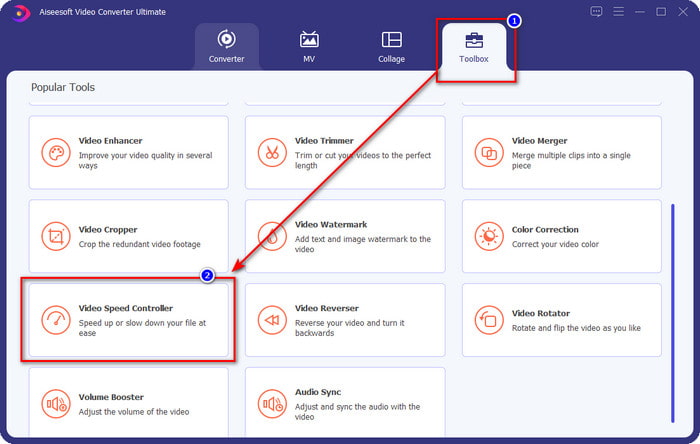
Steg 2. När du har öppnat programmet går du till avsnittet Verktygslåda och öppnar sedan Video Speed Controller. Du behöver inte oroa dig – du behöver inte ladda ner några ytterligare resurser för att använda verktyget.
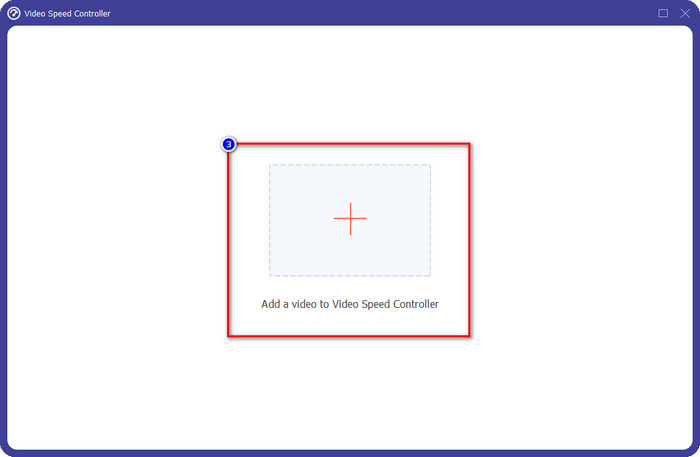
Steg 3. Tryck på ikonen +, lägg till filen du har i mappen, klicka på den och tryck på Öppna för att ladda upp videofilen du har.
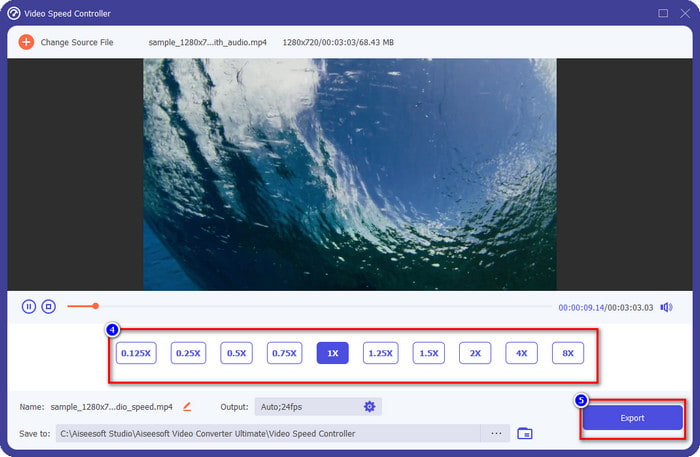
Steg 4. Välj i listan den uppspelningshastighet du vill uppnå – vi har alla olika uppspelningshastigheter vi vill ha. Klicka på Exportera för att spara slutresultatet av videon där du har ändrat hastigheten. På mindre än en minut har du redan ändrat hastigheten på videon. Nu kan du njuta av att titta på den på kortare tid.
Del 2. Bästa gratis sättet att ändra videohastigheten på webben
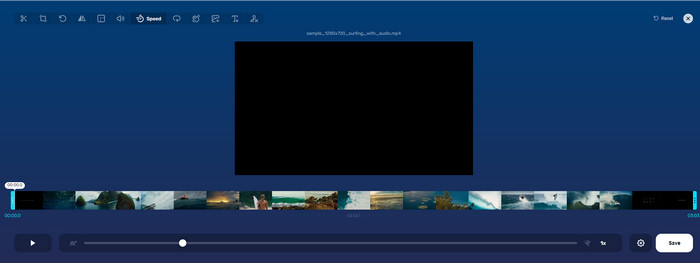
Med hjälp av Online Video Cutter kan du ändra videohastighet online gratis. Till skillnad från det första verktyget behöver du inte ladda ner några extra resurser eller installationsfiler på din dator för att använda webbverktyget. Förutom funktionen att ändra hastighet kan du också använda verktyget för enklare redigering. Även om verktyget är bra kan du inte ladda upp alla format du har, eftersom de format som stöds är begränsade. Följ stegen nedan för att använda det.
Steg 1. Öppna den webbläsare du vill använda och sök efter webbverktyget.
Steg 2. Öppna webbverktyget, klicka på Open File, leta upp videofilen du har och ladda upp den.
Steg 3. Dra reglagen åt vänster eller höger för att ändra hastigheten; klicka på knappen Spara om du är nöjd med hastigheten.
Del 3. Bästa videoredigeraren på iOS för att ändra videohastighet gratis
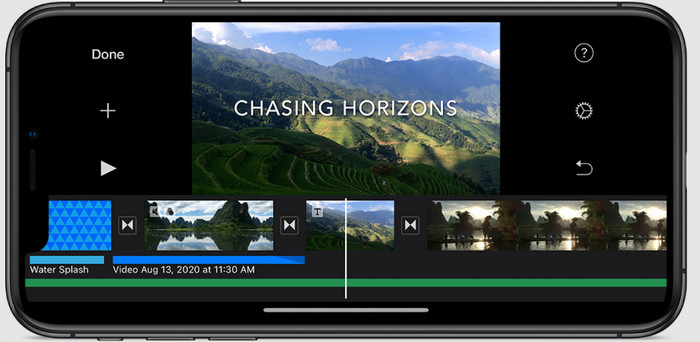
För iOS-användare kan du använda iMovie för att lära dig hur du ändrar videohastighet på iPhone gratis. Även om verktyget är en inbyggd videoredigerare på Mac, har du fortfarande ett val att ladda ner appen på din enhet eller inte. Detta val bevisar att iOS-användare kan behålla redigeraren eller inte, för att spara lite utrymme på deras lagring. Men om du har appen på din iPhone kan du följa stegen vi lägger till nedan för att veta hur det här verktyget fungerar.
Steg 1. Ladda ner och öppna sedan appen på din iPhone och i Projekt, klicka på +-tecknet och klicka sedan på Movie.
Steg 2. Tryck på videon du vill snabbspola, och längst ned på skärmen trycker du på Create Movie för att lägga upp den på tidslinjen.
Steg 3. Genom att trycka på klippet du har laddat upp klickar du på ikonen för speed controller och justerar videons hastighet genom att dra reglagen på din iPhone. Klicka på Done för att spara den och exportera den om du vill.
Del 4. Bästa sättet att ändra uppspelningshastighet för video på Android-enheter med hjälp av den inbyggda redigeraren
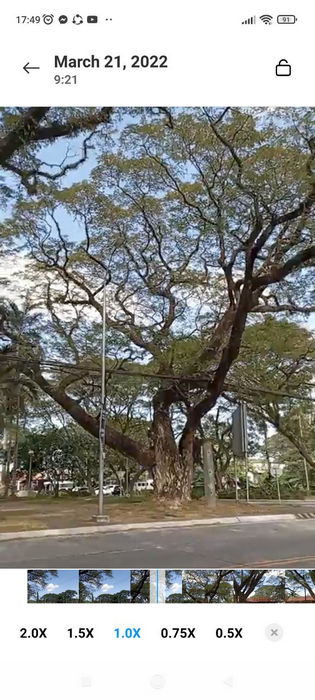
Att ladda ner en app är inte fallet om du är en Android-användare; ändra videohastighet på din telefon med den inbyggda videoredigeraren. Med den här redigeraren kan du göra den grundläggande redigeringen som behövs på din video för att få den att se bättre ut än tidigare. Du hittar den här redigeraren i Galleriet eller Albumet på din Android. Om du vill veta hur du använder det, kommer följande information att hjälpa dig.
Steg 1. Öppna ditt Galleri eller din Album‑mapp och tryck sedan på videon vars hastighet du vill ändra.
Steg 2. Klicka på Edit för att fortsätta.
Steg 3. Tryck på avsnittet Playback Speed och ändra sedan hastigheten efter dina behov.
Del 5. Vanliga frågor om att ändra videohastigheten
Kan jag ändra hastigheten på YouTube?
Absolut ja, du kan ändra uppspelningen av videon på YouTube även om du inte laddar ner programvara för att göra det. Följ stegen för att veta hur du ändrar hastigheten på videon på YouTube. Först är att öppna YouTube, hitta videon du vill titta på i en modifierad rörelse, klicka på kuggikonen och under den, uppspelningshastigheten, välj den hastighet du vill uppnå och njut.
Förkortar en ändring av hastigheten videons varaktighet?
Det beror på hur du ändrar hastigheten; om du saktar ner videon, förvänta dig att dess varaktighet kommer att sträcka sig eftersom du spelar upp den i ett långsamt läge. Men om du ändrar hastigheten till hög blir videons längd kortare än originalet. För att veta mer om att ändra videohastigheten måste du läsa följande detaljer som vi lägger till ovan.
Kommer kvaliteten att ha en effekt efter att ha ändrat hastigheten?
Beroende på vilken videohastighet du ställer in kan kvaliteten minska eller förbli. Om du spelar upp en video åtta gånger eller mer, förvänta dig videon du kommer att spela. Du skulle dock inte märka någon större skillnad förutom uppspelningen, kvalitetsmässigt kommer den att förbli densamma.
Slutsats
Nu när vi har en uppfattning om hur man ändrar videohastighet på datorer, online och i mobiler är det dags att bestämma vilket vi ska använda. Anta att du inte vill ladda ner programvara på din dator för att spara lagringsutrymme och installationssteg, då behöver du läsa del två av den här artikeln. Men om du är iOS‑ eller Android‑användare är del tre och fyra till för dig. Om du vill använda den bästa videoredigeraren på Windows och Mac måste du ladda ner FVC Video Converter Ultimate. Det är den bästa video‑hastighetskontrollen för att enkelt ändra videouppspelningen du har på din dator. Vad väntar du på? Ladda ner den nu och ta del av vårt erbjudande som är bara för dig!
-
 Hur man snabbar upp video i Premiere Pro och med dess alternativ
 Vill du veta hur man använder Premiere Pro för att snabba upp en video? Då är du i rätt artikel då vi tillhandahåller steg och andra prisvärda alternativ.
-
 2 enkla sätt att snabba upp en video på TikTok
 Vill du veta hemligheten om hur man snabbar upp video på TikTok? Läs sedan den här artikeln för att få idén om hur du gör det och veta vilka de andra 2 verktygen som kan hjälpa dig.
-
 Utmärkta tips från 2021: Hur man snabbar upp en video på iMovie
 Din vän föreslår iMovie för att hjälpa dig med ditt problem med hur man snabbar upp en video med iOS-operativsystemet, men du vet inte vad du ska göra? Se mer om detta när du läser mer genom denna artikel.
