


 Video Converter Ultimate
 Skärminspelare
 Video reparation
2 enkla sätt att komprimera MKV-filer utan att förlora kvalitet
Vill du minska storleken på en MKV‑fil men vill inte förlora videokvaliteten? Finns det något enkelt, särskilt gratis sätt att komprimera MKV‑filer?
En MKV‑fil ger bra video- och ljudkvalitet, men har i allmänhet en stor filstorlek. När du vill ladda upp och dela en MKV‑video är det ofta nödvändigt att komprimera den. Frågan är, hur komprimerar man MKV‑filer utan att förlora kvalitet?

Det finns faktiskt ett stort antal videokompressorer, inklusive gratis onlineverktyg, på marknaden som kan hjälpa dig att minska filstorleken på dina MKV‑videor. Här i detta inlägg vill vi dela 2 enkla sätt att komprimera MKV.
Del 1. Hur man gratis komprimerar MKV-filer online
Som nämnts ovan kan många gratis onlinevideokompressorer eller redigeringsverktyg hjälpa dig att komprimera MKV och minska filstorleken. I första delen vill vi rekommendera en populär online Free Video Compressor för att hjälpa dig att göra jobbet.
Denna gratis online MKV-filkompressor är speciellt utformad för videokomprimering. Den stöder starkt nästan alla videoformat inklusive MKV, MP4, MOV, FLV, AVI och mer. Den har förmågan att minska filstorleken på 4K, HD eller SD-videofil utan att förlora kvaliteten. Dessutom har detta MKV-komprimeringsverktyg en batchkomprimeringsfunktion för att säkerställa att du kan slutföra videokomprimeringen med snabbare hastighet.
Steg 1. Öppna din webbläsare och gå till den officiella webbplatsen för denna MKV‑kompressor. Den är kompatibel med alla vanliga webbläsare som Google Chrome, IE, Firefox, Safari med flera.
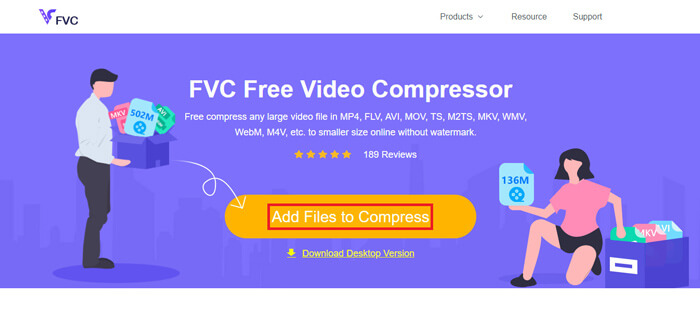
Steg 2. Klicka på knappen Add Files to Compress för att ladda ner och installera en liten startfil för MKV‑komprimeringen.
Steg 3. Välj och lägg till den MKV‑fil du vill komprimera. Sedan kan du se MKV‑filens storlek och videolängd uppe i högra hörnet.
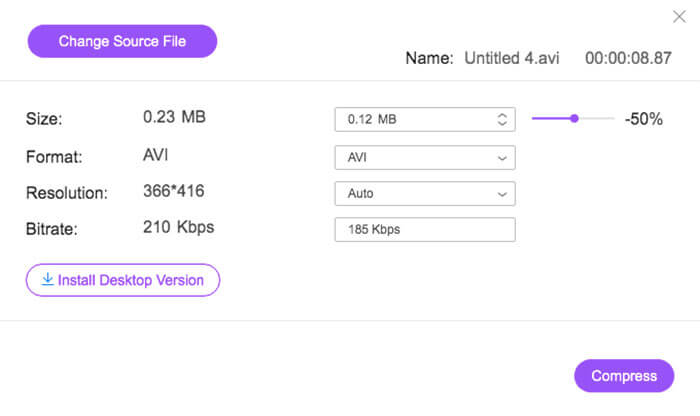
Steg 4. Du kan justera MKV‑videons upplösning, bildfrekvens och bithastighet. Dessutom kan du välja ett lämpligt utdataformat för den komprimerade videon. Efter alla dessa inställningar klickar du på knappen Compress för att börja komprimera MKV‑filen.
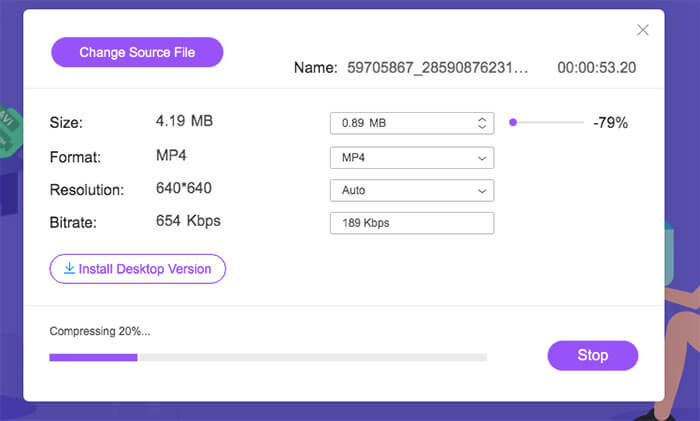
Inom bara några få klick kan du enkelt komprimera en MKV-fil för att minska filstorleken. Ännu viktigare, ingen vattenstämpel läggs till i din komprimerade video. Du borde veta att de flesta online-videokompressorer sätter in en vattenstämpel i din utdatafil.
Del 2. Professionellt sätt att komprimera MKV-filer
Med metoden ovan kan du enkelt komprimera en MKV‑fil gratis online. Men om du komprimerar din MKV‑video för mycket riskerar du att få en komprimerad fil med dålig kvalitet. Du kan faktiskt välja att klippa bort onödiga delar för att minska filstorleken utan kvalitetsförlust. Här presenterar vi ett kraftfullt verktyg för videokonvertering och redigering, Video Converter Ultimate, som hjälper dig att komprimera dina MKV‑filer utan att förlora kvalitet.
Video Converter Ultimate är speciellt utformad för olika uppgifter inom videokonvertering och redigering. Den kan trimma video och bara spara den användbara delen. Dessutom är den utrustad med en Video Compressor-funktion för komprimering av MKV‑filer.
Gratis nedladdningFör Windows 7 eller senareSäker nedladdning
Gratis nedladdningFör MacOS 10.7 eller senareSäker nedladdning
Steg 1. Dubbelklicka på nedladdningsknappen ovan för att gratis installera och starta denna programvara för MKV‑komprimering på din dator. Denna videokompressor låter dig komprimera MKV‑filer både på Windows‑PC och Mac.
Steg 2. När du kommer in i huvudfönstret klickar du på fliken Toolbox och väljer sedan funktionen Video Compressor.
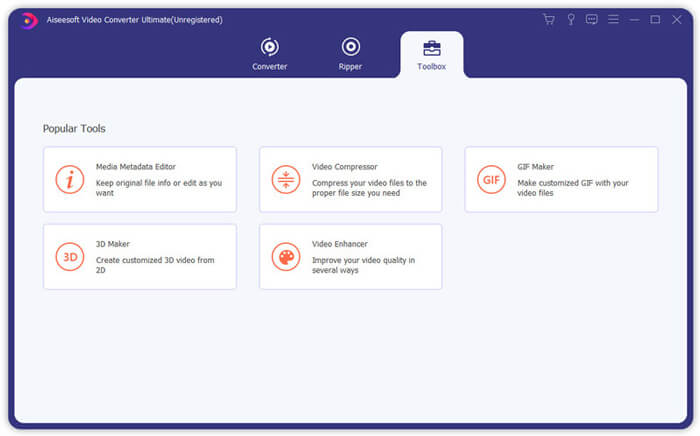
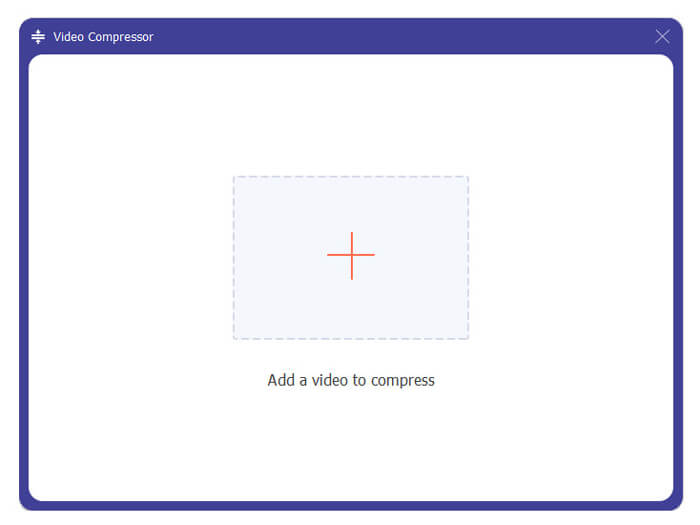
Steg 3. Klicka på +-ikonen för att importera en MKV‑fil att komprimera.
Nu kan du enkelt minska MKV-filstorleken efter ditt behov. Under detta steg kan du också anpassa videoupplösning, bithastighet, varaktighet och filnamn som du vill. Dessutom kan du välja ett lämpligt utdataformat för den komprimerade videon.
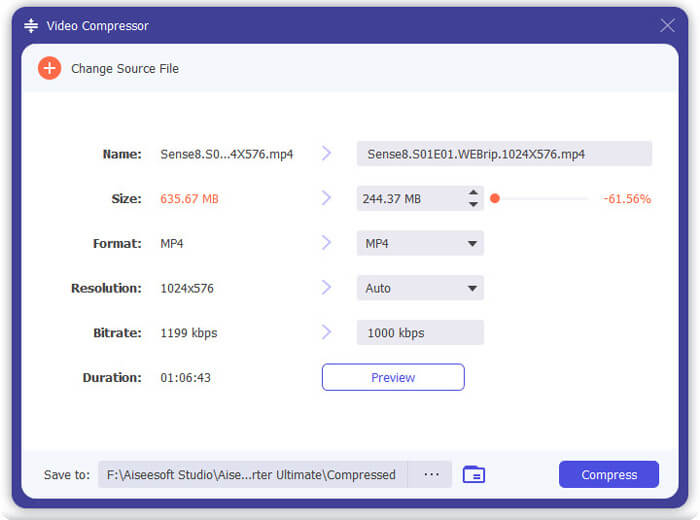
Steg 4. Klicka på knappen Compress för att börja komprimera din MKV‑video till en mindre fil.
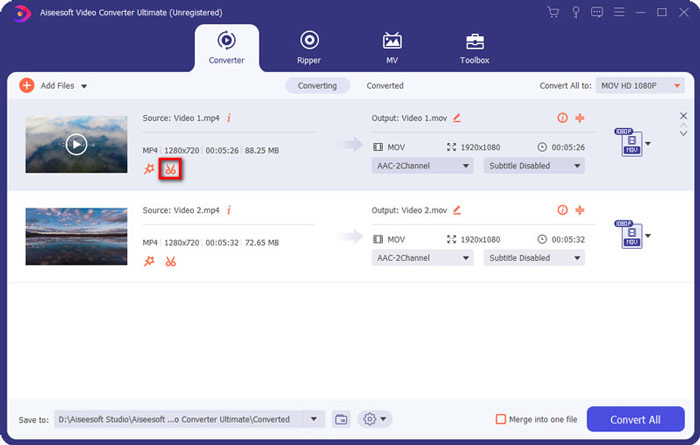
Steg 5. Om du vill minska MKV‑filstorleken genom att använda trimfunktionen kan du gå tillbaka till startfönstret och välja alternativet Converter. Efter att du importerat MKV‑videon kan du klicka på ikonen Cut för att ta bort de delar du inte behöver.
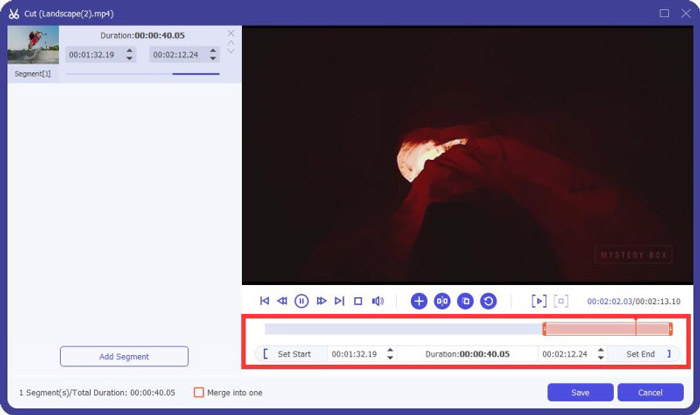
Steg 6. Du kan dra markören på tidslinjen eller direkt ange start- och sluttid för att trimma din MKV‑fil. Sedan kan du klicka på knappen Save för att bekräfta din åtgärd.
Därefter förs du tillbaka till startfönstret. Här kan du klicka på knappen Convert All för att exportera MKV‑videon. Denna programvara för MKV‑komprimering är utrustad med en inbyggd mediaspelare som hjälper dig att direkt se komprimeringsresultatet.
Oavsett om du vill komprimera en video för e‑post eller WhatsApp kan du enkelt göra det i detta program.
Del 3. Vanliga frågor om komprimering av MKV-fil
Fråga 1. Hur komprimerar du en video utan att förlora kvaliteten?
Du kan välja att klippa video för att minska filstorleken. Genom att göra det kan du komprimera en video utan kvalitetsförlust. Om du väljer en gratis online eller professionell videokompressor kommer videon definitivt att förlora bild- eller ljudkvalitet. Men du kanske inte märker kvalitetsförlusten i dina ögon.
Fråga 2. Hur konverterar jag en MKV-fil till MP4-fri?
För att gratis konvertera en MKV‑fil till MP4‑video kan du använda den pålitliga Free Online Video Converter. Den kan enkelt genomföra MKV till MP4 och andra video‑ och ljudkonverteringar.
Fråga 3. Varför är MKV-filer så stora?
MKV är ett containerformat som använde en bättre codec med högre kompressionsförhållande. MKV-filer tas vanligtvis från Blu-Rays och har högre upplösning.
Slutsats
Efter att ha läst detta inlägg kan du ta del av 2 enkla sätt att komprimera MKV‑filer. Med de rekommenderade videokompressorerna kan du smidigt minska filstorleken på dina MKV‑filer. Om du har något bättre sätt att komprimera MKV, dela det gärna i kommentaren med andra läsare.
-
 Handledning för att komprimera en video för e-post på iPhone / Android / Online
 Kan du inte skicka en video som är för stor via e-post? Om du har det här problemet kan du få användbara sätt att komprimera en video för e-post här. Den här artikeln visar hur du krymper stora videofiler gratis i detalj.
-
 Handledning för att komprimera GIF och minska filstorleken med hög kvalitet
 Här är två enkla sätt att komprimera GIF på din dator eller mobiltelefon. Du kan använda FVC Free Online Video Compressor och Photoshop minska GIF-filstorleken i olika aspekter.
-
 2 sätt att komprimera AVCHD-videor till små filstorlekar gratis
 ead och få två enkla sätt att komprimera AVCHD-videofiler. Du kan använda online- och offline-videokompressorer för att minska AVCHD-videostorleken gratis på din dator.
