


 Video Converter Ultimate
 Skärminspelare
 Video reparation
 Säker nedladdning
Anmärkningsvärda sätt att klippa en video på Snapchat [inklusive Offline Way]
Snapchat-appen är en annan app som har blivit populär på senare tid. Huvudfokus för Snapchat var att byta privata, personliga foton. Men du kan nu använda den för olika saker, som att skicka filmer och delta i livesändningar via video. Å andra sidan kan du också använda den här applikationen för att klippa dina videor. Som vi alla vet accepterar Snapchat bara videor på upp till 60 sekunder. Att trimma videon är den bästa lösningen om du planerar att ladda upp eller posta en video i den här mobilappen. Läs i så fall det här inlägget för att se detaljerade metoder du kan prova för hur du kan trimma en video på Snapchat och klippa videor för Snapchat.

Del 1. Hur man trimmar en video för Snapchat med PC
Snapchat har en begränsning när du postar en video. En av de bästa lösningarna på den här typen av problem är att förkorta en video. På så sätt kan du lägga till videon på Snapchat när du trimmar eller klipper den. Om du vill ha den bästa videoredigeringsprogramvaran för att klippa en lång video för Snapchat kan du använda Video Converter Ultimate. Det här programmet har en utmärkt delningsfunktion för att dela upp din video i flera delar. Dessutom är proceduren för att dela upp videor perfekt för icke-professionella användare. Du kan dela upp videor med bara några få klick. Gränssnittet är också användarvänligt, så att du enkelt kan förstå varje alternativ. Dessutom har det fler utmärkta funktioner utöver att dela upp videor. Video Converter Ultimate låter dig beskära, rotera och förbättra dina videor efter dina önskemål. Det stöder också olika videoformat, inklusive MP4, MOV, MKV, AVI med flera. Vidare kan både Windows- och Mac-användare använda programmet eftersom det finns till både Mac- och Windows-datorer.
Steg 1. Klicka på knappen Ladda ner nedan för att ladda ner Video Converter Ultimate. Eftersom programmet finns för både Mac- och Windows-datorer finns det två knappar nedan. Klicka på knappen som motsvarar den enhet du använder. Starta sedan programmet.
Gratis nedladdningFör Windows 7 eller senareSäker nedladdning
Gratis nedladdningFör MacOS 10.7 eller senareSäker nedladdning
Steg 2. Klicka på panelen Verktygslåda i den övre delen av gränssnittet. När verktygen visas under Verktygslåda väljer du verktyget Video Trimmer.
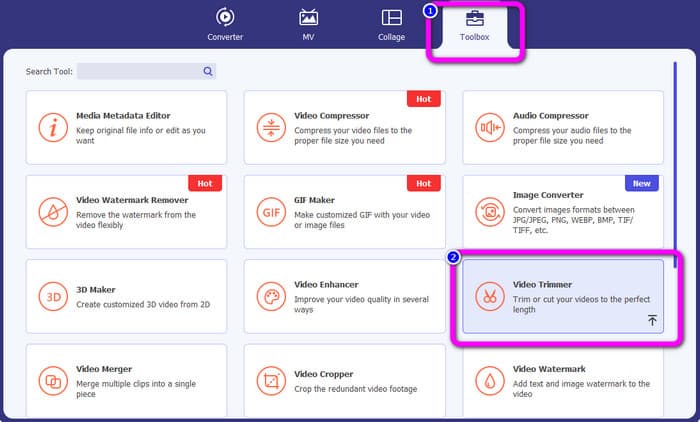
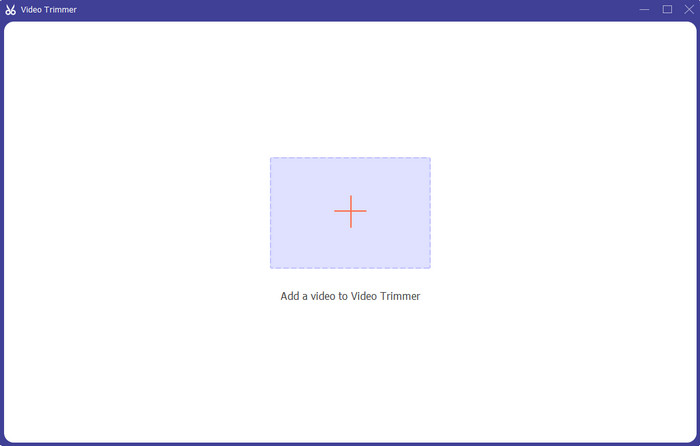
Steg 3. Klicka på Plus-symbolen i mitten av gränssnittet. Välj sedan den video du vill klippa från filmappen.
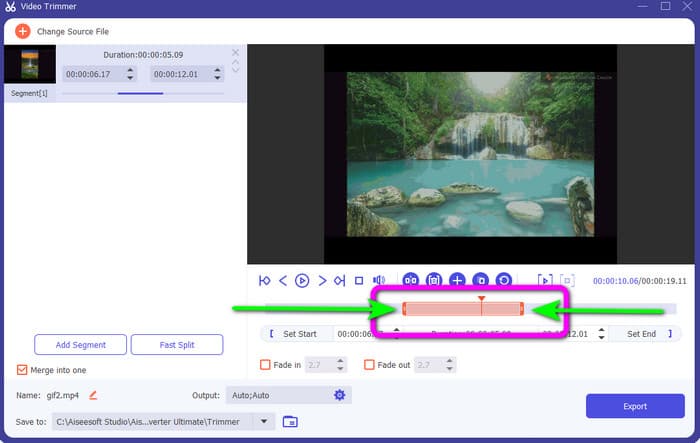
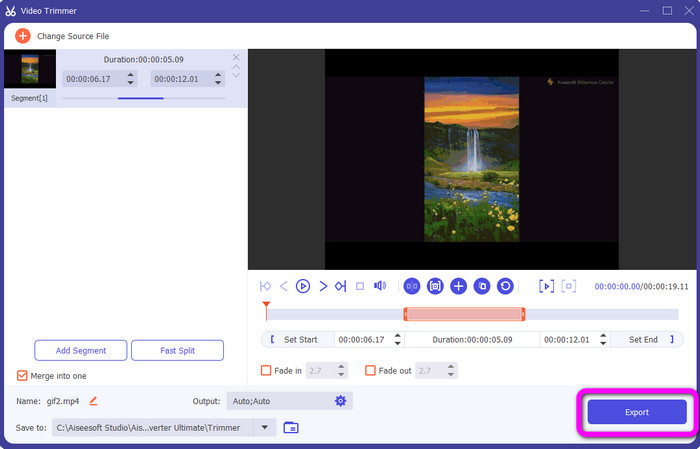
Steg 4. Du kan klippa videon genom att justera den orange stapel du ser i den nedre delen av videon. Den här stapeln har en kant på båda sidor. Justera stapelns kanter för att trimma den del av videon du vill redigera.
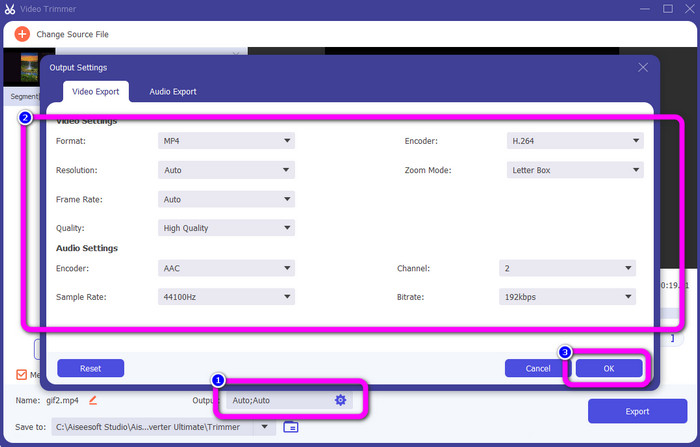
Steg 5. Genom att klicka på alternativet Utdata-inställningar kan du ändra videons bildfrekvens, kvalitet, upplösning och zoomläge för ytterligare justeringar. Du kan också ändra ljudets samplingsfrekvens och bithastighet. Klicka sedan på OK.
Steg 6. För det sista steget klickar du på knappen Exportera. Vänta på den sista processen, och efter några sekunder kan du spara den färdiga och redigerade videon på din dator.
Del 2. Hur man klipper en video på Snapchat
I den här delen kommer du att lära dig hur du trimmar en video på Snapchat. Denna mobilapplikation är utmärkt för att ta foton och filmer. Det ger dig många effekter för att förbättra dem och tillfredsställa användare. Det anses också vara en kommunikationsplattform för andra människor. Dessutom är Snapchat inte bara kapabel till den typen av saker. Mobilapplikationen låter dig också enkelt klippa eller trimma en video. Bortsett från det låter Snapchat dig redigera din video genom att ändra filter, lägga till effekter, beskära och mer. Men precis som andra applikationer fokuserar Snapchat på att ta bilder och filmer. Så du kan inte använda avancerade redigeringsverktyg från applikationen. Dessutom accepterar den bara korta videor, vilket är otillfredsställande för användare som vill ladda upp långa videor. Se procedurerna nedan om hur du förkortar en video på Snapchat.
Klipp en video efter inspelning
Steg 1. Ladda ner Snapchat från App Store eller Google Play Store. När du har installerat mobilappen öppnar du den på din telefon.
Steg 2. Spela därefter in en video med din Snapchat. När du är klar med inspelningen visas ett miniklippspår längst ned på skärmen. Klicka på det för att starta trimmningsprocessen.
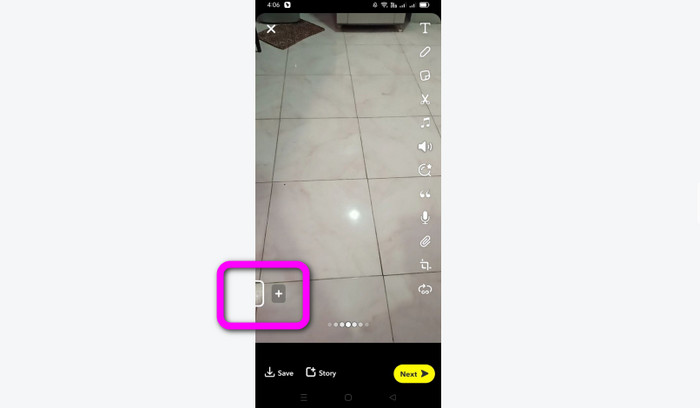
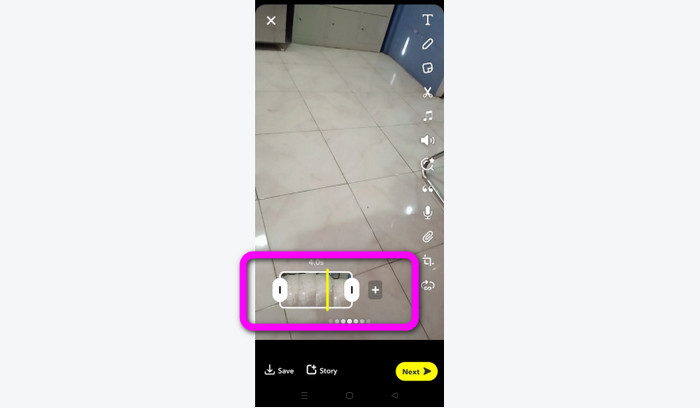
Steg 3. När klippet visas på skärmen kan du fortsätta processen. Dra i kanterna på klippet och trimma videon utifrån dina önskemål.
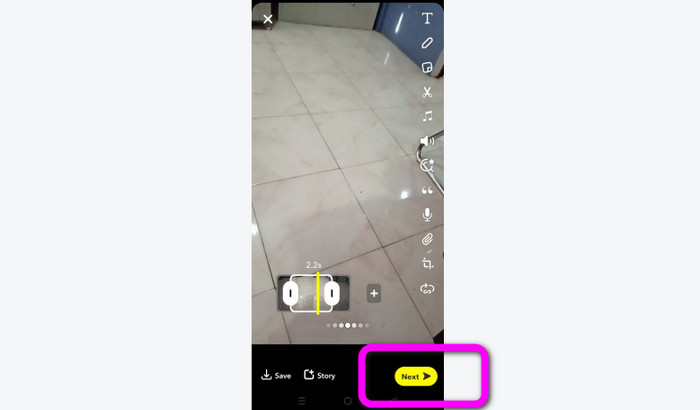
Steg 4. När du är nöjd med slutresultatet trycker du på knappen Nästa i det nedre vänstra hörnet av gränssnittet. På så sätt kan du spara din trimmade video.
Klipp ut en video från minnen
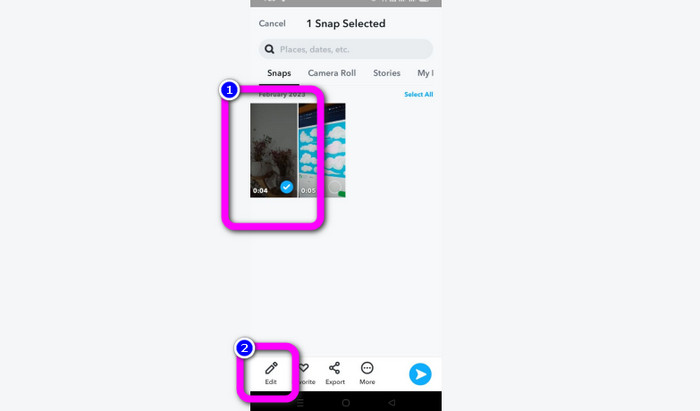
Steg 1. Öppna din Snapchat-app på telefonen. Gå sedan till Memories. Där kan du se dina videor. Håll ned videon i några sekunder och klicka på alternativet Redigera.
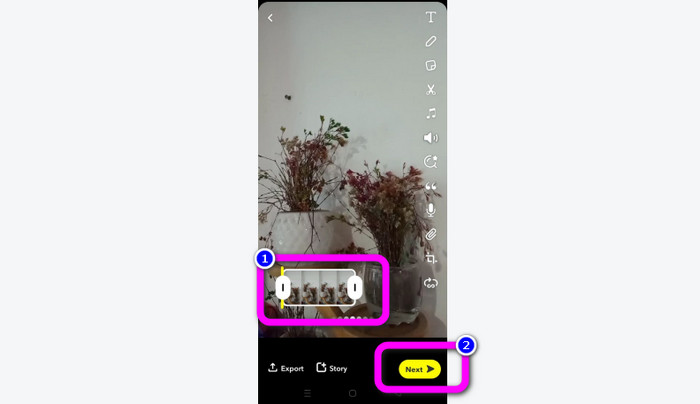
Steg 2. Sedan kommer videon att visas i den nedre delen av skärmen. Med den här videon kan du justera kanterna på klippet för att börja trimma. När du är klar med trimmningen klickar du på knappen Nästa för att spara din slutliga video.
11 anmärkningsvärda videotrimmers att använda [gratis och betalda]
Utmärkta sätt att klippa video online på ett smidigt sätt
Del 3. Vanliga frågor om hur man klipper en video på Snapchat
1. Vad innebär det att trimma en video på Snapchat?
Att trimma en video är att göra ett klipp som fastställer ett specifikt avsnitt som början och ett specifikt avsnitt som slutet av videoklippet. Det här alternativet låter dig välja en videos början och slutposition på Snapchat. Det här alternativet är idealiskt om du vill ladda upp delar av en video som från början varade längre än 10 sekunder.
2. Kan du använda splitfunktionen på snapchat?
Du kunde inte använda den här funktionen om du laddade upp en video från din kamerarulle. Om du använde Snapchat-kameran för att fånga, kan du. Du kan använda Split-verktyget för att dela upp filmen i redigerbara bitar och ta bort alla delar som du inte vill bevara.
3. Vilken är den maximala videostorleken för en enskild snapchat-video?
Om du överför bilder eller videor från din kamerarulle till Snapchat kan du bara skicka en video upp till 2,5 MB. Dina filer komprimeras innan de levereras.
Slutsats
Om du använder Snapchat för att trimma en video är den här artikeln för dig. Den här artikeln gav dig det bästa sättet att trimma en video på Snapchat. Om du dessutom föredrar att trimma din video för Snapchat på en dator finns det ett program du kan använda. Video Converter Ultimate är ett utmärkt program för att trimma videor på datorn. Det har ett intuitivt gränssnitt och är helt gratis.
-
 6 favoritval Snapchat Animerade Snapchat-filter på Snapchat
 Vill du veta de bästa sätten att lägga till filter på Snapchat-videor? Tja, du kan klicka på det här och lära dig de olika filtren du kan använda för att applicera på Snapchat-videor.
-
 Hur man enkelt saktar ner en video på Snapchat på alla enheter
 Det bästa sättet att sakta ner en video på Snapchat finns redan här. För att veta vilka dessa tekniker är för att sakta ner en video, följ den noggrant.
-
 Enklaste sätten att ta bort Snapchat-text från skärmdump
 Låt oss ta bort Snapchat-text från foton och videor med hjälp av pålitliga verktyg online och offline. Vi kommer att erbjuda dig enkla sätt. Prova det nu, och låt oss ge det ett försök!
