


 Video Converter Ultimate
 Skärminspelare
 Video reparation
Tips och knep för att öka volymen på din Windows/Mac/iPhone/Android
Most of the PC, Mac, Android or iPhone are capable only of fair loud volume. Although it is not good enough to be used to feel the shivers crawl to our skin or even enjoy it. Moreover, we can fix it by increasing the volume of it to the max. Although you make it louder, some of the videos we watch are still low. So now, we present different techniques for you to choose from to help you to listen to a good video with your own devices only. And if you are ready to start then let's proceed and explore how to increase volume easily on different platforms.

Del 1. Hur man ökar volymen på Windows/Mac/iPhone/Android
1. Windows
Att öka MP3-volymen på Windows PC är mycket lättare även om du inte behöver använda en tredje part. Men om du vill öka ljudet här, förvänta dig inte något speciellt. Eftersom det här operativsystemet inte tillhandahåller någon equalizer som hjälper dig att manipulera det. Men du kan justera volymen för de andra applikationerna du vill ska låta högre eller lägre. Så nu, låt oss gå vidare med stegen nedan för att avgöra hur du gör din video ljud tydligare på Windows PC.
How to Increase the Volume of the Video on Windows:
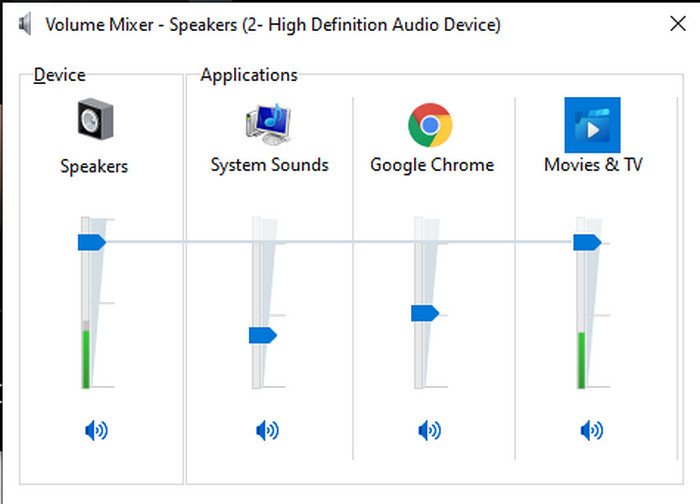
Step 1. On the interface of your Windows PC locate on the lower right side the Speaker.
Step 2. Press the right click on your mouse and click Open Volume Mixer.
Step 3. Adjust the Device to make it higher or lower all of the volume. However, if you want to adjust a single sound only then you can do it by dragging it up or down.
2. Mac
Precis som Windows kan du enkelt manipulera och öka volymen på din video på Mac. Dessutom, om du vill öka ljudutgången på din Mac måste detta vara ditt val för att enkelt utföra det. Men precis som tidigare sagt är detta som Windows men i ett annat program har detta OS ingen inbyggd equalizer för att få volymen att drastiskt förändras. Och nu om du vill lära dig hur du gör volymen högre, följ detta steg som anges nedan.
How to Increase the Volume of the Video on Mac:
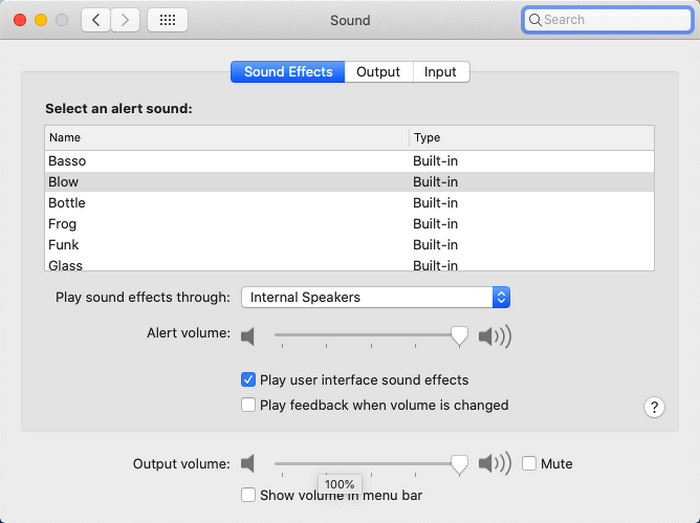
Step 1. Open your mac and click the apple shaped button at the top.
Step 2. Then click the System Preference under it. Press the Sound to proceed to the last step.
Step 3. Adjust the Output Volume by dragging the slider to increase or decrease the sound.
3. iPhone
Om du har en iPhone kan du enkelt lära dig hur du gör volymen högre och bättre. Eftersom den här enheten har en inbyggd equalizer som definitivt kommer att hjälpa dig. Dessutom förvånar möjligheten att öka ljudet i den här telefonen oss fortfarande. Eftersom vi inte visste att det fanns en bärbar equalizer som iOS-användare kunde använda. Så nu, om du inte har en idé om hur du använder det, kommer följande steg att hjälpa dig att göra det.
How to Increase the Volume of the Video on iPhone:
Step 1. Go to the Settings and locate the Music then click it.
Step 2. Press the EQ and choose on the list below, after choosing go back to Home.
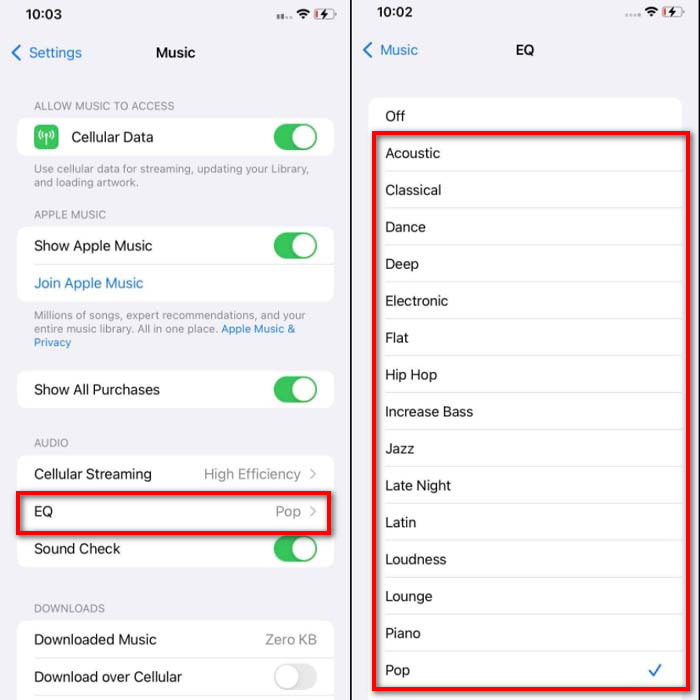
Step 3. Click Music now the Music and play the music there. Then increase the volume by clicking the volume up or down button on the side of your iPhone.
4. Android
Android kommer aldrig att svika sin användare eftersom denna mobila enhet också har en inbyggd equalizer. Även om du ökar kvaliteten och själva volymen med equalizern som finns här är det fortfarande inte så effektivt som på iPhone. Men om du använder den och justerar volymen samtidigt som du har hörlurar eller högtalare kommer du att känna den drastiska förändringen av volymen. Men observera att stegen kan variera beroende på enhetens fabrikat och modell. Dessa steg gav också arbete på Realme 7 pro, Android version 11 och uppåt. Så om du undrar, hur ökar jag volymen på min Android-telefon och följ sedan stegen nedan.
How to Increase the Volume of the Video on Android:
Step 1. Go to the Settings and locate the Sound & Vibration.
Step 2. Scroll it down to locate the Dolby Atmos and click it to proceed.
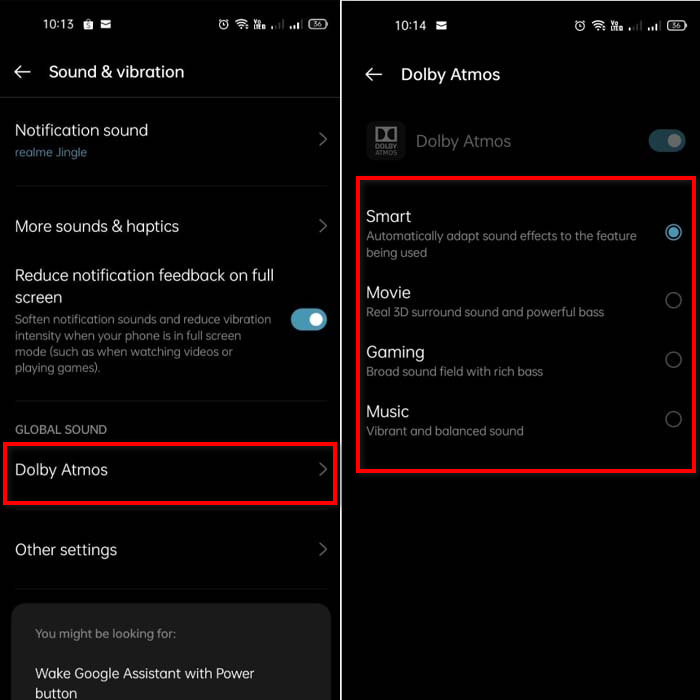
Step 3. Change the equalizers by choosing from the list. If you want to make your sounds better then insert a headphone to make much louder and better sounds. Then adjust the volume up and down on the side of your Android phone to make it sound higher or lower.
Del 2. Kan du fortfarande inte höra volymen på videor? Försök att öka det med Video Converter Ultimate
Although the steps provided above are great to help, still it lacks some of the increasing intensity of the volume. So now, we present to you the phenomenal volume booster you can use to convert your low volume and boost them in here, Video Converter Ultimate. This software has already been used by +10 million users over the entire globe. Also, you can't access this tool on your mobile devices because it is not supported. However, you can use this software on your PC or Mac then save it directly first on your drive and later transfer it to your phone. Without further ado, let's determine how to use the volume booster available in this tool and learn how to make your volume louder than ever.
How to Boost the Volume of the Video with the Help of Video Converter Ultimate:
Step 1. Before you can use the Video Converter Ultimate you must download it first on your hard drive. Then install the tool and do the set-up then click Start Now to launch it.
Gratis nedladdningFör Windows 7 eller senareSäker nedladdning
Gratis nedladdningFör MacOS 10.7 eller senareSäker nedladdning
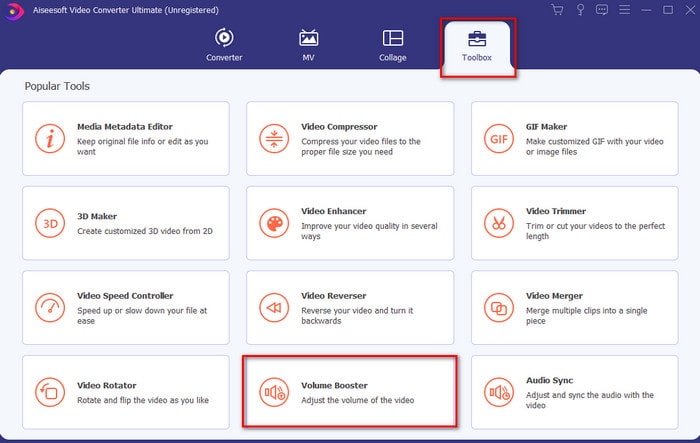
Step 2. After launching the tool, proceed to the next step, then go to the Toolbox and find the Volume Booster.
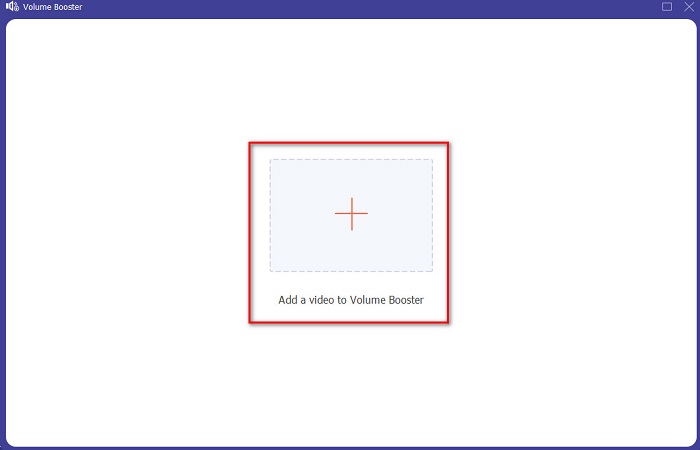
Step 3. Click + sign to add the video you want to be boosted. Locate the file on the folder that will show next on your display then click open to continue.
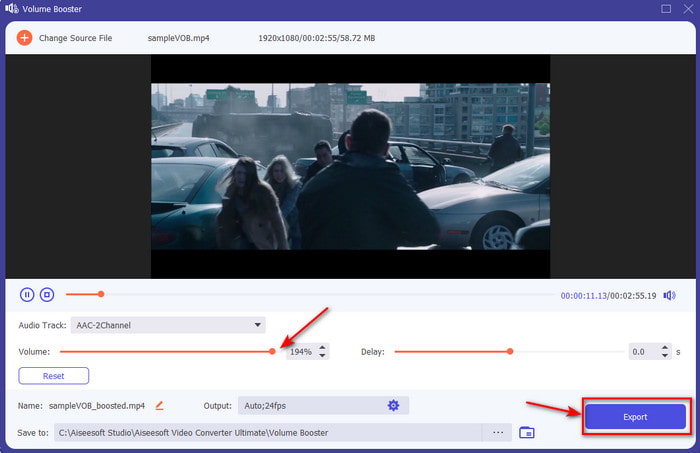
Step 4. On the tool interface you adjust the volume slider of the volume to the max or on your specific preference. If you are now satisfied with the volume, you've set click now Export to download the file.
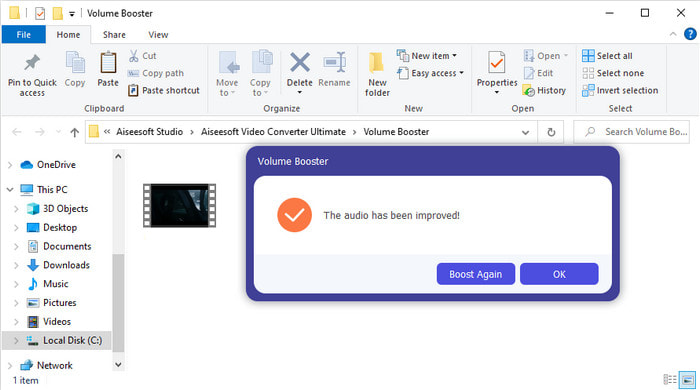
Step 5. Wait for a couple of seconds to be processed. If the file is already done a folder will automatically be shown to your screen, then click the file to listen to the volume of the video you've adjusted.
Del 3. Vanliga frågor om Öka volymen
Kan jag öka volymen på VLC?
Faktiskt ja, istället för att använda en volymförstärkare kan du använda VLC Player för att öka ljudutgången för din video. Dessutom, istället för att begränsa ljudet till 100% kan du utöka volymen på det upp till 125% om du vill.
Försämrar konvertering av videor kvaliteten på video och ljud?
Well, it depends on what format you want to convert. For example, if you convert an AVI to MP4 then expect some quality changes because the AVI format is uncompressed. However, we can avoid this by reading upon this article and to proceed just click this link. So, if you're about to convert a compressed file into an uncompressed or into another compressed format. Expect some changes as well if you do it regularly but if you do it once then quality will not be going to change.
Hur fixar jag en video- och ljudfördröjning?
Actually, there are two ways on how to fix it. The first one is to delete it and re-download the video if it is available on the web. And don't let the process be interrupted and have a stable internet connection to avoid missing some files. However, if this file is for you only then it is a must to choose a software that will help you to sync the audio and video. So now, to have an idea of the available software and how to sync audio and video easily then click the link and read the write-up. As we accumulate different software you can choose one.
Slutsats
As we now know how to fix the low audio on our video, this is now the right time to do it. Just by following the simple steps provided above to make your volume even better than before. Although the step is not all about how to increase the audio by pressing or increasing it. But with the help of the other techniques, you can easily perform. However, if you feel that the audio on your PC, Mac, Android or iPhone are still low then boost it with the Video Converter Ultimate. So now, increase volume to the next level and experience a much louder and better audio.
-
 7 enkla steg för hur man åtgärdar OBS-ljudfördröjningsproblem [löst]
 Har du svårt att se ditt videoklipp efter inspelning på grund av ljudfördröjningen när du använder OBS Studio? Läs artikeln nedan för att lära dig hur du åtgärdar osynkroniserat ljud effektivt.
-
 Utmärkta sätt möjliga | Så här fixar du VLC-ljudfördröjning [2021]
 Har du svårt att se din favoritfilm på din VLC-mediaspelare på grund av ljudosäkerheten? Fortsätt läsa den här artikeln för att veta alla möjliga sätt att fixa VLC-ljudfördröjning.
-
 Bästa sätten att öka MP4-volymen online och offline
 Har du svårt att höra ljudet från ditt videoklipp? Läs artikeln nedan för att veta hur du ökar mp4-volymen på olika sätt.
