


 Video Converter Ultimate
 Skärminspelare
 Video reparation
 Säker nedladdning
Enkel guide om hur man gör en del av en video i slowmotion effektivt
De flesta filmskapare använder övercranking för att få videon att spelas upp i slowmotion, men främst används det inom sport för omedelbara repriser. På grund av den konstnärliga effekt det ger använder alla olika videohastigheter efter eget önskemål. Med andra ord har efterfrågan på en slowmotion‑redigerare spridit sig över hela internet, och behovet av en perfekt kontroller för videohastighet har blivit allt större. För att möta ditt behov av den bästa hastighetskontrollern går vi igenom de tre bästa hastighetskontrollerna vi har hittat på marknaden, som är mycket uppskattade för att justera videons hastighet. Dessutom inkluderar vi en handledning i varje verktyg om hur man gör en del av en video i slowmotion, särskilt utvalt åt dig.

Del 1. Bästa sättet att göra en del av en video i slow motion [rekommenderas starkt]
Med efterfrågan på att ha den bästa hastighetskontrollen för att sakta ned ett klipp erbjuder FVC Video Converter Ultimate den hjälp du behöver för att slutföra denna uppgift. Denna ultimata konverterare har en unik funktion för att sakta ned din video eller spela upp den i mycket hög hastighet och tillämpa ändringen med bara några få klick. Du kan inte gå fel med den här programvaran, för den är en av de lättaste att förstå och har ett rent gränssnitt som gör allt enkelt att överblicka och organisera.
Förutom dess hastighetskontroll kan du också använda den här programvaran för att dela och slå samman flera videor samtidigt. Många användare blev nöjda med denna programvara på grund av de multifunktionella funktionerna den ger dig. Så anta att du vill vara en del av den förtjusta gemenskapen och bli imponerad av denna programvara. I så fall kan du läsa handledningen nedan om hur du saktar ner en del av en video, men först måste du ladda ner och installera programvaran och sedan öppna den för att börja.
Gratis nedladdningFör Windows 7 eller senareSäker nedladdning
Gratis nedladdningFör MacOS 10.7 eller senareSäker nedladdning
1. Trimma den del av videon du vill långsamma
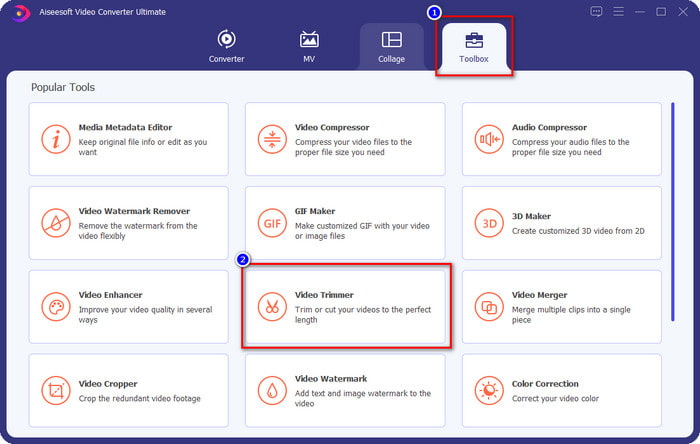
Steg 1. Efter att du har startat programvaran går du till Toolbox och letar upp Video Trimmer.
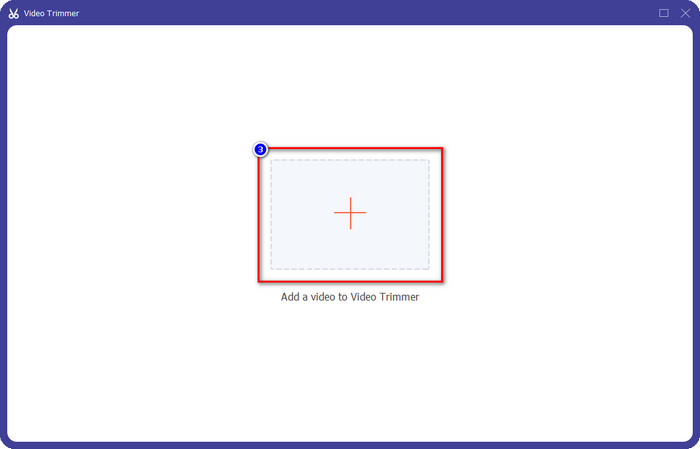
Steg 2. Tryck på +-ikonen för att lägga till videon du vill dela upp, leta upp den i din mapp och klicka på Open.
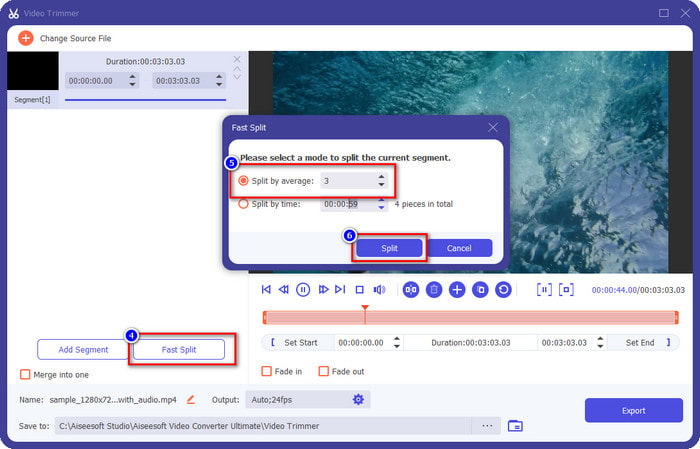
Steg 3. I trimmern klickar du på Fast Split för att dela upp videon du lagt till i segment och ändra antalet delar efter önskemål. När du har ställt in segmenten för videon klickar du på Split.
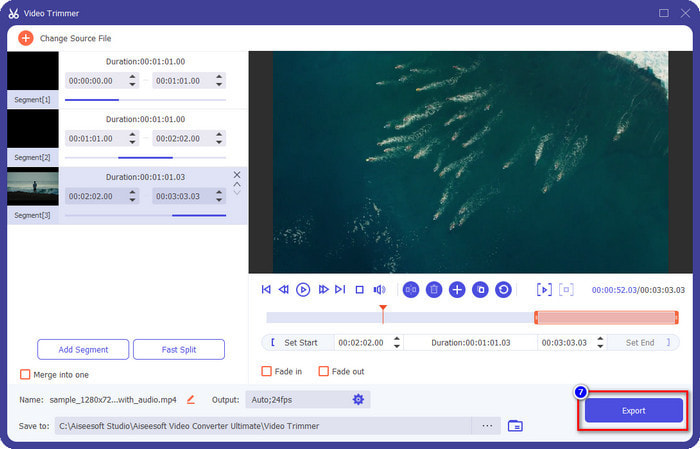
Steg 4. Klicka på varje video för att se om det är rätt segment som du vill ha i slowmotion, och klicka sedan på Export för att spara videon på din enhet.
2. Ändra hastigheten för segmentet du har exporterat
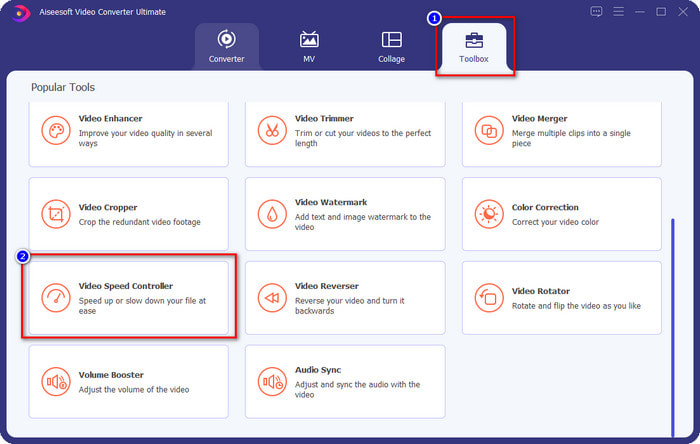
Steg 1. Leta upp Video Speed Controller i Toolbox för att sakta ned segmentet du delade upp tidigare.
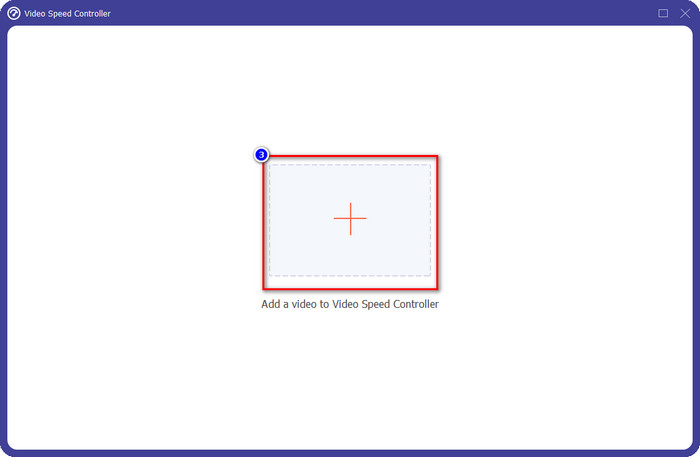
Steg 2. Tryck på +-knappen för att lägga till en videofil, leta upp videofilen du delade upp och vill sakta ned, och klicka på Open för att ladda upp den.
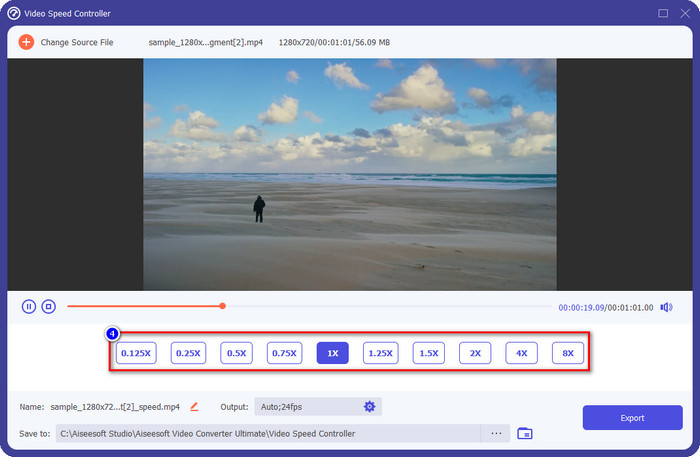
Steg 3. Efter att du har infogat videon väljer du den slowmotion‑effekt du vill tillämpa på det klipp du klippt ut. Flera alternativ för hastighet visas på skärmen. Prova dem alla för att se vilken som ger den slowmotion du vill uppnå.
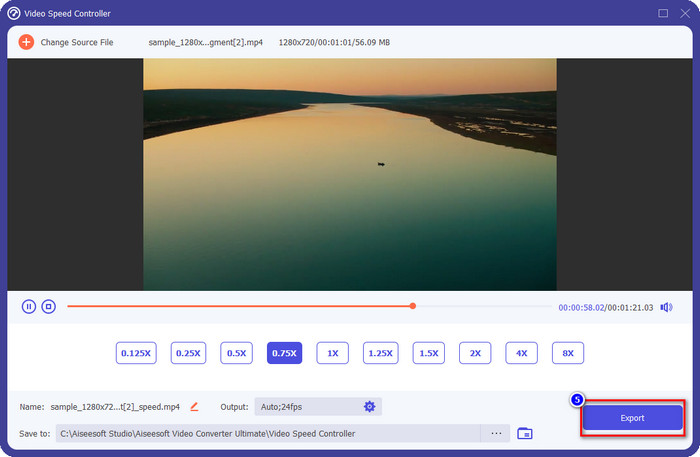
Steg 4. För att spara videon du har saktat ned klickar du på Export.
3. Slå samman videon du klippte tidigare med Slow-mo
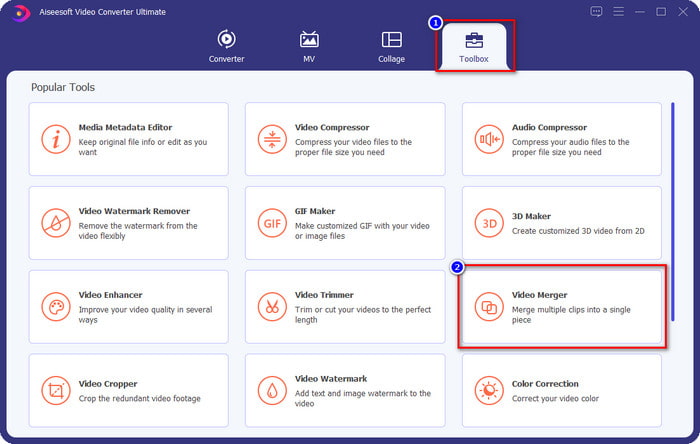
Steg 1. När du har klippt och lagt till slowmotion‑effekten på videon klickar du på Video Merger för att kombinera alla videor; du hittar den i Toolbox.
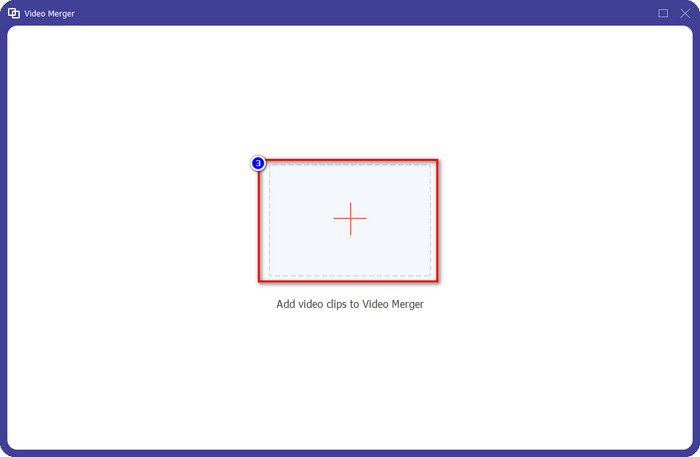
Steg 2. Genom att klicka på +-knappen visas en mapp på skärmen; klicka på filen du vill lägga till och tryck sedan på Open.
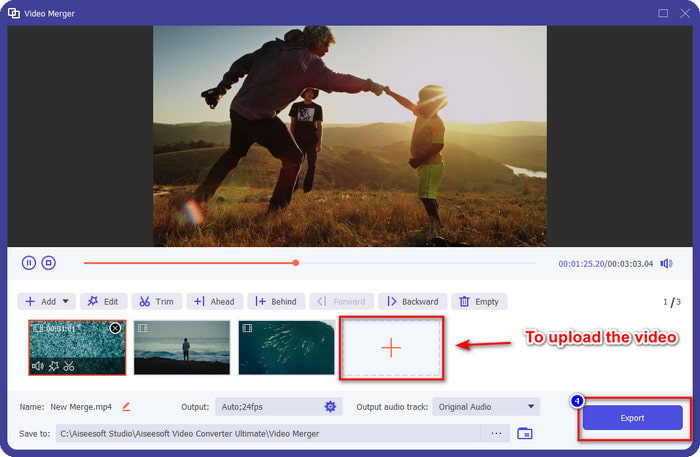
Steg 3. För att lägga till de andra segmenten du delade upp klickar du på +-knappen för att lägga till dem alla. Ordna dem korrekt genom att dra varje segment, och när allt är klart klickar du på Export för att spara videon med delen i slowmotion.
Del 2. Annan online- och offlineprogramvara som du kan använda för att ändra videohastigheten till Slow-mo
Online videoklippare – hastighetskontroll
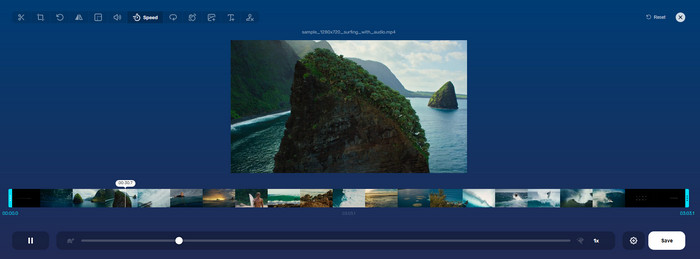
Online Video Cutter – Speed Controller är inte ett verktyg du behöver ladda ned eftersom det är webbaserat. Med en videohastighetskontroller som detta online kan du använda verktyget direkt utan att ladda ned extra resurser eller filer för att starta programvaran. Webbaserade verktyget stöder dessutom grundläggande redigeringsfunktioner som du kan behöva. Även om verktyget inte är lika professionellt som redigeraren vi nämnde ovan, är det ändå utmärkt för att sakta ned en video. För att lära dig hur man gör en del av en video i slowmotion kan du följa stegen nedan.
Steg 1. För att få åtkomst till webbverktyget kan du söka efter det i valfri webbläsare.
Steg 2. Klicka på Open File och ladda upp videofilen eller segmentet du vill ha i slowmotion.
Steg 3. Dra reglaget åt vänster för att sakta ned videon och klicka på Save.
Gratis hastighetsvideo
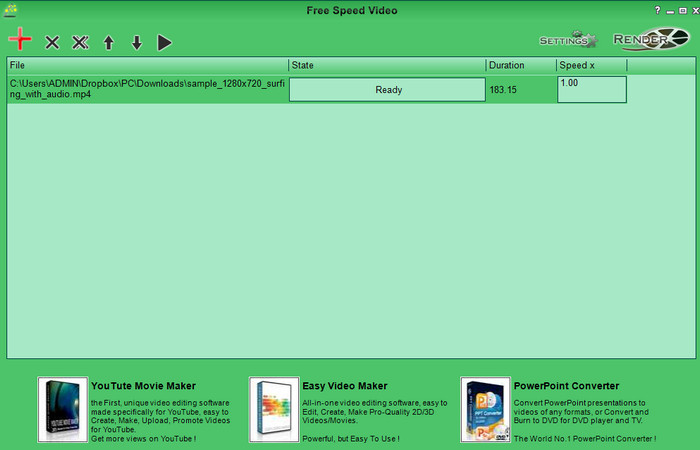
En annan hastighetskontroller du kan ladda ned till din dator är Free Speed Video. Detta verktyg är mycket enkelt, så det är stressfritt att lära sig använda det. Även om det har ett enkelt gränssnitt skulle det behöva uppdateras för en bättre design och för att hjälpa användaren att se vilka alternativ som finns. Om utseendet på gränssnittet inte stör dig kan du använda programvaran för att justera videons hastighet efter dina behov, helt gratis. För att hjälpa dig att sakta ned videon guidar stegen nedan dig i hur du saktar ned en del av en video.
Steg 1. Ladda ned det och följ installationsprocessen för att få det på din dator.
Steg 2. Klicka på +-knappen för att lägga till videon du vill sakta ned.
Steg 3. Under Speed x skriver du in den hastighet du vill ha.
Steg 4. Klicka på Render för att spara slutresultatet på din dator.
Del 3. Vanliga frågor om hur man gör en del av en video i slow motion
Varför fryser delen av videon med slow-mo?
Övergången mellan avmattningen och den normala videon fryser på grund av de olika hastigheterna för båda videorna. Du får inte uppleva en frysning och laggy övergång trots skillnader om du istället använder det ultimata verktyget.
Vad gör videoövergången från slow-mo till normal hastighet smidigare?
Det finns inget särskilt svar, men det är bättre att slow-mo en videodel om verktyget du har kan öka hastigheten. För en smidigare övergång mellan videon med normal hastighet och långsammare, måste du försöka slå samman videon som vi gjorde med den ultimata programvaran.
Är det svårt att använda en långsammare effekt på videodelen?
Det kan vara särskilt att inte all programvara du kan använda kan ändra en viss del av videohastigheten. De flesta hastighetskontroller justerar hastigheten på hela videon istället för den specifika delen. Så om du vill ändra delen av klippens uppspelningshastighet, läs del 1 för att veta allt.
Slutsats
Till sist har vi tillräckligt med kunskap om hur man gör en del av en video i slowmotion med hjälp av stegen och din vilja att läsa klart den här artikeln. Även om programvaran kan ändra videons hastighet är det ändå ett problem om du vill ändra bara en del av den. Så för att ändra en del av klippet till en slowmotion‑version och ge din video lite extra krydda måste du använda FVC Video Converter Ultimate. Du kan skaffa den här programvaran genom att ladda ned och installera den på din dator och följa stegen vi tidigare tog upp för att bara ändra en del av klippet och inte hela videons hastighet.
-
 Solida bevis för att göra slowmotion-videor med After Effects
 Alla tankar eller känslor kan genereras eller förstärkas genom att titta på något i slow motion. Läs den här artikeln för att veta hur du skapar slow motion i After Effects.
-
 Beprövade metoder för att skapa slowmotion-videor i Adobe Premiere
 En av de bästa mjukvarorna från Adobe är Premiere; den fungerar mer för att förbättra videor till nästa nivå, som att göra slowmotion-videor. Läs den här artikeln för att veta mer om Adobe Premiere och dess användbara funktioner.
-
 Enkelt sätt att göra en slowmotion-video i Windows Movie Maker
 Vill du ge en dramatisk effekt på din video för att framhäva eller åtminstone få ett klipp att sticka ut från resten med slow motion, och du vet inte hur? Fortsätt läsa den här artikeln för att veta mer.
