


 Video Converter Ultimate
 Skärminspelare
 Video reparation
 Säker nedladdning
Bästa teknikerna för att ta bort Animoto-vattenstämpeln på videor permanent
Animoto är en molnbaserad videotillverkare som alla kan använda för att göra en utmärkt video för att imponera på publiken som kommer att se videon. Med miljontals användare blev Animoto känd för att redigera och skapa videor utan att ha omfattande kunskap om efterproduktion. På grund av den dagliga användningen som besöker webbplatsen, tycker många användare om att använda den och skapar flera fantastiska korta videor för sina presentationer.
Men gratisversionen av verktyget lämnar dock kvar verktygets logotyp i slutet av videon. Det kan vara irriterande för vissa, och vi behöver definitivt ta bort den för att presentera videon snyggt utan någon vattenstämpel. För att ge dig verktyget du behöver för att ta bort Animotos vattenstämpel gratis måste du hålla tempot uppe när du läser den här artikeln, där vi sammanfattar alla verktyg du kan använda som hjälper dig.

Del 1. Hur man tar bort vattenstämpel från Animoto-video [Mest använda vattenstämpelborttagare 2022]
FVC Video Converter Ultimate – Ultimate Watermark Remover på Windows och Mac
Om du vill ta bort Animotica‑vattenstämpeln kan du använda och dra nytta av funktionerna i FVC Video Converter Ultimate. Det här verktyget erbjuder det mest effektiva sättet att få bort vattenstämpeln i din video, nämligen genom att ta bort den. Med detta verktyg kan du täcka över Animotos logotyp med den personliga logotyp du har skapat, så att verktygets logotyp inte visas i videon du har gjort. När det gäller den övergripande prestandan för att ta bort vattenstämplar kan vi enkelt säga att det är det bästa vi har hittat på marknaden.
Dessutom, förutom att ta bort och lägga till vattenstämpeln, kan du också dra nytta av de andra funktionerna som att redigera, konvertera, skapa MV och mer. I alla dess egenskaper och funktioner kan vi erkänna att den serverar rätt tallrik på bordet för ett ultimat syfte. Så om du vill veta hur man tar bort en vattenstämpel från en Animoto-video kan du läsa informationen nedan.
Steg 1. Tryck på nedladdningsknappen nedan för att hämta det till din Windows‑ eller Mac‑dator. Välj rätt knapp för att ladda ner den version som passar ditt operativsystem. Klicka sedan på filen du laddade ner för att starta installationen, följ installationsprocessen och öppna sedan programmet.
Gratis nedladdningFör Windows 7 eller senareSäker nedladdning
Gratis nedladdningFör MacOS 10.7 eller senareSäker nedladdning
Steg 2. Gå till Toolbox för att öppna Video Watermark Remover som verktyget har.
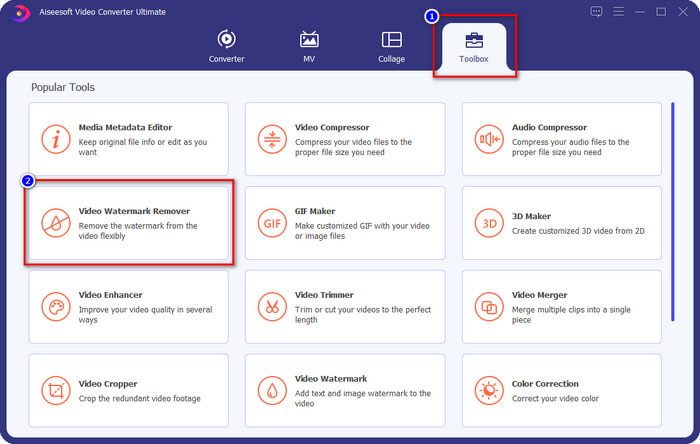
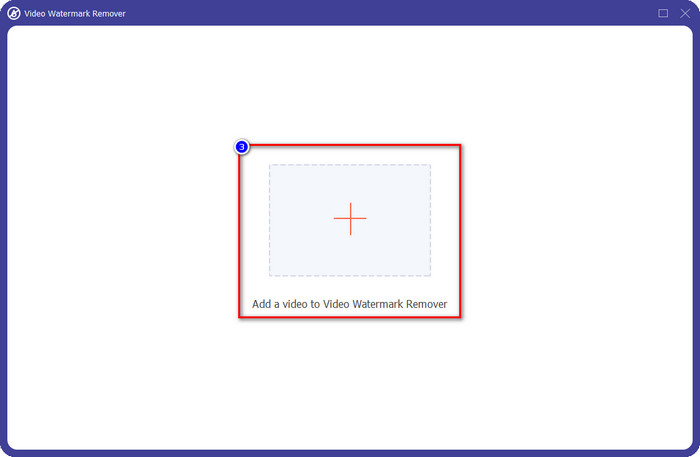
Steg 3. Klicka sedan på +-knappen som visas på skärmen för att ladda upp videon du redigerade i Animoto med vattenstämpel.
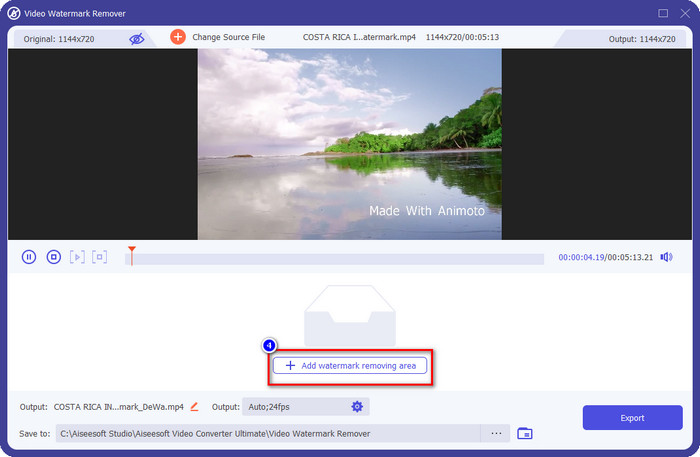
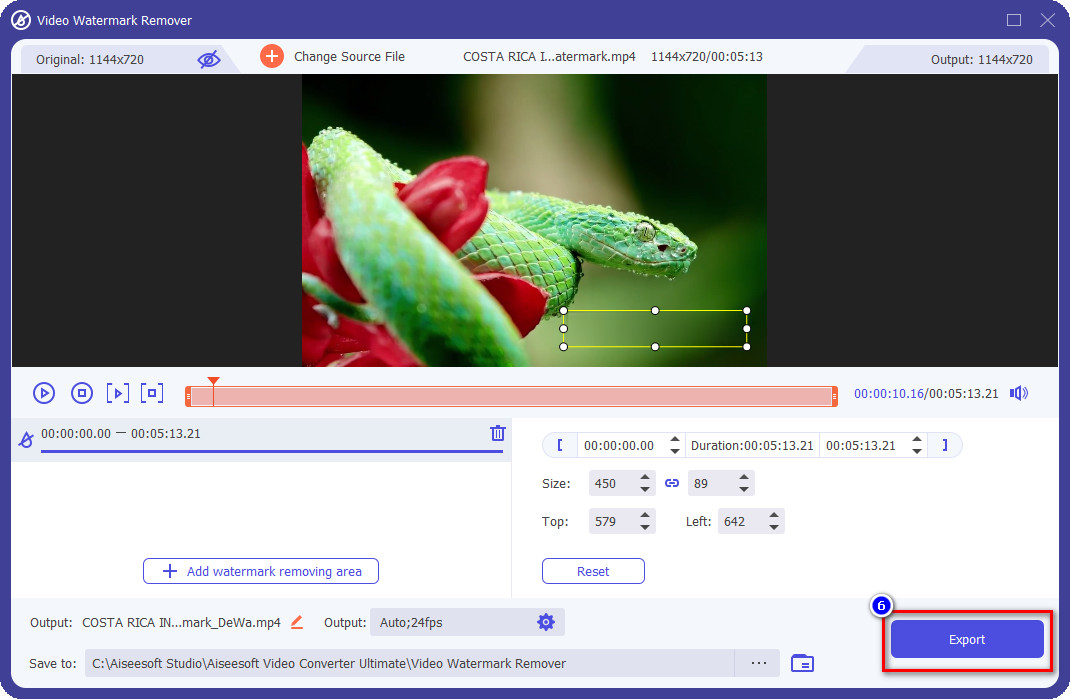
Steg 4. Du ser ett nytt fönster som detta på skärmen när du har laddat upp videon. Klicka på Add Watermark Removing Area längst ned i mitten av gränssnittet.
Steg 5. Justera markeringsrutan så att den passar vattenstämpeln och placera den på rätt ställe.
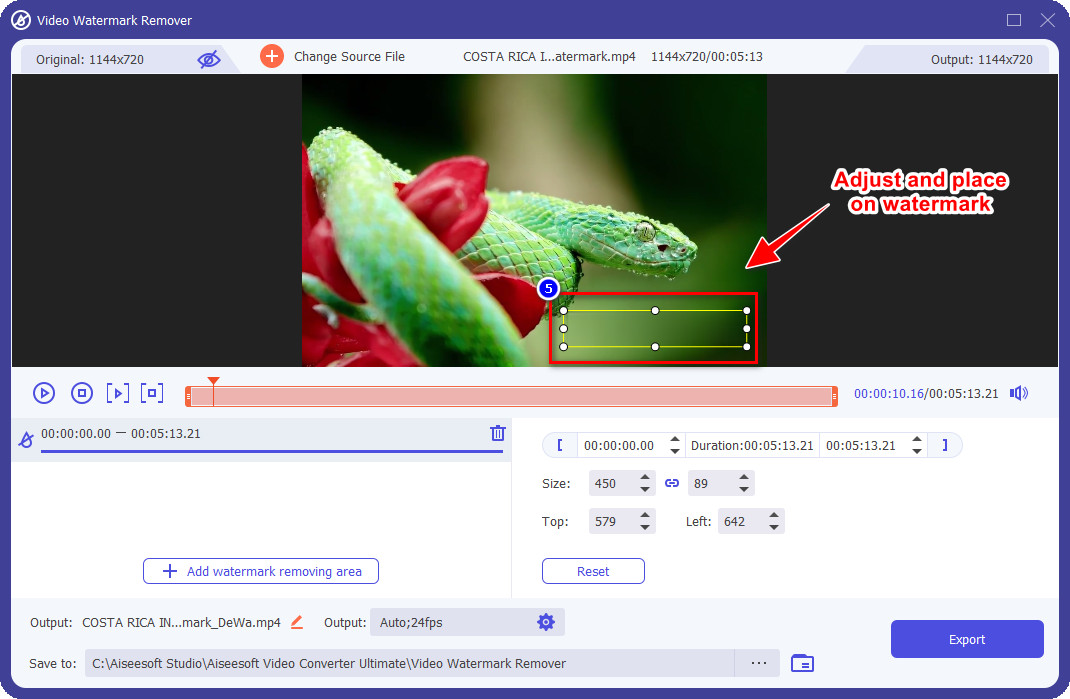
Steg 6. När du har placerat markeringsrutan över vattenstämpeln kan du klicka på Export‑knappen för att spara den färdiga videon utan vattenstämpeln.
iMovie på Mac
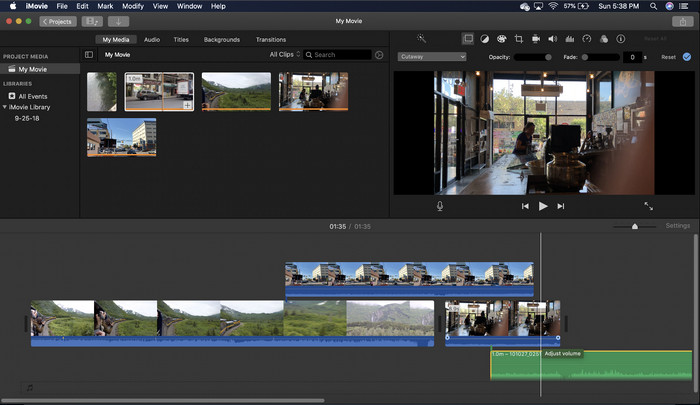
iMovie är en populär videoredigerare som du kan använda för att ta bort vattenstämpeln på din video genom att beskära den. Varje Mac-användare kan utnyttja sin potential utan att ladda ner programvaran på sin enhet eftersom den redan är förinstallerad, vilket sparar tid på nedladdning och installation, även på lagring. Även om verktyget är utmärkt för videoredigering, är funktionen för borttagning av vattenstämplar inte som det första verktyget tillhandahåller. Den beskär videoramen för att ta bort vattenstämpeln i videon, så om vattenstämpeln placeras i mitten måste du beskära nästan hälften av den visuella presentationen av videon.
Det är inte alltid det bästa valet för att ta bort vattenstämpeln, men om logotypen finns på slutet av videon kan du följa stegen nedan för att veta hur du tar bort Animoto-vattenstämpeln från videon genom att beskära den.
Steg 1. Öppna videoredigeraren på din Mac genom att gå till Finder, sedan Program; där kan du söka efter iMovie och dubbelklicka på det.
Steg 2. Ladda upp videon du vill använda genom att klicka på knappen import och leta upp videofilen på den lokala hårddisken.
Steg 3. När videon nu är uppladdad måste du dra videon du laddat upp till tidslinjen.
Steg 4. På den högra sidan av verktygets gränssnitt ser du många ikoner för redigeringsfunktioner; klicka på crop-ikonen i listan.
Steg 5. Ändra bildrutan så att Animoto‑vattenstämpeln utesluts från din videobild.
Steg 6. Klicka på knappen share uppe till vänster och sedan på Export as a Video för att påbörja nedladdningen av videon.
Del 2. Ytterligare sätt att spara Animoto-videor utan vattenstämpel
Kan jag spara redigerade videor på Animoto utan vattenstämpel? Du kan. Istället för att använda programvaran vi nämnde ovan köper du prenumerationsavgiften på detta webbverktyg för att spara videon du redigerade här, men den här gången utan vattenstämpeln. För att hjälpa dig göra det kan du följa följande steg nedan.
Steg 1. Öppna din webbläsare, sök efter Animoto Video Editor och öppna den officiella webbplatsen.
Steg 2. Klicka på Pricing på den officiella webbplatsen.
Steg 3. Under detta ser du att du kan använda två typer av abonnemang, månadsvis och årsvis. Låt dig inte luras av det lägre priset för årsabonnemanget, eftersom det i slutändan kostar dig mer än månadsabonnemang, eftersom årsvis betyder per år.
Steg 4. Skapa ett konto här och lägg till faktureringsadress samt den betalningsmetod du vill använda. Efter det kan du använda pro‑versionen av detta onlinerverktyg.
Relaterad:
Hur man tar bort Photobucket-vattenstämplar
Hur man tar bort vattenstämpel på GIF
Del 3. Vanliga frågor om hur man tar bort Animoto Watermark
Är Animoto och Animotica samma sak?
Dessa två videoredigerare är inte relaterade till varandra, men artiklar om dem talar oftast om att jämföra varje verktyg. Och de är båda det bästa alternativet för varandra i sig.
Vilket är bättre, att sudda ut eller beskära Animoto-vattenstämpeln?
Suddighet kan ha en bra och dålig effekt på din video; den goda sidan med att sudda ut vattenstämpeln är att det kan vara omärkligt av våra blotta ögon, speciellt om det blandas eller smälter väl med färgen. Men den dåliga sidan av det är att du ser ett spårbart märke efter att du exporterat det om det inte gick bra. Vid beskärning är det samma sak; när du beskär videon blir det ingen suddighet efter effekt på videon, men ramstorleken blir smal.
Har Animoto en engångsbetalning?
Tyvärr stöder den inte engångsbetalningar. Men om du vill bli billigare och använda det under en längre tid, föreslår vi att du väljer årsprenumerationen för att använda webbverktyget under ett år, och sedan prenumererar på det igen för nästa år och framåt.
Slutsats
Så vilket sätt tror du att du kommer att använda för att ta bort Animoto-vattenstämpeln? Oavsett vad ditt beslut är, hoppas vi att vi hjälpte dig att lösa problemet med att ta bort vattenstämpeln på videon du redigerade på Animoto.
-
 4 bästa sätten att lägga till vattenstämpel på alla videor snabbt
 Låt oss lära oss hur du lägger till vattenstämpel till alla videor på Windows, Mac, Online, iOS och Android med detaljerade steg om du läser den här artikeln.
-
 4 effektiva sätt att ta bort Tiktok-vattenstämplar från Tiktok-videor
 Behöver du ta bort Tiktok-vattenstämpeln från dina exporterade Tiktok-videor? Du kan göra det här med hjälp av verktygen vi presenterar; du kan enkelt göra det.
-
 Hur man lägger till vattenstämpel till en video i iMovie på Mac [All Embracing]
 Vill du veta hemligheterna med att lägga till en vattenstämpel till en video i iMovie? Spill inte teet på någon, och lär dig det genom att läsa den här artikeln.
