


 Video Converter Ultimate
 Skärminspelare
 Video reparation
 Säker nedladdning
Bra sätt att ta bort vattenstämpel från Camtasia 9 som du måste prova
Om du letar efter ett enkelt och bra sätt att ta bort vattenstämpeln i Camtasia 9 är du på rätt plats. Det finns många utmärkta videor som vi vill titta på. Men vissa av dem har en stor vattenstämpel, vilket gör dem mer irriterande och gör att man inte kan uppskatta själva videons innehåll. Dessutom gör dessa onödiga objekt att vissa delar av videon inte syns, vilket gör tittarna mer besvikna. Som tur är finns det program med verktyg för att ta bort vattenstämplar som du kan använda för att ta bort vattenstämplar från dina videor, så att du kan njuta av dina favoritfilmer utan störningar. Om du vill lära dig mer om hur du snabbt tar bort vattenstämplar från dina videor, läs den här artikeln från början till slut.

Del 1: Bästa sättet att ta bort vattenstämpel från Camtasia
Använder Video Converter Ultimate
Om du letar efter ett bra och pålitligt program med verktyg för att ta bort vattenstämplar är Video Converter Ultimate en utmärkt programvara du kan använda. Du kan ta bort vattenstämplar från dina videor med denna applikation. Du kan också använda programmet om din video har vattenstämplar från andra appar som Camtasia. Dessutom är det enkelt och lätt att använda, vilket passar nybörjare. Utöver detta har det olika redigeringsverktyg som du kan dra nytta av, såsom Video Compressor, Video Enhancer, Video Trimmer, Audio Compressor, Video Reverser, Video Rotator och mer. Den här artikeln visar två sätt att ta bort vattenstämplar från dina videor med hjälp av Video Converter Ultimate.
1. Använda Video Watermark Remover
Steg 1: Ladda ner Video Converter Ultimate till din dator. Fortsätt sedan med installationsprocessen.
Gratis nedladdningFör Windows 7 eller senareSäker nedladdning
Gratis nedladdningFör MacOS 10.7 eller senareSäker nedladdning
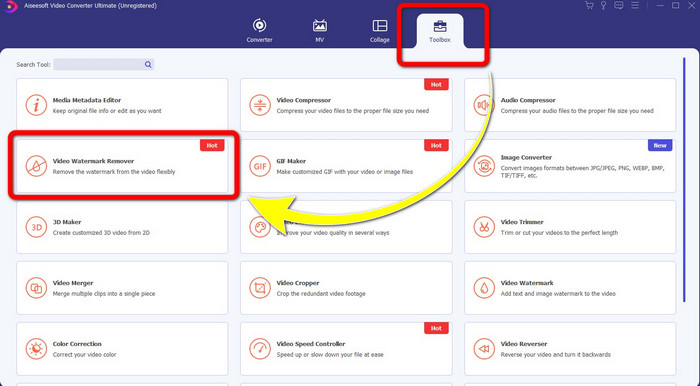
Steg 2: När installationen är klar, öppna programmet och gå till Toolbox > Video Watermark Remover. Därefter visas ett nytt gränssnitt på skärmen.
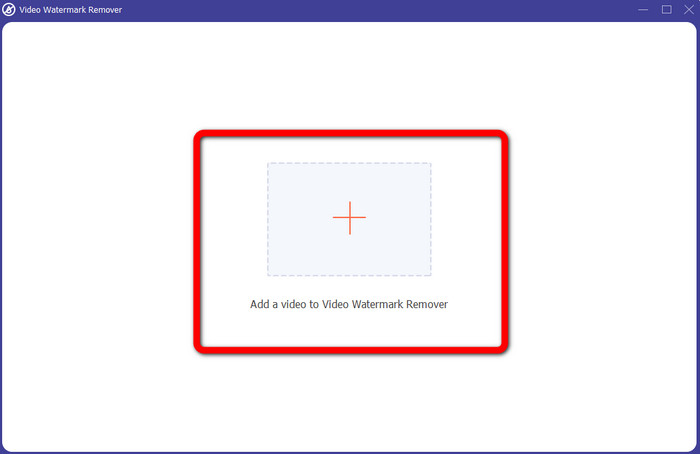
Steg 3: När det nya gränssnittet har dykt upp klickar du på knappen med plustecknet och lägger till videon med vattenstämpeln.
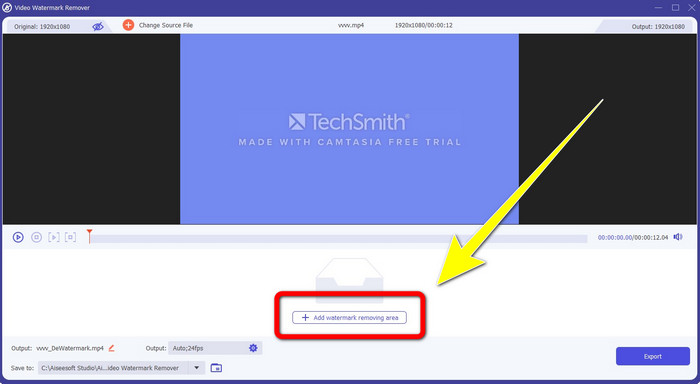
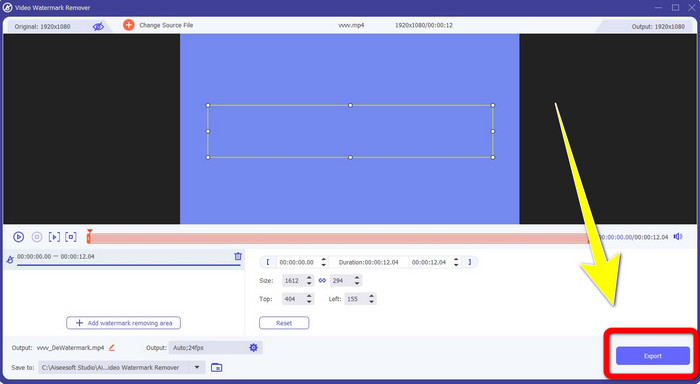
Steg 4: När du har lagt till din video med en vattenstämpel klickar du på Add Watermark Removing Area.
Steg 5: Det kommer att visas en rektangelformad ruta på skärmen. Använd rutan för att täcka vattenstämpeln i videon.
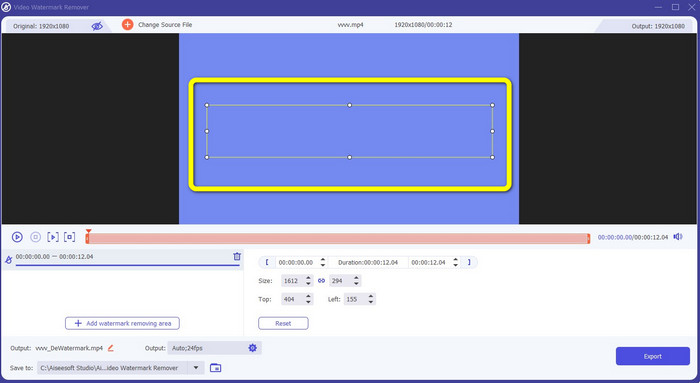
Steg 6: När vattenstämpeln har täckts kommer vattenstämplarna att vara borta från din video. Klicka på Export för att spara din video. På så sätt kan du nu ta bort videon med en vattenstämpel från Camtasia.
2. Använda beskärningsfunktionerna
Ett annat sätt du kan prova är beskärningsfunktionen i Video Converter Ultimate. Det är ett av de enklaste sätten att ta bort vattenstämplar från dina videor, särskilt om vattenstämpeln bara finns i hörnet eller längs kanten på videon. Genom att beskära dina videor kan du omedelbart ta bort de onödiga objekten i videon. Följ dessa enkla steg för att ta bort vattenstämplar med ett beskärningsverktyg.
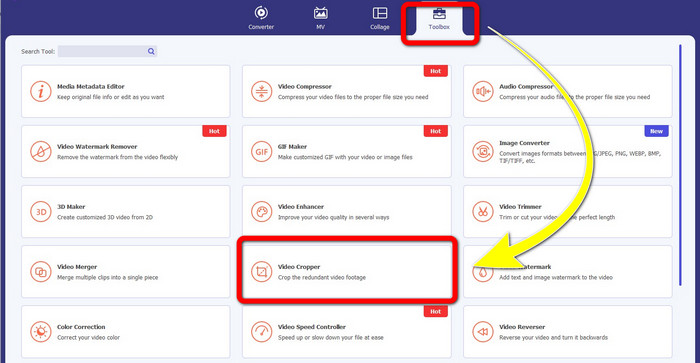
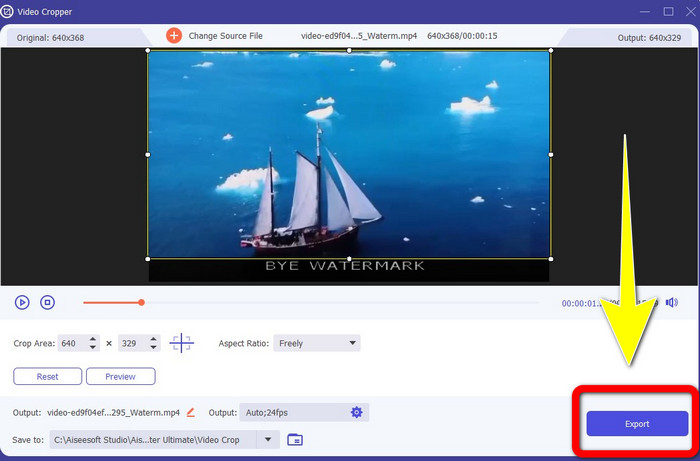
Steg 1: Öppna Video Converter Ultimate. Klicka på Toolbox > Video Cropper. Därefter visas ett nytt gränssnitt på skärmen.
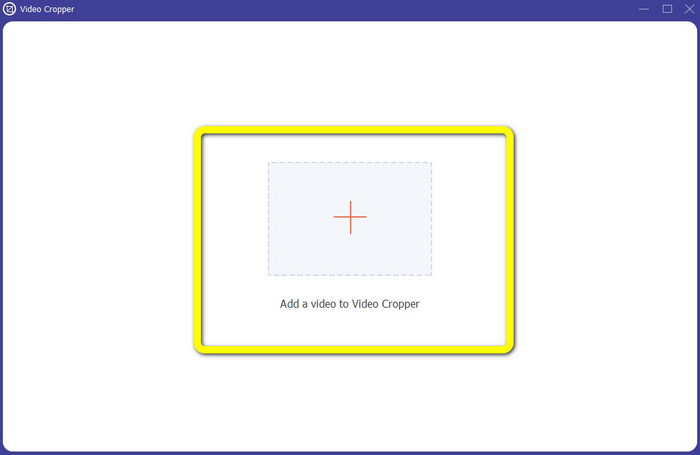
Steg 2: Klicka på knappen med plustecknet och lägg till din video med den vattenstämpel du vill ta bort.
Steg 3: När du redan har lagt till din video med en vattenstämpel kan du nu beskära kanten av videon till området där vattenstämpeln finns. På så sätt kan du ta bort vattenstämplarna.
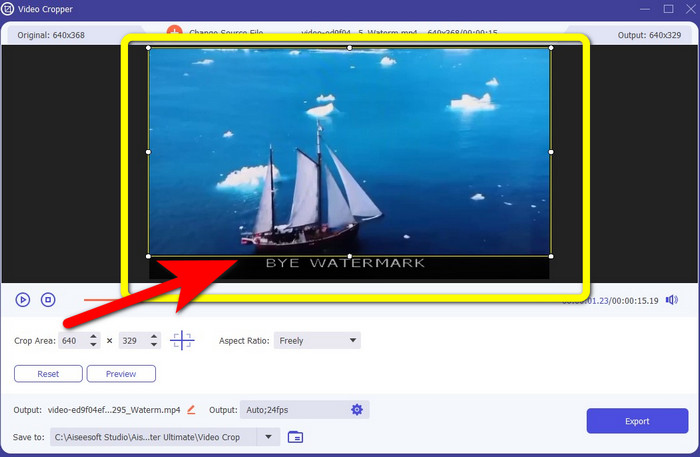
Steg 4: Om du redan har beskurit videon och ser att vattenstämpeln är borta, klicka på Export för att spara din redigerade video. Nu kan du njuta av att titta på din video utan några vattenstämplar på skärmen.
Del 2: Hur man producerar videor i Camtasia utan vattenstämpel
Vill du lära dig hur man skapar en Camtasia‑video utan vattenstämplar? Låt oss först definiera vad Camtasia är. Camtasia är ett enkelt och användbart redigeringsverktyg du kan använda. Dessutom är det också en programvara för skärminspelning. Det har dessutom olika redigeringsfunktioner som du kan använda, såsom kommentarer (annotations), övergångar, animationer, ljudeffekter, videoeffekter med mera. Du kan också skapa ett bildspel i detta program.
Med hjälp av denna applikation kan du göra dina videor mer attraktiva och unika för tittarna. I Camtasia kan du producera vackra videor som du kan njuta av. Det här programmet har dock en vattenstämpel efter att du exporterat din video om du inte köper programmet. Följ dessa enkla steg för att lära dig många saker i den här applikationen, särskilt att skapa videor i Camtasia.
Med hjälp av denna applikation kan du göra dina videor mer attraktiva och unika för tittarna. I Camtasia kan du producera vackra videor som du kan njuta av. Det här programmet har dock en vattenstämpel efter att du exporterat din video om du inte köper programmet. Följ dessa enkla steg för att lära dig många saker i den här applikationen, särskilt att skapa videor i Camtasia.
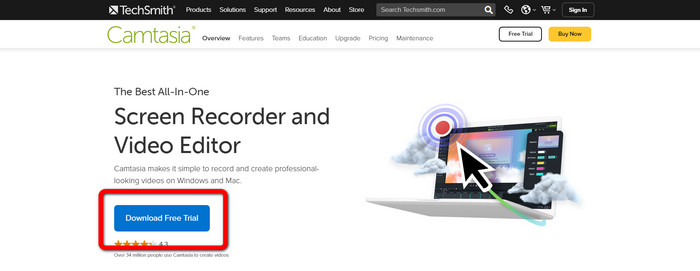
Steg 1: Du måste ladda ner Camtasia till din Windows‑dator. Klicka på knappen Download Free Trial för att hämta programmet. Öppna sedan programmet efter installationsprocessen.
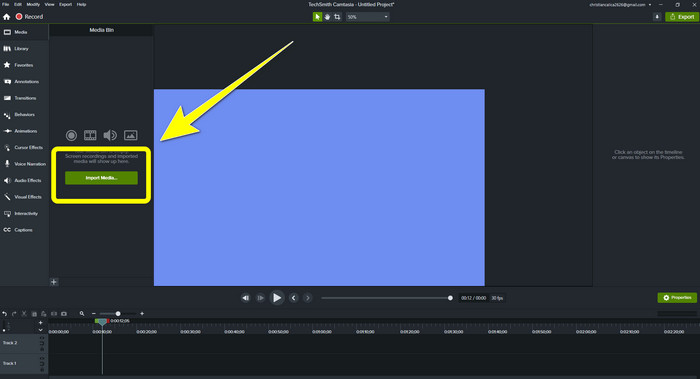
Steg 2: Efter att du har startat programmet klickar du på knappen Import Media för att lägga till filen du vill redigera.
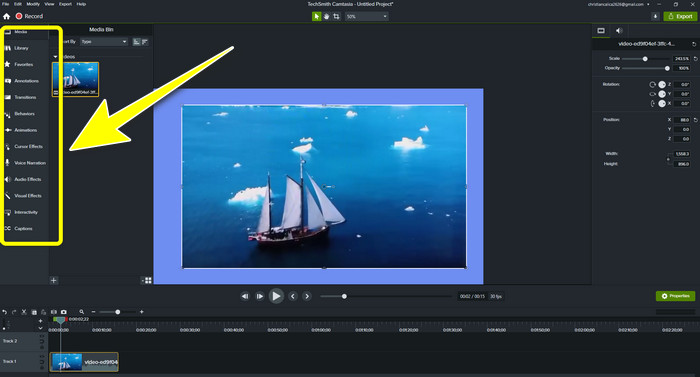
Steg 3: Du kan nu redigera dina filer i detta program med hjälp av redigeringsverktyg, såsom att lägga till undertexter, övergångar, animationer, kommentarer (annotations), beteenden och mer.
Steg 4: När du är klar och nöjd med redigeringen av dina videor kan du klicka på knappen Export > Local File för att spara ditt resultat.
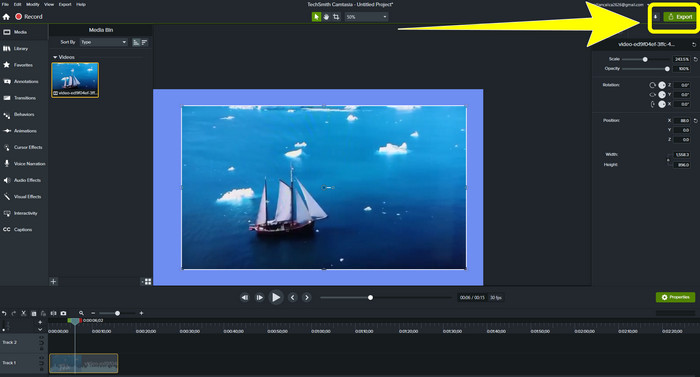
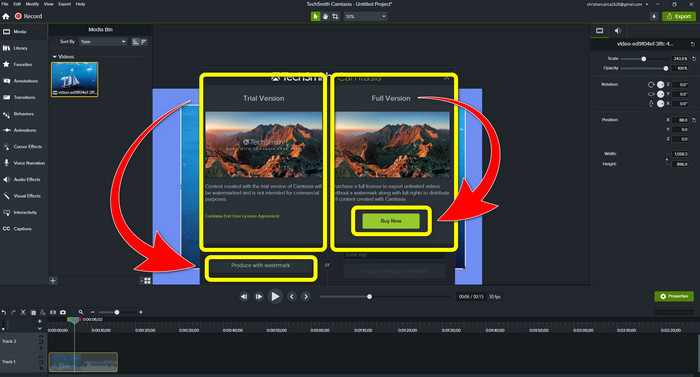
Steg 5: Efter att ha klickat på Export > Local File Button visas ett nytt gränssnitt. Om du vill köpa programmet klickar du på knappen Buy för att skapa en video i Camtasia utan vattenstämpel. Men om du bara använder en gratis testversion kommer din video att ha en vattenstämpel efter export och sparande.
Relaterat till:
Hur du tar bort Filmora‑vattenstämpeln från dina videor eller projekt gratis
Snabbaste knepet för att ta bort Adobe Stock-vattenstämpeln från en video [ handledning ]
Del 3: Vanliga frågor om att ta bort vattenstämplar
Finns det en utmärkt vattenstämpelborttagare jag kan använda på min Mac?
Absolut, ja! Du kan använda program med verktyg för att ta bort vattenstämplar, såsom Video Converter Ultimate. Det kan ta bort vattenstämplar från dina videor. Dessutom är programmet tillgängligt både på Windows och Mac, vilket gör det mer bekvämt.
Finns det något sätt jag kan ta bort vattenstämplar från foton?
Absolut ja! Du kan använda många applikationer på din enhet för att ta bort vattenstämplar från foton. Det bästa du behöver göra är att söka i din webbläsare om verktyg för borttagning av vattenstämplar och leta efter de 10 bästa resultaten på resultatsidan.
Kan jag ta bort vattenstämplar med min telefon?
Jo det kan du! Några av applikationerna med vattenstämpelborttagare är nu tillgängliga på Mac och Windows och mobiltelefoner som Android-telefoner och iPhones.
Hur kan jag ta bort vattenstämplar med ett beskärningsverktyg?
Att ta bort vattenstämplar på dina foton eller videor med hjälp av ett beskärningsverktyg är enkelt, speciellt om vattenstämpeln är på kanten av bilden. Allt du behöver göra är att beskära den, ta bort vattenstämpeln och du är klar.
Slutsats
Som du ser visar den här artikeln de bästa sätten att ta bort vattenstämpeln från Camtasia 9. Den presenterar också ett utmärkt och pålitligt program med två metoder för att ta bort onödiga objekt från dina videor. Detta program är Video Converter Ultimate.
-
 5 sätt att ta bort en vattenstämpel från en video på ett professionellt sätt
 Behöver du ta bort en vattenstämpel från en video för att få den att se professionell ut? Tja, läs den här artikeln när vi lägger till en handledning om hur man gör det!
-
 3 av de senaste Shutterstock-vattenmärkesborttagningarna du någonsin kommer att behöva
 Gillar du inte Shutterstock-vattenstämpeln som är kopplad till exporterad video? Du kan använda en Shutterstock-vattenstämpelborttagare för att radera det effektivt.
-
 Enklaste metoderna för hur man tar bort vattenstämpel från foton
 Är du irriterad över vattenstämplarna på din bild? Oroa dig inte! Den här artikeln ger enkla och enkla metoder för att ta bort vattenstämplar från dina foton
