


 Video Converter Ultimate
 Skärminspelare
 Video reparation
 Säker nedladdning
Snabbaste och enklaste sätten att förkorta video med de bästa verktygen
Att trimma eller förkorta en video är viktigt eftersom det bara framhäver de nödvändiga klippen från din video. Att trimma en video innebär att ta bort början av slutet av ett videoklipp. Denna grundläggande del av redigering är nödvändig för att du inte ska tappa publikens uppmärksamhet. Så om du vill trimma eller förkorta din långa video, kommer du att lära dig i den här artikeln hur du förkortar en video.

Del 1. 2 metoder för att förkorta en video på en trimmer med den bästa appen
FVC Video Converter Ultimate är det bästa skrivbordsverktyget för att trimma din video. Det här verktyget har ett intuitivt gränssnitt och är gratis att använda. Denna offline‑konverterare låter dig lägga till segment i din videofil. Dessutom har den en funktion där du snabbt kan dela upp din video i olika delar efter önskemål. Och om du letar efter ett verktyg som kan slå samman flera filformat till en enda fil kan den här applikationen göra det åt dig.
Dessutom erbjuder detta verktyg många avancerade funktioner, som GIF‑skapare, videomerger, borttagning av vattenstämpel i video osv. Och det som är ännu bättre är att det stöder många filformat, inklusive MP4, WMV, FLV, AVI, MPG, WebM, MKV och mer än 1000 andra format. Så om du vill använda denna app för att förkorta din video har vi två metoder som du kan följa.
Metod 1. Använd FVC:s videotrimmer
Steg 1. Ladda först ned FVC Video Converter Ultimate genom att klicka på knappen Ladda ned nedan. Följ installationsprocessen och starta sedan appen.
Gratis nedladdningFör Windows 7 eller senareSäker nedladdning
Gratis nedladdningFör MacOS 10.7 eller senareSäker nedladdning
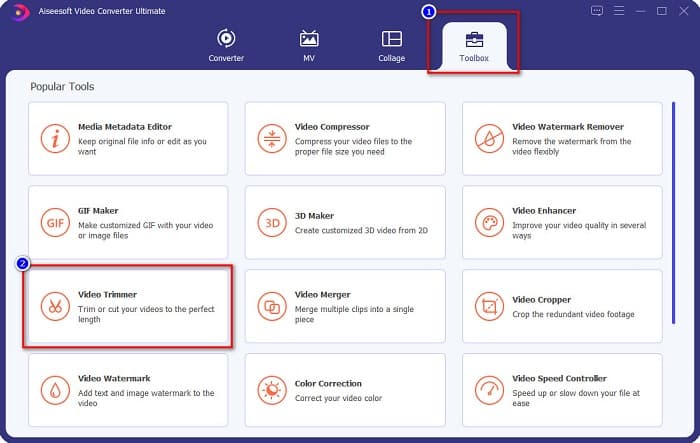
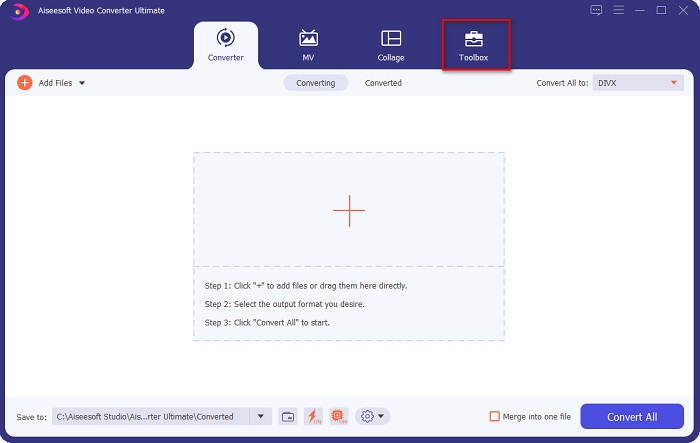
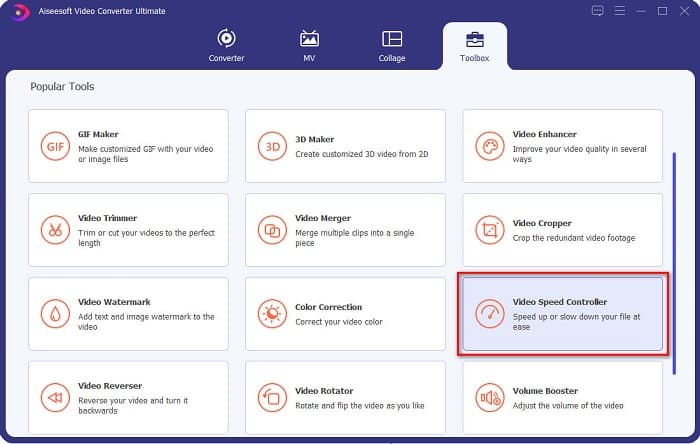
Steg 2. Välj sedan panelen Verktygslåda som finns högst upp i programvarans gränssnitt. Klicka sedan på Videotrimmer på verktygslådepanelet.
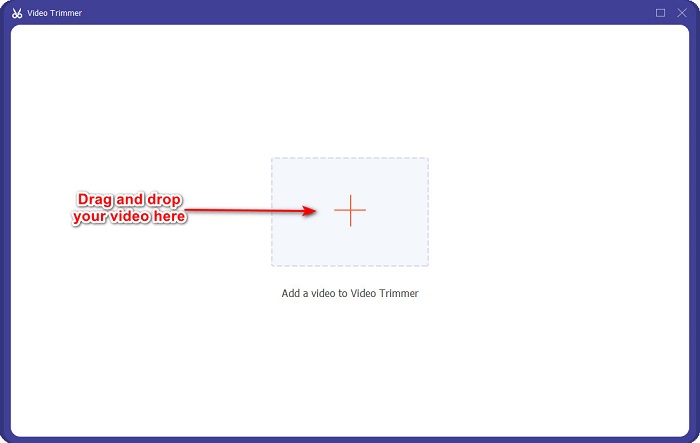
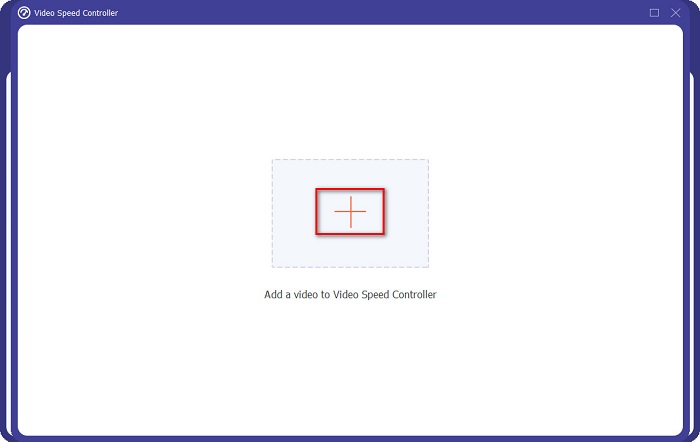
Steg 3. På nästa sida klickar du sedan på +-knappen eller dra och släpp din video till +-symbolen.
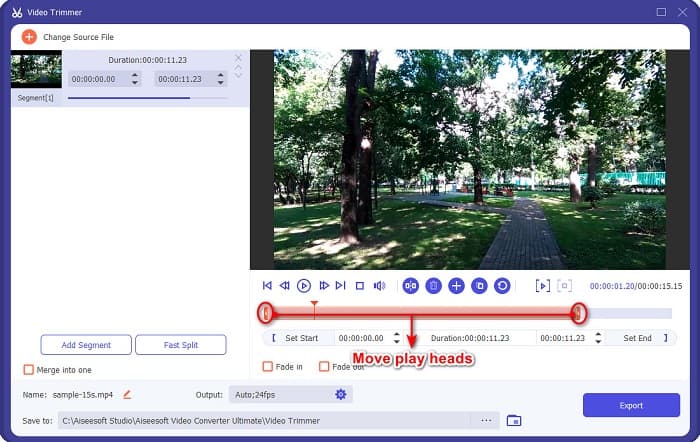
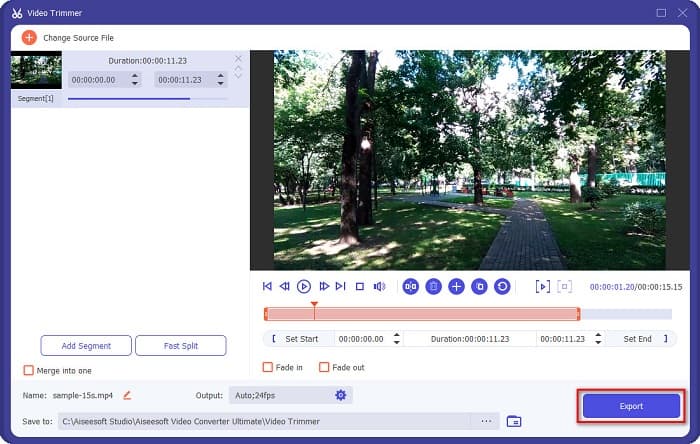
Steg 4. Flytta sedan spolhuvudsknapparna till den längd du vill ha. Pilarna visar var förhandsvisningen av din video är. Och spolhuvudena visar längden på din video. Du kan se de tillfälliga ändringarna i din video i förhandsvisningen.
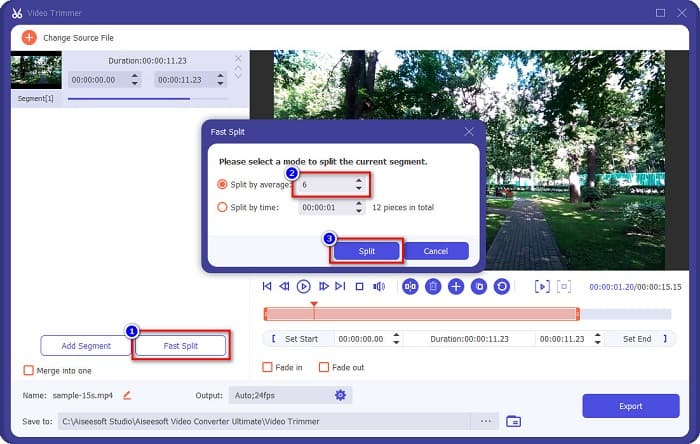
Valfritt. Om du vill ha ett enklare sätt att dela upp din video i segment: 1. Klicka på knappen Snabbdelning. 2. Välj hur många delar du vill ha i din video och tryck sedan på Dela.
Steg 5. Klicka till sist på knappen Exportera för att tillämpa ändringarna på din video. Din utdata sparas då automatiskt i dina datorfiler.
Steg 1. Öppna FVC Video Converter Ultimate. Klicka på alternativet Verktygslåda på programmets huvudsida.
3. Om du inte vill dela upp din video, fortsätt till nästa steg.
Steg 2. Klicka sedan på Videohastighetskontroll och gå vidare till nästa steg.
Metod 2. Använd FVC:s Video Speed Changer
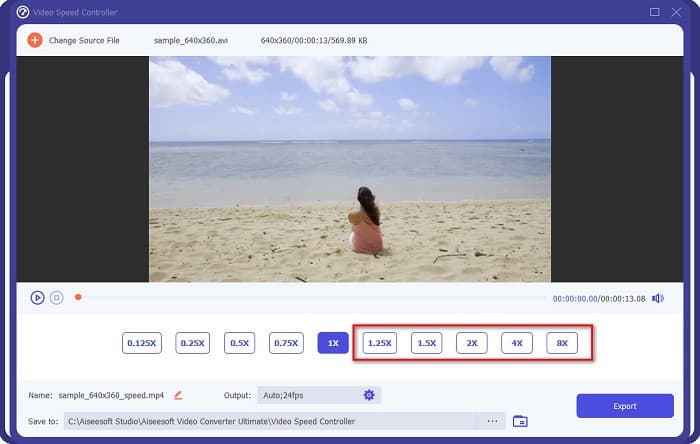
FVC Video Converter Ultimate har också en funktion där du kan ändra hastigheten på din video med 0,125x, 0,25x, 0,5x, 0,75x, 1,25x, 1,5x, 2x, 4x och 8x hastigheter. Och om du vill förkorta längden på din video, justera din video till en hög hastighet. För mer detaljerade steg, följ guiden nedan.
Steg 3. Klicka sedan på +-knappen för att ladda upp videon du vill trimma. Dina datormappar visas, där du väljer videon och laddar upp den till programmets gränssnitt.
Steg 4. För att förkorta din video väljer du hastighet från 1,25× till 8× hastighet.
Steg 5. Som sista steg klickar du på knappen Exportera för att spara ändringarna i din video. Din utdata sparas då automatiskt i dina datorfiler.
Trim Video är ett webbaserat verktyg för att trimma video som är lätt att använda tack vare sitt intuitiva användargränssnitt. Det är ett praktiskt verktyg eftersom det inte kräver installation, till skillnad från vissa andra onlineverktyg. Dessutom har det en funktion där du kan rotera din video 90, 180 eller 270 grader. Vidare behöver du inte tvivla på datasäkerheten eftersom detta verktyg skyddar din integritet. Eftersom det är en webbaserad applikation innehåller det dock annonser som kan distrahera dig.
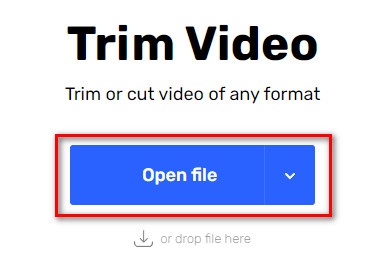
Steg 1. Sök efter online video trimmer i din webbläsare. Klicka sedan på webbplatsen Trim Video. På programmets huvudsida klickar du på knappen Öppna fil.
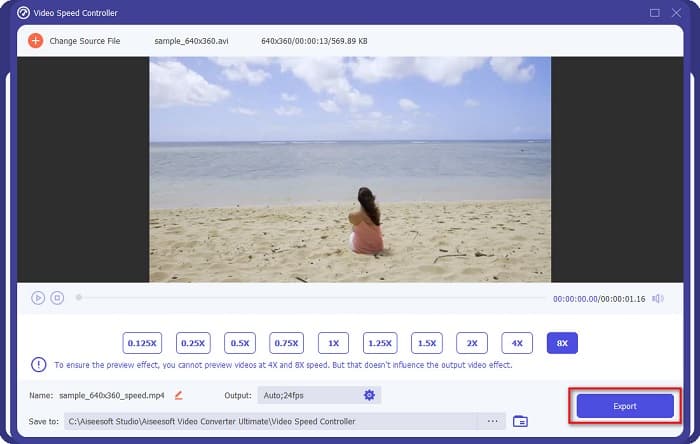
För kortare videolängd, välj 8x hastighet.
Fördelar
- Den stöder många filformat, inklusive MOV, MKV, AVI, MP4, WMV, WMA, MPEG och 1000+ format.
- Den har ett lättanvänt programvarugränssnitt.
- Det låter dig snabbt dela upp din video med bara några få klick.
- Nedladdningsbar på alla crossmedia-plattformar, som Windows, Mac och Linux.
Nackdelar
- Köp appen först innan du kommer åt dess andra funktioner.
Del 2. 2 Online Video Trimmer att prova
Om du vill trimma din video utan att ladda ner något, finns det online videotrimmers som du kan använda. Vi listade de bästa videotrimmarna online som många använder i den här delen.
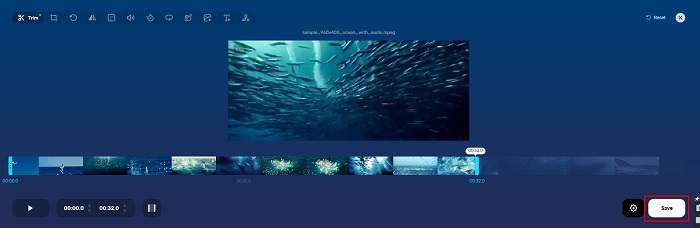
Trimma video
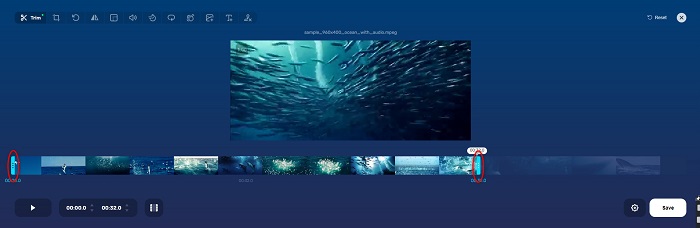
Steg 2. Justera sedan spolhuvud‑knapparna till den längd du vill ha.
Steg 3. Klicka på knappen Spara för att ändra längden på din video.
Ett annat webbaserat verktyg för att trimma video är Clideo. Detta onlineverktyg har ett enkelt användargränssnitt, vilket gör det användarvänligt. Det stöder också de flesta standardfilformat, som AVI, MP4, VOB, MPG, MOV osv. Dessutom har detta verktyg hög säkerhet, vilket innebär att dina data är säkra och inte kan ses av andra. Utöver det innehåller Clideo inga annonser som kan distrahera dig.
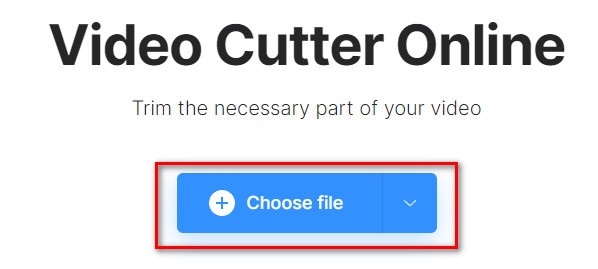
Steg 1. Sök efter Clideo video trimmer i den webbläsare du använder. På programmets första sida klickar du på knappen Välj fil. Dina datormappar visas där du väljer videon som du vill förkorta.
Fördelar
- Den har ett lättanvänt GUI.
- Den har funktioner för att beskära och rotera din video.
- Det är säkert att använda.
Nackdelar
- Den innehåller irriterande annonser.
- Den har en långsam laddnings- och uppladdningsprocess.
Clideo
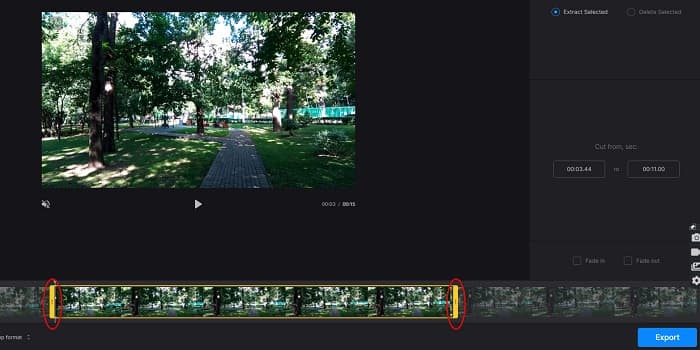
Steg 2. Flytta spolhuvud‑knapparna till den längd du vill att din video ska ha.
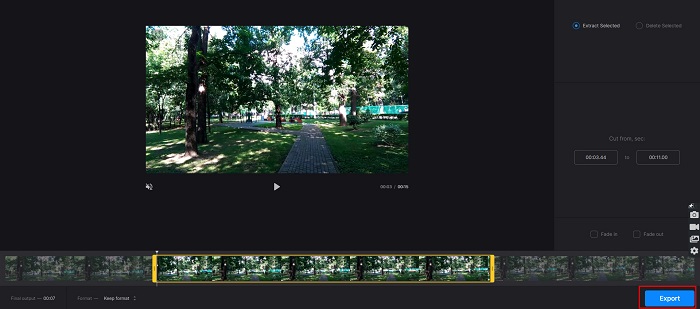
Steg 3. Som sista steg klickar du på knappen Exportera för att ändra videolängden på din video.
Det var allt om hur man förkortar en video med hjälp av en trimmer och en ändring av videohastigheten. Alla listade verktyg ger bra resultat och garanterar hög prestanda. Men om du letar efter det bästa verktyget med många funktioner att använda och som är mycket populärt när det gäller att förkorta din video, är FVC Video Converter Ultimate det bästa verktyget för dig.
Step 3. For the final step, click the Export button to change the video length of your video.
Fördelar
- Den har ett lättanvänt gränssnitt.
- Det är säkert att använda.
- Den innehåller inga annonser.
Nackdelar
- Du kan uppleva en långsam process när din internetanslutning är långsam.
Del 3. Vanliga frågor om hur man förkortar video
Hur förkortar man video på iPhone?
Öppna först appen Foto och välj videon du vill trimma. Tryck sedan på Redigera. Flytta sedan reglagen till önskad videolängd och tryck på Klar för att spara ändringar från din video.
Påverkar beskärning av din video kvaliteten?
Nej. De flesta trimningsverktyg påverkar inte kvaliteten på din video. Men om du försäkrar dig om ett verktyg som inte påverkar kvaliteten när du förkortar din video, använd FVC Video Converter Ultimate.
Påverkar filstorleken om du förkortar din video?
Ja. Ju kortare din video är, desto mindre filstorlek har den. Om din video däremot är lång innehåller den en enorm filstorlek.
Slutsats
That’s all about how to shorten a video using a trimmer and video speed changer. All the listed tools show great results and assure you the best performance. But if you are looking for the best tool with many features to use and is widely popular when it comes to shortening your video, FVC Video Converter Ultimate is the best tool for you.
-
 Hur man klipper och slår samman låtar online - 4 bästa sätten du borde veta
 När du vill klippa och slå samman låtar online för att skapa ett musikstycke kan du lära dig mer om de 4 bästa onlineverktygen för att klippa låtarna och kombinera filer från artikeln.
-
 Upptäck den bästa MP4 -trimmern med procedur och information
 Vill du lära dig hur man klipper videor som de vloggare du tittar på? Fortsätt sedan att läsa det här inlägget för att veta vilka MP4-trimmers du kan använda.
-
 5 MP3-klippare för att enkelt klippa vilket ljud som helst [2022 uppdaterad]
 Behöver du en MP3-skärare för att trimma ljudet? Läs i så fall den här artikeln eftersom vi tillhandahåller de verktyg du kan lita på som ger enkel skärning av ljudet.
