


 Video Converter Ultimate
 Skärminspelare
 Video reparation
Utöka din expertis när det gäller att nå ut frågor som Hur man saktar ner en video
Du är en blivande konstnär och vill titta på en handledning i konstdesign för att förbättra dina konstnärliga färdigheter. De flesta av dessa handledningar är dock uppsnabbade för att få plats inom en viss längd och ge en liten filstorlek vid uppladdning. Därför tänker du ut en lösning som innebär att du måste sänka videons hastighet. Men du vet inte hur man saktar ned en time-lapse-video som de flesta konsthandledningar använder. Läs den här artikeln för att utöka dina kunskaper om detta vanliga problem som många blivande konstnärer har.

Del 1. 3 enkla steg för att sakta ner en video [Skrivbord/bärbar dator]
Det finns många metoder som webben erbjuder, antingen online- eller offlineredigerare. Vissa av dem måste laddas ner, särskilt när du använder en stationär eller bärbar dator vid redigering. Det finns en betydande skillnad mellan att använda ett skrivbord när det gäller detaljer i användningen; det är därför som den här artikeln väljer det bästa sättet att sakta ner en video offline eller online på ett skrivbord. Här är tillvägagångssätten med deras steg:
Tillvägagångssätt 1. Använd Video Converter Ultimate
Det är möjligt att ladda ner och använda många konverterare även när du inte är uppkopplad. För att sakta ner en video kan du använda Video Converter Ultimate, ett av de bästa alternativen. Den är lätt att använda och du kan ladda ner den gratis. Du behöver inte oroa dig för att internet ska göra en online‑videonedsaktning seg, eftersom den här programvaran gör arbetet med din video utan krångel. Tack vare det imponerande verktyget Video Speed Controller kan du nu justera uppspelningshastigheten på dina videor på mindre än en minut. Nu när du är nyfiken på hur detta går till följer här några steg‑för‑steg‑anvisningar att följa:
Steg 1: Klicka helt enkelt på knappen Free Download för att ladda ner programvaran till datorns skrivbord. Installationen av programvaran och anpassningen av installationen slutförs sedan i de följande stegen.
Gratis nedladdningFör Windows 7 eller senareSäker nedladdning
Gratis nedladdningFör MacOS 10.7 eller senareSäker nedladdning
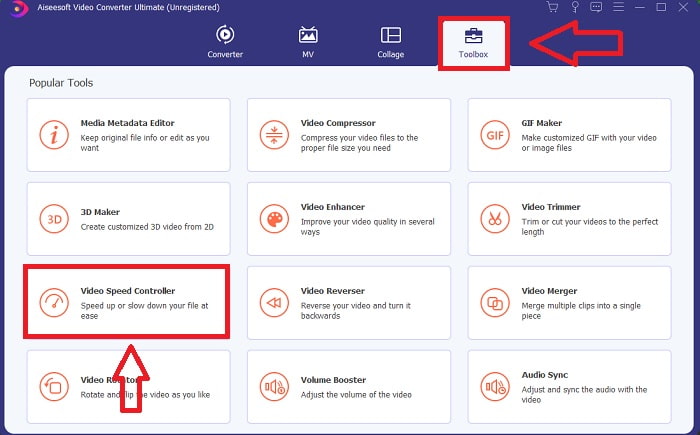
Steg 2: För att använda Video Speed Controller startar du programvaran direkt efter installationen och väljer verktyget i menyn Toolbox.
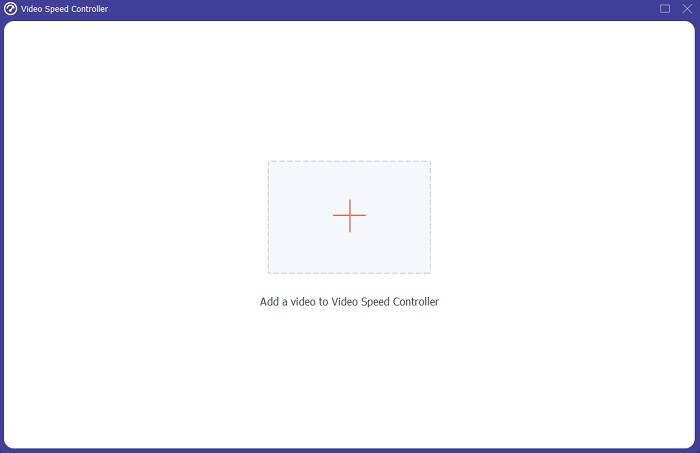
Steg 3: Gränssnittet för Video Speed Controller visas efter att du klickat på det. För att ladda upp en fil klickar du på +-ikonen.
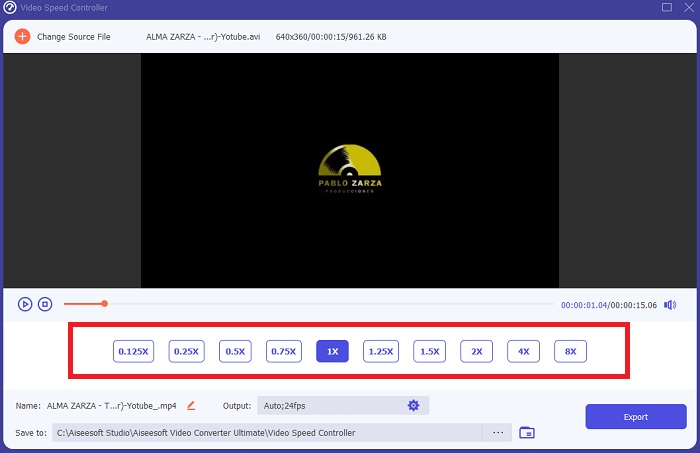
Steg 4: Du kan nu börja sakta ner din video genom att välja lägre tal än normalhastigheten. De flesta av dessa tal visas på vänster sida om din videos faktiska hastighet.
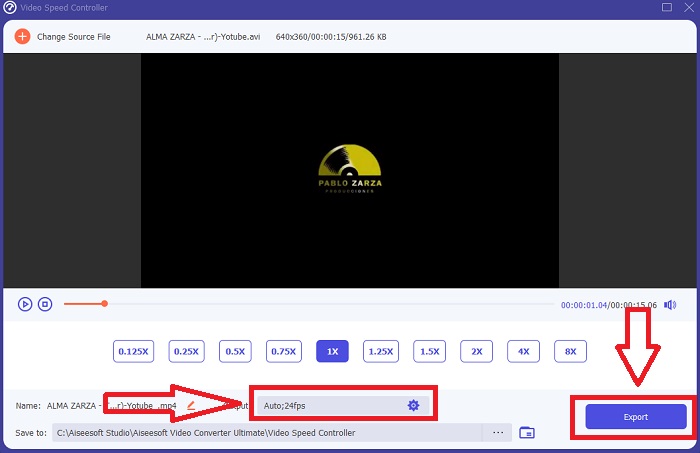
Steg 5: När du har ändrat uppspelningshastigheten för ditt videoklipp kan du välja utdataformat, upplösning, kvalitet och andra parametrar som du vill använda. När du är klar klickar du på Export och väljer var du vill spara filen när allt är färdigt.
Tillvägagångssätt 2. Använd VEED
VEED och dess webbverktyg med öppen källkod förlitas på av innehållsskapare över hela världen för att producera videor för sociala medier och annan användning. Det är en webbapplikation som kräver en solid anslutning för att fungera korrekt, men du kan ladda upp direkt och ändra uppspelningshastigheten i dess användargränssnitt. Dessutom har den olika funktioner, varav en är en minskning av videons uppspelningshastighet. Du kan nu sakta ner en video utan att ladda ner något till skrivbordet. Du behöver bara en sökmotor och en stark anslutning för att komma åt detta onlineverktyg. Den har ett enkelt, användarvänligt användargränssnitt som kan gynna de flesta nybörjare som behöver sakta ner en video utan att lära sig komplicerade steg. Här är exempel på procedurer att sammanfatta för att uppnå önskade justeringar av din video.
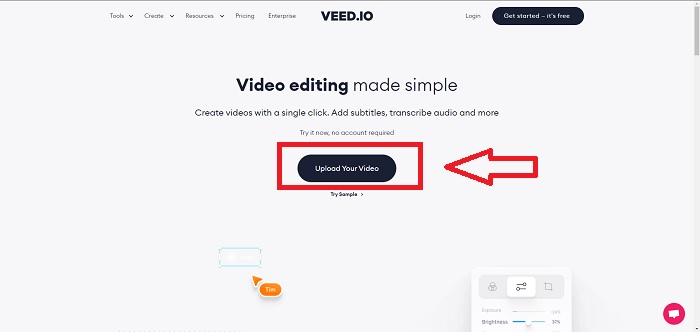
Steg 1: Klicka på knappen Upload Your Video för att skicka en videofil från din dator till servern.
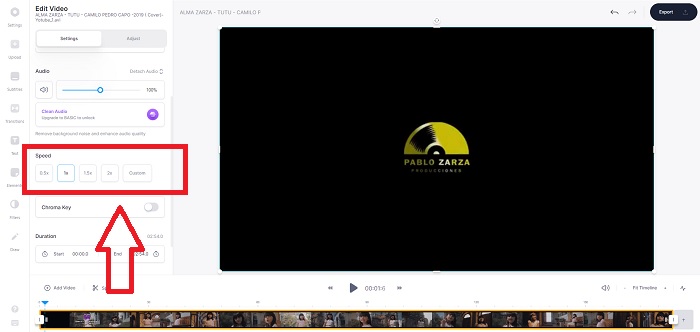
Steg 2: Du får tillgång till webbaserade verktygets redigeringsgränssnitt genom att klicka på Video Track uppe till vänster. Välj en snabbare uppspelningshastighet genom att leta efter alternativet Speed och klicka på det. Om din önskade hastighet inte finns som alternativ kan du välja Custom för att åsidosätta standardinställningarna och spela upp ditt videoklipp med en egen hastighet.
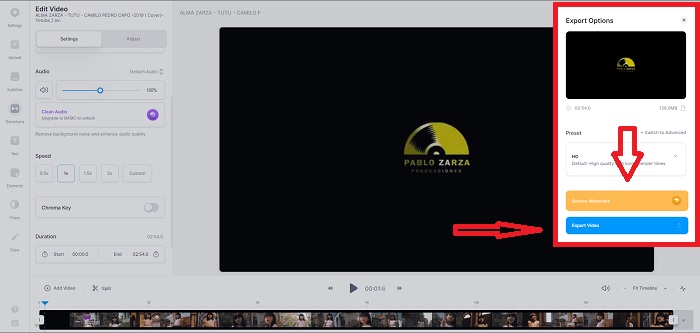
Steg 3: När du har redigerat din önskade videohastighet fortsätter du till exportfliken genom att klicka på Export. Under tiden kan du välja vilken kvalitet du vill ha på din video och ta bort vattenstämpeln genom att köpa premiumversionen av webbaserade verktyget. Om allt är klart överför du den konverterade videon till din dator genom att Exporting Video.
Del 2. 3 enkla steg för att sakta ner en video [Mobiltelefon]
Är du trött på att tänka på en lösning som svarar på hur man saktar ner en video på iPhone eller Android? Det finns många appar och verktyg tillgängliga på internet att använda för att motivera att det finns ett svar på det givna problemet. Men här är de bästa och mest tillgängliga verktygen vi rekommenderar att använda om du är en mobiltelefonredigerare och vill göra ett mästerverk av den lilla enheten du har.
Tillvägagångssätt 1. Använd iMovie
Du kan nu kontrollera uppspelningshastigheten eller sakta ner din video på din iPhone och iPad med denna kostnadsfria och användbara app som heter iMovie. Detta är en av de mest pålitliga apparna som finns för iOS‑enheter och som kan redigera din video och, viktigast av allt, ändra uppspelningshastigheten för en video. För att få veta mer om den här appen följer här stegen du behöver ta för att lösa problemet ovan:
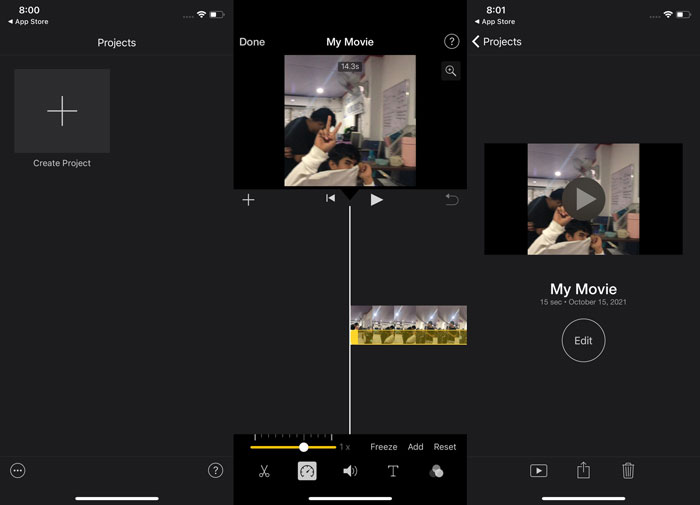
Steg 1: Börja redigera din film i iMovie på din iPhone eller iPad. Du kan få en kort genomgång av användargränssnittet innan du fortsätter. På sidan Projects klickar du på plustecknet för att lägga till ett nytt videoklipp. Välj sedan Movie i menyn New Projects.
Steg 2: Välj en video från din kamerarulle innan du går vidare till avsnittet Create Movie. Hastighetsverktyget ser ut som en speedometer och hittas genom att du trycker på videoklippet i tidslinjen och sedan väntar tills redigeringsverktygen visas. Spola tillbaka eller fram i ditt videomaterial genom att dra i den gula skjutreglaget längst ned. Jämfört med originalhastigheten kan saker accelereras upp till dubbla hastigheten eller saktas ned till en åttondel av hastigheten.
Steg 3: Klicka på Done uppe till vänster på telefonen när du är klar. Du kan spara din färdiga video genom att välja den i menyn Share och sedan bestämma var du vill lagra den.
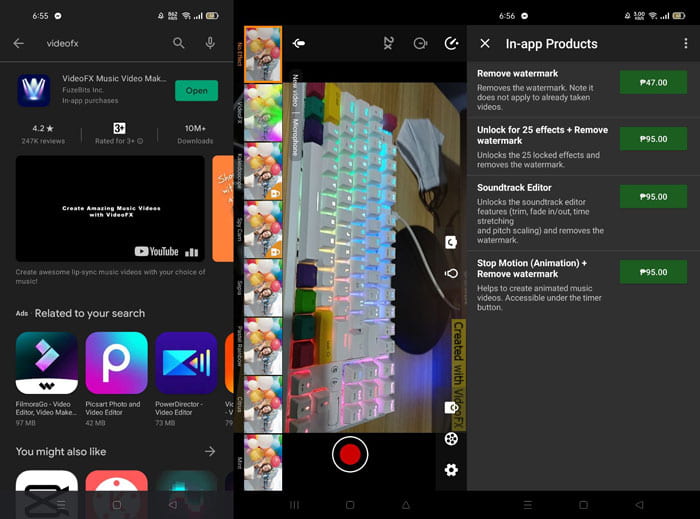
Tillvägagångssätt 2. Använd VideoFX Music Video Maker
Skapa dina musikvideor på några sekunder med verktyget VideoFX Music Video Maker. Allt du behöver göra är att spela in en video med en av de många tillgängliga effekterna, välja en låt och spara den i det interna minnet på din Android‑telefon. Eftersom du kan lägga på filter innan du spelar in videon är den mycket enkel att använda. På gott och ont är efterredigering inte möjlig; allt måste göras innan videon spelas in. Innan du börjar filma väljer du en låt som passar bra till din video. Du kan snabba upp eller sakta ner musiken, men ändringarna måste göras innan videon spelas in. Här är stegen att följa:
Steg 1: Ladda ner och installera VideoFX på din Android‑telefon.
Steg 2: Eftersom den här appens funktioner bara tillämpas när videon ändras startar du inspelningen genom att trycka på knappen Record.
Steg 3: Klicka sedan på 2x för att justera hastigheten på videon du spelar in. Innan du låser upp alla appens funktioner behöver du först köpa full åtkomst.
Del 3. Vanliga frågor om att sakta ner en video
Hur saktar man ner en video på iPhone?
Innehållsskapare och videofotografer har ett överflöd av verktyg att tillgå, och slowmotion är ett av de bästa. En video med fler bilder per sekund ger en mer njutbar tittarupplevelse. Ändå är nedsaktade videor inte alltid det bästa tillvägagångssättet i varje video du gör. I vissa fall är slowmotion helt enkelt inte lämpligt eller till och med onödigt. Som en följd av detta är ditt enda alternativ att återställa iPhone‑videor i slowmotion till normal hastighet.
Hur saktar man ner en video i galleriet?
Android- och iOS-telefoner har inställningsikoner att trycka på för att aktivera slo-mo- eller slow-motion-läge innan du spelar in video. Du bör spela in dina slowmotion-scener i serier på fem till tio sekunder för att undvika för mycket film.
Förlorar jag kvaliteten om jag saktar ner en video?
Nej, du kommer inte att förlora kvaliteten på en video, men du kommer att se upplösningen och bildhastigheten för din video sjunka för varje sekund du minskar på medelhastigheten. När uppspelningshastigheten för din video ökas eller minskas delas endast bildrutan. Att öka den får önskad effekt. Fem gånger så snabbt, det vill säga 60 bilder per 1/120 sekund. Med andra ord, såvida inte videon har en låg bildfrekvens kommer den inte att ha någon effekt.
Slutsats
Genom den här artikeln lär du dig alltså allt om olika metoder som varje operativsystem erbjuder för att hantera problemet med alla appar för att sakta ner en video. Det finns också steg för vissa nybörjare som saknar bakgrundskunskaper i videoredigering. Som rekommendation av en app som hjälper dig med uppspelningshastigheten på din video och med resten av de redigeringsverktyg en klippare använder, ladda ner programvaran Video Converter Ultimate för att få ut det bästa av att vara en professionell redigerare.
-
 Topp 4 bästa VOB -spelare för Android -mobiler för olika användningsområden
 När du laddar ner VOB -videor och vill titta på dem på Android kan du välja den mest lämpliga bland följande fyra VOB -spelare i den här artikeln.
-
 Topp 5 bästa Windows Media Player -alternativ för Android -mobiler
 Eftersom du inte kan ladda ner Windows Media Player för Android bör du läsa den här artikeln och lära dig om de 5 bästa alternativen till Windows Media Player.
-
 Topp 5 bästa videospelare för iPhone du inte får missa 2021
 För att spela upp videor i alla format och få en bättre tittarupplevelse på din iPhone, bör du läsa den här artikeln och lära dig om de bästa 5 videospelarna för iPhone 12/11/X/8/7/6.
